
Connectors
Connectors
What a connector is, how to add one for each Renteon instance of the brand, how connectors form a franchise tree, and what happens when a connector is inactive, slow or failing.
Last updated
A brand often runs on more than one Renteon instance. A brand may have one instance per country, each run by a different franchisee, or a separate instance for a second fleet. Brokers do not want to deal with each instance on its own. They want one brand, one contract, one login and one set of codes. The Aggregator gives them that, and the connector is what makes it work.
A connector is the Aggregator's link to one Renteon instance of the brand. It holds the address of that instance and the Renteon login the Aggregator uses to read it. A brand with instances in Croatia and Greece has two connectors. A franchise network with forty instances has forty. Brokers search the brand, which the menu and the API call the Provider, and the Aggregator asks the connectors behind it. To the broker, the many instances look like one brand.
You manage connectors under Provider → Code book → Connectors. You need the role Connector edit (code ConnectorEdit). This guide explains:
- what connectors are used for
- how to add and test a connector
- how to arrange connectors in a tree for franchise groups
- who sees which connectors
- what happens when a connector is switched off or its Renteon instance is slow.
Add the connectors early, as one of the first steps of setting up a brand. Every mapping, every partner and every report depends on them. The full order is in Setting up a brand in the Aggregator: checklist.
What a connector is for
Almost everything in the Aggregator is organised by connector. Before you add one, it helps to know what hangs on it:
- Searches. A broker sends one search to the brand. The Aggregator passes it to the brand's connectors at the same time and merges their answers into one list. Only connectors that serve the requested pick-up and drop-off locations and have this broker enabled are asked. Each car in the list remembers the connector it came from.
- Bookings. When the broker books a car, the booking is created in the Renteon instance that offered it. For every later step on that booking (open, cancel, print), the broker sends the connector's ID back, so the Aggregator knows which instance holds it. The franchisee then handles the booking in its own Renteon, like any other booking.
- Mappings. Each instance has its own offices, car categories, extras and pricelists. You link them to the brand's shared codes once per connector. The Croatian instance's Zagreb Airport office is linked to the brand's code for Zagreb Airport, the Greek instance's Athens Airport office to the code for Athens Airport, and the same SIPP code, for example CDMR, works in both. In the same way, one rate code of the brand, for example CP-WI-01, is mapped to each instance's own pricelist. See Mapping locations and car categories, Mapping services and extras and Rate codes and pricelist mapping.
- Partners. A broker is enabled per connector, with that instance's own Renteon B2B user for the broker. You can let a broker sell Croatia but not Greece. See Partners: enabling brokers and websites on a connector.
- Reports. The bookings of each instance are imported into the Aggregator's reports connector by connector. The franchisor sees network totals and can split or filter every report by connector, that is, by franchisee.
- Users. A user can be limited to some connectors. A franchisee's staff then see only their own instance in the Aggregator.
Name connectors with outsiders in mind. A broker enabled on a connector sees the connector's Name and URL in the provider details it downloads, together with its country, languages, currencies and car categories. Choose names a broker understands, such as "YourBrand Croatia" and "YourBrand Greece", not "Test 2" or a franchisee's internal nickname.
The connector list
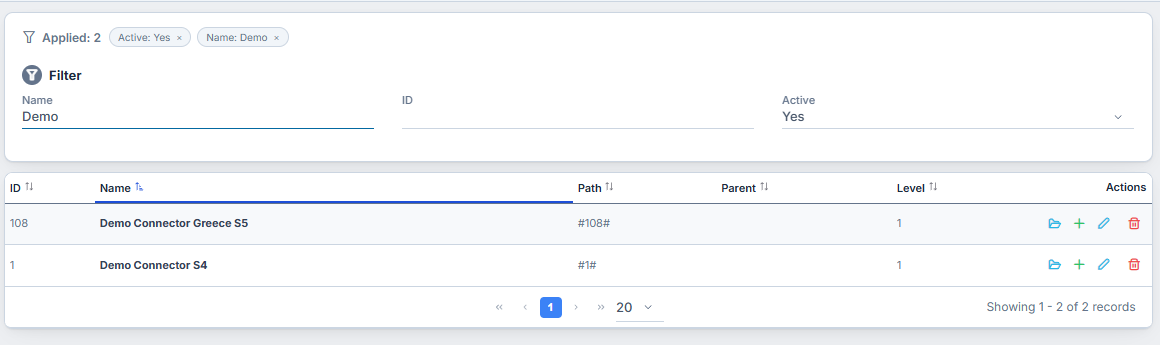
Provider → Code book → Connectors opens the list of the brand's connectors.
The Filter panel at the top has three fields:
- Name: finds connectors whose name contains the text you type.
- ID: finds one connector by its number. When you fill in an ID, the other two fields are ignored, so you also find the connector if it is inactive.
- Active: Any, Yes or No. The default is Yes, so inactive connectors stay hidden until you choose Any or No.
The search runs when you press Enter, when you click Search at the bottom, or when you remove a filter with the x on its chip in the bar of applied filters above the fields. Changing a field alone does not search. The list keeps your filter when you open a connector and come back.
The list has these columns:
- ID: the connector's number. Brokers see this number in every search answer.
- Name
- Path: where the connector sits in the tree, for example #1# for a connector at the top and #1#5# for connector 5 under connector 1.
- Parent: the name of the connector above it, if any.
- Level: 1 for a connector at the top, 2 for one directly under it, and so on.
- Actions
The list is sorted by Name, and you can sort by any column except Actions. Inactive connectors are shown in red and struck through.
The buttons in the Actions column depend on the row:
- Open (folder icon) opens the connector read-only. Double-clicking the row does the same.
- On an active row: Add new (plus icon) starts a new connector under this one, Edit (pencil) opens it for editing, and Delete (bin) switches it off (see Deactivating and reactivating below).
- On an inactive row: Activate switches it back on.
At the bottom, Reset parameters clears the filter, Search runs it, and Add starts a new connector at the top of the tree.
Adding a connector
Before you start, get two things from whoever runs the Renteon instance (the franchisee or Renteon support): the address of the instance, and a Renteon user that the Aggregator may use. The next section explains which user.
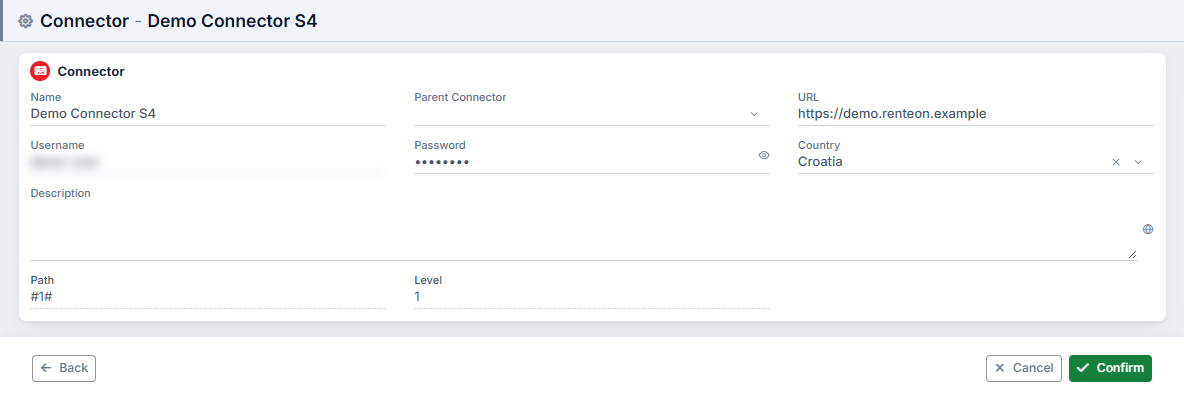
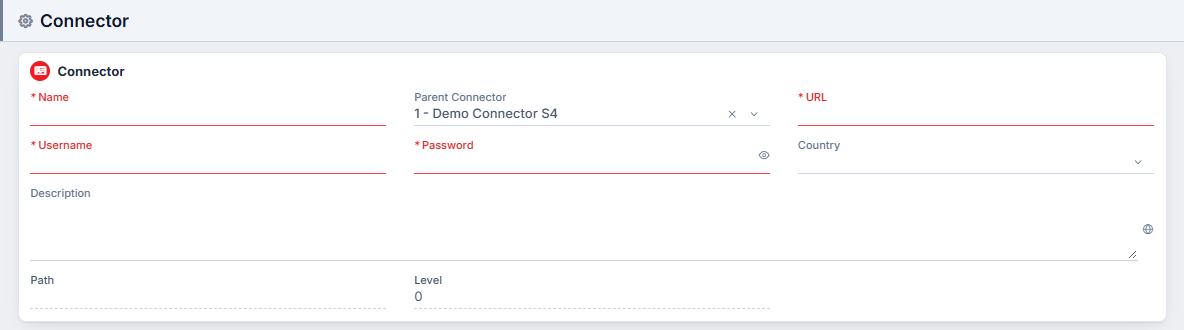
Click Add at the bottom of the list, or Add new on a row to put the new connector under that one. The connector screen opens in edit mode. The Connector panel has these fields, in order:
- Name (required). The name brokers, reports and every connector list show.
- Parent Connector (optional). The connector this one belongs under. The list shows each connector as its ID and name, for example "1 - Demo Connector S4". If you came from Add new, it is already filled in. Clear it to put the connector at the top. See Connector tree for franchise groups below.
- URL (required). The base address of the Renteon instance, scheme and host only, for example https://yourbrand-croatia.renteon.com. Do not add a language or path such as /en or /api: the Aggregator adds those itself. A slash at the end does no harm. The address is not checked when you save. Test connection shows whether the Aggregator can sign in with it.
- Username and Password (required). The default Renteon login of this connector, described in the next section. The password is masked; the eye icon shows what you typed.
- Country. The country the instance serves. You can choose one. Brokers see it as the connector's country in the provider details. It is for information only: which searches reach the connector depends on its location mappings, not on this field.
- Description. An internal note, which you can enter per language. It is not shown to brokers or anywhere else.
- Path and Level. Always read-only. The Aggregator fills them in when you save.
Confirm (or Ctrl+S) becomes available once Name, URL, Username and Password are filled in. After you save, "Data saved" appears and the connector reopens read-only, ready for Test connection. Cancel drops your changes. If you try to leave the screen with unsaved changes, the Aggregator asks first.
To change a connector later, open it and click Edit (or Ctrl+E), or use Edit on its row in the list.
A new connector is only the first step. Brokers find nothing on it until its locations, car categories, rate codes and at least one partner are mapped. Then it starts answering searches.
The default Renteon user
The Aggregator signs in to a Renteon instance in up to three different ways. Each has its own login:
- The default login (the connector's Username and Password). The Aggregator uses it to read the instance's set-up data: offices, meet and greet points, drop-off locations, car categories, services and settings. This data feeds the mapping screens, the counts on the Dashboard (the start page) and the set-up data brokers download. Test connection uses this login too.
- The broker's Renteon B2B user, one per broker and connector, entered under Provider → Mappings → Partners. It is not the broker's own login to the Aggregator, which Renteon support keeps on the partner record. Every search, booking, cancellation and print for that broker runs under this login. In Renteon, the booking therefore belongs to that broker's partner, with that partner's pricelists and conditions. The default login is never used for bookings.
- The External API login, which only Renteon support sets up. It is used only to import the instance's bookings into the reports (see the last section).
For the default login, use an active Renteon user of that instance. It must see every office and car category you want to offer through the Aggregator. Many brands ask each franchisee to create a dedicated user for the Aggregator, so that nobody changes or switches it off by accident. Of the demo connectors, Demo Connector S4 uses the user that Renteon creates for web bookings, and Demo Connector Greece S5 has a dedicated user.
If someone changes this user's password in Renteon, or switches the user off, update the connector at once. Searches and bookings keep working, because they use the brokers' B2B users. But the location, car category and service mapping screens show nothing for this connector, the Dashboard can no longer refresh it, and brokers get incomplete set-up data.
Warning: The Aggregator regularly compares its mappings with what the default user sees: when someone clicks the Refresh icon in the connector's row on the Dashboard, and every day at 06:10 server time. If the user later sees fewer offices or car categories in Renteon, for example because its rights or offices were restricted, the mappings to the offices and categories it no longer sees are switched off. Brokers then stop getting those offices and categories. Change the default user's rights in Renteon only with this in mind.
Testing the connection
Test a connector after you create it and whenever you change its address or login. Open the connector (not in edit mode) and click Test connection at the bottom. The button appears only for a saved connector and only while you are not editing. If the instance is slow, the message "This action can last up to few minutes. Please wait." appears after a few seconds.
What you can see:
- Success: "Testing connection - ok", and a box under the fields with Renteon's sign-in answer. That box contains a live access key to the instance. Do not copy it, send it or show it in screenshots. It disappears when you leave the screen.
- "Testing connection failed": Renteon refused the sign-in. Usually the username or password is wrong, or the user is inactive in Renteon.
- An error about the address: the URL has no https:// in front, or the host cannot be reached. Check the URL for typing errors and ask Renteon support whether the instance is available.
- "Connector with Id … is disabled.": the connector is inactive. Activate it first.
A URL with an extra path, such as /en, can still pass the test, because Renteon accepts the sign-in there too. Every later call then fails: the mapping screens stay empty and searches find nothing. So check that the URL is scheme and host only, even when the test works.
Test connection proves only that the default login can sign in. It does not check what the user is allowed to see. The counts on the Dashboard, updated every day at 06:10, show that: if a connector's total of offices or car categories is zero, its default user sees too little. It also does not test the brokers' B2B users. Those have their own Test connection on Provider → Mappings → Partners, which also runs automatically when you save an active partner. The External API login has no test button. Renteon support checks it by opening the connector and looking at the Franchises panel (see the last section).
Connector tree for franchise groups
Connectors can be arranged in a tree. When a connector has a Parent Connector, it sits under that connector. You can use this to show how the network is organised. A master franchisee for a region can be the parent of its sub-franchisees, or a franchisee that runs two instances can have both under one parent.
To create a connector under another, click Add new on the parent's row in the list. Parent Connector is then already filled in. You can also choose or change the parent on any connector in edit mode. The Aggregator works out Path and Level when you save. A connector at the top has level 1 and a path such as #1#. A connector under it has level 2 and a path such as #1#5#.
The tree does one thing: it passes user access down.
- A new connector under a parent: every user who is linked to the parent is linked to the new connector as well. A regional manager who sees the master franchisee's connector also sees each sub-franchisee you add under it, from their next sign-in.
- Moving a connector from one parent to another: users of the old parent lose their link to it, and users of the new parent get one.
- Clearing the parent, so that the connector moves to the top: users of the old parent lose their link to it.
- Moving a connector that was at the top under a parent: no one is linked automatically. Tick the connector by hand for the parent's users.
- Ticking a connector on a user's Connectors panel: every connector under it is ticked too (see Who sees which connectors).
- Moving a connector that has connectors under it: those connectors keep their old Path and Level until each of them is saved again. This changes only what the list shows.
The tree does nothing else. It does not decide which connectors get a search. It does not add the children's figures to the parent in reports. A child does not share its parent's mappings, partners or rate code mappings: every connector is mapped on its own.
Warning: Never choose one of a connector's own children, or one of their children, as its parent. The Aggregator refuses only the connector itself ("Invalid parent. The connector cannot be the parent to itself."). It does not stop a loop: such a save does not finish, and the connectors are left in a state only Renteon support can repair.
Who sees which connectors
Each user has a Connectors panel on their user record (Provider → Code book → Users, tab Basic). There you tick the connectors the user may see. The panel shows them as a tree: ticking a connector also ticks every connector under it, and those stay ticked while it is ticked. The rule is simple, but it has one surprise:
- A user with some connectors ticked sees only those connectors: in the connector list, in the connector choices of the mapping screens, on the Dashboard and in every report.
- A user with no connector ticked sees all connectors of the brand.
- Renteon support (system users) always sees all connectors.
The Aggregator reads the user's connectors when the user signs in. A change takes effect the next time they sign in.
The connector lists you can choose from are limited in the same way. The Parent Connector field and a user's Connectors panel offer only the connectors you see yourself. This does not fully protect the other instances: a user saved with no connector ticked sees all connectors, so anyone who may edit users can give a user access to the whole network, even if they see only their own connector. Give the right to edit users only to people who may see every instance. More on users and their access is in Users, roles and brand settings.
Warning: A user who is not a system user and creates a connector is linked to it automatically. If that user had no connector ticked before, and so saw everything, they see only the new connector after their next sign-in. A user who already had some connectors ticked sees the new one only after signing in again. After someone other than Renteon support creates a connector, check that user's Connectors panel.
Deactivating and reactivating
There is no separate Deactivate button. Delete on a row (confirm with "Are you sure?") switches the connector off if it is already in use anywhere, for example if it has a country, a user, a child, a service or rate code mapping or a ticked franchise, or has been counted on the Dashboard. In practice this is every connector except one that Renteon support has only just created: a brand user who creates a connector is linked to it at once (see Who sees which connectors). The message still says "Data deleted", but the connector and everything linked to it are kept. A brand-new connector with none of these links is deleted for good, together with any location, car category and partner mappings already made on it.
To bring a connector back, set Active to Any or No in the filter, find the connector and click Activate on its row. Its mappings, partners and user links are still there, so it works again at once.
While a connector is inactive:
- It is left out of brokers' searches, the connector choices on the mapping screens, the Dashboard, the daily mapping check and the set-up data brokers download.
- No new bookings are imported from it into the reports. Its report history stays, and the reports dashboard shows the connector with an Inactive badge.
- Its mappings, partner settings and user links stay unchanged.
Warning: Every broker call that names an inactive connector fails, with "Connector with Id … is disabled." or, when opening or creating a booking, "Connector with Id … does not exist.". This includes calls for bookings already made on it. Brokers can no longer open, cancel or print those bookings through the Aggregator, so the franchisee has to handle them directly in Renteon. Before you switch off a connector that still has upcoming bookings from brokers, agree with the brokers and the franchisee how those bookings will be handled.
When a Renteon instance is slow or down
The Aggregator depends on each Renteon instance answering in time. It handles a slow or failing instance differently depending on what the broker is doing:
- Searches: the Aggregator waits about five seconds for all connectors together, then returns what it has. A connector that answers later, fails, or is too busy is left out of that answer. A busy instance is one where Renteon is under heavy load and says the service is temporarily unavailable. No message reaches the broker, and the Aggregator records nothing. The broker simply sees fewer cars, or none from that instance.
- Set-up data: when a broker downloads the brand's set-up data, the Aggregator waits up to 15 seconds for office details such as working hours, and less for car categories and settings. Whatever is missing stays empty. The result is kept for 5 minutes, so an outage at that moment can affect the set-up data for a few minutes after it.
- Booking, opening, cancelling and printing: these go to one connector only and wait much longer. If Renteon refuses the request, the broker gets Renteon's own error message.
The Aggregator does not log its search calls to the Renteon instances. If brokers report that one instance's cars are missing, run Test connection on that connector. If the test works, ask Renteon support to check the requests and the load on that Renteon instance. Also check the broker's B2B user with Test connection on Provider → Mappings → Partners: a broker whose Renteon B2B user stopped working loses that instance in the same silent way.
When changes take effect
- Saving or activating a connector: the Aggregator forgets the Renteon sign-in it had stored for that connector at once. A new URL, username or password is used on the very next call.
- Mapping changes: brokers see them on their next search.
- The provider details brokers download (connector names, offices, car categories): updated within 5 minutes.
- A new connector in other screens: the connector choices on the mapping screens, in report filters and in the Parent Connector field are read once per page load. Reload the page (F5) to see a connector you have just added.
- A change to a user's connectors, including the automatic links described above: takes effect when that user signs in again.
External API and Franchises (Renteon support)
When Renteon support opens a connector, it sees two more panels that brand users do not see. Both serve only the franchise reports. External API holds the username and password of a Renteon user of that instance. The Aggregator uses this login only to import the instance's bookings into the reports and to list the instance's Renteon franchises. Franchises shows check boxes for those Renteon franchises, plus Without franchise for the bookings of the instance's own business. It decides which of the instance's bookings are imported. Until at least one box is ticked, nothing is imported from the connector. Neither panel has any effect on searches or bookings. If you want reports for a connector, ask Renteon support to fill in both panels. How the import works and which reports it feeds is described in Franchise reports in the Aggregator.
Next step: Mapping locations and car categories, where you link each connector's offices and car categories to the shared codes.
Related guides: