Integrations
Rently integration
Import bookings, changes and cancellations from Rently into Renteon: credentials, the import start date, mappings, how prices and extras are taken over and how to deal with bookings that are not imported.
Last updated
With the Rently integration, Renteon reads the bookings made for you in Rently through Rently's interface and keeps them up to date in Renteon: new bookings become reservations, changes update them and cancellations cancel them. Nobody has to copy Rently bookings by hand.
The integration works in one direction, from Rently into Renteon. Changes you make in Renteon are not sent back to Rently.
This guide covers what is specific to Rently. How the mapping screen works in general is explained in Integration menu and mappings.
How the import works
About every 46 minutes Renteon asks Rently which bookings changed since the last run, reads each changed booking (with its additional drivers) and imports it. The first run starts from the date you set in Import - Date from; every later run continues from the last change Rently listed, with a 30-minute overlap so that nothing is missed.
Renteon does not import:
- quotes and internal transfers;
- bookings that are already delivered or closed in Rently, so a change made in Rently after the car was handed over does not reach Renteon;
- bookings whose pick-up place is not mapped on the Offices tab (see the warning below);
- bookings that were cancelled in Rently before Renteon ever read them;
- a version of a booking Renteon has already read.
Customers' card details from Rently are removed before Renteon stores a booking.
What you need
From Rently:
- the address of the Rently interface (Base API url), and a username and password with access to it.
In Renteon, for each Rently agency whose bookings you receive, a partner in Sales → Address book → Search. On the Pricelists tab of its address book card, the partner needs an active car pricelist with Agency pricelist ticked (used when the agency pays the rental) and one without it (used when the customer pays). Both must be in the currency in which the agency's bookings come from Rently. See Pricelists.
Switch the integration on
- Go to Administration → Code book → Settings, tab Integration, and click Edit. You need the Application settings management role.
- Tick Enable Integrations Module if it is not ticked yet.
- Tick the checkbox in the header of the Rently panel. The panel opens.
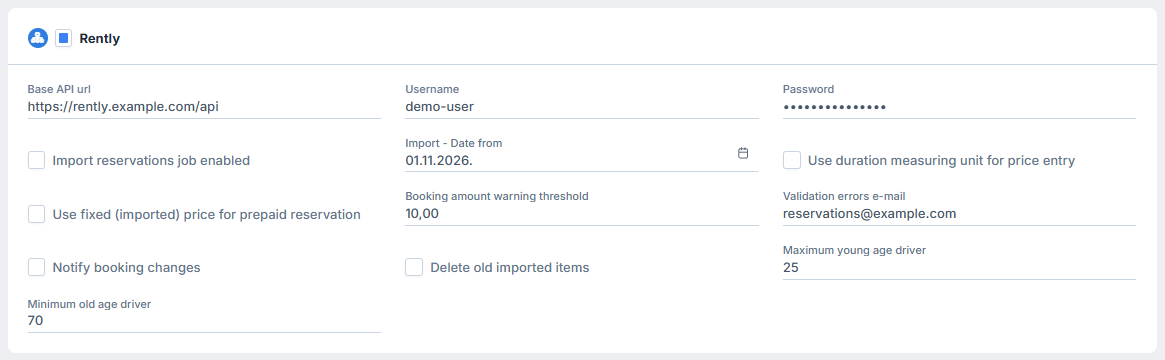
- Fill in Base API url, Username, Password and Import - Date from. All four are required.
- Leave Import reservations job enabled unticked for now.
- Click Confirm. Administration → Integration → Rently appears in the menu.
- Map car categories, offices, services and partners (see below).
- Come back to the settings, tick Import reservations job enabled and click Confirm. The next run starts the import.
Warning: Import - Date from is used only until Rently lists the first changed booking. After that, Renteon continues from the last change it received, and changing the date has no effect. Choose a date that does not go too far back: every booking changed since then, including old ones, is read in the first run.
Options in the Rently panel
- Base API url, Username, Password: the access to Rently. They are also used to fill the lists on the mapping screen.
- Import reservations job enabled: the import runs only while this is ticked. Untick it to pause the import; nothing is lost.
- Import - Date from: where the first run starts, see above.
- Use duration measuring unit for price entry, Disable price increase caused by calculation, Use fixed (imported) price for prepaid reservation and Booking amount warning threshold: how the Rently price is entered on the booking (Disable price increase caused by calculation is shown only while Use duration measuring unit for price entry is ticked). They work as described in Integration menu and mappings.
- Validation errors e-mail: the address that receives the import reports and the "import it manually" messages. Fill it in; without it nobody is told when a booking is not imported.
- Notify booking changes: has no effect for Rently. Renteon does not send booking changes to Rently.
- Delete old imported items and Keep imported items (months): clean-up of the import log, see the last section. Keep imported items (months) is shown once Delete old imported items is ticked.
- Maximum young age driver and Minimum old age driver: used to pick the right driver-age service, see "Extras and driver age" below.
Map car categories, offices, services and partners
Open Administration → Integration → Rently and click Edit. Each tab saves with its own Save button. On the first three tabs Renteon shows Rently's own lists, read live from Rently, and you pick entries from them:
- Car categories: next to each car category, pick the Rently category (or categories) it stands for.
- Offices: next to each office or meet-and-greet location, pick the Rently place. Places are shown with their name, branch office and category. Map every place where Rently customers pick up or return cars. A Rently place that is a drop-off point can be mapped to a drop-off location.
- Services: next to each extra, insurance or fee, pick the Rently additional it stands for.
- Partners: a table with the columns Partner and Code. Click Add, pick the partner and type the agency's code from Rently (its IATA code), exactly as Rently has it. Every Rently booking is booked for the partner mapped to its agency. Each partner gets one row: Save refuses the same partner or the same code twice with "Duplicate mappings". Several agency codes for the same partner go in one row, separated by a semicolon (;).
If the lists stay empty, Renteon could not reach Rently: check the three access fields in the settings.
Warning: A booking whose pick-up place is not mapped is skipped without any e-mail. If Rently bookings for a branch never arrive, first check that its places are mapped on the Offices tab. Once you map a place, a skipped booking is imported the next time it changes in Rently; otherwise enter it by hand.
Prepaid or pay on arrival
Renteon looks at who pays the rental line of the Rently booking:
- The agency pays: the partner becomes the Agency and the booking uses the partner's agency pricelist.
- The customer pays: the partner becomes the Commissioner and the booking uses the partner's other pricelist.
The booking currency in Rently must be the currency of that pricelist. If it is not, the booking is not imported and the e-mail says so.
How a Rently booking looks in Renteon
- It is a reservation. If the booking is on request in Rently, it is on request in Renteon too, see On request bookings.
- Pick-up and return date and time are taken over as Rently shows them, in your local time. The offices come from the mapped places; a custom address of the pick-up or return place becomes the delivery or collection location.
- The customer (name, e-mail, mobile phone, address, country, driving licence number, date of birth) and the additional drivers named in Rently.
- The car category mapped to the Rently category.
- Voucher number: the agency's own reference from Rently, if there is one. Flight number: the arrival flight from Rently.
- Excess and theft excess from Rently, when Rently sends them.
- Integration remark: "Rently booking:" with the Rently booking number, followed by Rently's booking code, the return flight, what the customer and the agency already paid in Rently, and Rently's extra notes. Notes about price differences and extras are added here too.
Renteon recognises a Rently booking later by the Rently booking number. A booking that a user entered by hand is not linked to Rently: if Rently changes that booking later, Renteon imports it as a new booking.
When a booking is cancelled in Rently, Renteon cancels it with the reason Other. If a booking that the import cancelled is confirmed again in Rently, Renteon creates a new booking. A booking that you cancelled in Renteon is not brought back by a later Rently change; that change is reported as an error. In the same way, a booking that is already a contract in Renteon is not changed or cancelled by Rently: the change is reported as an error, and you handle it by hand.
Prices, extras and driver age
Renteon takes the total of the Rently booking. Each extra (Rently additional) that is mapped becomes a selected service on the booking, with Rently's quantity and price; Renteon enters the price without VAT. When Rently's price differs from the price in your pricelist, Rently's price is used, and a note in Integration remark and a warning in the import e-mail say so. Who pays the extra in Rently (agency or customer) decides whether it is an agency or a client item on the booking. What remains of the total after the extras is the rental price. When Rently shows an agency price, Renteon also compares it with the agency part it calculated and reports a difference larger than Booking amount warning threshold as a warning.
A few situations are handled specially:
- An extra that is not mapped: the booking is not imported, and the e-mail names the Rently additional.
- A Rently price line without an additional (for example a promotion or a delivery charge): it stays part of the rental price, and a note in Integration remark says so.
- An extra the booking cannot offer: when a mapped extra has a price but your pricelist does not offer that service, its amount is added to the rental price and noted in Integration remark.
- Out-of-hours fee: if Rently charged one and the booking is outside your office's working hours, Renteon puts the fee on your out-of-hours service. If the booking is within working hours in Renteon, the fee is added to the rental price and noted.
- Pick-up date in the past: the booking is imported with a warning, because Renteon may cancel an expired reservation automatically.
If you map one Rently additional to both your young driver and your senior driver service, Renteon chooses between them by the customer's age at pick-up: up to Maximum young age driver it takes the young driver service, from Minimum old age driver the senior driver service. If the age fits neither, or is unknown, it takes neither, adds the amount to the rental price and writes a note. For example, with 25 and 70, a customer aged 23 gets the young driver service, one aged 72 the senior driver service, and one aged 40 neither.
If an additional is mapped to only one of the two services and Rently does not give the customer's age or date of birth, Renteon records the driver's age as Maximum young age driver (young driver service) or Minimum old age driver (senior driver service).
Errors and where to see them
Renteon sends the reports to the Validation errors e-mail, with the subject "RENTLY reservations import log". There are two kinds of problems:
- Mapping problems (an agency, category, return place or additional that is not mapped, a missing pricelist, a currency that does not match): the booking is not tried again by itself. Fix the mapping. The booking is imported the next time it changes in Rently; if it does not change, enter it by hand.
- Other problems: Renteon tries again in the next runs, 5 times in all. Then it gives up and sends an e-mail "Renteon was unable to automatically import reservation … after 5 attempts", with the booking as Rently sent it attached, so that you can enter it by hand. If Renteon could not even read a booking from Rently 5 times, the e-mail says so; the booking is read again when it changes in Rently.
You can also follow the imports in Car control → Reports → Audit, report Integration bookings log (role Reports - audit), with Rently selected under Integration. To find one booking, type its Rently booking number under Integration - Number. On an imported booking, Actions → Open booking source data shows what Rently sent.
Clean-up of old data
With Delete old imported items ticked, old import log entries are deleted as described in Integration menu and mappings. The bookings Renteon read from Rently themselves are currently kept.