
Fleet
Fleet reports: car papers and expenses
Excel exports of the papers and costs recorded on each car, and the income and expense comparison that sets what a car, model, category or make earned against what it cost.
Last updated
This guide explains the reports in two groups of the car fleet reports.
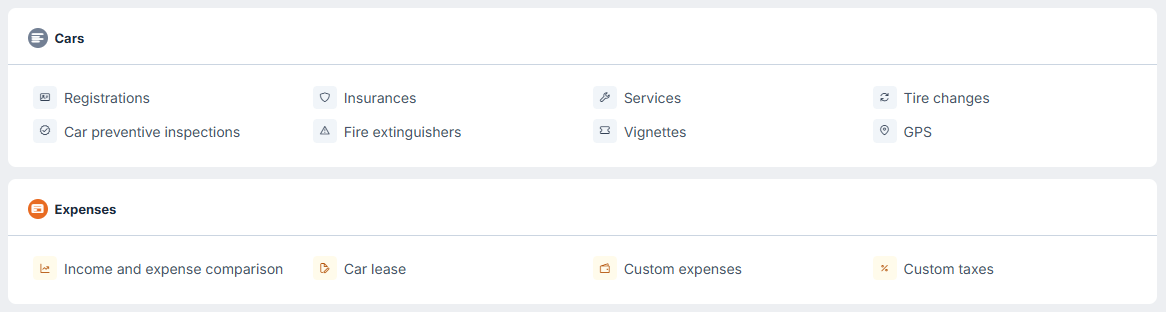
The Cars group has eight reports: Registrations, Insurances, Services, Tire changes, Car preventive inspections, Fire extinguishers, Vignettes and GPS. Each one exports the records of one kind that you keep on your cars, with their dates, the company involved and the cost.
The Expenses group has Car lease, Custom expenses and Custom taxes, which export the remaining car costs in the same way, and Income and expense comparison, which sets what your cars earned in a period against what they cost.
Use them for questions like these. Which registrations did we renew last year, and what did they cost? Which policies does one insurer hold on our cars? Which cars have a service due by mileage? How much vehicle tax did we pay this year? Which car models still make money once leases, insurance and services are paid?
The first sections explain what all these reports have in common. Then each report gets its own section, and the last sections explain how Income and expense comparison works and how to read it.
Where to find these reports and who can open them
In the left menu, open Car control → Reports → Car fleet. This page lists all car fleet reports in groups. The reports in this guide are in the Cars and Expenses groups.
The title of each report page is the same as its link on the Reports page, with one exception: the Custom expenses link opens a page called Car expenses.
To open these reports, a user needs the role Reports - fleet. The reports only read records that are entered on the car card. To enter or change those records, a user needs the role Fleet management.
How the Reports page and every report screen work in general (search, the info icon, filters, Reset, Export to Excel, remembered filters, date filters, assigning roles) is explained in Reports: overview and dashboard.
Where the data comes from
Every row in the Cars reports and in Car lease, Custom expenses and Custom taxes is a record that someone entered on a car card. Open Fleet → Fleet → Cars, open a car and use its tabs: Registrations, Insurances, Services, Tire changes, Car lease, Car preventive inspections, Fire extinguishers, Custom taxes, Custom expenses, Vignettes and GPS. For how to find your way around the car card, see Opening a car card.
Each record has its own details, for example the start and end date of a registration, or the number, type and validity of an insurance policy. It also has the company involved and an Expenses block with the cost:
- Price entry type decides whether you type the net price or the gross price. You always type the VAT amount, and Renteon works out the third amount.
- Currency is the currency of the cost.
- Number of installments and Equal rates set the payment plan. When you type a net price, Renteon proposes 12 instalments. When you type a gross price, it proposes one. With several instalments, each one is due on the last day of a month, starting with the month of the record's date. With one instalment, it is due on the record's date. You can change the number of instalments, and with Equal rates switched off you can correct single instalments.
The Expenses block stays locked until the record's main date is filled in (for example the registration start date or the service date), because the payment plan is built from that date. If you enter a price, you need at least one instalment.
Only records that exist on the car card appear in the reports. When you delete a record, it disappears from the reports as well.
How the car reports work
The eleven car reports (the eight in Cars plus Car lease, Custom expenses and Custom taxes) have no list on the screen. You set the filters and click Export to Excel. Renteon builds an Excel workbook and your browser downloads it. Reset clears all filters.
Every workbook has three sheets:
- The main sheet has one row per record. It shows the car (inventory code, plate number, model, SIPP, chassis and engine number, and whether the car is active), the record's own details, the cost (currency, net price, VAT and gross price), whether a document is attached, and who created and last changed the record and when.
- The second sheet, named after the report with (Details) added, has the payment plan of every record: one row per instalment with its number, payment date, net price, VAT, gross price and currency. Both sheets carry the record's ID, so you can match instalments to their record.
- The Selected report filters sheet lists the filters you used and when the report was made.
Each report has its own filters first, described in its section below. These filters come after them on every report:
- Active car: Any (the default) includes all cars. Yes keeps only cars that are active now, No only inactive cars.
- Last record only: keeps only the newest record per car. Each section below says which date decides what is newest.
- Car category, Car category group and Car fleet: keep the records of cars that are now in the selected categories, groups or fleets. Renteon uses the car's current values, not the ones it had when the record was entered.
- Registration plate number: part of the plate is enough. It is matched against the car's current plate. Registrations is the exception: there it is matched against the plate written on each registration, so you can also find registrations made under an older plate.
- A company field at the end of most reports, with a label that depends on the report. You pick one company from the address book. The magnifier opens the full address book search.
Date filters always come in pairs, From and To. Fill in only one of them for an open range. Mileage fields accept whole numbers only.
Warning: Last record only is applied after all other filters. It keeps the newest record among the records that match, not the newest record the car has. If you combine it with a date filter, a car can show an old record even though it already has a newer one outside your dates.
Finding papers that expire soon
These reports do not mark anything as expiring or expired. Every record is exported the same way, and you read the dates in the Excel file.
To get a list of what expires soon, use Fleet maintenance in the Activities group. It has one tab per kind of deadline (services, registrations, insurances, inspections, fire extinguishers, lease buy-back, vignettes and tire changes) and lists the active cars whose date is near or has already passed. See Fleet reports: activities and equipment.
The car reports are the right place when you need the history and the costs behind those dates, for example all registrations of a fleet over three years with what each one cost.
Users can also receive the expiring lists as a notification, by e-mail or inside Renteon, with an Excel list attached. Each user subscribes in the user menu under Notifications, for example to List of vehicles - registration expired or Vehicle List - Insurance Expiration. How many days in advance a car counts as expiring is set under Administration → Code book → Settings, on the Notifications tab, in Number of days for vehicle notifications (0 to 30 days; if it is empty, Renteon uses 10). Renteon prepares the lists once a day.
Registrations
Registrations exports the car registrations from the car's Registrations tab. Each row shows the registration start and end date, the plate number written on the registration, the traffic licence number, the company that did the registration and the cost.
Its own filters:
- Registration start date - From and Registration start date - To.
- Registration end date - From and Registration end date - To.
- Company: the company that did the registration. Only address book companies of the type Station for technical inspection of vehicles are offered.
Last record only keeps the registration with the latest start date per car.
When you save a registration, Renteon copies the plate number, end date and traffic licence number of the car's newest registration (the one with the latest end date) to the car itself. That is why a car's plate number on the car card can change after you enter a new registration.
Insurances
Insurances exports the policies from the car's Insurances tab. Each row shows the policy number, the insurer, the insurance type, the validity, the car's office, the invoice number, the insured sum with its own currency, the premium and the remark.
Its own filters:
- Policy valid from - From and Policy valid from - To.
- Policy valid to - From and Policy valid to - To.
- Policy number: part of the number is enough.
- Insurance provider: one or more insurers. Only address book companies of the type Insurance company are offered.
- Insurance type: one or more insurance types, for example compulsory or comprehensive cover.
Last record only keeps the policy with the latest Policy valid from date per car, whatever its type. A car with a compulsory and a comprehensive policy therefore shows only one of them.
Warning: With Last record only ticked and no Insurance type selected, you get one policy per car, not one per type. To get the newest policy of each type, export once per type with one Insurance type selected.
Services
Services exports the service orders from the car's Services tab. Each row shows the service date, the service type, the description, the mileage at the service, how many days the service took, the next service date and mileage, the service company, the invoice numbers, the remark and the cost.
The row also shows the car's current mileage and the mileage remaining until the next service: the next service mileage minus the car's current mileage. If one of the two is empty, Renteon counts it as 0, so check the row before you rely on that number.
The workbook has a fourth sheet, Service expense type, with the cost lines entered on each service order: expense type, quantity, item code, net, VAT and total amount, and currency.
Its own filters:
- Date of service - From and Date of service - To.
- Next service date - From and Next service date - To.
- Mileage - From and Mileage - To: the mileage at the service.
- Type: one or more service types.
- Company: the service company. Any company from the address book is offered.
Last record only keeps the service with the latest service date per car, whatever its type. To see the last regular service of each car, select that service type in Type as well.
Tire changes
Tire changes exports the tire changes from the car's Tire changes tab. Each row shows the date, the type of change, the office where it was done, the mileage, the next tire change mileage, the invoice numbers, the remark, the company and the cost.
For each of the four wheels (front left, front right, rear left, rear right) the row has its own columns: tire make, model, DOT, dimensions, load and speed index, and season.
Its own filters:
- Tire change date - From and Tire change date - To.
- Mileage - From and Mileage - To: the mileage at the tire change.
- Type: one or more tire change types.
- Company: the company that changed the tires. Only address book companies of the type Service company are offered.
Last record only keeps the tire change with the latest date per car.
Car preventive inspections and fire extinguishers
Car preventive inspections and Fire extinguishers work the same way. The first exports the periodic technical inspections from the car's Car preventive inspections tab. The second exports the fire extinguisher inspections from the car's Fire extinguishers tab. Each row shows the inspection date, the mileage, the next inspection date, the inspection company and the cost.
Their own filters:
- Preventive inspection date (or Inspection date on Fire extinguishers) - From and To.
- Mileage - From and Mileage - To: the mileage at the inspection.
- Next inspection date - From and Next inspection date - To.
- Company: the inspection company. Any company from the address book is offered.
Last record only keeps the inspection with the latest inspection date per car.
Vignettes
Vignettes exports the vignettes from the car's Vignettes tab. Each row shows the vignette number, the validity, the vignette provider, the invoice number and the cost.
Its own filters:
- Vignette valid from - From and Vignette valid to - To.
- Vignette provider: any company from the address book.
Last record only keeps the vignette with the latest Vignette valid from date per car.
Warning: The two date filters on this report do not work as their labels say. Vignette valid to - To is ignored, and Vignette valid from - From keeps only vignettes that start and end on that same day. Leave both dates empty, export everything and filter the dates in Excel.
GPS
GPS exports the GPS units from the car's GPS tab. Each row shows the installation date, the device type, the device code, the GPS code, the account code and the cost of the unit. It is a list of installed units, not of positions or mileage sent by the devices. For the GPS integrations themselves, see GPS and telematics integrations.
Its own filters:
- Installation date - From: units installed on or after this date. There is no To date.
- Device code, Device type and Account code: part of the text is enough.
This report has no company field. Last record only keeps the unit with the latest installation date per car.
Car lease
Car lease exports the lease contracts from the car's Car lease tab. Each row shows the lease start date, the duration in months, the buy-back date, the buy-back company, the buy-back price, the purchase price, the participation, the maximum monthly mileage and the additional kilometer price (each amount with its own currency), the car's ownership type and owner, the invoice number and the cost of the lease.
Its own filters:
- Lease start date - From and Lease start date - To.
- Buy back date - From and Buy back date - To.
- Max. monthly mileage - From and To.
- Additional kilometer price - From and To, followed by Currency: the currency of the additional kilometer price.
- Buy back price - From and To, followed by Currency: the currency of the buy-back price.
- Car lease - Contract number: part of the number is enough.
- Buy back company: any company from the address book.
Last record only keeps the lease with the latest start date per car.
Warning: Type whole numbers in the price fields. The screen accepts decimals there, but an export with a decimal price limit (for example 0.25) fails.
Custom expenses and custom taxes
Custom expenses exports the costs from the car's Custom expenses tab, for costs that fit no other tab. Custom taxes exports the vehicle and road taxes from the car's Custom taxes tab. Each row shows the date, the mileage, the company paid and the cost. Custom expenses also shows the invoice number and the remark.
Their own filters:
- Date - From and Date - To.
- Mileage - From and Mileage - To: the mileage entered on the record.
- Company: any company from the address book.
Last record only keeps the record with the latest date per car.
Income and expense comparison: what it shows
Income and expense comparison puts what your cars earned in a period next to what they cost in the same period. Unlike the other reports in this guide, it shows its result on the screen, and you can also export it.
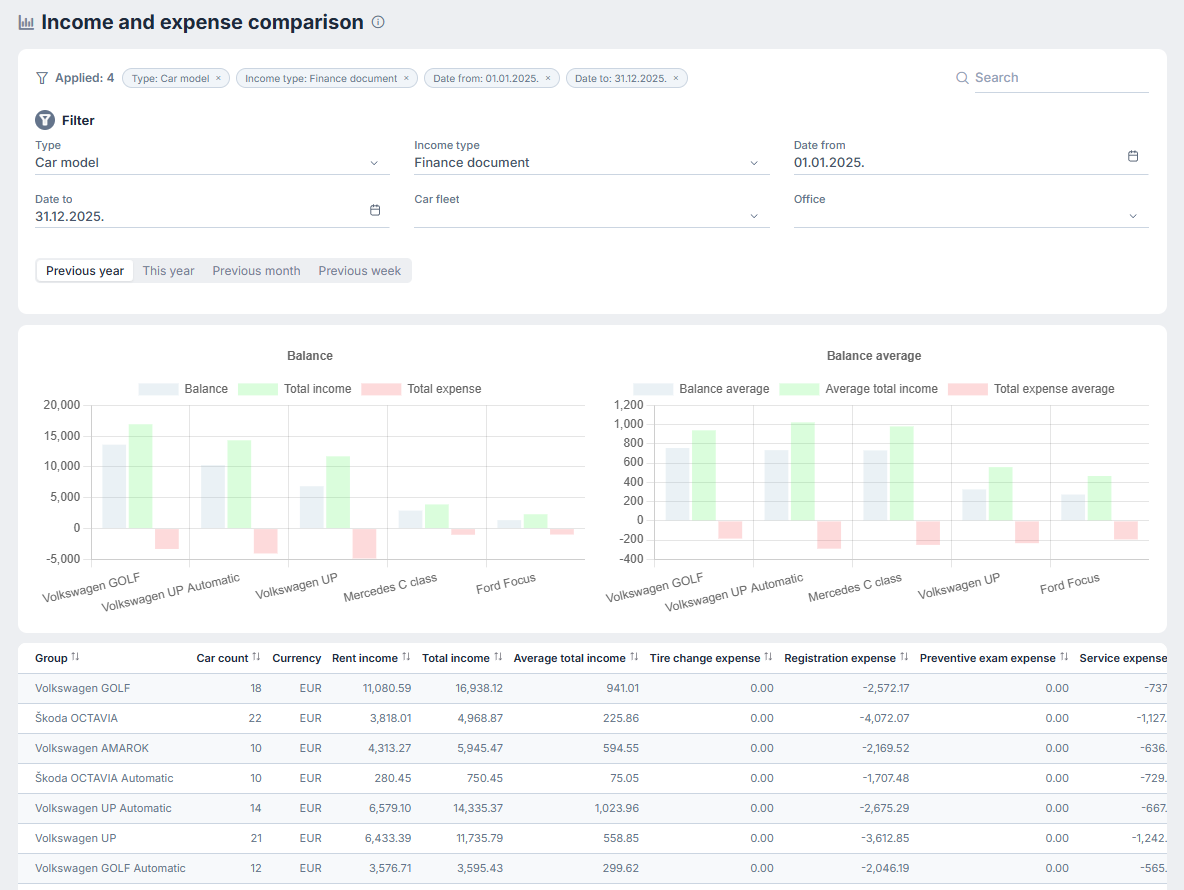
At the top, two bar charts show the five best groups: Balance by total balance, and Balance average by balance per car. Below them, a table has one row per group with these columns:
- Group: the car (by its current plate number), the car model, the SIPP of the car category, or the car make, depending on Type.
- Car count: how many different cars in the group had income or expenses in the period.
- Currency: always your domestic currency.
- Rent income and Total income, and Average total income per car.
- Ten expense columns: Tire change expense, Registration expense, Preventive exam expense, Service expense, Insurance expense, Lease expense, Fire extinguisher expense, Vignette expense, Other expenses (the custom expenses) and Custom car tax expense.
- Total expense and Total expense average per car.
- Balance (total income plus total expense) and Balance average per car.
Expenses are shown as negative numbers, so the balance is simply income plus expenses. Click a column heading to sort the table by it.
How the income is counted
Income type decides where the income comes from:
- Finance document (the default): what you invoiced. Renteon takes the finance documents dated in the period that are linked to a booking. For each item it takes the net amount after discount, in your domestic currency, and shares it between the cars of that booking in proportion to how long each car was on the booking. The whole amount counts in the period of the document date, even if the rental itself ran into another period. Group invoices and advance invoices are not counted, and neither are documents that are not linked to a booking.
- Contract: what was agreed on the rental contracts. Renteon takes the rental and vehicle replacement activities of contracts that overlap the period (cancelled activities are skipped) and the net amount after discount of the contract's items, in your domestic currency. Only the part of the rental inside the period counts. A 10-day rental with 4 days in the period contributes 40% of its amount. A reservation counts only once it has become a contract and the car has gone out.
In both cases, Rent income is the part that comes from the car rental items. Total income also includes all other items, such as additional equipment, insurance and fees. All income amounts are net, without VAT. If your user is limited to a franchise or a company, only the income of its bookings is counted.
How the expenses are counted
The expenses are the costs recorded on the car card tabs listed in the section Where the data comes from. Records you deleted are not counted. Renteon takes the net price, without VAT, and converts other currencies into your domestic currency at the exchange rate of the payment date.
When a cost falls in the period depends on its payment plan:
- A record with instalments counts each instalment whose payment date is in the period.
- A record without instalments counts in full on its main date: the registration start date, the policy valid from date, the service date, the tire change date, the lease start date, the inspection date, the vignette valid from date, the expense date or the GPS installation date.
The payment plan therefore changes the picture. A yearly insurance entered with 12 instalments is spread over the year. The same insurance entered with one instalment falls in full into the month the policy starts, and a one-month report then shows that month as a heavy loss.
GPS units have no column of their own, but their cost is included in Total expense. That is why Total expense can be larger than the sum of the ten expense columns.
Costs that are not entered on these car card tabs are not part of the report. This includes the expenses of car activities priced under Fleet → Fleet → Expenses - Pricelist (they are in the Car activities export, see Fleet reports: activities and equipment), fuel, damages and traffic fines.
Filters, charts and export
The filters:
- Type: how the rows are grouped. Car, Car model, Car category (the default) or Car make. Grouping uses the car's current model, category and plate number.
- Income type: Finance document (the default) or Contract, explained above.
- Date from and Date to: the period. By default the last 12 months up to today. Always fill in both dates: with one of them empty, the report stops with an error. The buttons Previous year, This year, Previous month and Previous week fill in the dates and run the report straight away.
- Car fleet: keeps the income and the expenses of cars that are now in the selected fleets.
- Office: keeps the income of bookings picked up at the selected offices. For invoices without a pickup office, the office of the finance document is used. See the warning in the next section.
Click Confirm to show the result. Export to Excel downloads the same table as a workbook, with the period, the type and the time of the export at the top. Reset puts the filters back to their defaults.
Using the comparison to judge profitability
A typical use is a yearly review: click Previous year, set Type to Car model and Income type to Finance document, and click Confirm. Sort by Balance average to see which models earn the most per car once their costs are paid. Switch Type to Car to find single cars that lose money, for example because of repeated services.
Keep these points in mind:
- The report is only as complete as the car cards. A car without its lease or insurance entered looks more profitable than it is.
- Compare the same kind of period. Costs follow their payment plans, while invoiced income follows the document dates. For short periods, use Contract income and costs entered with monthly instalments.
- A car that was moved to another fleet or category is grouped by where it is now, including its past income and costs.
- Costs in a foreign currency are converted with the exchange rates under Administration → Code book → Exchange rate. Keep them up to date for the payment dates in your period.
Warning: Office filters only the income. The costs of all cars are still counted, also of cars that never rented from that office. With an office selected, rows can show costs without income and the balances look worse than they are. Use Car fleet to narrow down both sides.
The car reports turn what you record on the car cards into Excel lists for checks, audits and cost analysis. Income and expense comparison brings those costs together with your invoiced or contracted income, so you can see which cars, models, categories or makes pay off.
Related guides: