
Mappings
Partners: enabling brokers and websites on a connector
How a broker or brand website is enabled on each Renteon instance of the brand with that instance's B2B user, what this decides for searches and bookings, and how it differs from the broker's own login to the Aggregator.
Last updated
A broker that sells your brand sends one search to the Aggregator, and the Aggregator passes it on to your Renteon instances. A Renteon instance does not answer strangers. It answers a signed-in user, and what it offers depends on who that user is: which pricelists the user may see and which partner the bookings belong to. The partner mapping tells the Aggregator which Renteon user to sign in with, for each broker on each connector.
That makes it different from the other mappings. It does not translate a code. Each row holds the username and password of a Renteon B2B user that exists in that connector's Renteon instance, and an Active tick. The Aggregator signs in with that user whenever it works for that broker on that connector: when it searches, books, cancels, prints a document or reads the broker's pricelists. A broker without an active row on a connector gets no cars from that connector in its searches, and nothing tells it why.
An example: your brand has a Renteon instance in Croatia and one in Greece, and a broker, say Example Cars, sells both. In the Croatian Renteon the franchisee adds Example Cars as a partner with its own B2B user. The Greek franchisee does the same in its Renteon, with another user. In the Aggregator you enter the Croatian user on the Croatian connector and the Greek user on the Greek connector. From then on one search by Example Cars returns cars from both countries, and each booking lands in the instance that offered the car, on Example Cars' own partner there.
You maintain these rows under Provider → Mappings → Partners. Set up the partners before the pricelist mapping, for a reason: the pricelist mapping offers only partners that already have a row on the connector. The order of all setup steps is in Setting up a brand in the Aggregator: checklist.
Partners are shared by all brands
The brand does not create the partners it enables. The Aggregator has one partner list for all brands, which Renteon support maintains under System → Code book → Partners (the screen's title says Address book). The list holds two kinds of partners that matter here:
- Brokers and OTAs, the companies that resell car rental through their own systems. Most have both Agency and Commissioner ticked; a few are commissioners only.
- Brand websites, the booking sites of the brands themselves. Their code is usually the brand's name followed by "web", for example "Demo website" with the code demoweb.
The brokers in this list are the same brokers Renteon knows: each one matches a broker in every Renteon instance. That is how the franchise reports can add up one broker's bookings across all instances. A broker that is not in the list yet cannot be added by the brand, or by hand at all. Renteon adds it with a Renteon release, so ask Renteon support as soon as you sign a new broker.
Because the list is shared, the Partner column on the mapping screen shows every partner of the Aggregator, including the websites of other brands and partners that are no longer active. Enable only the brokers your brand has an agreement with, and your own website. A row for another brand's website would let that website sell your cars.
Two logins with the same labels
Two different logins belong to a broker, and both are labelled Username and Password on screen. Keeping them apart avoids most setup mistakes:
- The broker's login to the Aggregator is on the partner record, under System → Code book → Partners. The broker's system uses it to call the Aggregator's API. Renteon support sets it and sends it to the broker. It is one login for the whole Aggregator: the same username and password work for every brand that has enabled the broker. The brand never sees it and never needs it.
- The Aggregator's login to your Renteon instance is on the partner mapping, under Provider → Mappings → Partners, one per connector. It is a Renteon B2B user in that connector's instance. The brand enters it, connector by connector. The broker never sees it.
In the example above, Example Cars has one Aggregator login, and your brand has two partner rows for it: the Croatian B2B user on the Croatian connector and the Greek B2B user on the Greek connector.
There is a third, technical piece that nobody types in. When the Aggregator signs in to Renteon for a broker, it also tells Renteon which broker it is acting for. Renteon support sets up that identity; it comes with Renteon releases and is not shown on any screen. It explains why a sign-in can fail with the right username and password when a Renteon instance has not received the release for a new broker yet (see Testing a partner login).
What the partner mapping decides
An active row does more than open the door. Through the Renteon user it names, it decides the following:
- Whether the connector takes part in the broker's searches. The Aggregator asks a connector for a broker only when the broker has an active row on it, the connector is active and its mapped offices cover the searched locations. Otherwise the connector is simply left out. A broker without an active row on any connector of your brand gets nothing from your brand. Your brand still appears in the broker's list of providers, but its request for your brand's details is answered with "Provider … does not exist or did not enable your system.", where … is your provider code.
- Which Renteon partner the booking belongs to. Renteon knows the partner of each B2B user, so the booking lands on that partner: in the Agency field when the broker books prepaid, in the Commissioner field when it books pay on arrival. Everything set on that partner in Renteon applies to the broker's bookings there, such as the pricelists linked to it, its commission and the options on its B2B settings tab.
- Which pricelists the broker can get. Renteon offers a B2B user only the active pricelists linked to its partner. The Aggregator's pricelist mapping reads that list with the broker's user, so it shows exactly the pricelists the broker may use on that instance.
- The booking channel in Renteon. Bookings of brokers arrive with the booking channel Web service, bookings of brand websites with B2C web. The channel follows the kind of partner, not anything you choose on this screen.
- Every later call for that booking. Opening, cancelling and printing a booking also sign in with the broker's row on the connector that holds the booking. If a broker calls a connector where it has no row at all, the Aggregator answers "Partner … not enabled for connector with Id …".
Nothing on the Renteon booking says that it came through the Aggregator. The franchisee sees an ordinary booking of that partner, made by its B2B user, and handles it like any other booking of that partner; a prepaid one is an ordinary agency booking, see Agency bookings.
Warning: An active partner row alone brings the broker no cars. The broker also needs at least one pricelist mapping on the connector; without one, the connector is left out of the broker's searches without any error. See Rate codes and pricelist mapping.
What to prepare in each Renteon instance
Before you can fill in a row, the user must exist in the Renteon instance. This is done in that instance, usually by the franchisee that runs it, or by Renteon support. For each broker:
- The broker as a partner. Under Sales → Address book, the broker as a company with Agency or Agent ticked. If the franchisee already works with the broker, use that partner; do not create a second one.
- A B2B user for it. Open the partner, click Edit and go to the tab B2B settings. The tab appears only for a saved partner with Agency or Agent ticked, and it needs the Renteon role Edit users or B2C administration. In section Users, click Add. Renteon fills in the partner's name as Name and "API" as Surname, and ticks Active. Fill in E-mail, Username and Password, then click Confirm. The user must stay active, and so must the partner: Renteon refuses to sign in a user whose partner is inactive.
- The B2B roles. A user added on this tab gets Renteon's default role group for partner users, which holds exactly the five roles a broker needs: creating bookings, cancelling them, the booking PDF documents, the contract PDF and pricelist download. On the user's row they are the ticked boxes B2BBookingCreate, B2BBookingCancel, B2BBookingPDF, B2BContractPDF and B2BPricelistDownload. Elsewhere in Renteon their titles start with "B2C", for example "B2C booking create", and the group itself is titled "B2C". Leave them ticked.
- The pricelists. On the partner's tab Pricelists, link the pricelists the broker may sell: a pricelist with Agency pricelist ticked for prepaid bookings, a selling pricelist for pay-on-arrival bookings, or both. Only linked, active pricelists appear later on the Aggregator's pricelist mapping for that broker. The tab needs the role Client and pricelist linking; see Pricelists.
- Aggregator Partner, for the franchise reports. On the partner's tab Basic, section Additional Partner Settings, set Aggregator Partner to the broker. When the instance sends its bookings to the Aggregator's reports, Renteon makes this field mandatory, and the reports use it to count one broker's bookings across all instances; see Franchise reports in the Aggregator.
Then the franchisee passes the username and password, in a safe way, to whoever maintains the brand's mappings. The same kind of user also signs agencies in to Renteon's own B2B portal and API. B2B portal and API connection setup describe the Renteon side in more detail.
Warning: Give every broker its own partner and B2B user in each instance. If two brokers share one Renteon user, their bookings land on the same Renteon partner, with the same pricelists and commission, and the franchise reports count them as one broker.
Mapping a partner on a connector
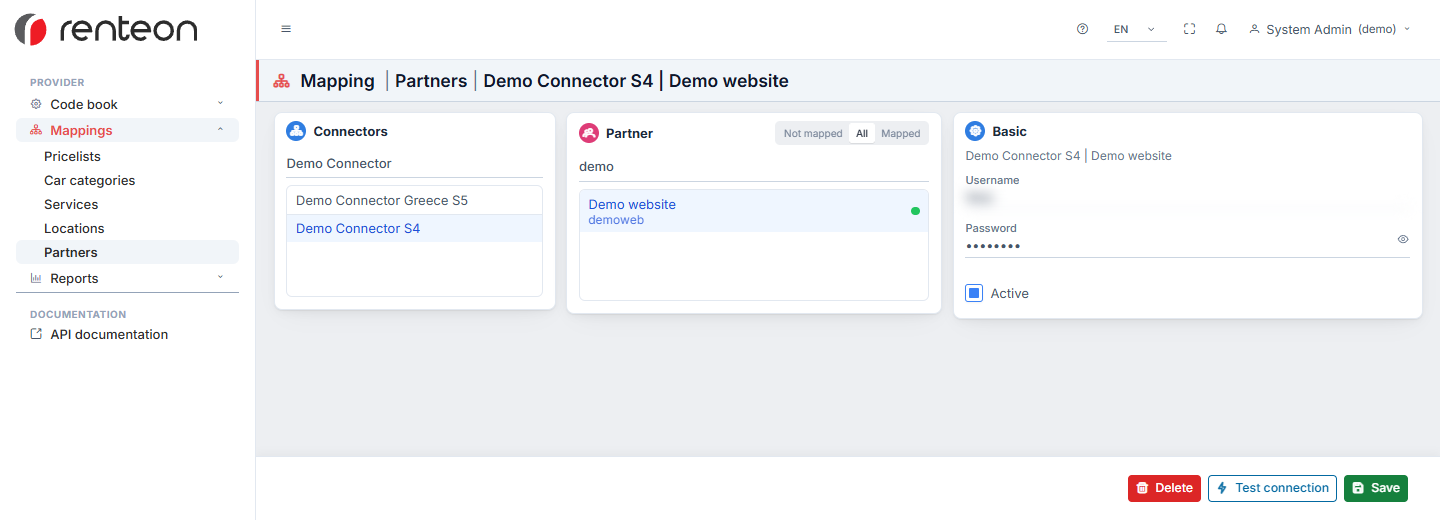
Open Provider → Mappings → Partners. The page header reads Mapping | Partners, followed by the connector and the partner you pick. The screen has three columns:
- Connectors: the active connectors you may see, with a filter box. Click the connector (Renteon instance) you are setting up.
- Partner: every partner of the shared list, sorted by name, each row showing the name over the code. A green dot marks a partner with an active row on this connector, an amber dot one whose row is saved but not active; no dot means no row. The switch Not mapped | All | Mapped above the list narrows it, and Mapped includes the amber rows. It opens on All every time. To find a partner quickly, type part of its name or code in the filter box.
- Basic: the form for the selected connector and partner, with the subtitle "connector | partner". It has three fields: Username and Password (both required; the password is masked, and the eye icon reveals it) and Active.
To enable a broker on a connector:
- Pick the connector, then the partner.
- Enter the username and password of the broker's B2B user in that instance's Renteon. Spaces before and after are removed.
- Tick Active.
- Click Save. Because the row is active, the Aggregator first signs in to Renteon with these values. If Renteon accepts them, the row is saved ("Data saved") and the dot turns green. If Renteon refuses them, nothing is saved and an error message ends with "invalid credentials". If the instance cannot be reached at all, the message names the connection problem instead.
The change applies at once: the broker's next search includes this connector. The details the broker can download about your brand, such as its list of connectors, may take up to five minutes to follow.
How the screen behaves:
- A partner without a row opens with empty fields and Active unticked. Save stays disabled until both Username and Password are filled in. If you then save without ticking Active, the row is stored inactive, without any sign-in check.
- Save stores the row for this connector and this partner. Saving again replaces the username, password and Active of the same row; there is never more than one row per connector and partner.
- When you click another connector, the partner stays selected and the form shows that partner's row on the new connector. To enable one broker on every connector of the brand, pick the broker once and go through the connectors one by one, entering each instance's own B2B user.
- You can prepare a broker before it goes live: save its rows with Active unticked, map its pricelists, and tick Active and save on the day the broker starts.
- The screen has no role of its own. Every user who can sign in to the Aggregator can open it and change the rows of the connectors they see.
Warning: A row saved with Active unticked is not checked and does nothing for searches. Until you tick Active and save again, the broker gets no cars from this connector, and neither you nor the broker gets an error.
Testing a partner login
Once a row is saved, active or not, the footer also offers Test connection. It signs in to the instance's Renteon on behalf of this partner, with the username and password as they are typed in the form now, saved or not, and it saves nothing. So you can try a new password before you save it:
- If Renteon accepts the login, its answer appears under the form: a short technical text with the sign-in token and its expiry.
- If Renteon refuses it, the form says "Unable to connect".
A successful test proves only that the user can sign in. It does not prove that the user holds the B2B roles or that pricelists are linked to its partner. The quickest check of the pricelists is the next step: on Provider → Mappings → Pricelists, the broker's Renteon pricelists for that connector should appear.
If the test fails although the username and password are right, check in the Renteon instance that the user and its partner are both active. If they are, the instance may not know the broker yet: a broker added recently comes with a Renteon release, and an instance without it refuses the sign-in. Ask Renteon support.
Warning: Do not copy, paste or share the text that a successful test shows. It contains a live access token to the Renteon instance.
Brand websites
The brand's own booking site uses the Aggregator the same way a broker does. It signs in with the login on its partner record (for example "Demo website") and searches and books through the same API. One website can therefore sell the cars of every franchisee of the brand.
You enable a website the same way, on each connector, with a Renteon user of that instance that belongs to the partner the website's bookings should land on. Like a broker's B2B user, it must be a user of a partner in Renteon, so that Renteon knows whose bookings they are. Renteon creates a partner called Web with the standard Web user in each new instance, and many brands use that user for their website row.
What is different for websites:
- Their bookings arrive in Renteon with the booking channel B2C web, the channel of the instance's own web sales, not Web service.
- Some parts of the API are meant for selling directly to drivers. Renteon lets only website partners read the price history of a pricelist and open a booking with the driver's e-mail or phone; a broker that tries is refused. Finance documents and payments are meant for websites too, but there Renteon checks the roles of the user, not the kind of partner.
- If the website issues finance documents or takes payments through the Aggregator, its Renteon user therefore also needs the roles for them, which the default partner role group does not hold: tick B2BFinanceDocumentCreate, B2BFinanceDocumentCancel, B2BFinanceDocumentPDF, B2BPaymentCreate and B2BPaymentPDF on the user's row in Renteon.
In the Partner column, pick your own website; the list also shows the websites of other brands.
When the Renteon user changes
A row holds a copy of a Renteon login. When the franchisee changes that user in Renteon, the row does not follow by itself:
- New password. Enter it in the row and save. Once the old password stops working, the connector drops out of the broker's searches without an error, and the broker's bookings and cancellations on that connector fail.
- User or partner deactivated in Renteon. The effect is the same. If it was on purpose, untick Active here too, so that the mapping screens and the Dashboard show the true state.
- Other pricelists linked to the partner. Nothing changes here, but check the broker's pricelist mapping on that connector.
Ask the franchisees of your network to tell the brand before they change or deactivate a B2B user that the Aggregator uses. After any change, Test connection shows at once whether the row still works.
Switching a broker off on a connector
To stop selling one connector through a broker, for example when a franchisee ends its contract with that broker, open the row, untick Active and click Save. Saving an inactive row does not sign in, so it works even when the login no longer does. From the broker's next search on, the connector is left out. The dot turns amber, and the row keeps its login, so switching the broker back on takes a tick and a save.
Unticking does not touch the bookings the broker has already made on that connector. They stay in that Renteon instance, and the franchisee handles changes and cancellations as usual. Do not rely on unticking to stop the broker from opening or cancelling those bookings through the Aggregator.
Delete removes the row completely:
- It is offered only for a saved row and only while Active is ticked. To delete an inactive row, tick Active first, without saving, and then click Delete.
- The Aggregator asks "Are you sure?" and then removes the row ("Data deleted").
- The broker also disappears from the pricelist mapping of that connector. Its pricelist mappings are kept, but you see them again only after you add a row for the broker.
Prefer unticking Active: it has the same effect on searches and keeps everything. To stop a broker on every connector of the brand, untick its row on each connector. To take a whole Renteon instance out of sales, deactivate its connector instead; see Connectors.
Warning: Delete cannot be undone. The username and password are gone, and to enable the broker again someone has to get them from the Renteon instance once more. In the classic interface, Delete does not even ask first.
Dashboard count
The start page Dashboard shows a Partners badge for each connector: the number of active rows that have both a username and a password. Unlike the other badges it has no total, because a connector has no fixed number of partners it should have. It is red at 0 and green otherwise. A red badge means that no broker and no website can get anything from that connector. Clicking the badge opens Provider → Mappings → Partners for that connector.
The numbers are a snapshot. They are recounted every day at 06:10 server time and when you click the Refresh icon in the connector's row, not when you save a row, so a broker you have just enabled or switched off shows in the count later. Before you use the Refresh icon, read the Dashboard step in Setting up a brand in the Aggregator: checklist: the recount also checks the connector's other mappings against Renteon and switches off those whose Renteon item no longer exists.
The partner record (Renteon support)
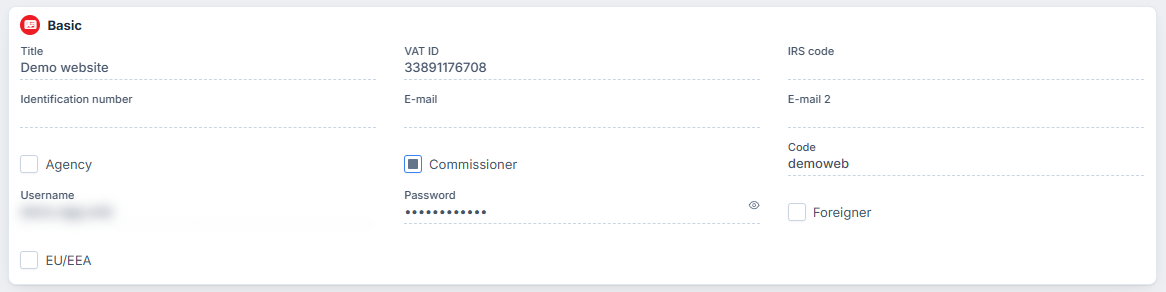
Only Renteon support edits partner records, under System → Code book → Partners; brand users do not see the System section. The screen's title is Address book, followed by the partner's name. Section Basic has, in this order:
- Title: the partner's name as brands see it on the mapping screens (required).
- VAT ID (required).
- IRS code and Identification number.
- E-mail and E-mail 2.
- Agency and Commissioner. Only partners with at least one of them ticked appear on the mapping screens. Brokers normally have both, websites only Commissioner.
- Code: the short code shown under the name on the mapping screens, for example demoweb.
- Username and Password: the partner's own login to the Aggregator (see Two logins with the same labels). The password is masked; the eye icon reveals it.
- Foreigner and EU/EEA are not used. They always open unticked, and ticking them is not saved.
Below follow the sections Addresses (Primary, Street, Postal code, Town, Country), Phones (Type, Number) and Internal remark. Saving with Confirm needs a title, a VAT ID, complete addresses and phones, and valid e-mail addresses. A broker that was added with only its country therefore cannot be saved here until someone enters its full address or removes the address row.
When a broker is signed, Renteon support sets the username and password here and sends them to the broker. Give every partner a login of its own; never reuse another partner's username and password. A new broker or website comes with a Renteon release and is not created with Add on this screen: a partner created here by hand lacks the technical identity described above, and no broker can use it.
Next step: Rate codes and pricelist mapping, where you map the brand's rate codes to each broker's Renteon pricelists, connector by connector.
Related guides: