Finance
Traffic Fines Processing
How to record traffic fines in Renteon, add them to the rental contract and invoice them, or charge, write off or email fines from other car activities.
Last updated
The Traffic Fines module allows you to record and manage traffic fines related to your rental vehicles. It helps you keep track of fines, assign them to the relevant rental contracts and customers, and manage the associated charges.
Adding a traffic fine
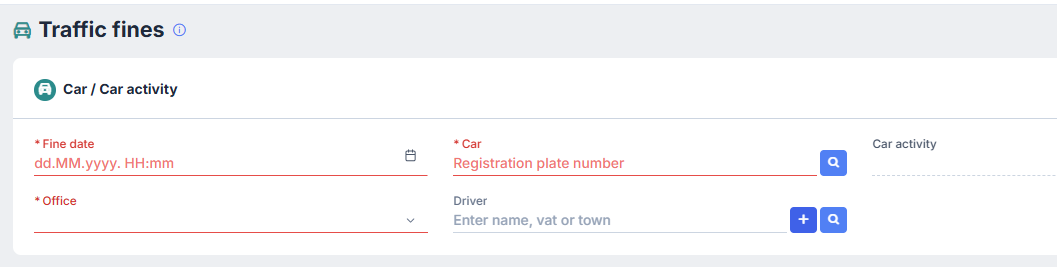
Received Traffic fines should be first added to the system through the menu „Traffic fines“ where all info regarding it can be added:
- Car/Car activity:
- Fine date – the date the fine was issued
- Car – the vehicle the fine was issued for
- Car activity – the system will automatically generate it based on the vehicle and the date
- Office – the system will automatically generate it based on the vehicle and the date
- Driver – if the activity of the vehicle at the time of the fine was in any activity with added driver, the system will generate it
- Basic:
- Type – Traffic fine, parking penalty, communal offense, or toll penalty
- Number
- Net price
- VAT rate
- Amount
- Currency
- Due date
- Town
- Location
- Description
- Issuer – should be added in the Address book
- Photo – upload up to 2 photos
- Document – upload up to 2 documents
- Comment
Adding a traffic fine to the rental agreement
1. If the Traffic fine was made while the vehicle was in rental:
Open the rental contract and „recalculate“ it by clicking „Next“ and „Save“, if the contract is closed then go to „Actions -> Edit“ and save it.
When this action is performed, the system will add the fine to the contract, and optionally, if defined, the Traffic fine processing fee.
The next step is to create an Invoice, when selecting a New invoice option, Renteon will offer to charge all unpaid services on the contract. Choose the ones to be charged and proceed to the Payment type. If a credit card is chosen as a payment type and it was used for any payment on the contract (preauthorization or payment) the system will offer to select it from the „Card data from previous payments“ list.
If the card was not added, it should be added to proceed or some other type of payment chosen.
2. If the Traffic fine was made while the vehicle was in any other activity besides rental:
Navigate to „Fleet -> Traffic fines“ and open the Traffic fine, you have few options to process it:
- Charge – if the driver is known, the invoice can be created with specified payment type
- Write off
- Send document by e-mail