
Fiscalization
Portugal: certified invoicing and SAF-T
How Renteon hands Portuguese invoices, receipts and credit notes to MyBlueBee the moment you save them, how the series is built, and what to do when MyBlueBee refuses a document.
Last updated
In Portugal, an invoice has to be issued and numbered by certified invoicing software, and the Tax Authority (AT) receives the invoicing data in the SAF-T (PT) format. Renteon handles this with an integration to MyBlueBee, an external Portuguese invoicing service. When the integration is on, Renteon sends each invoice, bill, advance payment invoice, approval, debit and cancellation to MyBlueBee as you save it. MyBlueBee issues the official document, and the PDF your customer gets is the one MyBlueBee produces.
In Renteon the integration is called Portugal SAFT integration (MyBlueBee). This guide covers what you need from MyBlueBee, where to enter it, which documents are sent and what goes with them, what you see when something goes wrong, and what stays with you and MyBlueBee, such as the SAF-T file.
How the integration works
The integration works in real time. Nothing is queued and nothing is sent later:
- When you save a document of a type that is sent (see below), Renteon sends it to MyBlueBee straight away and waits up to 30 seconds for the answer.
- MyBlueBee replies with its own ID and its own document number. Renteon stores both with the document.
- If MyBlueBee refuses the document or does not answer, Renteon does not save it at all. You stay on the screen with an error message and can correct the data and save again. So every document of a type that is sent either exists in both Renteon and MyBlueBee, or in neither.
- Documents that Renteon creates on its own, or that come in through the B2B channel or another connected system, are sent the same way. One example is the agency invoice Renteon creates for an agency booking when the contract is closed, or already when the car is handed over if the agency is set up for that. If MyBlueBee refuses such an invoice, the contract is not saved or closed either. You see MyBlueBee's error and can try again once the cause is fixed.
The integration is set for your whole Renteon account. All offices and all companies in the account send to the same MyBlueBee account with the same user and API key.
What you need before you start
Get the following ready with MyBlueBee before you switch the integration on:
- The MyBlueBee address, user name and API key for your company. MyBlueBee provides them. Renteon calls MyBlueBee at the address you enter, so if MyBlueBee gives you a separate test address, you choose test or live with that address alone.
- The document series. Renteon builds the series from the year, as explained below. Agree with MyBlueBee how these series are set up on their side.
- The codes of your VAT exemption articles. If you issue documents without VAT, Renteon sends the code of the exemption article on the document (see below). Make sure the codes of your articles under Administration → Code book → Articles are the ones MyBlueBee expects.
- Clean client data. Renteon sends the client's name, VAT ID and address with every document, so check that your regular clients have them filled in correctly in the address book.
Switch the integration on
You need the Application settings management role.
- Open Administration → Code book → Settings and click Edit.
- On the Modules tab, in the Modules panel, tick Portugal SAFT integration (MyBlueBee). The option is shown when Portugal is your account's domestic country.
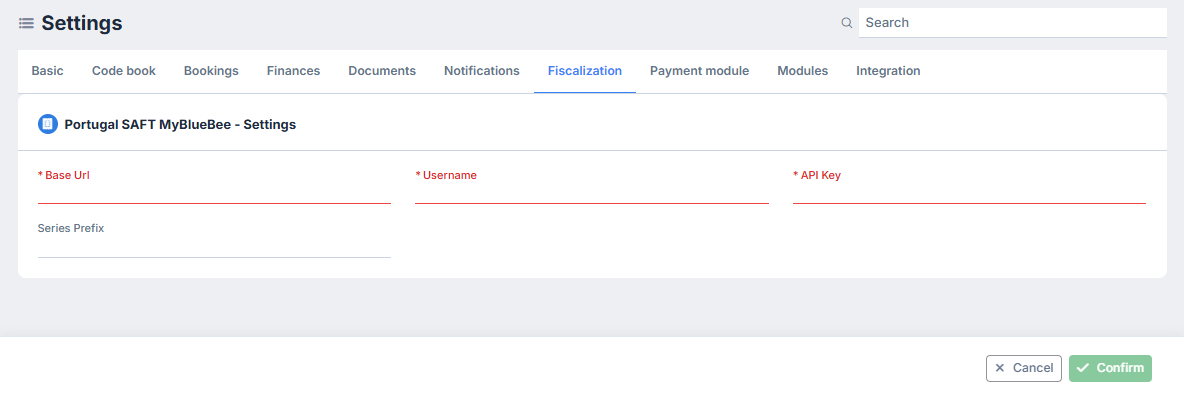
- Open the Fiscalization tab. With the module ticked, it shows the Portugal SAFT MyBlueBee - Settings panel. Fill it in:
- Base Url: the MyBlueBee address. Required.
- Username: your MyBlueBee user. Required.
- API Key: your MyBlueBee API key. Required.
- Series Prefix: optional, one character at most. See the next section.
- Click Confirm.
The integration applies to documents you save from then on. Documents saved before you switched it on are not sent afterwards. But if you later cancel one of those older documents, or issue an approval or a debit for it, that new document is sent to MyBlueBee and refers to a document MyBlueBee never received. Agree with MyBlueBee how to handle such cases before you switch the integration on.
Warning: Renteon has no separate test switch for MyBlueBee. Every document you save goes to the MyBlueBee account behind the Base Url, and MyBlueBee issues a real document for it. Do not try the integration out with practice documents against your live MyBlueBee account.
Series and document numbers
Renteon sends every document with a series built from the year the document was created, in your local time:
- With Series Prefix empty, the series is the year alone, for example 2026.
- With a prefix, the prefix goes in front of the year. A prefix of 1 gives the series 12026.
- The prefix can be at most one character long, because MyBlueBee accepts a series of up to five characters and the year takes four of them.
- The series changes by itself at the turn of the year. The first document created on 1 January 2027 goes into series 2027 (or 12027 with the prefix above).
- A cancellation is created from the document it cancels, so it keeps the year of the original document in its series. If you cancel a December 2026 invoice in January 2027, the cancellation goes out in the 2026 series. The same goes for the documents that Approval (Total) creates and for an invoice copy.
Use the prefix when the plain year is not enough for MyBlueBee, for example when another program already issues documents in the series 2026 in the same MyBlueBee account. If MyBlueBee needs each series to be set up, and communicated to the Tax Authority, before its first document, do this for the new year's series before 1 January.
The official document number is the one MyBlueBee assigns, and it is printed on the PDF. The bills list and the document screen in Renteon keep showing Renteon's own internal document number. When a customer or your accountant quotes an invoice number, it is the number from the printed document.
Renteon does not calculate an ATCUD code, a document signature or a QR code itself. The document you print or e-mail from Renteon is the PDF that MyBlueBee produces.
Warning: A new Series Prefix takes effect with the next document you save. If you change it in the middle of a year, documents start going into a different series straight away. Agree the change with MyBlueBee first.
Which documents are sent
Renteon sends these documents to MyBlueBee. MyBlueBee issues each one as an invoice, an invoice-receipt (fatura-recibo) or a credit note:
- Invoice in the domestic currency, Bill (in any currency) and Debit:
- issued as an invoice when all of its payments are Bank transfer or Transactional account, or when it has no payment at all, so the customer pays later;
- issued as an invoice-receipt when at least one payment is of any other type (cash, card, Payment delay and so on), or when the document is paid with an advance payment.
- Advance payment invoice in the domestic currency: always issued as an invoice-receipt, with its payments reported as an advance.
- Approval: issued as a credit note linked to the original document.
- Approval (Total): the approval for the whole original document is issued as a credit note. If the original already had approvals or debits, Renteon also turns each of them around (an earlier approval becomes a debit, an earlier debit an approval), and each of these new documents is sent as well.
- Cancellation of an invoice, bill or advance payment invoice: issued as a credit note linked to the document it cancels.
- Invoice copy (Create Copy in the document's Actions menu) of any of the documents above: sent again and issued by MyBlueBee as a new invoice or invoice-receipt. See the warning below.
These documents are saved in Renteon as usual but are not sent to MyBlueBee: offers, deposits and deposit payouts, Bill - payout documents, invoices and advance payment invoices in a foreign currency, billing specifications, accounting documents, accounting notes, training invoices and cashbook transactions. They also print with Renteon's own layout.
MyBlueBee links every line of an approval or a debit to a line of the original document with the same service type. For a debit this means: each line can only be of a service type that is on the original document, and it cannot be larger than the amount of that service type on the original. Otherwise saving stops with a message that starts with "Service type", names the service type and says that its amount on the original finance document is less than the "aproval" amount.
Warning: Two things are easy to get wrong. Create Copy on a document that was sent issues a second official document in MyBlueBee, so do not use it to get a duplicate printout; print the original again instead. And invoices in a foreign currency are not sent to MyBlueBee at all, so they are not issued as certified documents; issue your Portuguese invoices in the domestic currency.
What Renteon sends with each document
It helps to know what MyBlueBee receives, because MyBlueBee builds the official document from this data:
- Client: Renteon's client ID as the customer number, the client's full name, the VAT ID, and the address chosen on the document (street, postal code, town and country). The tax area is the country of that address. If the document has no address, Renteon uses the client's nationality, then the client's default address, and falls back to Portugal.
- Lines: for each item, a text line with the item's name and then an amount line with the service type, the quantity and the item's amount including VAT, in the domestic currency. On the rental line Renteon adds text lines with the Period, the number of Days, the Cars (licence plates) and the Drivers.
- Closing text lines: the booking numbers (Bookings), the Order reference number if the document has one, and the cancellation description (Cancellation status) on cancellations.
- Observations: the document's Remark. When the document is paid with an advance payment, Renteon adds "Used as a means of payment on the final invoice:" followed by the advance payment invoice number.
- Due date and payment terms: the due date and the number of days between the document date and the due date.
- VAT exemption code: the code of the first VAT exemption article on the document's items, or 01 when there is none. Renteon puts these articles on VAT-free items from the VAT-free settings of your company, the booking or the service.
- Payment methods, translated into MyBlueBee's codes:
- Cash as cash;
- Bank transfer as bank transfer;
- Transactional account as transactional account;
- Credit card, Credit card - preauthorisation and the card payment gateways (Stripe, Monri, Adyen, Windcave, PayTabs, STCPay, Eurobank ePos) as card;
- every other payment type, for example Checks, Voucher, PayPal or Payment delay, as bank transfer;
- on an advance payment invoice, every payment as an advance.
The text lines (Period, Days, Bookings and the others) and the item names are written in the interface language of the user who saves the document.
Changes you make in Renteon after the document is issued, such as Change remark, Change order reference number or Edit payment data, are not sent to MyBlueBee. The issued document stays as it was.
Printing and e-mailing
When you print a document that MyBlueBee has issued, or attach it to an e-mail from Renteon, Renteon downloads the PDF from MyBlueBee. This can take a while for large documents, and Renteon waits up to three minutes. Renteon's own document layout and print options do not apply to these documents.
If MyBlueBee answers with an error, printing fails with a message that starts with "MylueBee returned:" (spelled like this) followed by the error status, or with MyBlueBee's own error text. If MyBlueBee cannot be reached at all, or does not send the PDF within three minutes, printing fails with a technical error. In both cases try again later. Documents that are not sent to MyBlueBee, such as offers, print with Renteon's own layout as usual.
When MyBlueBee refuses a document
Whatever the reason, the document is not saved in Renteon, and you see an error message:
- MyBlueBee rejected the document. The message contains MyBlueBee's error code and description, in MyBlueBee's own words. Correct what it points to and save again.
- MyBlueBee answered with an error page. The message ends with "canceling finance document save !". Save again a little later.
- MyBlueBee did not answer within 30 seconds. The message says that a task was canceled. Read the warning below before you save again.
- A debit line does not match the original document. The message starts with "Service type". See "Which documents are sent" above.
Renteon support has an action that sends a single document to MyBlueBee again. You do not normally need it, because a document that fails is never saved in Renteon.
Warning: If MyBlueBee is slow and answers after Renteon has given up waiting (30 seconds), MyBlueBee may have issued the document even though Renteon cancelled the save. Before you save the same document again, check in MyBlueBee whether it was issued, so that you do not issue it twice.
SAF-T file and periodic duties
Renteon does not create a SAF-T (PT) file. There is no screen and no scheduled task for it. Your certified documents are issued in MyBlueBee, so the SAF-T file and any other reporting to the Tax Authority are done from MyBlueBee. Ask your MyBlueBee provider or your accountant how this is set up for your company.
On the Renteon side, check these regularly:
- Before 1 January: make sure the new year's series is ready in MyBlueBee, if MyBlueBee needs it set up in advance, and that your Series Prefix is still what you want.
- Documents that are not sent: if anyone issued a foreign-currency invoice or advance payment invoice in Renteon, it never reached MyBlueBee. Find these documents in Sales → Bills → Search with the Subtype filter set to the foreign-currency sub-types, and deal with them with your accountant.
- Invoice copies: in Sales → Bills → Search, set the Type filter to Invoice copy and check that nobody used Create Copy on a sent document. If someone did, MyBlueBee issued that document twice; ask your accountant how to correct it.
- Client data: keep the VAT IDs and addresses of company clients complete, because Renteon sends them to MyBlueBee with every document.
The integration needs no daily work: as long as MyBlueBee accepts your documents, invoicing in Renteon works as usual and every document of a sent type has its official counterpart in MyBlueBee.
Related guides: