
Pricelists
Rate codes and pricelist mapping
How the brand defines its rate codes once and maps them, per broker and per Renteon instance, to the instances' own pricelists, so one rate code serves many brokers across the whole network.
Last updated
A broker that sells your brand does not want to learn the pricelists of every franchisee. It wants one short list of rates for the whole brand, for example "pay on arrival" and "prepaid", and it wants each rate to mean the same thing in Croatia and in Greece. In the Aggregator these rates are called rate codes: the codes of the brand's Aggregator pricelists, which brokers send and receive as the pricelist code (PricelistCode in the API). Your brand (shown as Provider in the menu and in the API) defines them once, and every Renteon instance of the brand links them to its own pricelists.
The whole model fits in five sentences:
- A rate code is only a code with a name, for example CP-WI-01 "Pay on arrival" or CP-AG-01 "Prepaid". It holds no prices, no currency and no validity period.
- A pricelist mapping says: for broker X on connector C (one Renteon instance of the brand), rate code K means Renteon pricelist N.
- The same rate code can be mapped for any number of brokers and on any number of connectors, each time to the Renteon pricelist that fits that broker in that instance.
- Prices are always read live from Renteon when the broker searches. The Aggregator only translates the rate code into the instance's pricelist and back.
- Without a pricelist mapping, a connector returns nothing for that broker, silently and without an error.
The work is shared. Each franchisee, in its own Renteon, creates the pricelists and links them to the broker's partner. The brand's head office creates the rate codes in the Aggregator and maps them on every connector, for every broker. This guide covers the Aggregator part. The Renteon side is described in Pricelists.
One rate code for many brokers and many instances
The rate code belongs to the brand, not to a broker and not to a Renteon instance. You create it once, under Provider → Code book → Pricelists, and then use it in as many mappings as you need. Each mapping is one row with four parts: a connector, a broker, one Renteon pricelist of that connector, and the rate code.
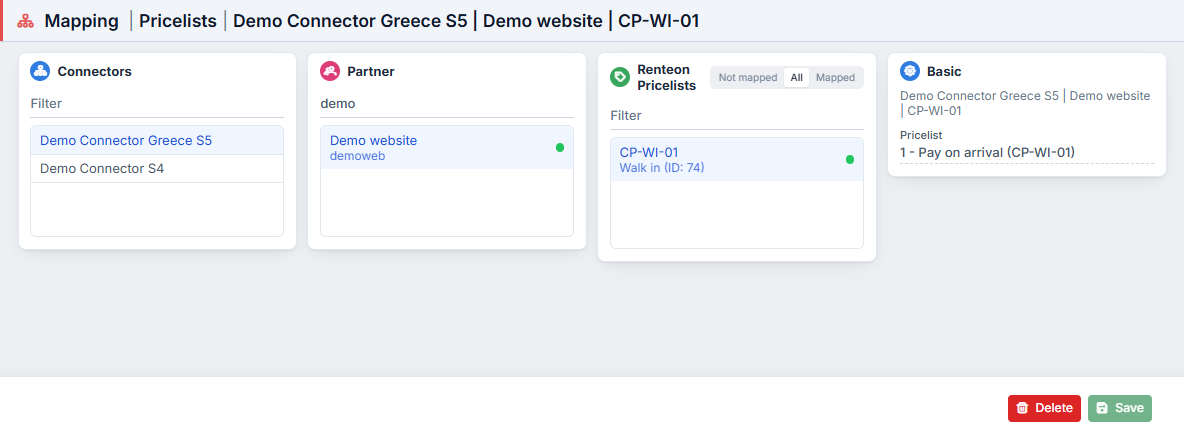
The Demo brand shows how far this goes. It has two Renteon instances, connected as Demo Connector S4 and Demo Connector Greece S5, and two rate codes: CP-WI-01 "Pay on arrival" and CP-AG-01 "Prepaid".
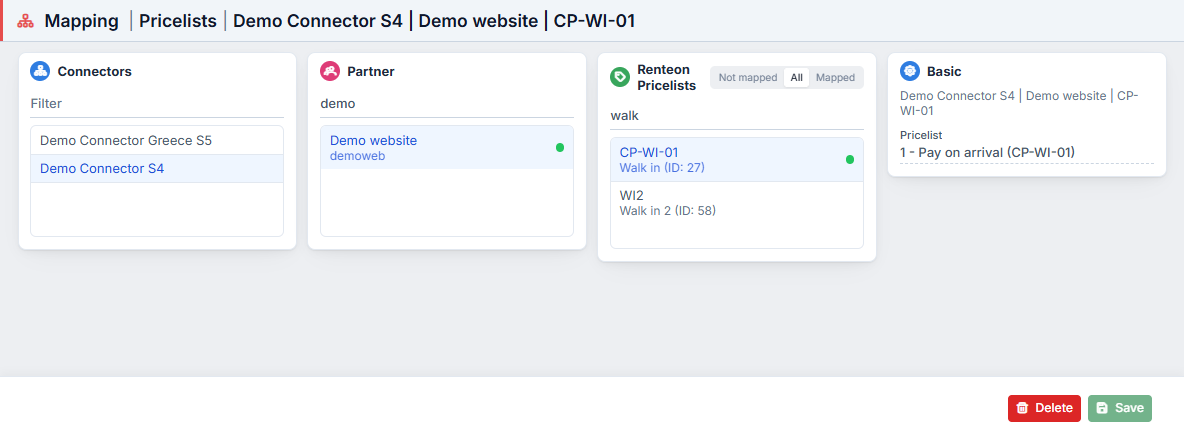
- On Demo Connector S4, CP-WI-01 is mapped for about 90 brokers, almost all of them to the instance's Renteon pricelist with ID 27.
- On Demo Connector Greece S5, the same CP-WI-01 is mapped for about 90 brokers too, to that instance's Renteon pricelist with ID 74.
- The brand's own website partner, Demo website, has CP-WI-01 on both connectors: ID 27 on the first instance and ID 74 on the second.
- CP-AG-01 follows the same pattern, with the pricelists 28 and 75.
A broker that searches with CP-WI-01 therefore gets cars from both instances, each priced by its own instance's pricelist, and every offer is labelled CP-WI-01. The broker never needs to know that there are two instances or two pricelists behind the code.
This works because each mapping row carries its own Renteon pricelist:
- The same code points to a different pricelist on each instance. Pricelist IDs are local to each Renteon instance, so ID 27 in one instance and ID 74 in another can stand for the same commercial rate.
- On the same instance, the code may point to a different pricelist for one broker. A broker with its own contract can have CP-WI-01 mapped to its own Renteon pricelist, while every other broker has CP-WI-01 mapped to the standard one. In the demo, a handful of brokers on Demo Connector S4 have CP-WI-01 mapped to pricelists other than 27. They still send and see CP-WI-01.
In practice, reusing a rate code is the same mapping step repeated for each broker and each connector:
- Create the rate code once under Provider → Code book → Pricelists, for example CP-WI-01 "Pay on arrival".
- Under Provider → Mappings → Pricelists, click the first connector, then the first broker, then the Renteon pricelist that broker should sell as CP-WI-01. Choose CP-WI-01 in Pricelist and click Save.
- Click the next broker in Partner. The connector stays selected. Pick that broker's Renteon pricelist, often the same one, choose CP-WI-01 again and click Save. Repeat for every broker.
- Click the next connector, then the brokers one by one again, and map CP-WI-01 to that instance's own pricelists.
What this gives the brand:
- Brokers see one set of codes for the whole brand. They do not see the names of the franchisees' pricelists.
- A new franchisee changes nothing for the brokers. Once its connector is added, you map the same rate codes to its own Renteon pricelists for each broker. From then on, the broker's next search with CP-WI-01 also returns the new franchisee's cars.
- Prices stay with the franchisee. A franchisee changes its prices in its own Renteon pricelist. The rate code and the mapping stay as they are.
- A broker can still have a rate of its own. For a special contract, create a separate rate code and map it only for that broker. Each broker's setup data lists only the rate codes mapped for it, so other brokers do not see that code, and a search of theirs by it returns no cars.
This is not only a demo pattern. Brands commonly map one rate code for many brokers, and a large franchise network can map the same rate code on dozens of connectors.
Limits to plan for
The flexibility has a price: every mapping is made by hand, one broker and one connector at a time. Plan for these rules before you start:
- One mapping per broker per connector. There is no "map once for all brokers" and no automatic mapping for pricelists. A rate code that 90 brokers use on two connectors is 180 mappings. When you add a broker or a connector, its mappings have to be made as well.
- One code, one pricelist, per broker and connector. For one broker on one connector, a rate code points to exactly one Renteon pricelist, and a Renteon pricelist has exactly one rate code. A second mapping of either kind is refused with "Multiple active pricelist mappings are not allowed". If a broker should sell two Renteon pricelists of the same instance, they need two rate codes.
- The Renteon pricelist must be active and linked to the broker's partner in that instance. Otherwise the mapping screen does not even offer it, and an existing mapping is switched off by the automatic clean-up (see below).
- Codes are compared exactly, upper and lower case included. "cp-wi-01" is not "CP-WI-01". Brokers must send the code exactly as you wrote it.
- Nothing stops two rate codes with the same code. The Aggregator does not check that a code is unique within the brand.
- Prepaid belongs to the rate code, not to the mapping. A code is either a prepaid code or a pay-on-arrival code, for every broker and every instance. Map a code only to Renteon pricelists of one kind: all agency (nett) pricelists or all selling pricelists. See "Prepaid and pay on arrival" below.
- The same Renteon pricelist may appear under different codes for different brokers. This is allowed: broker A can see Renteon pricelist 27 as CP-WI-01 and broker B can see it under another code. We recommend one rate code per commercial rate, so that the same rate has the same code for every broker.
Warning: Before you add a rate code, search the list by Code. If two rate codes of the brand share a code, a broker can end up with two mappings answering that one code on the same connector, and searches by that code mix both pricelists. Never create two rate codes with the same code.
Creating rate codes
Rate codes are kept under Provider → Code book → Pricelists. You need the role Edit pricelist; without it the menu entry is not shown. Who gets the role is set in the brand's users and role groups, see Users, roles and brand settings. The role's description in the role list still speaks of creating pricelists, changing prices and setting validity periods. That text comes from Renteon: in the Aggregator the role covers the rate codes and deleting pricelist mappings, because the Aggregator has no prices or validity periods of its own.
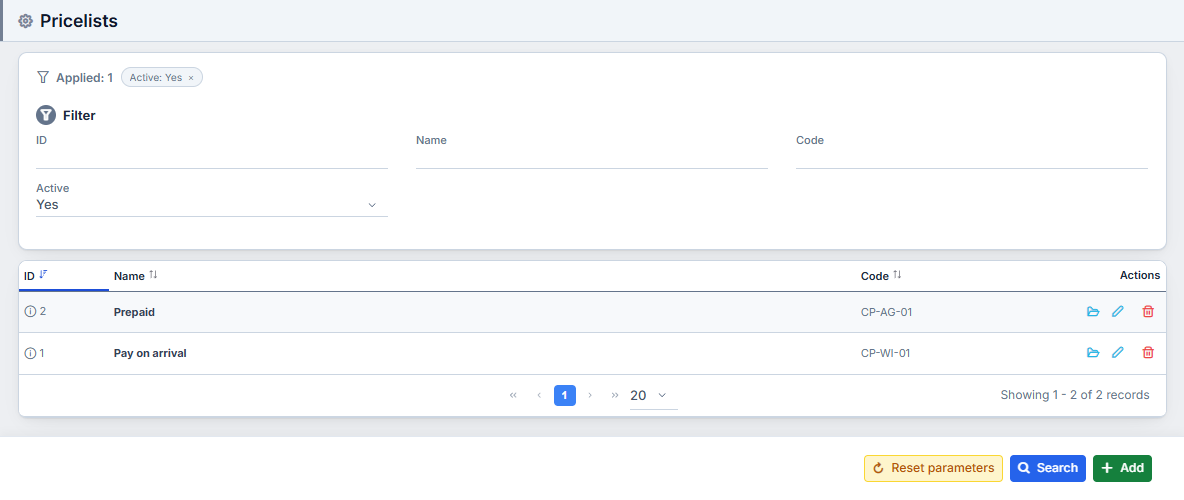
The list page Pricelists has a Filter section with ID, Name, Code and Active (Any, Yes or No). Active starts at Yes, so deactivated codes are hidden until you change it. The list shows ID, Name, Code and Actions, with the newest code first. Each row has Open (read-only), and active rows also have Edit and Delete. At the bottom are Reset parameters, Search and Add.
To add a rate code:
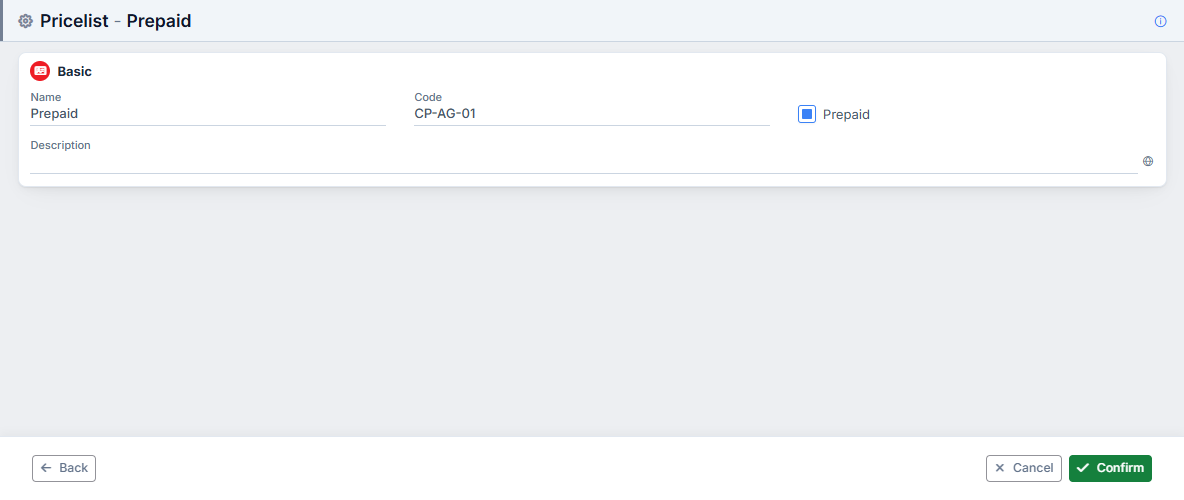
- Click Add. The page Pricelist opens with one section, Basic.
- Name (required): what brokers see next to the code, for example "Pay on arrival".
- Code (required, up to 100 characters): the code brokers send and see, for example "CP-WI-01". Type it exactly as brokers will use it, because upper and lower case matter.
- Prepaid: tick it for a code that you will map to agency (nett) pricelists, which are used for prepaid bookings. Leave it off for a pay-on-arrival code mapped to selling pricelists. Brokers see the flag together with the code. It does not change what a search returns; that depends on what the broker asks for and on the kind of Renteon pricelist (see "Prepaid and pay on arrival").
- Description (optional, per language): for your own staff only, brokers never see it. Use it, for example, to note which commercial terms the code stands for.
- Click Confirm. The Aggregator shows "Data saved", and the code can be used in mappings straight away.
The Demo brand uses the Renteon pricelist code of its instances as the rate code (CP-WI-01 in the Aggregator, CP-WI-01 in Renteon). That is a convention, not a rule. A rate code can have any code: the only link between a rate code and a Renteon pricelist is the mapping. Whatever you choose, keep codes stable, because renaming a code affects every broker that uses it.
Renaming or removing a rate code
Renaming. Open the code with Edit, change Code and click Confirm. The new code applies at once to every active mapping of that rate code, for every broker and on every connector. From that moment:
- Offers and bookings show the new code.
- A broker that still filters its searches by the old code gets "Pricelist with the rate code CP-WI-01 does not exist." (with its old code), and its search returns nothing.
So agree a rename with the brokers first and change the code at the agreed time. Changing only Name or Description does not break anything: brokers see the new name the next time they read the brand's setup data.
Removing. Click Delete in the list and answer Yes to "Are you sure?". The Aggregator shows "Data deleted", but what happens depends on the history of the code:
- A code that was never mapped is deleted.
- A code that was ever mapped, even if all its mappings were deleted since, is only deactivated. It disappears from the list while Active is Yes. With Active set to No or Any you see it again, greyed out and with Open only. There is no way to activate it again on screen.
Removing a rate code does not remove its mappings. To retire a code properly:
- Tell the brokers which code is retired and from when.
- Delete its mappings on every connector, for every broker (Provider → Mappings → Pricelists, see the next section).
- Then delete the rate code.
Warning: A deactivated rate code is still sold through its existing mappings: brokers keep getting prices and making bookings under that code until each mapping is deleted. The Pricelist field on the mapping screen also still offers deactivated codes, marked as inactive, so do not pick them for new mappings.
Mapping a pricelist
Before you can map a pricelist for a broker on a connector, three things must be in place:
- The broker is enabled on that connector under Provider → Mappings → Partners, with its Renteon B2B user for that instance. See Partners: enabling brokers and websites on a connector.
- In that Renteon instance, the franchisee has an active pricelist linked to the broker's partner (address book card of the partner, tab Pricelists).
- The rate code exists under Provider → Code book → Pricelists.
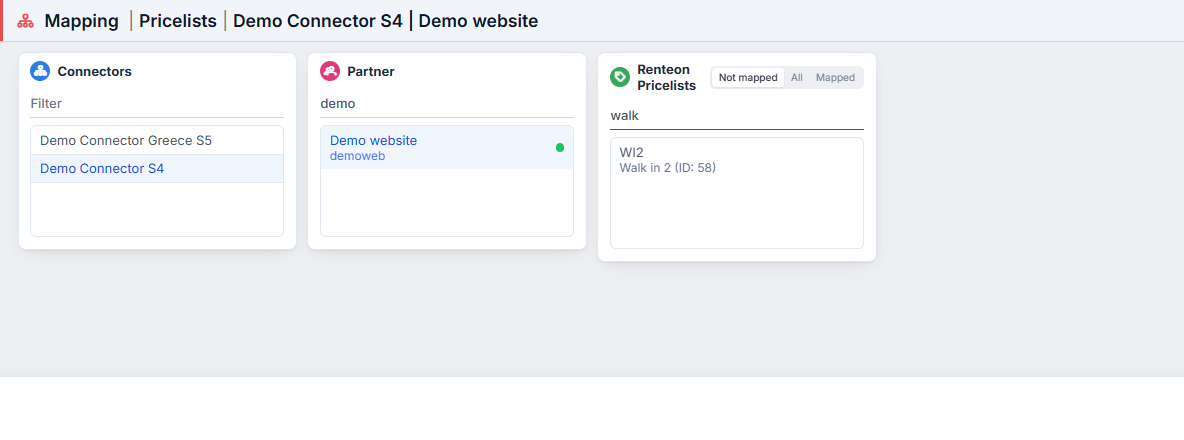
Open Provider → Mappings → Pricelists. The page title shows "Mapping | Pricelists", followed by the connector, the partner and the Renteon pricelist code you have selected. The screen has four columns, from left to right:
- Connectors: the active connectors you have access to, with a filter box, sorted by name.
- Partner: only the partners that have a partner mapping on the selected connector, each with its name over its code. A green dot means the partner mapping is active, an amber dot that it exists but is inactive. A broker that is missing here is not enabled on the connector yet: map the partner first.
- Renteon Pricelists: read live from that Renteon instance, signed in as the broker's own Renteon B2B user. So the column lists exactly the pricelists this broker may use in that instance: the active pricelists linked to its partner there. Each row shows the Renteon pricelist code, and under it "Name (ID: n)". A green dot means the pricelist is mapped. The switch in the heading shows Not mapped, All or Mapped pricelists. The filter box matches the code, the name, the ID and also the pricelist's currency, although the currency is not shown in the row.
- Basic: appears once a connector, a partner and a Renteon pricelist are selected. A grey line repeats them ("connector | partner | Renteon code"). The only field is Pricelist: the rate code, listed as "Name (Code)" and sorted by code, with "- please select -" until you choose one.
To map a pricelist:
- In Connectors, click the connector, for example Demo Connector S4.
- In Partner, click the broker. Type part of its name in the filter box to find it quickly.
- In Renteon Pricelists, click the pricelist. Set the switch to Not mapped to see only the ones that still need a rate code.
- In Pricelist, choose the rate code.
- Click Save. The Aggregator shows "Data saved" and the Renteon pricelist gets a green dot. With the switch on Not mapped, it leaves the list instead.
Save stays unavailable when the selected Renteon pricelist is already mapped (the Pricelist field is then locked and shows its rate code), or when the rate code you chose is already used by another mapping of this broker on this connector.
A mapping cannot be changed. Once it is saved, the Pricelist field is locked, and the Aggregator refuses changes with "Modification is not allowed.". To point a Renteon pricelist to another rate code, or a rate code to another Renteon pricelist:
- Select the mapped Renteon pricelist.
- Click Delete and answer Yes to "Are you sure?". Delete is shown only to users with the role Edit pricelist.
- Map it again with the right rate code.
Delete only switches the mapping off. The Aggregator keeps it, so that bookings made while it was active still show their rate code. In the classic interface the same screen has the same labels, but Delete there is shown to every user and does not ask for confirmation.
Warning: The Mappings menu has no role of its own. Every user who can sign in to the Aggregator and sees a connector can open this screen and add pricelist mappings for it. Only Delete needs the role Edit pricelist.
Working through many brokers
Because every broker on every connector is its own mapping, pricelist mapping is a routine rather than a one-off task. This order keeps it manageable:
- Open the Dashboard and click the Pricelists badge of a connector. The mapping screen opens for that connector with the switch on Not mapped.
- Take the brokers in the Partner column one by one. For each, the Renteon Pricelists column shows only the pricelists that still have no rate code. An empty column means the broker is done on this connector.
- Map each Renteon pricelist that the broker should sell under the brand to its rate code. Leave out the ones you do not want it to sell through the Aggregator, for example a pricelist the franchisee linked to the partner for other purposes.
- Move to the next connector and repeat, with the same rate codes.
The Partner column has no Not mapped switch of its own. It does not show which brokers still lack pricelist mappings, so you have to open each broker. When a new franchisee joins, go through its connector for every broker that should sell it. When a new broker joins, go through every connector for that broker.
The Pricelists badge on the Dashboard shows two numbers, mapped / total, per connector:
- Mapped is the number of active pricelist mappings on the connector.
- Total adds up, over every broker enabled on the connector with a Renteon user, the Renteon pricelists that broker can see there.
The badge is red when nothing is mapped, amber when some pricelists are not mapped and green when all are. Amber is normal if you leave some pricelists out on purpose. The numbers are counted again only by the daily run and by the Refresh icon in the connector's row on the Dashboard, so they do not change right after you save a mapping. The Refresh button at the bottom of the page only reloads the table. The Refresh icon in the row also runs the automatic clean-up described below.
A new mapping works in the broker's searches at once. The list of rate codes in the broker's setup data shows it within 5 minutes.
Prepaid and pay on arrival
Every search a broker sends says whether the booking will be prepaid. Renteon then uses only one kind of pricelist:
- Prepaid: only agency (nett) pricelists, the ones with Agency pricelist ticked in Renteon. The customer pays the broker in advance.
- Pay on arrival: only selling pricelists. The customer pays at the counter when picking up the car.
A broker whose mapped pricelists are all of the other kind gets no cars at all, and no error.
The same check is made again when the booking is created. A prepaid booking on a selling pricelist is refused with "Booking by agency cannot be created with selling pricelist.", and a pay-on-arrival booking on an agency pricelist with "Booking by commissioner cannot be created with agency pricelist.". In Renteon, the broker's partner becomes the Agency of a prepaid booking and the Commissioner of a pay-on-arrival booking.
The partner card in that Renteon instance must also allow the kind of booking: Agency for prepaid bookings, Agent for pay-on-arrival bookings. Otherwise Renteon refuses, for example with "You are not allowed to create prepaid bookings. Please contact the provider to enable prepaid bookings for your account.", and in a search that instance simply returns no cars.
A broker that sells both kinds needs two rate codes:
- a prepaid code, with Prepaid ticked, mapped to the instances' agency pricelists;
- a pay-on-arrival code, without Prepaid, mapped to the instances' selling pricelists.
In the demo, CP-AG-01 "Prepaid" has Prepaid ticked and CP-WI-01 "Pay on arrival" does not.
Warning: The Prepaid box on the rate code is only a label for the brokers. The Aggregator does not compare it with the kind of Renteon pricelist you map. If you map a prepaid code to a selling pricelist, brokers get no cars for prepaid searches under that code.
What the broker sends and sees
In a search, the broker names your brand by its provider code (required) and may list one or more rate codes to filter by. Without rate codes, the search uses every rate code mapped for that broker.
- A code your brand does not have at all, or a code with the wrong upper or lower case, refuses the whole search with "Pricelist with the rate code … does not exist.". The check covers all rate codes of the brand, deactivated ones included, but not the broker's mappings.
- A code your brand has but did not map for this broker on a connector gives no cars from that connector, without an error.
In an offer, the broker gets the rate code, the connector and the Renteon pricelist ID. To book, the broker sends the connector and the Renteon pricelist ID back. The Aggregator passes them on to that instance and does not check the mapping again, so a mapping deleted between the search and the booking does not stop that booking. Renteon still checks that the pricelist exists and fits the prepaid choice.
In the brand's setup data, which the broker reads through the API, the broker finds the rate codes that have an active mapping for it on an active connector of the brand: the name, the code and whether the code is prepaid. The list does not say on which connectors, or to which Renteon pricelists, a code is mapped.
In its bookings, the broker sees the rate code under which the booking's Renteon pricelist was mapped for it when the booking was made. A booking without such a mapping shows "-", for example a booking entered directly in Renteon, or one made before the mapping existed.
Export codes (Provider → Code book → Export codes) gives you the brand's locations, car categories and services for brokers, but no rate codes. Send the broker the rate codes yourself (code, name and whether it is prepaid), or tell it to read them from the setup data.
Currencies and prices
A rate code has no currency. Each Renteon pricelist has its own, so CP-WI-01 can be a euro pricelist in one instance and a pricelist in another currency in a country outside the euro area. To see the currency of the Renteon pricelists on the mapping screen, type the currency code, for example "EUR", in the filter box of the Renteon Pricelists column.
A broker may ask for a currency in its search. The Aggregator passes it on to every Renteon instance it asks. An instance that supports the currency returns its prices in it. An instance that does not support it returns no cars, and the broker gets no error. Each connector's supported currencies are listed in the brand's setup data, so brokers can see them.
The Aggregator never stores prices. Every search asks the Renteon instances, so a price changed in Renteon shows in the next search. When the broker sends back the time of its search with the booking, Renteon keeps the offered price for one hour. An instance that does not answer within 5 seconds is left out of the search result; see Connectors.
Pricelist history for websites
Website partners, the brand's own booking sites, can download the prices of a rate code as they were valid at a given date: the car rental pricelist together with its linked extras, fees and insurances. The download comes as data for the website, already translated into the Aggregator's codes, or as the CSV file exactly as Renteon generates it, for example to publish the price list on the website. Other partners are refused.
When the website has the same rate code mapped on more than one connector, the request must name the connector. Otherwise the website gets a message that lists the connectors, for example "Pricelist CP-WI-01 of provider demo is mapped on connectors: 1, 108. Define connectorId.". Demo website is exactly this case. A rate code that is not mapped for the website is refused with "Pricelist … is not available for provider …." (the rate code and the provider code take the place of the dots).
The website's developer finds the details in the Aggregator's API documentation, section Pricelists.
Automatic clean-up
Every day at 06:10 server time, and whenever someone clicks the Refresh icon in a connector's row on the Dashboard, the Aggregator signs in to that instance as each broker that is enabled there with a Renteon user, and reads the pricelists that broker can see. Every active pricelist mapping whose Renteon pricelist is no longer in that list is switched off, exactly as if it had been deleted. This happens when, in Renteon:
- the pricelist was deactivated, or
- the pricelist was unlinked from the broker's partner.
Linking the pricelist again does not bring the mapping back: you have to map it again. When the broker's sign-in to that instance fails, nothing is switched off for that broker. Brokers whose partner mapping is inactive are not checked.
The Dashboard step of the setup is described in Setting up a brand in the Aggregator: checklist.
Warning: Tell your franchisees: if a pricelist is still deactivated in Renteon, or still unlinked from a broker, when the next check runs (every day at 06:10, or the Refresh icon on the Dashboard), the brand's mapping is switched off for good. When a pricelist is replaced, for example for a new season, link and map the new one first and only then deactivate the old one.
When a broker gets no prices
When a broker reports that it gets no cars or no prices from part of the brand, check the pricelist side in this order:
- No pricelist mapping for this broker on that connector. This is the most common cause. Open Provider → Mappings → Pricelists, select the connector and the broker, and set the switch to All: if no Renteon pricelist has a green dot, map them.
- The broker filters by a code that does not match exactly. Upper and lower case must match. If the code does not exist at all, the broker gets "Pricelist with the rate code … does not exist.".
- The partner mapping is inactive or missing. An amber dot, or a broker missing from the Partner column, means that the connector is not asked for this broker at all.
- Prepaid does not fit the pricelist kind. A prepaid search needs agency pricelists, a pay-on-arrival search selling pricelists. Also check that the partner card in Renteon allows that kind of booking.
- The mapping was switched off by the automatic clean-up. The Renteon pricelist was deactivated or unlinked in Renteon. Link it again in Renteon, then map it again.
- The rate code was renamed. The broker still sends the old code.
If the pricelist side is in order, the cause is elsewhere: locations, car categories, an inactive connector, a currency the instance does not support or an instance that answers too slowly. The full list of checks is in Setting up a brand in the Aggregator: checklist.
Next step: check the Dashboard and give each broker its provider code, rate codes and Export codes workbook, Steps 8 and 9 of Setting up a brand in the Aggregator: checklist.
Related guides: