
Finance
Cashbook and cashbook overview
How Renteon keeps a cashbook per user and office, how to close it at the end of a shift, and how to read the cashbook print, the transactions print and the payment overview.
Last updated
A cashbook is Renteon's record of the money that passes through one person's hands in one office. Every payment on a document you save is written into your cashbook automatically: invoices, bills, deposits, advance payment invoices, cancellations, payments and refunds. From those payments Renteon keeps a running cash balance, which is the cash that should be in your drawer right now. At the end of your shift you count the drawer and close the cashbook, and Renteon books the cash you hand over. The screen is called Cashbook journal.
Four things to know before you start:
- There is one cashbook per user per office. If your Renteon account has several companies, there is also one per company. Two agents who share a desk each have their own cashbook.
- A cashbook is kept in your domestic currency.
- You never open a cashbook yourself. Renteon opens it the first time you start a document with payments in that office, for example when you click Confirm on the first step of a new invoice, even if you then cancel that document. It stays open until it is closed: by you, by a colleague with the Cashbook Administrator role, or automatically at night if your company uses that option. A cashbook is not limited to one day. If nobody closes it, the next day's payments go into the same cashbook.
- Every payment type is listed in the cashbook (card, bank transfer, voucher and so on), but only Cash changes the cash balance.
An administrator does the first four steps once. The steps after that describe an agent's day and what an office manager does with the results. The last step is a short checklist.
Allow users to keep a cashbook
A user can only issue finance documents (other than offers, and in Serbia invoice copies and training invoices) and payments in an office where that user is allowed to keep a cashbook. You set this for each user, which needs the role Edit users:
- Go to Administration → Code book → Users, open the user and click Edit.
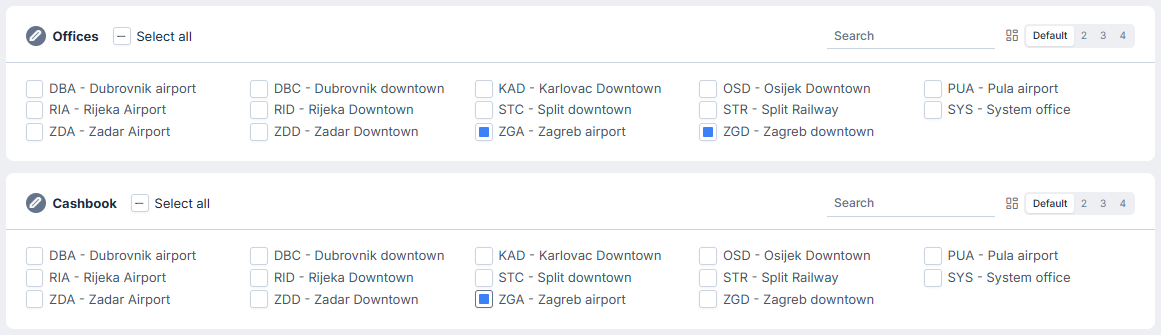
- In the Offices panel, tick the offices the user works in.
- In the Cashbook panel, tick the offices where the user takes payments. You can only tick an office here if it is also ticked under Offices. If you remove an office from Offices, its cashbook right goes with it.
- Click Confirm.
What the cashbook right controls:
- Without it, Renteon refuses to start or save an invoice, bill, deposit, advance payment invoice, cashbook payout, payment, cancellation or deposit return for that office. The message is "Cashbook is not defined for current user and office". On a new document it appears as soon as you click Confirm on the first step. Offers are not affected.
- On a new invoice, the Office list first offers the invoicing office of the office you signed in to. After it come the other active offices where you have the cashbook right. Offices with Disable billing ticked are left out. Only users with the role Change of office on invoice can change the office there.
- An office can have an Invoicing office set (Administration → Locations → Offices). In that case, the documents you issue while signed in to that office are issued in the invoicing office. They go into your cashbook for the invoicing office, so you need the cashbook right there.
- A user who is tied to one company can only keep cashbooks for that company.
These roles are involved. Users get them through role groups (Administration → Code book → Role groups) or directly on the User roles tab of the user:
- Invoice management: issue documents, open the cashbook journal and close your own cashbook.
- Cashbook Administrator: close other users' cashbooks as well.
- POS: maintain the POS list.
- External sale place edit: maintain the external sale places.
- Application settings management: switch automatic closing on or off.
Tip: Give Cashbook Administrator to the person who closes a cashbook when its owner forgot, for example the station manager.
Register your card terminals
Sales → Cashbook → POS list holds the card terminals (POS) of your offices. Register every terminal you take cards on, for three reasons:
- When an agent records a Credit card or Credit card - preauthorisation payment, the POS field is mandatory. It only offers the active terminals of the document's office (and of its company, if you have several). If there is exactly one, Renteon fills it in on a Credit card payment. An office without a POS cannot record card payments or card pre-authorisations.
- The Excel export of the cashbook journal shows the bank of the POS on every card payment. This helps when you match card takings with what the bank pays out.
- When a card-paid document is cancelled in a different office, Renteon moves the card payment of the cancellation to the POS of the same bank in that office, if one exists.
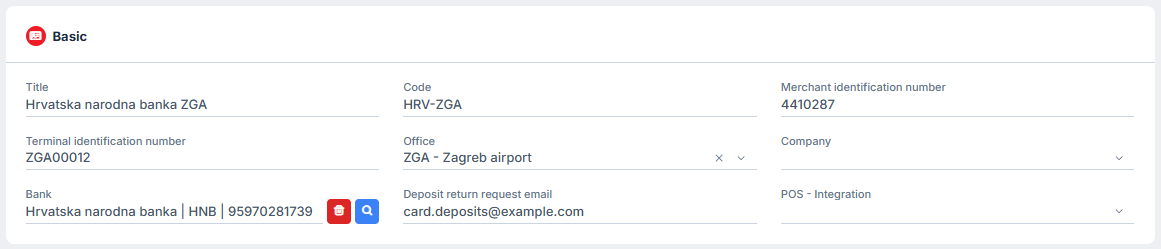
Click Add and fill in:
- Title (required): the name agents see in the POS field.
- Code (required).
- Merchant identification number and Terminal identification number: the merchant and terminal numbers of the terminal. Both go into the deposit return request e-mail described below. The terminal number becomes required once you choose an integration.
- Office (required): the office where the terminal is used.
- Company: shown only if your account has several companies.
- Bank (required): the bank or card acquirer, picked from the companies in your address book.
- Deposit return request email: when you close a contract that still has an unprocessed deposit, Renteon offers Request deposit return. That e-mail is addressed to this address. Its template can fill in the merchant and terminal numbers, the card and authorisation numbers recorded on the payment, the transaction time, the booking number and the pre-authorised amount.
- POS - Integration: shown only when at least one of the Monri, Stripe, Windcave or Adyen payment modules is enabled for the company. Leave it at No for a stand-alone terminal. Choose MONRI, STRIPE, WINDCAVE or ADYEN when the terminal is connected to that provider. The payment dialog then offers to send the card transaction to the terminal.
- For Stripe, also enter Stripe - Reader Id. You find it in the Stripe portal, and it starts with tmr_. After saving, Check - Stripe shows the reader's details.
- For Adyen, the device ID (for example V400m-346543275) goes into Terminal identification number. After saving, Check - Adyen tells you whether the terminal is online.
Save with Confirm. The trash icon (Delete) removes a POS that was never used. If the POS already appears on payments, Renteon deactivates it instead, so old documents keep it. Activate brings it back. A deactivated POS is no longer offered on new payments.
Tip: If an agent picked the wrong POS on a card payment, a user with the role Editing of the finance document payment can correct it on the issued document with the pencil icon (Edit) on the payment line. The POS, authorisation number and transaction ID can be changed this way, but not the payment type or the amount.
Register external sale places
Sales → Cashbook → External sale places is a short list used by the External document payment type. When an agent records a payment of that type, Renteon asks for the External sale place and the External document number. Both are required, and the place can only be picked from this list, so create the list before anyone uses that payment type.
The payment dialog only offers the payment types ticked in Administration → Code book → Settings, tab Code book, panel Payment type. If agents don't see External document (or any other payment type), tick it there.
Each entry has a Code of up to 10 characters and a Title of up to 100 characters, and both are required. Create an entry with Add. To change one, open it, click Edit and then Confirm. Delete and Activate work the same way as on the POS list, with one difference: a deactivated external sale place is still offered in the payment dialog. You can filter the list by Title, ID, Code and Active.
Payments of type External document are listed in the cashbook under their own payment type. They do not change the cash balance.
Decide whether cashbooks close automatically
If your offices don't always close their cashbooks, Renteon can close them every night. An administrator with Application settings management sets this up in Administration → Code book → Settings, tab Finances:
- Click Edit.
- Tick the box in the header of the Close cashbooks automatically section.
- Enter the Default cashbook balance on close. It is required once the option is on, and it cannot be negative.
- Click Confirm.
From then on, Renteon closes every cashbook that is still open in the last hour before midnight, in your company's time zone. That includes every user's cashbook in every office. Each one is closed as if its owner had done it. The closing balance is the default balance, or the whole cash balance if there is less cash than that, and never below zero. The rest is booked as handed over to the main cash office.
For example, take a default balance of 200. An agent whose cash balance is 950 at night is closed with 200, and 750 is booked as handed over. An agent with 120 in cash is closed with 120, and nothing is handed over.
The automatic close cannot count your drawer. It simply books the default balance. If you counted a different amount, close the cashbook yourself before the night. If the option is off, a cashbook stays open until somebody closes it.
Start your shift
- Sign in and choose the office you work in today. Your payments go into your cashbook for that office, or for its invoicing office if it has one (see "Allow users to keep a cashbook").
- Open Sales → Cashbook → Preview Cashbook journal. The list shows your own cashbooks, newest first.
- Look for a cashbook without a Date close. If it was opened on an earlier day, close it now (see "Close your cashbook" below). If you don't, today's payments are added to it.
- Count the float in your drawer. It should match the Amount Closed of your last closed cashbook in this office.
You don't open a cashbook yourself. Renteon opens a new one the first time you start a document with payments after your last cashbook was closed. The opening balance of the new cashbook is the closing balance of your own last closed cashbook in the same office. If that amount is not zero, Renteon books it into the new cashbook as a Deposit from main cash office document. That way the float appears as the first line of the cashbook print.
Tip: The float is personal. Renteon never uses a colleague's closing balance as your opening balance, even if the two of you share a drawer.
Take payments: what goes into your cashbook
Each of these documents and payments goes into your open cashbook for the document's office when you save it:
- invoices, bills, advance payment invoices, billing specifications and external documents, and accounting notes in the countries that use them;
- deposits and deposit returns (Deposit and Deposit - payout), including a deposit returned with Return when you close a contract;
- approvals, debits and corrective invoices;
- cancellations of any of these;
- payments and refunds entered under Sales → Bills → Payments, if your company uses that screen (Enable Payments Module in Administration → Code book → Settings, tab Finances). These always go into your cashbook for the office you signed in to, even when that office has an invoicing office;
- cashbook payouts (next step).
Offers do not touch the cashbook.
In some countries Renteon asks for confirmation when you save a document with a fiscalised payment while the office is closed. See "Finance documents outside working hours" in Holidays and working hours.
The cashbook lists every payment line of these documents, whatever the payment type, but only Cash changes the cash balance. A Credit card - preauthorisation only reserves money on the client's card. It is listed under Preauthorisation in Print transactions and does not count as a payment.
Some payment types need more than an amount:
- Credit card and Credit card - preauthorisation: choose the POS that actually read the card. This field is mandatory.
- External document: choose the External sale place and type the External document number.
Online payments work differently. When a client pays online through Stripe, RedSys, Monri, Windcave or Adyen, Renteon creates the document itself, in the name of the user chosen as Finance document - User in that gateway's settings. These payments appear in that user's cashbook, not in the cashbook of the agent who handles the booking. That user also needs the cashbook right in the offices where those documents are issued. See the guide for your gateway under Related guides.
Tip: Check the payment type on every payment line before you save. Renteon often fills in the first line for you (with the client's usual payment type, a transactional account or a credit card), and a payment line you add yourself starts as Credit card. Change it to Cash when the client pays cash. A wrong payment type is a common reason why the drawer and the cash balance don't match at closing.
Take cash out of the drawer during the day
Sometimes cash leaves your drawer without a client document, for example when you hand part of the takings to the main cash office before your shift ends. Record this as a cashbook payout:
- Go to Sales → Bills → New invoice.
- As the Type, choose Cashbook payout. Renteon fills in the Subtype if there is only one. Check the Currency and the Office, then click Confirm.
- The next dialog already has a line called Cashbook payout under Custom items. Enter the amount in Amount (with VAT) and click Confirm.
- Click Save.
A cashbook payout needs no client. It is always paid in cash, Renteon sets its VAT rate and you can't change it, and Renteon does not tick Send by email for it. When you confirm the amount, Renteon refuses an amount larger than the cash in your open cashbook, with the message "The amount entered is more than is currently available in the cashbook". The payout lowers your cash balance and appears as a payout in the journal and on the cashbook print.
Check your cashbook in the cashbook journal
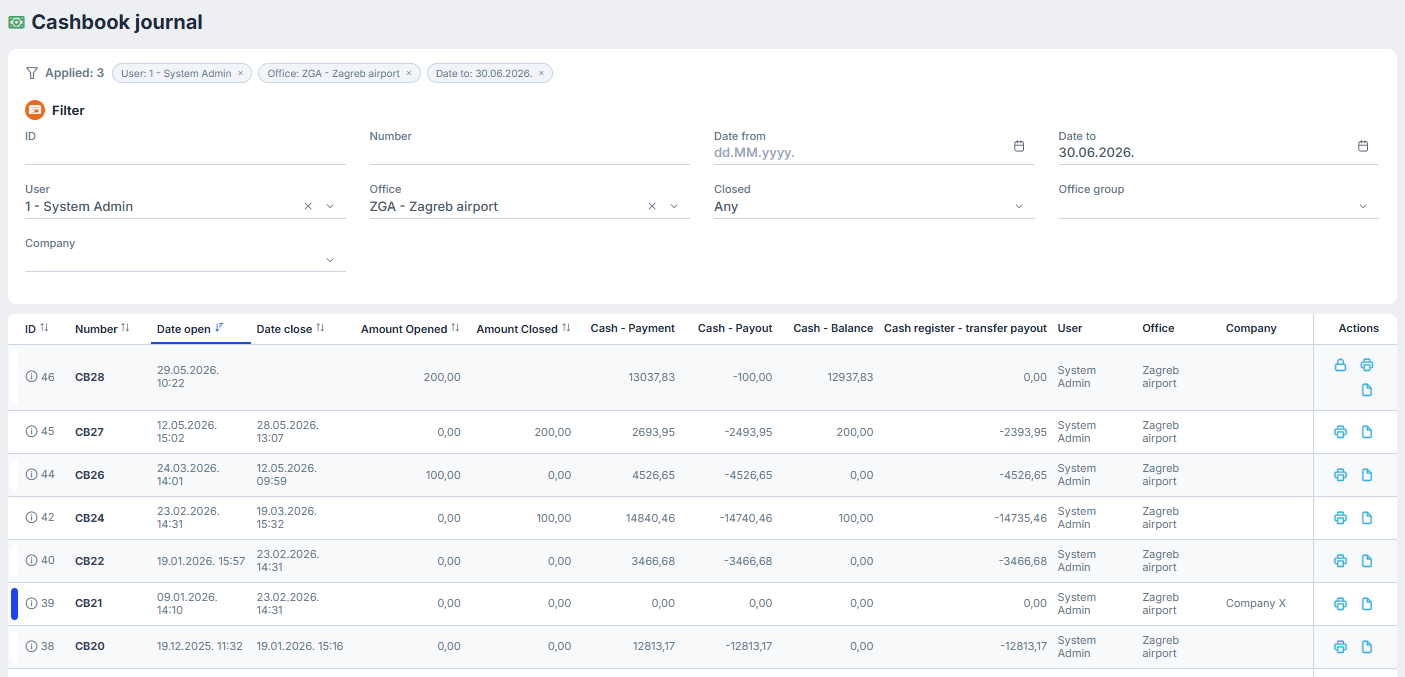
Open Sales → Cashbook → Preview Cashbook journal. These filters are available:
- ID: when this is filled in, all other filters are ignored.
- Number: the cashbook's number.
- Date from and Date to: cashbooks opened in this period.
- User: set to you every time you open the screen. Pick a colleague to see their cashbooks, or choose Any to see everyone's. Anyone with Invoice management can look at colleagues' cashbooks.
- Office.
- Closed: Any, Yes (closed) or No (still open).
- Office group, and Company if your account has several companies.
Search applies the filters. Every filter except User is remembered from the last search made in this browser, even by a colleague on a shared computer. If you can't find your open cashbook, check that Closed is not set to Yes. Reset parameters clears the filters and goes back to your own cashbooks, newest first.
The columns:
- ID, Number, Date open (when Renteon opened the cashbook) and Date close.
- Amount Opened: the opening balance.
- Amount Closed: the closing balance, which is the cash left in the drawer at closing.
- Cash - Payment: all cash taken in, including the float booked in at opening. Cancelling a cash invoice or bill reduces this amount.
- Cash - Payout: all cash paid out, shown as a negative amount, including the handover at closing.
- Cash - Balance: the two columns added together. For an open cashbook, this is the cash that should be in your drawer now. For a closed one, it is the cash that was left in the drawer.
- Cash register - transfer payout: the amount handed over to the main cash office at closing. It is negative when cash left the drawer.
- User, Office, and Company if your account has several companies.
An example: you started with a float of 200, took in 800 in cash and returned a 100 cash deposit taken on an earlier day. While the cashbook is open, the journal shows Cash - Payment 1000, Cash - Payout -100 and Cash - Balance 900. You then close it and leave 200 in the drawer. Now Cash - Payout is -800, Cash - Balance is 200 and Cash register - transfer payout is -700.
Each row has these actions:
- the lock icon (Close): only on an open cashbook, and only for its owner or a Cashbook Administrator;
- the printer icon (Print), or a double-click on the row: the cashbook print;
- the page icon (Print transactions): the list of all payment lines.
At the bottom of the screen are Export to Excel, Payment overview, Reset parameters and Search. On a phone, each cashbook appears as a card with the dates, the opening amount, the closing amount once it is closed, the three cash amounts and the same buttons. The handover amount is not on the card.
Close your cashbook
- Count the cash in your drawer.
- In the cashbook journal, find your open cashbook and click the lock icon (Close).
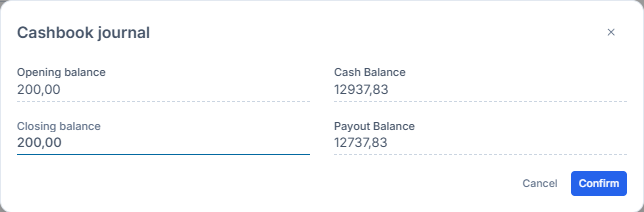
- The Cashbook journal dialog shows four amounts:
- Opening balance: the float you started with.
- Cash Balance: the opening balance plus all cash taken in, minus all cash paid out. This is what Renteon expects to be in the drawer.
- Closing balance: what you leave in the drawer as the float for your next cashbook. You type this in. It starts at 0.
- Payout Balance: the Cash Balance minus the Closing balance. This is the cash you hand over.
- Enter the Closing balance and click Confirm.
Renteon then closes the cashbook with the current time. It books the Payout Balance as a Withdraw to main cash office document, which the journal shows under Cash register - transfer payout. The print dialog for that document opens next. Print it, because it records the cash you hand over. The closing balance becomes the opening balance of your next cashbook in this office.
For example: Opening balance 200, Cash Balance 900. You leave 200 in the drawer, so the Payout Balance is 700.
Things to watch:
- A closed cashbook cannot be reopened or changed. Anything you do after closing goes into a new cashbook.
- There is no separate entry for a cash difference. Whatever you leave as the closing balance, the rest of the cash balance is booked as handed over. If the counted cash does not match the Cash Balance, find the cause before you close. Common causes are a payment entered with the wrong payment type or in the wrong office.
- Renteon does not stop you from entering a closing balance higher than the Cash Balance. If you do, the Payout Balance becomes negative, so check it before you click Confirm. A negative closing balance is refused.
- The cash amounts in the journal and in this dialog are added up as they were entered, without converting currencies. If you took cash in a foreign currency, count each currency separately and use the cashbook print, which converts everything to your domestic currency.
- To close a colleague's cashbook you need the Cashbook Administrator role. The cashbook print then shows your name in brackets after the closing date.
Tip: The Closing balance starts at 0, which means "hand over everything". If you keep a float, type it in before you click Confirm.
Print the cashbook and read it
Click the printer icon (Print) or double-click the cashbook. In the print dialog, choose Open, Download or Preview, pick the Language and click Confirm.
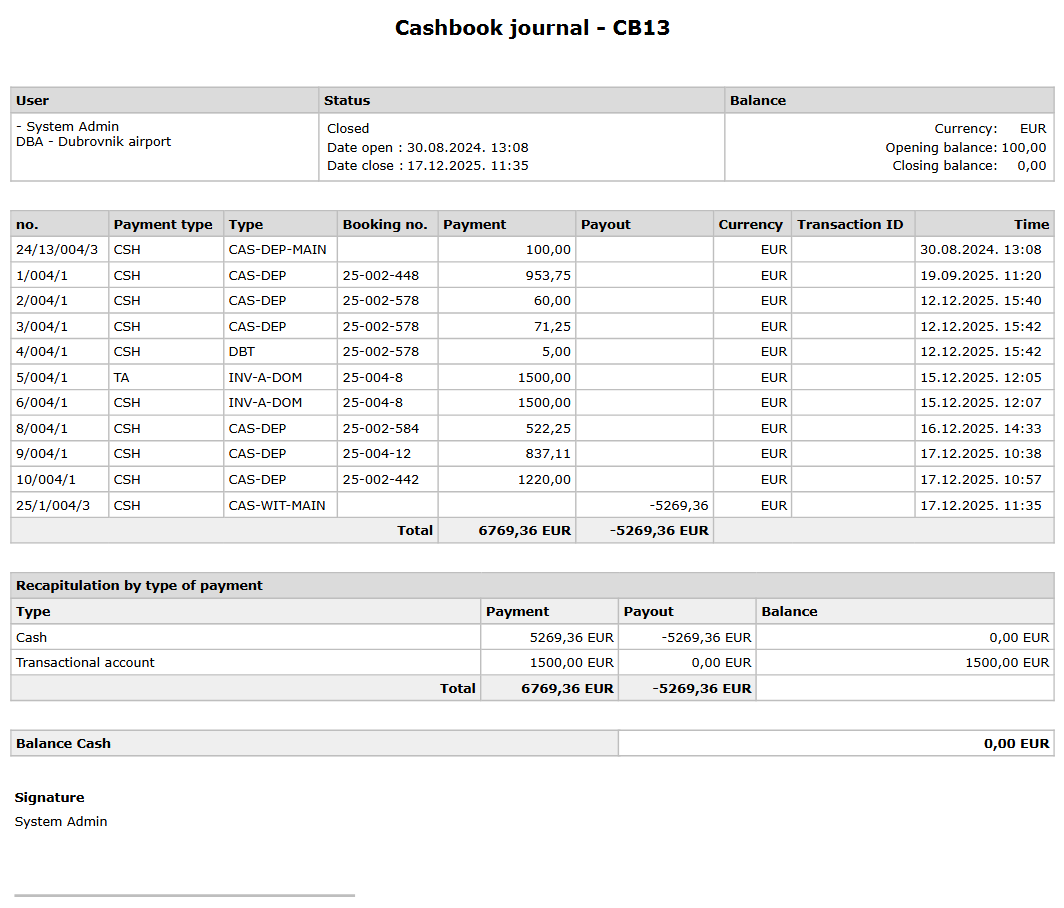
The cashbook print is titled Cashbook journal, followed by the cashbook number. It contains:
- A header with the user (code and name), the office (code and name), the status (Opened or Closed), Date open, Date close, the currency, the Opening balance and the Closing balance.
- One line per payment, in time order, with these columns: no. (the document number), Payment type (the payment type code, plus card type and authorisation number for cards), Type (the code of the document subtype), Booking no., Payment, Payout, Currency, Transaction ID and Time. Line amounts are in the document's currency. The Total row is in your domestic currency.
- Recapitulation by type of payment: the Payment, Payout and Balance totals for each payment type, in your domestic currency. Card payments are split by card type.
- Balance Cash: cash taken in minus cash paid out. It includes the float booked in at opening and, once the cashbook is closed, the handover.
- A Signature line with the user's name.
The cashbook print leaves out deposits, deposit returns and payment delays. Suppose a cashbook holds a cash deposit of 300 that was not returned in it. Balance Cash on the print is then 300 lower than the Cash - Balance in the journal and the Cash Balance in the closing dialog. Use Print transactions to see deposits.
The page icon (Print transactions) produces a print titled Finance documents overview, followed by the cashbook number. It has the same header, then every payment line of the cashbook, including deposits, deposit returns, card pre-authorisations and payment delays. The columns are Number, Kind (the payment type code, plus card type and authorisation number for cards), Type, Booking, Client, Preauthorisation, Payment, Payout and Time. It ends with a Total row and a Signature line. It has no recapitulation and no cash balance. Use it to see who paid what, or to check deposits.
If Renteon support has set up a custom layout for your company, your prints may look different from this description.
Office totals: payment overview and Excel export
Payment overview, at the bottom of the cashbook journal, prints the takings of a whole office for a period, across all users:
- Click Payment overview.
- Choose the Office, Date from and Date to. All three are required. The office is filled in from the journal's Office filter, if you set one.
- Click Confirm, choose the print options and click Confirm again.
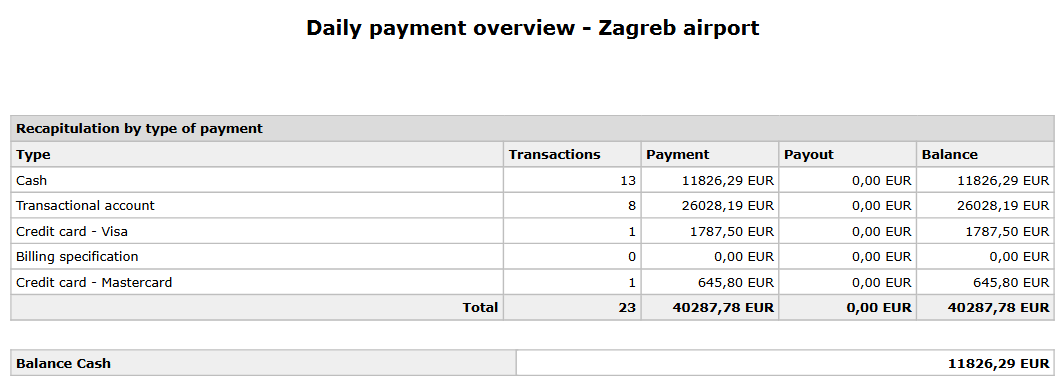
The print is titled Daily payment overview, followed by the office name. The period you chose is not printed, so write it on the printout if you keep it. It contains a Recapitulation by type of payment: for each payment type, the number of Transactions and the Payment, Payout and Balance totals. Card payments are split by card type. A Total row and Balance Cash follow. All amounts are in your domestic currency.
The overview counts payments with a payment date in the period, on documents issued in that office or entered in that office under Payments. It does not matter who entered them or which cashbook they are in. Unlike the cashbook print, it includes deposits and deposit returns. It leaves out card pre-authorisations, payment delays and the float transfers (Deposit from main cash office and Withdraw to main cash office). Balance Cash is therefore the cash taken in minus the cash paid out in the period, not the cash in the drawers. You can use it, for example, to compare the card totals per card type with the terminals' end-of-day reports.
Export to Excel exports the cashbooks that match the current filters. The ID and Number filters are not applied. The workbook has three sheets:
- Cashbook: one row per cashbook, with the same amounts as the journal.
- Details: one row per payment line. It shows the cashbook, user, office, document number and subtype code, payment type, card type, the bank of the POS, client, booking number, the amounts in the document currency and in the domestic currency, the currency, the transaction ID and the time. Card pre-authorisations and payment delays are left out.
- Pivot - Office, Payment type: the domestic payment and payout totals per office and payment type, with card payments split by card type.
Tip: The User filter is set to you when you open the journal. Set it to Any before you export, or the workbook contains only your own cashbooks.
Cancellations, refunds and corrections
Renteon never edits a cashbook. Every correction is a new document or payment. It goes into the cashbook of the user who makes it, normally in the office that user is working in:
- Cancelling a cash invoice books the cancellation, a negative amount, into your open cashbook today. This happens even when the original invoice is in a colleague's cashbook or in a cashbook that was closed long ago. For example, if you cancel yesterday's cash invoice of 150 today, your cash balance today drops by 150.
- A deposit returned with Return on the contract, or with a Deposit - payout document, is paid out of the cashbook of the user who returns it, not the user who took it.
- A refund entered under Sales → Bills → Payments goes into your cashbook for the office you signed in to. Cancelling a payment there goes into your cashbook for the office of the original payment, so you need the cashbook right in that office.
- Approvals, debits and corrective invoices follow the same rule.
So the cash you hand over at closing can include corrections of earlier days. Print transactions lists each of them with its document number and booking.
Tip: Before you cancel a cash document or return a cash deposit, check that you have the cash to pay back. The amount leaves your cash balance at once.
When a cashbook stays open
- At sign-out. If you sign out while your cashbook for the current office is still open, Renteon asks whether you want to close it now. Yes takes you to the cashbook journal and keeps you signed in. No signs you out and leaves the cashbook open. If you close the question with Escape, you stay signed in. The question only covers the office you signed in to. If your documents are issued in an invoicing office, check the journal yourself. Switching office does not ask at all, and your cashbook in the office you leave stays open.
- Nothing blocks you. Renteon does not stop you from working while an older cashbook is open. New payments simply go into it, so a cashbook left open overnight mixes two days. If your company uses automatic closing, the cashbook is closed at night anyway. The only block is a rare one: if you ever see "There are multiple open cashbooks for the same user and office. Please close one cashbook before proceeding with invoice creation.", close one of your open cashbooks for that office in the journal and try again.
- Closing for someone else. A Cashbook Administrator can close a colleague's cashbook from the journal. Set User to the colleague or to Any, and Closed to No. Count the colleague's drawer first, because closing works exactly as it does for your own cashbook.
Daily routine at a glance
For an agent:
- Sign in to the office you work in.
- Open the cashbook journal and close any cashbook left open from an earlier day.
- Check that your float matches your last Amount Closed.
- During the day, record every payment with the right payment type, choose the right POS for cards, and record cash you take out as a cashbook payout.
- Before you leave, count the drawer and compare it with Cash - Balance.
- Close the cashbook: enter the float you leave as the Closing balance, confirm, and print the handover document.
- Print the cashbook with Print. It has a signature line for you.
- Sign out.
For the office manager:
- Look for open cashbooks: set User to Any and Closed to No. Close forgotten ones (this needs Cashbook Administrator) or rely on automatic closing.
- Print the Payment overview for the office and the day, and compare the card totals with the terminals.
- Use Export to Excel for a period when you need the details per user, payment type or bank.

The cashbook only shows what was entered on documents and payments. If the drawer does not match, the cause is almost always a payment with the wrong payment type, office or amount, so check those first.
Related guides: