
Fiscalization
Croatia: e-invoices (FINA, Moj-eRačun)
How Renteon sends invoices to Croatian companies as e-invoices through FINA e-Račun or Moj-eRačun - setup, which documents qualify, buyer data, sending, statuses and errors.
Last updated
Since 1 January 2026, an invoice to a Croatian company or artisan that is paid by bank transfer is not fiscalized through CIS. Renteon builds a structured e-invoice (UBL) instead and sends it through an e-invoice provider. Renteon works with two providers, FINA e-Račun and Moj-eRačun. Each company in your Renteon account uses one of them.
This guide shows you how to connect a provider and which documents become e-invoices. It also covers the buyer data Renteon needs, how e-invoices are sent and how you follow their status. Fiscalization through CIS is described in Croatia: fiscalization (CIS). That guide also covers the operator OIB on users, which e-invoices use too.
Which documents become e-invoices
For documents created from 1 January 2026, Renteon sends a document as an e-invoice when all of these are true:
- The client is a Croatian company or artisan: address book type Company, or Individual with Artisan ticked, and Foreigner not ticked.
- The document is an Invoice, Bill, Bill - payout, Approval, Debit or Advance payment invoice.
- At least one payment is a Bank transfer or Transactional account payment. The other option is that you marked the new invoice to be sent as an e-invoice (see Issuing an e-invoice) and it has a payment by Cash, Voucher, Credit card, PayPal, Checkout, Eurobank ePos, STCPay, Stripe, PayTabs, Monri or Adyen.
- FINA e-Račun or Moj-eRačun is enabled for the company that issues the document.
- The client does not have Do not send e-invoice for this client ticked.
A document is either fiscalized or sent as an e-invoice, never both. An e-invoice has no ZKI or JIR. For example, if a Croatian company pays a rental by card, the invoice goes to CIS with the company's OIB. If the same company pays by bank transfer, the invoice becomes an e-invoice. Invoices to private persons and to foreign companies never become e-invoices in Renteon. An invoice to a Croatian company whose only payment is Payment delay, or another payment type that is not listed above, is neither sent as an e-invoice nor fiscalized. When you cancel an e-invoiced document, the cancellation is a new document and follows the same rules.
Warning: If no provider is enabled, invoices to Croatian companies with a bank transfer payment are neither fiscalized nor sent as e-invoices. The same happens if you mark an invoice to be sent as an e-invoice while no provider is enabled. Connect a provider before you issue such invoices.
What you need
- An agreement with the provider, and the access data it gives you. For FINA e-Račun, that is the certificate (a .pfx file) and its password. For Moj-eRačun, it is the username, password, company id and software id of your access.
- Complete company data in Renteon: name, VAT ID (OIB), address, town and postal code. They are the seller's data on every e-invoice.
- A company account with its IBAN. Every e-invoice carries a bank account. You enter your accounts, with the IBAN in Account number, in Administration → Code book → Company accounts. Renteon takes the company account of the payment or, if the payment has none, the default Company account from Administration → Code book → Settings, tab Basic. Without an account, Renteon cannot create the e-invoice. To make sure no bank transfer payment is saved without an account, tick Mandatory entry of the company account on the financial document in Settings, tab Finances. Renteon then stops the save with "Company account was not selected".
- The OIB of every user who issues invoices. Like fiscalized invoices, e-invoices carry the operator's name and OIB.
- The CPA classification of what you invoice, on your car categories.
- The buyer's OIB and address in the address book.
- A buyer that can receive e-invoices. The buyer must be registered to receive e-invoices. With FINA, you can check this in the address book, as described below.
Connecting FINA e-Račun
You need the role Application settings management.
- Go to Administration → Code book → Settings, click Edit and open the tab Fiscalization.
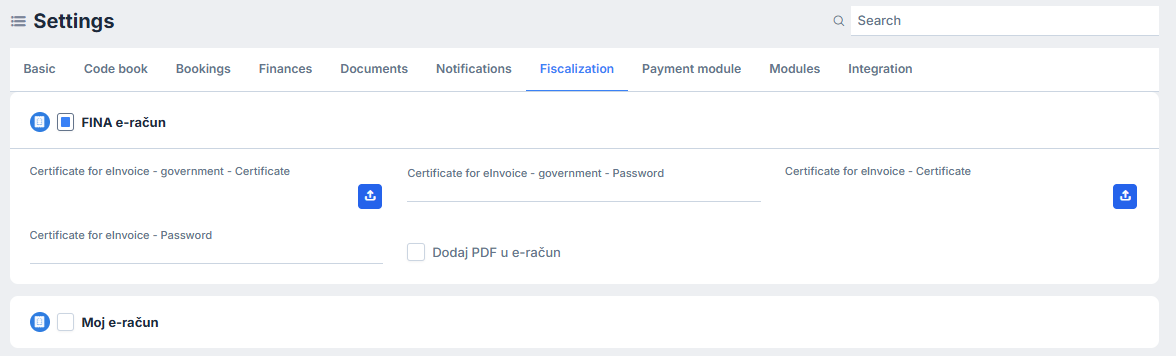
- In the section FINA e-račun, tick the checkbox in the section header. The section opens.
- Upload your e-Račun certificate in Certificate for eInvoice - Certificate and enter its password in Certificate for eInvoice - Password. Renteon also needs this certificate for the FINA register check in the address book.
- If FINA issued you a separate certificate for public procurement e-invoices, upload it in Certificate for eInvoice - government - Certificate and enter its password in Certificate for eInvoice - government - Password.
- Tick Dodaj PDF u e-račun if the PDF of the invoice should be attached to the e-invoice.
- Click Confirm. When you save the settings with a certificate, Renteon registers your company and its certificates for sending to FINA.
FINA e-račun and Moj e-račun cannot both be on. When you tick one, Renteon unticks the other.
For an additional company, go to Administration → Code book → Companies, open the company and use its section FINA e-račun. The fields are Certificate for eInvoice - government, Password, Certificate for eInvoice and Password. The option to attach the PDF exists only in the main settings and applies to the main company. After you set up an additional company, send its first e-invoice by hand and check that it goes out. If it does not, contact Renteon support.
Connecting Moj-eRačun
You need the role Application settings management.
- Go to Administration → Code book → Settings, click Edit and open the tab Fiscalization.
- In the section Moj e-račun, tick the checkbox in the section header.
- Fill in Username, Password, Software Id and Company Id with the access data of your Moj-eRačun account. All four fields are mandatory.
- Enter an address in Notifications E-mail. This field is mandatory too. Renteon sends a message to this address every time Moj-eRačun refuses a document.
- Click Confirm.
Moj-eRačun e-invoices always include the PDF of the invoice. Turning Moj e-račun on turns FINA e-račun off.
For an additional company, open it in Administration → Code book → Companies and use its section Moj e-račun. The fields there are Username, Password, Software id, Company id and Notifications.
Classification of items (CPA)
Every line of an e-invoice carries a statistical classification of products by activity (CPA, in Croatian KPD). Renteon fills it in as follows:
- Lines from a booking: the code comes from the car category of the booking, in the field Statistical classification of products by activity (CPA) - Rent (Fleet → Fleet → Car categories, open the category).
- The sale of a car: the code comes from the car's category, in the field Statistical classification of products by activity (CPA) - Sales.
- No code on the car category: Renteon uses the default classification of the type of service.
- Lines you add by hand on a new invoice: the code comes from the line's field CPA Classification.
Advance payment invoices carry no classification. Renteon stores the code on each line when the document is saved, so changing a car category later does not change invoices you have already issued. Renteon does not stop you from issuing an invoice without a classification, so set the codes on your car categories before you start. Editing car categories needs the role Car categories edit. See Car categories and category groups.
Buyer data in the address book
Open the client in Sales → Address book → Search and click Edit. You need the role Address book management.
- Type, Artisan and Foreigner: set them as described in the first section. They decide whether the client gets e-invoices at all.
- VAT ID: the buyer's OIB. Renteon addresses the e-invoice to this OIB, so without it the e-invoice cannot be created. For a client without Foreigner ticked, Renteon checks that the number is a valid OIB and does not save the client otherwise. The message starts with "Invalid VAT ID."
- Address: the buyer's address goes on the e-invoice. Renteon takes the address chosen on the invoice or, if there is none, the client's default address, so the client needs one.
- Code: a buyer that receives e-invoices per business unit is identified by the business unit code entered here. Renteon sends whatever is in this field as the business unit code, so leave it empty for a buyer without business units.
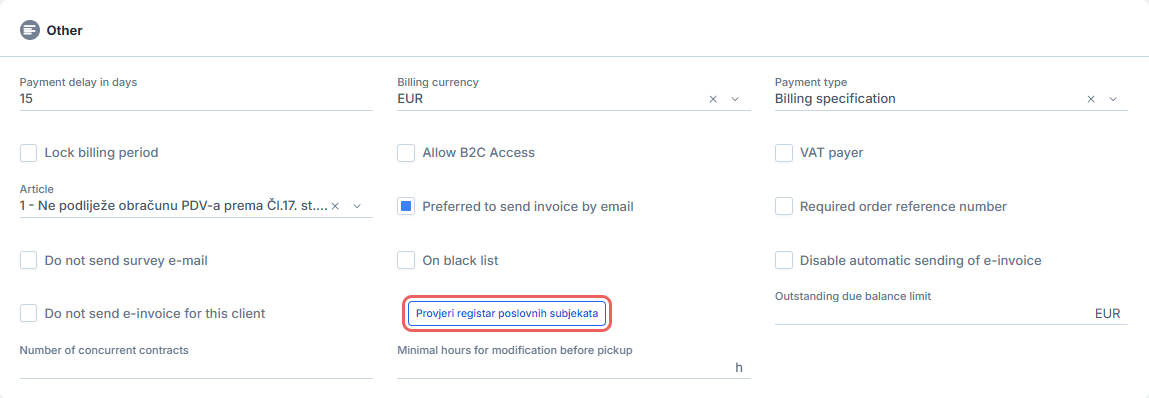
- Provjeri registar poslovnih subjekata: this button checks the FINA register. It appears in edit mode when FINA e-račun is enabled in the main settings and the client is a Company without Foreigner ticked. VAT ID must be filled in. The dialog FINA - Registar poslovnih subjekata lists the business units FINA has registered for this OIB:
- If there are several, click Odaberi next to the right one. Renteon writes its code into Code. Click Confirm to save the client, so e-invoices go to that business unit.
- If there is only one, the dialog just confirms the registration.
- If FINA finds nothing, Renteon shows an error. The buyer is then not registered to receive e-invoices.
- Do not send e-invoice for this client (section Other, only for clients of type Company): documents for this client never become e-invoices. Renteon fiscalizes them through CIS instead, for every fiscal payment type, bank transfer included. Artisans are treated as companies for e-invoices, but this checkbox is not offered for them.
- Disable automatic sending of e-invoice (section Other): see the warning below.
Warning: The automatic e-invoice sending that Renteon uses since 1 January 2026 does not check Disable automatic sending of e-invoice. That client's e-invoices are still sent automatically. To keep a client out of e-invoicing, tick Do not send e-invoice for this client instead.
Issuing an e-invoice
You issue an e-invoice like any other invoice, for example in Sales → Bills → New invoice or from a contract. On a Croatian new invoice screen, three fields matter for e-invoices:
- UBL - Type: the business process type of the e-invoice, P1 to P12, with Croatian names. If you leave it empty, Renteon uses P1, or P9 for an approval. It cannot be changed after you save.
- E-invoice not sent: despite its name, ticking this checkbox means "send this invoice as an e-invoice". It appears when the client is a Croatian company (type Company, Foreigner not ticked) and at least one payment is by Cash, Credit card, Voucher, PayPal, Checkout, Eurobank ePos, STCPay, Stripe, PayTabs, Monri or Adyen. Tick it to send the invoice as an e-invoice instead of fiscalizing it through CIS. For example, a company might pay by card but still want the invoice in its e-invoice inbox. The checkbox is not offered for artisans. Renteon accepts it only for domestic companies, otherwise saving stops with "E-Invoice can be sent only to domestic companies."
- CPA Classification: this field appears on lines you add by hand, except on advance payment invoices.
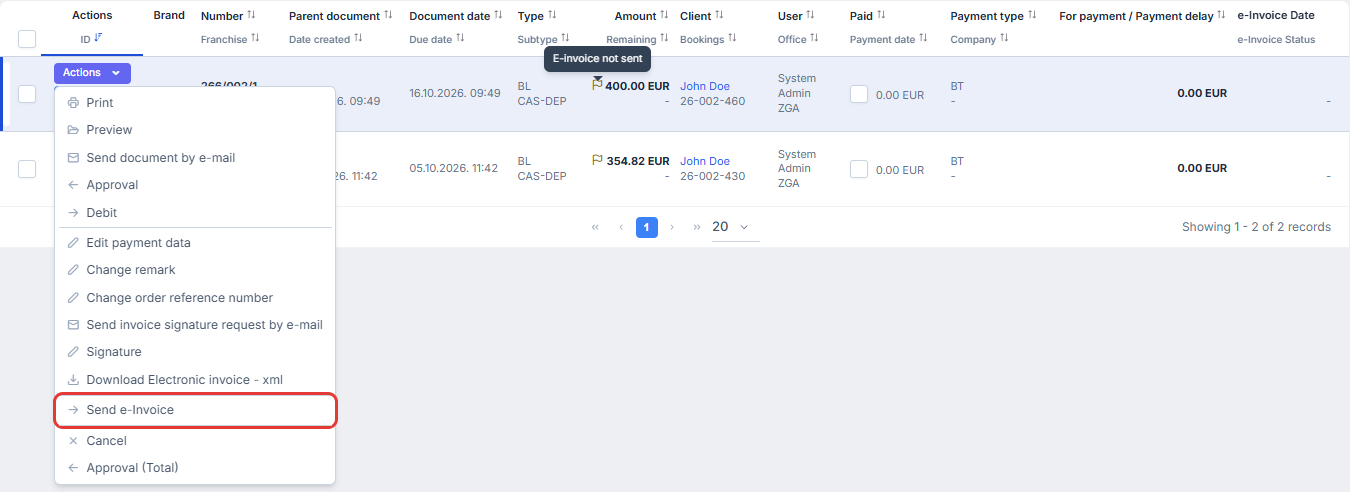
After you save, the document waits to be sent. In Sales → Bills → Search, a yellow flag with the tooltip E-invoice not sent marks it next to the amount. Renteon sends it in one of two ways:
- Automatically: on the live system, Renteon sends all waiting e-invoices every six hours. A document goes out at the earliest five minutes after its last change.
- Manually: open the document and choose Actions → Send e-Invoice, or use Actions → Send e-Invoice on the row in the list. Once the e-invoice has been sent, the item is greyed out.
When the provider accepts the e-invoice, the yellow flag disappears, and the list shows the date it was sent.
Following the status
- Column e-Invoice Date / e-Invoice Status: in Sales → Bills → Search, this column appears when an e-invoice provider is enabled. It shows the date the e-invoice was sent and, below it, the date and description of the latest status. Errors appear in red.
- Status history: click Info on a row and open the tab e-Invoice. It lists the statuses with ID, Code, Status, Date and Partially paid. When you open the tab, Renteon fetches the latest statuses from the provider.
- Nightly update: once a day, at night, Renteon collects new statuses on its own. It covers FINA e-invoices sent in the last 50 days and Moj-eRačun e-invoices sent in the last 31 days.
- The sent e-invoice: Actions → Open fiscalization Xml data on an e-invoiced document shows what Renteon sent and the provider's answer.
FINA reports these statuses: RECEIVED, RECEIVING_CONFIRMED, APPROVED, REJECTED, PAYMENT_FULFILLED and PAYMENT_PARTIALLY_FULFILLED. For a partial payment, Partially paid shows the amount FINA reported.
Moj-eRačun reports its statuses in Croatian:
- 10 U pripremi: uploaded, waiting for validation and sending.
- 20 Obrađen: the recipient's data is being checked.
- 30 Poslan: signed, time-stamped and sent. The buyer has been notified.
- 40 Preuzet: the buyer accepted and downloaded the e-invoice.
- 45 Odbijen: the e-invoicing process was cancelled, and the buyer can no longer download the document.
- 50 Neuspjelo: the buyer did not download the e-invoice within five days. If the e-invoice was sent at least five days earlier, Renteon asks Moj-eRačun to send it again, and the buyer gets a new notification.
- 0 Pogreška: an error.
The search section Fiscalization / e-Invoice has these filters:
- Should be e-invoiced: documents that are e-invoices, sent or not.
- eInvoice Type: documents by provider, for example "e-Račun B2B - FINA" or "Moj E-račun".
- E-invoice sent: Yes for sent e-invoices, No for e-invoices still waiting.
- e-Invoice Status: documents by status. With Moj-eRačun, the filter looks at the latest status. With FINA, it finds every document that has ever had the selected status.
When sending fails
- FINA: the error text appears in red in the e-Invoice Status column. Renteon tries again at the next automatic run. One case is different. If FINA answers that it cannot find the recipient, Renteon stops sending that document automatically. Correct the buyer's data, or wait until the buyer can receive e-invoices, then send the document with Actions → Send e-Invoice.
- Moj-eRačun: the error appears in the column. Renteon also sends an e-mail to Notifications E-mail, with the subject "Fiscalization of finance document with ID … failed". The e-mail contains the request and Moj-eRačun's answer, with the username and password hidden. Renteon tries again at every automatic run and sends the e-mail again each time, until you fix the cause.
- Moj-eRačun already has the number: if Moj-eRačun already holds a document with the same number for the same buyer and year, Renteon marks the document as sent and links it to the existing one. You still get the error e-mail for it once.
- Moj-eRačun is not reachable: Renteon checks that the service is available before every send. If it is not, Renteon skips the document without an error message, both in the automatic run and when you click Send e-Invoice. After a manual send, Renteon even shows its usual success message. The document simply stays unsent, so check the e-Invoice Status column after a manual send.
- Data missing in Renteon: without a company account, a buyer OIB or a buyer address, Renteon cannot create the e-invoice. The automatic run then skips the document without an error in the e-Invoice Status column and without an e-mail, and the yellow flag simply stays. Send such a document with Actions → Send e-Invoice to see the error, complete the data and send it again.
FINA: SHA-256 signatures from 30 November 2026
FINA has announced that from 30 November 2026, e-invoices and the messages sent to FINA e-Račun may only be signed with the SHA-256 method. Renteon's connection to FINA makes this signature with your e-Račun certificate, and no setting of yours controls the method. You do not need a new certificate, and there is nothing to change in your settings. Moj-eRačun is not affected, because Renteon sends Moj-eRačun the e-invoice unsigned and Moj-eRačun signs it. If your FINA e-invoices start failing with a signature error after 30 November 2026, contact Renteon support.
Once a provider is connected and your car categories and clients are complete, e-invoices to Croatian companies go out on their own. To catch anything that is stuck, filter Sales → Bills → Search for Should be e-invoiced = Yes and E-invoice sent = No from time to time, and save the filter as a search template.
Related guides: