
Fiscalization
Greece: myDATA and DCL
How Renteon reports Greek invoices to AADE myDATA, directly or through Epsilon, and how it declares rentals to the digital client list (DCL) and pairs them with invoices.
Last updated
In Greece, invoices and receipts are reported to AADE's myDATA platform, and car rentals are declared in AADE's digital client list (DCL). Renteon can do both for you: it sends your finance documents to myDATA when you save them and stores the identifiers AADE gives back, and it declares the rentals of your cars to the DCL and later pairs each DCL entry with the invoice that was issued for it.
There are three separate modules, and you switch each one on yourself in the settings:
- myDATA (direct): Renteon sends your documents straight to AADE's myDATA platform.
- Epsilon: Renteon sends your documents to Epsilon Digital, which reports them to myDATA for you.
- DCL: Renteon declares rentals to the digital client list and pairs them with invoices.
You use either myDATA (direct) or Epsilon for your invoices, never both for the same company. The DCL module works with either of them. This guide explains the difference between the two invoice connections, what you need to prepare, where everything is entered in Renteon, what is sent and when, what appears on your documents and what to do when something is not accepted.
myDATA directly or through Epsilon
Both connections report the same finance documents and both end with the same result: a MARK (the unique registration number myDATA gives every document) stored on your document. The difference is the route and what you get on top.
With myDATA (direct), Renteon builds the document in myDATA's own format and sends it straight to AADE with your company's myDATA credentials. AADE returns the MARK, a UID and a QR code link, and Renteon prints the QR code on your document. This connection has an extra option to report invoices to foreign companies as simplified invoices (see below).
With Epsilon, Renteon sends the document to Epsilon Digital, a provider that transmits it to myDATA on your behalf. Epsilon returns the MARK, the UID, an authentication code and a QR code. Renteon prints all of them on your document together with Epsilon's provider licence line, and sends Epsilon a PDF copy of the document. In Renteon, only the Epsilon connection issues electronic invoices to public bodies (B2G), using the public-sector details you keep on the client.
Which route your company must or should use is a question for your accountant: Renteon supports both and does not decide it for you. Whatever you choose, keep these rules in mind:
- On the main settings Renteon refuses to save both modules switched on at the same time. You get the message "You can't have two fiscalization modules enabled at the same time (MyData, Epsilon Digital)."
- The two connections take their office codes from different fields (see the section about office codes), so check your offices when you switch from one to the other.
- Documents that already have a MARK are never sent again, whichever connection is on.
What to prepare before you start
Gather these before you switch anything on:
- For myDATA (direct): the myDATA user ID and API key (subscription key) that AADE issued to your company for the myDATA API.
- For Epsilon: an Epsilon Digital subscription. You need the e-mail address and password of the Epsilon account and the subscription key Epsilon gives you.
- For DCL: the user ID and subscription key for AADE's digital client list. Renteon keeps them separately from the invoice credentials, so enter them even if they are the same values.
- Your company data: the VAT ID in Administration → Code book → Settings, tab Basic, panel Company. Renteon sends only its digits, so a prefix such as EL does not matter. Epsilon also uses Address, Town and Postal code from the same panel as your company address.
- Office codes: the branch numbers and series codes of your offices (see the section about office codes). Your accountant or your AADE registration tells you which branch number each office has.
- VAT rates and exemptions: myDATA accepts only certain VAT rates, and every VAT-free item needs an exemption category (see the section about VAT rates).
- Clean client data: company clients need a VAT ID and an address with a country; the Foreigner and EU/EEA boxes on the client decide how a document is classified.
You need the role Application settings management to change Settings, Edit offices for offices and Definition of car activities for activity types.
Turn on myDATA (direct)
Go to Administration → Code book → Settings, click Edit and open the tab Fiscalization. The panel Modules - myDATA is shown only to Greek accounts. Tick the checkbox in the panel header to switch the module on; the fields appear and the mandatory ones are marked.
- MyDATA User ID: the myDATA user ID AADE gave your company. Mandatory.
- MyDATA API key: the API (subscription) key that goes with it. Mandatory.
- MyDATA use simplified invoice: when ticked, invoices to foreign company clients (inside and outside the EU/EEA) are reported as simplified invoices (myDATA type 11.3) instead of ordinary invoices. Invoices to Greek companies and receipts to private persons are not affected. Your accountant decides whether you need this.
- MyDATA start finance document ID: mandatory. Documents whose ID is lower than this number are never sent, neither when they are saved, nor by the automatic retry, nor with the Fiscalize button. Use it when you switch the module on in an account that already has documents, so the old ones are left out. The ID of a document is in the ID column of the finance document list.
Click Confirm to save.
There is no test switch here: Renteon's live system always reports to the live myDATA platform, so switch the module on only when the credentials and office codes are final.
Warning: Set MyDATA start finance document ID to the ID of the first document you want reported or lower, never to a number in the future. Documents below the start ID are skipped silently, so a start ID in the future means your new documents are not reported.
Turn on Epsilon
In the same tab Fiscalization, the panel Epsilon - Mydata (fiscal API) connects Renteon to Epsilon Digital. Tick the checkbox in the panel header; all fields are then mandatory:
- Username (E-mail) and Password: the login of your Epsilon account.
- Subscription Key: the subscription key Epsilon gave you.
- EPSILON start finance document ID: works exactly like the myDATA start ID above: documents with a lower ID are never sent.
- Notifications E-mail: Renteon e-mails every rejection Epsilon reports to this address. The message contains Epsilon's error, the data Renteon sent and Epsilon's answer.
Click Confirm to save. Before the first document is sent, give every office an Epsilon code (next section): without it, documents of that office that have to be reported cannot be saved.
The MyDATA use simplified invoice option does not apply to Epsilon. Through Epsilon, invoices to foreign companies are always reported as ordinary invoices.
Office codes for myDATA, Epsilon and DCL
myDATA wants to know which branch of your company issued a document, and the document series. Renteon takes both from the office the document belongs to. Open Administration → Locations → Offices, open the office and click Edit. The fields are in the Basic section of the Basic tab.
- Code number (mandatory on every office): with myDATA (direct), Renteon sends it as the branch number. It must be a whole number, for example 0 for the head office or 1 for the first branch; anything else is sent as 0.
- Export code: with myDATA (direct), this is the series of your documents. If it is empty, Renteon uses the Code number as the series. The series is also printed on the document.
- Epsilon code (shown only while Epsilon is on): with Epsilon, this one code is both the series and the branch number. If it is not a whole number, branch 0 is sent. It is required: while Epsilon is on, a document of an office without an Epsilon code cannot be saved; the error message names the office by its ID ("Missing Epsilon code for OfficeId ...").
- DCL Code (shown only while DCL is on): the branch number under which the office is known in the digital client list. Every rental that starts at this office is declared with it.
If your account has several companies, the office also has a Companies tab with one row for each additional company (the company you set up in Settings is the main company and has no row there). The main company uses the codes in the Basic section. Every other company uses only the codes in its own row, never the ones in the Basic section, so fill in Code number, Export code, Epsilon code and DCL Code in every company row that issues documents or rents cars from that office. The Epsilon code and DCL Code fields of a row appear only when that company has the module switched on.
Click Confirm to save the office.
Example: your airport office is branch 2 of your main company and branch 1 of company B. Enter 2 as Code number in the Basic section, and 1 as Code number in company B's row of the Companies tab. An invoice of company B issued at the airport is then reported as branch 1.
Settings for several companies
If your account issues documents for more than one company, every company has its own myDATA, Epsilon and DCL settings. Open Administration → Code book → Companies (the entry is shown when the account has more than one company; you need the role Company editing), open the company and click Edit. The panels are the same as in Settings, with shorter field names:
- Panel Modules: API user id, API key, Simplified invoice and Finance document (the start ID).
- Panel Epsilon - myDATA (fiscal API): E-mail, Password, Subscription key, Finance document (the start ID) and Notifications (the notification address).
- Panel AADE DCL - myDATA (clientele API): Subscription key, User and Long term service type.
The settings of the company a document or contract belongs to are used, and the VAT ID entered for the company on this screen is sent as the issuer's VAT ID. Switch on only one of the two invoice modules per company: this screen does not stop you from ticking both, and if you do, Renteon uses Epsilon.
Which documents are reported, and when
Renteon reports these finance document types: Invoice, Bill, Approval and Debit. A document is reported when it has at least one payment line, of any payment type, belongs to a company with myDATA or Epsilon switched on and has an ID equal to or higher than the start ID. Advance payment invoice, Offer, Deposit and the other document types are not reported. Bill - payout is also marked for reporting, but the current version cannot classify it for myDATA: with myDATA (direct) such a document stays flagged as waiting, with Epsilon it cannot be saved.
Reporting happens while you save. When you click Save on a new document, or cancel a document, Renteon sends it at once and waits for the answer, so saving can take a few seconds (with Epsilon sometimes half a minute or more). Approvals, debits and cancellations are sent as documents of their own, with their own MARK (the next section explains how each one is classified).
If myDATA or Epsilon does not accept the document at that moment, it is usually saved anyway and waits (the section about documents that are not accepted lists the cases where the save stops instead):
- The finance document list (Sales → Bills → Search) shows a red flag next to its amount with the tooltip Fiscalization required. In the search, the section Fiscalization / e-Invoice has a filter Fiscalization required to list all waiting documents.
- Renteon's hourly fiscalization run tries every waiting document again (documents created at least five minutes earlier, up to 100 per run). Fiscalization and e-invoicing overview describes this run.
- You do not have to wait: open the document and click Fiscalize at the bottom of the screen. The button is there only while the document still waits.
With Epsilon, a document sent on a later day than it was issued (for example by a retry after midnight) is marked as a delayed transmission.
How Renteon classifies documents for myDATA
myDATA needs a document type for every document. Renteon chooses it from the client and the document, so it is worth knowing the rules when you set up clients:
- Private person (client of type Individual): retail receipt for services (11.2).
- Company with the Foreigner box unticked: service invoice (2.1).
- Foreign company with EU/EEA ticked: service invoice (2.1) if the document has VAT, intra-community service invoice (2.2) if it has no VAT.
- Foreign company outside the EU/EEA: service invoice (2.1) if the document has VAT, third-country service invoice (2.3) if it has no VAT.
- With MyDATA use simplified invoice ticked (myDATA direct only), every foreign company gets a simplified invoice (11.3) instead of the three types above.
- Approval or cancellation: credit invoice (5.2) for companies, retail credit note (11.4) for private persons.
- Documents of a contract whose Booking subtype is Self-delivery: self-supply record (6.2), whatever the client. Cancelling such a document cancels its MARK in myDATA when you use myDATA (direct); through Epsilon the cancellation is reported as a retail credit note (11.4).
If the EU/EEA box of a client is empty, Renteon fills it from the country of the client's default address when you save the client.
Example: a German company rents a car and you issue an invoice with 0 % VAT. The client has Foreigner and EU/EEA ticked, so the invoice goes to myDATA as an intra-community service invoice (2.2). With MyDATA use simplified invoice ticked it would go as a simplified invoice (11.3).
VAT rates, VAT exemptions and payment types
myDATA accepts only its own VAT categories. Renteon can send items with these VAT rates: 24 %, 13 %, 6 %, 17 %, 9 %, 4 %, 3 % and 0 %. An item with any other rate cannot be reported.
Every item at 0 % VAT needs a VAT exemption category. Renteon takes it from the legal article attached to the item, the VAT-exemption article that comes from the booking, the price, the traffic fine or your VAT-free settings. The article must be of type Law, and its Code must be the number of the exemption category in myDATA's list: 1 to 23, or 27 for other exemptions. Articles are kept in Administration → Code book → Articles (role Document articles edit). An item at 0 % VAT without such an article cannot be reported.
Payments are reported as myDATA payment methods:
- Cash as cash, Checks as check.
- Payment delay and Offset account as on credit.
- Bank transfer and Transactional account as payment to a domestic bank account.
- Credit card, PayPal, STCPay, Checkout, Eurobank ePos, PayTabs, Stripe, Monri, Windcave and Adyen as POS / card payment.
Other payment types, for example Voucher or Credit card - preauthorisation, cannot be reported. With myDATA (direct), a payment of type Advance payment is reported with the payment type used on the advance payment invoice. Through Epsilon, a payment of type Advance payment cannot be reported, so a document paid from an advance cannot be saved while Epsilon is on.
Warning: A document with an unsupported VAT rate, a VAT-free item without an exemption article or an unsupported payment type is not accepted. With myDATA (direct) it stays flagged Fiscalization required; with Epsilon the save stops with an error. Check your VAT rates, articles and payment types before you go live.
Invoices to public bodies (B2G) with Epsilon
Through Epsilon, Renteon can issue electronic invoices to public bodies. Renteon recognises a public body by its company type, and needs the public-sector details of the contract with that body.
Set up the client once:
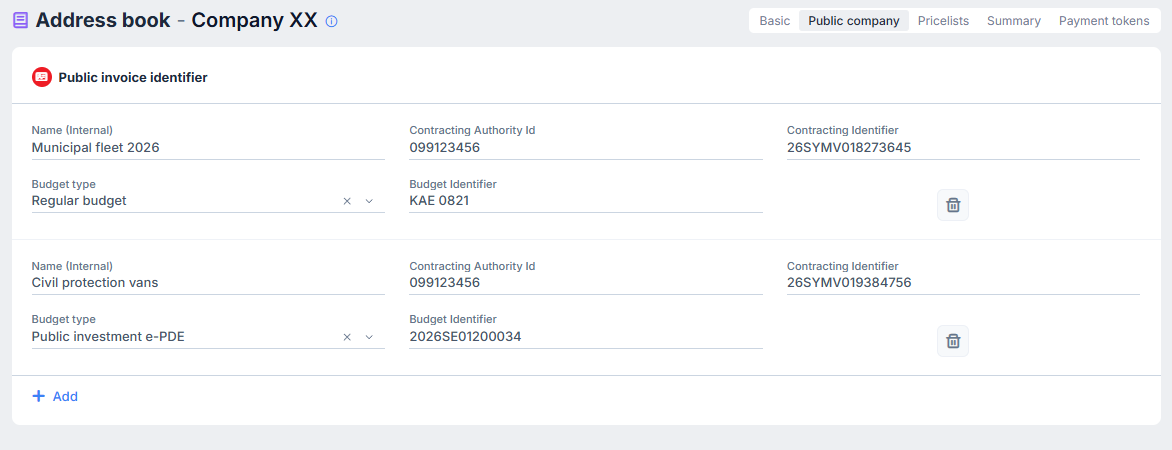
- Open the client (Sales → Address book → Search), click Edit and, in the section Type, tick Public company.
- Open the tab Public company at the top of the client. It is shown only in Greek accounts, for clients with this company type, and only to users with the role Client and pricelist linking.
- Click Add and fill in one row per contract: Name (Internal) (your own name for the contract), Contracting Authority Id, Contracting Identifier, Budget type (Regular budget, Public investment e-PDE or Other budget) and Budget Identifier. All fields are required. A new row takes over the contracting authority of the first row.
- Click Confirm.
When you issue a document to such a client while Epsilon is on, the document has an extra field Public invoice identifier where you choose the contract (shown as name and contract identifier). If the client has only one contract, it is selected for you. The document cannot be saved without it. A document for such a client that is created without this choice (for example an invoice Renteon creates automatically) stops with the message "B2G Invoce must have Public company details - please check Addressbook and fill required data."
Renteon then sends the document to Epsilon as a B2G invoice: with the contracting authority, the contract identifier and the budget, your company address as the delivery address and the CPV code for passenger cars (34110000) on every line. On approvals and cancellations, the contract identifier is left out.
MARK, UID and QR code on your documents
When myDATA accepts a document, Renteon stores its MARK and its UID with the document. After you click Fiscalize, the message on screen shows the UID as "Number" and the MARK as "FiscalNumber".
The printed document (and the PDF you send to the client) shows:
- The Series next to the document title, taken from the office codes described above.
- The QR code of the document at the bottom, when myDATA or Epsilon returned one. With myDATA (direct), this is the QR code link AADE returned for the document.
- With Epsilon, additionally the lines UID, M.A.R.K. and Auth. Code, and on the right the provider line "EPSILON NET" with Epsilon's provider licence. A document that is not yet reported shows a dash instead of the values.
With Epsilon, Renteon also sends Epsilon a PDF copy of each reported document, about a minute after it was accepted. As long as Renteon has not recorded a successful upload, the document's Actions menu has the item Send PDF - Epsilon, so you can send the PDF again by hand.
Greek accounts also see a MYF field on finance documents and a MYF filter in the finance document search. It is used in exports and searches and is not part of what Renteon sends to myDATA.
When a document is not accepted
What happens depends on where the problem is.
With myDATA (direct):
- If myDATA answers with an error, the document is saved without a MARK and flagged Fiscalization required. Renteon e-mails the error, with the request and the answer, to the main e-mail address of your Renteon account. For a gateway error (myDATA temporarily unreachable) no e-mail is sent; the document is simply tried again.
- If Renteon cannot reach myDATA at all, or cannot build the document for myDATA (for example an unsupported VAT rate, a VAT-free item without an exemption article, an unsupported payment type or a company client without an address), the document is saved and flagged, without an e-mail. Click Fiscalize to see the reason on screen.
With Epsilon:
- If Epsilon rejects the document, it is saved without a MARK and flagged, and the rejection is e-mailed to the Notifications E-mail address. If Epsilon reports that it already has the document, Renteon fetches its data instead of sending it twice.
- If Epsilon does not answer within 30 seconds, the document is saved and flagged and tried again later.
- If Renteon cannot log in to Epsilon ("Unable to get token for Epsilon - MyData (check credentials)"), Epsilon's service answers with an error ("Error sending finance document to EPSILON - MyData"), or Renteon cannot build the document (for example a missing Epsilon code, an unsupported VAT rate, a VAT-free item without an exemption article or an unsupported payment type), the save stops with an error message and the document is not created. Fix the cause and save again.
A flagged document is retried about once an hour until it is accepted, and every retry builds the document again from the current data. So when the cause is in the client, the office or an article, correct it there and click Fiscalize, or wait for the next retry. A rejected document can trigger the same e-mail again after every retry until you fix it.
Warning: A document that never gets a MARK is not reported to the tax authority, and it cannot be paired with its DCL entry either. Check the Fiscalization required filter regularly, for example at the end of every day.
The digital client list (DCL)
The DCL is AADE's register in which a car rental company declares every rental as it starts and as it ends. Renteon declares the rentals for you from the car activities it already records: when a car goes out on a contract, the rental activity is declared; when the car comes back and the activity is closed, the entry is completed; and when the invoice for the contract has a MARK, Renteon pairs the DCL entry with it.
To switch the module on, go to Administration → Code book → Settings, click Edit, open the tab Fiscalization and tick the checkbox in the header of the panel AADE DCL - myDATA (clientele API). All fields are then mandatory:
- myDATA DCL Subscription Key and myDATA DCL UserId: your DCL credentials.
- myDATA DCL Long term service type: Continuous Service, Recurring Service or Continuous Lease, the service type for long-term contracts. In the current version Renteon always declares long-term rental contracts as continuous service (see below), whichever value you choose here.
Click Confirm. Then give every office a DCL Code (see the section about office codes) and check your activity types (next section). For several companies, switch DCL on per company in Administration → Code book → Companies, panel AADE DCL - myDATA (clientele API).
DCL uses the company of the contract. A car activity without a contract (for example an internal movement) uses the company that owns the car.
Mark activity types for DCL
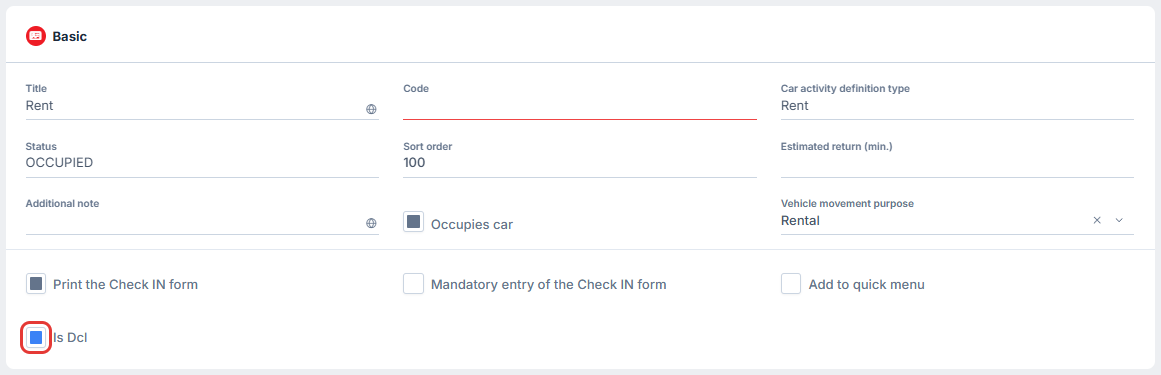
Renteon declares only the car activities whose activity type is marked for DCL. Open Fleet → Fleet → Car activity types, open the activity type and click Edit. In Greek accounts the screen has two extra fields:
- Is Dcl: tick it to declare activities of this type.
- Vehicle movement purpose (shown and required once Is Dcl is ticked): Rental for activities where a client rents the car, Self use for your own use of the car, Free service when the car is given free of charge.
Click Confirm to save the activity type.
In Greek accounts, the active activity types of the kinds Rent and Vehicle replace vehicle (VRV) are marked as DCL with the purpose Rental by Renteon's update routine, so they normally need no action from you. If you untick Is Dcl on one of them, the next update ticks it again. Mark other activity types only if your company declares those movements too; ask your accountant which ones.
Example: you lend a car to a partner free of charge and record it with an activity type "Courtesy car". If you tick Is Dcl on that type and choose Free service, Renteon declares it, and when the activity is closed it tells the DCL that no invoice will be issued, with the reason free service.
What Renteon declares to DCL, and when
Renteon sends each step in the background, about 15 seconds after the activity is saved, so the counter never waits for AADE.
When the rental starts (the activity is saved for the first time, normally when the car goes out on the contract), Renteon declares:
- the DCL Code of the pick-up office and the car's registration plate;
- the vehicle movement purpose of the activity type;
- whether the car is handed over somewhere other than the office: when the contract has a meet-and-greet pick-up location or a delivery, Renteon declares a different pick-up location with the location's name or the delivery address;
- for long-term contracts (contracts with Allow monthly price entry) on activities with the purpose Rental: a continuous service with the agreed period from the pick-up date to the return date, or the expected return date while the car is still out.
If more than 20 minutes have passed since the start of the activity when Renteon sends it (for example because the contract was entered after the car had already left), or if the entry is sent by the retry job because the first attempt did not happen or failed, Renteon sends it as a late entry, marked as a transmission failure, with the real start time of the activity.
When the car comes back and the activity is closed, Renteon completes the entry:
- If the car is returned to a different office than the pick-up office, Renteon declares a different return location with the return office's name. The same happens for a meet-and-greet return location or a collection (with the collection address).
- For the purpose Rental, Renteon declares which document will be issued: a retail receipt for a private person, or an invoice for a company client or a long-term contract. For an invoice it also sends the client's VAT ID and the country of the client's default address.
- For Self use and Free service, Renteon declares that no invoice will be issued, with the reason private use or free service.
When an activity that was already declared is cancelled, Renteon cancels its DCL entry.
Because company clients and long-term contracts are declared with the client's VAT ID, Renteon checks it when you save a contract in a company with DCL switched on. For a company client, or for any client on a long-term contract:
- the client must have a VAT ID, otherwise the contract cannot be saved ("Clients on long term rentals must have a valid VAT Id");
- if the client's default address is in Greece, the VAT ID must be a valid Greek VAT ID ("Clients from Greece must have a valid Greek VAT Id").
A valid Greek VAT ID has nine digits with a correct check digit; Renteon accepts it with or without the EL prefix and adds a missing leading zero to an eight-digit number. Private persons on ordinary short-term contracts are not checked.
Warning: Renteon completes a DCL entry only once. If you change the dates or the return data of a contract after its entry was completed, the change is not sent again; correct the entry directly in AADE's DCL application.
Pairing DCL entries with invoices
DCL expects every rental entry to be linked to the document issued for it. Renteon does this with a background job that runs every 33 minutes:
- It takes the reported documents of each company with DCL (types Invoice, Bill, Bill - payout, Approval and Debit, with a MARK) that were created in the last 14 days and are not yet paired.
- For each document it finds the contracts it belongs to: the contract of the document and the contracts of its items.
- It pairs the document's MARK with the DCL entries of those contracts' rental activities (Rent and Vehicle replace vehicle (VRV)): every entry not yet paired, plus the latest one.
In addition, each run picks up to 30 rental entries that are still unpaired, from contracts that have payments, and pairs each one with the most recent reported document of its contract. This catches entries the first step missed, for example the entry of a car change on a contract whose invoice was already paired.
This is why myDATA or Epsilon must work for DCL to be complete: a document without a MARK cannot be paired. Example: a contract is closed on Monday and the invoice is issued at the counter. The invoice gets its MARK as it is saved, and within about half an hour the job pairs it with the contract's DCL entry. If the invoice only got its MARK on Wednesday after a retry, the pairing simply happens on Wednesday.
Inter-company rentals
If your account has several companies, a contract of one company can use a car owned by another. Renteon then keeps two DCL entries for the rental: the normal entry for the company of the contract, and an inter-company entry for the company that owns the car, provided DCL is switched on for that company. In the inter-company entry, the client is the company of the contract: its VAT ID, country GR and an invoice as the document to be issued. The inter-company entry is sent about 25 seconds after the activity is saved and follows the same steps as a normal entry.
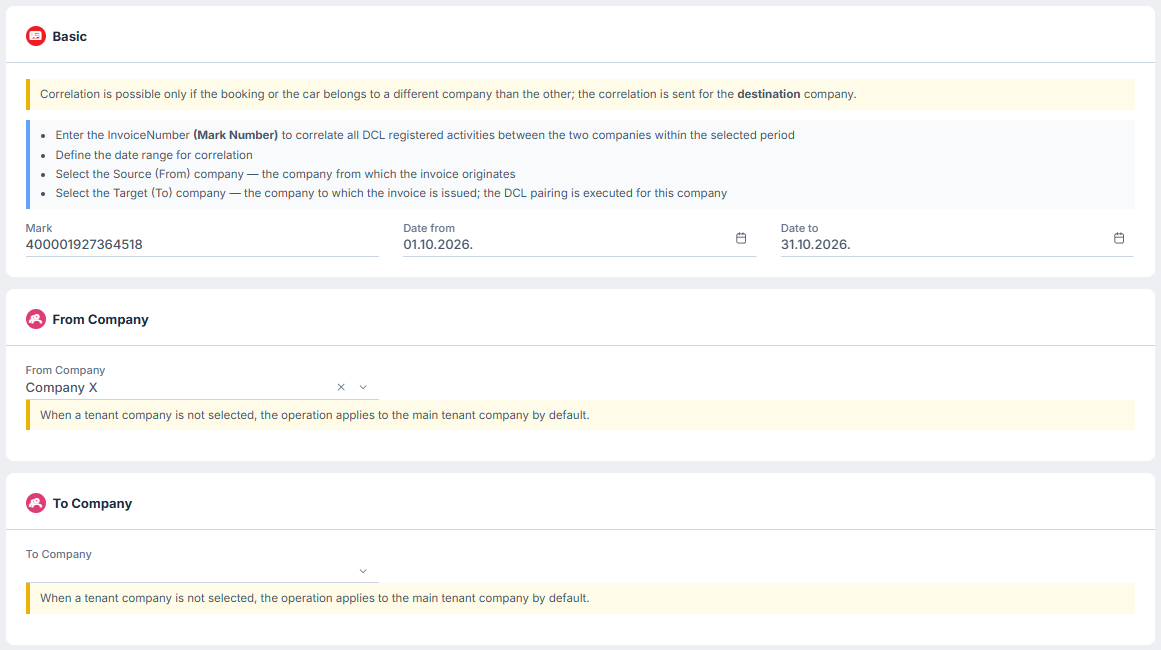
Inter-company entries are not paired automatically. When the car-owning company invoices the other company, you pair the invoice yourself in Sales → Bills → InterCompany DCL (the entry is shown in Greek accounts to users with the role Invoice management):
- Click Add.
- Enter the MARK of the invoice in Mark, and the period in Date from and Date to.
- In From Company, choose the company the invoice comes from: the company that owns the cars. In To Company, choose the company the invoice is issued to: the company of the contracts. The pairing is executed for the To company. If you leave a company empty, the main company is used.
- Click Confirm.
Renteon collects the inter-company entries that are not cancelled and not yet paired, where the car belongs to the From company and the contract to the To company, and whose rental was still running when the Date to day began (picked up before that day, returned or expected back on that day or later). Date from is stored with the record but does not limit which entries are collected. If there are none, you get the message "Not found InterCompany DclIds for this period or companies." Otherwise the record is saved and sent to AADE a few seconds later.
A saved record cannot be changed. The list shows the number of DCL entries each record covers, and its Correlation Date once AADE has accepted the pairing. If a record keeps an empty correlation date, the pairing failed; contact Renteon support.
Checking DCL status and fixing problems
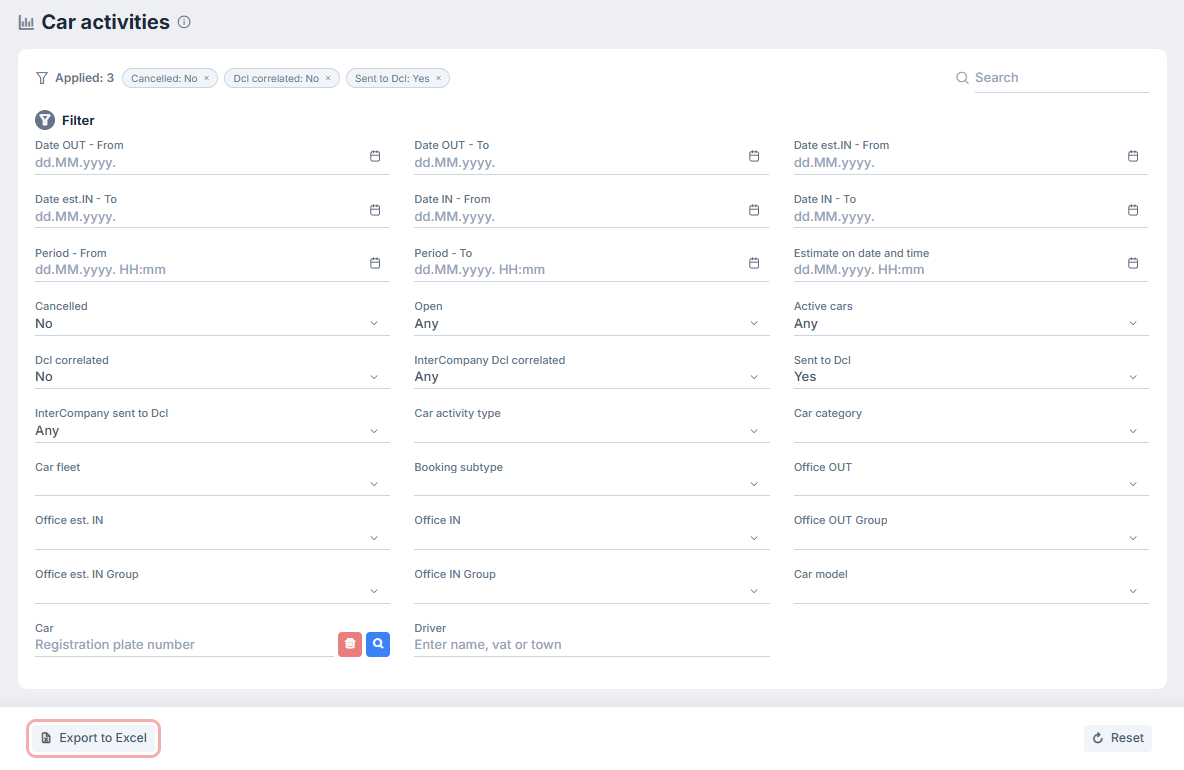
To see which activities have reached the DCL, open Car control → Reports → Car fleet and choose Car activities (you need the role Reports - fleet). This report does not show a list on screen: you set the filters and click Export to Excel. In Greek accounts the filters include Sent to Dcl, Dcl correlated, InterCompany sent to Dcl and InterCompany Dcl correlated. Setting one of them exports only activities of DCL activity types; the two InterCompany filters also limit the export to inter-company rentals. In Greek accounts the exported file has extra columns with the DCL entry numbers and whether each entry is paired. Examples:
- Sent to Dcl = No: activities that have no DCL entry yet.
- Sent to Dcl = Yes and Dcl correlated = No: declared rentals that are not paired with a document yet.
When a step fails, Renteon tries again with the job that runs every 33 minutes, picking up activities that have not been changed in the last five minutes. After five failed attempts in a row it stops trying that activity. A cancellation always gets a fresh set of attempts, so a cancelled rental is not left active in the DCL because earlier attempts failed.
The most common cause is a missing office code. If the pick-up office has no DCL Code for the company, Renteon e-mails "ERROR - Office DCL code missing for office out" with the office and the contract number to the main e-mail address of your Renteon account, once for every attempt. Fill in the code; the next attempt can then go through, as long as the activity has attempts left.
The reason for other failures is not shown on screen. If an activity stays unsent or unpaired, contact Renteon support with the contract number.




Once the modules are set up, your daily work does not change: you issue documents and handle contracts as usual, and Renteon reports them in the background. Keep an eye on two things: documents flagged Fiscalization required, and rentals that are declared but not paired.
Related guides: