
Sales
Sales reports: cancellations, services and payment plans
Ten booking reports explained: cancellations, removed mandatory services, signed terms, fleet chart upgrades, realization, income projection, payment plans, instalment checks and additional sales.
Last updated
The Bookings group of the sales reports holds about twenty reports. This guide covers the second half of them. These reports check what happened to bookings after they were made: cancellations, mandatory services that staff removed, additional terms that customers accepted, and cars assigned on the fleet chart. Others show the money your bookings bring in: completed contracts, income expected in a period, payment plans, instalment checks and additional-sales bonuses.
For each report you find the question it answers, which bookings it includes, which date decides the period, every filter, what the result contains, a typical use, and the traps to avoid. The first half of the group is described in Sales reports: bookings.
Before you start
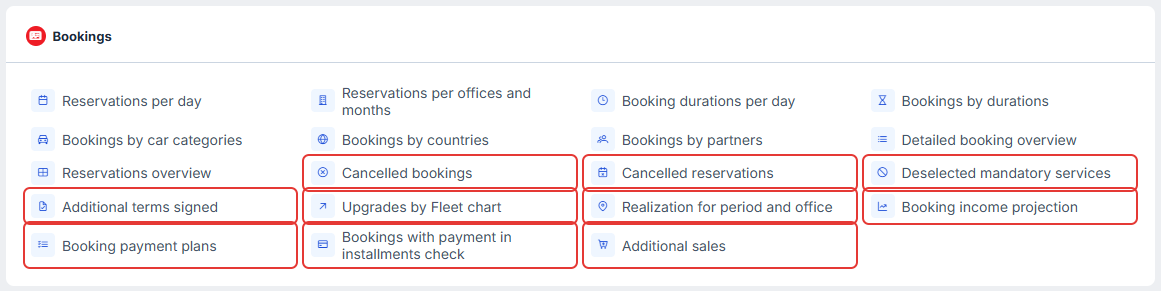
Open Car control → Reports → Sales. The page lists the sales reports in groups. The reports in this guide are in the Bookings group, from Cancelled bookings to Additional sales. How the Reports page and every report screen work in general (filters, Reset, Export to Excel, remembered filters, whole-day date filters and the booking date and office names) is explained in Reports: overview and dashboard.
What these reports have in common beyond that:
- Roles. Every report here needs the role Reports - sales, except Additional sales. That one needs the role Allows a detailed list and administration of bonuses for additional sales (its description reads "Administration for additional sales"). If you do not have the role, the report is not listed.
- Excel or screen. Most of these reports only export to Excel. Additional terms signed, Upgrades by Fleet chart and Booking income projection also show their results on screen.
- No default period. Several reports have no default period. Without a date filter they export every matching booking ever saved, which is slow and rarely what you want.
- Dates that work differently. Booking income projection and Bookings with payment in installments check do not use whole days like the other reports; their sections explain how.
- Reset parameters. On Additional terms signed and Upgrades by Fleet chart the Reset button is called Reset parameters, and it also runs the search again.
- Row limit. Of the reports in this guide, only Cancelled reservations, Deselected mandatory services and Booking payment plans actually stop at 100 000 rows, as the message "Results are limited to 100 000 records." in the bottom bar says. If you expect more rows than that, export a shorter period.
- Currency. Amounts are in each booking's own currency unless this guide says they are in domestic currency.
Cancelled bookings
This report answers "which bookings were cancelled, by whom and why, and what was on them?". It includes every booking whose current version is cancelled, whatever its type: cancelled reservations and offers as well as cancelled contracts. The older versions that Renteon keeps with the cancellation status Modification when a booking is changed (see Sales reports: bookings) are not included. Only real cancellations are.
The report has no default period. To review a month, fill in Cancellation date - From and Cancellation date - To. To see only cancelled contracts, pick the contract subtypes (for example Short term rent and Long term rent) in Subtype.
Filters:
- Subtype: the booking subtype, such as reservation, short term rent or long term rent.
- Pricelist: the car rental pricelist on the booking.
- Office OUT, Office est. IN, Office IN: the pickup office, the planned return office and the actual return office.
- Car issued by: see the warning below.
- Car received by: the user who closed the contract when the car came back.
- Cancellation date, Date created, Date OUT, Date est.IN, Date IN and Contract close date, each as a From / To pair.
The Excel file has four sheets:
- Contracts: one row per cancelled booking. It shows the booking number, contract ordinal number, version, cancellation status, the reason typed, who cancelled and when, the subtype and pricelist, and the pickup and return offices and dates. It also shows the users who reserved, assigned a car, issued it and received it, the rental days and hours, and the totals in the booking currency (rent, discount, additions, insurance, VAT, total, paid, deposit), with the total also converted to domestic currency.
- Contracts-Items: one row per price line of the cancelled booking: service, service type and group, period, pricelist, whether the line was mandatory or free of charge, amounts before and after discount, the discount, the quantity charged and the exchange rate.
- Reservations-Items: the same price lines taken from the reservation the contract was made from. Put the two items sheets side by side to compare what the customer booked with what the contract finally contained. A booking that was never converted from a reservation into a contract has no rows here.
- Selected report filters. It does not list the Cancellation date filter, so note that period yourself.
The file has no totals row; add sums in Excel if you need them.
Typical use: at the end of the month, set Cancellation date to that month and Subtype to your contract subtypes. Then read the cancellation status and reason of every cancelled contract to decide which ones need a follow-up.
Warning: Car issued by does not filter on the user who handed over the car. It matches the user who first created the booking. For a contract opened directly at the counter, that is the same person. For a reservation that was later turned into a contract, it is whoever entered the reservation. The same applies to Car issued by in Realization for period and office.
Cancelled reservations
This report answers "how many reservations did we lose, through which channel, and how much were they worth?". It includes only reservations whose current version is cancelled. That covers reservations cancelled by staff or the customer, expired ones, on-request reservations that were refused, no-shows and so on. The Cancellation status column tells you which. Reservations that expired automatically show Document expired. A reservation that became a contract was not cancelled and does not appear here.
The period starts filled in: Cancellation date - From is one month before today and Cancellation date - To is today. Reset brings this default back.
Filters:
- Booking channel: the channel the reservation came in through.
- Pricelist: the car rental pricelist.
- User: the user who created the reservation.
- SIPP: the car category the reservation is paid for.
- Office OUT and Office est. IN, and their group versions Office OUT - Group and Office est. IN - Group. A group filter matches every office that belongs to the selected office group.
- Client and Agency: one address book entry each.
- Cancellation date, Date created, Date OUT and Date est.IN, each as a From / To pair.
The Excel file has a Bookings sheet with one row per reservation, newest first:
- ID, Version, Number, Voucher number, SIPP and Pricelist.
- Cancellation status and Description, which holds the cancellation reason typed by the user.
- Date created, Price date, Cancellation date, Expiration date, Date OUT and Date est.IN.
- User open (who created it), Modified (who changed it last) and Cancelled by.
- Booking channel, Agency, Commissioner, Client, Office OUT and Office est. IN.
- Whether delivery and collection were booked, Currency, the rental days and hours, Total, and Additional equipment with the codes of the equipment that was booked.
The totals row counts the reservations and adds up Total. A Selected report filters sheet follows.
Typical use: every Monday, export the past week and compare the cancellations per Booking channel. For a partner review, add the partner in Agency.
Warning: Total is in each reservation's own currency, so if you take reservations in several currencies, the sum in the totals row mixes them. Filter the Currency column in Excel before you read the sum.
Cancelled bookings or Cancelled reservations?
The two reports overlap, but they are built for different jobs:
- What is included. Cancelled reservations shows reservations only. Cancelled bookings shows every cancelled booking. Cancelled reservations appear in both reports; cancelled contracts appear only in Cancelled bookings.
- Level of detail. Cancelled reservations gives one row per reservation, with its channel, expiry date and total. Cancelled bookings gives one row per booking with the amounts split into rent, discount, additions, insurance and VAT, plus every price line and the price lines of the original reservation for comparison. It has no booking channel column.
- Default period. Cancelled reservations starts with the last month by cancellation date. Cancelled bookings has no default.
- Filters. Only Cancelled reservations filters by booking channel, SIPP, office groups, client and agency. Only Cancelled bookings filters by subtype, the actual return office and date, the user who received the car, and contract close date.
- Totals. Only Cancelled reservations has a totals row.
As a rule of thumb, use Cancelled reservations to measure lost demand, and Cancelled bookings to go through a cancelled contract line by line.
Deselected mandatory services
Some services are mandatory, so Renteon selects them automatically on a booking. A service is mandatory when its price in the pricelist is marked as mandatory, or when it is an automatic addition whose conditions the booking meets, for example a one-way fee or an out-of-hours fee. Staff can still untick such a service in the booking's services. Renteon then records which service was removed, what it would cost, who removed it and the reason they typed. Deselected mandatory services lists these records, one row per removed service, so you can check how often this happens and whether the reasons hold up.
To make a reason compulsory every time, tick Mandatory entry of reason for deselecting mandatory items on booking in Administration → Code book → Settings, tab Bookings. With this option on, the reason window cannot be confirmed while it is empty, and the booking cannot move on from the services step until every removed mandatory service has a reason. The message reads "Deselecting mandatory service reason is mandatory", followed by the service name. Without this option the reason can stay empty.
If you want to hear about it as it happens rather than in a monthly export, subscribe to the notification Deselected mandatory services under Notifications in the user menu in the top bar. You then get a message with the booking, the service, its price, the user and the reason each time a mandatory service is removed.
The report includes contracts only: their current version, and only if they are not cancelled. A service removed while the booking was still a reservation stays recorded when the booking becomes a contract, so it shows up too. If someone ticks the service again later, the record is deleted and the row disappears.
Filters:
- Number: one booking number.
- Pricelist: the car rental pricelist.
- Office OUT, Office est. IN and Office IN, and their three - Group versions.
- User: the user who created the booking.
- User deselect mandatory service: the user who unticked the service.
- Agency: one agency.
- Date created, Date OUT, Date est.IN and Date IN, each as a From / To pair. There is no default period, so use Date OUT or Date IN to pick a month.
The Excel file has a Deselected mandatory services sheet with these columns: ID, Version, Number, Booking type (the type and subtype codes), Date created, Price date, User open, Client, Agency, User deselect mandatory service, Service, Amount, Deselected mandatory service reason, Currency, Pricelist, Date OUT, Date est.IN, Date IN, Office OUT, Office est. IN and Office IN. Amount is the total price the service would have had, in the booking's currency. Renteon recalculates it every time the booking is saved while the service stays removed, so it follows later changes to the rental period. User deselect mandatory service stays the user who removed it first. The totals row counts the rows but does not add up Amount. A Selected report filters sheet follows.
Typical use: export last month by Date IN, filter the Service column on your mandatory insurance, and sort by User deselect mandatory service. You then see who removes it most often and with which reasons.
Additional terms signed
Additional terms are extra statements a customer can accept on the signature screen, for example a marketing consent or a special rental condition. You define them in Administration → Code book → Documents, section Additional terms, where each term has a Name, a Description and the boxes Active, Signature and Accept. Every active term with Signature or Accept ticked appears with a tick box on the signature screen of a booking that has at least one driver saved in the address book. A term with Signature ticked also gets its own signature. When the signature screen is saved, Renteon records for each term whether the box was ticked. For the signing itself, see Paperless rental procedure.
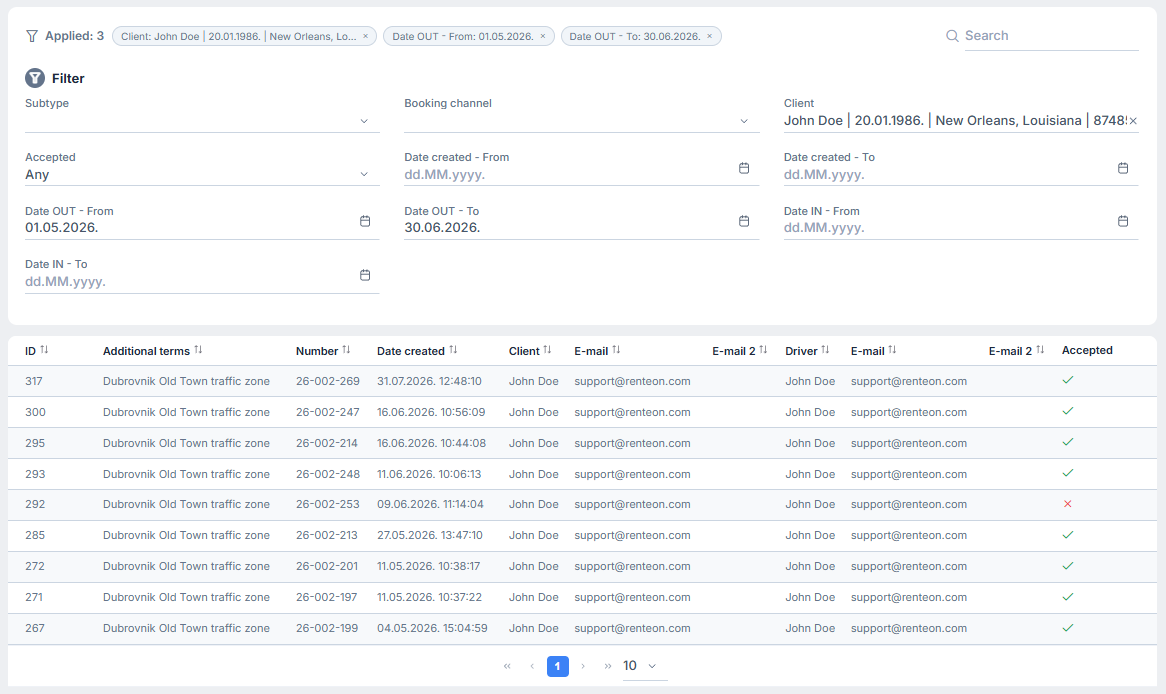
This report answers "who accepted which term?". It shows one row per booking and term, with the latest recorded state, and lists the client's and first driver's e-mail addresses so you can follow up. When you open the report, the table immediately shows all records, or those matching the filters you used last time; the filters narrow them down.
Filters:
- Subtype, Booking channel and Client.
- Accepted: Any, Yes or No. No means the signature screen was saved without that box ticked.
- Date created - From / To: the day the booking was saved. Every change to a booking saves it again, so a booking also matches the days on which it was changed.
- Date OUT - From / To: the pickup date.
- Date IN - From / To: the actual return date, or the planned return date if the car is not back yet.
The table shows ID, Additional terms (the term's name), Number, Date created, Client, the client's E-mail and E-mail 2, Driver, the driver's E-mail and E-mail 2, and Accepted as a green tick or a red cross. Click a column heading to sort, and choose between 10 and 1000 rows per page at the bottom. Search applies the filters, Reset parameters clears them and searches again, and Export to Excel exports every matching row, not just the current page. The Excel sheet is called Additional terms. It lists the filters at the top, although the client, subtype and channel appear as numbers rather than names and the Date IN filter is not listed. It puts the driver's name and surname in separate columns.
Things to know when you read the result:
- The Date created column shows when the term record was last saved for that booking. A later change to the booking moves this date, so it is not necessarily the moment the customer ticked the box.
- The e-mail addresses come from the address book as they are today. Driver is the first driver on the booking.
- Cancelled bookings are not filtered out.
- Accepted looks at every saved version of the booking. If a box was unticked on an earlier version and ticked on a later one, the booking shows up under No with a red cross and under Yes with a green tick. With Any, you see the latest state.
Typical use: to collect the customers who gave a consent last month, set Accepted to Yes and Date OUT to that month, export, and filter the Additional terms column on the consent term.
Warning: A booking without a row is not a refusal. A booking only gets rows once its signature screen has been saved, so bookings that were never signed in Renteon are missing completely. Only No means the customer saw the term and did not tick it.
Upgrades by Fleet chart
When you assign a specific car to a reservation, the car's category may be higher or lower than the category the customer pays for. This report answers "which reservations got a car from a different category than they pay for, by how many levels, and who assigned it?". For assigning cars, see Fleet chart and Automatic upgrade option.
The report includes every active booking that currently has a car assigned. Despite its name, it is not limited to upgrades. Assignments in the same category (level 0) and downgrades (negative levels) are listed too. It also does not matter how the car was assigned. Assigned by shows the user under whose name the assignment was saved.
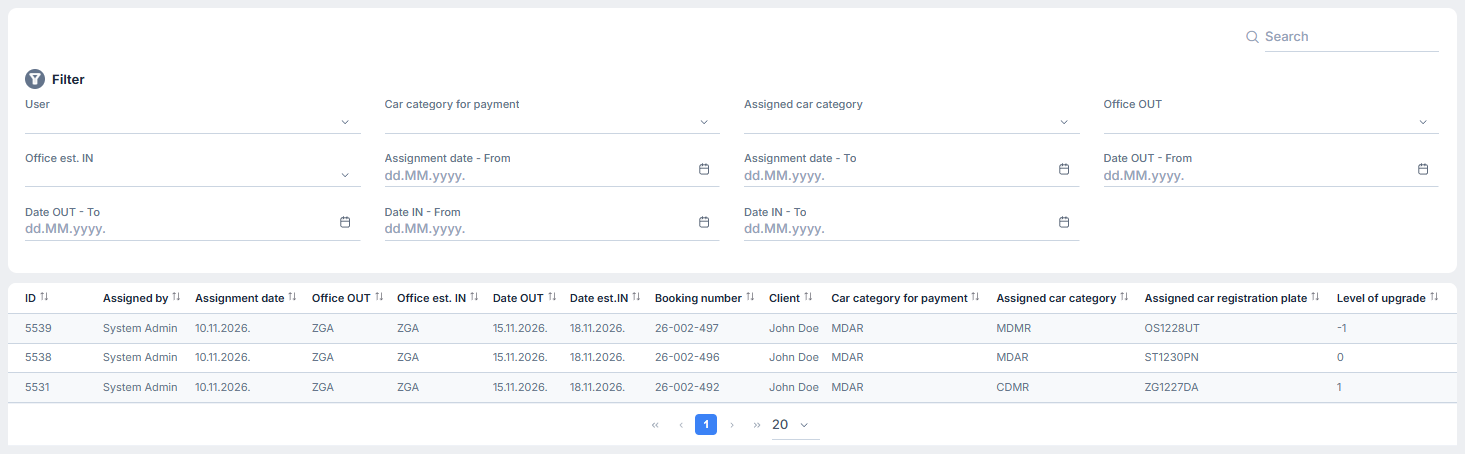
Level of upgrade comes from the Sort order field of your car categories (Fleet → Fleet → Car categories), not from Sort order - Web. Renteon ranks the active categories by sort order: the lowest value is level 1, the next distinct value level 2, and so on. Categories with the same sort order share a level. The result is the assigned car's level minus the level of the category the customer pays for.
For example, say ECMR has sort order 10, CDMR 20 and IDAR 30. A customer who pays for CDMR and gets an IDAR has level 1. If they get an ECMR, the level is -1. Any other category with sort order 20 gives level 0. Inactive categories and categories without a sort order count as level 0, which produces misleading numbers, so keep the sort orders filled in. A changed sort order is used as soon as you save the category. For setting up categories, see Car categories and category groups.
Filters:
- User: the one user who assigned the car.
- Car category for payment: the category the customer pays for.
- Assigned car category: the category of the assigned car.
- Office OUT and Office est. IN.
- Assignment date - From / To: when the car was assigned.
- Date OUT - From / To: the pickup date.
- Date IN - From / To: the actual return date, or the planned return date if the car is not back.
The results appear after you click Search. The table shows ID, Assigned by, Assignment date, Office OUT, Office est. IN, Date OUT, Date est.IN, Booking number, Client, Car category for payment, Assigned car category, Assigned car registration plate and Level of upgrade, with 10 to 1000 rows per page. Export to Excel gives the same columns on a sheet called Upgrades by Fleet chart, with the filters listed at the top. The user filter appears there as a number rather than a name.
Typical use: before a busy weekend, set Date OUT to the coming days and look at the rows with a Level of upgrade above 0. Each one is a car given above the category the customer pays for. Check whether a car of the right category is free before you hand the upgrade over.
Warning: This is not a history of upgrades. When a reservation becomes a contract, or is cancelled, Renteon clears the car assignment and the booking drops out of this report. You only see assignments on reservations that have not been picked up yet.
Realization for period and office
This report answers "which contracts were completed, and what exactly was on them?". For every closed contract that is not cancelled, it gives a full record: the users and offices at every stage, the contract's price lines, and the price lines of the reservation the contract came from.
There is no default period, so you decide which date defines "completed". Use Contract close date for contracts closed in the period, or Date IN for cars returned in the period. Without any date filter the report exports every closed contract ever. A large export can take many minutes.
Filters:
- Subtype, Pricelist and Pricelist groups.
- Office OUT, Office est. IN and Office IN, and their three - Group versions.
- Car issued by: as in Cancelled bookings, this matches the user who first created the booking, not the user who handed over the car.
- Car received by: the user who closed the contract.
- Source: the booking source (see Booking sources).
- Date created, Date OUT, Date est.IN, Date IN and Contract close date, each as a From / To pair.
The Excel file has five sheets:
- Contracts-Details: one row per contract with:
- the numbers and version, and the pickup and return offices and dates;
- the users who made the offer and the reservation, created the booking, issued the car, assigned a car, received it and cancelled it, plus the offices and dates of the reservation and the offer;
- the price date, the car rental pricelist and its delay pricelist, the subtype, the days and hours, and the instalment and monthly-price settings;
- the agency, commissioner, partner and source;
- the totals in the booking currency, and the total in domestic currency split into the part charged to the agency and the part charged to the client.
- Contracts-Items: every price line of the contract, including who added it, whether it was already on the reservation, the discount reason and the reason for a deselected mandatory service.
- Reservations-Items: the price lines of the reservation the contract came from.
- Contracts: a compact version with one row per contract: number, contract ordinal number, partner, pricelist, offices and dates, currency, totals, the domestic total and its agency and client parts.
- Selected report filters.
The sheets have no totals rows; add sums or a pivot table in Excel.
Realization for period and office and Realization by office sound alike, but they start from different data and rarely give the same figures:
- Realization for period and office starts from bookings. It lists each closed contract with the price calculated on the contract, whether or not it has been invoiced. Nothing is grouped, and the period is whatever dates you filter on.
- Realization by office, in the Finance documents group, starts from invoices. It totals the invoiced amounts per office, split into rent, insurance, fees, equipment and damages, for the dates you filter on, such as the document date. A contract that has not been invoiced is missing there, and an invoice for a contract that is still open is included. See Sales reports: finance documents, fleet and planning.
Typical use: at month end, set Contract close date to the month and export. On the Contracts sheet, a pivot table on the partner column gives you the totals per partner, and Contracts-Items answers questions about single price lines.
Warning: Always set at least one date filter. An export of all closed contracts can run for a very long time and produces a file that is hard to work with.
Booking income projection
This report answers "how much income do our bookings bring into this period, per pickup office?". Unlike the invoice reports, it includes bookings that have not been picked up yet. For each rental, it counts only the part that falls inside the period.
It includes every current booking that is not cancelled and whose rental overlaps the period: contracts, reservations, unconfirmed on-request reservations and offers alike. Overlapping means the car is picked up before the period ends and is returned, or due back, after the period starts.
Each booking contributes the share of its rental time that lies inside the period. If the car is back, the actual return counts; otherwise the planned return does. For example, a car is picked up on 28 October at 12:00 and due back on 7 November at 12:00, which is 10 days. With the period set to November, 6.5 of those 10 days fall in November (from 1 November at 00:00), so 65% of the booking's amounts count for November.
Date from and Date to are both required; Confirm and Export to Excel stay disabled until both are filled in. The period runs from the start of Date from to the start of Date to, so the Date to day itself is not included. Date to must be at least one day after Date from; otherwise the report stops with the message "Date from cannot be greater then date to." (shown in English).
Filters:
- Date from and Date to.
- Subtype.
- Franchise: Any, one franchise, or the bookings without a franchise.
- Company: shown only if your Renteon has more than one company.
- Office OUT and Office OUT - Group.
Click Confirm to see the result on screen:
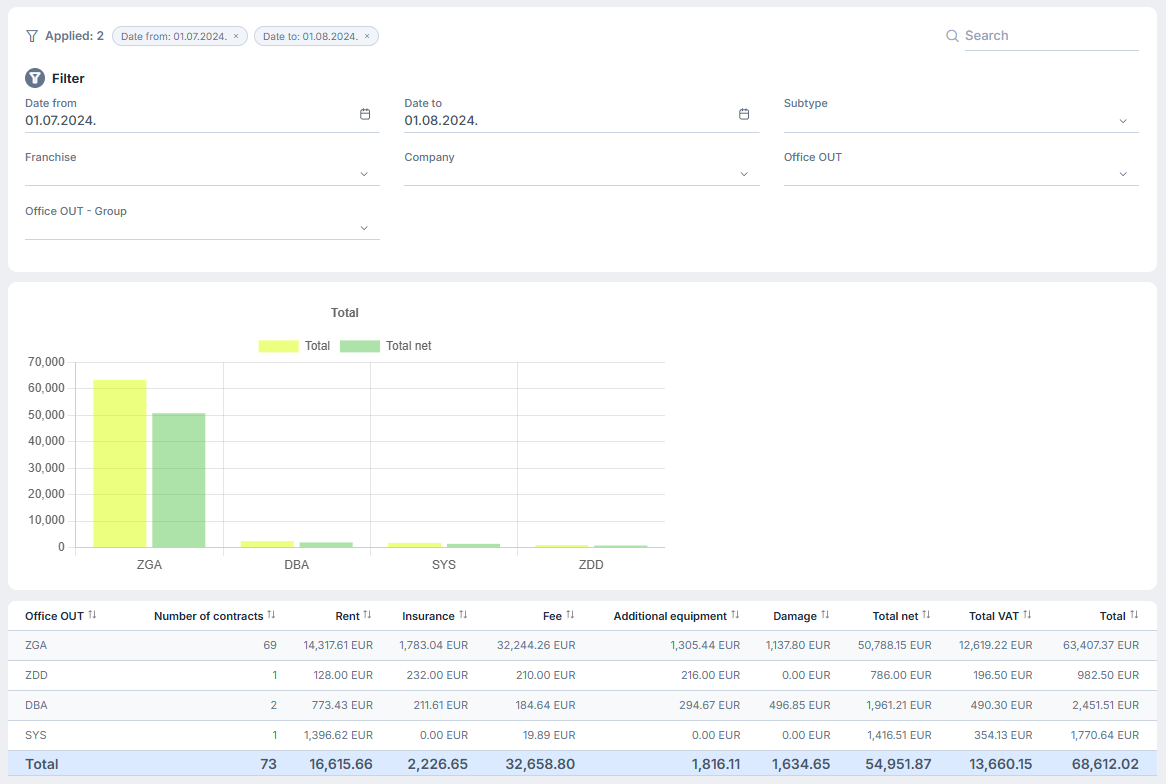
- A bar chart of the five offices with the highest Total, showing Total and Total net.
- A table with one row per pickup office: Office OUT, Number of contracts, Rent, Insurance, Fee, Additional equipment, Damage, Total net, Total VAT and Total, with a totals row pinned at the bottom. All amounts are in domestic currency. Everything except Total VAT and Total is net.
How to read the columns:
- Number of contracts counts each overlapping booking once, however small its share, and despite its name it includes reservations and offers.
- Fee holds every service that is not rent, insurance, additional equipment or damage. That covers, for example, one-way fees, delivery and collection, out-of-hours fees, fuel, mileage, additional drivers and traffic fines charged on the booking. Damage includes damage processing fees.
- Total net is the booking total minus VAT, not the sum of the columns before it, so it can differ slightly from Rent + Insurance + Fee + Additional equipment + Damage.
Export to Excel gives a Contracts sheet with one row per office and a Selected report filters sheet. The last row, the one without an office code, is the total. The column headings on the Contracts sheet are short untranslated names. The amounts are the same as on screen, in a slightly different order, plus a currency column.
Typical use: halfway through the month, run the report for the whole month to see what the office can still expect, and compare it with your income targets (see Sales reports: finance documents, fleet and planning). Keep in mind that this is a projection: it uses the prices currently calculated on the bookings, not invoices, and reservations in it can still be cancelled or changed.
Warning: Date to is not part of the period. For the whole of November, enter 1 November in Date from and 1 December in Date to. If you enter 30 November, the last day of the month is left out.
Booking payment plans
This report answers "when is each booking's money due, and how much is still to be invoiced?". Renteon keeps a payment plan for every active reservation and contract and refreshes it in the background. This report exports that plan.
How the plan is built:
- Ordinary bookings get one row per booking. Date of payment is the end of the billing period: the return date (actual or planned), or, on a contract whose billing date is locked, the locked billing date when it is later (see Lock billing date). The amount is the booking total. Remaining to be invoiced is the part not invoiced yet, and Fully invoiced is ticked when the whole booking has been invoiced.
- Instalment bookings get one row per instalment period. These are bookings with both Allow monthly price entry and Installments payment ticked (see Long-term rentals). Date of payment is the last day of each period, or the first day if Payment at the beginning of the accounting period is ticked on the booking. An instalment counts as Fully invoiced when the booking has an invoice whose period reaches the end of that instalment's period (with payment at the beginning, its start), or when the whole booking has been invoiced. Its Remaining to be invoiced is then 0; otherwise it is the full instalment amount.
- Offers and unconfirmed on-request reservations have no payment plan.
Filters:
- Type: the booking type, for example reservation or contract.
- Subtype and Booking channel.
- Closed: Any, Yes or No, depending on whether the contract is closed.
- Pricelist and Car category, the category the customer pays for.
- Fully invoiced: Any, Yes or No.
- Cancelled: set to No by default. Cancelled reservations and contracts keep their plan rows, so choose Any or Yes if you want to see them.
- Client, Agency and Commissioner.
- Office OUT and Office IN, where Office IN is the actual return office, or the planned one if the car is not back. Each also has a - Group version.
- Date of payment - From / To.
The Excel file has a Booking payment plans sheet sorted by date of payment, with these columns:
- Booking number, Booking type and Booking subtype (as codes), Car category and Pricelist.
- Date of payment, Date from, Date to, Days, Month and Year.
- Amount with discount (net), Amount, and Remaining to be invoiced both gross and net.
- Currency, Booking channel, Client, Agency, Commissioner and Partner.
- The code and code number of Office OUT and Office IN.
- Fully invoiced, Closed and Cancelled.
All amounts are in domestic currency. The totals row adds up the four amount columns. A Selected report filters sheet follows.
Typical use: for next month's cash-flow plan, set Date of payment to next month and Fully invoiced to No. The sum of Remaining to be invoiced is what is still to be invoiced in that month. For a longer horizon, build a pivot table on Year and Month.
Warning: The plan is not updated the moment you save. Saving, cancelling or invoicing a booking marks its plan for a refresh, and a background process rebuilds marked plans roughly every 40 minutes, a few dozen bookings at a time. A booking created, changed or invoiced in the last hour, or longer on a very busy day, may be missing from the export or still show its old plan.
Bookings with payment in installments check
This report answers "at this moment, which instalment contracts are behind with invoicing, and by how much?". For each contract, it compares what the payment plan says should have been invoiced by a chosen moment with what has actually been invoiced.
It includes active contracts that are not cancelled, have both Allow monthly price entry and Installments payment ticked, were picked up on or before the chosen moment, and are not fully invoiced yet.
For each contract you get:
- Amount that should have been paid: the sum of the instalments in the payment plan whose date of payment is on or before the moment.
- Amount paid: the sum of the instalment invoices issued for the contract up to the moment. Despite its name, this is the invoiced amount, not money received. Only documents issued as instalment invoices count, and advance invoices are not included.
- Difference: Amount paid minus Amount that should have been paid. A negative difference means invoicing is behind; a positive one means it is ahead.
The rows are sorted with the most negative difference first. All amounts are in domestic currency.
Filters:
- Date: the date and time of the check. It starts at the current moment and is required; Export to Excel stays disabled while it is empty. Unlike the other date filters it is an exact moment, so enter the last day of the month at 23:59 to include everything dated that day.
- Office OUT and Office OUT Group.
The Excel file has one sheet, Bookings with payment in installments check, with the title, the time of the export and the filters at the top. Below them come Booking (the booking's ID), Number, Office OUT, Client, Amount that should have been paid, Amount paid and Difference. There is no totals row.
Typical use: before your monthly instalment invoicing, set Date to the end of the month. Every negative row is a contract with an instalment that has not been invoiced yet. Open the contract and issue the missing instalment invoice.
Warning: Amount that should have been paid comes from the payment plan, which is refreshed in the background (see Booking payment plans above). A contract changed in the last hour can still be compared with its old plan.
Additional sales
This report answers "how well does each employee and each office sell extras at the counter, and what bonus has each of them earned?". It is the export side of additional sales monitoring (see Additional sales monitoring). You need the role Allows a detailed list and administration of bonuses for additional sales.
The bonus rates come from Settings - Additional sales in the Planning group: a percentage or a flat amount per service, a threshold (% - Threshold), and whether the service counts towards Incremental daily cost. The page is described in Sales reports: finance documents, fleet and planning. Each Save there creates a new dated version, and each contract's bonus amounts are calculated with the version valid on its pickup date. Only services listed on that page are scored.
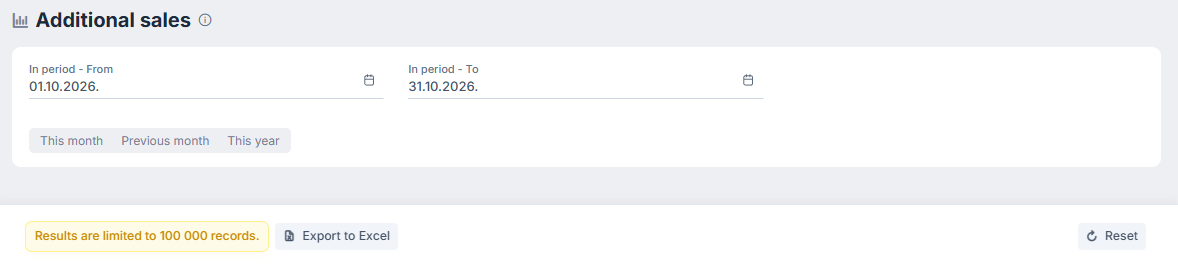
Choose the period in In period - From and In period - To, or click This month, Previous month or This year. The report opens with the previous month filled in. Export to Excel stays disabled until both dates are set.
Which contracts count:
- Contracts whose car was actually returned within the period. The return date decides, not the pickup date.
- Only the current version of each contract, and only if it is not cancelled.
- Not contracts of the subtypes Long term rent or Lease, and not contracts that use Allow monthly price entry.
- Not contracts on a car rental pricelist with Exclude from additional sales monitor ticked (in the pricelist settings under Car control → Pricelists → Car rental).
Who gets the credit:
- Normally the user who issued the car, meaning the user who opened the contract or turned the reservation into a contract, and the pickup office.
- Damages, out-of-hours fees charged for the return, and services with Add service bonus to person who closed the contract ticked (on the fee in Fleet → Additions → Fees or Automatic additions) go to the user who received the car and to the return office. They count only once the contract is closed.
- The car rental itself earns a walk-in bonus on walk-in contracts, meaning contracts without an agency or commissioner that came in through the Office booking channel. The bonus goes to the user who issued the car. If Assign the walk-in bonus to user who added the car rental service on reservation is ticked (Administration → Code book → Settings, tab Bookings), it goes to the user who created the booking instead.
How each service is scored, per employee and per office:
- Sale possible is the number of their contracts on which the service could have been sold. Contracts that already had the service on the reservation are left out.
- Sold is the number of those contracts on which the service was added at the counter.
- Sold % is Sold divided by Sale possible, times 100.
- Bonus: each sold line earns the flat amount (never more than the line's net amount) or the percentage of its net amount. The bonus is paid only if Sold % reaches the threshold; below it, the bonus for that service is 0.
- Revenue per rental day is the sold amount divided by the employee's rental days. It is calculated only for services with Incremental daily cost ticked.
- For the car rental line, Sold and Sale possible both equal the number of walk-in contracts, Sold % is always 100 and the threshold does not apply. On contracts that are not walk-ins, the car rental counts as 0.
- Amounts are net, in domestic currency, and count only the part the client pays. Services that were already on the reservation count as 0. The one exception is the car rental line of a walk-in contract.
The Excel file has four sheets:
- Additional sales: one row per employee and a Total row, with rental days, number of services sold, sold amount, bonus, revenue per rental day and number of contracts. The best revenue per day comes first.
- Offices: the same per office.
- Groups: one row per employee and service, with sale possible, sold, sold %, sold amount, bonus and revenue per rental day, followed by the same rows for the Total. This is the sheet to use for paying out bonuses.
- Items: every service line used in the calculation, with the contract, dates, employee, office, service, amounts, the bonus applied and the walk-in markers.
The column headings in this file are not translated. The sheets list the services and amounts described above. The period you chose is printed at the top of the Additional sales sheet; there is no separate filters sheet.
The Report: Additional sales panel on the Dashboard (the start page after you sign in, not the Reports dashboard) starts by pickup date and includes cars that are not back yet, while this export counts only returned cars by return date. So the two usually show different numbers for the same dates.
Typical use: early in the month, click Previous month, export, open the Groups sheet and filter it by service. The bonus column is what each employee has earned for that service.
Warning: The threshold is all or nothing. An employee whose Sold % for a service is just below the threshold gets no bonus at all for that service, even if they sold it many times. Check Sold % before you answer questions about a missing bonus.
These reports answer narrow questions precisely, but each one counts slightly different bookings. Before you put two of them side by side, check which bookings and which date each one uses.
Related guides: