
Mappings
Mapping services and extras
How each connector's Renteon extras, fees and insurances are linked to the Aggregator's shared service codes, what brokers see for an unmapped extra, and how insurances are mapped several at a time.
Last updated
A broker that sells your brand does not want to learn how each of your Renteon instances names its extras. Your Croatian franchisee may sell a "Child seat 9-18 kg", your Greek franchisee a "Kids seat (1-4 years)". For the broker, and for the customer who books through it, both are the same child seat. So the Aggregator does not identify an extra by the name an instance uses. Brokers get the Aggregator's own service code and its name, for example EQ-CHILDSEAT for a child seat or INS-CDW for a collision damage waiver. The instance's own name goes along only as additional information.
The services mapping is the translation table between the two. For each connector (one Renteon instance of your brand) it links every extra, fee and insurance of that instance, and every kind of service such as the additional driver or the one-way fee, to one Aggregator service code. You do this once per connector, under Provider → Mappings → Services. Your brand is called the provider in the Aggregator's menu and in its API, which is why the screen is in the Provider section.
The services mapping does not depend on the broker. Every broker and website partner that books through a connector gets the same codes, whatever rate code (Aggregator pricelist) it books with. This makes it different from the partner and pricelist mappings, which are set per broker.
Usually the head office maps the connectors, because it knows the shared codes, and the franchisee keeps its extras up to date in its own Renteon. Any user who can sign in to your brand's Aggregator can open the screen. The Connectors column lists only the connectors that user may work with, see Users, roles and brand settings.
The shared service codes
The Aggregator has one list of service codes for all brands, and Renteon support maintains it. Because every brand uses the same codes, a broker that works with several brands in the Aggregator recognises a child seat or a CDW from all of them in the same way.
The codes follow fixed patterns, so the beginning of a code tells you its family:
- CAR-RENT: the car rental itself.
- ADD-DRIVER: an additional driver.
- EQ-: equipment, for example EQ-GPS, EQ-BABYSEAT (baby seat up to 9 kg), EQ-CHILDSEAT (child seat 9-18 kg), EQ-BOOSTER, EQ-WIFI and EQ-SKIRACK.
- FEE-: fees. Some are ordinary fees, such as FEE-CB (cross border). Others stand for a kind of charge that Renteon handles in its own way: FEE-OOH (out of hours), FEE-ONEWAY (one way fee), FEE-DROPOFF, FEE-DRIVERAGE (older or younger driver), FEE-PREMLOC (premium location fee), FEE-MEETGREET, FEE-UPGCAR (upgrade of the car category), FEE-UNLIMITEDMILEAGE, FEE-PREPAIDFUEL and FEE-ROADTAX.
- INS-: a single insurance cover, for example INS-CDW, INS-SCDW, INS-TP and INS-PAI.
- INS-PCK_: an insurance package. Its code lists the covers it contains, separated by underscores, so INS-PCK_CDW_TP is a package of CDW and TP.
- LOC-DELIVERY and LOC-COLLECTION: delivering the car to an address the customer chooses, and collecting it from there.
- FS-FUELINGSERVICE: a fueling service.
Every code has a name in each language, and brokers get the name in the language they ask for.
If an extra one of your instances sells has no fitting code, ask Renteon support to add one. For example, a franchisee starts renting bike racks. A new code is in the list of all codes, which brokers can read, for every brand at once. Brokers get it on your extras only after a connector maps an extra to it. Do not borrow a code that only sounds close. The broker tells its customer what the code means, not what your instance calls the extra.
What Renteon sends
When you click a connector in the Connectors column, the Aggregator asks that Renteon instance for its list of services and shows it in the middle column, Services. The list is read live every time, so it is always the instance's current list. It has two kinds of rows:
- Individual extras of the kinds Additional equipment, Additional fee, Insurance, Out of hours and Older/younger driver. These are the extras the franchisee has set up in its own Renteon. Only extras that are active and have Addition is visible for reservations ticked are listed. An insurance cover is listed only while its insurance in Renteon is active as well.
- One row per kind of service for the kinds that Renteon handles as a whole: Car rent, Additional driver, Local delivery, Local collection, One way fee, DropOff, Older/younger driver, Out of hours, Upgrade car category, Premium location fee, Meet and greet, Unlimited mileage, Prepaid fuel and Road tax. This guide calls them type rows.
Out of hours and Older/younger driver can therefore appear twice: once as a type row, and again as the instance's individual out-of-hours or driver-age extras, if it has any.
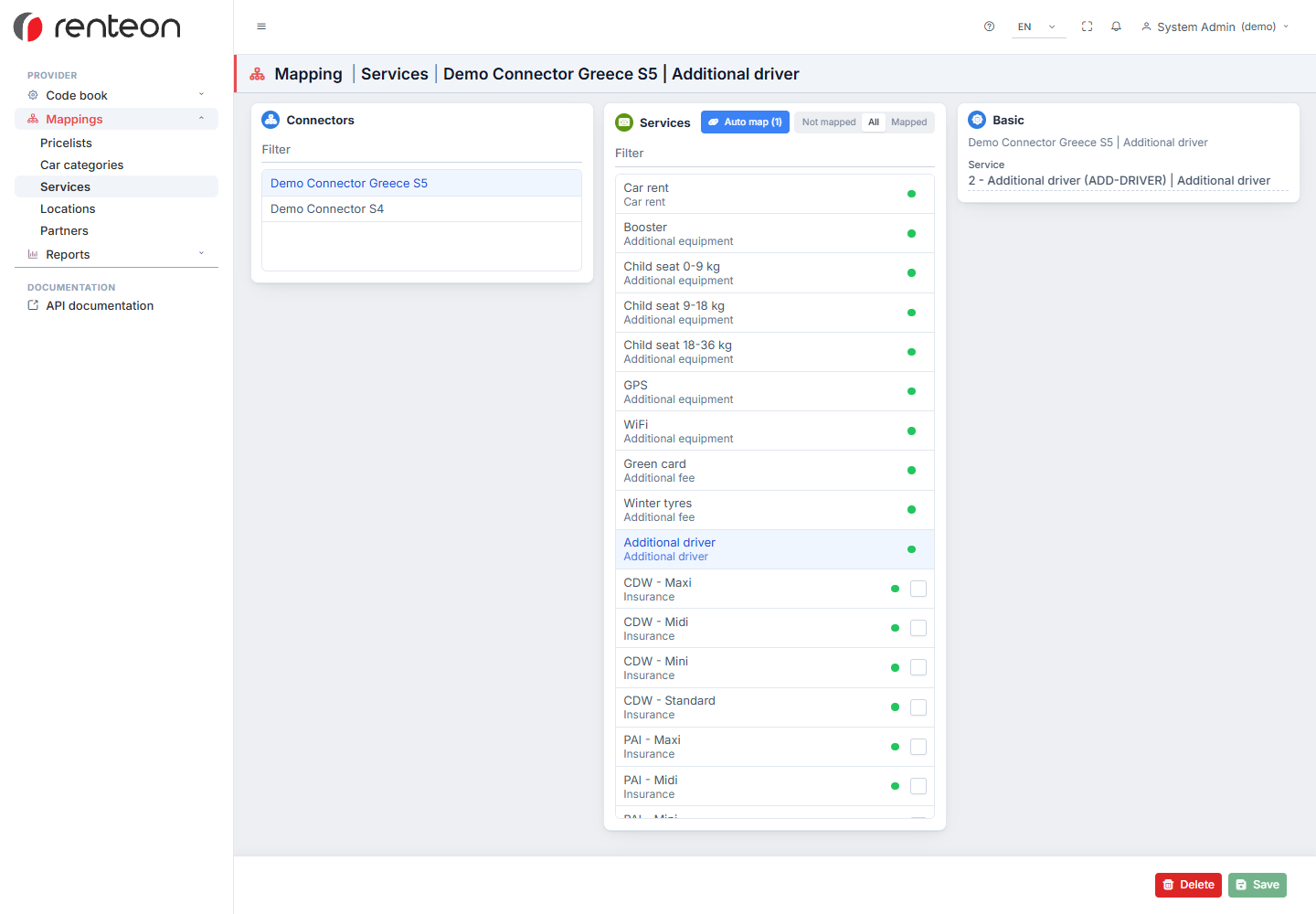
Each row shows Renteon's name, with the kind of service in smaller text below it, for example "Child seat 9-18 kg" over "Additional equipment". The rows are sorted by kind, then by name. A green dot on the right means that the row is mapped. Insurance rows also have a tick box, explained in the section on insurances below.
Renteon sends the names in the language you are working in in the Aggregator. If the franchisee has not named an extra in that language, the row shows no name at all, only the kind below it. Either ask the franchisee to add the name in Renteon, or switch the language in the header to one the instance uses. The screen then opens again in that language, with the same connector selected.
The Aggregator reads the list with the connector's own sign-in, not with a broker's. So it shows every extra the instance offers for reservations, whatever pricelists the individual brokers have. If the instance does not answer, or the connector's sign-in is wrong, the column shows "Unable to load data", see Connectors. Clicking the selected connector again reads the list again, for example after the franchisee has added a new extra.
Above the list are a switch with Not mapped, All and Mapped, and a Filter box that searches the rows. When you open the screen from the dashboard, the switch is already on Not mapped.
Service type rows and Auto map
A type row maps every Renteon service of that kind at once. The Car rent row covers the rental of every car category of the instance, and the Additional driver row covers the additional driver, whatever the instance charges for it. For each of these kinds the code book has exactly one Aggregator code, so there is nothing to choose. When you click an unmapped type row, the Service field is already filled in, and you only click Save.
It is quicker still with Auto map. While some type rows of the connector can be mapped this way, the button Auto map (N) appears above the list, where N is the number of such rows. Its tooltip says "Automatically map services that can be mapped without user interaction". One click maps all of them. On a new connector that is usually all 14 type rows. Equipment, fees and insurances are never mapped automatically, because each of these families has many codes and only you know which one fits.
For Out of hours and Older/younger driver, the type row also covers the individual extras of that kind. When the Aggregator meets an extra, it first looks for a mapping of that very extra, and only then for the mapping of its type row. So once the Out of hours type row is mapped to FEE-OOH, every out-of-hours extra of the instance reaches brokers as FEE-OOH. Leave the individual out-of-hours and driver-age rows unmapped. If you click one, the form suggests FEE-OOH or FEE-DRIVERAGE, but saving is refused (see the rules below), because the type row already uses that code. These rows keep no green dot and count as not mapped on the dashboard. That is expected.
Once a row is mapped, clicking it shows the stored code in the Service field, locked, with Delete and Save at the bottom of the page. Save stays unavailable, because a saved mapping cannot be changed.
Mapping an extra by hand
Equipment, fees and insurance covers are mapped one by one:
- Click the connector in the Connectors column.
- Set the switch above the list to Not mapped, so you see only what is left to do.
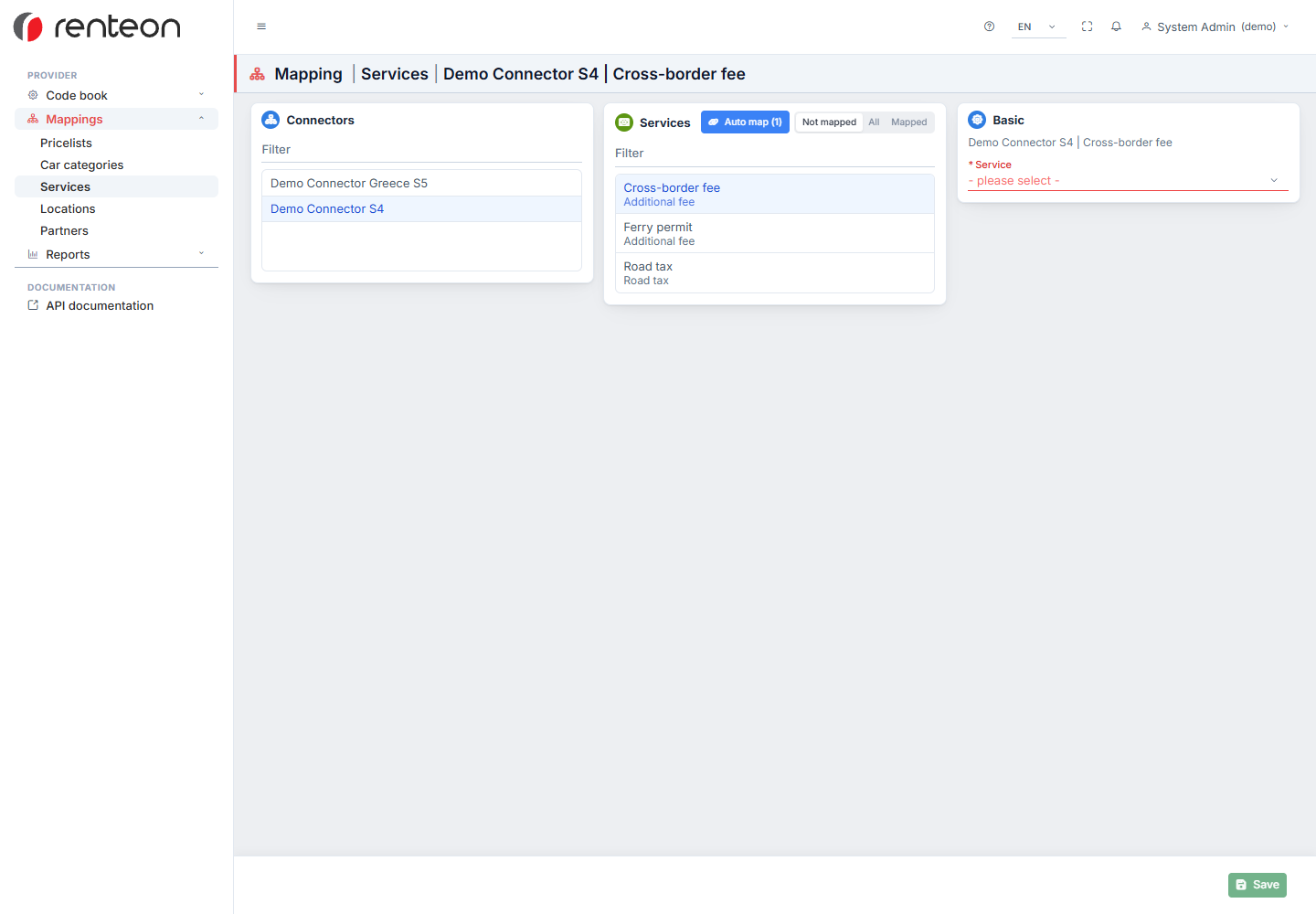
- Click the extra, for example "Child seat 9-18 kg". The right-hand column, Basic, shows the connector and the extra, and one field, Service, which says "- please select -".
- Open Service and choose the Aggregator code. Each entry reads number - name (code) | kind, for example "14 - Child seat (9-18kg) (EQ-CHILDSEAT) | Additional equipment". The number is the Aggregator's own number of the code. To shorten the list, type part of a code, such as EQ- or INS-PCK, in its search box.
- Click Save. The row gets its green dot and leaves the Not mapped list.
Brokers get the new code from their next search. Saving updates what the Aggregator gives brokers straight away.
Choose the code by what the customer gets, not by the name the instance uses. A seat for babies up to 9 kg is EQ-BABYSEAT, even if the franchisee calls it an "Infant carrier". A fee for taking the car to a neighbouring country is FEE-CB, whatever its Renteon name.
Warning: The Service list offers every code of every family, including codes that Renteon support has switched off (marked "(Inactive)"), and the Aggregator does not check that the family fits the row. Nothing stops you mapping a fee to an EQ- code by mistake. Pick from the right family: equipment to EQ-, fees to FEE-, insurance covers to INS- and insurance packages to INS-PCK_.
Rules
Three rules keep the mapping unambiguous.
An Aggregator code is used only once per connector, except for insurances. On one connector, only one Renteon row can have a given code. If the instance sells two child seats, for example "Child seat 9-18 kg" and "Child seat ISOFIX 9-18 kg", only one of them can be EQ-CHILDSEAT. The other needs another fitting code, or a new one from Renteon support. If you try to use a code twice, saving is refused with "ServiceId: … is already mapped to ConnectorServiceId: …". The first number is the Aggregator's own number of the code, the one in front of the entry in the Service list. The second is Renteon's number of the extra that already uses it, and it is empty when a type row uses the code. You can type that second number in the Filter box to find the extra.
Insurances are the exception: several Renteon insurance rows may share one INS- code. An instance often has the same cover several times, for example a CDW in each of its insurance packages. For a broker they are all CDW.
A Renteon row has only one mapping. If someone else mapped the same row while you had the screen open, your save is refused with "An active mapping for this service already exists". Click the connector again to see the current state.
A saved mapping cannot be changed. Once a row is mapped, its Service field is locked and Save is unavailable. To give the row another code:
- Click the row and then Delete, and confirm "Are you sure?".
- Click the row again. It is now unmapped.
- Choose the new code and click Save.
The only other way to change a saved mapping is Save All for insurances, described in the next section. Deleting a mapping does not change the bookings already made, see what brokers see below.
Insurances: several at a time
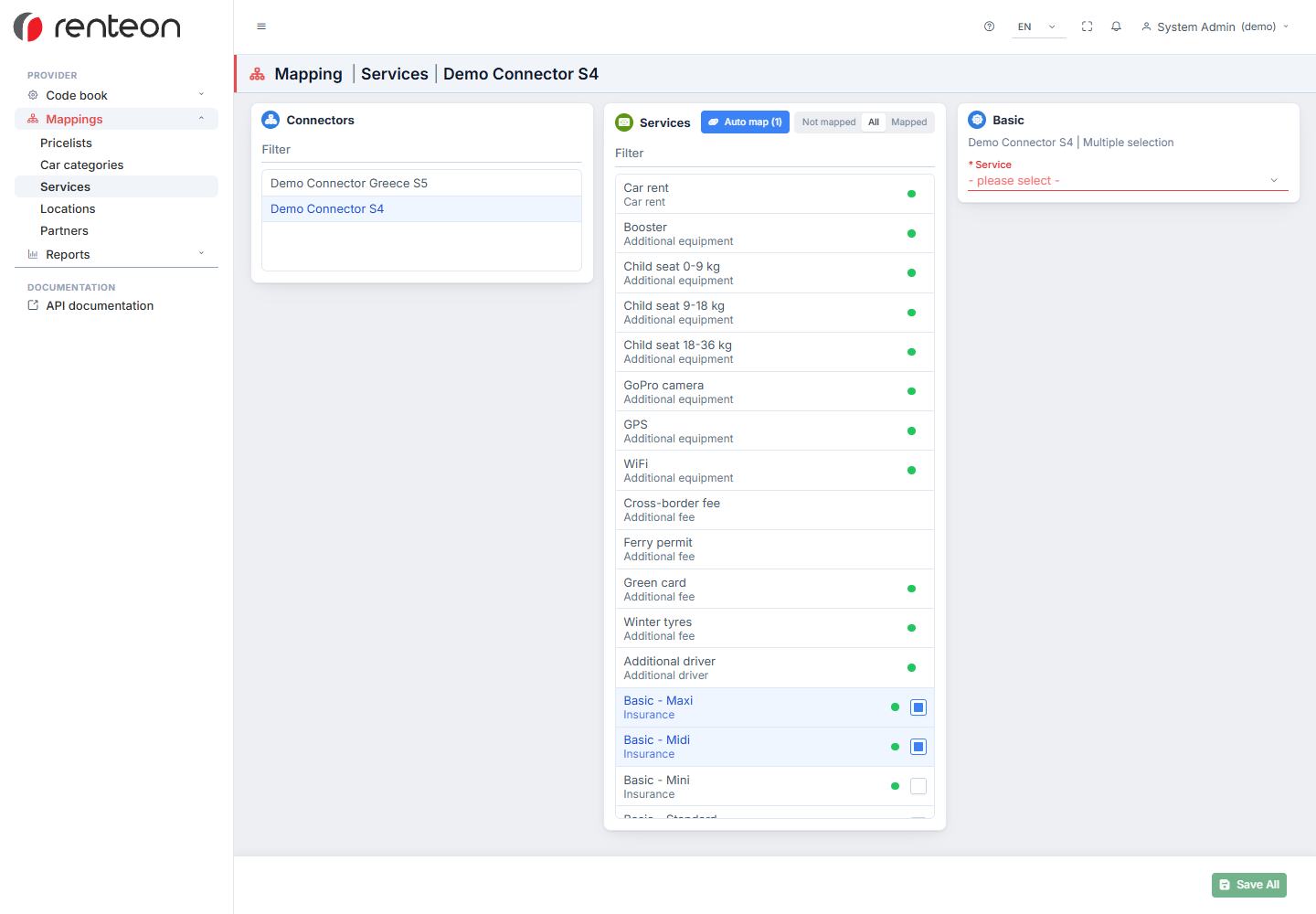
An instance with several insurance packages can have dozens of insurance rows. On the demo connector, for example, each of eight insurance codes is used by four Renteon rows. Mapping them one by one takes long, so every insurance row has a tick box:
- Tick the insurance rows that should get the same code, for example all the CDW rows. From the first tick, the right-hand column changes to "<connector> | Multiple selection", with one field, Service, and the button at the bottom becomes Save All.
- Choose the code in Service.
- Click Save All. Every ticked row is saved, and the ticks are cleared.
Which rows get which code depends on whether you change the Service field:
- The field starts with the code of the row you last opened on its own, or empty. If that row was of another kind, for example Additional driver, the field shows a code that does not fit, so check it. While the field is empty, Save All stays unavailable. If you leave a filled-in field as it is, Save All maps only the ticked rows that are not mapped yet. Rows that are already mapped keep their own code.
- Once you choose something in the field, Save All gives that code to every ticked row, including rows already mapped to another code. This is how you change several insurance mappings without deleting them first.
Ticks count only on the rows the Not mapped, All or Mapped switch shows. If you tick rows under All and then switch to Not mapped, the ticked mapped rows drop out of Save All. The Filter box works differently: a ticked row that the filter text hides still counts. Clicking another connector, or the same connector again, clears all ticks.
While any row is ticked, the form for a single row is hidden. To delete the mapping of one insurance row, untick all rows, click the row and use Delete.
Warning: Once you have changed the Service field, Save All overwrites the code of every ticked row, also ticked rows you cannot see because of the text in the Filter box. Clear the filter and check the ticks before you save.
What brokers see
When a broker searches, each Renteon instance returns its cars with the extras that can be added, and the Aggregator gives every extra the code and name of its mapping:
- A mapped extra comes with the Aggregator code and its name in the broker's language, or in English when the code has no name in that language.
- An extra without a mapping is still offered and can still be booked, but its code is UNSPECIFIED and its name "Unspecified". Renteon's own name and code go along only as additional information, as with every extra, so the broker's system cannot tell from the code whether it is a child seat, a GPS or a cross-border fee.
So map everything the instance sells, not only the extras you think brokers want. Car categories work differently: a car category without a mapping is left out of the search result altogether, see Mapping locations and car categories. An extra is never left out.
The mapping matters in two more places:
- Your brand's details. When a broker asks the Aggregator which services your brand offers, the answer contains only the codes mapped on at least one active connector of the brand. A code you have not mapped anywhere is not listed.
- Existing bookings. When a broker opens, changes or cancels a booking, the extras on it are translated in the same way. If you have deleted a mapping and not replaced it, the deleted mapping is still used for these, so an existing booking keeps its old code instead of turning into UNSPECIFIED. As soon as the row has a new mapping, the new code is used.
The franchise reports do not use the services mapping. They group extras by Renteon's own kind of service, see Franchise reports in the Aggregator.
Warning: An extra you have not mapped still reaches brokers, as UNSPECIFIED. When a franchisee adds a new extra in Renteon, it is sold this way until someone maps it on the franchisee's connector.
Dashboard count and automatic clean-up
On the Dashboard, the Services column shows for each connector how many of the rows Renteon lists are mapped, for example 41 / 46. The badge is red when nothing is mapped, amber when some rows are and green when all are. Clicking it opens this screen for that connector, with the switch on Not mapped. Individual out-of-hours and driver-age rows that you leave unmapped on purpose keep the badge amber; that is fine.
The numbers are a snapshot. They are updated every day at 06:10 server time and when you click the Refresh icon in the connector's row, not when you save a mapping.
The daily run and the Refresh icon also clean up. They switch off every service mapping whose Renteon extra is no longer in the instance's list: the franchisee deactivated it, unticked Addition is visible for reservations, or switched its insurance off. A type row is switched off the same way when its kind is no longer listed. If the instance does not answer, nothing is switched off. The step in the order of setting up a brand is described in Setting up a brand in the Aggregator: checklist.
Warning: A mapping switched off by the clean-up stays off. If a franchisee hides an extra for a few days and then shows it again, brokers get it as UNSPECIFIED until someone maps it again. After such changes in Renteon, open the connector with the switch on Not mapped and map what is missing.
Code book kept by Renteon support
The list of codes is kept under System → Code book → Services. Only Renteon support (Renteon staff signed in as system users) sees the System section.
The list has the filters ID, Name, Type and Active (Yes by default) and shows ID, Code, Name and Type. Each service has a Service type, a Code, which must be unique, and a Name in each language.
What this means for your brand:
- A new code. Tell Renteon support what the extra is, its family (equipment, fee, insurance cover or insurance package) and the name it should have. For a package, list the covers it contains; the code is built from them, for example INS-PCK_CDW_TP_PAI.
- A wrong or missing name. Renteon support corrects it. Brokers see the corrected name for every brand that uses the code.
- Nothing changes by itself. A new code is in the list of all codes at once, but brokers get it on a brand's extras only after a connector maps an extra to it, and only the brand's own mappings decide which codes its brokers get.
Next step: Partners: enabling brokers and websites on a connector, where you enable each broker and website on each connector with that instance's B2B user.
Related guides: