Sales
Automatic Upgrade Option
How to enable Automatic Upgrade so a fully booked car category stays bookable for B2B bookings, using availability from its alternative car categories.
Last updated
Enable Automatic Upgrades
In the menu Codebook → Settings, enable the option "Book linked car categories when unavailable for B2B bookings".
Define Alternative (Upgrade) Categories
In the menu Fleet → Car Categories, for each category that should be eligible for automatic upgrades, select one or more alternative categories in the field "Alternative car categories for fleet chart & B2B bookings".
Pricelist setup
Ensure that valid rates are configured in the price list for both the original category and the designated upgrade category for the selected pickup period.
How Automatic Upgrades Work?
When a booking is created using the Automatic Upgrade feature:
- Car Category for Payment will remain the originally booked category
- Issued Car Category will display the upgrade category from which availability was allocated.
The customer is not informed that an upgrade has been applied. Therefore, if the originally booked category becomes available by the pickup date, you may still issue the vehicle from the original category.
Identifying Automatically Upgraded Bookings
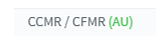
Bookings created through the Automatic Upgrade feature are marked with a green (AU) indicator and can be easily identified in:
- The Dashboard
- The Fleet Chart