Sales
Sales reports: finance documents, fleet and planning
What the Finance documents, Car fleet and Planning sales reports count, which dates and filters they use, and how to enter income targets and additional-sales bonus rates.
Last updated
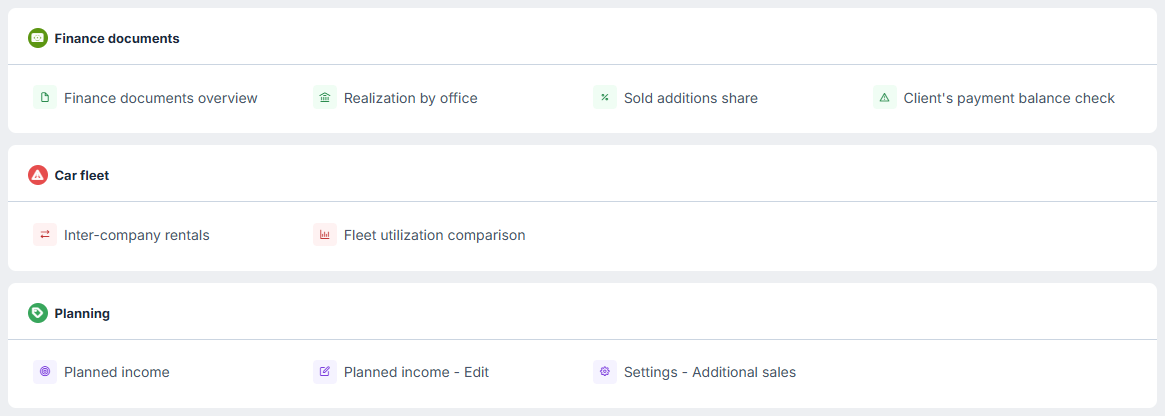
The Sales reports page sorts its reports by where the numbers come from, not by topic. This guide covers three of its groups:
- Finance documents — reports built from the documents you issued (invoices, bills, approvals and so on). They count documents, not bookings. A booking that has not been invoiced yet is simply not in them, and a booking with three invoices contributes three documents.
- Car fleet — two reports built from car activities and contracts, used to settle cars shared between companies or fleets.
- Planning — monthly income targets per office, the report that compares them with what you invoiced and still expect to invoice, and the bonus rates for additional sales.
The reports in the Bookings group start from bookings instead, so their totals will not match the reports described here. For example, Realization for period and office (bookings) and Realization by office (invoices) answer different questions and will rarely give the same figure. The booking-based reports are described in Sales reports: bookings and Sales reports: cancellations, services and payment plans.
Opening the reports and who can see them
Open Car control → Reports → Sales. The page shows the groups Finance documents, Car fleet and Planning together with the other sales groups. How the Reports page and every report screen work in general (search, filters, Reset, Export to Excel, date filters) is explained in Reports: overview and dashboard.
The reports in this guide need the role Reports - sales. A few screens are different:
- Finance documents overview also opens with the role Report - financial documents. That role alone does not show the Sales reports page, though. A user who has it together with Invoice management gets the same workbook from the finance documents list (Sales → Bills → Search) with Export to Excel. That button on the list is shown only to users with Report - financial documents.
- Planned income - Edit needs the role Planned income edit. Its link is on the Sales reports page, so the user also needs a role that shows that page, usually Reports - sales.
- Settings - Additional sales is listed for everyone who can see the Sales reports page, but the screen opens only for users with the role Allows a detailed list and administration of bonuses for additional sales. Anyone else who clicks the link lands on the Dashboard start page.
- Client's payment balance check only appears when two settings are switched on. Both are in Administration → Code book → Settings, tab Finances: Tracking not paid invoices (panel Finances) and Enable Payments Module (panel Payment module).
If your user is restricted to one franchise or one company, the finance-document reports only show that franchise's or company's documents, whatever you choose in the filters.
How the finance-document reports count
The finance-document reports (and the actual figures in Planned income) follow the same rules. Knowing them saves a lot of "why doesn't this match?" questions.
- The document decides, not the booking. Each report includes only certain document types, listed in its own section below (in Finance documents overview you choose them yourself with Type). A booking with no document in the period adds nothing. A booking with a contract invoice and a later damage invoice contributes both documents.
- The document date decides the period. Unless you use a different date filter, a document belongs to the period that contains its document date. In Realization by office that filter is called Date of bill.
- Amounts are in your domestic currency. Documents issued in another currency are converted with the exchange rate stored on the document. Documents issued before your domestic currency changed (for example kuna to euro in Croatia) are converted to today's domestic currency.
- Net means after discount and without VAT. Realization by office, Sold additions share and Planned income work with net amounts.
- Cancellations. When you cancel an invoice, Renteon creates a cancellation document with the same amounts as negative values and marks both as cancelled. The cancellation document gets the date of the day you cancel. Realization by office and Planned income keep both documents, so they cancel each other out when they fall in the same period. If the invoice is from 28 October and you cancel it on 3 November, October still shows the revenue and November shows the same amount as a minus. Sold additions share and Client's payment balance check leave cancelled documents and their cancellation documents out completely. Finance documents overview shows both unless you set Cancelled to No.
- Group invoices. Realization by office, Sold additions share and Planned income leave the group invoice document itself out. The documents it collects are counted on their own. See Group invoice.
Warning: Revenue that has not been invoiced yet is not in the finance-document reports. If a contract is still open, or closed but not invoiced, its rent appears only after the invoice is issued, and then in the period of the invoice's document date. For revenue that is booked but not invoiced yet, use Planned income or the booking-based reports.
Finance documents overview
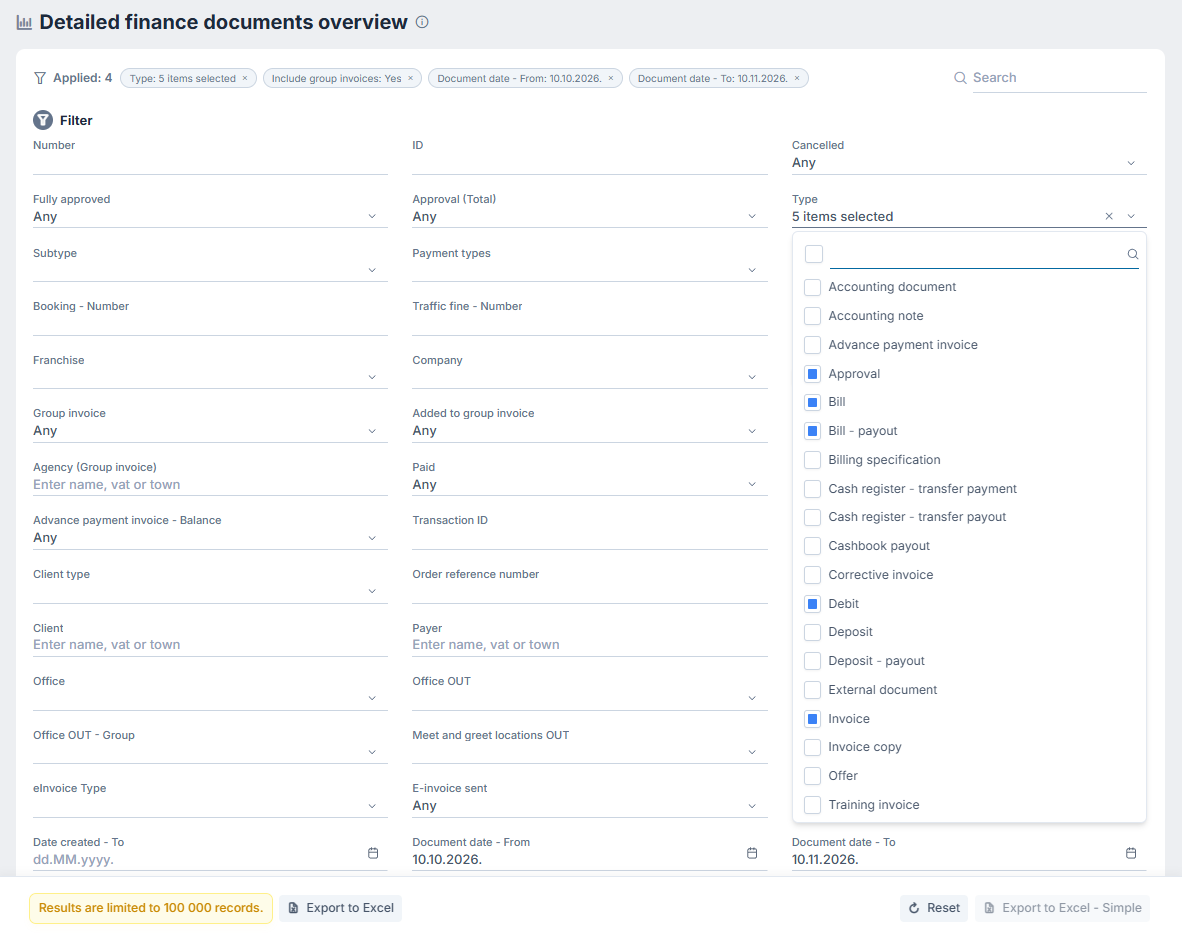
Use this report when you need every document that matches a set of filters, together with its lines and payments, to work with in Excel. Typical uses: handing a month's documents to the accountant, checking which invoices are still unpaid, or finding all documents of one client or one booking. The report has no on-screen result. It produces Excel files only, and its page is titled Detailed finance documents overview.
When you open it, Type already has Invoice, Bill, Bill - payout, Approval and Debit selected, and Document date runs from one month ago to today. Advance payment invoice, billing specifications, accounting notes and external documents are not preselected. Add them to Type when you need them too.
The filters, grouped by what they look at:
- About the document: Number (finds documents whose number contains the text you type), ID, Type, Subtype, Cancelled, Fully approved (documents that were completely credited with a full approval), Approval (Total) (the approval documents created by such a full approval), Amount (the exact document total), User (the user who created the document), Office and Office - Group (the office where the document was issued), Franchise, Company (only for companies with several companies set up), Client, Payer, Client type, Order reference number and Car.
- About payment: Payment types, Paid (Yes = fully paid, No = not fully paid), For payment / Payment delay (Yes = part of the amount is still open on payment delay), Advance payment invoice - Balance (Yes = the advance has an unused balance), Transaction ID (contains the text), Payment - Number (the exact number of a payment entered in the Payments module) and Date of payment.
- About the booking: Booking - Number (exact), Office OUT and Office OUT - Group (the booking's pickup office), Meet and greet locations OUT and Meet and greet location IN, Traffic fine - Number, and the Booking - Date OUT, Booking - Date est.IN and Booking - Date IN ranges. The three booking dates are taken from the current version of the booking, so a booking modified after invoicing is filtered by its latest dates.
- About group invoices: Include group invoices (ticked by default; untick it to leave group invoice documents out, which you should do before adding up amounts, because the documents a group invoice collects are in the workbook on their own as well), Group invoice, Added to group invoice, Group invoice number and Agency (Group invoice).
- Other dates: Date created (when the document was entered), Document date, Delivery date and Cancellation date. If a document has no delivery date, the Delivery date filter uses the start of the invoiced period instead, then the booking's pickup date, and finally the document date.
- E-invoicing and country-specific filters: E-Invoicing date from / E-Invoicing date to, Ksef Number, Should be e-invoiced, Original document id and Original document number (for documents that refer to an original document). eInvoice Type and E-invoice sent appear only when your domestic country is Croatia, MYF only when it is Greece.
Export to Excel creates the workbook Finance documents. Its sheets are:
- Finance documents — one row per document: number, type and subtype, booking, contract and lease numbers, offices, dates, users, client and payer, payment types, net, discount, VAT and total in the document currency and in domestic currency, paid amount and balance, billing car category, days, partner, franchise and company, pricelist, fiscal number and e-invoicing data.
- Items — one row per document line: service, service type and service group, pricelist, VAT rate, amounts, the user who added the item and whether it was added on the reservation.
- Payments — one row per payment line: payment type, card type, POS, amount in the payment's currency and in domestic currency, transaction and authorisation numbers, payment number and the advance invoice used.
- Five ready-made pivot tables in domestic currency (their names are in your company's main language): amounts by office, user and type of service; payments by payment type and card type; amounts, number of documents with a booking (a booking with three invoices counts three times) and days by billing car category; amounts by booking subtype and partner; and net, VAT and total by office and payment type down to each document.
- Selected report filters — the filters the workbook was made with.
Export to Excel - Simple becomes available once you choose a Currency (the full export does not use Currency). It creates one sheet with one row per document line and converts the net amount (after discount) into the chosen currency, using the exchange rate valid on the day the line was created. Besides the amount, it shows the document, client, service, booking subtype, offices, car, billing category, days, driven distance, booking and voucher numbers, with totals for days, amount and distance. It uses the same filters as the full export, except Delivery date, Payer and Include group invoices, which it ignores. It also leaves out documents of offices your user is not allowed to work with.
Warning: With Cancelled left on Any, a cancelled invoice and its cancellation document are both in the workbook, so their totals cancel out. If you want only valid documents, set Cancelled to No. Keep the date range reasonable: a very long period with no other filters can take minutes and may stop with a timeout.
Realization by office
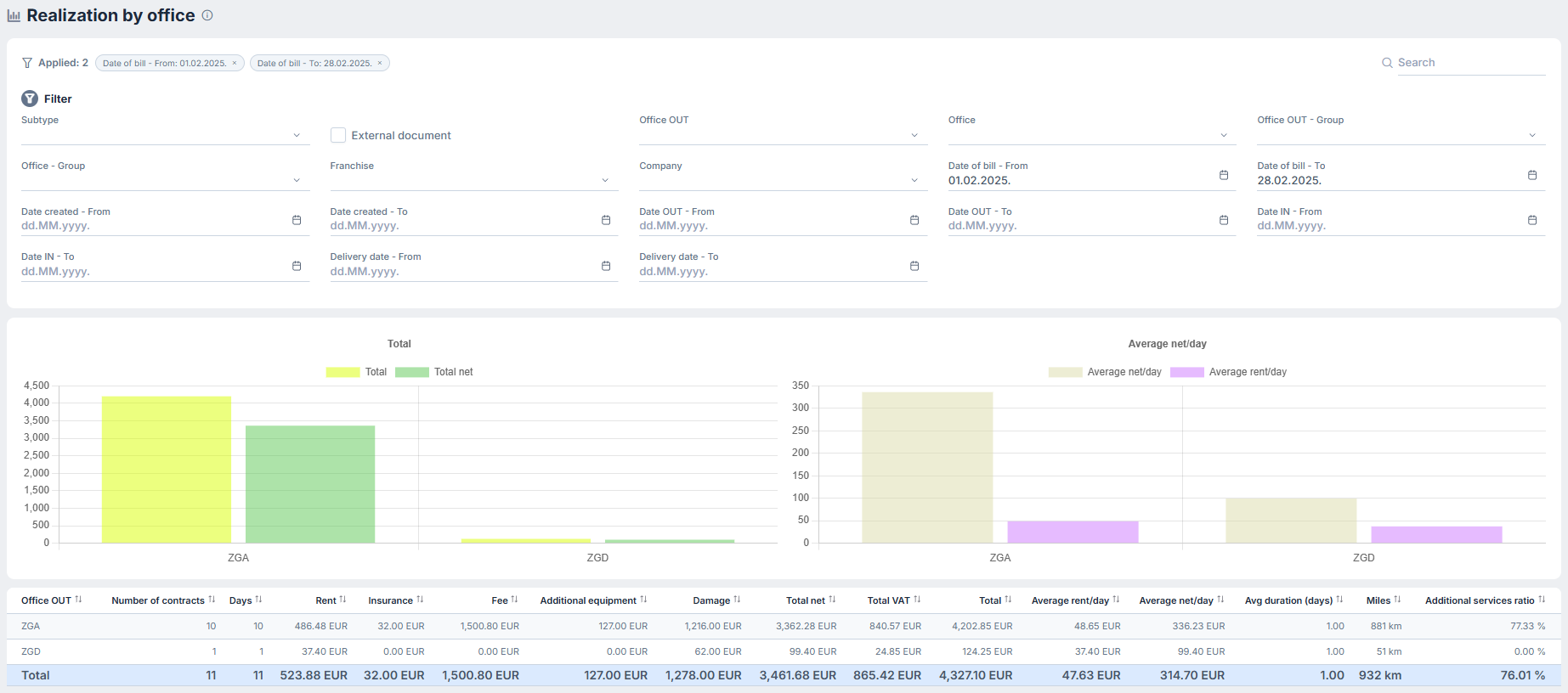
This report answers "how much did each office earn in invoiced revenue in this period, and from what?". It splits net revenue into rent, insurance, fees, additional equipment and damages per office, adds days, contracts and averages, and draws the five best offices in two charts. Click Confirm to show the result on screen, or Export to Excel.
It counts these documents: Invoice, Bill, Bill - payout, Debit, Approval, billing specifications and accounting notes. Tick External document to include external documents as well. Group invoice documents are left out. Cancelled invoices and their cancellation documents both stay in (see "How the finance-document reports count").
Which office gets the money:
- For documents issued for a booking, everything except damages goes to the booking's pickup office (Office OUT).
- Damages go to the return office: the office where the car was returned, or the expected return office while it is still out.
- Documents without a booking go to the office where they were issued.
For example, a car picked up at the airport and returned in the city centre is invoiced 300.00 net for rent and 200.00 net for a damage. The airport row gets 300.00 rent, the city centre row gets 200.00 damage. An office that only received damages still gets its own row. So does an office where cars from the counted bookings were only returned, with no damage invoiced: that row shows only zeros.
The columns:
- Office OUT and, in the last row, Total.
- Number of contracts — how many different bookings have at least one counted document. Documents without a booking do not add to it.
- Days — for each booking, the length of the invoiced periods on its non-cancelled documents (for example monthly instalments on a long-term rental). A booking whose documents have no invoiced period counts with its days for payment.
- Rent, Insurance, Fee, Additional equipment and Damage — net amounts per type of service. Fee collects everything that is not rent, insurance, equipment or damage, for example one-way fees, out-of-hours charges or fuel. Damage includes damage processing fees.
- Total net, Total VAT and Total — all services including damages.
- Average rent/day = Rent ÷ Days. Average net/day = Total net ÷ Days. Avg duration (days) = Days ÷ Number of contracts.
- Miles — the distance driven on the bookings' car activities, in your mileage unit.
- Additional services ratio — the share of everything except rent and damages in the net total without damages: (Total net − Rent − Damage) ÷ (Total net − Damage) × 100.
The filters:
- Date of bill — the document date. This is the filter for "revenue of a month".
- Date created — the date the booking was first created, not the date of the document.
- Date OUT and Date IN — the pickup and return dates of the current version of the booking.
- Delivery date — only documents that have a delivery date entered.
- Office OUT and Office OUT - Group filter by the booking's pickup office, Office and Office - Group by the office that issued the document.
- Subtype (booking subtype), Franchise, Company (only for companies with several companies set up) and External document.
Filters that look at the booking (Subtype, Office OUT, Date created, Date OUT, Date IN) leave out documents that were not issued for a booking. Export to Excel creates a Contracts sheet with the same columns and the Total row, plus Selected report filters.
Warning: Number of contracts and Days count a booking whenever any of its documents falls in the period. If you invoice a damage in November for a contract that was invoiced in October, the November report counts that booking and its days again, which lowers November's averages. All date filters are empty the first time you open the report, so always check Date of bill before you click Confirm: without it, Renteon processes every document you have ever issued.
Sold additions share
This report shows how well each seller (or each office) sells insurance, equipment and other extras, measured against the rent on the contracts they handle. The result is an Excel workbook only. Export to Excel stays disabled until you choose Type.
Type decides who gets each item:
- User — rent and pickup out-of-hours charges count for the user who issued the car. Every other item counts for the user who added it to the booking. Drop-off out-of-hours charges count for the user who closed the contract.
- Office — damages count for the office that issued the document. Everything else counts for the booking's pickup office.
What is counted:
- Documents of type Invoice, Bill, Bill - payout, external documents, billing specifications and accounting notes that belong to a booking. Cancelled documents, group invoice documents and documents that have been fully approved are left out.
- The period (Date - From / Date - To) is the document date. Drop-off out-of-hours charges are the exception: they are picked by the booking's return date.
- Rent is always counted. Other items count only when they were added on the contract, at the counter. Items that were already on the reservation are left out unless you tick Include items added on reservation.
The other filters are Subtype (booking subtype), Pricelist (the booking's car rental pricelist), Agency, Commissioner and Partner as Any / Yes / No (Partner means an agency or a commissioner), and a specific Agency or Commissioner. Tick Compare with other period and fill in Period 2 - From and Period 2 - To to compare two periods. Both dates are required, otherwise the export stops with an error.
The workbook has five sheets with one row per user or office. Every sheet starts with the user or office and Contracts (bookings with rent for that user or office), followed by one column for each additional item (insurances appear under the insurance name):
- Share in rent amount [%] — after Contracts comes Car rent-Amount (the net rent). Each item column shows the net amount of the item ÷ net rent × 100, and the last column, Total - Additions, does the same for all items together.
- Share in count [%] — contracts that include the item ÷ Contracts × 100.
- Average per contract [EUR] — net amount of the item ÷ Contracts, with Total - Additions at the end. The sheet name shows your domestic currency.
- Amount [EUR] — net amounts, with Car rent-Amount after Contracts and Total - Additions at the end.
- Count — the number of bookings that include the item.
With Compare with other period ticked, every sheet shows a table for the first period, one for Period 2 and a Difference table. A Selected report filters sheet is added at the end.
For example, a user who handed over 20 cars with 10,000.00 net rent and sold insurance worth 2,000.00 net on 12 of those contracts shows 20% in Share in rent amount [%], 60% in Share in count [%] and 100.00 in Average per contract.
Warning: The two percentage sheets and Average per contract only list users or offices that have at least one contract with rent. A user who sells extras but never hands over cars appears only on Amount and Count.
Client's payment balance check
This report shows how each client stands with you: what you invoiced to them, what they paid or prepaid, and the difference. Pick one client to also get a running statement. It appears on the Sales reports page only when Tracking not paid invoices and Enable Payments Module are both switched on (see "Opening the reports and who can see them").
How the balance is built, per client, in domestic currency:
- Debit — the totals of the client's documents of type Invoice, Bill, Approval and Debit, and accounting notes. Cancelled documents and their cancellation documents are left out.
- Credit — what has been paid on those documents (payments of type Payment delay do not count as paid), the client's advance payment invoices, and the part of the client's payments from the Payments module that has not yet been used on documents.
- Balance = Credit − Debit. A negative balance means the client owes you money. A positive balance means the client has paid more than you invoiced, for example an unused advance.
The filters:
- Client — leave empty to list every client whose balance is not zero, in either direction.
- Date - From / Date - To — documents by their document date, payments from the Payments module by their payment date.
- Filter payments by date — when ticked, a payment from the Payments module used on a document counts only if the payment's own date is inside the period. Payments entered directly on the document always count.
- Use 'Document date' for approvals and debits — when ticked, an approval or debit issued for another document is dated by that original document's date, both for the period and in the date column. When not ticked, it uses its own date.
- Company — only for companies with several companies set up.
Export to Excel creates these sheets: Company and Individual (one row per client with total debit, total credit and balance; every client who is not an individual is listed under Company), Company - Details and Individual - Details (one row per document, advance invoice or payment, with document date, type, booking number, whether the booking is a reservation, an open contract or a closed contract, pickup date, payment types, amount, paid amount and balance), and Summary. Summary is filled only when you choose a Client: it lists every debit and credit in date order with running totals and a running debit or credit balance, like a client statement.
Export to Excel - Old produces the older layout without Summary, and ignores Filter payments by date and Use 'Document date' for approvals and debits.
Warning: A date range cuts the statement. Documents dated outside the range are left out together with what was paid on them, and unused payments from the Payments module count only when their payment date is inside the range. An unused advance or payment from before the range is therefore missing, and with Filter payments by date ticked an invoice in the range that was paid with an older payment looks unpaid. For a client's true overall position, leave the dates empty.
Inter-company rentals
This report is for companies that run several companies in one Renteon account. When a car that belongs to one company is used on a booking of another company, the two companies usually settle the rent between them. The report lists every such case with the share of rent that belongs to the period.
What is counted: active, non-cancelled rental activities where the car's company is different from the booking's company, and the activity overlaps the period. For each activity, Renteon takes the part that falls inside the period and divides it by the length of the whole booking. The booking's net rent (all rent price lines, in domestic currency) multiplied by that share is the amount to settle.
For example, a booking of company B lasts 10 days and has 500.00 net rent. For 4 of those days, inside your period, it used a car of company A. The share is 40% and the amount is 200.00.
The filters are Date from and Date to (both required; without them the export stops with the message "Date from and date to must be defined."), Company - From (the company that owns the car) and Company - To (the company of the booking). Both company lists also offer Without company.
Export to Excel creates the sheet Inter-company rentals with one row per activity: the lending and the renting company, plate number, booking number, activity number, the booking's pickup and return, the part of the activity inside the period, the activity's full dates, the share in percent, the booking's net rent and the amount to settle. The two amount columns have totals. A Selected report filters sheet is added.
Warning: Date to is taken as the very start of that day (00:00), so the day itself is not included. To cover the whole of October, set Date from to 1 October and Date to to 1 November.
Fleet utilization comparison
This report compares one car fleet with all your other fleets, category group by category group: how much its cars were on rent, how its average price per day compares, and how much rent and damage it brought in. The fleet's rent and damage amounts are multiplied by two percentages you enter, for example the shares you agreed with the owner of that fleet. Car fleets are set up in Fleet → Fleet → Car fleet, and category groups in Fleet → Fleet → Car category groups (see Car categories and category groups).
All of these fields are required: Car fleet (the fleet you are looking at), Car category groups (which grouping of car categories to compare by), Date - From / Date - To, Car rental (%, 0–100) and Damages (%, 0–100). E-mail and CC are optional. Export to Excel stays disabled until all required fields are filled in, and also while an address in E-mail or CC is not a valid e-mail address.
How the figures are worked out:
- Utilization looks at the activities of all cars in fleets with Use for rent ticked, except deactivations, cut to the period. For each category group, utilization is the time on rent (activities that belong to a booking) divided by the total activity time. It is calculated for the chosen fleet and for all other fleets together. Cars from other fleets that were on a long-term rental in the period are left out of the comparison.
- Prices and amounts come from closed contracts returned in the period, excluding long-term contracts with monthly price calculation. They are taken from the contracts themselves, not from invoices, and each contract counts in the group of its billing car category. The rent amount of a contract is all of its net items except damages and fuel. The fleet's share of each contract follows the time the fleet's cars were on that contract. Damages count when the damage belongs to one of the fleet's cars.
The Fleet utilization sheet starts with the fleet, the two percentages and the dates, followed by one row per category group (the group name with its categories in brackets):
- the number of the fleet's cars in the group,
- the utilization difference between the fleet and the other fleets, in percentage points,
- the days the fleet's cars spent on long-term rentals,
- the difference in average price per day, in percent of the other fleets' average,
- the damage amount multiplied by Damages %, the rent amount multiplied by Car rental %, and the sum of the two.
Both differences are shown without a sign: they tell you how far apart the fleet and the others are, not which one is higher. Groups in which the fleet has no cars and no amounts are left out. Cars whose category is not in any group of the chosen grouping are collected in a row called "N/A", so check the grouping in Car category groups if you see one. The Cars sheet lists the fleet's cars with plate number, category, model, chassis number, mileage and engine number.
Export to Excel downloads the workbook. Send document by e-mail appears once all required fields and a valid E-mail are filled in, and sends the same workbook with the subject "[fleet name] - Fleet utilization".
Warning: The e-mail is sent only to the address in E-mail; the CC address is currently not used. The message "E-mail is sent successfully" means Renteon accepted the request, not that the e-mail was delivered. If it does not arrive, check the address and download the file with Export to Excel instead.
Planned income
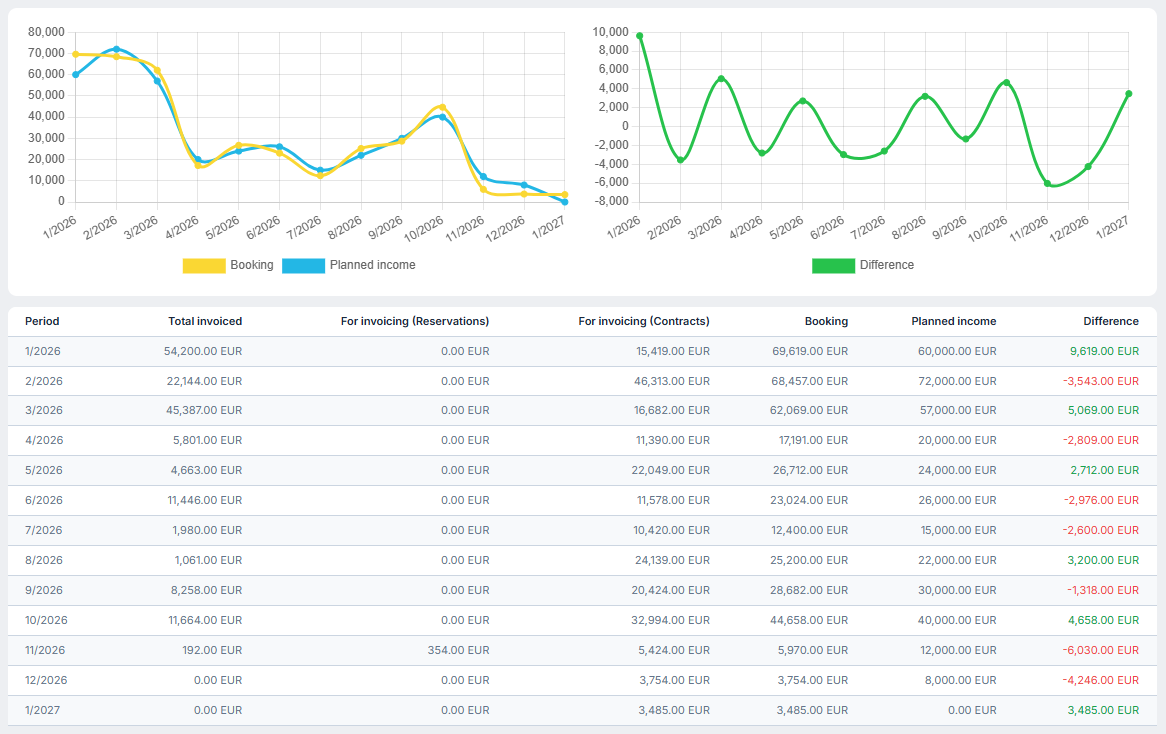
Planned income compares your monthly income targets with what you have already invoiced and what you still expect to invoice. It covers 13 months: the month you choose and the twelve after it. The report loads straight away when you open it: the first time on the current month, afterwards on the month and filters you used last. Reset goes back to the current month. It refreshes on its own when you change Month, Year, Office OUT or Office OUT - Group. After changing any other filter, click Confirm.
Each row is one month:
- Period — month/year.
- Total invoiced — net amounts of documents dated in that month: Invoice, Bill, Bill - payout, Approval, Debit, billing specifications and accounting notes, plus external documents when External document is ticked. Group invoice documents are left out. A document counts for the booking's pickup office, or for the office that issued it when there is no booking.
- For invoicing (Reservations) — the net amount still to be invoiced on reservations expected to be invoiced in that month, multiplied by the Coefficient entered for that office and month.
- For invoicing (Contracts) — the same for contracts, without a coefficient.
- Booking — Total invoiced + both For invoicing columns.
- Planned income — the sum of the targets entered for the selected offices (all offices when none is selected).
- Difference — Booking − Planned income. Negative values (below target) are red, zero and positive ones green.
Where "still to be invoiced" comes from: the two For invoicing columns read the payment plan that Renteon keeps for every reservation and contract, the same plan that the Booking payment plans report exports. A normal booking has one line at the end of its billing period, a long-term contract paid in instalments one line per instalment; how the lines are built is explained under Booking payment plans in Sales reports: cancellations, services and payment plans. Planned income takes the net amount not invoiced yet on the lines that are not paid or cancelled. The plan is refreshed in the background, so a booking you created or changed in the last hour, or longer on a busy day, may not show up here yet.
For example, for October an office has 18,000 invoiced, 5,000 on reservations with a coefficient of 0.8 and 2,000 on open contracts. Booking is 18,000 + 4,000 + 2,000 = 24,000. Against a target of 25,000, Difference shows −1,000 in red.
The filters are Month and Year, Office OUT or Office OUT - Group (choosing one disables the other), Franchise (shown when franchises are set up), Company (only for companies with several companies set up) and External document. Franchise and Company narrow down the actual amounts only. Targets are entered per office and are never split by franchise or company.
Above the table, the first chart draws Booking against Planned income and the second draws the Difference. All amounts are in domestic currency. Renteon drops the decimals of every amount (it cuts them off, it does not round), so the table shows whole amounts followed by .00. For companies in Croatia, targets entered for years before 2023 were in kuna and are shown converted to euro (÷ 7.5345). Export to Excel downloads the table, with the month, year, offices and office groups at the top.
Warning: Export to Excel ignores Franchise and Company. If you use those filters, the file shows the totals for all franchises and companies of the selected offices, so it will not match the screen.
Entering planned income targets
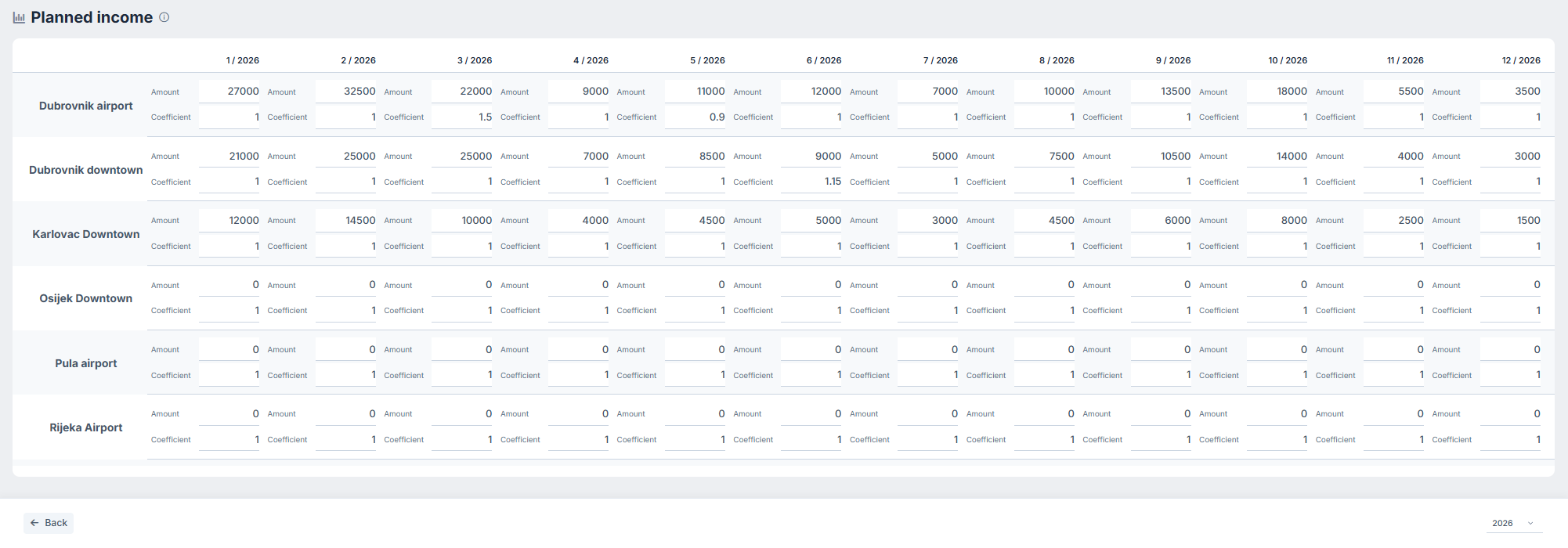
Targets are entered in Planned income - Edit in the Planning group. You need the role Planned income edit. The page is titled Planned income.
The grid shows one row per active office, in alphabetical order, and one column per month of the selected year. You choose the year in the footer, from two years back to five years ahead. Each cell has two values:
- Amount — the income target for that office and month, in your domestic currency. The report compares it with net amounts (after discount, without VAT), so enter your targets as net figures too. Months without a target show 0.
- Coefficient — multiplies the amount still to be invoiced on reservations (For invoicing (Reservations)) for that office and month. It is 1 by default and can be between 0 and 3. For example, use 0.9 if you expect about a tenth of the reserved value not to turn into revenue, or 1.15 if reservations usually grow by about 15% at the counter, for example through extras sold at pickup.
There is no Save button. Each value is saved as soon as you leave the field (with Tab or by clicking elsewhere), and Renteon confirms with "Data saved". A field you leave without changing is not saved again. You can type decimals with a comma or a point. Anything that is not a number is ignored, and the field goes back to its saved value. Back returns to the Sales reports page.
A target belongs to one office. To plan for a region, enter the targets of its offices and select the office group in the report.
Warning: A coefficient below 0 or above 3 is not accepted, and the cell keeps its previous value. Targets of offices you have since deactivated are no longer shown in this grid, but they still count in Planned income when you run the report for all offices.
Additional sales bonus settings
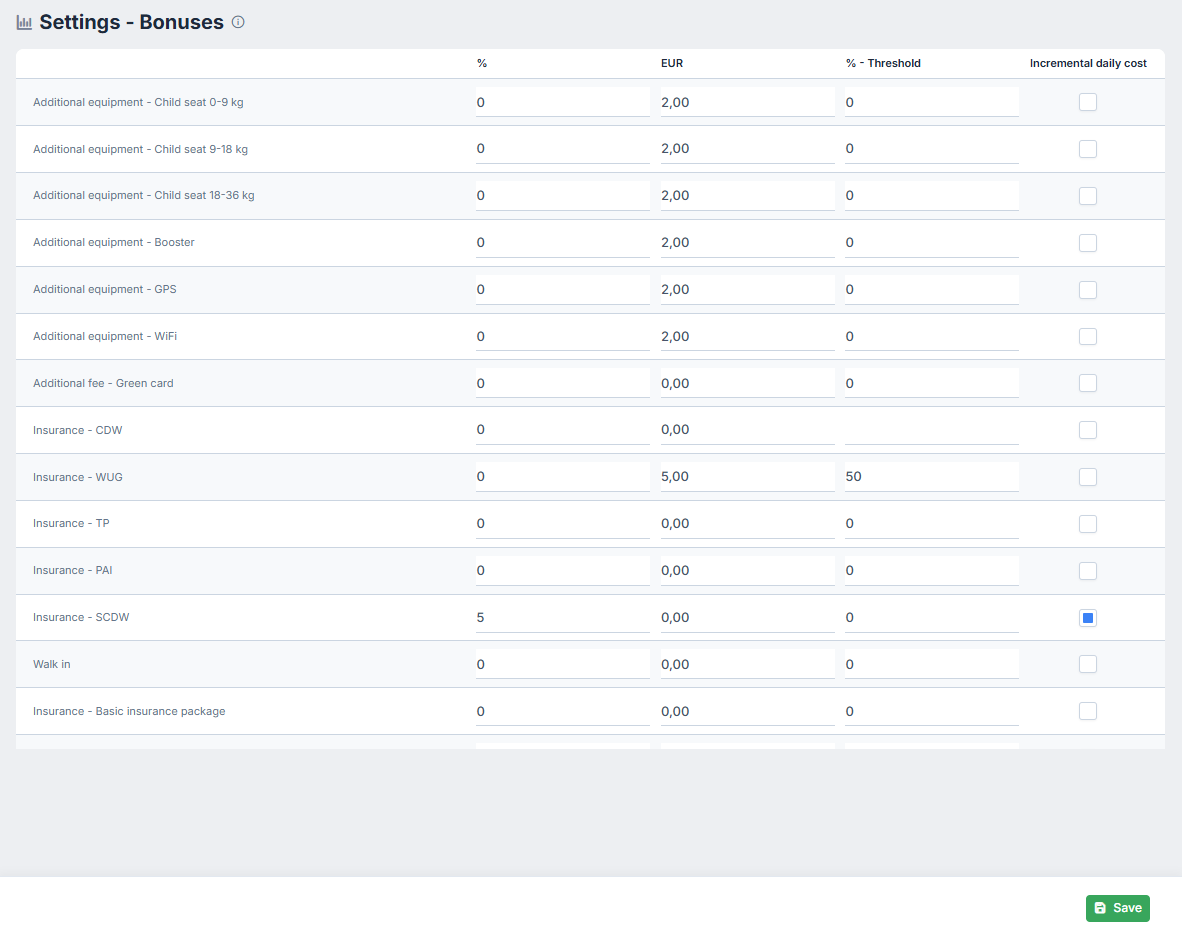
Settings - Additional sales in the Planning group holds the bonus rates that the Additional sales report (in the Bookings group) uses to calculate what each seller earns on extras. The page is titled Settings - Bonuses. Both this page and the Additional sales report need the role Allows a detailed list and administration of bonuses for additional sales. How the report scores the sales and who gets the credit for each item is described under Additional sales in Sales reports: cancellations, services and payment plans; for additional sales monitoring in general, see Additional sales monitoring.
The table lists:
- Walk in — the car rental on walk-in contracts: contracts without an agency or commissioner that came in through the Office booking channel.
- One row for each insurance, for example "Insurance - Full cover".
- One row for each additional equipment item and each fee, named after the service type and the item.
- One row for each remaining service type, for example out-of-hours charges.
Car sales, drop-off, the service types Fuel and Mileage done, local delivery and collection, one-way fees, premium locations, traffic fines and meet and greet are not listed and earn no bonus. Fuel and mileage extras with a service type of their own, such as Full fuel tank, Prepaid fuel or Unlimited mileage, do have a row.
The columns:
- % — the bonus as a percentage of the item's net amount.
- Your domestic currency (for example EUR) — a fixed bonus for each sold item, never more than the item's net amount. Entering a value in % sets this column to 0, and the other way round, so each row uses one or the other.
- % - Threshold — the minimum sales percentage a seller (or office) must reach for this item in the report period. Below it, the bonus for this item is 0. The threshold does not apply to Walk in, whose sales percentage is always 100.
- Incremental daily cost — when ticked, the item's net sales count in the incremental revenue per rental day.
The threshold is compared with the seller's Sold % for the item in the Additional sales report: the contracts on which the item was added at the counter, divided by the contracts on which it could have been sold. For example, with % = 10 and % - Threshold = 30 for an insurance, a seller who sold it on 12 of 40 possible contracts (30%) gets 10% of the insurance's net amount. With 11 of 40 (27.5%), the bonus for that insurance is 0.
Save stores the whole table as a new version with the date and time of saving, and the older versions are kept. Renteon confirms with "Data saved". For each booking, the Additional sales report calculates the bonus with the rates of the version that was valid when the booking was picked up. New rates therefore apply to bookings picked up after you save, and bookings picked up earlier keep the rates that were valid then. % - Threshold and Incremental daily cost are taken from the newest version that was valid in the report period.
Warning: You cannot change rates retroactively. Saving does not recalculate bonuses for bookings picked up before you saved. Bookings picked up before the very first saved version get no bonus at all. Enter the rates before the period they should apply to starts.