Communication
Automatic Email Sending
How to set up automatic emails in Renteon: satisfaction surveys after closed contracts, booking reminders and return reminders, by booking channel.
Last updated
Satisfaction questionnaire/survey
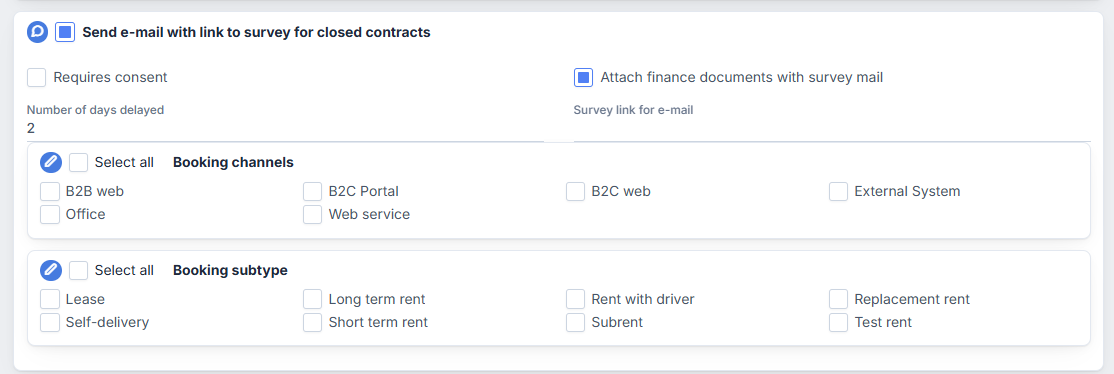
To enable sending an automatic survey, the module „Send e-mail with link to survey for closed contracts“ should be selected within the Code book –
Settings - Notifications. Once selected, additional fields will appear, where you can define the following:
- Requires consent -> select if the client will give you consent to send a satisfaction questionnaire. Consents are created within the Address book menu, and are saved within the client's entry
- Attach finance documents with survey mail -> yes/no
- Number of days delayed -> how many days after closing the contract, the email should be sent
- Survey link for e-mail -> here, you can add a survey link that should be sent. A survey should be created using a portal such as Survey Monkey, and similar. You can also use Google Reviews for your offices. In the case of multiple offices where each have their own Google Review, a survey link will be added under the Locations – Offices.
- Booking channels -> a survey will be sent to bookings confirmed by selected booking channels. Explanation of each booking channel:
- OFFICE -> all the bookings created manually by your users
- B2B WEB -> all the bookings created by the partners via the B2B portal
- B2C WEB -> all the bookings created by your website (if connected via API)
- WEB SERVICE -> all the bookings created by the brokers through their websites
- B2C PORTAL -> all the bookings created by your clients via B2S Portal
- EXTERNAL SYSTEM -> all the bookings created through some external system, e.g., an old system that is transferring reservations to Renteon
- Booking subtype -> define which booking subtypes should receive an automatic survey
Once automatic survey sending is enabled, you should design an email template that should be used within the Code book – E-mail templates -> ContractSurvey.
To place a survey link within the template, the keyword _SurveyUrl_ should be used.
If Google Reviews should be used as a survey, within each office management (Locations – Offices), a link can be defined within „Survey link for e mail“.
Booking reminder
Within the Code book – Settings, enable „ Send booking reminder emails“. Once selected, you can define the following:
- Days before sending the reservation reminder – how many days before the date OUT, the email should be sent. A reminder is sent only if the client's email address is added
- Exclude emails for booking reminder (comma separated) – add email addresses to which you don't want to send reminders. Some brokers/partner can send their mail address instead of the client's on the reservations, and you can exclude them from receiving a reminder (e.g. noreply@economycarrentals.com).
- Booking channels: a reminder will be sent to bookings confirmed by selected booking channels. Explanation of each booking channel:
- OFFICE -> all the bookings created manually by your users
- B2B WEB -> all the bookings created by the partners via the B2B portal
- B2C WEB -> all the bookings created by your website (if connected via API)
- WEB SERVICE -> all the bookings created by the brokers through their websites
- B2C PORTAL -> all the bookings created by your clients via B2S Portal
- EXTERNAL SYSTEM -> all the bookings created through some external system, e.g., an old system that is transferring reservations to Renteon
- Once automatic reminder sending is enabled, you should design an email template within the Code book – E-mail templates -> BookingReminder.
Return reminder
In the same way, you can enable a return reminder.
Tip: ** Within each booking info, you can check „E-mail log“ + Reports – Audit -> E-mail log.