
Fiscalization
Fiscalization and e-invoicing overview
What fiscalization and e-invoicing mean in Renteon, which documents are sent to the tax authority and when, where you see the result and what to do when sending fails.
Last updated
In many countries a bill or an invoice is not finished when you print it. It also has to be registered with the tax authority, or delivered to the buyer through an official electronic invoicing network. Renteon does this for you in the countries listed at the end of this guide. When you save a bill, an invoice, an approval or a cancellation, Renteon checks whether the document has to be reported, sends it to the right system and stores the answer, for example the unique identifier the tax authority gives the document.
This guide covers what is the same in every country: how Renteon decides which system applies, which documents are sent and when, where you see the result, and what to do when sending fails. Country details such as certificates, fields and special rules are in the country guides linked at the end.
Fiscalization, e-invoicing and invoice reporting
These are three different obligations, and one country can have more than one of them.
- Fiscalization means each bill is registered with the tax authority, or signed by a certified fiscal device or service, at the moment you issue it. The answer, usually an identifier, is printed on the document. Croatia, Slovenia, Serbia, Bosnia and Herzegovina, Austria and Panama work this way.
- E-invoicing means the invoice itself is delivered as a structured electronic document through an official network or provider. In Renteon this covers Croatia (FINA e-Račun or Moj-eRačun), Slovenia (e-Slog ZZI), Poland (KSeF) and Italy (electronic invoice files).
- Invoice reporting means the invoice data is reported to the tax authority after the invoice is issued. Hungary (NAV Online Invoice), Spain (SII) and Greece (myDATA) work this way. Greek documents are sent as soon as you save them. Hungarian and Spanish documents are sent later by a background run (see "When documents are sent").
Portugal works differently again: Renteon passes each document to MyBlueBee, a certified invoicing program, when you save it.
Renteon tracks the two kinds of obligation separately. A document can be waiting to be fiscalized or reported (Renteon marks it Fiscalization required), or waiting for its e-invoice to be sent (E-invoice not sent). Every country that fiscalizes or reports uses the first mark. Poland's KSeF and Croatian e-invoices use the second. Slovenian e-invoices are not marked this way; you follow them in the e-invoice column of the list.
How Renteon decides what applies
You never choose the system on the document. Renteon decides every time a document is saved, based on these points:
- The country of your Renteon account. It is shown under Administration → Code book → Settings, tab Basic, field Country, and you cannot change it there. Renteon sets it when your account is created. The country decides which systems are available at all.
- The company that issues the document. If your account has more than one company (Administration → Code book → Companies), each company has its own modules, certificates and access data. Each document is sent with the settings of the company on that document. A few options apply to the whole account instead, for example the Portuguese MyBlueBee connection and the extra fiscal payment types described in point 5.
- Whether the module is on for that company. Most modules have an on/off box in the header of their panel. Some also have a start document ID, so older documents are never sent (see "Switching a module on"). Croatian fiscalization is the exception: it has no switch and is always active for a Croatian account. In Bosnia and Herzegovina the fiscal device is switched on per office.
- The type of document. Each country has its own list of document types that are reported (see the next section).
- How the document is paid, in countries that fiscalize by payment type. In Slovenia, for example, a bill paid in cash or by card is fiscalized when you save it, but an invoice paid by bank transfer is not. The Slovenian and Austrian panels have a Fiscal - Payment types grid where you can add Bank transfer, Transactional account or Advance payment to the payment types that are fiscalized. This list applies to all companies of your account. In Hungary, Greece and Panama every payment type counts, and so it does in Serbia for private persons (for companies, see the next point). In Spain an invoice is reported whether it is paid or not. In Croatia almost every payment type counts for documents issued since 1 January 2026; there the client decides (next point).
- The client. Some countries treat clients differently. In Croatia, documents for domestic companies and artisans paid by bank transfer or to a transactional account get an e-invoice instead of fiscalization. In Serbia, two options decide how invoices to companies are treated (see the Serbian paragraph at the end). In Bosnia and Herzegovina a client can be marked Do not fiscalize finance documents. The country guides list these rules.
Which documents are sent
Each country has its own list of reported document types. Most countries report these:
- Bill and Invoice
- Advance payment invoice (not in Greece)
- Approval (credit note) and Debit (debit note), created from an invoice or bill with Actions → Approval or Debit
- Bill - payout
- The cancellation documents Renteon creates when you cancel one of the above (approvals and debits themselves cannot be cancelled)
Some countries report more types. Poland and Spain also report Corrective invoice, which only these two countries can issue. Slovenia, Serbia, Bosnia and Herzegovina and Hungary also send an Offer that has a payment their rules fiscalize. Serbia also reports Training invoice, Invoice copy and Accounting note. Some report fewer, so check your country guide.
No country ever reports Deposit (card pre-authorisation), Deposit - payout, Cashbook payout, cash register transfers, Billing specification, External document or Accounting document.
When documents are sent
Documents are sent at one of three moments, depending on the country and the system.
- When you save the document. This applies to fiscalization in Croatia, Slovenia, Serbia, Bosnia and Herzegovina, Austria, Greece and Panama, and to the Portuguese MyBlueBee integration. The save waits for the answer, so saving can take a few seconds longer. In Bosnia and Herzegovina, and in Serbia with a local LPFR device, your browser sends the document to the fiscal device right after the save. Documents that Renteon creates for you are handled the same way, for example agency invoices for bookings from the B2B portal and documents created through the external API. In Bosnia and Herzegovina such documents have no browser to send them, so they wait until someone clicks Fiscalize.
- Later, in a background run. Hungary and Spain never send at save. Renteon's fiscalization run starts about once an hour and sends waiting documents that were created at least five minutes earlier, oldest first, up to 100 documents per account in each run. The same run also retries documents that failed at save in the other countries, except Bosnia and Herzegovina and Austria. The country guides refer to this run when they mention the hourly retry. E-invoices have their own runs: Croatian e-invoices go every six hours, and Polish KSeF invoices about every 26 minutes. A Croatian e-invoice that was changed in the last five minutes waits for the next run. Status updates from NAV (Hungary) and from the Croatian and Slovenian e-invoice providers are collected every night.
- When you ask for it. Italian electronic invoice files are created when you download them, and Slovenian e-invoices are sent from the list. In every country except Austria you can also push a waiting document yourself (see "When sending fails").
For example: you save an invoice in Hungary at 10:15. It shows the red Fiscalization required flag until the next background run, at the latest about an hour later, sends it to NAV. During the night Renteon checks how NAV processed it.
Where you see the result
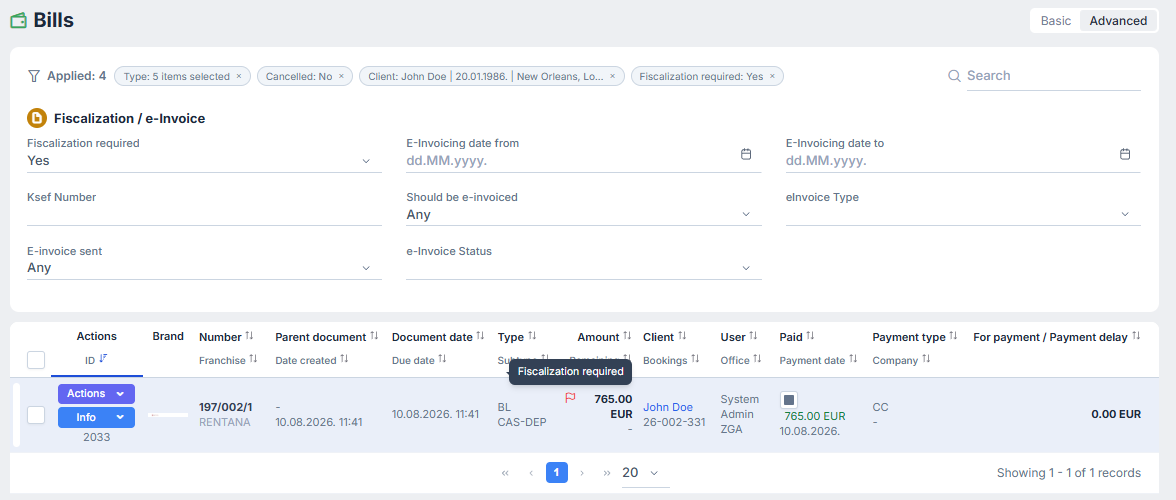
The finance document list (Sales → Bills → Search) shows the state of every document:
- A red flag next to the amount, with the tooltip Fiscalization required, marks a document that has to be fiscalized or reported but is not yet. The flag disappears once the authority or service has confirmed the document, for example by returning its identifier.
- A yellow flag, with the tooltip E-invoice not sent, marks a document whose e-invoice has not been sent yet.
- The search filters have a section Fiscalization / e-Invoice. Set Fiscalization required to Yes to see the documents still waiting. Other filters are Should be e-invoiced, Ksef Number (used in Poland) and E-Invoicing date from / E-Invoicing date to. Some filters appear only in certain countries: eInvoice Type, E-invoice sent and e-Invoice Status (Croatia), Fiscal number and Do not fiscalize (Bosnia and Herzegovina), and MYF (Greece). If you check these documents often, save the filter as a search template.
- When an e-invoice module is on (Croatia, Slovenia or Poland), the list has an e-Invoice Date / e-Invoice Status column. It shows when the e-invoice was sent, its latest status and any error text.
- In Hungary, the Status / Note column shows the NAV status and the NAV transaction ID. Point at the info icon to read NAV's validation messages.
- In Croatia and Slovenia, the Info button of a row opens an e-Invoice tab with the status history of the e-invoice.
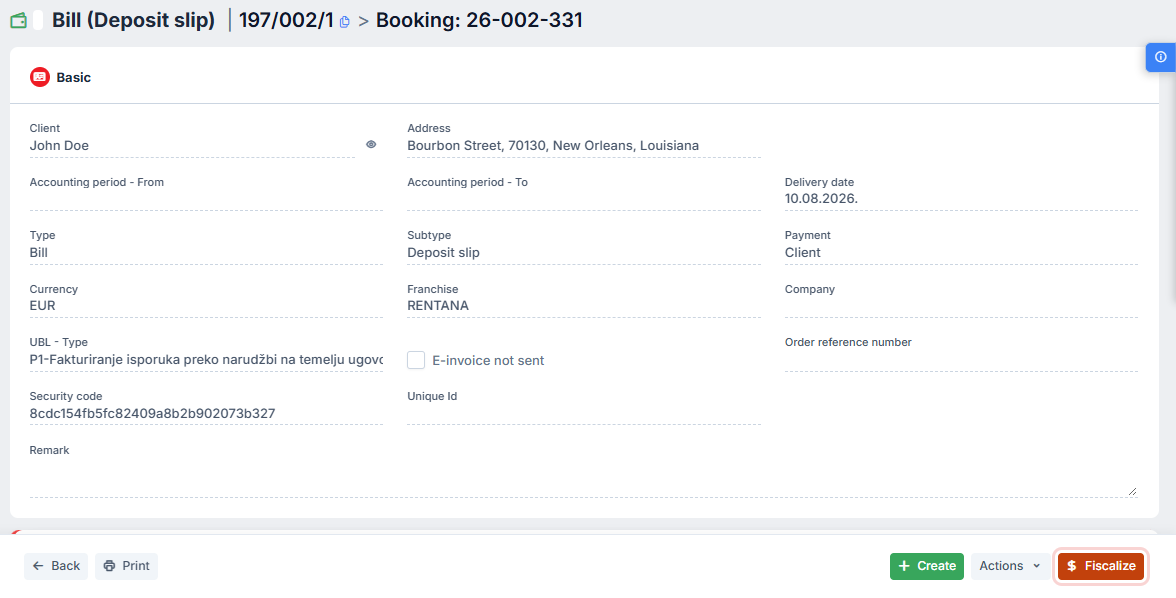
When you open a document, the Basic section shows the fields Security code and Unique Id (in Croatia these hold the ZKI and the JIR) for every document that is fiscalized or should be. Croatia and Slovenia fill in these two fields. There, an empty Unique Id means the document has not been fiscalized yet. Other countries leave them empty, so in those countries check the red flag instead. Companies on fiskaly in Austria do not show the two fields at all. For an e-invoiced document, Actions → Open fiscalization Xml data shows the exact message that was sent and the answer that came back. Renteon support may ask you for it.
The printed document carries the codes your country requires. These are the Unique Id and Security code in Croatia and Slovenia, the Fiscal number in Bosnia and Herzegovina, the PFR number and time in Serbia, the Ksef Number in Poland, the MARK in Greece when you use Epsilon, the CUFE in Panama, the receipt data in Austria, and a QR code wherever the system provides one.
When sending fails
A failure shows up in one of two ways, depending on the country and on what went wrong.
The save is refused. Renteon shows an error message and does not create the document. This happens in Austria when fiskaly cannot be reached, in Panama when WebPOS does not accept the invoice, in Serbia when Fiscomm does not accept it ("Invoice is not saved !!", unless the company uses a local LPFR device), in Portugal when MyBlueBee returns an error or does not answer, and in Greece with Epsilon when Renteon cannot log in to Epsilon or cannot build the document. It can also happen in other countries when a requirement is missing, for example a Croatian company with no fiscalisation certificate uploaded. Fix the cause and save the document again.
The document is saved but not accepted yet. It keeps the Fiscalization required flag (or E-invoice not sent), and in Croatia and Slovenia its Unique Id stays empty. For example, if the tax authority does not answer when you save a cash bill, the bill is still saved and Renteon tries again later. You then have these options:
- Wait for the automatic retry. The hourly background run keeps retrying until the document is accepted, with these exceptions:
- In Spain, Renteon e-mails you every time AEAT rejects the document, and it stops after the fifth failed attempt. Failed connections count as attempts too.
- In Hungary, Renteon stops when NAV aborts the invoice, and sends you an e-mail.
- In Bosnia and Herzegovina and in Austria nothing is retried automatically.
- Croatian e-invoices are retried by their own run every six hours. When FINA cannot find the recipient of a Croatian e-invoice, Renteon stops sending that document automatically.
- Polish KSeF invoices are retried by the KSeF run as long as Renteon cannot reach KSeF. An invoice that KSeF has rejected is not sent again until you use Send to KSEF.
- Send it yourself. Open the document and click Fiscalize at the bottom of the screen. The button is there while the document is marked Fiscalization required and is not fiscalized yet. In Hungary and Spain it sends the document straight away, without waiting for the background run. Austria is the exception: a document there is fiscalized only while it is saved, and Renteon refuses to fiscalize it later. If it works, a confirmation appears, in most countries with the codes that came back. If the authority refuses the document, a Data validation error message shows its error code and text. E-invoices have their own actions:
- Croatia: Send e-Invoice in the document's Actions menu or in the row menu of the list
- Poland: Send to KSEF in the row menu of the list
- Slovenia: Send e-Invoice in the row menu of the list
- Hungary: NavOnline - Download Status in the row menu fetches the latest NAV status
- Read the e-mail. Most modules have a notification e-mail field in their settings panel, and Renteon sends error reports there. Some errors, for example from myDATA and SII, go to the main e-mail address of your Renteon account instead. You cannot change that address in the settings; Renteon support maintains it for you. Make sure these addresses reach someone who reads them.
Then fix the cause the message points to. A missing client VAT ID or address, or a wrong VAT rate, is usually corrected in the client or the code books. Certificates, passwords and access data are updated by your administrator in the settings. If the message is unclear, or a document keeps failing after the fix, contact Renteon support. Give them the document number and the error text.
Warning: A document that is still waiting for fiscalization is an issued document in Renteon. Cancelling it does not make the obligation go away: the cancellation is a new document that has to be fiscalized too. Resend the document instead.
Cancelling or correcting a reported document
After you save a document you cannot change its items or amounts, because those are what was reported. Correct a document with a new one instead:
- Actions → Cancel (role Invoice cancellation) creates a cancellation document with the opposite amounts and its own number, linked to the original. Approvals and debits cannot be cancelled, and an invoice that still has open approvals or debits cannot be cancelled until they are settled.
- Actions → Approval (role Invoice approval) reduces the amount of an invoice, bill or advance payment invoice. Actions → Debit (role Invoice debit) increases the amount of an invoice or bill. Actions → Approval (Total) (role Invoice total approval) credits the whole invoice or bill in one step, together with any approvals and debits already made on it.
- In Poland and Spain, users with the role Corrective Invoices can also issue a Corrective invoice from the row menu of the list.
Each of these is a new document and is fiscalized, reported or e-invoiced like any other. You can still change the remark and the order reference afterwards (Actions → Change remark, Change order reference number, role Editing invoice remark), and neither change sends the document again.
What your company prepares
Most of the work is done outside Renteon, with the tax authority or the provider, before the module is switched on. Depending on the country you need some of the following:
- A registration or contract with the authority or provider, for example a NAV technical user in Hungary, a KSeF authorisation in Poland, or an account with fiskaly, Moj-eRačun, Fiscomm, WebPOS, Epsilon, BizBox or MyBlueBee.
- A certificate with its password. Croatia needs one for fiscalization and, for FINA, one for e-invoices. Slovenia and Spain also need one, and Poland needs two KSeF certificates, each with its private key.
- Access data such as user names, passwords, API keys, tokens and signing keys.
- A fiscal device in Bosnia and Herzegovina (Tring printer or OFS), or optionally a local LPFR device in Serbia.
- Correct master data. This means your company's VAT number and address in the settings, the VAT ID and address of your clients, and the office data your country needs. In Croatia and Slovenia it also includes the VAT ID of every user who issues documents (Administration → Code book → Users; your account may show this field under its own name, for example OIB). If a user has none, Renteon uses the company's number and sends an e-mail with the subject "Renteon: Nedostaje OIB korisnika" to the main e-mail address of your Renteon account.
Switching a module on
The modules for your country are on the Fiscalization tab of the settings. You need the role Application settings management. Because a wrong setting stops your invoices from reaching the authority, set up and test a new module together with Renteon support. Some connections can only be set up by Renteon support, for example AK2 in Bosnia and Herzegovina and the local LPFR device in Serbia.
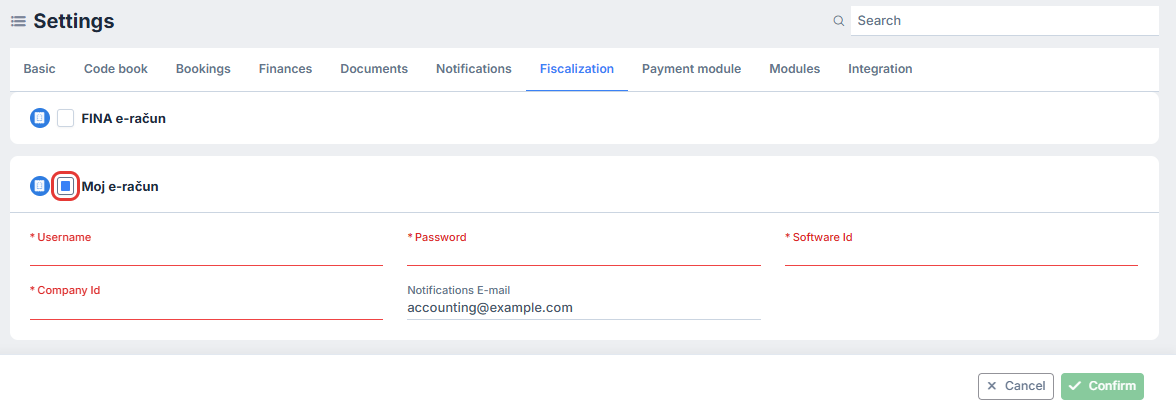
- Open Administration → Code book → Settings and click Edit.
- Open the tab Fiscalization. It lists only the panels for your country. If the tab is missing, there is no module on it for your country (in Portugal, first switch on the MyBlueBee option, see below).
- Tick the box in the header of the module's panel, for example Fiscal - NavOnline system Hungary or Ksef. The panel's fields appear, and the required ones become mandatory.
- Fill in the access data, upload the certificate, and enter the notification e-mail.
- If the module has a start ID, enter the ID of the first document that should be sent, for example Start from finance document ID (Hungary) or MyDATA start finance document ID (Greece). Renteon then never sends documents with a lower ID. Use this when you switch a module on for an account that already has documents. Poland works differently: KSeF start finance document ID only keeps documents that already exist out of KSeF (an ID equal to or lower than the start ID), and every new document is sent, whatever its ID. In Austria, Setup records the start ID for you. You can see a document's ID in the list, in the column ID under the row's Actions and Info buttons.
- Click Confirm.
If your account has more than one company, set up each further company in Administration → Code book → Companies (role Company editing). The same panels are there, per company.
A few settings are in other places:
- Croatian fiscalization: settings tab Documents, fields Fiscalisation certificate and Fiscalisation certificate password
- Portugal: tab Modules, option Portugal SAFT integration (MyBlueBee). After you tick it, the panel Portugal SAFT MyBlueBee - Settings appears on the Fiscalization tab for the access data. This connection applies to the whole account, not per company.
- Bosnia and Herzegovina: on each office (Administration → Locations → Offices, sections Tring Fiskalizacija and OFS Fiskalizacija)
- Austria: after you save the access data, an administrator clicks Setup to register the cash register. Nothing is fiscalized before Setup.
Warning: Many modules have a test option, such as Test, Test mode, Use Test environment or Environment. While it is on, documents go to the authority's test system and are not reported for real. Make sure it is off before you go live.
Things to watch out for
- Working hours. When a document is paid with a payment type that your country always fiscalizes, such as cash or card, and the office is closed at that moment, Renteon asks before saving: "Finance document you are trying to save will be saved outside of office working time. Proceed anyway?" For example, if the office closes at 20:00 and you issue a cash bill at 21:30, you get this question. Keep the office working hours up to date (Holidays and working hours).
- Switching a module off. If you switch a fiscalization or reporting module off while documents are still waiting, the next hourly background run takes them off the waiting list. Switching the module back on does not put them back. Contact Renteon support if this has happened.
- Changing access data. Waiting documents are sent with the settings that apply when they are sent, not when they were saved. After you correct a password or other access data, documents that failed because of the old data go through on the next retry, or when you click Fiscalize.
- Country-specific checks at save. Some countries check extra data when you save. For example, with KSeF on, the client's address is mandatory ("The client's address is mandatory"), and in Hungary the VAT ID of a domestic company client is checked with NAV ("Invalid VAT ID."). The country guides list these checks.
- Advance payment together with another payment. In Croatia, Slovenia, Austria and Bosnia and Herzegovina, a new document cannot be paid partly with Advance payment and partly with a payment type that is fiscalized, such as cash or card. In Serbia, Hungary, Italy, Spain, Greece and Panama, Advance payment cannot be combined with any other payment type. Renteon refuses the save with "Combination of advance payment and fiscal payment type is not allowed." See Advance payment invoice.
Supported countries
Croatia uses both fiscalization and e-invoicing. Bills and invoices are fiscalized with the Tax Administration (CIS) when you save them. The answer is the Unique Id (JIR), and Renteon calculates the Security code (ZKI). Fiscalization has no on/off switch; you upload the fiscalisation certificate. Documents for domestic companies paid by bank transfer or to a transactional account are sent as e-invoices instead, through FINA e-račun or Moj e-račun (one or the other, switched on in its panel). They go automatically every six hours, or straight away with Send e-Invoice. A Croatian document is either fiscalized or e-invoiced, never both. See Croatia: fiscalization (CIS) and Croatia: e-invoices (FINA, Moj-eRačun).
Slovenia: documents paid in cash, by card, by check or by voucher are fiscalized with the Financial Administration (FURS) when you save them (Fiscal - SI). Offices are registered as business premises from the data on the office. E-invoices for clients set up for them go through e-Slog ZZI (BizBox) and are sent from the list. See Slovenia: fiscalization.
Serbia: documents are fiscalized through Fiscomm (Fiscal - RS (FiscCom)) when you save them. If Fiscomm does not accept a document, it is not saved, unless Renteon support has set your company up with a local LPFR device. Two options decide how invoices to companies are treated: Fiscalize invoices for companies regardless of payment type (without it, a document for a company is fiscalized only when it is paid in cash, by card, by check or by voucher) and Disable fiscalization for domestic companies (this one applies to the whole account). See Serbia: fiscalization.
Bosnia and Herzegovina: documents are fiscalized on a fiscal device set up per office, either a Tring fiscal printer connected to the workstation or an OFS device. Right after you save, your browser sends the document to the device. Nothing is retried automatically. If the device did not answer, use Fiscalize. If a Tring printer printed the receipt but Renteon did not get the answer, use Fiscalize (Manual entry) to record the fiscal number from the receipt. See Bosnia and Herzegovina: fiscalization.
Austria: cash register receipts are signed under RKSV through fiskaly (Fiscal - AT (fiskaly)). Every receipt is signed while you save it. If fiskaly cannot be reached, the document is not saved, and a document can never be fiscalized later. The panel's own instructions explain what to do during an outage. See Austria: cash register (RKSV) via fiskaly.
Hungary: invoices are reported to NAV Online Invoice (Fiscal - NavOnline system Hungary) by the background run, not at save. NAV's processing status is checked every night, or on request. The list shows the NAV status and transaction ID. If NAV aborts an invoice, Renteon stops sending it and sends an e-mail. See Hungary: NAV Online Invoice.
Poland: bills and invoices are sent to KSeF as structured e-invoices (Ksef). They go about every 26 minutes when Sending job enabled is ticked, or one at a time with Send to KSEF. With KSeF on, your company address and the client's address are mandatory on every document. See Poland: KSeF e-invoices.
Italy: with Enable electronic invoice on, Renteon creates electronic invoice files in the Italian XML format. Renteon does not send them anywhere. You download them from the list, one at a time with Download Electronic invoice - xml in the row menu, or several as one zip file with Actions → Download - Electronic invoice (xml/zip) after you tick the rows. See Italy: e-invoicing.
Portugal: with Portugal SAFT integration (MyBlueBee) on, Renteon sends bills, invoices, approvals, debits, advance payment invoices and their cancellations to MyBlueBee when you save them. Invoices and advance payment invoices in a foreign currency are not sent. If MyBlueBee returns an error or does not answer, the document is not saved. See Portugal: certified invoicing and SAF-T.
Spain: invoices are reported to the SII ledger of the AEAT (Fiscal - SII (AEAT)) by the background run, paid or not. A document counts as reported once AEAT returns its acceptance code (CSV). After five failed attempts Renteon stops trying. Once you have fixed the cause, ask Renteon support to send the document again. See Spain: SII and invoice reporting.
Greece: documents are sent to myDATA when you save them, either directly (Modules - myDATA) or through Epsilon (Epsilon - Mydata (fiscal API)). Renteon stores the MARK, the registration number myDATA gives the document. Advance payment invoices are not sent. Reporting rentals to the DCL (AADE DCL - myDATA (clientele API)) is a separate module. See Greece: myDATA and DCL.
Panama: electronic invoices go through WebPOS (WebPOS Panama (Factura Electronica)) while you save. If WebPOS does not return a CUFE, the document is not saved. The CUFE is printed on the document, and Download WebPos Panama PDF in the document's Actions menu opens the PDF from WebPOS. See Panama: electronic invoicing.
If your country is not in this list, Renteon issues and prints your documents without sending them to a tax authority or an e-invoicing network. If you are not sure which modules your company needs, Renteon support can tell you what is available for your country.
Related guides: