
Integrations
Integration menu and mappings
How booking integrations appear in the Integration menu, how to map partner codes to your categories, offices, services and partners, and where to find import errors.
Last updated
A booking integration brings reservations from a partner (a broker or another rental system) into Renteon automatically. The partner describes every reservation with its own codes: its own code for the car group, for the pick-up station, for a child seat. Renteon does not know those codes until you tell it which of your car categories, offices and services each code stands for. That translation table is called a mapping, and you maintain it under Administration → Integration.
This guide covers what every integration has in common: how an integration appears in the menu, the mapping tabs and what each one does on import, the settings shared by most integrations, and where you see what went wrong when a reservation does not arrive. Each integration has its own guide for the parts that are specific to it.
Before an integration appears in the menu
The Integration group in the left menu, and each entry in it, appear only when the integration is switched on in the settings:
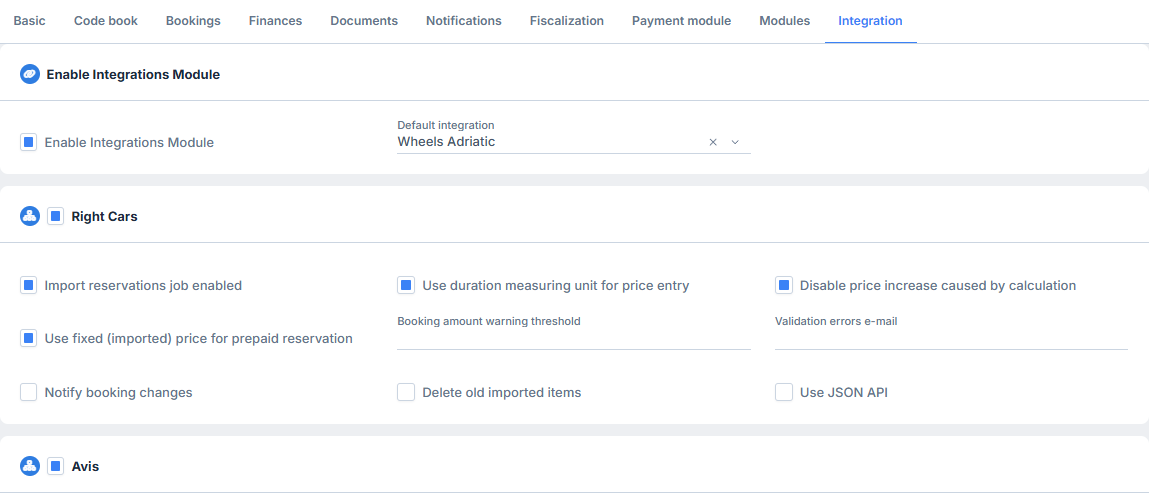
- Open Administration → Code book → Settings, tab Integration. The page opens read-only, so click Edit first.
- The integrations module must be on: panel Enable Integrations Module, checkbox Enable Integrations Module. The panels of the individual integrations appear only after this box is ticked.
- The integration itself must be on: tick the checkbox in the header of the integration's panel (for example Right Cars or Avis). The panel opens and shows the integration's own settings.
- Click Confirm to save. Confirm stays unavailable while a required field of a switched-on integration is empty, for example the credentials of Surprice or PartnerPlace.
You need the Application settings management role to change settings. Saving the settings with an integration switched on also creates the integration's record (see the next sections). Until that record exists, the integration's page shows No records and there is nothing to map.
The Enable Integrations Module panel also has Default integration. It names the integration that receives the changes made in Renteon to bookings that do not belong to a franchise, and only while that integration has Notify booking changes ticked. Bookings of a franchise go to the integration of the franchise instead. Today only Wheels connectors in API mode report such changes, so for the other integrations the choice has no effect. What is reported is described in Wheels integration.
If you switch an integration off, its menu entry disappears and its page cannot be opened, even with a bookmark. The mappings you made stay stored and are there again when you switch the integration back on.
Warning: The mapping pages have no role of their own. While an integration is switched on, every user who can sign in sees its page and can click Edit and change the mappings.
Where integrations appear in the menu
Under Administration → Integration you find one entry per switched-on integration:
- Right Cars, Avis, Budget, Surprice, PartnerPlace, PZU Masa and Rently. These exist once per company: there is one Avis integration, one Right Cars integration, and so on.
- One entry per connector of Wheels, CRG and Softgate, under the name you gave the connector. These can exist several times, because a company can receive reservations from several Wheels or CRG partners. You add and remove connectors in the settings, in the integration's panel. A connector you remove disappears from the menu.
The page header shows Integration followed by the integration's name, so you always see which partner you are mapping.
The integration record
Every integration has a record in Renteon. It holds the integration's name, whether it is active, and three options that you set in the settings, next to the other options of the integration: Notify booking changes, Delete old imported items and Keep imported items (months). All mappings belong to this record.
For the integrations that exist once (Right Cars, Avis, Budget, Surprice, PartnerPlace, PZU Masa, Rently), Renteon creates the record the first time you save the settings with the integration switched on. You never create or name it yourself. For Wheels, CRG and Softgate, each connector row in the settings is its own record.
The integration's page holds only the mappings. Every setting of an integration, from credentials and folders to the price options, is edited in Administration → Code book → Settings, tab Integration, and saved with Confirm.
Working on a mapping page
A mapping page has one tab per kind of mapping. Which tabs you see depends on the integration: for example, Right Cars has Car categories, Offices, Services and Partner, while CRG also has Pricelists.
The page opens read-only:
- Click Edit at the bottom of the page. Renteon reads the mappings again, so you work on the latest version even if someone else changed them in the meantime, and unlocks every tab.
- Change what you need on a tab.
- Click Save on that tab. Each tab saves on its own, so you can map offices today and services tomorrow. On the car category, office, service and pricelist tabs, Save is available only while the tab has unsaved changes.
- Click Cancel at the bottom to leave edit mode. Changes you did not save on a tab are dropped.
If you try to leave the page with unsaved changes, Renteon asks first.
There are two ways to enter a partner's code, depending on the integration and the tab:
- You type the code. This is used when the partner has no list Renteon can read. A blue note at the top of the tab says that you can map several partner codes to one of your entries by separating them with a semicolon, for example "CDMR;CDAR".
- You pick the code from the partner's list. On some tabs of Surprice, PartnerPlace, PZU Masa and Rently, Renteon reads the partner's own list (of car groups, stations or extras) live from the partner, and you select one or more entries from it. If the list stays empty, Renteon could not reach the partner, usually because of wrong credentials in the settings.
To remove a mapping, clear the code (or remove all selected items) and save.
A partner code can be mapped to only one car category and to only one office or location. If you try to save the same code twice on these tabs, Renteon refuses with "Duplicate mappings", followed by the codes in question. On the Services tab one code may point to several services, and Renteon then adds all of them.
Deactivated car categories, offices and drop-off locations are listed too, so you can still see and clear a code that points to one of them. A code mapped to a deactivated entry is still used by the import.
Car categories tab
The left column lists your car categories by their SIPP code. Next to each one you enter the partner code (or codes) for that car group.
When a reservation arrives, Renteon looks up the partner's car group code here and uses the mapped category both as the billing category and as the issued category. Renteon then takes the car rental service of that category. A code that is not mapped stops the reservation with "Missing mapping for car category code …", and a mapped category without a car rental service stops it with "Missing car rent service Id for …".
Many partners use the SIPP (ACRISS) code itself. When you type the codes, a small double-arrow button next to each field copies your SIPP code into it, so you do not have to type "CDMR" next to CDMR. If the field already holds a code, the SIPP is added after a semicolon instead of replacing it.
Offices tab
The Offices tab has two sections.
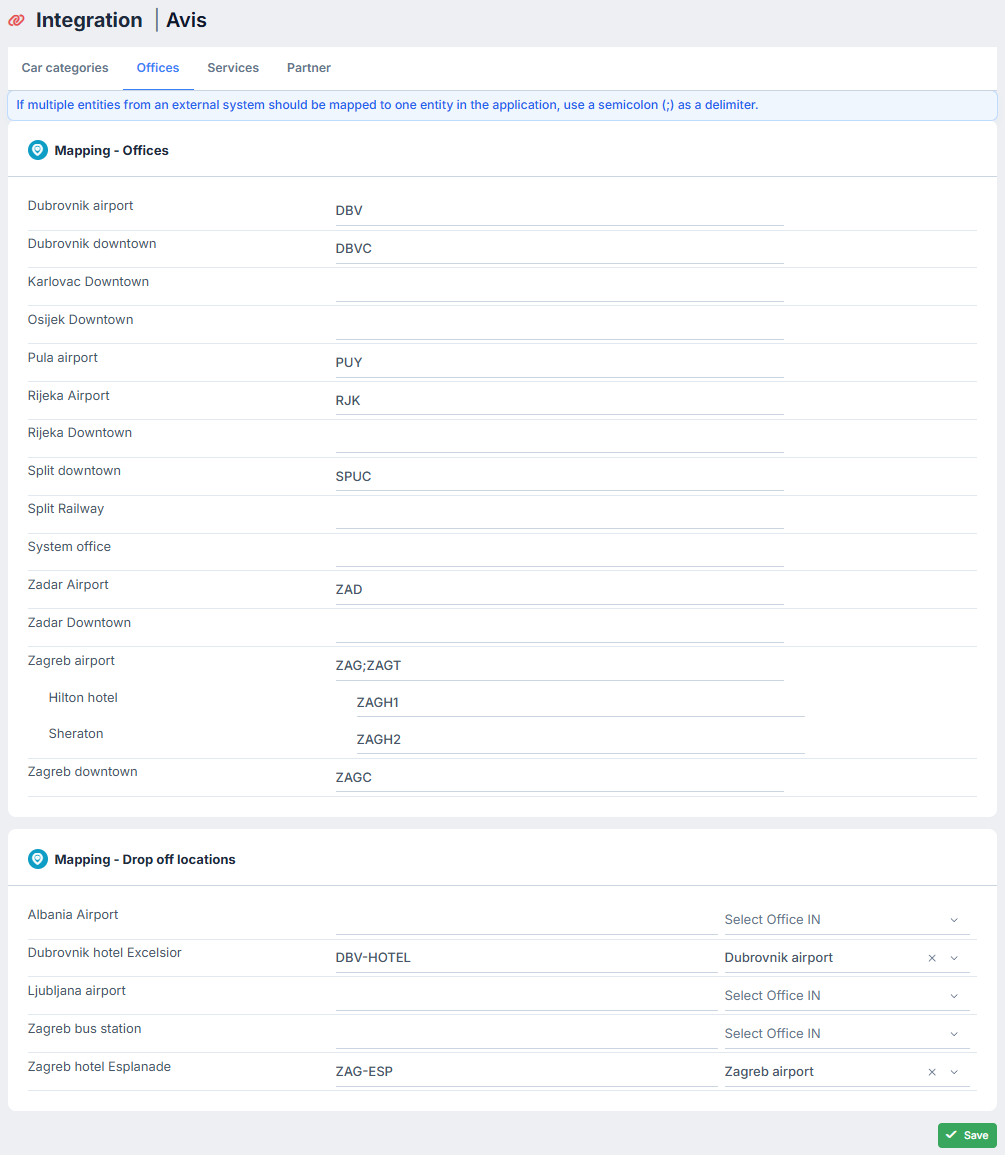
Mapping - Offices lists your offices. Under each office, indented, are its active meet-and-greet locations. Enter the partner's station or branch code next to the office, or next to the meet-and-greet location:
- A pick-up code mapped to an office sets that office as the pick-up office.
- A pick-up code mapped to a meet-and-greet location sets its office as the pick-up office and the meet-and-greet location as the pick-up point.
- A return code works the same way for the expected return office and return point.
Mapping - Drop off locations lists your drop-off locations. Each row has the partner code and a second field, Select Office IN. When the return code of a reservation is mapped to a drop-off location, the booking gets that drop-off location, and its expected return office is the office you selected there. If you leave Select Office IN empty, the pick-up office is used. For example, if "DBV-HOTEL" is mapped to the drop-off location "Hotel Excelsior" with office "Dubrovnik Airport", a car returned at the hotel is expected back at Dubrovnik Airport.
A drop-off location works only as a return place. If a pick-up code is mapped to a drop-off location, the reservation stops with "Location with code … is not mapped to a pick-up office". If the pick-up code is not mapped at all, it stops with "Missing mapping for office code …".
The Save button under the two sections saves both.
Services tab
The left column lists your active extras, fees and insurances that are offered on reservations, your out-of-hours and driver-age services one by one, and other kinds of services (such as additional driver, one-way fee or drop-off) once per kind. Enter the partner's code for each extra it sends.
On import, every mapped extra of the reservation is selected on the booking, with the quantity the partner sent where it sends one. If a code is mapped to the additional driver service, Renteon also adds the additional drivers to the booking. What happens with an extra code that is not mapped depends on the integration, see its guide.
On tabs where you type the codes, a second blue note explains pattern masks for insurances. They are used by Avis and Budget, which send the insurance as one code made of several indicator characters. Renteon compares that code, character by character, with the codes you entered on the Services tab that have the same length, where # in your code stands for any character. For example "##Y#" matches every four-character insurance code with Y in third place, such as "00Y0" or "NNYN". If several of your codes match, Renteon keeps only the most specific ones: with both "##Y#" and "N#Y#" entered, the code "NNYN" selects only the service with "N#Y#". An insurance code made only of 0, N or X means "no insurance" and is ignored. If no code matches, the reservation stops with "No maching insurance package for isnurance indicators …".
Pricelists tab
CRG and Softgate connectors have a Pricelists tab, where you map the partner's rate codes to your car pricelists. The other integrations in this menu do not have it and choose the pricelist in their own way, described in their guides. Right Cars, Avis, Budget, Surprice and PartnerPlace take it from the partner you map on the Partner tab.
Partner tab and Partners tab
Every reservation an integration imports belongs to a partner in your address book. There are two variants:
- Partner (one partner). Used by Right Cars, Avis, Budget, Surprice, PartnerPlace, CRG and Softgate, and by Wheels connectors without Enable multiple partners mapping, which receive all reservations for a single partner. Section Mapping - Partner has one field, Partner, where you pick a partner from the address book, and its own Save button. Every reservation of this integration is booked for that partner. Clearing the field and saving removes the mapping.
- Partners (several partners). Used by PZU Masa, Rently and Wheels connectors that have Enable multiple partners mapping ticked, which receive a partner code with each reservation. Section Mapping - Partners is a table with the columns Partner and Code. Click Add for a new row, pick the partner and type the code the partner system sends for it. The bin button removes a row. Save is available only when every row has both a partner and a code, and a row you removed is deleted when you save. The same partner or the same code in two rows is refused with "Duplicate mappings".
For the integrations with one partner, the partner's pricelists matter too. Right Cars, Avis, Budget and Surprice need the partner to have, on its address book card, tab Pricelists, one active car pricelist with Agency pricelist ticked (used for prepaid reservations) and one without it (used for pay-on-arrival reservations). PartnerPlace uses the same two pricelists when they exist. Without the partner, or without these pricelists where they are required, the import of that integration does not run at all. If the partner has several pricelists of one kind, Renteon takes the first one it finds, so link only one of each kind. The Pricelists tab of the address book card needs the Client and pricelist linking role.
Settings shared by most integrations
Most integrations have the same group of options in their settings panel (Administration → Code book → Settings, tab Integration). Which ones appear is listed in each integration's guide.
- Import reservations job enabled: the background import runs only while this is ticked. Untick it to pause the import without losing any setting or mapping.
- Use duration measuring unit for price entry: the price the partner sent is stored as a price per charged day instead of one fixed amount for the whole rental. Renteon divides the price by the number of charged days. If the rental later gets longer or shorter, the booking is priced by that daily amount.
- Disable price increase caused by calculation: shown only when the previous option is ticked. Dividing by the number of days can round up. For example, 100.00 including 25% VAT for 3 days is 80.00 net, or 26.67 a day, which adds up to slightly more than 100.00. With this option, if the booking total after the calculation is higher than the partner's price, Renteon lowers the daily price by one cent and calculates again.
- Use fixed (imported) price for prepaid reservation: for prepaid reservations (the partner is set as agency), the partner's price is always stored as one fixed amount, even when Use duration measuring unit for price entry is ticked.
- Booking amount warning threshold: after the import, Renteon compares the calculated rental price with the partner's price. Whenever they differ, a note is added to the booking's Integration remark, for example "Calculated price is greater than the price from imported booking (245.00 EUR)". Only differences larger than this amount are also reported as a warning in the validation errors e-mail. With 0 or an empty field, every difference is reported.
- Validation errors e-mail: where Renteon sends the import report. Without an address, no report is sent.
- Notify booking changes: lets Renteon report changes made in Renteon back to the partner. Today only Wheels connectors in API mode use it: they report closing a contract, cancelling a booking, and confirming or rejecting an on-request booking, see Wheels integration. For the other integrations the option has no effect.
- Delete old imported items and Keep imported items (months): see the section on cleaning up below.
The panel header checkbox of the integration and Enable Integrations Module must both be on for anything to be imported.
How imported bookings look
Whatever the integration, an imported reservation is created as a normal reservation, with a few things you can recognise:
- It is created by the system, in the background, not by a user.
- Its booking channel is External System. Its Source is the source set on the partner's address book card; if the partner has none, the source set on the pricelist; otherwise the booking source Renteon keeps for external systems. See Booking sources.
- For the integrations with one partner, the partner is the Agency of a prepaid reservation and the Commissioner of a pay-on-arrival reservation.
- The partner's price is entered as a manual price of the rental service, as described in the settings above. Extras and fees that your pricelist includes in the price or gives free of charge are selected as well.
- Remarks the partner sends, and notes from the import (price differences, extras that could not be added), are in Integration remark.
- On the booking, Actions → Open booking source data opens, in a separate window, the data the partner sent and any errors or warnings of the last import of that booking. The action appears only for bookings that came through an integration, while the import log still holds a row for them.
When the partner later sends a change or a cancellation, Renteon finds the booking by the partner's reservation number (kept in Voucher number or Order reference number, depending on the integration) together with the mapped partner as Agency or Commissioner, and updates or cancels it. Do not change these fields on an imported booking, or later changes and cancellations from the partner no longer find it. Rently is the exception: it recognises its bookings by the Rently booking number that the import stores with the booking, so a booking entered by hand is never matched (see Rently integration). A change replaces the dates, offices, category, extras and drivers of the booking with the partner's data. A booking that has already become a contract, that is an offer or that is cancelled is not changed by the import; the attempt is reported as a fatal error.
Import attempts and retries
Every attempt to import a reservation, successful or not, is recorded in the import log, together with the data the partner sent and the errors and warnings. What happens after a failed attempt depends on the integration:
- Avis and Budget (files on an SFTP server): a file that fails stays in the folder and is tried again at every run, without a limit. A file that can never be imported is moved to the "invalid" subfolder.
- Right Cars: in the default mode, a reservation that fails is not confirmed to Right Cars and comes back at the next run. In JSON mode, Renteon tries a reservation three times and then sends the reservation to the validation errors address to be entered by hand.
- Surprice and PartnerPlace: a reservation with a missing mapping, or with a car category that has no car rental service, is not tried again. Other failures are tried again at the next run.
- PZU Masa: an order that fails is tried again at every run, every 2 minutes, without a limit, and each attempt sends the import e-mail again.
- Rently: a booking with a mapping problem is not tried again by itself; it is imported the next time it changes in Rently. Other failures are tried again, 5 times in all, and then sent to the validation errors address to be entered by hand. A booking whose pick-up place is not mapped is skipped without any e-mail.
- Wheels, CRG and Softgate (e-mail and API connectors): a reservation that fails is tried again in the next runs, 20 times in all, and then sent to the validation errors address to be entered by hand. A message from which Renteon cannot read a reservation number at all is reported once as a fatal error and not tried again.
The details, and what to do in each case, are in the guide of each integration.
The errors fall into three groups, which you see in the e-mail and in the log:
- Fatal errors: the reservation can never be imported as it is, for example "already imported", a reservation without the client's name ("Could not resolve Client name."), or a cancellation of a booking that does not exist. These are not retried.
- Errors: something is missing, most often a mapping, or the pick-up office could not be found ("Pick-up office is undefined."). Fix the mapping; depending on the integration, the next run imports the reservation, or you enter it by hand.
- Warnings: the booking was imported, but something did not match, for example the price or an extra.
Where to see errors
- The validation errors e-mail. After each run that had something to report, Renteon sends an e-mail (one per 100 reservations handled) to the integration's Validation errors e-mail. Its subject is the integration code in capitals followed by "reservations import log", for example "AVIS reservations import log". The e-mail lists FATAL ERRORS, ERRORS and WARNINGS, each with the partner's reservation number, the Renteon booking number (when a booking exists) and the number under which the import log keeps the attempt (for Avis and Budget, the file name).
- The booking. Integration remark and Actions → Open booking source data, as described above.
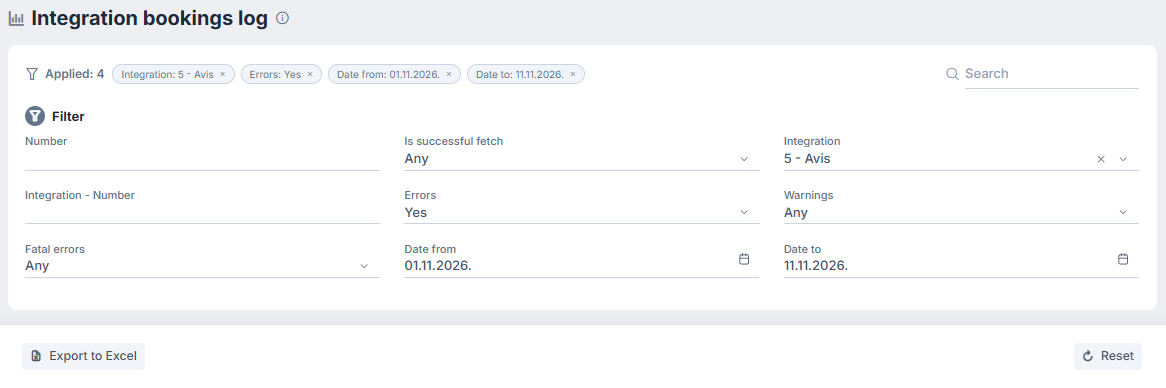
- The Integration bookings log report. Under Car control → Reports → Audit, Integration bookings log exports the import log to Excel. You need the Reports - audit role. You can filter by Number (the Renteon booking number), Integration, Integration - Number, Is successful fetch, Errors, Warnings, Fatal errors, Date from and Date to. Integration - Number is the partner's reservation or order number for most integrations, and the file name without ".xml" for Avis and Budget. For e-mail documents of Wheels, CRG and Softgate, and for PZU Masa, it holds Renteon's own number of the stored item instead, so filter by date or by the Renteon booking number. The two number filters find only an exact match. Each row is one import attempt, with the data the partner sent. See Audit reports.
Warning: In the Integration bookings log, Date to includes attempts up to the start of that day, not the whole day. To include a whole day, set Date to to the following day.
Cleaning up old imported items
Every import attempt leaves a log row with the partner's data, and some integrations also keep the items they received. Over months this takes a lot of space. With Delete old imported items ticked in the integration's settings, a background job removes them once an hour, as long as the integrations module is on:
- Keep imported items (months) sets how old an item must be. You can choose 1, 2, 3, 6, 9, 12, 18, 24 or 36 months; if you choose nothing, 3 months apply.
- An item is removed only when it is older than that, it was imported or given up on, it has not changed during the last day, and the booking it created is closed or cancelled. Items of open bookings and items still waiting for their import are kept.
- A log row is removed when it is older than the limit and either produced no booking or belongs to a closed or cancelled booking.
- Each run removes a limited number of rows per integration, so after you switch it on for the first time, it can take a while to catch up.
Once a log row is gone, the Integration bookings log report and Open booking source data no longer show it.
A few integrations keep part of their data: Rently and Right Cars in JSON mode currently keep the reservations they read from the partner (only their import log is cleaned up), and CRG keeps a small record of each e-mail so that a message still in the inbox is not imported twice. Their guides describe what else depends on the stored items.
Related guides: