
Integrations
Accounting and ERP integrations
How Renteon hands invoices and payments to your accounting software: file exports (Synesis, SWING, Contanet, Sage, Odoo, A3, 4D Wand), the automatic database export, and the codes to agree on.
Last updated
Renteon issues your invoices and records the payments, but it does not keep your general ledger. Your accountant does that in an accounting program. This guide explains how the invoices and payments get from Renteon into that program.
There are two ways. With a file export, you download a file from the finance document list and import it into the accounting program. Renteon can produce files for Synesis, SWING, Contanet, Sage, Odoo, A3 and 4D Wand. With the automatic database export, Renteon copies new documents and payments to a separate database in the background, and your accounting program reads them from there.
Data always goes one way, from Renteon to accounting. Nothing comes back: if your accountant changes a journal entry in the accounting program, Renteon does not learn about it. Renteon support switches each export on for you. Your part is to agree on the codes with your accountant and keep them up to date in Renteon. This guide covers both.
Which export fits your accounting program
Each export is built for the import format of one program. Ask your accountant which program they use, and then ask Renteon support to switch on the matching export.
- Synesis: a text file of issued invoices (eIRA), in a basic and an extended layout. Synesis is a Croatian accounting program.
- SWING: an XML file of issued invoices, with the client's OIB and the 25 % VAT split.
- Contanet: a text file with journal entries. It has a debit line on the client account and credit lines on the sales and VAT accounts, plus the VAT register lines.
- Sage: an Excel file with one row per VAT rate of each document. It carries the client account, the VAT code and the counter account.
- Odoo: an Excel file that follows the layout of an Odoo customer invoice import, with one row per invoice item.
- A3: an Excel file with one row per document, with the net amount, the VAT amount and the total.
- 4D Wand: a ZIP file with two CSV files, one with the documents and one with the items.
- Automatic database export: no file at all. Renteon writes your documents and payments to an export database about every 17 minutes, and your accounting software reads them from there. This suits accounting programs that can read from a database. Renteon support calls it the finance export.
If your program is not on this list, the general Export to Excel button on the finance document list gives you the documents found by your search as an Excel file. Many programs can import that.
Switching an export on
You cannot switch these exports on yourself. The options are in the settings, but only Renteon support can see them. Ask Renteon support to switch on the export you need. Several exports can be on at the same time.
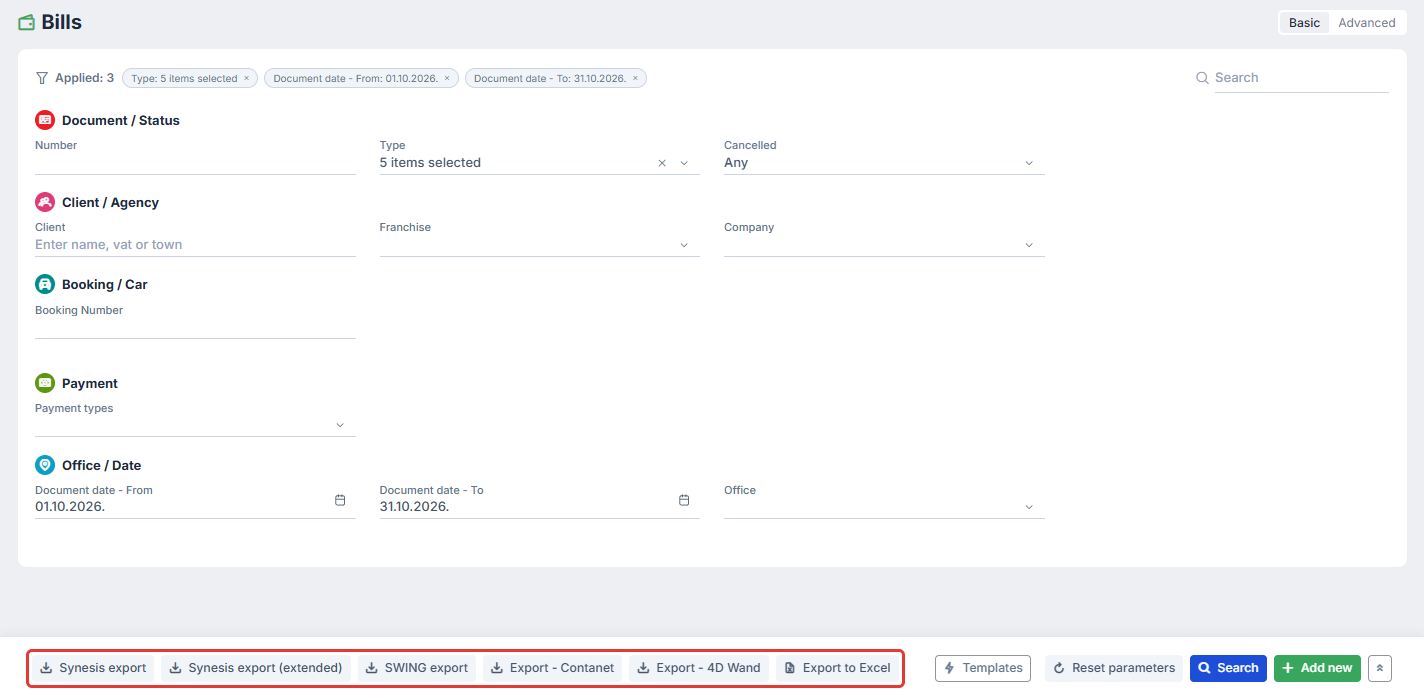
When a file export is on, a new button appears at the bottom of Sales → Bills → Search:
- Synesis export and Synesis export (extended) (both appear when the Synesis export is on)
- SWING export
- Export - Contanet
- Export - Sage
- Export - Odoo
- Export - A3
- Export - 4D Wand
To see these buttons, a user needs the role Report - financial documents. The same role also shows the Export to Excel button. To open the finance document list at all, the user needs the role Invoice management.
Contanet and Sage also need a few account values, which Renteon support enters in the settings. Each of the two exports has its own set, so the values for Contanet and for Sage can differ. Agree on these values with your accountant before you call Renteon support:
- Common client account number and Common client account name: the collective account for clients who have no account of their own in the accounting program. Sage writes the client's own name on each row even when the document goes to the common account.
- Sales account number: the revenue account. In Contanet it is credited with the VAT base. In Sage it is the counter account.
- General sale item description (Contanet): the text that goes into every VAT register line.
- Remove special characters from invoice number (Sage): when this is ticked, slashes and hyphens are removed from invoice numbers, so R-12/2026 becomes R122026.
Warning: If your Renteon runs several companies, the settings hold the account values of your main company only. For documents issued by your other companies, Contanet and Sage take the account values from that company's own data. Tell Renteon support which values belong to which company. Otherwise Contanet writes the documents of those companies without client and sales accounts, and the Sage export stops with an error.
Exporting a file from the finance document list
All file exports work the same way. You choose the documents with the filters of the finance document list, and then you click the export button.
- Go to Sales → Bills → Search.
- Fill in the filters. In most cases you need these:
- Document date - From and Document date - To: the period your accountant wants, for example 1 October to 31 October.
- Type: the document types your accountant books, for example Invoice and Bill. Contanet and Sage do not work without this filter. For the other exports, it keeps documents such as cash register transactions out of the file. When you open the list for the first time, or after Reset parameters, this filter already holds Invoice, Bill, Approval, Debit and Advance payment invoice.
- Payment types: only if your accountant wants the documents of certain payment types. Synesis also uses this filter to decide which payment lines it writes (see below).
- Company: if you run several companies and the accountant books them separately.
- Click Search and check the list. This step is optional, but it shows you which documents will be in the file.
- Click the export button. The file downloads in your browser. When it is ready, Renteon shows Success with the file name.
- Import the file into the accounting program, or send it to your accountant.
The file contains every document that matches the filters as they are filled in. It is not limited to the rows on the current page. It contains only the documents you are allowed to see. For example, if your user is limited to certain offices, franchises or a company, the documents of the others are not in the file. The person who exports for the accountant should therefore have access to all offices. A filter you set in the advanced view still applies when the basic view hides it. Each active filter is shown as a chip above the filters, so check the chips before you export.
When you open the list for the first time, or after Reset parameters, the Cancelled filter is set to No. That leaves out cancelled documents and their cancellations. A cancellation is a separate document with its own number and negative amounts, dated on the day of the cancellation. Clear the Cancelled filter (the x on its chip) before you export, so that the original document is in the file of its own period and the cancellation in the file of the period when it was made.
If you export with the same filters every month, save them as a search template with the Templates button, as described in Search templates.
If something is wrong, for example a VAT rate has no code, you get an error message instead of a file. The section When an export fails below lists the messages.
Warning: Renteon does not remember which documents you have already exported to a file. If you export overlapping periods, or the same period twice, the same documents are in both files, and the accounting program can book them twice. Export in fixed periods, for example month by month by document date, and agree with your accountant who does the export.
Synesis
Synesis imports the book of issued invoices (eIRA) as a text file with one fixed-width line per entry. Renteon offers two layouts. Ask your accountant which one their Synesis expects.
- Synesis export downloads the basic layout. Each line has the client's tax number (the digits of the client's VAT ID, at most 11), the invoice number, the invoice date and the due date. It also has the total, the VAT-free base, and the base and VAT of your default VAT rate.
- Synesis export (extended) downloads a file always named eIRA.txt, in the wider layout. The tax number can be up to 20 characters long and keeps its letters and digits, so a foreign VAT number such as DE123456789 keeps its country prefix. Spaces, dots and other signs are removed. A Croatian VAT ID written as HR plus 11 digits is sent as the 11 digits only. Each line also ends with three more values: the fiscalization type, the issue date and the payment method.
Both layouts build the lines in almost the same way:
- A document issued to a company is one line.
- If the company paid the document in several payments, the document gets one line per payment. Each line has the amount of its payment and the VAT of that amount at the default rate. The last line gets whatever remains of the document total.
- If you set Payment types in the filters, the lines of payments of other types are left out. In the extended layout, each remaining line then has the amount of its own payment. In the basic layout, the line of the document's last payment still gets whatever remains of the document total, including the amounts of the payments that were left out.
- All documents issued to private persons are added up into a single last line. That line has eleven zeros as the tax number and today's date in place of the invoice number and the dates. The basic layout writes this line even when the search has no documents of private persons, with zero amounts.
- A document without a client, such as a cash register transaction, is left out.
- An invoice number may have at most 15 characters. A longer number stops the export with the message "Number of bill is longer than 15" (in the extended layout, followed by the number).
The extra values of the extended layout are:
- Fiscalization type:
- 2: the document was fiscalized through the Croatian Tax Administration's CIS, or is still waiting for it.
- 1: your company is in Croatia, and the document is an e-invoice of Fiscalization 2.0 (created, or sent, on or after 1 January 2026), sent or waiting to be sent.
- 3: anything else.
- The line for private persons gets the type that covers most of its amount.
- Issue date: the document date.
- Payment method:
- 1: Transactional account, Bank transfer and Payment delay.
- 2: Credit card, Credit card - preauthorisation, and card payments through Stripe, Monri, Windcave and Adyen.
- 3: Cash.
- 4: anything else, and a document without a payment.
- The line for private persons gets a payment method only when all payments of all its documents have the same one. Otherwise it gets 4.
Example: invoice R-15/2026 to a company for 250.00 was paid 100.00 by card first and 150.00 by bank transfer later. The extended file has two lines for it: 100.00 with payment method 2, and 150.00 with payment method 1.
Warning: Synesis gets only two kinds of VAT amounts: the base of the rate marked VAT free, and the base and VAT of the rate marked Default (Administration → Code book → VAT rate). The default rate is written into the 25 % columns. Amounts at other rates, such as 13 % or 5 %, are part of the line total, but their base and VAT are not in the file. If you invoice at several VAT rates, agree with your accountant how to handle this.
SWING
SWING imports issued invoices as an XML file. The SWING export button downloads a file named eIRA followed by the date and time of the export in UTC (Coordinated Universal Time), for example eIRA_202611101530.xml. The file has one entry for each document found by your search:
- Book: IRA2 for the types Accounting document and Advance payment invoice, and IRA1 for every other type.
- Customer: the client's name (up to 50 characters) and OIB. Renteon takes the OIB from the client's VAT ID and removes a leading HR.
- The invoice number, the date and the due date. When the document has no due date, the due date is the document date.
- The total in your domestic currency, the base and VAT of items at exactly 25 %, and the base of items at 0 %.
- Internal mark: Renteon's internal number of the document, which lets you match the entry later.
The columns for 13 % and 5 % VAT are always 0, and so are the special columns, such as deliveries within the EU or exempt supplies. A document at 13 % therefore arrives with its total but without its VAT split.
Warning: Every document in a SWING export must have a client, or the export fails. Use the Type filter so that only the types your accountant books are in the search, such as Invoice and Bill. Leave out documents without a client, such as cash register transactions.
Contanet
Contanet imports journal entries from a text file. The Export - Contanet button downloads a file named Conta followed by today's date, for example Conta10112026.sec. Each document becomes one journal entry with these lines:
- One debit line on the client account for the document total.
- For each VAT rate on the document, one credit line on the sales account for the base and one credit line on the VAT account for the VAT.
- For each VAT rate, one VAT register line. It has the invoice number, the client name, the NIF, the base, the VAT code, the VAT percentage, the VAT amount and the total.
All amounts are in your domestic currency. The text of the entry is FA. followed by the document number, and then a hyphen and the booking number when the document belongs to a booking. For example, FA.R-15/2026-B-1234.
Renteon chooses the client account like this:
- If the client has an External reference in the address book, that value is the client's own account in Contanet. The VAT register line then gets the client's name, and the client's IRS code as the NIF.
- If the client has no external reference, the document goes to the common client account (Common client account number and Common client account name from the settings). The VAT register line then gets the common client account name instead of the client's name, and the NIF stays empty.
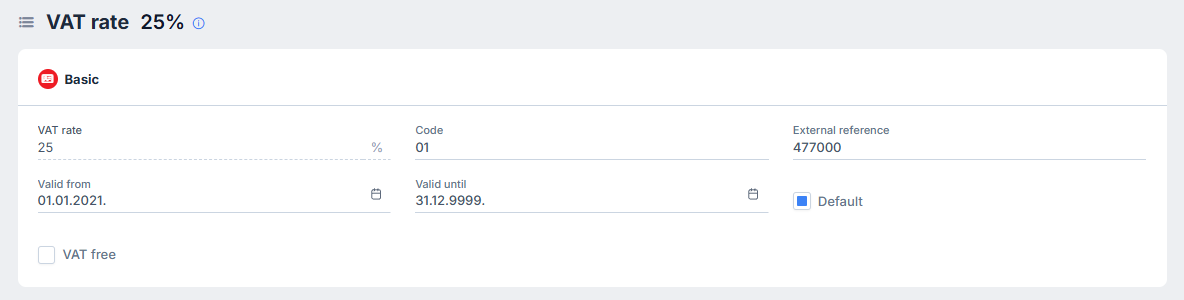
Each VAT rate that appears on the exported documents needs two values. You fill them in under Administration → Code book → VAT rate:
- Code: the VAT code that Contanet expects.
- External reference: the account number of that VAT in Contanet.
Before you export, select at least one type in the Type filter. Only these types can be exported: Invoice, Bill, Bill - payout, Approval, Debit, Accounting document, Advance payment invoice and Accounting note. If no type is selected, or any other type is (for example Corrective invoice), the export stops with the message "Allowed document types: ...".
Warning: The Contanet file can hold only basic Latin letters without accents, digits and punctuation. Accented letters, such as é, ñ or č in client names, arrive in Contanet as question marks. Check with your accountant whether that is acceptable for your clients' names.
Sage
The Export - Sage button downloads an Excel file named Sage followed by today's date, for example Sage10112026.xlsx. It has one row for each VAT rate of each document. Each row has:
- The client account: the client's External reference from the address book, or the Common client account number from the settings when the client has none.
- The client's name.
- The document date and the invoice number. When Remove special characters from invoice number is ticked, the number is written without slashes and hyphens.
- The VAT base, the VAT code (the Code of the VAT rate) and the VAT amount, in your domestic currency.
- The counter account: the Sales account number from the settings.
- The client's IRS code as the NIF. This is filled only when the client has its own account.
The same Type rule as for Contanet applies. The export also stops when a VAT rate on the exported documents has no Code, or when the Sales account number is missing in the settings.
Odoo and A3
Export - Odoo downloads an Excel file named InvoiceUpload followed by today's date. It follows the layout of an Odoo customer invoice import and has one row per document item. Only the first row of a document has the document data: the number, the booking number as the payment reference, the customer, the invoice and due dates, and the currency. Every row has:
- The service code.
- The vehicle: make, model, chassis number and plate of the car on the booking.
- The brand: the brand name of the booking's franchise, or your company's brand name.
- The pick-up office of the document's booking, or the office of the document when it has no booking.
- The car category group.
- An analytic account:
- Rent Short-term.
- Rent Long-term, for long-term rentals.
- Invoice Charges, followed by the damage description, for damage items.
- Quantity 1.
- The item amount including VAT as the unit price.
- The VAT as text: VAT, the VAT rate of the item and "% Sales ( INC )", for example "VAT 25.00% Sales ( INC )".
- The rental period: the billing period of the document, or the pick-up and return dates of the booking when the document has no billing period.
- The mileage at the start and at the end of the last rental of that car on the booking.
The company and journal columns have fixed values. Check with Renteon support whether they fit your Odoo before you import the file.
Export - A3 downloads an Excel file named A3Invoices followed by the date and time. It has one row per document, with these columns:
- Invoice number
- Full name
- VAT ID / ID / Passport: for a company, its VAT ID. For a private person, the number of the newest active ID card, or of the newest active passport when there is no ID card.
- Delivery date
- Net amount, VAT (IVA) amount and Total amount. All three are in your domestic currency.
- Currency: the currency of the document.
Neither export checks the document type. Use the Type filter to choose which documents go into the file. Every document in the search must have a client, or the export fails, so leave out documents such as cash register transactions.
4D Wand
4D Wand imports issued invoices from two CSV files. The Export - 4D Wand button downloads a ZIP file named 4DWandExport followed by the date and time. The ZIP contains:
- DOK-IFD.csv, with one line per document.
- STA-IFD.csv, with one line per document item.
Both files use semicolons between the values and Central European (Windows-1250) characters. If a text contains a semicolon, for example a remark, the semicolon is replaced by a hyphen.
Each document line contains:
- Renteon's internal number of the document. The item lines use the same number, so they can be matched to their document.
- Fixed values: document type 99, warehouse 0000101 and payment means 01.
- The partner: the client's VAT ID, exactly as entered in the address book.
- The document date, and the client's Payment delay in days as the payment term.
- The remark of the document, split into three parts of up to 80 characters and separated by |.
- The VAT treatment code (see below).
- The cost centre: the Export code of the document's office, or its Code number when the office has no export code. Only the first 6 characters are used.
- The ZKI and JIR of the fiscalization, the document number, and the date and time of issue.
- The currency as a numeric code, and the exchange rate.
- The payment reference number of the document and its Order reference number.
Each item line contains:
- Quantity 1,000.
- The amounts of the item in the document currency: the amount without VAT before the discount, the amount without VAT after the discount (in two columns), and the total including VAT.
- The cost centre, the same as on the document line.
- The name and description of the item in your domestic language.
- Two values from the Input code of the car last handed over on the item's booking:
- The part before the semicolon goes into the D1 analytics column. Only the first 6 characters are used.
- The part after the semicolon is the article (goods) code. Only the first 30 characters are used.
- For example, the input code 101;RENT-SHORT gives D1 = 101 and article RENT-SHORT.
- An item without a booking leaves both values empty.
You find the input code on the car card under Fleet → Fleet → Cars, in the section Ownership data.
The VAT treatment code on the document line is chosen like this:
- 1 when any VAT rate on the document is marked VAT-exempt. In 4D Wand, this means not subject to VAT.
- Otherwise, the Code of the first article on the document's items that has a code (Administration → Code book → Articles).
- Otherwise, 4. In 4D Wand, this means taxable, issued to VAT payers.
Agree with your accountant which input codes, article codes and office codes 4D Wand expects.
Warning: A car's input code must contain a semicolon, for example 101;RENT. If any document in your search has a booking whose car has an input code without a semicolon, the whole export fails with an error. A car with no input code at all does not cause an error. Its item lines simply have no D1 value and no article code.
The automatic database export
Some accounting programs do not import files. Instead, they read the data directly from a database. For them, Renteon keeps a separate export database. Renteon support switches it on for your account. Your accounting software then connects with its own database user, and that user can see only your data. How your accounting software vendor gets the access details is something to arrange with Renteon support.
Renteon writes these to the export database:
- Finance documents of the types Invoice, Bill, Bill - payout, Approval, Debit, Accounting document, Advance payment invoice, Accounting note and Corrective invoice. For each document, Renteon writes its header data:
- The number, the type, and the dates, including the delivery date and the due date.
- The amounts in the document currency and in your domestic currency, with the discount, the VAT and the exchange rate.
- The client and the payer, with their VAT ID, IRS code and address.
- The booking, with its channel, pricelist, car and mileage.
- The offices, with their export codes (or their code numbers, when an office has no export code).
- The fiscal codes ZKI and JIR, and the e-invoice IDs.
- The law articles applied to the document.
- The items of these documents: the service code and name, the quantity, the amounts, the discount, the VAT rate and the law article.
- The payments booked on these documents: the payment type, the amount and currency, the card type and authorization numbers, and the POS. For transfers, also the Company account and its bank. For offsets, the code and name of the Company offset account. Each payment has its payment date.
- The payments entered under Sales → Bills → Payments (if your account uses the payments module), with the client data, the office, and whether the payment was cancelled or refunded.
The export runs in the background, about every 17 minutes. Each run takes the documents and payments that have not been sent yet, up to 100 of each kind. A new invoice normally appears in the export database within about 20 minutes. After a very busy day, it can take a few runs until everything has been sent. When the export is switched on for an account that already has documents, the older documents that were never sent go too, 100 per run, so the first transfer can take a long time. Ask Renteon support about this before the export is switched on.
Renteon sends each document once. If you later change something on a document, the change is not sent again by itself. To send a document again, use Enable re-export (see the next section). A payment that you add later to a document that was already sent is sent on its own in one of the next runs. A cancellation creates a new document with negative amounts. That new document is sent like any other new document and refers to the original one.
Warning: The database export runs in the background, so you do not see an error message when it fails. A document that cannot be exported can hold up the other documents of your account as well. If new documents stop arriving in your accounting software, contact Renteon support and give them the number of a document that is missing.
Sending a document to the database export again
Use this when a document has to go to the export database again, for example because your accounting software lost it or a value it carries was corrected after the export. You need the role Invoice management.
- Find the document under Sales → Bills → Search, or open it.
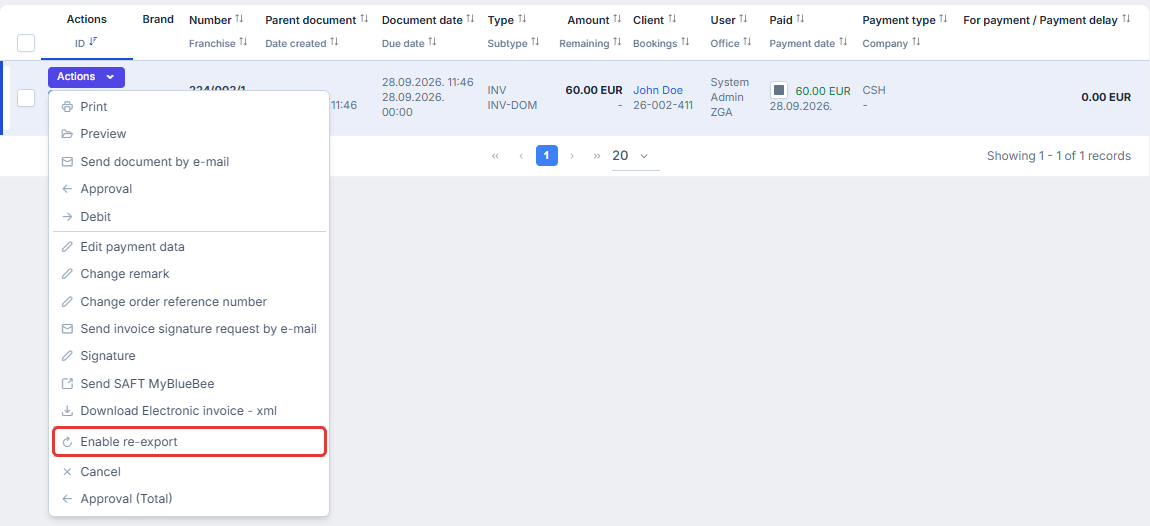
- Open Actions and choose Enable re-export. The action appears only on documents that have already been exported. On a group invoice, you find it in the Actions menu of the group invoice screen.
- Answer Are you sure? with Yes.
Renteon starts the export at once. The document and its payments are removed from the export database and written again.
Some long-standing accounts use an older layout of the export database. For them, re-export is not available, and Renteon shows the message "Re-export unavailable for legacy finance document export."
The codes to agree with your accountant
Each export copies codes that you keep in Renteon. The accounting program uses these codes to find its own accounts. Agree on them with your accountant, or with the vendor of the accounting software, and fill them in before the first export. If you use the database export, fill them in before you issue the documents, because a document is sent about 20 minutes after it is issued.
- VAT rates (Administration → Code book → VAT rate, role VAT rate edit):
- Code: the VAT code for Contanet and Sage.
- External reference: the VAT account number for Contanet.
- Default: the rate whose base and VAT Synesis writes into its 25 % columns.
- VAT free: the rate whose base Synesis writes as its VAT-free amount.
- VAT-exempt (only for a 0 % rate): makes 4D Wand use VAT treatment code 1.
- Clients (Sales → Address book → Search, role Address book management):
- External reference: the client's own account for Contanet and Sage. Leave it empty for clients who are booked on the common client account.
- IRS code: the NIF for Contanet and Sage.
- VAT ID: the tax number in Synesis, SWING, 4D Wand and A3. Your company may have renamed this label, for example to OIB.
- Payment delay in days: the payment term in 4D Wand.
- Offices (Administration → Locations → Offices, role Edit offices):
- Export code: the cost centre in 4D Wand and the office code in the database export. When an office has no export code, Renteon uses its Code number.
- If you run several companies, your other companies have their own Export code and Code number on the office's Companies tab. Documents issued by those companies use these values. Documents of your main company use the values on the Basic tab.
- Cars (Fleet → Fleet → Cars, section Ownership data, role Fleet management):
- Input code: the D1 value and the article code for 4D Wand.
- Articles, company accounts and company offset accounts: see the next section.
Codes are read when you export. If you correct a VAT rate code, the next file export already uses the new code. In the database export, documents that were already sent keep the old values until you use Enable re-export on them.
Articles, company accounts and company offset accounts
Three code books under Administration → Code book hold values that are carried to accounting:
- Articles (role Document articles edit): the legal articles you attach to invoice items, for example the article of the VAT law that makes an item exempt. On an invoice item, you choose it in the field Article.
- Each article has a Title, a Code and a Type (Law, Contract or Custom).
- The 4D Wand export uses the Code as the VAT treatment code.
- The database export carries the title and code of every active article of type Law on the document, and for each item the first such article of that item.
- Company accounts: your company's bank accounts. Users with the role Application settings management or POS can open the list, but only the role POS can add or change an account.
- Each company account has an Account number, a Bank, a Currency and, if you run several companies, a Company.
- When you record a payment of type Transactional account or Bank transfer, the field Company account shows the account that received the money. Renteon fills in a company account in the currency of the payment, if there is one, and you can change it. The field is mandatory only when Mandatory entry of the company account on the financial document is ticked under Administration → Code book → Settings, tab Finances.
- The database export carries the account number and the bank name.
- Company offset accounts (role Company offset account edit): the accounts on which a document is settled by offset instead of money.
- Each company offset account has a Title and a Code.
- When you record a payment of type Offset account, Renteon asks for the Company offset account, and you have to fill it in.
- The database export carries the code and the name. Use the account number on which your accountant books offsets as the Code.
When an export fails
A file export that cannot be built shows an error message, and no file is downloaded. Fix the cause and export again. A problem that Renteon checks for is shown under the title Data validation error. A problem that Renteon does not check for stops the export under the title Server error, with a technical description. These are the messages you may see:
- "Allowed document types: Invoice, Bill, Payout, Approval, Debit, AccountingDocument, InvoiceAdvance and AccountingNote." (Contanet, Sage): select at least one type in Type, and only the types listed.
- "Document: R-15/2026. Tax data is missing." (Contanet, Sage): the document has no VAT breakdown. Check the document, or leave it out with the filters.
- "Document: R-15/2026. Not all codes for tax rates are defined." (Contanet, Sage): a VAT rate on that document has no Code. Fill it in under Administration → Code book → VAT rate.
- "Document: R-15/2026. Not all account numbers for tax rates are defined.":
- Contanet: a VAT rate on that document has no External reference. Fill it in under Administration → Code book → VAT rate.
- Sage: the Sales account number is missing in the settings. Ask Renteon support to fill it in.
- "Number of bill is longer than 15" (Synesis): Synesis accepts invoice numbers of at most 15 characters. Ask Renteon support about your numbering.
- A Server error that says a Synesis eIRA record is too long (Synesis export (extended)): a client's VAT ID has more than 20 letters and digits. Correct the VAT ID in the address book.
- A Server error from Synesis export (basic layout): a company client in the search may have no VAT ID. Fill it in in the address book.
- A Server error from 4D Wand: check the input codes of the cars on the exported bookings. Each input code needs a semicolon.
- A Server error from SWING, Odoo or A3: a document without a client is in the search. Narrow the search with Type.
The database export shows no messages. Its errors are recorded on Renteon's servers, and Renteon support can look them up for you.

Before the first real export, do a test run: export one short period, let your accountant import the file into a test company or check it, and compare the totals with Renteon. Only then start the regular exports.
Related guides: