Fleet
Adding Fleet
How to set up your fleet: car fleets, car category groups, car categories, car models, cars, planned fleet, activity types and deactivation statuses.
Last updated
Adding fleet to Renteon is done within the Fleet module.
CAR FLEET
Define if cars should be separated by fleets (rentacar, official company vehicles, sub-rent, etc.). If all cars should be used within the same fleet, the default „Rent-a-car“ fleet is enough.
- Use for rent – select if assigned cars should be used for rent
- Use for lease – used by Arab countries, the rest can ignore
- Sub-rent – select if assigned cars are used for subrent
- Alternative inventory number generation – select if cars assigned to this fleet should have separated inventory number generator
- Buy back date is mandatory – select is entry of the buy back is mandatory for the selected cars
CAR CATEGORY GROUPS
Define groups for the insurance, damages, and expenses. These groups are used for defining a price, excess/deposit amounts, and charges. The group may be classified as one or more car categories that have the same price for the insurance. E.g. the 'Mini' insurance group includes MCMR, EDMR and EDAR car categories, and the insurance price for all these car categories is the same. Each car category should be selected into a predefined car category group.
- Insurance – defined groups will be used for insurance prices + defining excess/deposit amounts
- Damages – defined groups will be used for defining charges within the matrix cost for damages
- Expenses – optional! Define groups for the expenses in your fleet (car wash, fueling, etc.)
Warning: ** Additional groups can be created, as well, by selecting Edit – Add.
CAR CATEGORY
Cars in Renteon are classified based on the ACRISS/SIPP codes. Codes are the basis for the availability and the price configuration.
- SIPP – define a universal 4-letter classification.
- Group - Alternative way of marking a vehicle category. Some car rental agencies use grouping types A, B, etc. In this field, you enter such a tag. If no such grouping is used, it is recommended to re-enter the SIPP code, e.g. MDMR.
- Representative model name - The name of the vehicle model that characterises this vehicle category. This data is printed in the search results (application, web, web service) of the vehicle category. It is not necessary that this model exists in the fleet. E.g. "Volkswagen Polo".
- Sort order - It refers to the order of listing a vehicle category at various places in the application (in reports, pricelists or in search of availability). Categories are printed from a smaller to a larger number. As a rule, the order goes from the smaller (cheaper) to the larger (expensive) vehicles. E.g. MCMR = 10, EDMR = 20, CDMR = 30, LDAR = 40, etc.).
- Guaranteed model (WEB) – select if the representative model is the only model in this vehicle category. This information is forwarded via a web service.
- Show in list (WEB) – select if the car category should be visible via web service / unselect to hide vehicle category for the web service.
- Statistical classification of products by activity (CPA) – Rent – used by the Croatian market only!
- Statistical classification of products by activity (CPA) – Sales - used by the Croatian market only!
- Car category groups – select groups for insurance and damages, since they are used for charging. „Expenses“ are optional.
- Fuel type (WEB) – select which fuel types this category supports.
- Description (WEB) – add a useful description shared via web service (website + brokers).
- Other – define deposit and excess amounts, if they are not based on the insurance that the client purchased.
- Driver age restriction (min.) – minimum driver age for the booking
- Driver age restriction (max.) – maximum driver age for the booking
CAR MODEL
Define all the models within your fleet. Each model should be selected in the previously created car category and will have its own technical data, fuel type and fuel tank level.
Car type – vehicle scheme for the checklist is shown based on this selection. All the schemes can be added within the Code book – Settings module.
Service interval – enter the service interval in KM, months, or both. Renteon will keep track of the regular service expiration and timely inform the user who enabled this notification type (User profile – Notifications).
Car equipment packages – you can separate the same model into more equipment packages.
CARS
Cars can be defined within the application or imported at once by using export/import via Excel.
When Excel is used, the table should be exported from Renteon, and all cars should be added. Simple instructions:
In the columns where you see 'Id' in the name, you will insert ID numbers from specific sheets. For example, if it asks you to insert 'CarModelId' of a specific car, you will switch to sheet 'CarModels' and find the ID number of the wanted model and insert it in column CarModelId.
Renteon will automatically fill in the full name, so you don't need to type models by their initials (E.g., Sunny, Corolla).
Warning: Before using Excel, please ensure that all SIPP codes and car models are defined in Renteon. The information that you filled in the „car model“, you don't need to add in the Excel again, but the data that is missing, like spare wheel info, you can, if needed.
PLANNED FLEET
The Planned Fleet module allows you to adjust vehicle availability independently of the physical fleet. Planned fleet entries can either increase or decrease availability and are combined with the actual fleet inventory when calculating availability.
CAR ACTIVITY TYPES
All the car activities can be added to Renteon. Out of the set of predefined activities, you can add an unlimited number of new ones.
Each activity should be defined as to whether it’s “Occupies vehicle” and whether “Print the check in form” is required.
Optionally, you can define if it’s “Mandatory entry of the check-in form”, and whether this activity should be added to the “Quick menu”.
For each activity, you can create a Subtype. For example, the activity “Car wash” can have subtypes “external washing”, “internal washing”, “BIO cleaning”, etc. For all the subtypes, you can add predefined expenses within the Fleet – Expenses – Pricelist.
CAR DEACTIVATION STATUSES
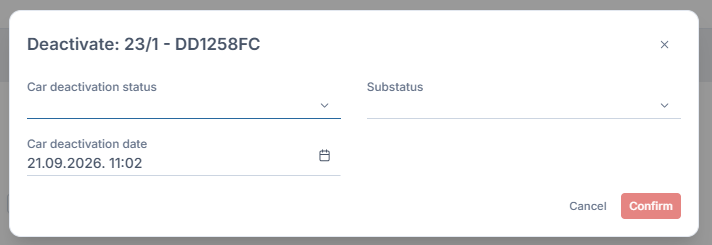
Statuses that can be selected when the car is deactivated. Each status can have a substatus, for example: