
Fiscalization
Croatia: fiscalization (CIS)
How Renteon reports invoices to the Croatian Tax Administration (CIS) - certificate, OIBs, business premises labels, which documents are sent, JIR and ZKI, and what happens when CIS is down.
Last updated
In Croatia, invoices issued to customers have to be reported to the Tax Administration's central information system (CIS) when they are issued. Renteon does this for you. When you save a fiscal document, Renteon calculates the issuer's security code (ZKI), signs the document with your company's FINA certificate and sends it to CIS. It then stores the unique invoice identifier (JIR) that CIS sends back. Both codes are printed on the invoice.
There is no switch to turn this on. If Croatia is the country of your Renteon account, every fiscal document goes to CIS. Your part is to give Renteon the certificate and the identification data that CIS expects. This guide walks you through that data, explains which documents are sent, and shows what to do when CIS does not answer.
Since 1 January 2026, invoices to Croatian companies that are paid by bank transfer are not fiscalized. They are sent as e-invoices instead, as described in Croatia: e-invoices (FINA, Moj-eRačun).
What you need before you start
- A FINA application certificate for fiscalization, as a .pfx file, and its password.
- Your company's OIB.
- The OIB of every employee who issues invoices in Renteon.
- A business premises label for every office that issues invoices.
- Invoice numbering set up for Croatia. Renteon sets this up for Croatian accounts, and you cannot change it on any screen.
If you run several companies in one Renteon account, you need a certificate, an OIB and business premises labels for each company.
Company OIB and the fiscalization certificate
You enter both in the main settings. You need the role Application settings management.
- Go to Administration → Code book → Settings and click Edit.
- On the tab Basic, in the section Company, enter your company's OIB in VAT ID. Enter only the 11 digits, with no HR prefix and no spaces. Renteon does not check this number. It sends it to CIS exactly as you type it and also uses it to calculate the ZKI, so a mistake here affects every invoice.
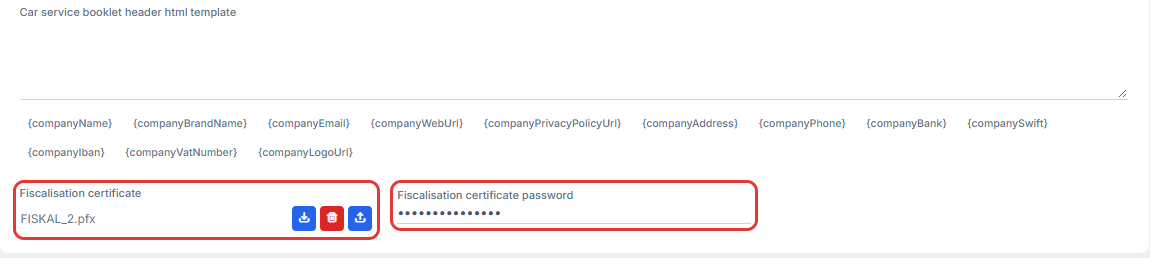
- On the tab Documents, in the section Documents, upload the certificate file in Fiscalisation certificate and enter its password in Fiscalisation certificate password. These two fields appear only when Croatia is the country of your Renteon account.
- Click Confirm.
When you replace the certificate, documents issued after that use the new one. Keep in mind that the ZKI is calculated with the certificate. Suppose a document is still waiting for CIS when you replace the certificate. When Renteon sends it again, it gets a new ZKI, so an invoice printed before the change no longer shows the ZKI that CIS receives.
Warning: Renteon reads the certificate every time a fiscal document is saved. If no certificate is uploaded, the password is wrong or the certificate has no RSA private key, Renteon cannot issue fiscal documents, and saving the invoice fails with an error. An expired certificate behaves differently. Renteon saves the document, but CIS refuses it, so the document has no JIR until you upload a valid certificate. Renew the certificate with FINA before it expires.
Several companies in one account
If you issue invoices for more than one company, each company fiscalizes with its own OIB and its own certificate. The company you entered in Settings uses the data from the previous section. For each additional company, you need the role Company editing. The menu item appears only when your account has more than one company.
- Go to Administration → Code book → Companies, open the company and click Edit.
- In the section Company, enter the company's OIB in VAT ID (on this screen the label can carry the name your company gave it in its document settings). Use the 11 digits only, as above.
- In the section Fiscalization, upload the company's certificate in Fiscalisation certificate and enter its password in Fiscalisation certificate password.
- Click Confirm.
Every office where the company issues invoices also needs a business premises label for that company, as described in the next section. After you set up a company or change its certificate, check that its next fiscal document gets a Unique Id (JIR). If it does not, contact Renteon support.
Business premises label of an office
CIS identifies every invoice by the business premises (poslovni prostor) where it was issued. In Renteon, the business premises label is the office's Code number. You need the role Edit offices.
- Go to Administration → Locations → Offices, open the office and click Edit.
- On the tab Basic, enter the label in Code number. The field is mandatory and takes up to 15 characters.
- If your account has several companies, open the tab Companies and enter a Code number for each company that issues invoices in this office. Renteon uses this value for that company's documents, not the one on the tab Basic. If the field is empty, Renteon cannot number that company's documents in this office, and saving fails.
- Click Confirm.
Renteon does not register business premises with CIS separately. It sends the label with every invoice. The label is also part of the invoice number, so if you change it, every invoice issued afterwards carries the new label. The sequential number does not restart when you change the label, because the sequence belongs to the office.
Warning: If you change a Code number in the middle of the year, the same office starts issuing invoices with a different business premises label. Agree any change with your accountant first.
How the invoice number is built
For Croatia, Renteon numbers fiscal documents as sequential number / business premises label / billing device label. For example, in 125/3/1:
- 125 is the sequential number. It restarts at 1 every calendar year. Each office has its own sequence, and with several companies, each company has its own sequence in that office. All fiscal document types (listed under "Which documents are fiscalized") share this one sequence.
- 3 is the office's Code number.
- 1 is the label of the billing device (naplatni uređaj). With the default Croatian numbering it is always 1.
CIS receives the three parts separately. Renteon takes the device label from the last part of the number, after the last slash. If Renteon support ever sets up different numbering for you, that last part is what CIS receives as the device label.
The operator: OIB of the user who issues the invoice
CIS has to know who issued each invoice. Renteon sends the OIB of the user who created the document. You need the role Edit users to enter it.
- Go to Administration → Code book → Users, open the user and click Edit.
- On the tab Basic, enter the user's OIB in VAT ID. Enter only the 11 digits, without HR. Renteon checks that the number is a valid OIB and does not save the user otherwise. The message starts with "Invalid VAT ID."
- Click Confirm.
Special cases:
- If the user has External associate ticked, Renteon sends the company's OIB instead of the user's.
- If the user has no OIB, Renteon sends the company's OIB, so the invoice can still be fiscalized. On the live system, it also sends an e-mail to the main e-mail address of your Renteon account (see "When sending fails" in Fiscalization and e-invoicing overview). The subject is "Renteon: Nedostaje OIB korisnika", and the e-mail names the user and the invoice number. You get such an e-mail for every invoice until you enter the OIB.
- When Renteon creates a document automatically, the operator is the user recorded as the document's creator, and the same rules apply.
E-invoices also carry the operator's name and OIB: the user's own OIB, or the company's OIB when the user has none. On e-invoices, External associate makes no difference.
Which documents are fiscalized
A document is sent to CIS when all three of these are true: its type is fiscal, at least one of its payments is of a fiscal payment type, and the rules for the client (below) do not send it elsewhere.
The fiscal document types are Invoice, Bill, Bill - payout, Approval, Debit and Advance payment invoice. Offers, corrective invoices, deposits and cashbook payouts are not fiscalized. When you cancel a fiscalized document, the cancellation is a new document with its own number, and Renteon fiscalizes it as well.
Fiscal payment types:
- Cash, Checks, Voucher, Credit card, Stripe, Monri and Adyen, always
- PayPal, Checkout, Eurobank ePos, STCPay, PayTabs, Transactional account and Bank transfer, for documents created from 1 January 2026
On their own, payments such as Credit card - preauthorisation, Advance payment, Payment delay or Offset account do not make a document fiscal. For example, a final invoice that is paid only from an advance payment is not sent to CIS. The advance payment invoice was fiscalized when you issued it. See Advance payment invoice.
For documents created from 1 January 2026, the client decides the rest:
- Private persons: the document is fiscalized whenever it has a fiscal payment type, bank transfer included.
- Croatian companies and artisans (address book type Company, or Individual with Artisan ticked, and Foreigner not ticked):
- At least one payment by Cash, Voucher, Credit card, PayPal, Checkout, Eurobank ePos, STCPay, Stripe, PayTabs, Monri or Adyen, and no bank transfer: fiscalized. For a company with a VAT ID, Renteon also sends the buyer's OIB to CIS.
- Any payment by Bank transfer or Transactional account: not fiscalized. The document becomes an e-invoice.
- The new invoice is marked to be sent as an e-invoice: not fiscalized.
- Do not send e-invoice for this client is ticked on the client: fiscalized for every fiscal payment type, bank transfer included.
- Foreign companies and artisans (Foreigner ticked): not fiscalized when the document has a Bank transfer or Transactional account payment, otherwise fiscalized.
For example, a Croatian company that pays a rental by card gets a fiscalized invoice, and Renteon reports the company's OIB to CIS. If the same company pays by bank transfer, the invoice goes out as an e-invoice.
Warning: If no e-invoice provider is enabled, an invoice to a Croatian company that includes a bank transfer is neither fiscalized nor sent as an e-invoice. Set up e-invoicing, or tick Do not send e-invoice for this client for such clients.
What Renteon sends to CIS
For every fiscal document, Renteon sends:
- your company's OIB and the operator's OIB
- the date and time of issue, which is the moment the document was saved
- the sequential number, the business premises label and the billing device label
- the VAT breakdown per rate (base and VAT amount) and the total
- the payment method: cash for Cash, card for Credit card, Stripe, Monri and Adyen, transaction account for Bank transfer and Transactional account, and other for every other payment type and for any document with more than one payment
- for Croatian companies with a VAT ID, the buyer's OIB (not when the payment method is transaction account)
- the ZKI, plus a mark for subsequent delivery when the document is sent again after a failed attempt
All amounts go to CIS in the domestic currency, even when the invoice is in another currency. Renteon reports your company as being in the VAT system.
Renteon keeps the exact request and CIS's answer with every document. If CIS rejects a document, Renteon support can see exactly what was sent.
ZKI and JIR: where you see them
- ZKI (issuer's security code): Renteon calculates it from your OIB, the date and time, the number parts and the total, and signs it with your certificate. Every fiscal document has a ZKI, even when CIS could not be reached.
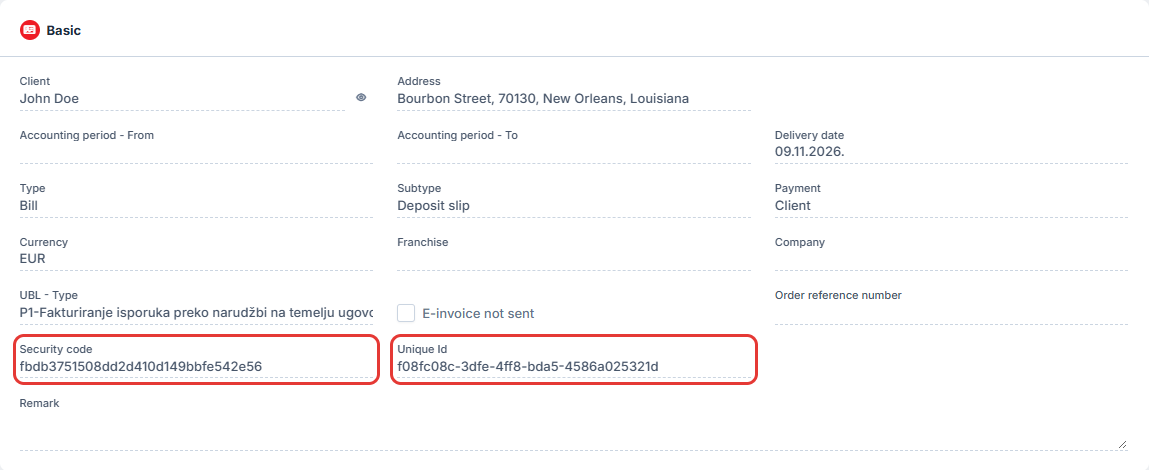
- JIR (unique invoice identifier): CIS's answer. A document with a JIR is fiscalized. A document without one is still waiting.
You find the codes in these places:
- New invoice screen: right after you save, the summary shows Security code (ZKI) and Unique Id (JIR).
- The document itself: go to Sales → Bills → Search and open the document. The fields Security code and Unique Id are in the Basic section.
- Printed or e-mailed invoice: the codes appear as JIR and ZKI, or as Unique Id and Security code when the document is printed in English. The printout also carries a QR code that the customer can scan to check the invoice with the Tax Administration. The QR code holds the ZKI, the date and time of issue and the amount.
Sometimes an invoice in the domestic currency is paid by bank transfer, and Renteon knows your IBAN (from the payment's company account, the default company account or the company's IBAN). In that case, the printout also carries a HUB-3 payment barcode for the customer.
When CIS does not answer
Renteon waits up to two seconds for CIS. If CIS does not answer in time, or answers with an error, Renteon still saves the document. The document has its number and ZKI, but no JIR, and Renteon sends it to CIS again later. When this happens while you save a new invoice, Renteon still shows its usual message that the data was saved, so look at Unique Id in the summary.
Such a document has an empty Unique Id, and in Sales → Bills → Search it carries the red Fiscalization required flag next to its amount. To list them all, set Fiscalization required to Yes in the search section Fiscalization / e-Invoice.
Renteon resends these documents automatically in its hourly fiscalization run, which Fiscalization and e-invoicing overview describes. It sends each one as a subsequent delivery, with the original date and time of issue and the same ZKI. When CIS accepts a document, the document gets its JIR and the red flag disappears.
You can also resend a document yourself. Open it and click Fiscalize at the bottom of the screen. The button appears only while the document is waiting. If CIS accepts the document, Renteon shows its Unique Id and Security code. If not, Renteon shows CIS's error code and message.
Warning: Resending only helps when the connection or CIS itself was the problem. If CIS rejects a document because of your data, for example an expired certificate or a wrong OIB, every hourly attempt fails the same way until you correct the data. If documents are still waiting after a few hours, contact Renteon support.
The 2027 change to RSA-SHA256 signatures
From 1 January 2027, CIS accepts only invoices that are signed with the stronger RSA-SHA256 method and sent over a secure connection (TLS 1.2 or newer). The ZKI is also calculated with RSA-SHA256. Renteon makes this change for you, so there is nothing to change in your settings:
- Your current FINA certificate keeps working, and you do not need a new one.
- A document issued before the switch keeps the ZKI printed on it, even if Renteon sends it to CIS again later, as long as you have not replaced the certificate in the meantime.
- FINA's RSA application certificates work, including the newer 3072-bit ones. Renteon cannot use a certificate that has no RSA key.
Once the certificate, the OIBs and the office code numbers are in place, fiscalization runs on its own. To keep an eye on it, filter Sales → Bills → Search for Fiscalization required = Yes from time to time, and save the filter as a search template. Any document that stays on that list needs your attention.
Related guides: