Fleet
Licence plate recognition
Find a car by pointing your phone's camera at its licence plate. What you need, who can use it, how the plate is matched to your cars and what is sent where.
Last updated
With licence plate recognition you find a car without typing: you point the camera of your phone or tablet at the plate, Renteon reads it and opens the Car overview of that car, where you can check it in, issue it, record a damage and so on. In the car field of some forms, a scan fills in the car instead. It is meant for people working next to the cars, such as counter agents taking a car back or yard staff walking through the car park.
The scanner only finds the car. What you do with the car afterwards happens on the Car overview screen or in the form you scanned from, each described in its own guide. This guide explains what the scanner needs, how it decides which car you mean, and what happens to the pictures.
Licence plate recognition is part of the new interface. There is nothing to switch on in the settings: every user with the right role sees it on a phone or tablet.
What you need
- A phone or a tablet. The scanner is offered only on devices whose main input is a touch screen. On a desktop computer the camera icon is not shown, even if the computer has a webcam.
- A browser that lets web pages use the camera, and Renteon opened over a secure connection (the address starts with https). Where the browser cannot use the camera this way, the camera icon is not shown.
- Permission to use the camera. The first time you open the scanner, the browser asks whether Renteon may use the camera. Allow it. If you refuse, the scanner shows a warning triangle instead of the picture, and you have to allow the camera for Renteon in the browser's site settings.
- A working internet connection. Every picture is read on Renteon's side, not on the phone.
- A company country that the recognition service supports. The service reads plates in the format of your company's country, the Country shown in Administration → Code book → Settings, tab Basic (it is fixed when your Renteon is set up and cannot be changed there). If the country is not supported, the scanner says so (see below).
Who can use it
The camera icon is shown to users who have at least one of these roles:
- Fleet management (the role described as "Cars list, registrations, car services, insurances...", not the one for the subrent fleet)
- Cars list
- Booking checkin
These are the same roles that open the Car overview. Users without any of them do not see the camera icon. The buttons on the Car overview screen need their own roles in addition, see Car overview.
Where to find the scanner
There are three ways to open it:
- In the header: the camera icon next to the search magnifier. It is there on every screen, so you can scan a plate from wherever you are.
- On the Car overview: Fleet → Fleet → Car overview, the Scan button next to the Car field. Standing in the car park, you can stay on this screen and scan one car after another.
- In a car field: the camera button next to the car field on Car check-in, on the car of a booking, on Vehicle replacement (the new car), on a damage and on a traffic fine. The button is not shown while the field cannot be changed.
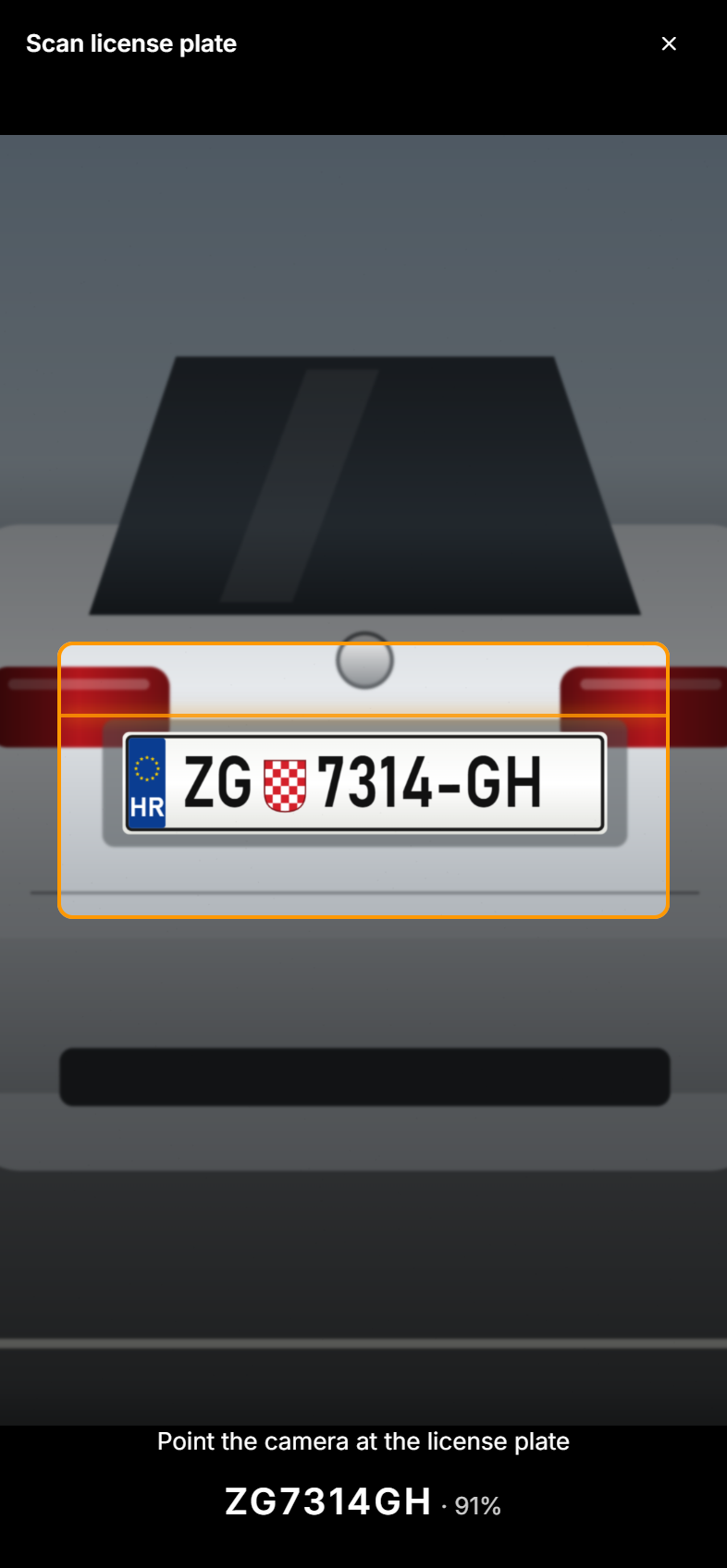
The scanner opens full screen with the title Scan license plate, the rear camera and an orange frame. Hold the phone so that the plate sits inside the frame, upright or sideways (the frame adapts). A plate seen from a step or two away is about the right size. You do not have to press anything: while the message Point the camera at the license plate is shown and a line moves inside the frame, Renteon sends one picture after another and checks each reading against your cars.
Below the frame you see the plate Renteon last read and how sure the reading is, for example "ZG1234AB · 91%". That tells you whether a plate was read but belongs to none of your cars, or could not be read at all.
Glare, dirt and a steep angle make plates hard to read. If nothing is read, step a little to the side so the light does not reflect off the plate, and hold the phone level with it.
What happens after a scan
As soon as a reading matches a car, the camera closes and phones that support it vibrate briefly. Then:
- If exactly one car matches, the Car overview of that car opens.
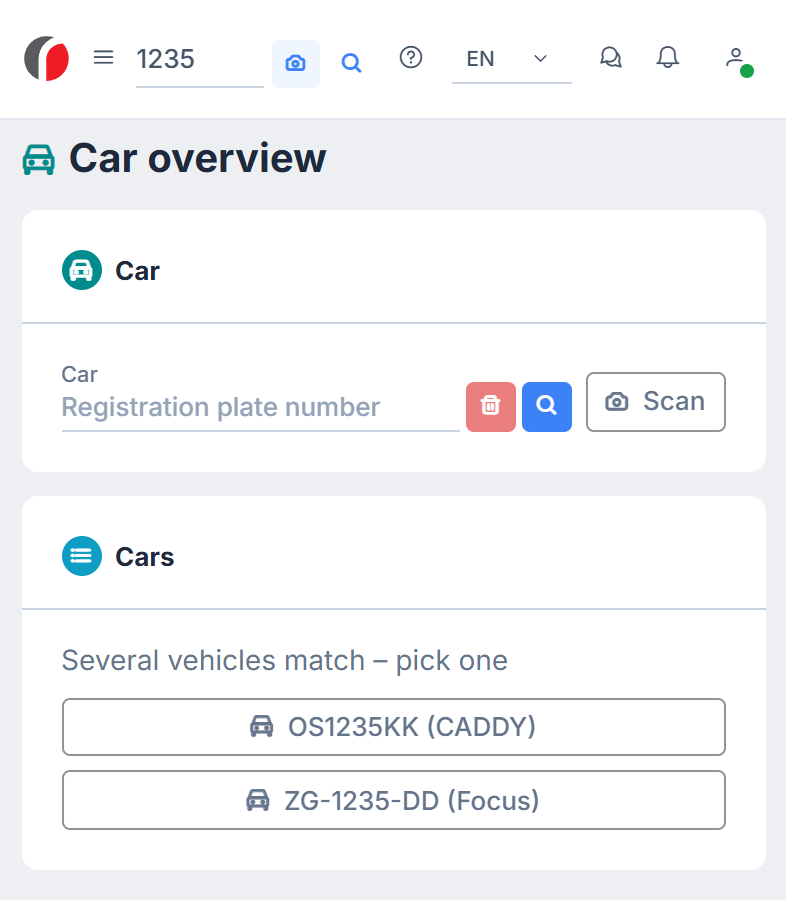
- If several cars match, the Car overview opens with a Cars list and the message Several vehicles match – pick one. Tap the right car. This happens when only part of the plate was read, for example "1234AB" when you have both "ZG 1234-AB" and "ST 1234-AB".
- If you scanned from the header, the search box in the header now holds the plate: the plate as stored in Renteon when one car matched, or the plate as read when several did. Press Enter to run the normal header search for it.
- If you scanned from a car field, the Car overview does not open. Renteon looks the plate up in that field as if you had typed it, so the field offers only the cars it would offer anyway. When one car matches, it is filled in; when several do, a short list under the field shows the plate as read and the matching cars, and you tap the right one.
If no reading matches a car after about 30 pictures, the scanner stops with No vehicle with this license plate was found. Tap Repeat to try again, or close the scanner with the X and type the plate in the Car field or in the search box.
How the plate is matched to your cars
The recognition service returns the text it read. Renteon then compares it with the plates of your cars:
- Spaces, hyphens and other separators, upper and lower case and diacritics do not matter. "ZG 1234-ŠA" in Renteon matches the reading "ZG1234SA", and Đ counts as D.
- Cyrillic letters that look like Latin ones count as Latin, so plates stored in Cyrillic, such as Bulgarian plates, are found too.
- First Renteon looks for a car whose whole plate equals the reading.
- If there is none and the reading has at least 4 characters, Renteon looks for plates that end with the reading, then for plates that start with it, then for plates that contain it. It stops at the first of these that finds anything.
- If the best reading still matches nothing, Renteon tries the other readings the service suggested with at least 50 % certainty (for example a 0 that was read as an O), but accepts them only when they match a whole plate.
- At most 10 cars are offered.
Only active cars that have a Registration plate number are searched. Deactivated cars and cars without a plate are never found. The list of plates is refreshed every minute, so a car you have just added, or whose plate you have just changed, can take up to a minute to be found.
The service reads plates in the format of your company's country. A car with a foreign registration may not be read at all, or may be read wrongly. Find such a car by typing its plate.
What is sent, and where
For data protection it helps to know exactly what leaves the phone:
- Only the part of the picture inside the orange frame is sent, not the whole camera picture, as a JPEG image at most 1024 pixels wide. People and other cars outside the frame are not sent.
- The phone sends the picture to your Renteon server, which passes it on to Renteon's own licence plate recognition service. The phone does not contact the recognition service itself.
- With the picture, Renteon sends only your company's country (so the service knows which plate format to expect) and two numbers: a random one that groups the pictures of one scan, and the picture's position in that scan. No car, customer or user details are sent.
- The service sends back only text: the plate it read, a few alternative readings and how sure it is of each. Matching the reading with your cars happens inside Renteon, so your fleet list is never sent to the service.
- Renteon does not save the pictures with the car, the booking or any other record. The camera is switched off as soon as the scanner closes.
If your data protection documentation needs to state how long the recognition service keeps its own records of scans, ask Renteon support.
Warning: While the line moves inside the frame, the scanner keeps sending pictures, up to about 30 per scan. Aim it at the plate, not at people or at the street, and close it when you are done.
Messages and what to do
- Point the camera at the license plate: the scanner is reading. Keep the plate inside the frame.
- No vehicle with this license plate was found: about 30 pictures were read without a match. Check the plate shown below the message. If it was read correctly, the car is not an active car in Renteon, its plate in Renteon has different letters or digits, or the car or its plate was saved less than a minute ago. Tap Repeat or type the plate.
- The license plate recognition service is currently unavailable: the recognition service could not be reached, or your connection dropped. Tap Repeat a little later.
- License plate recognition is not available for your company's country: the recognition service does not support plates of your company's country. Use the Car field or the search box instead.
- A warning triangle instead of the camera picture: the browser cannot use the camera, usually because the permission was refused. Allow the camera for Renteon in the browser's site settings and open the scanner again.
- No camera icon at all: you are on a desktop computer, your browser cannot use the camera on this page, or you have none of the roles listed above.