
Fiscalization
Spain: SII and invoice reporting
How Renteon reports your issued invoices to the Spanish Tax Agency (AEAT) through SII: certificate and settings, which documents are reported and how, and what to do when AEAT rejects a record.
Last updated
SII (Suministro Inmediato de Información) is the AEAT system in which a company keeps its VAT books online. Every invoice the company issues has to reach the issued-invoices book within four working days. If your company reports through SII, Renteon can do it for you. With the SII module on, every invoice, bill, advance payment invoice, approval, debit and corrective invoice you issue in Renteon is sent to AEAT in the background, usually within an hour after you save it. When AEAT accepts a record, it returns a CSV verification code, and Renteon keeps it as proof.
This guide explains what you need, how to set the module up, which documents are reported and how AEAT sees them, and how to follow up on records that AEAT rejects.
SII is not the same as the guest report to the Spanish Ministry of the Interior (SES Hospedajes). That report is described in Reporting to authorities (police and transport).
How reporting works
Reporting happens in the background, not at the moment you save:
- Saving a document never waits for AEAT, and it never fails because AEAT is unavailable.
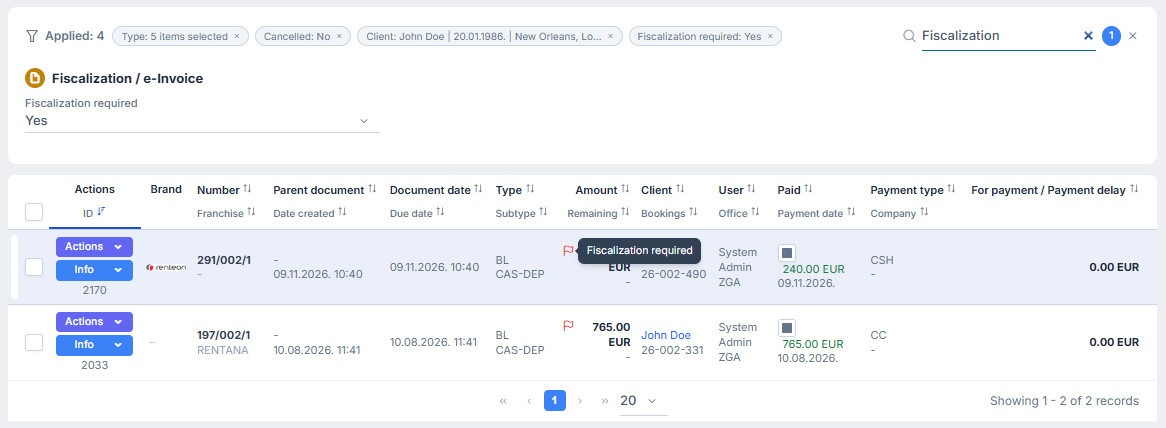
- A new document that has to be reported is marked Fiscalization required. In the bills list it carries a red flag next to its amount.
- About once an hour, Renteon's fiscalization run sends the waiting documents that were created at least five minutes earlier, oldest first, up to 100 documents of your account per run (see Fiscalization and e-invoicing overview).
- When AEAT accepts a record, Renteon stores the CSV code AEAT returns, and the document counts as reported. The red flag disappears. A record that AEAT accepts with errors also counts as reported.
- When AEAT rejects a record, Renteon e-mails you the reason and tries again in the next run. After five failed attempts it stops (see the last section).
- You do not have to wait for the next run. The Fiscalize button on the document sends it at once. A rejection after Fiscalize counts as one of the five attempts and sends the same e-mail.
This applies to every document of a reported type, also to the ones Renteon creates by itself (for example agency invoices when a contract is closed) and to the ones that come in through the B2B channel or another connected system.
Whether a document is paid makes no difference. An unpaid invoice on payment terms is reported exactly like a paid receipt, because SII records issued invoices, not payments.
Once a document is reported, Renteon does not send it again. Changes you make afterwards, for example with Change remark, do not reach AEAT. To correct a reported document, cancel it or issue a corrective invoice (see below).
What you need before you start
Prepare these before you switch the module on:
- Your company's electronic certificate as a .pfx file that contains the private key, and the certificate's password. Renteon signs in to AEAT with it, so it has to be a certificate AEAT accepts for your company's SII submissions. Ask your tax adviser if you are not sure which one to use.
- Your NIF and legal name. Renteon does not ask for them in the SII panel. It takes the NIF from the VAT ID field and the legal name from the Name field of your company. A leading "ES" in front of the NIF is removed automatically.
- The first document to report. Decide from which document onwards Renteon should report, for example the first document after the date you start reporting through Renteon. You enter its ID in the settings (see below).
- Client data. For full invoices AEAT needs to know who the client is. See the section on client data below.
Set up the SII module
You need the Application settings management role.
- Open Administration → Code book → Settings and click Edit.
- On the Basic tab, in the Company panel, check that Name holds your legal name and VAT ID your NIF.
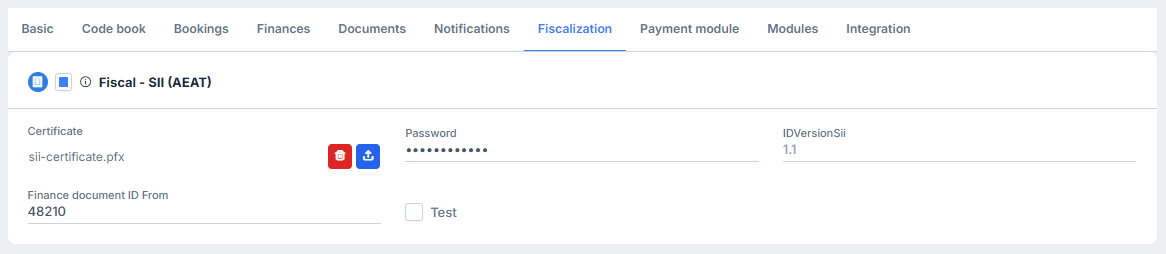
- Open the Fiscalization tab and find the panel Fiscal - SII (AEAT). It is shown when Spain is your account's domestic country. Tick the box in the panel's header to switch the module on. The info icon in the header reminds you that the NIF and the legal name are not entered in this panel.
- Fill in the fields:
- Certificate: upload your .pfx certificate file. Required.
- Password: the certificate's password. Required.
- IDVersionSii: the version of the SII format. Leave it empty and Renteon uses 1.1. Change it only if Renteon support asks you to.
- Finance document ID From: the ID of the first document that should be reported. Documents with a lower ID are never reported.
- Test: sends the records to AEAT's test environment instead of the real SII.
- Click Confirm.
Renteon decides whether a document has to be reported every time the document is saved. A document created while the module was off is not waiting. But if the document is saved again later, for example after a change, Renteon reports it then, unless its ID is below Finance document ID From. That is why the field matters. Say you start on 1 March and the first document of March has the ID 48210: enter 48210, and nothing from before March will ever be sent, even if it is edited. If you leave the field empty, there is no lower limit.
You find a document's ID in Sales → Bills → Search. It is the number shown under the Actions and Info buttons of each row, and you can also search by it with the ID filter.
Warning: Do not leave Test ticked in your live account. A record that AEAT's test environment accepts counts as reported in Renteon, and Renteon will never send that document to the real SII. If this has happened, contact Renteon support.
Companies with their own NIF
If your Renteon account has more than one company, each company reports under its own NIF with its own certificate. Set each one up in Administration → Code book → Companies (you need the Company editing role). Open the company, click Edit and use its Fiscal - SII (AEAT) panel, which has the same fields: Certificate, Password, IDVersionSii, Finance document (the ID of the first document to report) and Test. The company's NIF and legal name come from the VAT ID and Name fields at the top of the same screen.
Every document is reported with the settings of the company it belongs to. The panel on the Settings screen applies to documents that do not belong to one of the companies listed under Companies. A company whose panel is switched off does not report at all, even when the module is on for other companies.
Which documents are reported
These document types are reported, whatever the payment type and whether they are paid or not:
- Invoice, including group invoices
- Bill
- Bill - payout
- Advance payment invoice
- Approval and Debit
- Corrective invoice
- cancellations of any of these
Offers, deposits and deposit payouts, accounting notes, accounting documents, cashbook transactions, invoice copies, training invoices and billing specifications are not reported.
For each document, AEAT receives:
- The invoice number and date: Renteon's document number and the document date.
- The invoice type:
- a simplified invoice when the client is an Individual and the total, including VAT, is 3,000 or less. A simplified invoice carries no client data.
- a full invoice for every Company client, and for individuals when the total is above 3,000.
- a corrective invoice for cancellations, approvals, debits and corrective invoices (see below).
- The description of the operation: "Alquiler de vehiculos", or the document's Remark if it has one. Renteon takes the remark as it is at the moment of sending, so a Change remark before the document is reported still reaches AEAT. Only the first 500 characters are sent, and whatever you write there is what AEAT sees.
- The amounts: the total and the VAT broken down by rate. Amounts are always reported in the domestic currency, also for documents issued in a foreign currency.
For example, a bill of 250 EUR for a tourist (an Individual client) goes to AEAT as a simplified invoice without client data. The same rental invoiced to a company goes as a full invoice with the company's tax number.
Warning: Renteon reports every document under the general VAT regime, with all VAT shown as taxable and not exempt, broken down by rate. It does not report special regimes, exempt operations or taxes other than VAT (for example IGIC in the Canary Islands) in any other way. If your company uses any of these, check with your tax adviser and Renteon support before you switch the module on.
Client data AEAT needs
For a full invoice, Renteon identifies the client from the address book. It first works out the client's country: the country of the Address chosen on the document, or, if the document has none, the client's Nationality. Then:
- Spanish client (the country is Spain, or no country is known) with a VAT ID: reported with that NIF. A leading "ES" is removed.
- Client from another EU or EEA country with a VAT ID: reported with that EU VAT number and the country code.
- Client from outside the EU and EEA with a VAT ID: reported with that number as a tax ID of the country of residence.
- Client without a VAT ID: reported with the Identification number from the address book, as another supporting document, together with the country code.
The client's full name is always sent as well.
Warning: If a Company client, or an Individual with an invoice over 3,000, has neither a VAT ID nor an Identification number, the record cannot identify the client and AEAT will reject it. For Spanish clients, always enter the NIF in VAT ID: without it, the client is reported with the identification number instead of the NIF.
Cancellations, approvals and corrective invoices
AEAT expects every change to an issued invoice to arrive as a corrective invoice (factura rectificativa) that refers to the original. Renteon does this for you in three cases.
When you cancel a document (Actions → Cancel on the document), the cancellation is reported as a corrective invoice that sets the original to zero and refers to the original's number and date. AEAT receives it as a correction of a simplified invoice when the original qualified as one (an Individual client and a total of 3,000 or less), and as an ordinary correction otherwise.
An Approval, an Approval (Total) or a Debit created from an original document is also reported as a corrective invoice that refers to that original. The same rule decides between the simplified and the ordinary correction.
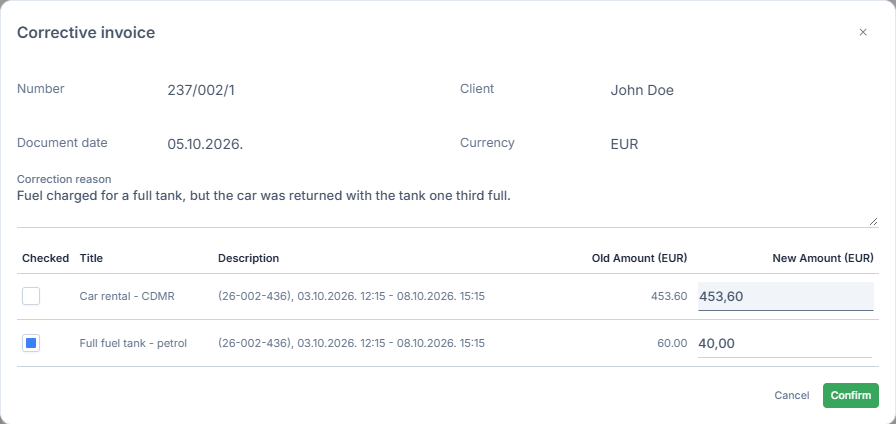
To correct only some lines of a document, for example a fuel charge that was too high, use the corrective invoice. It is available for Spanish and Polish accounts and needs the Corrective Invoices role:
- Open Sales → Bills → Search and find the original document. It must be an invoice, bill, advance payment invoice or accounting note that is neither cancelled nor fully approved.
- In the row's Actions menu, choose Corrective invoice.
- The dialog shows the original's Number, Client, Document date and Currency. Enter the Correction reason.
- Tick (Checked) each line you want to correct and enter its New Amount next to the Old Amount. For an advance payment invoice, the dialog also shows the amount still Remaining: an advance payment invoice can only be lowered, and by no more than that amount.
- Click Confirm. The button works only when the reason is filled in and at least one ticked line has a new amount that differs from the old one.
Renteon creates a new document of the type Corrective invoice that holds only the differences between the old and the new amounts. It is reported to AEAT as a correction by differences that refers to the original document, in the next run or when you press Fiscalize on it.
A corrective invoice cannot be cancelled afterwards, so check the amounts before you confirm. If the original document has been fully approved in the meantime, saving stops with the message "The finance document is not eligible for correction."
Follow up on reporting
Check every day that nothing is left waiting, because AEAT expects the records within four working days:
- In the bills list (Sales → Bills → Search), set the Fiscalization required filter to Yes to list every document that has not been reported yet. In the results, these documents carry a red flag next to their amount.
- On the document, a document that is still waiting has a Fiscalize button at the bottom of the screen. It sends the document to AEAT at once. If AEAT accepts it, you see a success message. If not, you see AEAT's error code and description, and the attempt counts towards the five.
- After a cancellation or Approval (Total), check in the list that the new documents carry the red flag until they are reported. If a cancellation or approval of a document that AEAT had already accepted shows no red flag and no Fiscalize button right after you create it, contact Renteon support.
- By e-mail, every time AEAT rejects a record, Renteon sends a message to the main e-mail address of your Renteon account. Renteon support maintains this address. The subject is "SII fiscalization of finance document with ID" followed by the document's ID and "failed". The message contains AEAT's error code and description, and the exact data that was sent and received, which your tax adviser or Renteon support may need.
Correct what the error points to, for example the client's tax number in the address book. The next run, or the Fiscalize button, sends the document again.
Some problems are found before anything is sent: incomplete settings, a certificate that cannot be opened (for example because of a wrong password), or a document without a client or without VAT lines. These do not count as attempts and send no e-mail. The document simply keeps waiting with its red flag. Press Fiscalize on it to see the reason. If AEAT cannot be reached at all, the attempt counts, but no e-mail is sent.
On a document that requires reporting, you may also see the fields Security code and Unique Id. They belong to other countries' fiscalization and stay empty for SII. The CSV code AEAT returns is not shown on screen. Renteon support can look it up if you need it.
Warning: After the fifth failed attempt, Renteon stops trying. If that last attempt was a rejection by AEAT, its e-mail's subject ends with "giving up after 5 attempts". The document then loses its red flag, so the Fiscalization required filter no longer finds it, and the Fiscalize button disappears. Failed connections count as attempts too, so an AEAT outage of a few hours can use up all five. Keep these e-mails, and once the cause is fixed, ask Renteon support to send the document again.
Once the certificate and the start document are set, SII reporting needs no daily work beyond a quick look at the Fiscalization required filter and at any rejection e-mails.
Related guides: