Fleet
Damages
Damages can be managed within web and mobile application. You can predefine damage types, car parts and damage prices (matrix cost).
Last updated
Damage types
Damage types are defined in the menu Damages → Damage types. Renteon includes a set of predefined damage types. Existing damage types can be renamed, and additional types can be added using Edit → Add. Different icons can be uploaded for each damage type. The icon is displayed on the damage scheme.
Car parts
Car parts can be defined in the menu Damages → Car parts. The predefined car parts can be renamed, and additional parts can be added using Edit → Add.
Prices / Matrix cost
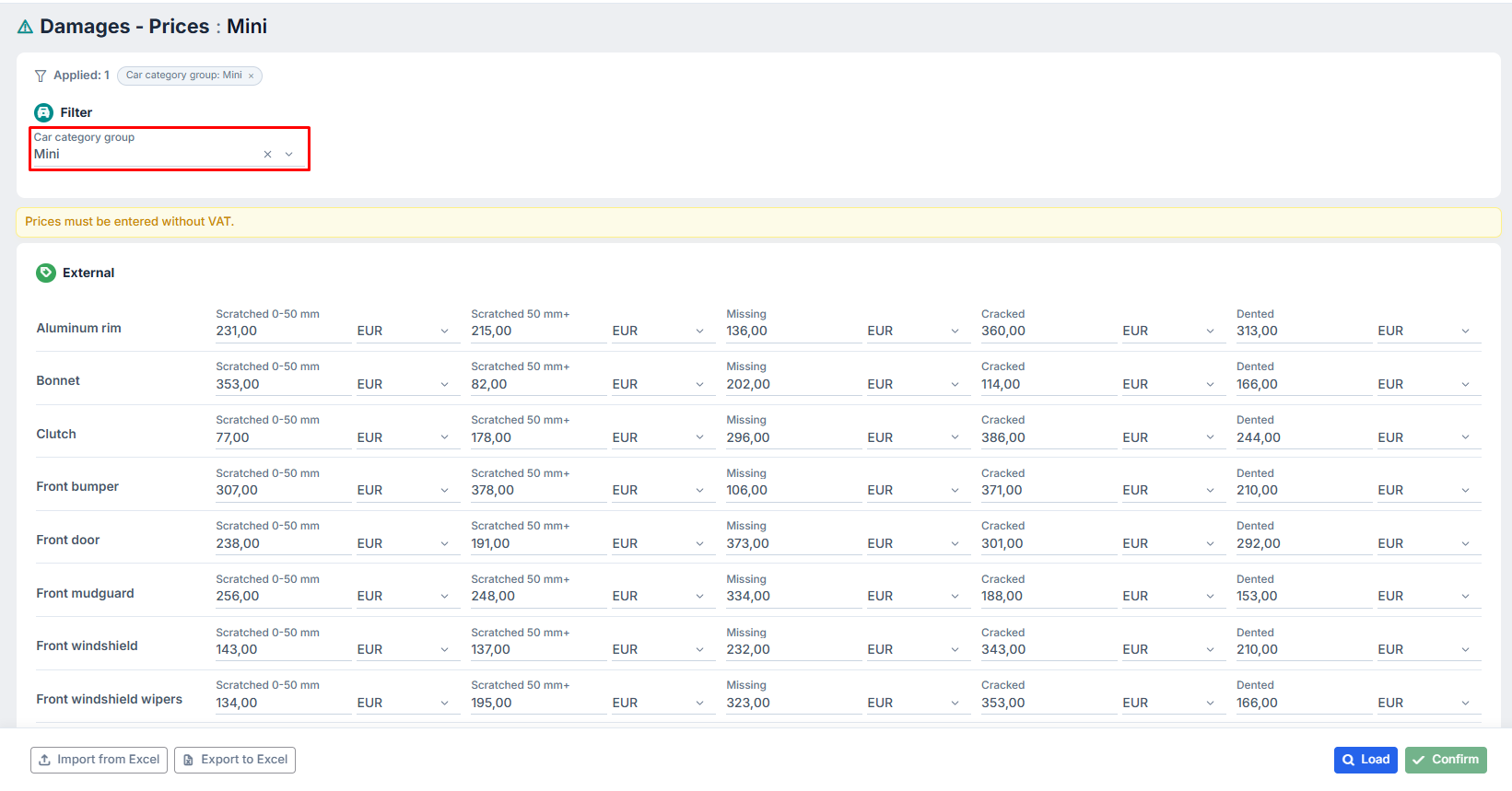
The damage matrix can be defined in the menu Damages -> Prices for each car category group for damages. If a damage matrix is uploaded, Renteon automatically sets the corresponding damage price when damage is added. The calculated amount can be manually overridden.
Car category groups for damages can be defined in the menu Fleet → Car category groups – Damages. Car categories with the same or similar damage prices can be assigned to the same car category group. After car category groups for damages have been created, each car category must be assigned to its corresponding car category group in Fleet → Car Categories.
Prices can be added manually or by using export/import from Excel action, after selecting the car category group for damages in the upper left corner:
Prices are defined based on the car part and the type of damage.
Prices in this table are defined without VAT.
Damage prices can also be imported from an Excel file. The prices template can be exported with the Export to Excel option. The exported file contains all combinations of car category groups for damages, car parts, and damage types. For each, the price and currency should be defined. All prices are defined without VAT! Once the Excel file is filled out, it can be uploaded using the Import from Excel option.
Adding damage
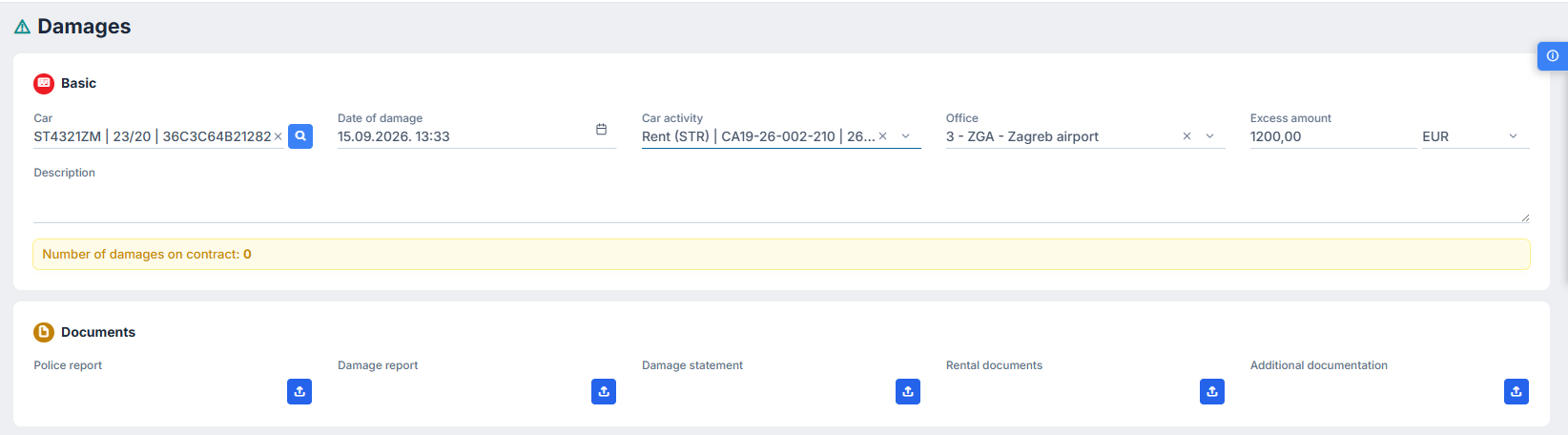
All damage records are available in the Damages menu. You can filter damages by registration plate number, chassis number, booking number, and damage date.
Create a new damage record using the "Add" option.
First, the basic information of the damage event is defined. The damaged vehicle is selected from the car list. Based on the selected car and damage date, Renteon identifies the car activity during which the damage occurred.
When damage is linked to a rental agreement, the excess amount is automatically added based on the excess amount defined in the agreement. Once the damage linked to a rental agreement is saved, it is also added to the contract (if it is a closed contract, it should be edited – Actions → Edit and saved first) and can be invoiced from the contract directly.
For each damage event, multiple reports and documentation can be uploaded.
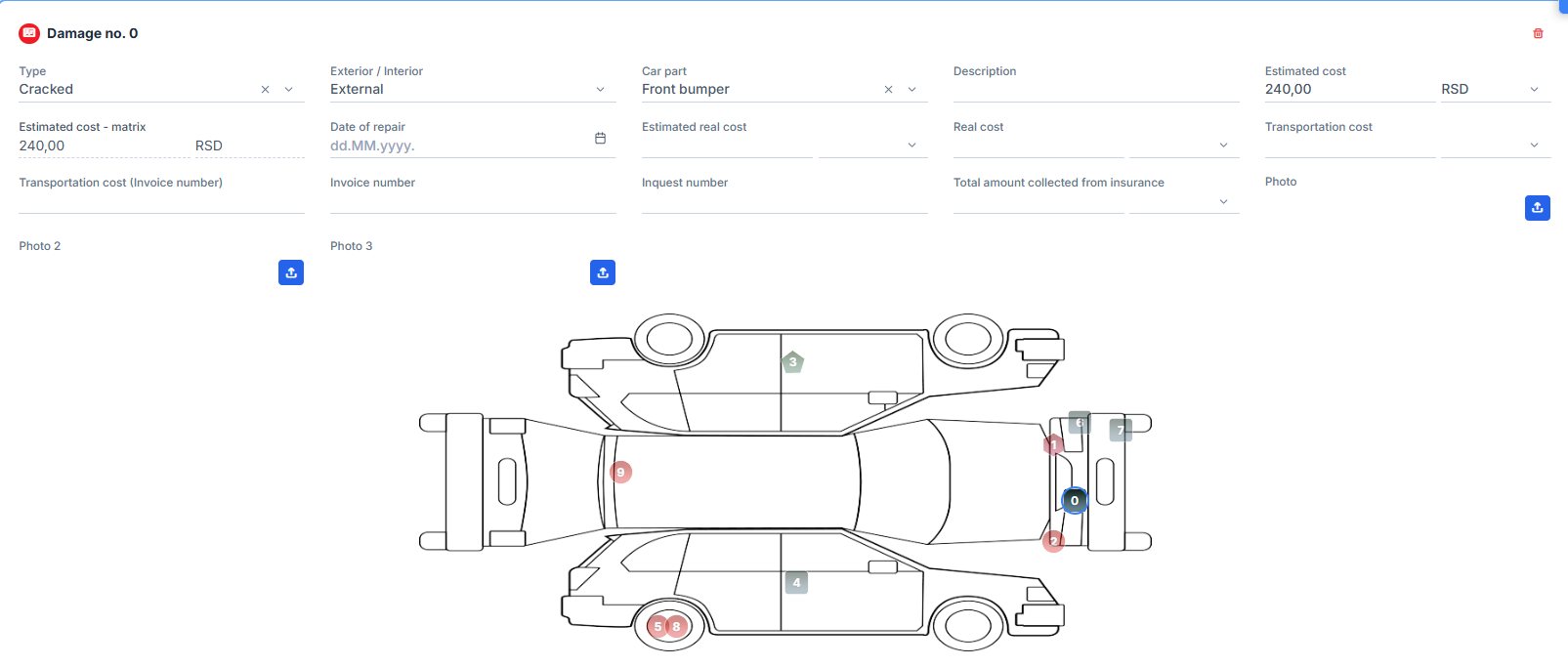
When the basic information is filled out, the damage definition is next. For each damage, the following parameters are mandatory:
- Type
- Car part
- Estimated cost: if the damage matrix is defined, the price will be added automatically, but can be overridden. If damage is linked to the contract, this amount will be added to the contract as well.
Additional fields are:
- Exterior/interior: damage scheme changes based on the selected
- Description
- Estimated cost – matrix: if the prices in the damage matrix are defined, this field shows the predefined price (it is not shown on the contract if the damage is linked to one)
- Photo: up to three photos can be uploaded for each damage
- Date of repair: entered once the damage is repaired. After saving it, the damage icon on the damage scheme is removed, but still visible within Renteon in the damage history (Active - No). It should not be added unless the damage is repaired, and it can be added to already defined damages
- Estimated real cost
- Real cost
- Transportation cost
- Transportation cost (Invoice number)
- Invoice number
- Inquest number
- Total amount collected from insurance
Once the mandatory fields are filled out, the damage should be marked on the damage scheme:
Each damage event can have multiple damages. The "Add" option can be used to add additional damages.
Damage schemes
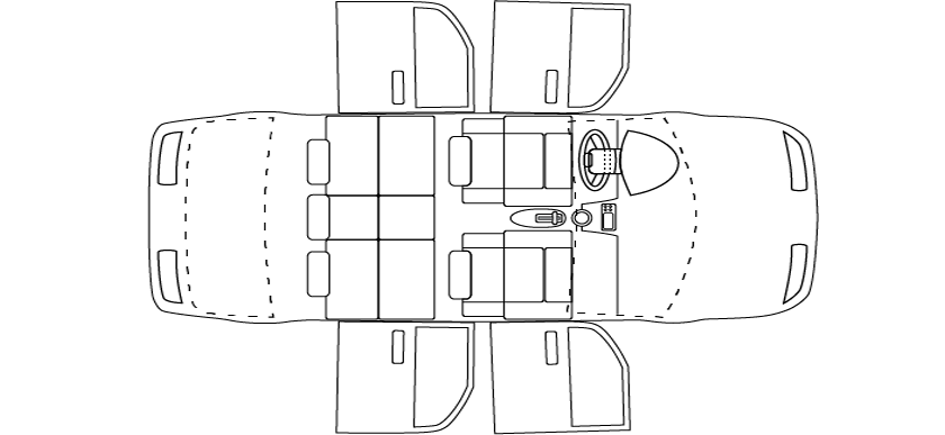
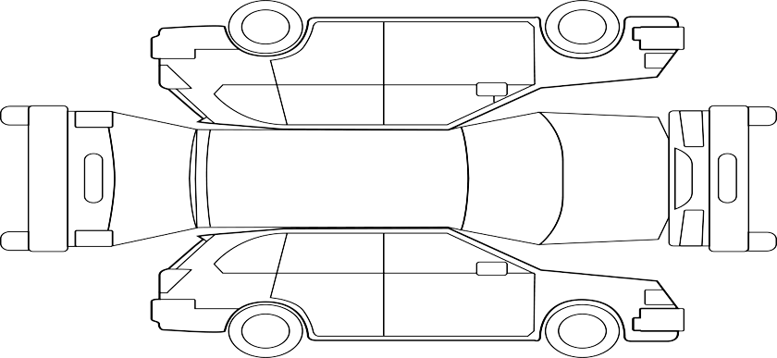
Renteon includes a default damage scheme:
Custom damage schemes and damage schemes based on the car type can be uploaded in Code Book → Settings -> tab Documents -> "Damage schemes by car type". The car type for the damage scheme can be selected for each car model (menu Fleet → Car models).