Integrations
CRG integration
Import CRG booking e-mails into Renteon: set up a CRG connector with its mailbox, map car categories, locations, extras and rates, and handle e-mails that cannot be imported.
Last updated
CRG sends you its bookings as e-mails: a message when a new booking arrives, when a booking is modified and when it is cancelled. With the CRG integration, Renteon reads these e-mails from a mailbox and creates, updates or cancels the matching bookings by itself.
You set up the integration as one or more connectors. Each connector reads one mailbox and books everything it imports for one partner. If you receive CRG e-mails for two partners on two mailboxes, you create two connectors.
The integration works in one direction, from CRG into Renteon. Nothing is sent back to CRG. How the mapping screen works in general is explained in Integration menu and mappings.
How the import works
About every 44 minutes Renteon logs in to each connector's mailbox and reads the messages in the inbox. Unlike some other e-mail integrations, CRG puts the booking in the text of the e-mail, not in an attachment, so Renteon reads the e-mail body. It stores each message, moves it to a folder (or deletes it) and imports it.
Renteon recognises the kind of message by its opening text:
- "NEW BOOKING RECEIVED": a new booking;
- "has been updated with new modifications": a modification of an existing booking;
- "is canceled" or "is cancelled": a cancellation;
- "ON REQUEST": a provisional booking that CRG still has to accept or refuse. These messages are not imported; Renteon creates the booking only when CRG sends it as a new booking. A message whose opening text contains "ON REQUEST" is always skipped, even when it also says "NEW BOOKING RECEIVED".
The CRG booking number in the opening text ("Booking Number") is the number Renteon uses to recognise the booking later.
Renteon remembers every message it has stored. If a message stays in the inbox because moving it failed, Renteon does not import it a second time.
What you need
- A mailbox that receives only the CRG booking e-mails, reachable over IMAP with SSL/TLS (usually port 993): host, port, username and password.
- The partner the CRG bookings are booked for, in Sales → Address book → Search.
- Car pricelists for the CRG rates, see "Rates and pricelists" below. See also Pricelists.
Warning: Use a mailbox dedicated to CRG. Renteon reads every message in the inbox that has a text, and moves or deletes it. A message that is not a CRG booking cannot be read: it appears once in the import e-mail as a fatal error ("Import booking identity value is undefined") and is not tried again.
Add a connector
- Go to Administration → Code book → Settings, tab Integration, and click Edit. You need the Application settings management role.
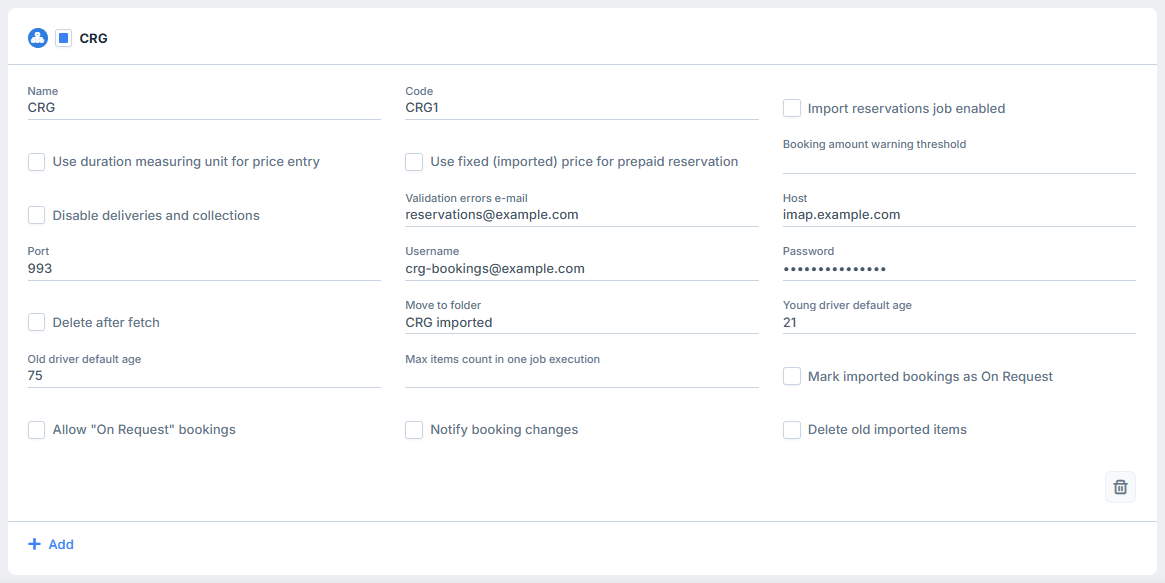
- Tick Enable Integrations Module if it is not ticked yet, then tick the checkbox in the header of the CRG panel.
- Click Add in the CRG panel and fill in the connector row (see the next section).
- Leave Import reservations job enabled unticked for now and click Confirm.
- Refresh the page. The connector appears under Administration → Integration with its name. Map the partner, car categories, offices, services and pricelists there.
- Back in the settings, tick Import reservations job enabled on the row and click Confirm.
Confirm stays disabled while a row misses a required field. Two CRG connectors cannot have the same name or code. To remove a connector, click the bin button on its row and Confirm; a connector that already has mappings or imported bookings is kept in the background as inactive and disappears from the menu.
Warning: Tick Import reservations job enabled only after the partner is mapped and the mailbox details are complete. A connector without a partner, or with a mailbox Renteon cannot log in to, fails at every run, and this can hold up the other CRG connectors in the same run.
Connector options
- Name and Code: the name shown in the menu, and a short unique code that appears in capitals in the subject of the connector's e-mails (for example "CRG1 reservations import log").
- Import reservations job enabled: the connector imports only while this is ticked.
- Use duration measuring unit for price entry, Disable price increase caused by calculation, Use fixed (imported) price for prepaid reservation, Booking amount warning threshold: how the CRG price is entered on the booking, see Integration menu and mappings.
- Disable deliveries and collections: has no effect for CRG. The CRG import does not take delivery or collection addresses from the e-mail.
- Validation errors e-mail: receives the import reports and the "import it manually" messages. Fill it in.
- Host, Port, Username, Password: the IMAP access to the mailbox.
- Delete after fetch: delete each message after storing it. When not ticked, Move to folder is required: the folder where handled messages are moved. Renteon creates the folder if it does not exist.
- Young driver default age and Old driver default age: when a booking contains an extra mapped to your young driver or senior driver service, Renteon records the main driver's age as this value, because the import does not read the driver's age from the e-mail.
- Max items count in one job execution: how many e-mails the connector reads in one run (at most 1000, which is also the value when the field is empty).
- Mark imported bookings as On Request: every booking the connector creates is saved as on request, see On request bookings. A modification puts the booking back on request, even when staff had already confirmed it.
- Allow "On Request" bookings: stored with the connector, but the import does not use it. CRG's "ON REQUEST" messages are always skipped.
- Notify booking changes: has no effect for CRG. Renteon does not send booking changes to CRG.
- Delete old imported items and Keep imported items (months): clean-up, see the last section.
Map partner, car categories, offices and services
Open Administration → Integration → (the connector's name) and click Edit. You type the CRG values yourself, exactly as they appear in the e-mails, including upper and lower case. Each tab saves with its own Save button.
- Partner: pick the partner every CRG booking of this connector is booked for. Without it, the connector imports nothing.
- Car categories: CRG's four-letter car category code from the "Car Category" line, for example "CDMR". The double-arrow button copies your SIPP code into the field.
- Offices: the pick-up and drop-off locations as they appear under "Pick Up Information" and "Drop Off Information".
- Services: the names of the fees and extras in the payment overview of the e-mail, for example "Additional Driver". Type the name without the quantity: for "Additional Driver x 2", map "Additional Driver". Every fee and extra must be mapped; a booking with an unmapped one is not imported ("Missing mapping for service code …"). Map additional drivers to your additional driver service; Renteon then adds the additional drivers as "ADDITIONAL DRIVER 1" and so on.
- Pricelists: see the next section.
Rates and pricelists
In the payment overview of a CRG e-mail, the first line is the rate (its name and its price). You map the rate name on the Pricelists tab, next to the car pricelist it stands for.
Renteon decides between prepaid and pay on arrival by comparing amounts:
- If the amount "Payable locally at the Rental Desk" equals the total of the booking (rate plus fees and extras), the customer pays everything on arrival. Renteon takes the pricelist mapped to the rate name that is not an agency pricelist, and the partner becomes the Commissioner.
- Otherwise the booking is prepaid. This includes an e-mail that shows no amount payable at the desk. Renteon takes the pricelist mapped to the rate name that is an agency pricelist (Agency pricelist ticked), and the partner becomes the Agency.
If CRG uses the same rate name for prepaid and pay-on-arrival bookings, map that rate name to two pricelists, one of each kind. If the right kind is missing, the booking stops with "Missing mapping for pricelist code … isnett …".
How CRG bookings look in Renteon
- Order reference number and Voucher number: the CRG booking number.
- The main driver as client, with e-mail and phone number, and the flight number.
- Pick-up and return date and time, the mapped offices and the mapped car category (as billing and issued category).
- The excess from the e-mail as excess and theft excess, and the security amount as deposit.
- The rental price from the rate line and the mapped fees and extras with CRG's prices. CRG prices include VAT; Renteon converts them to amounts without VAT for the booking.
- Integration remark: the e-mail subject and the booking number, and a note when Renteon's calculated total differs from CRG's total.
- When a fee or extra has a different price in CRG than in your pricelist, CRG's price is used and the import e-mail warns about it.
If CRG charges an out-of-hours fee and the booking gets more than one out-of-hours service in Renteon (for example at pick-up and at return), the fee is split evenly between them.
A modification updates the booking while it is still a reservation; a modification for a booking Renteon does not have is imported as a new booking, with a warning. A cancellation cancels the booking with the reason Other. Bookings that are already contracts are not changed by CRG; the attempt is reported as a fatal error and you handle it by hand.
If you enter a CRG booking by hand, put the CRG booking number in Order reference number and choose the CRG partner. A later modification or cancellation then finds your booking.
Errors and where to see them
- Import report ("CODE reservations import log"): sent to the Validation errors e-mail after each run with something to report, with fatal errors (not retried), errors and warnings.
- Retries: an e-mail that cannot be imported, for example because a code is not mapped, is tried again in the next runs, 20 times in all. After the last attempt Renteon sends "Renteon was unable to automatically import this reservation after 20 attempts…", with the original e-mail attached, so that you can enter the booking by hand. Fix mapping errors before the attempts run out.
- Fatal errors: a message from which Renteon cannot read a booking number, for example a message that is not a CRG booking, is reported once ("Import booking identity value is undefined") and not tried again. The same goes for a modification or cancellation of a booking that is already a contract or already cancelled.
- Integration bookings log: in Car control → Reports → Audit (role Reports - audit), filter by the connector under Integration. For CRG, Integration - Number holds Renteon's own number of the stored e-mail, not the CRG booking number. On a booking, Actions → Open booking source data shows what CRG sent.
Clean-up of old e-mails
With Delete old imported items ticked, stored e-mails and import log entries are cleaned up as described in Integration menu and mappings.
For CRG, Renteon does not delete the stored e-mail entirely. It removes the e-mail's content but keeps a small record of it, because that record is what stops a message that is still in the inbox from being imported again.