
Sales
Group offer
Prepare one offer for one client with several car models and pricelists, print it as a PDF, turn the accepted lines into reservations and record why an offer was declined.
Last updated
A group offer is one quote for one client that covers several cars at once. Typical cases: a company wants five compact cars and two vans for a trade fair, an event agency needs a fleet for a week, or a firm is comparing two long-term rental packages for its sales team. Instead of preparing a separate offer for every car, you list the pricelists and the car models you want to quote. Renteon prices every combination in one go, gives the whole quote one number and prints it as a designed PDF.
In Renteon this feature is called Collective offer. It works for short-term rentals, which are priced like ordinary bookings, and for long-term rentals, which are priced as a monthly instalment. When the client accepts, you turn each accepted line into reservations with one click. When the client declines, you record the reason.
A collective offer is not the same as a group invoice. A collective offer is a quote you make before any reservation exists. A group invoice puts several existing bookings on one invoice.
Check roles, settings and pricelists
Three roles control the feature. Assign them to the user or to the user's role group:
- Collective offer edit: shows the two menu entries Collective offer - New and Collective offer - Search, and lets the user calculate, save, cancel and reject offers and maintain the reasons for rejection.
- Create and modify bookings: needed to convert an offer line into reservations. A user without this role sees the convert button, but Renteon refuses the conversion.
- Free price entry for collective offers: lets the user type the monthly price of a service on a long-term offer.
Two settings in Administration → Code book → Settings affect collective offers:
- Tab Bookings, option Offer expiration (in days): how long a new offer is valid. A new offer gets today's date plus this number of days as its expiration date. If the option is empty, Renteon uses 7 days.
- Tab Finances, option Use yearly price calculation for collective offer: changes how long-term offers longer than one year are priced. The step "Calculate the offer" below explains the effect.
A collective offer can only quote car rental pricelists that are not marked Agency pricelist. A long-term offer offers only pricelists marked Long-term pricelist, a short-term offer only the others. On a new offer you see only active pricelists. For long-term pricelists, Renteon takes Max. monthly mileage, Allowed damages count per contract and the Mileage pricelist from the pricelist settings, and prints the pricelist's Description on the offer as its rental conditions. See Pricelists for how to set these up.
Set up reasons for rejection
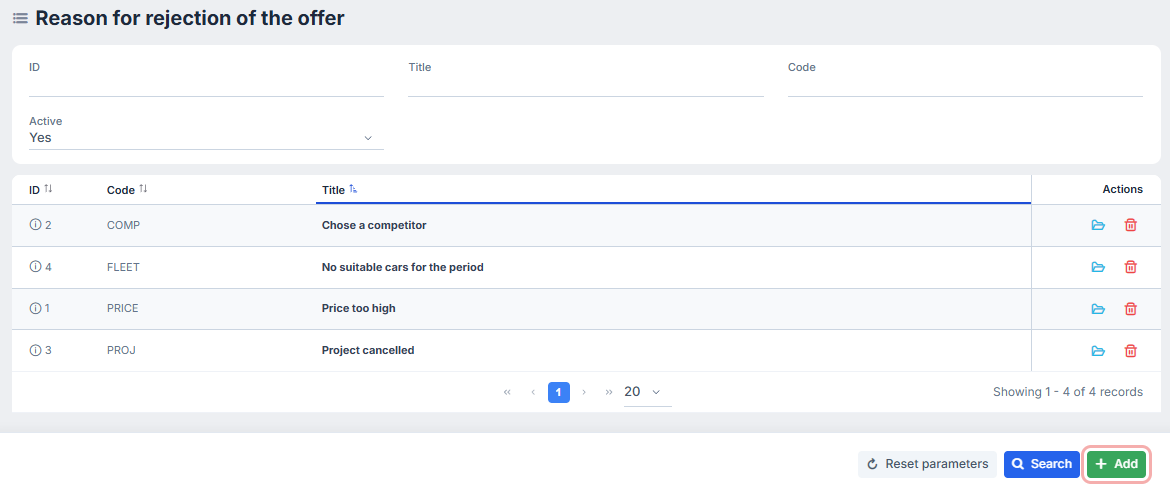
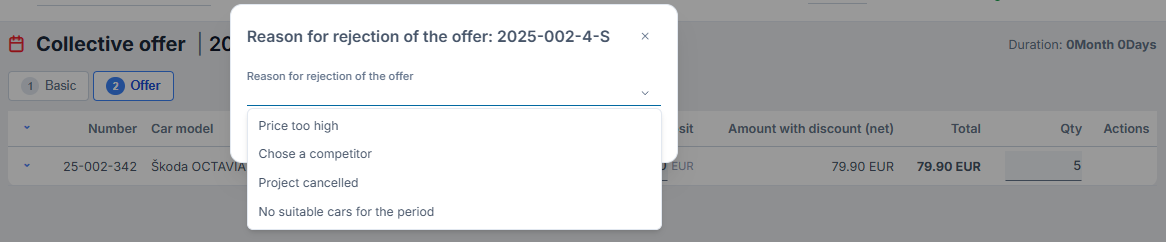
When a client turns an offer down, you record why. The reasons come from your own list. Open Administration → Code book → Reason for rejection of the offer. Typical reasons are "Price too high", "Chose a competitor" or "Project cancelled".
To add a reason:
- Click Add.
- Enter a short Code and the Name. The name can be translated into every language your company uses. Users see the name in their own language.
- Click Confirm.
To retire a reason, click its delete icon. If offers already use the reason, Renteon cannot remove it and makes it inactive instead. The list then hides it, because its Active filter starts at Yes. To use an inactive reason again, set Active to No and click the activate icon of the reason. Offers that were already rejected with a retired reason keep showing it.
Tip: A retired reason still appears in the rejection window, marked "(Inactive)". Keep the list short so nobody picks an old reason by mistake.
Design the offer document
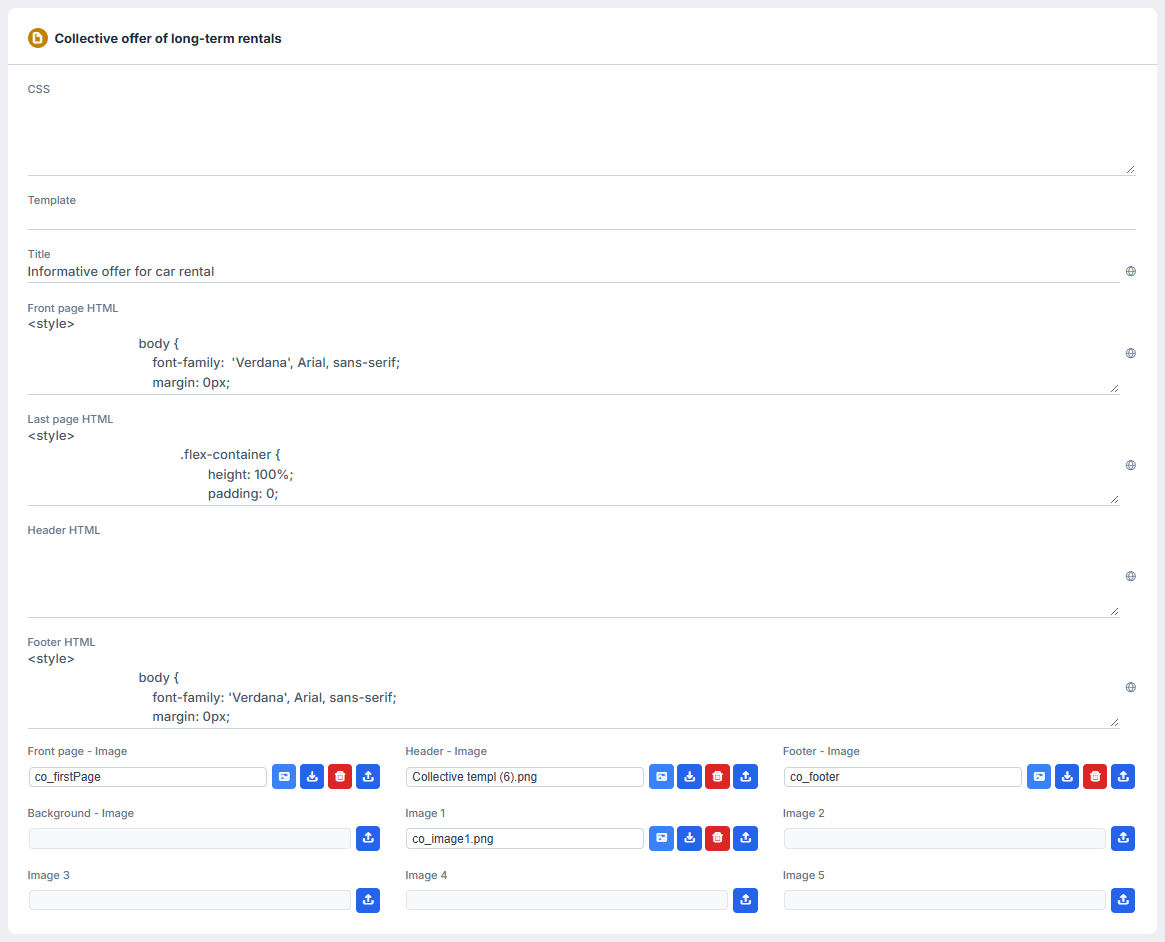
The PDF your client receives is built from texts and images that an administrator sets up once. Open Administration → Code book → Documents (role Application settings management) and click Edit. Two sections of this screen are for collective offers: Collective offer of long-term rentals and Collective offer of short term rents. Each offer type uses its own section, so you can give long-term and short-term offers a different look. Click Confirm when you are done.
Each section has the same fields:
- CSS: style rules for the front page, header and footer HTML below. The CSS of the long-term section also styles the offer pages of both offer types.
- Template: leave it empty to use the standard layout. Renteon support may give you the name of a special layout made for your company.
- Title: the heading at the top of the offer. It can be translated.
- Front page HTML, Last page HTML, Header HTML and Footer HTML: translatable texts. The front page text sits on the first page, the last page text closes the offer, and the header and footer texts appear at the top and bottom of every page of the offer itself.
- Front page - Image: covers the whole first page, under the front page text. Renteon stretches it to the full page (US Letter, 8.5 × 11 inches), so use a portrait image with these proportions.
- Header - Image and Footer - Image: a strip across the full width at the top (about 2 cm high) and at the bottom (about 2.7 cm high) of every page of the offer itself.
- Background - Image: printed across the full width of the second page, the first page after the front page.
- Image 1 to Image 5: extra pictures you can place in the last page text.
In the Last page HTML you can use these placeholders. Renteon replaces them when it prints:
- \_\_User\_\_, \_\_UserPhone\_\_ and \_\_UserEmail\_\_: the name, phone and e-mail of the user who created the offer.
- \_\_CollectiveOfferImage1\_\_ to \_\_CollectiveOfferImage5\_\_: the address of Image 1 to Image 5, for use in an image tag.
The placeholders do not work in the front page, header and footer texts. There they are printed as they are.
After the front page, the offer itself shows the title, the client's name, address, phones and e-mail, and the offer Date, Number and Valid until. A long-term offer also shows the client's VAT ID and Issued by (the user who created the offer). A standard sentence follows, saying that the offer was prepared without obligation, according to the client's needs. Then comes one block per pricelist: the price table, the offer's Remark and the pricelist's rental conditions.
- On a long-term offer, each row of the price table shows the car model, the quantity, the max. monthly mileage, the rental period, the excess amount, the monthly rental price per vehicle without VAT, and the additional kilometer price.
- On a short-term offer, each row shows the car model, the quantity, the rental period, the excess amount and the prices with the VAT amount, followed by the extra services of that line.
After that, each quoted car model gets a block with its picture, year, engine displacement and power, number of doors, fuel type and equipment, as entered on the car model. The last page text closes the document.
If you work with franchises, every franchise can have its own design. Open Administration → Code book → Franchises (role Franchise management), open the franchise and fill in the same two sections there. An offer assigned to that franchise uses the franchise's texts and images. Anything you leave empty on the franchise is taken from Documents.
Start a new collective offer
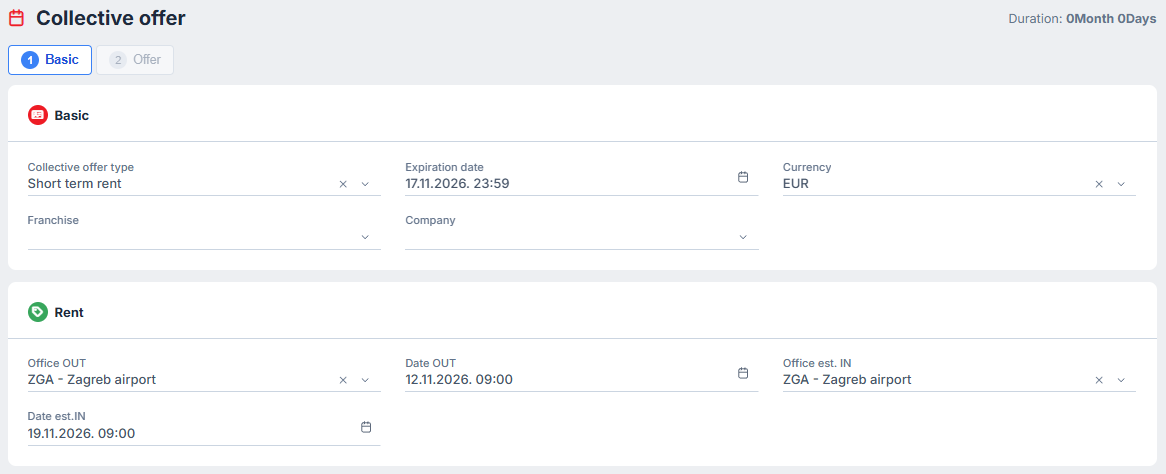
Open Sales → Bookings → Collective offer - New. The screen has two steps at the top: Basic, where you describe what you are offering, and Offer, where you see the calculated result.
A new offer already has some values filled in:
- Office OUT and Office est. IN: the office you are signed in to.
- Date OUT: two days from now. Date est.IN: 60 days from now.
- Currency: your company's domestic currency.
- Expiration date: today plus the Offer expiration setting.
- One empty pricelist row and one empty car model row.
Change whatever does not fit. The Next button stays disabled until every mandatory field is filled in. A mandatory field that is still empty is marked in red.
Tip: Choose the Collective offer type first. Until you do, the screen shows the long-term fields, and the pricelist choice depends on the type. Pricelists you already picked stay in their rows when you change the type, so pick them again after a change.
Fill in the Basic and Rent sections
In the Basic section:
- Collective offer type: Short term rent or Long term rent. The type decides which pricelists you can quote, whether the long-term fields are shown, how prices are calculated, which number range the offer gets and which PDF design is used.
- Expiration date: the last day the offer is valid. It is printed on the offer as Valid until. Example: if today is 10 November and Offer expiration is 7 days, the offer is valid until 17 November, end of day. The step "When an offer expires" explains what happens afterwards.
- Currency: all prices on the offer are calculated in this currency. Prices from pricelists in another currency are converted into it.
- Franchise and Company: shown only if franchises or companies are set up for your account. Both are copied to every line of the offer. The franchise also decides which franchise design the PDF uses.
In the Rent section:
- Office OUT and Date OUT: where and when the cars are picked up.
- Office est. IN and Date est.IN: where and when they are expected back.
- For long-term offers only, Meet and greet locations OUT and Meet and greet location IN: a meet and greet location of the selected office. If you change the office, a location that the new office does not have is cleared.
Every line of the offer uses the same period and the same offices. If the client needs two different periods, for example vans for one week and cars for two weeks, make two collective offers.
Add pricelists and car models
In the Pricelists section, pick a pricelist in the first row. Click Add for each further pricelist and use the delete icon to remove a row. In the Car models section, do the same with car models. Only active car models are offered.
Renteon makes one offer line for every combination of a pricelist and a car model. Example: with the pricelists "Corporate" and "Corporate Plus" and the car models VW Polo, Škoda Octavia and Ford Transit, the offer has six lines, so the client can compare both packages for every car. Renteon prices the car category each model belongs to. The model itself is what the client sees on the offer, and it is saved as the preferred car model on the reservations later.
You cannot pick the same pricelist or the same car model twice. If you do, the calculation stops and the message names the duplicate.
Tip: On the Offer step you cannot remove a single line. Add only the pricelists and models you really want to quote, because each extra row multiplies the number of lines.
Choose the client
In the Client section:
- Client (mandatory): search the address book by name, VAT ID or town. The info icon next to the field shows the client's history, such as the number of contracts and no-shows. If the client is on the black list, Renteon shows "On black list" under the field and asks whether you want to continue. If you decline, the client is removed from the offer. If the setting Disable the creation of reservations / contracts for blacklisted people is switched on (Administration → Code book → Settings, tab Bookings), you can still calculate the offer, but Renteon refuses to save it with the message "The client is blacklisted."
- Invoice holder (if it is different from the client): long-term offers only. Use it when somebody else pays, for example the parent company.
- Order reference number: the client's purchase order or reference. It becomes mandatory when the client's address book record has Required order reference number ticked.
- VAT free client and Article: shown when a client is selected and your company itself is not VAT free. If the client is not a VAT payer, Renteon ticks VAT free client automatically, fills in the client's exemption article and locks the checkbox. If the client is a VAT payer, you can tick the box yourself to exempt this offer from VAT. Article, the legal basis for the exemption, then becomes mandatory.
Set long-term terms and remarks
For long-term offers, the Calculation type section sets how the monthly instalments are counted. The same choice is copied to the reservations later. See Long-term rentals for how the instalments work.
- Calculation type (mandatory): Monthly, 30 days, Monthly (30 days) or 28 days. It decides what counts as one month when Renteon turns the price of the whole period into a monthly amount.
- Installment payment period until last day of month: shown only for 30 days. For Monthly and Monthly (30 days), Renteon switches it on automatically when you save.
- Payment at the beginning of the accounting period: tick it if each instalment is due at the start of its period.
In the Remark section, for every offer type:
- Remark: printed on the offer for the client, below the price table. It is not copied to the reservations.
- Internal remark: for your colleagues only. It is not printed, but you can search for it in the offer list.
Calculate the offer
Click Next. Renteon builds the offer lines and prices each one. Nothing is saved yet.
For a short-term offer, each line is priced the same way as an ordinary booking with the same dates, offices, client, currency and pricelist.
For a long-term offer, each line is priced as a monthly instalment:
- Max. monthly mileage and Allowed damages count per contract are taken from the pricelist. Additional kilometer price is taken from the pricelist's Mileage pricelist, using the price valid at the pickup date for this rental length, and converted into the offer currency. If no such price exists, it stays 0.
- For every service that is charged monthly, Renteon adds up the pricelist's daily prices over the whole period. It uses the price rows for this rental length and only prices that are not tied to a specific office, and converts the result at today's exchange rate.
- It divides that total by the number of months. Days left over count as a fraction of a month: 30 or 28 days, or the real length of the month for Monthly. The result is rounded to whole currency units. Example: if the car costs 9,125.00 for a twelve-month rental, the monthly price is 9,125 ÷ 12 = 760.42, which is rounded to 760.
- Services that are free of charge, or included in the price without a quantity limit, get a monthly price of 0.
- The Installment amount is the sum of the monthly prices of all ticked services, with VAT.
If the pricelist has no prices up to the return date, the calculation stops with a message that prices are missing for the selected period and names the service and the pricelist. This happens, for example, when the prices end on 31 December and the offer runs until next June. Extend the prices in the pricelist, or shorten the period.
The option Use yearly price calculation for collective offer changes step 2 for long-term offers that are longer than one year. Without the option, Renteon needs prices up to the return date, uses the prices for the full rental length and spreads the total over all months. With the option, Renteon prices only the first twelve months, using the prices for a one-year rental, and the monthly amount it gets is used for every month of the rental. Example: for a 36-month offer, the pricelist then only needs prices for the first year, and the client gets the same monthly price as for a one-year rental.
Tip: If you go back to Basic and click Next again, Renteon calculates all lines from scratch. Changes you made on the Offer step, such as excess amounts or extra services, are lost.
Review and adjust the offer lines
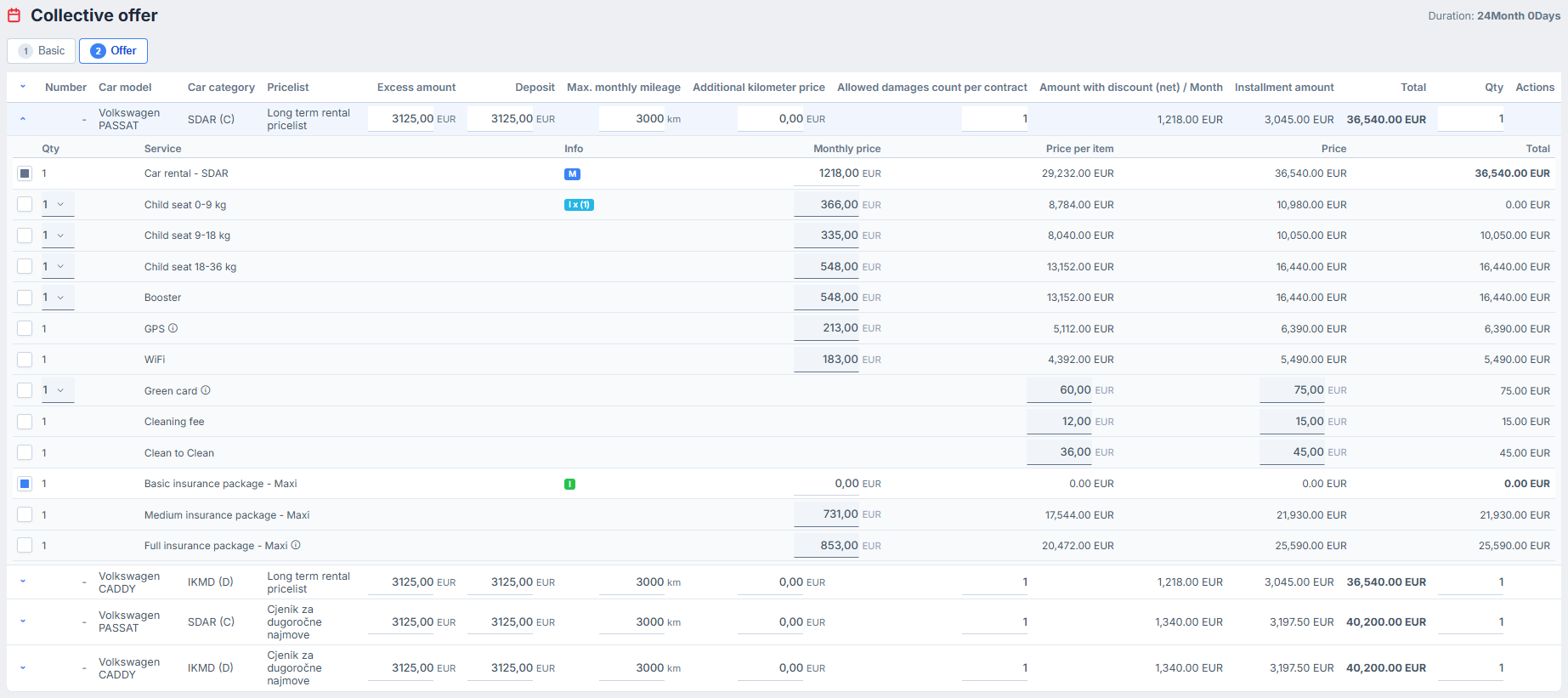
The Offer step shows one row per line with these columns:
- Number: empty until you save.
- Car model, Car category and Pricelist of the line.
- Excess amount and Deposit: calculated from the pricelist. You can overwrite them, and Renteon keeps your value.
- Long-term offers only: Max. monthly mileage, Additional kilometer price and Allowed damages count per contract (all three mandatory, and you can change them), Amount with discount (net) / Month (the monthly price without VAT) and Installment amount (the monthly price with VAT).
- Total: the price of all ticked services for one car over the whole period.
- Qty: how many cars of this line the client wants. It is printed on the offer and is used when you convert the line later. It must be at least 1.
Click the arrow at the start of a row to see the services of that line. The arrow in the header opens or closes all rows at once.
On a short-term line you get the same services panel as on an ordinary booking. You can tick extra services such as an additional driver or a child seat, and change prices and discounts if your booking roles allow it.
On a long-term line, each service row shows:
- A checkbox to include or exclude the service. The rental itself cannot be removed.
- The quantity, if the service allows more than one.
- Badges: M for mandatory, F for free of charge, I for included in the price, and "I x (n)" for included up to n units.
- Monthly price: users with Free price entry for collective offers can type a different monthly amount. When you leave the field, Renteon recalculates the total for the period and the instalment.
- Price per item and Price: for services charged once, not monthly, you can type the price directly.
For long-term offers, the screen header also shows the Duration of the rental in months and days, as used for the instalments. On short-term offers it always shows 0, so ignore it there.
Save the offer
When every line is complete, click Save on the Offer step. Renteon:
- gives the offer a number. Short-term and long-term offers have separate number ranges.
- saves every line as an ordinary offer with its own booking number, carrying the collective offer number. In Sales → Bookings → Search you find them with the Collective offer filter.
- makes the collective offer read-only.
After saving, the footer gets an Actions menu with Print, Cancel, Add similar and Set rejection status.
Tip: Check the lines before you click Save. A saved collective offer cannot be edited. To change it later, you make a copy (see "Change an offer that is already saved").
Print the offer and send it to the client
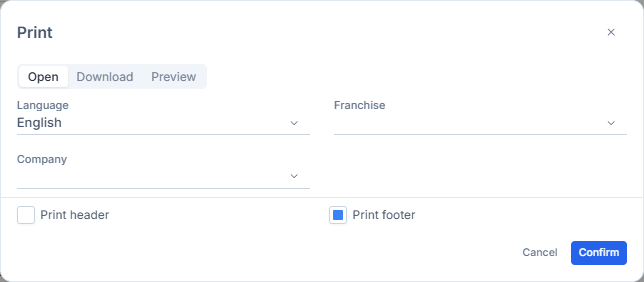
On the saved offer, open Actions and choose Print. In the print window:
- Choose what should happen with the PDF: Open opens it in a separate browser tab, Download saves it to your computer, Preview shows it inside Renteon.
- Choose the Language. The texts of the design, the pricelist titles and rental conditions, and all labels are printed in this language. Pick the client's language, not your own.
- Click Confirm.
The design always follows the offer type and the offer's own franchise. The Franchise, Company, Print header and Print footer options in the print window do not change a collective offer.
The PDF always shows every line as it was saved, with the quantities saved on the offer. Lines that have since expired, been cancelled or been converted into reservations are still printed.
Renteon does not e-mail collective offers itself. Download the PDF and attach it to your e-mail to the client.
To print several offers in one go, tick them in the offer list and choose Actions → Print selected in the footer. Renteon merges them into one PDF.
The client accepts: convert lines into reservations
Open the offer from the offer list. It opens on the Offer step. For every line the client accepted:
- Set Qty to the number of cars the client confirmed. You can change it on a saved offer too. The new value is used only for this conversion and is not saved on the offer.
- Click Convert offer to reservations on that line.
- Confirm the question Are you sure?.
Renteon then creates as many reservations as Qty says and shows Offer successfully converted. Each reservation takes over the line: client, period, offices, pricelist, services, excess, deposit and, for long-term offers, the monthly terms. The first reservation keeps the line's number. The others get new reservation numbers. Every reservation shows the collective offer number in its summary. To list them all, open Sales → Bookings → Search and enter the offer number in the Collective offer filter. From here on, you handle them like any other reservation. If you later bill them together with a group invoice, each invoice line names the collective offer number in its remark.
After the conversion, the button disappears from that line, because a line can be converted only once. Lines the client did not accept can stay as they are. They expire on their own (see "When an offer expires").
Until a line is converted, it does not take any car out of availability, because offers reserve nothing. The reservations created by the conversion count against their car category from then on. The conversion itself does not check availability, so it also goes through when the category has no free car for the period. Check the category on the fleet chart or with a new availability search before you convert large quantities. See How availability is calculated.
Tip: Converting needs the role Create and modify bookings. If the client later wants more cars of the same line, the line cannot be converted again. Create the extra reservations as ordinary bookings.
The client declines: record the reason or cancel
To record why the client said no, open Actions on the offer (or the row menu in the offer list) and choose Set rejection status. Pick a Reason for rejection of the offer and click Confirm. Renteon:
- shows the reason in red in the offer header and in the offer list.
- records the same reason on every booking that belongs to the offer, including reservations that were already made from it.
- removes Set rejection status from the menu, because an offer gets one reason only.
Recording a reason does not cancel anything. The offer lines stay as they are until they expire. To close the offer right away, choose Actions → Cancel as well:
- Choose a Cancellation status and enter a Description. Both are mandatory.
- Click Confirm.
Renteon cancels the collective offer and every line that is still an open offer, with the status and description you entered. The offer then shows Inactive, and the description appears when you hover over the info icon next to it.
You cannot cancel a collective offer while a reservation or contract made from it is not cancelled. A closed contract counts too. In that case Renteon shows a message with their numbers. Leave the offer as it is, or cancel those bookings first if the client withdrew completely.
Tip: Rejection reasons are useful for later analysis of why offers were lost. Record the reason even when you also cancel the offer.
When an offer expires
You do not need to clean up expired offers. A background task runs every 30 minutes and cancels offer lines that have run out, with the cancellation status Document expired. A line runs out when either of these happens first:
- Two days have passed since the line expired. A line expires at the end of the offer's Expiration date, or at the pickup time if that comes earlier.
- The pickup date has passed by more hours than the setting Bookings (reservations) expiration in hours (Administration → Code book → Settings, tab Bookings), or the value set on the offer's franchise.
Example: the offer is valid until 17 November and the pickup is on 1 December. The lines are cancelled at the first run after 19 November ends. Lines that someone changed within the last two hours are skipped until a later run.
An expired line shows Inactive on the Offer step and can no longer be converted. The convert button may still be shown on it, but Renteon refuses the conversion. The collective offer itself is not marked as cancelled, so it still appears when you search for offers that are not cancelled. Reservations already made from the offer are not affected.
Change an offer that is already saved
A saved collective offer cannot be edited. If the client asks for a change, for example another car model or a later date, make a new version:
- Open the offer and choose Actions → Add similar, or choose Add similar in the row menu of the offer list.
- Renteon opens a new offer with all the data of the original: type, client, offices, dates, pricelists, car models and remarks. The new offer has no number and no lines yet. Its Expiration date starts again from today plus Offer expiration.
- Make your changes, click Next to calculate the lines with current prices, adjust them and click Save. The copy gets its own number.
- Cancel the old offer if it should no longer be valid.
Each line of a collective offer is also visible in the booking search as an ordinary offer. Do not change a line there. Renteon saves the change as a new version of that booking, while the collective offer, its PDF and its convert button keep pointing to the original version. As a result, that line can no longer be converted from the collective offer.
Tip: Add similar copies the original pickup and return dates. If they are already in the past, change them before you click Next.
Find and manage offers
Open Sales → Bookings → Collective offer - Search, set the filters and click Search. You see only offers of the franchises, companies and offices your user may access. The filters:
- Number (the exact offer number), ID and Cancelled. Cancelled starts at No, so cancelled offers are hidden until you change it.
- Car model, Collective offer type, Pricelist and Pricelist groups. Choosing a type limits the Pricelist choice to long-term or short-term pricelists.
- Order reference number, Remark and Internal remark: find offers that contain the text. In Remark and Internal remark, put the text in quotation marks to find only an exact match.
- Date created, Date OUT and Date est.IN, each with a Date to.
- Franchise, and Company if your company has several.
- User and User open: the user who created the offer.
- Client, Invoice holder, Office OUT, Office est. IN, Meet and greet locations OUT and Meet and greet location IN.
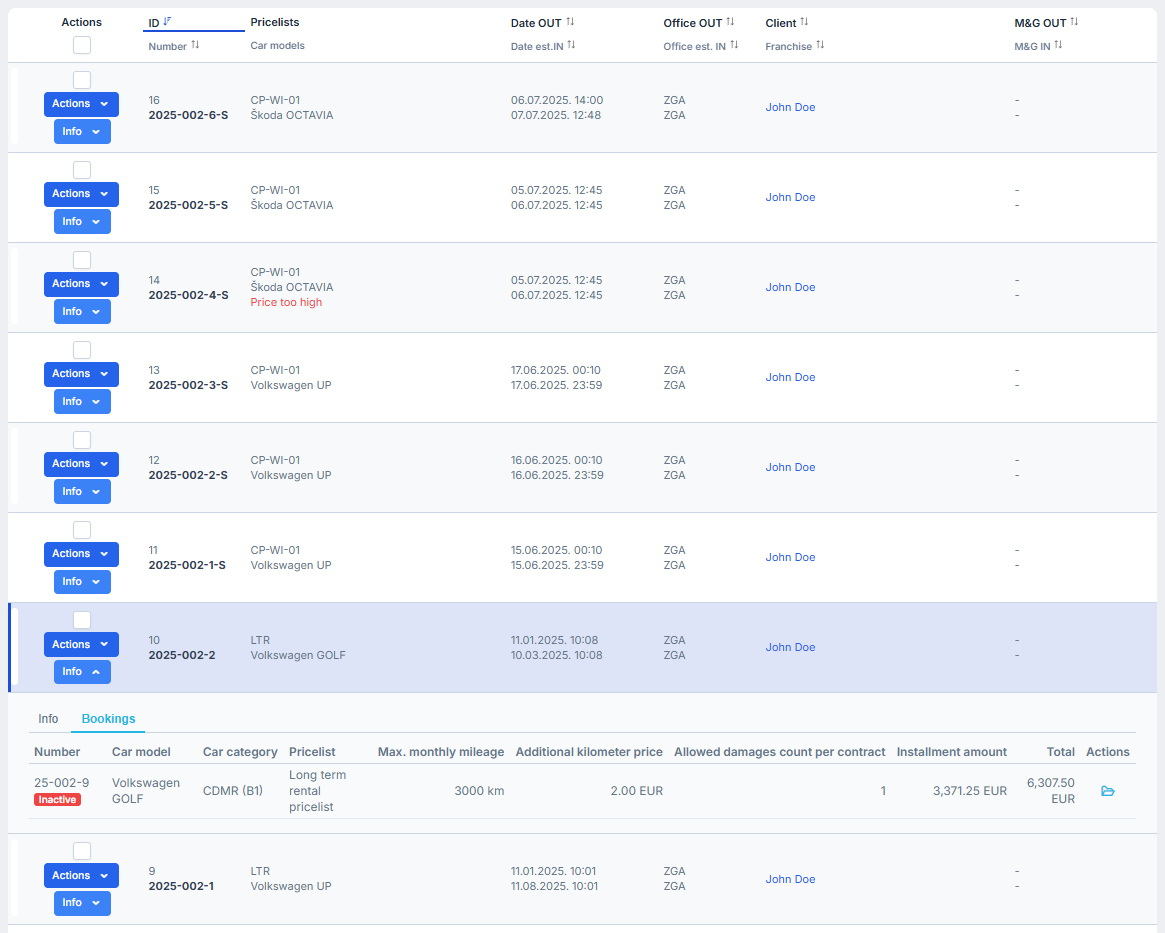
Each row shows the ID and number, the pricelists and car models (with the rejection reason in red, if there is one), the dates, the offices, the client and franchise, and the meet and greet locations. Cancelled offers are greyed out. Click the client's name to see the client's card. Double-click a row to open the offer.
The buttons on each row:
- Info opens two tabs. Info shows who created the offer and when. Bookings lists the offer's lines with their numbers, car model, category, pricelist, long-term terms, instalment and total. The open icon opens a line in a new browser tab.
- Actions has Print, Preview (opens the offer), Add similar, Cancel (only for offers that are not cancelled) and Set rejection status (only if no reason is recorded yet).
In the footer, Actions has Print selected, which merges the ticked offers into one PDF, and Export, which downloads the search result as an Excel file. Reset parameters clears all filters and searches again.
A collective offer saves you from building the same quote car by car. You describe the period, the client, the pricelists and the models once, Renteon prices every combination, and each accepted line turns into ordinary reservations with one click.
Related guides: