Payments
RedSys payments
Let customers pay a booking online by card through RedSys, the Spanish card gateway, and have Renteon create the invoice for the payment automatically.
Last updated
RedSys is the card payment gateway behind the virtual POS of most Spanish banks. In Renteon it has one job: online card payments. You send the customer the online payment link of a booking, the customer checks the billing data and pays on the RedSys page, and Renteon creates the invoice with the card payment by itself. Nobody has to type the payment in.
The RedSys settings are only shown when your company's domestic country is Spain.
This article explains what RedSys can do in Renteon, how to connect it, how the customer pays, what Renteon records and what to do when something goes wrong.
What RedSys does and does not do in Renteon
RedSys in Renteon supports:
- Online payment of a reservation or contract through the Online payment link of the booking.
- The payment link for 20% of the amount still to be paid, which you can put into e-mail templates.
- Automatic creation of the invoice, with the card payment on it, as soon as RedSys reports a successful payment.
RedSys in Renteon does not support:
- Card pre-authorization (blocking a deposit on the card). Every RedSys transaction is a charge.
- POS terminals. RedSys is not offered as an integration on the POS list, so terminal payments are entered by hand as an ordinary card payment.
- Charging a card the customer used earlier.
- Refunds. Renteon never sends money back through RedSys.
Warning: Do not send the Deposit Payment Link to customers of a company that uses RedSys, and do not put the deposit link keyword into e-mail templates. The payment page would show the deposit amount and RedSys would take it as an ordinary payment. The customer is charged and gets an invoice for part of the rental instead of a blocked deposit, or, when the deposit is more than what is still to be paid, the money is taken and no document is created at all.
What you need from RedSys
Your bank or RedSys gives you the data of your virtual POS:
- the merchant code (the number that identifies your shop at RedSys),
- the terminal number,
- the secret signing key of the live (real) environment,
- the secret signing key of the test environment.
You also need the online check-in site, because the payment page the customer opens is part of it. If your payment links do not open, ask Renteon support to check the address of your online check-in site.
Switch RedSys on
You need the role Application settings management to change the settings.
- Go to Administration → Code book → Settings and click Edit.
- Open the tab Payment module.
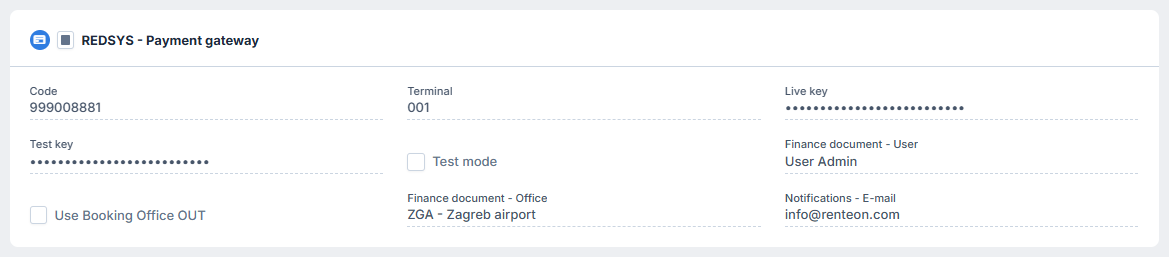
- Tick the box in the header of the panel REDSYS - Payment gateway. The fields of the panel appear.
- Fill in the fields described below.
- Click Confirm.
The fields:
- Code: your RedSys merchant code.
- Terminal: your RedSys terminal number.
- Live key: the secret key of the live environment. Renteon uses it to sign every payment request and to check that a payment result really comes from RedSys.
- Test key: the secret key of the test environment. The form asks for both keys, even if you only use one of them.
- Test mode: when ticked, Renteon sends payments to the RedSys test environment and signs them with the Test key. Use it with RedSys test cards before you go live, then untick it. While it is ticked, no real money is taken.
- Finance document - User: Renteon creates the invoices for online payments in the name of this user, and the payments go into this user's cashbook. The user must be allowed to keep a cashbook in at least one active office that does not have Disable billing ticked (Administration → Code book → Users, panel Cashbook). Without such an office, the payment page cannot open (see the last section).
- Use Booking Office OUT: when ticked, the invoice is issued in the pick-up office of the booking.
- Finance document - Office: when Use Booking Office OUT is not ticked, every invoice for an online payment is issued in this office. The field is required in that case and greyed out when the box is ticked. Unlike the other gateways, the list offers all offices, not only those where the chosen user keeps a cashbook.
- Notifications - E-mail: the address that receives a message when Renteon could not record an online payment. You can enter several addresses separated by a comma or a semicolon.
Example: you rent from two stations, Madrid Airport and Málaga. With Use Booking Office OUT ticked, a customer who picks up in Málaga and pays online gets an invoice from the Málaga office. With the box unticked and Finance document - Office set to Madrid Airport, all online payments are invoiced by Madrid Airport. If an office has an Invoicing office set (Administration → Locations → Offices), the invoice is issued in that invoicing office instead.
Companies with their own RedSys account
If your Renteon account has several companies, each company can have its own RedSys merchant. Open Administration → Code book → Companies (shown only in accounts with several companies, and only to users with the role Company editing), open the company, and fill in its panel REDSYS - Payment gateway with the same data as above. On the company screen some labels are shorter: Merchant code, User, Office OUT, Office and Notifications.
A booking always uses the RedSys settings of the company it belongs to. The panel in Settings is used only for bookings that belong to no company, so in an account with several companies switch RedSys on in every company that takes online payments.
Renteon uses only one gateway for payment links per company. If more than one gateway is switched on for the same company, the payment page uses RedSys first, then Monri, Windcave, Adyen and Stripe, in that order. Keep only the gateway you really use for payment links switched on.
Send the payment link to the customer
The payment link is ready as soon as RedSys is switched on. It exists for reservations and contracts, not for offers.
- On the booking screen, open the Links menu (users with the role Create and modify bookings). Online payment link opens the payment page; the copy icon next to it copies the link, so you can paste it into an e-mail, a chat or a text message.
- In e-mail templates you can use the keywords OnlinePaymentLink (the whole amount still to be paid) and OnlinePaymentLinkPercentage20 (20% of it). In the template editor they appear between underscores. The traffic fine template can use OnlinePaymentLink too. See Automatic email sending.
- A website or another system connected through Renteon's External API receives the same links with each reservation and contract, and can send the customer to them.
The link always shows the current amount: everything still to be paid on the booking, in the booking's currency. If the customer opens it after you have added an extra service, the new total is on the page. A booking that is already fully paid cannot be paid again.
How the customer pays
- The customer opens the link. The page shows the booking and asks for the billing data: whether the invoice is for a person or a company, name, address, e-mail and phone. A company has to enter its VAT ID, a person their surname.
- The customer checks the amount and clicks the pay button. The page sends them to RedSys.
- The customer enters the card on the RedSys page and confirms the payment.
- RedSys sends the customer back to the confirmation page.
RedSys accepts the payment in the booking's currency. Renteon knows the RedSys codes of all common currencies (EUR, USD, GBP, CHF and many more). A booking in a currency that Renteon cannot translate into a RedSys code cannot be paid through RedSys.
What Renteon records after the payment
When RedSys reports a successful payment, Renteon creates an invoice for the booking by itself:
- The invoice is for the amount the customer paid, issued in the office and in the name of the user you chose in the settings. If the booking's currency differs from your domestic currency, it is a foreign currency invoice.
- The client on the invoice is the customer from the billing data on the payment page. If the booking had no client yet, this customer becomes its client.
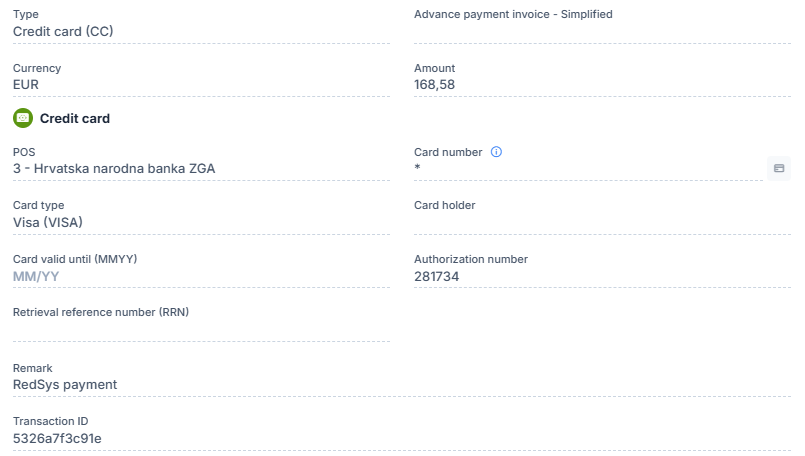
- The payment has the payment type Credit card, the card type that RedSys reports (Visa, Mastercard, Diners or American Express, otherwise Other), the authorization number, the RedSys order number in Transaction ID and the remark "RedSys payment".
- The invoice is fiscalized or reported like any other invoice where your country requires it. See Fiscalization and e-invoicing overview.
- The payment appears in the cashbook of the chosen user. See Cashbook and cashbook overview.
RedSys can report one payment more than once (through its notification, and again when the customer returns to the confirmation page). Renteon recognizes the RedSys order number and creates only one invoice per payment.
If RedSys reports that the card was declined, no document is created and the booking stays unpaid. The customer can open the link again and try another card.
Refunds and cancellations
Renteon does not send refunds to RedSys. If you cancel the invoice or issue a credit note in Renteon, the money stays on your account until you refund it in your RedSys or bank administration. Do both: refund in RedSys, and record the correction in Renteon as you normally would.
When something goes wrong
- The customer paid, but there is no invoice. Renteon sends a message with the subject "Redsys online payment - error" to the address in Notifications - E-mail. It names the booking and the reason, for example that the amount was larger than what was still to be paid, or that the client data was incomplete. Create the invoice by hand and enter the RedSys order number in Transaction ID, so that the payment can be matched later.
- No online payment is ever recorded. Check that Test mode matches the key you use: a payment made in the test environment is signed with the test key, a real one with the live key. A result whose signature does not match is not recorded. If the customer came back to the confirmation page, the "Redsys online payment - error" message says that the signature check failed; if not, there may be no message at all.
- The customer sees "Unfortunately your booking cannot be found" although the booking exists. Check that the booking is not cancelled, that Finance document - User is filled in, and that this user may keep a cashbook in at least one active office that does not have Disable billing ticked.
- The customer clicks the pay button and stays on the same page. The booking's currency has no RedSys code, or the booking was fully paid in the meantime.
- The link is missing from the Links menu. RedSys (or another gateway) is not switched on for the booking's company, or the booking is an offer.