
Sales
Search templates
Save the filters you use every day on the booking search and the bills search as personal templates, apply them with one click and choose one that opens by default.
Last updated
A search template is a set of filters, and optionally a sort order, that you save under a name and apply again later with one click. Say you set Office OUT to your office, Date OUT to this week and Type to reservations every morning. You can save that once as "My pickups this week" and pick it from a menu after that.
Templates are available in the new interface on two screens:
- the booking search: Sales → Bookings → Search
- the bills search (invoices and other finance documents): Sales → Bills → Search
Your templates are personal. Only you see them, and each screen has its own list: templates you save on the booking search do not appear on the bills search, and the other way round. They are tied to your user account, not to your computer, so you get the same templates in any browser you sign in to.
Open the Templates menu
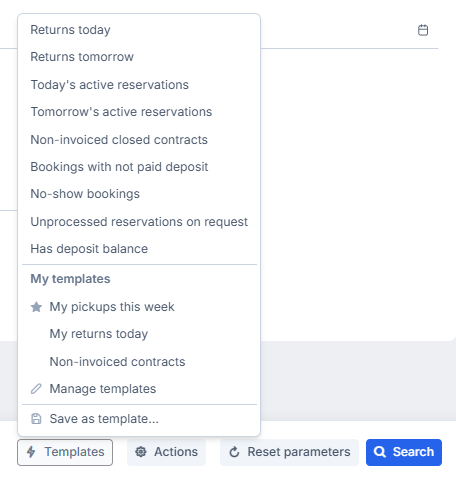
In the bar at the bottom of the screen, click Templates. It sits to the left of Reset parameters and Search (on the booking search, with Actions in between). The menu holds your own templates:
- Under the heading My templates you see your templates for this screen, listed by name. A star marks your default template.
- Manage templates lets you rename templates, change the default and delete them.
- Save as template… saves the filters currently on the screen.
Until you save your first template, Save as template… is the only entry in your part of the menu.
On the booking search the menu also starts with nine built-in quick searches, followed by a line and then your own templates. Like templates, quick searches replace all the filters and run the search straight away. Wherever a quick search says "your office", it means the office you are signed in to:
- Returns today and Returns tomorrow: contracts that are not closed yet and are due back at your office today or tomorrow.
- Today's active reservations and Tomorrow's active reservations: reservations going out from your office today or tomorrow.
- Non-invoiced closed contracts: closed contracts returned to your office that are not fully invoiced.
- Bookings with not paid deposit: contracts from your office whose deposit is not paid.
- No-show bookings: cancelled reservations whose cancellation status is No-show or Document expired (the status Renteon gives reservations it cancels automatically, see How availability is calculated).
- Unprocessed reservations on request: active reservations on request (see On request bookings).
- Has deposit balance: closed contracts that still have a deposit balance, for all offices.
You cannot change or delete quick searches. You can run one, adjust its filters and save the result as your own template. If you leave Dates relative to today and Always use my office ticked when you save it (see below), your copy of Returns today keeps meaning "today" and "my office".
Templates do not need a role of their own. If you can open the screen, you can use templates on it. For the booking search you need the Booking overview or Create and modify bookings role, and for the bills search the Invoice management role.
Tip: The menu reloads your templates every time you open it, so a template you just saved in another browser tab shows up straight away.
Set up the search you want to keep
Fill in the filters the way you normally do, including the ones in the Advanced view. If you want the results in a particular order, sort the list by clicking a column header. You do not have to run the search before you save it, but running it first lets you check that the results are what you expect.
A template does not store a copy of every field. It stores only what you changed compared with how the screen starts (the state you also get with Reset parameters):
- The filters you set or changed. When you apply the template later, every filter you did not touch gets the screen's normal starting value.
- A filter you cleared on purpose. On the booking search, Active starts as Yes and Cancelled as No. If you set Cancelled to Any, the template remembers Any, so applying it also finds cancelled bookings. On the bills search, Cancelled starts as No and Type starts with several document types already selected. If you clear Type, the template remembers that it searches all document types.
- The sort order, but only if it differs from the screen's default order.
A template never stores the page you are on, the number of rows per page or the rows you ticked. It does not switch the form between the Basic and Advanced views either. Filters in fields that only the Advanced view shows still apply when the form is in the Basic view, and they still show as chips in the filter bar. Filters your company's screen does not show are neither saved nor applied, for example the fiscalization and e-invoice filters that appear on the bills search only for certain countries.
Save the search as a template
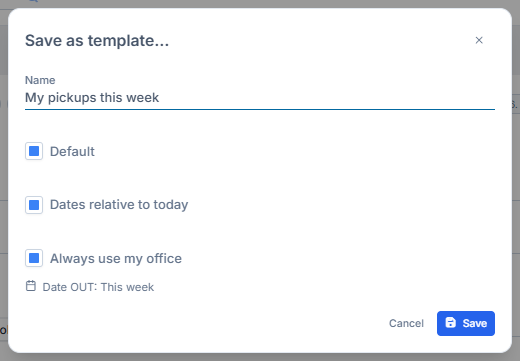
- Click Templates and choose Save as template….
- In Name, type a name you will recognise in the menu, for example "Split – returns this week". The name can be up to 100 characters. It has to be unique on this screen, and upper and lower case do not count, so "Returns" and "returns" are the same name.
- Tick Default if this screen should open with this template (see "Choose a default template" below).
- If any date filter is filled in, the option Dates relative to today appears. If an office filter holds exactly your own office, the option Always use my office appears. Both are ticked by default. "Choose how dates and offices are remembered" below explains what they do.
- Click Save or press Enter. Save stays greyed out until you type a name. You see the message Data saved, and the template is now listed under Templates → My templates. Cancel closes the dialog without saving.
If you already have 30 templates on this screen, you can't save another one. Instead you see the message "You can keep at most 30 templates per screen. Delete one first."
Tip: If you type the name of a template you already have, Renteon asks whether to overwrite it rather than creating a second one. This is how you update a template (see "Update a template" below).
Choose how dates and offices are remembered
Dates relative to today decides whether the dates in the template move with the calendar or stay fixed. The setting applies to all the date filters in the template.
When the option is ticked, Renteon recognises a range that covers exactly one calendar week (Monday to Sunday), one calendar month or one calendar year, and remembers it as that period: "This week", "Previous month", "This year", "This month +1" and so on. Any other date is remembered as a number of days from today: "Today", "Tomorrow", "Yesterday", "Today +7", "Today -3". Each time you apply the template, the dates are worked out again from that day's date. When the option is not ticked, the template keeps the exact calendar dates you entered.
Below the options, a short preview line shows what the saved dates will mean, for example "Date OUT: This week · Date created: Today -9 – Today". It updates as soon as you tick or untick the option.
Some examples:
- You save on Tuesday 10 November 2026 with Date OUT from 10.11.2026 to 17.11.2026, with the option ticked. The template remembers "Today – Today +7". On 1 December it searches 01.12.2026 to 08.12.2026.
- You save in November with Document date from 01.10.2026 to 31.10.2026, with the option ticked. The template remembers "Previous month". In December it searches November.
- You save the same range with the option unticked. The template always searches October 2026.
- You save on 10 November with Date created from 01.11.2026 to 10.11.2026, with the option ticked. That range is not a whole month, so the template remembers "Today -9 – Today", which is a ten-day window ending today. On 25 November it searches 16.11.2026 to 25.11.2026, not the 1st to the 25th. If you want the whole current month, enter the first and the last day of the month (01.11.2026 to 30.11.2026). That range is saved as "This month".
Date filters on these screens hold days only, so a template never stores a time of day. Templates do not depend on your company's date format either, so they keep working if the date format is changed later.
Always use my office appears when an office filter holds exactly one office: the one you are signed in to. On the booking search the office filters are Office OUT, Office est. IN and Office IN. On the bills search the office filter is Office. When the option is ticked, the template does not remember that particular office. It remembers "the office I am signed in to" and uses whichever office you are signed in to when you apply it. For example, you save a template called "My returns today" while signed in to the airport office. Next week you sign in to the downtown office, apply the template and get the downtown office's returns. When the option is not ticked, the template always uses the airport office. An office filter that holds two or more offices, or an office that is not yours, always keeps exactly the offices you selected. If no office filter holds just your own office, the option does not appear at all.
Tip: If one template should work in every office you sign in to, leave Always use my office ticked. If it must always show one specific office, for example to check another branch, untick it.
Apply a template
Click Templates and click the template's name under My templates. The template is applied as a new search, not added to the one on the screen:
- All filters are first set back to how the screen starts, and then the template's values are filled in. Any filters you had set before are gone.
- The search runs straight away and shows the first page. Your number of rows per page stays as it was.
- If the template has a saved sort order, the list uses it. Otherwise it uses the screen's default order.
- Relative dates are worked out from today's date, and "my office" becomes the office you are signed in to now.
Sometimes a value saved in a template is no longer available. For example, a pricelist, user or office may have been removed from its drop-down list since you saved the template, or a filter may no longer exist on the screen. In that case the value is left out, and a warning lists the filters concerned: "Some filters from the template are no longer available and were skipped: …". If none of the values saved in a filter is available any more, that filter keeps the screen's starting value. Fields where you search for a record, such as the client, agency, driver or car, are not checked this way. They are filled in exactly as saved.
After you apply a template you can change any filter and search again. The template itself stays the same until you save over it.
Update a template
- Apply the template you want to change from Templates → My templates.
- Change the filters or the sort order.
- Click Templates → Save as template…. The Name field already holds the template's name, and Default shows whether it is currently your default.
- Click Save. Renteon asks "A template with this name already exists. Overwrite it?" and warns "This action cannot be undone." Click Yes to replace the template's filters with the ones on the screen, or No to go back without saving.
The name is filled in for you only while the filters on the screen still come from the template you last applied or saved there, including a default template that filled the screen when you opened it. Changing filters or the sort order keeps the name. After Reset parameters or a quick search, or when you open the screen again and it brings back your last search, the Name field starts empty. After you apply a different template, it holds that template's name. You can always type an existing name yourself, and you get the same overwrite question. To keep the original and save a changed copy, type a new name.
Overwriting a template does not count towards the limit of 30, so you can update templates even when you have 30.
Tip: Default keeps the template's current setting unless you click it. Untick it during an overwrite only if you no longer want this template to open by default.
Choose a default template
Each screen can have one default template. You can set it in two places: tick Default when you save the template, or tick it in Manage templates. When you make a template the default, the template that was the default before stops being the default. In the My templates list, the default template has a star.
When you open the screen, Renteon fills in the filters as follows:
- If you already searched on this screen today in this browser, you get that last search back, and the default template is not applied. This is also what happens when you come back to the list from a booking or an invoice.
- Otherwise, your default template fills in the filters.
- If you have no default template, you get your last search from an earlier day in this browser, or the screen's starting filters if there is none.
What happens next depends on the screen. The booking search never runs a search by itself when you open it: the default template fills in the filters, and you click Search. The bills search runs its search automatically once the filters are filled in, using the default template if you have one. Because of that automatic search, the bills search counts as "searched today" as soon as you open it. Your default template therefore fills the bills search only the first time you open it each day in a browser. Later that day you get your last search back.
Reset parameters always takes the screen back to its starting filters, not to your default template. If you delete your default template, or untick Default on it, the screen has no default until you choose another one.
Two more rules protect your work. If you start changing filters before the default template has loaded, the template is not applied, so it cannot overwrite what you typed. And if several people use the same computer, the screen never opens with a search that another user left behind.
Tip: To get your default template back after you have already searched today, pick it from Templates → My templates.
Rename, change the default or delete templates
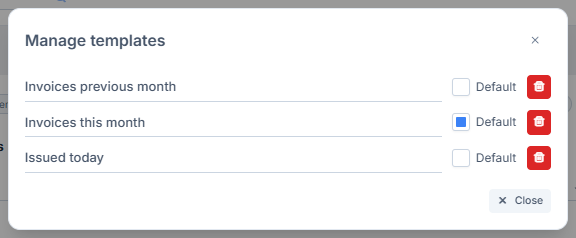
Click Templates → Manage templates. The dialog lists all your templates for this screen, each on its own row:
- To rename a template, click into its name, change it, and press Enter or click somewhere else. The new name is saved straight away (Data saved). If you clear the name completely, the old name comes back and nothing is saved. If another template on this screen already has that name, you see "A template with this name already exists." and the old name stays. Renaming does not change the template's filters.
- To change the default, tick Default on a row. That template becomes the default and the tick disappears from the others. To have no default at all, untick it. The change is saved immediately.
- To delete a template, click the bin icon (Delete). Renteon asks "Are you sure?" and warns "This action cannot be undone." Click Yes to delete it. You see the message Data deleted. A deleted template cannot be restored. You can only save it again from scratch.
Click Close when you are done.
Tip: Manage templates appears in the menu only once you have at least one template on the screen.
Know the rules and limits
- Personal only. A template belongs to the user who saved it. It cannot be shared or copied to a colleague, and no screen lets anyone else, an administrator included, see or edit it. If a colleague needs the same search, they save their own template.
- Per screen. Booking search templates and bills search templates are separate lists. Other list screens do not have templates yet.
- Up to 30 templates per screen. This limit applies to each user separately.
- Names. A name can be up to 100 characters. It must be unique on the screen, and upper and lower case do not count. Spaces at the start and end are removed.
- New interface only. The classic interface has no search templates. It only offers the built-in quick searches on the booking list. The B2B and B2C partner portals have no templates either.
- Templates and the last search are separate. Templates are stored with your user account, so they follow you to any computer. Your last search is remembered only in the browser where you ran it.
Templates are worth setting up for any search you repeat: your office's pickups and returns for the day, the invoices you check every month, or the open on-request reservations. Start with a quick search or an empty form, adjust the filters, save, and make your most-used template the default.
Related guides: