Integrations
PZU Masa integration
Receive rental orders from the PZU Masa platform in Renteon: what PZU must provide, settings, mappings, how orders become bookings and what to check when one does not arrive.
Last updated
PZU Masa is the platform through which the Polish insurer PZU orders rental cars from rental companies. Every order is linked to an insurance claim. With this integration Renteon reads new orders from PZU Masa by itself, accepts them at PZU and creates a reservation for each one, so your staff no longer copy orders from the PZU portal by hand.
This guide explains what happens in the background, what you need from PZU, how to switch the integration on, what to map, and how to find out why an order did not arrive. The mapping screen itself is explained in Integration menu and mappings.
How the integration works
Every 2 minutes Renteon asks PZU Masa for its list of orders and handles each new one in three steps:
- It reads the order details and stores them.
- It accepts the order at PZU and assigns a vehicle to it. Renteon takes the vehicle that PZU already assigned to the order, if there is one; otherwise it takes the vehicle registered at PZU for the order's vehicle class. Only when PZU confirms that the order is now a reservation does Renteon go on.
- It creates the reservation in Renteon.
The integration works mostly in one direction, from PZU into Renteon. The only thing Renteon sends to PZU is the acceptance in step 2. Prices, contracts, returns and cancellations made in Renteon are not sent to PZU.
Renteon accepts an order before it checks your mappings. An order whose vehicle class, department or organisation is not mapped yet is therefore already accepted at PZU, while its booking waits in Renteon until you add the mapping.
Renteon reads only orders that are still waiting at PZU. Orders that PZU already shows as a reservation, a rental, a resignation, finished, or with no reaction are skipped. This has two consequences you should know about:
- An order that someone already accepted in the PZU portal is not imported. Enter it by hand.
- When PZU or the client withdraws an order after it was imported, Renteon does not cancel the booking. Cancel it yourself.
Warning: Renteon accepts new orders at PZU by itself, so agree on who accepts orders. If someone accepts an order in the PZU portal before Renteon's next run, Renteon skips it and no booking is created for it.
What you need from PZU
Before you start, ask PZU for:
- API access to PZU Masa: a client ID and a client secret. Renteon can connect to PZU's test or production system; ask PZU for access to the one you need.
- Your departments at PZU: PZU keeps a list of your branches (departments). The offices of an order are PZU department numbers, and you map them to your offices.
- Your vehicles (vehicle classes) at PZU: PZU keeps a list of vehicles per vehicle class for your company. Renteon uses it to assign a vehicle when it accepts an order, and you map the classes to your car categories. Renteon reads this list; it does not add vehicles to it.
In Renteon, prepare the partner (or partners) that PZU orders are booked for, in Sales → Address book → Search. Each partner needs, on the Pricelists tab of its address book card, an active car pricelist with Agency pricelist ticked (used when PZU pays the rental) and one without it (used when the client pays). See Pricelists.
Switch the integration on
- Go to Administration → Code book → Settings, tab Integration, and click Edit. You need the Application settings management role.
- Tick Enable Integrations Module if it is not ticked yet.
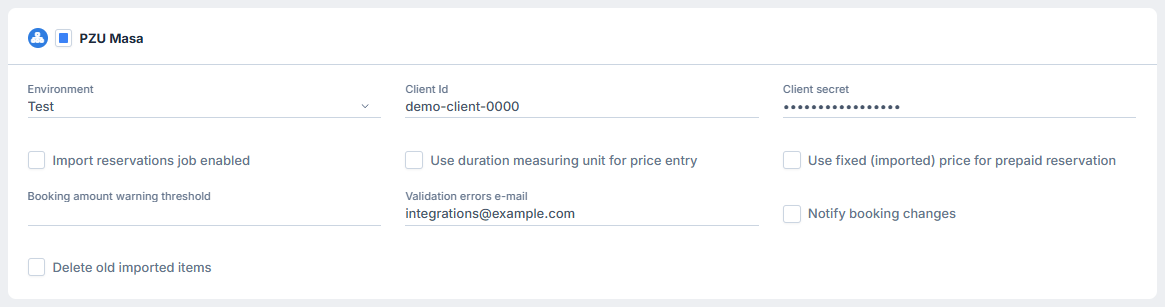
- Tick the checkbox in the header of the PZU Masa panel. The panel opens.
- Choose the Environment and fill in Client Id and Client secret (see the next section).
- Click Confirm.
After the first save, Administration → Integration → PZU Masa appears in the menu. The import starts at the next run, within two minutes, and there is no separate switch to hold it back. Map the codes straight away (see below), ideally before PZU starts sending you orders: an order that arrives before its codes are mapped is accepted at PZU, reported as an error and waits.
Options in the PZU Masa panel
- Environment: Test or Production. It decides which PZU Masa system Renteon talks to. The client ID and secret must belong to the same environment. Use Test while you set things up with PZU, then switch to Production.
- Client Id and Client secret: the API access you got from PZU. Without them Renteon cannot read orders, and the lists on the mapping screen stay empty.
- Validation errors e-mail: the address that receives the import reports and the messages about orders Renteon could not accept. Always fill it in; without it you are not told about problems.
- Notify booking changes: has no effect for PZU Masa. Renteon does not send booking changes to PZU.
- Delete old imported items and Keep imported items (months) (shown once the box is ticked): clean-up of old stored orders, see the last section.
The panel also shows Import reservations job enabled, Use duration measuring unit for price entry, Disable price increase caused by calculation (shown once the previous box is ticked), Use fixed (imported) price for prepaid reservation and Booking amount warning threshold, the same as other integrations. For PZU Masa they currently change nothing:
- The PZU import runs whenever Enable Integrations Module and the PZU Masa panel are on. Unticking Import reservations job enabled does not stop it. To stop the import, untick the PZU Masa panel.
- Renteon takes no price from PZU orders. It prices every PZU booking from the partner's pricelist, so the price options have nothing to work on.
Map vehicle classes, offices and partners
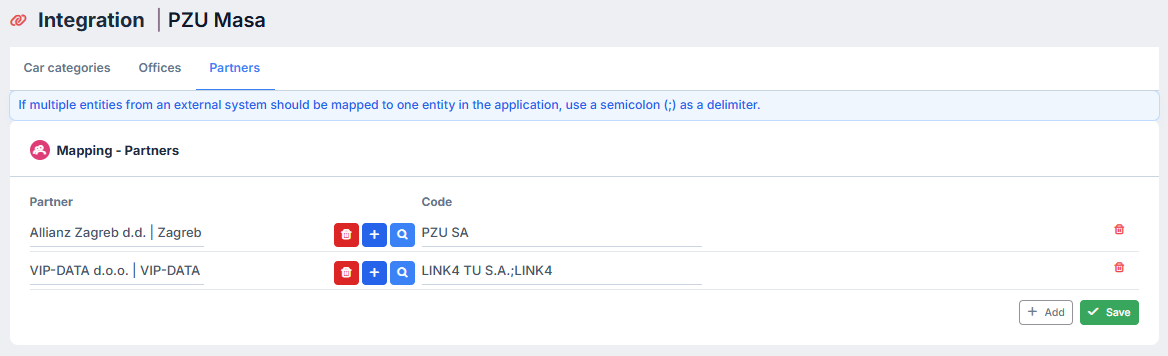
Open Administration → Integration → PZU Masa and click Edit. The page has three tabs; save each one with its own Save button. The Car categories and Offices tabs offer PZU's own lists, read live from PZU Masa: you pick entries instead of typing them.
- Car categories: next to each of your car categories, pick the PZU vehicle class (or classes) it stands for. The order's vehicle class decides the booking's car category.
- Offices: next to each office, pick the PZU department. Each department is shown as its number, region, town and street, for example "1234 - mazowieckie - Warszawa - Marszałkowska 1". The pick-up and return departments of an order decide the booking's pick-up and return offices.
- Partners: a table with the columns Partner and Code. Click Add, pick the partner from the address book and type the organisation name exactly as PZU writes it on its orders, including upper and lower case. Map in the same way the party that pays the rental, when PZU names a different one. Each partner gets one row: Save refuses the same partner or the same code twice with "Duplicate mappings". If PZU uses several names for the same partner, type them in one row, separated by a semicolon (;).
If the lists on the first two tabs stay empty, Renteon could not reach PZU Masa: check Environment, Client Id and Client secret in the settings.
The fastest way to learn the exact organisation name is the import e-mail: when an order arrives for an organisation you have not mapped yet, the e-mail says "Missing mapping for addressbook code" followed by the name.
Who pays: agency or client
Each PZU order says who pays the rental cost. Renteon uses it to choose the partner's role and pricelist:
- PZU or another organisation pays: the partner mapped to the order's organisation becomes the Agency and the booking uses the partner's agency pricelist.
- The client pays (PZU marks the rental cost "KLIENT"): the partner becomes the Commissioner and the booking uses the partner's pricelist without Agency pricelist ticked.
- The rental is paid by a different organisation than the one that placed the order: the partner mapped to the paying organisation is set as Agency invoice holder (if different from the agency).
The same rule applies to deliveries and collections, see below.
How an imported order looks in Renteon
A PZU order becomes a reservation with:
- Order reference number: the PZU order number. Renteon uses it, together with the partner, to recognise the order later.
- Voucher number: the claim number of the order.
- The client's name and phone number, and the same person as the driver. Renteon takes the first word of the name as the first name and the rest as the surname.
- Pick-up and return date and time as PZU sent them, and the offices mapped to the departments.
- The car category mapped to the vehicle class, both as billing and as issued category.
- Internal remark: the invoice data and the additional description PZU sent, each under its own heading.
- The price calculated from the partner's pricelist.
When the car is not picked up at your office, Renteon adds your local delivery service and writes PZU's address into the delivery location. When the car is not returned to your office, it adds your local collection service and the collection address. The pricelist must offer these services; otherwise the booking is created without them and Integration remark says "Booking missing service DELIVERY" (or COLLECTION). Whether the delivery or collection is paid by the agency or by the client follows who PZU says pays for it.
The booking's Source comes from the partner, the pricelist or the general source for external systems, see Booking sources.
In the rare case that PZU offers an already imported order again with a newer creation date, Renteon accepts it again and updates the existing booking, as long as the booking is still a reservation. If PZU refuses the new acceptance, the booking is not changed.
Errors and where to see them
Renteon sends two kinds of e-mails to the Validation errors e-mail:
- "PZUMASA fetching orders log": Renteon could not accept an order at PZU. Either PZU refused the acceptance ("Assigning a car to the reservation failed!"), or Renteon could not find a vehicle for the order's vehicle class at PZU ("Could not resolve carId for order"). The e-mail contains the order as PZU sent it. As long as PZU still shows the order as waiting, Renteon tries again at every run, and each failed attempt sends this e-mail again. If you cannot fix the cause (for example by adding a vehicle of that class at PZU), handle the order in the PZU portal and, once it is accepted there, enter the booking by hand.
- "PZUMASA reservations import log": the order was accepted, but the booking could not be created. The e-mail lists the order number and the reason, for example:
- "Missing mapping for car category code …", "Missing mapping for office code …" or "Missing mapping for addressbook code …": a vehicle class, department or organisation is not mapped.
- "Missing car rent service Id for car category id …": the mapped car category has no rental service.
- "Object reference not set to an instance of an object": most often the partner has no active car pricelist of the kind the order needs (with or without Agency pricelist ticked).
You can also follow the imports in Car control → Reports → Audit, report Integration bookings log (you need the Reports - audit role): choose PZU Masa under Integration. For PZU, the Integration - Number filter holds Renteon's own number of the stored order, not the PZU order number, so filter by date or by the Renteon booking number instead. On an imported booking, Actions → Open booking source data shows the order data PZU sent. Both are described in Integration menu and mappings.
Warning: PZU orders have no limit on attempts. An order with a missing mapping is tried again every 2 minutes, and each attempt sends the import e-mail again, until you add the mapping. Fix mapping errors as soon as the first e-mail arrives.
Clean-up of old orders
Renteon stores every order it reads. With Delete old imported items ticked, old stored orders and import log entries are deleted by the same hourly clean-up as for the other integrations, described in Integration menu and mappings: only when they are older than Keep imported items (months) and the booking is closed or cancelled, or no booking was made.
Once the stored data of an order is gone, Renteon no longer knows that it read that order before. If PZU ever offers such an old order again, Renteon accepts it again; it creates a new booking only when the earlier booking was cancelled, otherwise it reports the order as already imported.