Fleet
Car categories and category groups
Set up car category groups, car categories (SIPP codes) and car models, what every field does, and how they drive insurances, deposits, upgrades and what partners see.
Last updated
A car category is the class of car your customers book, for example "CDMR – VW Golf or similar". Customers, partners and your website always book a category, never a particular car. Renteon later assigns a real car from that category. The category holds everything that is the same for all of its cars: the SIPP code, the default deposit and excess, the driver age limits, the description your website shows, and its rank compared with your other categories.
Car category groups bundle categories together. Renteon uses them to price insurances, damages and car expenses per group instead of per category, and you can use them to filter lists and reports. Car models connect categories and cars: every car has a model, and every model belongs to one category.
This guide walks through each screen and field and ends with a recommended setup order for a new company. To work with car category groups and car categories you need the role Car categories edit. For car models you need Car model edit.
How groups, categories, models and cars fit together
The structure has four levels:
- A group type (for example Insurance) contains car category groups (for example Small cars and Large cars).
- A car category belongs to at most one group of each type. CDMR can be in Small cars for insurance and in Standard for damages at the same time.
- A car model belongs to exactly one car category.
- A car has a car model, and its category is always the category of that model. You cannot choose the category on the car itself: when you pick the Car model on the car, the fields Car category, Car type and Group show the model's values and cannot be edited.
For example: the car ZG 1234 AB is a Volkswagen Golf. The model Golf is in the category CDMR, and CDMR is in the insurance group Small cars. When a customer books CDMR, Renteon offers the insurances priced for Small cars and can assign ZG 1234 AB to the booking.
On a booking, the category appears twice. Car category for payment is what the customer booked and pays for. Issued car category is the category the customer is given, for example a higher one after an upgrade. Prices, insurances, deposit, excess and the driver age check follow the Car category for payment.
Car category groups
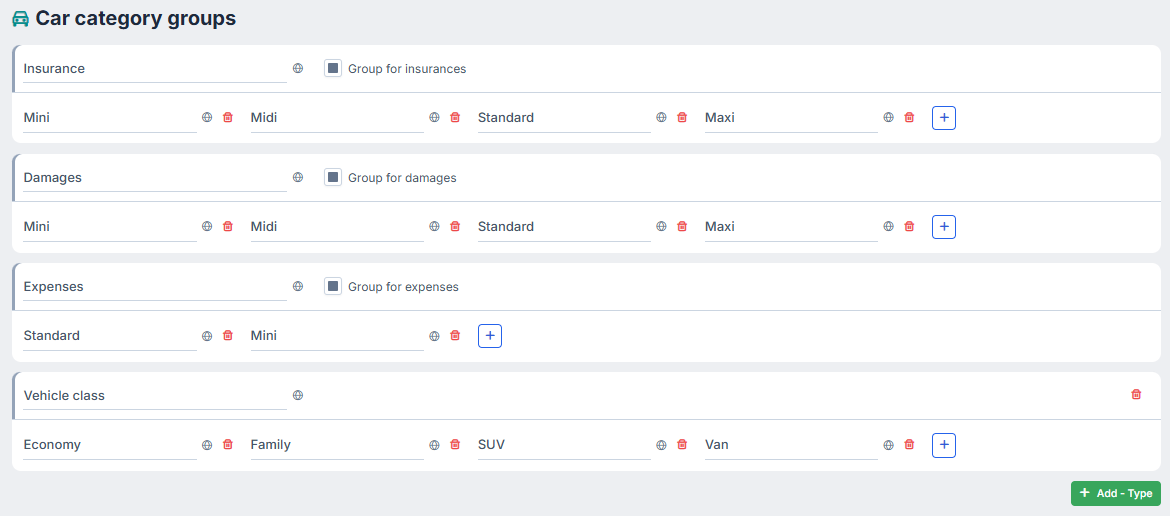
Open Fleet → Fleet → Car category groups. The screen shows one card per group type: the type's name at the top, its groups underneath.
A new company starts with three group types, each with one group called Standard:
- Insurance, marked Group for insurances. Insurance prices are defined per group of this type.
- Damages, marked Group for damages. Damage prices are defined per group of this type.
- Expenses, marked Group for expenses. Prices of car expenses (car wash, fueling, transfers, service and similar) are defined per group of this type.
The markers appear as ticked, greyed-out checkboxes next to the type's name. You cannot set or remove them on this screen, and a type that carries a marker has no delete button. If one of these three types is missing in your company, ask Renteon support.
To change the groups:
- Click Edit.
- To rename a type or a group, click its name. A panel opens with one field for each language your company uses. Fill in every language: while one is empty, the globe icon next to the field is red and the Confirm button at the bottom of the screen stays disabled. The panel's own Confirm only closes the panel; nothing is saved yet.
- To add a group, click the + button inside the type's card. To add a new type, click Add - Type below the cards.
- To remove a type or a group, click its bin icon and confirm.
- Click Confirm to save the whole screen in one go, or Cancel to discard all changes.
You can add your own group types without a marker, for example Vehicle class with the groups Economy, Family, SUV and Van. Such types do not affect any price. They give you an extra way to filter lists, read reports and present your fleet to partners (see the next section).
Warning: Some groups cannot be deleted: an insurance group (Renteon creates insurance lines for it as soon as you save it), a damage group that has damage prices and an expense group that has expense prices. The save then fails with an error and none of the changes on the screen are saved. Any other group is deleted, and every car category that was in it is left without a group of that type, without a warning. Plan your groups before you create them, and check the Car category groups section of your categories after you delete one.
What car category groups are used for
- Insurances. When you save a new group under the insurance type, Renteon creates one insurance line for each of your insurances, named after the insurance and the group, for example "CDW - Small cars". It works the other way round too: a new insurance in Fleet → Additions → Insurances gets one line for every insurance group. You enter their prices in Car control → Pricelists → Insurances and their excess and deposit in Fleet → Additions → Insurance - excesses. A booking is offered only the insurance lines of the insurance group its Car category for payment belongs to. An insurance that is already on a booking stays there even if you later move the category to another group.
- Damages. In Fleet → Damages → Prices you choose a Car category group of the damage type and enter prices per car part and damage type. Renteon looks the price up by the damage group of the damaged car's category. If Damage price calculation by car category for billing is ticked (Administration → Code book → Settings, tab Finances), a damage recorded on a booking uses the damage group of the booking's Car category for payment instead. See Damages.
- Expenses. In Fleet → Fleet → Expenses - Pricelist you choose a supplier (Company) and an expense Type, and enter a price for each kind of activity in each expense group. When you record an expense for a car with that supplier, Renteon suggests the price for the expense group of that car's category.
- Filters. You can filter by group in the car category list (one field per group type), in the car list (Car category group), in the availability search when you create a booking (Car category group) and in the car expense reports, such as car registrations, insurances and services (Car category group). See Fleet reports: car papers and expenses.
- Reports. In Fleet availability and Fleet state projection you can pick a group type under Car category groups. The report then shows the categories under the groups of that type, and leaves out the categories that are in no group of that type. See Fleet reports: availability and fleet state. Fleet utilization comparison asks for a group type before it runs. See Sales reports: finance documents, fleet and planning.
- Partners and your website. Partners and your website can receive your categories together with their groups and group types, and can search availability by group. The availability screens of the B2B and B2C portals have a Car category groups filter that lists groups as "Group (Type)", for example "Standard (Insurance)". Give groups names that make sense to people outside your company.
Two similar names mean something different:
- Pricelist groups (Car control → Pricelists → Pricelist groups) group pricelists, not car categories. They are used for insurance excesses per pricelist group and in pricing optimizations.
- The Group field on a car category is a free-text label (see "Basic data" below). It is not connected to car category groups.
Warning: A car category that is in no group of the insurance type gets no insurance offers at all, one without a damage group finds no damage prices, and one without an expense group gets no suggested expense prices. Check the Car category groups section of every category.
The car category list
Open Fleet → Fleet → Car categories. The list is sorted by Sort order and shows ID, SIPP, Representative model name, Sort order and Sort order - Web.
You can filter by:
- SIPP and Representative model name – any part of the text matches.
- One field per group type, for example Insurance – shows the categories in the selected groups. If you select groups in more than one field, a category is shown when it is in any of them, not only when it is in all of them.
- Active – Yes by default. Choose No or Any to see deactivated categories.
Use Add in the footer to create a category. On each row, Open shows the category, Edit opens it ready for editing, and the bin icon deletes it.
Every saved category already has price lines and other records linked to it (see "What Renteon creates when you save a category" below). That is why Delete in practice does not remove a category: Renteon deactivates it instead. A deactivated category is shown greyed out, its price lines are deactivated with it, and it no longer appears in availability or in the category lists your website and partners receive. Existing bookings keep it. To bring it back, find it with Active set to No and click Activate.
SIPP code
The first section of the edit form builds the category's code. Its title shows the code as you build it, for example SIPP : CDMR, and an empty position appears as a dot (C.MR).
The code has four positions. Each one has its own list, where every option shows the letter and its meaning:
- Category, for example C - Compact
- Type, for example D - 4-5 Door
- Transmission / Drive, for example M - Manual/Unspecified
- Fuel / Air Conditioning, for example R - Unspecified/Yes
All four are required. The letters are the standard car rental industry codes (SIPP, also known as ACRISS); Renteon supplies the lists and you cannot add letters to them.
Instead of picking four letters one by one, type the whole code into the SIPP field at the top of the section (shown while you edit). The four lists follow as you type: "CDMR" selects C, D, M and R. Lowercase letters become uppercase, digits and other characters are ignored, and the field takes at most four letters. If a letter does not exist for its position, that list stays empty and Renteon tells you, for example "Type: letter A does not exist." when you type "CAMR".
Two extras are available only after Renteon support enables them for your company:
- Year of production (setting "Allow selection of production year on car category") adds an optional fifth list with two-digit values from 01 to 99, appended after the four letters. CDMR with year 24 becomes CDMR24.
- Suffix (setting "Allow car category SIPP suffix entry") adds a free field of up to 10 letters, digits or the | sign. It is converted to uppercase and appended at the end: CDMR with suffix P becomes CDMRP.
Renteon does not stop you from saving two categories with the same code, but they cannot be told apart in lists, price lines and reports. Use the suffix or the year to make every code unique.
Warning: When you change the code of an existing category, all cars of the category show the new code immediately and the category's price lines are renamed. Your website and partners receive categories with their codes, so if they keep the code on their side, let them know about the change.
Basic data
The Basic section holds the fields Renteon uses to identify and rank the category:
- Group (required) is a short free-text label, for example "C" or "Compact". Renteon shows it in brackets after the code wherever you pick a category, for example "CDMR (C)", and in availability results and booking notifications. It is also sent to partners. It is only a label and has nothing to do with car category groups.
- Representative model name (required, up to 50 characters) is the typical model of the category, for example "VW Golf". The placeholder \_BookingCarCategory\_ in e-mail templates is filled with the code and this model of the booking's Car category for payment, for example "CDMR VW Golf or similar". The model name is also sent to your website and partners, and the B2B portal shows it with "(or similar)".
- Sort order (required, up to two decimals) ranks the category from the smallest or cheapest to the biggest or most expensive. Lists of categories follow it, and it decides what counts as an upgrade (see "Alternative categories, sort order and upgrades" below). Leave gaps, for example 10, 20, 30, so that you can later place a new category in between.
- Guaranteed model (WEB): tick it if the customer gets exactly the representative model. The e-mail placeholder then leaves out "or similar", and the flag is sent to your website and partners.
- Show in list (WEB) is ticked by default. It is passed to your website and partners so that they know whether to list the category. Renteon itself does not hide anything because of it. To stop selling a category in Renteon, deactivate it or use a Stop booking.
- Statistical classification of products by activity (CPA) - Rent and Statistical classification of products by activity (CPA) - Sales are product classification codes that Renteon writes on invoice items, for e-invoices that require them (for example in Croatia, see Croatia: e-invoices (FINA, Moj-eRačun)). The Rent code is used for items invoiced from bookings of this category, unless the item's own service has a code; the category's car rental price line takes it over automatically. The Sales code is used when you invoice the sale of a car from this category.
Groups and fuel types of the category
In the section Car category groups you see one list per group type. Choose at most one group in each, or leave a list on "- please select -". As explained above, the insurance, damage and expense lists matter most: without them the category gets no insurances, no damage prices and no suggested expense prices.
In the section Fuel type (WEB) you can select any number of fuel types, for example Petrol and Diesel for a category that has both. This is information for your website and partners only. It does not change the fuel type of any car or model.
Description for your website and partners
The section Description (WEB) describes the category to customers who book online. Renteon sends these fields to your website and partners with the list of your categories; the luggage, passengers, doors, Sort order - Web and the photo also come with every availability result. Renteon itself does not use them for prices or availability.
- Title – the category's name for customers, per language. Click the field to open one field per language. It is optional.
- Big and Small – the number of large and small pieces of luggage (0 to 10).
- Passenger capacity (0 to 100) and Doors number (0 to 10).
- Average fuel consumption (l/100km) – kept with the category for your own information. Unlike the other fields, it is not sent to your website or partners; they receive the consumption entered on each car model instead (see "Car models" below).
- Transmission type – for example manual or automatic.
- Sort order - Web – the order in which your website should list the categories. It can differ from Sort order and has no effect on upgrades.
- Air conditioning.
- Photo – a JPEG or PNG image. Large images are scaled down to at most 1024 × 1024 pixels.
Deposit, excess and driver age
The section Other holds the defaults that Renteon puts on bookings of this category:
- Deposit – amount and currency. Renteon uses it only when none of the insurances selected on the booking defines a deposit (in Fleet → Additions → Insurance - excesses). The amount is converted into the booking's deposit currency. If Coefficient that multiplies booking total to calculate minimum deposit amount is set (Administration → Code book → Settings, tab Bookings), Renteon adds that share of the booking total on top.
- Excess amount – amount and currency. If insurances selected on the booking define an excess, the lowest of them applies; otherwise the category's excess is used, converted into the booking currency. If someone has changed the excess on the booking by hand, Renteon leaves it as entered.
- Excess theft amount – the excess for theft, with the same rules as the excess.
- Driver age restriction (Min.) and Driver age restriction (Max.) in years.
If you enter an amount, you must also choose its currency; until you do, Confirm stays disabled.
The driver age limits are checked every time a booking of this category (its Car category for payment) is saved, for every driver, until the car has been handed over. Renteon takes the driver's date of birth, or the age entered for the driver if there is no date of birth. A driver who is too young gets "Driver ... does not meet the age restriction. Minimal driver's age must be 23 years.", and a driver who is too old gets the same message ending in "Maximal driver's age must be 75 years." The maximum includes the stated age: with a maximum of 75, a 75-year-old passes and a 76-year-old does not. The age is counted on the day the booking is saved, not on the pickup day. Users with the role Ignore Car Category Driver Age Restriction can save the booking anyway. The limits are also sent to partners with availability results.
The category's limits work alongside the company-wide limits in Administration → Code book → Settings, tab Bookings (Enable driver age restriction), which apply to every category. Surcharges for young or senior drivers are not set here.
Warning: Enter deposit and excess amounts without VAT. When Renteon puts them on a booking it adds VAT, unless the client does not pay VAT, and partners connected through the B2B connection receive them with VAT included. For example, with 25 % VAT an excess entered as 800 EUR appears on the booking as 1,000 EUR.
Alternative categories, sort order and upgrades
Once a category has been saved, its form shows one more section: Alternative car categories for fleet chart & B2B bookings. It lists all categories with a higher Sort order, each with a checkbox. Categories with the same or a lower sort order are not offered. If a category you ticked earlier no longer has a higher sort order, it stays in the list so that you can untick it. Deactivated categories are hidden while the filter in the section header is set to Active; choose All to see them, and use Search to find a category by its code.
The link works in one direction. Ticking IDMR on CDMR means that CDMR bookings may get an IDMR car, not the other way round. Renteon uses the alternatives in two places:
- Automatic car assignment on the fleet chart. When you run Reservation auto assignement on the fleet chart with Use upgrade ticked, reservations that found no free car of their own category get an idle car from one of their alternative categories, starting with the lowest sort order. See Fleet chart.
- Bookings from partners and your website when a category is sold out. With Book linked car categories when unavailable for B2B bookings ticked (Administration → Code book → Settings, tab Bookings), a sold-out category can still be sold to partners and on your website if one of its alternatives has a free car. The booking keeps the requested category as Car category for payment, and its Issued car category becomes the available alternative with the lowest sort order. The conditions, the office opt-out and what the partner sees are described in How availability is calculated.
Sort order also decides when a booking counts as an upgrade:
- If the Issued car category has a higher sort order than the Car category for payment, the booking is an upgrade and Renteon adds the Car category upgrade fee, priced in your fees pricelist (Car control → Pricelists → Fees). It does not when Free upgrade is ticked on the booking, or when a partner or website booking was given an alternative category in the sold-out case above. See Automatic upgrade option.
- Every distinct sort order of your active categories is one upgrade level, and categories with the same sort order are on the same level. In Administration → Code book → Users you can limit a user with Maximum level of upgrade of car category for fleet chart and Maximum car category up to which a user can assign cars on fleet chart. Renteon checks these limits when the user assigns a car to a reservation by hand on the fleet chart. For example, with ECMR at 10, CDMR and CDAR both at 20 and IDMR at 30, assigning an IDMR car to an ECMR booking is an upgrade of two levels, and CDMR to CDAR is no upgrade at all.
Warning: Changing sort orders later changes which bookings count as upgrades, which alternatives each category can have and the user limits above. Renumber with care, and check the alternatives of the categories involved afterwards.
What Renteon creates when you save a category
When you save a new category, Renteon creates its price lines automatically:
- a car rental line named after the code, for example "Car rental - CDMR", which you price in your car rental pricelists;
- lines for mileage, unlimited mileage, prepaid fuel and road tax that belong to this category.
Every later save renames these lines after the current code and keeps them active or inactive together with the category. Creating the category does not make it bookable yet: you still need prices in your pricelists (see Pricelists) and cars or planned fleet in the category (see How availability is calculated and Planned fleet).
Car models
Open Fleet → Fleet → Car models. You can filter by Title, Code, Web title, Car make, Car type, Car category, Fuel type and Active, and download the list with Export to Excel. Delete works as for categories: a model that is in use is deactivated rather than removed.
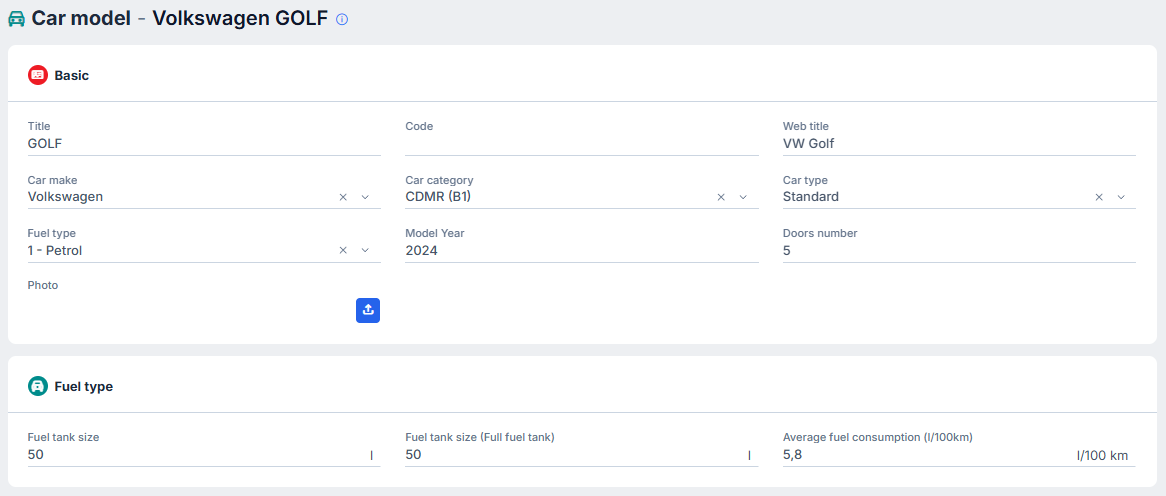
The edit form has these sections:
- Basic:
- Title – the model name without the make, for example "Golf" (required, up to 50 characters). Renteon combines it with the make, so cars show "Volkswagen Golf".
- Code (up to 8 characters) and Web title (up to 80 characters, sent to your website and partners).
- Car make, Car category, Car type and Fuel type – all required. The lists of makes, car types and fuel types are maintained by Renteon; if a make is missing, ask Renteon support.
- Model Year, Doors number and Photo (JPEG or PNG).
- Fuel type – the fields depend on the fuel type you chose: Fuel tank size and Fuel tank size (Full fuel tank) for fuel, Electro tank size for electric, Fuel tank size - gas for gas. When you change the fuel type, the fields that no longer apply are set to 0. Average fuel consumption (l/100km) accepts values up to 25.
- Model – Engine displacement, Engine power (KW), Number of cylinders, Service interval in your mileage unit and Service interval in Months.
- Equipment – a description of the equipment, per language.
- Car equipment packages – named equipment variants of the model. On a car of this model you then choose its Car equipment package.
With the list of your categories, partners and your website also receive the models of each category's active cars in fleets used for rent, with the make, Web title, photo and technical data. A model without such cars is not sent.
The technical values are defaults. When you choose the model on a car, Renteon copies them into the car's fields that are still empty. Changing the model later does not change the technical data of existing cars. Two changes do reach existing cars immediately: a new Title renames the model on all its cars, and a new Car category moves all its cars to that category.
Warning: Moving a model to another category moves every car of that model at once. From that moment those cars count towards the availability of the new category and appear under it on the fleet chart. Bookings keep the categories they already have.
Recommended setup order for a new company
- Plan your categories on paper: the codes, a sort order with gaps, and which insurance, damage and expense group each category goes into.
- In Fleet → Fleet → Car category groups, rename or add the groups under Insurance, Damages and Expenses, and add your own group types if you want them for filters and reports.
- In Fleet → Fleet → Car categories, create every category: code, Group, Representative model name, Sort order, a group for each type, the web description, deposit, excess and driver age limits.
- When all categories exist, open each one again and tick its alternatives. The list only offers categories that are already saved and ranked higher.
- In Fleet → Fleet → Car models, create your models and put each one in its category.
- Add your cars and choose their models. See Adding fleet.
- Create your insurances in Fleet → Additions → Insurances if they do not exist yet.
- Enter prices: car rental and insurance pricelists (role Edit pricelist), insurance excesses in Fleet → Additions → Insurance - excesses (role Additions list edit), damage prices in Fleet → Damages → Prices (role Vehicle damage settings) and expense prices in Fleet → Fleet → Expenses - Pricelist (role Definition of car activities). See Pricelists.
- If you receive bookings through integrations, map every new category to the partner's code under Administration → Integration. See Integration menu and mappings.
- Optionally, tick Book linked car categories when unavailable for B2B bookings, set upgrade limits on users and enter Planned fleet.
- Run an availability search for a few dates to check that every category appears with the right price and insurances.