
Fiscalization
Hungary: NAV Online Invoice
How Renteon reports your Hungarian invoices to NAV Online Invoice: what you need from NAV, where to enter it, when documents are sent and how to follow their status.
Last updated
Every invoice a Hungarian company issues has to be reported to the tax authority's NAV Online Invoice system (Online Számla). When the NAV module is switched on, Renteon does this for you: it sends the data of your finance documents to NAV, stores the transaction ID that NAV gives back and keeps checking until NAV has finished processing the invoice.
Hungary works with delayed reporting in Renteon. Saving an invoice does not wait for NAV: the document is saved at once, and a background job sends it shortly afterwards. This keeps the counter fast even when NAV is slow or unavailable, and a document that could not be sent is simply tried again on the next run.
This guide explains what you need from NAV, where you enter it, which documents are sent and when, how to read the status on the finance document list and what to do when NAV rejects something.
What Renteon sends to NAV and when
Once the module is on, Renteon reports these finance document types: Invoice, Bill, Advance payment invoice, Approval, Debit, Bill - payout and Offer. A document is reported when it has at least one payment line (any payment type counts) and belongs to a company that has the NAV module switched on. Cashbook payout documents are never reported.
Sending happens in the background:
- Renteon's fiscalization run starts every hour (see Fiscalization and e-invoicing overview). It picks up every document that still waits for NAV and was created at least five minutes earlier, oldest first, up to 100 documents per run. Renteon pauses about one second between two documents, because NAV accepts only one request per second.
- Example: you save an invoice at 10:12. The first hourly run that starts after 10:17 sends it, so the invoice normally reaches NAV within about an hour.
- If you do not want to wait, open the document (Sales → Bills → Search, then open the document) and click Fiscalize at the bottom of the screen. The button is there only while the document still waits for NAV. If the document cannot be sent, the error is shown on the screen and also e-mailed.
While a document waits, the finance document list shows a red flag next to its amount with the tooltip Fiscalization required. You can also find all waiting documents in the search section Fiscalization / e-Invoice with Fiscalization required set to Yes.
When the hourly job has sent a document, Renteon also marks it for re-export, so an accounting export that already took the document picks it up again with the NAV data.
What you need before you start
Renteon connects to NAV as a technical user of your company. Prepare the following:
- A technical user in the NAV Online Invoice system for your company. NAV gives you four values for it: the login name, the password, the XML signature key and the XML exchange key. You enter all four in Renteon.
- Your company's Hungarian tax number. Renteon uses its first eight digits as the taxpayer ID and needs the single VAT code digit (1 to 5) separately. Example: for the tax number 12345678-2-42 the taxpayer ID is 12345678 and the VAT code is 2.
- Your company data in Administration → Code book → Settings, tab Basic, panel Company: VAT ID (the tax number, at least its first eight digits), Address, Town and Postal code. Renteon sends these as the seller's address.
The seller's name that goes to NAV is the company name Renteon keeps on your Renteon account. If your registered company name has changed, ask Renteon support to update it.
NAV also runs a separate test system with its own technical users. If you want to try the connection first, create a technical user there and use the Use Test environment option described below.
Setting up the NAV connection
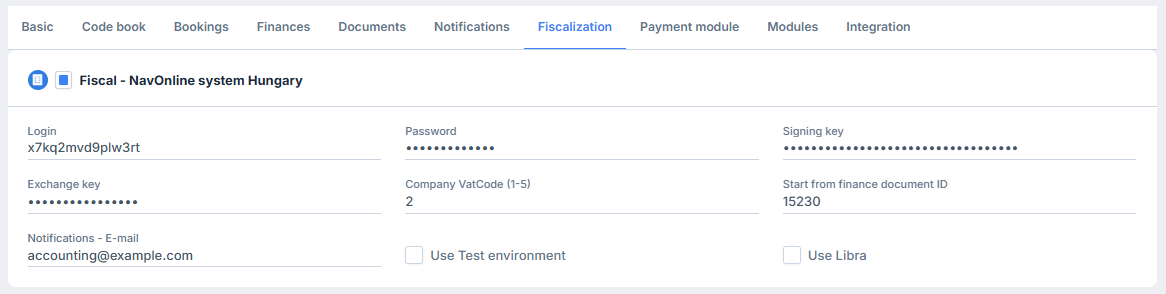
Go to Administration → Code book → Settings, click Edit and open the tab Fiscalization. The panel Fiscal - NavOnline system Hungary is shown only to accounts whose country is Hungary. Tick the checkbox in the panel header to switch the module on; the fields appear and most of them become mandatory.
- Login, Password, Signing key, Exchange key: the four values of your NAV technical user. Signing key is NAV's XML signature key and Exchange key is NAV's XML exchange key.
- Company VatCode (1-5): the VAT code digit of your tax number (2 in the example above). Only the values 1 to 5 are accepted.
- Start from finance document ID: optional. Documents whose ID is lower than this number are never sent to NAV. Use it when you switch the module on in an account that already has documents, so that old documents are left out. The ID of a document is shown in the ID column of the finance document list.
- Notifications - E-mail: mandatory. Renteon e-mails every NAV error of a document to this address. You can enter several addresses separated by a comma or a semicolon.
- Use Test environment: when ticked, Renteon talks to NAV's test system instead of the live one. Untick it before you go live, otherwise your real invoices are not reported.
- Use Libra: see the section about the Libra option below. Leave it unticked unless you were asked to use it.
Click Confirm to save. You need the role Application settings management to open and change Settings.
Warning: Check Use Test environment carefully. Documents sent while it is ticked exist only in NAV's test system, and Renteon counts them as reported: it does not send them to the live NAV system after you untick the option.
Several companies in one account
If your account issues documents for more than one company, each company has its own NAV credentials. Open Administration → Code book → Companies (the entry is shown when your account has more than one company; you need the role Company editing), open the company and click Edit.
The company screen has the same panel Fiscal - NavOnline system Hungary with Login, Password, Signing key, Exchange key, Company VatCode (1-5), Finance document (the start ID, it works like Start from finance document ID), Notifications - E-mail and Test mode. Renteon always uses the settings of the company the document belongs to, and error e-mails go to that company's notification address.
The Libra option exists only in Settings and applies to all companies.
Clients: private persons, Hungarian companies and foreign companies
What Renteon sends about the buyer depends on the client in the address book.
- Private person (client of type Individual): NAV receives the invoice as an invoice to a private person, without the client's name or address.
- Hungarian company (a company without the Foreigner flag): Renteon looks the company up in NAV by its VAT ID. If NAV does not know the tax number, the invoice is not sent and you get the error "Invalid VatId for Hungary company". The client also needs a default address; Renteon sends its town, postal code and street.
- Foreign company (a company with the Foreigner flag): Renteon sends the client's name, the town, postal code and street of its default address, the country of that address (or, if it has none, the client's Nationality) and the VAT ID. The VAT ID is cleaned up before sending: spaces, dashes, dots and other punctuation are removed and letters become capitals; for a company in the EU the country prefix is added if it was typed without one (for Greece the prefix EL is used). A company in the EU must have a VAT ID; a company outside the EU without a usable VAT ID is sent without one.
Typical errors for foreign companies, which you receive by e-mail: "NavOnline: the client is a foreign company without a known country - set the country of its default address." and "NavOnline: the client is a company in the EU without a VAT ID." Correct the client in the address book; the next run sends the invoice.
When you save a new invoice for a Hungarian company, Renteon checks the client's VAT ID with NAV right away. If NAV does not confirm it, the document is not saved and you see the message "Invalid VAT ID." with the VAT ID and the company name.
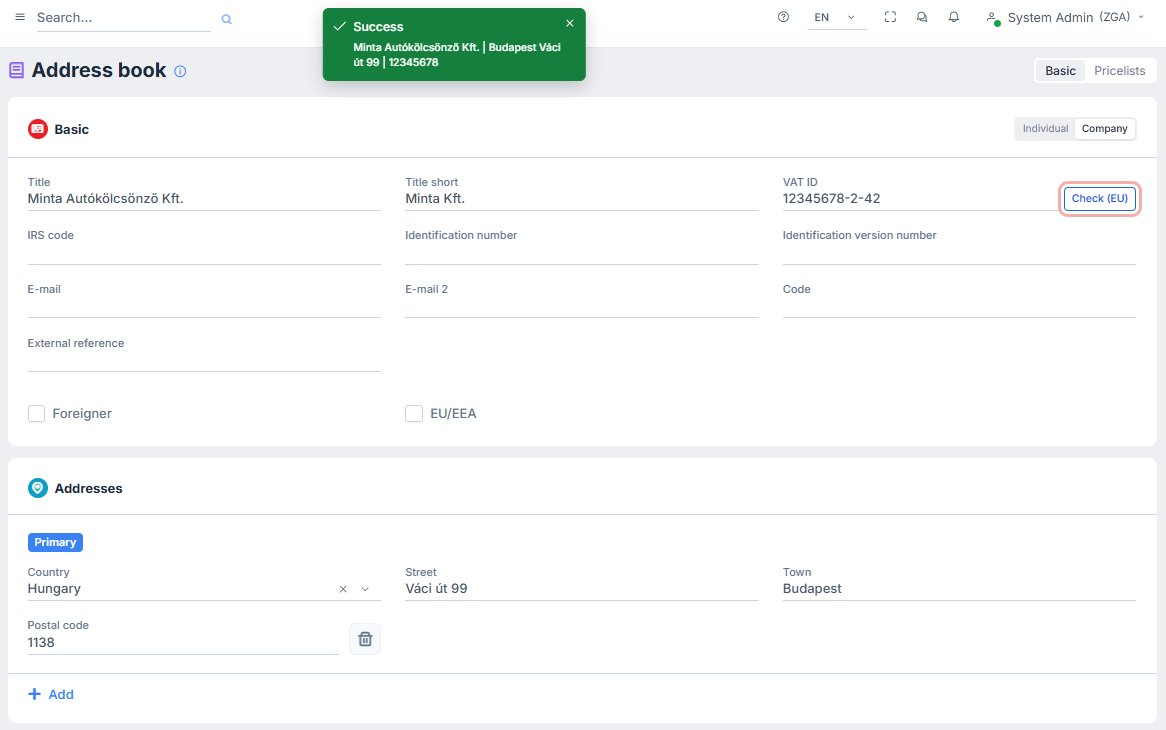
For new clients: on the client's screen in the address book (Sales → Address book → New), enter the Hungarian tax number in the VAT ID field and click Check (EU) next to it while you are editing. For a number that starts with a digit or with HU, Renteon asks NAV and fills in the company's name, short name and address if those fields are still empty.
Warning: Because of the check on save, invoices for Hungarian companies cannot be saved while NAV cannot be reached or while the NAV login data in Settings are wrong. Invoices for private persons and foreign companies are not affected.
VAT-exempt lines (0% VAT)
NAV needs a reason for every line without VAT. In Renteon this reason is the Article attached to the line (the law article for VAT-free sales, maintained in Administration → Code book → Articles). Lines that come from a booking usually get their article automatically, for example from the client or the booking. On a line you add by hand, you can pick an article only when the line's VAT rate is marked VAT free or VAT-exempt in Administration → Code book → VAT rate. A 0% line without an article stops the document with the error "There must be VAT exempt article for 0% VAT item on invoice."
The article's code must be one of NAV's codes, because Renteon sends the code as it is and uses it to decide the type of exemption:
- AAM, TAM, KBAET, EAM and NAM are sent as VAT exemption.
- ATK, EUFAD37, EUFADE, EUE, HO and UNKNOWN are sent as outside the scope of VAT.
Any other code is sent as outside the scope of VAT with that code, which NAV may refuse.
Approvals, debits, cancellations and advance payment invoices
NAV links every change to the original invoice. Renteon therefore sends an Approval, a Debit or a cancellation of an invoice as a modification of the original invoice: it refers to the original invoice number, counts the modifications in order and continues the line numbering of the earlier documents.
This only works if NAV already has the earlier documents. If the original invoice or an earlier modification has not been accepted yet, the modification is not sent and gets the error "Fiscalization chain invalid. Fiscalize previous connected documents first!" followed by the numbers of the documents that still wait. Because the hourly job sends documents oldest first, the chain usually sorts itself out on the next run; if it does not, fix and send the earlier document first.
For advance payments, the Advance payment invoice is reported as an advance invoice. When the final invoice uses the advance payment, Renteon adds lines with negative amounts that refer to the advance payment invoice (its number and date), so NAV can match the final invoice with the advance. For more about advance payments see Advance payment invoice.
Other details Renteon sends with every document: the document date, the payment due date (or the document date if there is none), the delivery date (or the document date if there is none), the currency and exchange rate with the amounts in HUF, and the payment method. The payment method is card, transfer, voucher or cash when all payment lines of the document have the same payment type and it is Credit card, Bank transfer or Transactional account, Voucher or Cash; in every other case it is "other". Renteon reports the invoices as paper invoices and adds the Renteon document ID to the data, which it later uses to recognise its own invoices in NAV.
Following the status on the finance document list
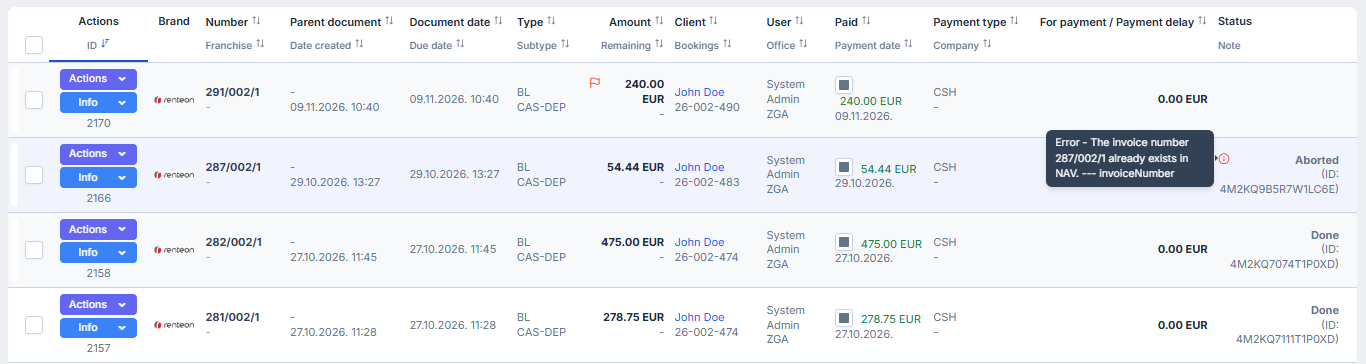
Open Sales → Bills → Search. When the NAV module is on for at least one of your companies, the list has an extra column headed Status and Note. For a document that has been sent it shows:
- the NAV status in bold;
- the transaction ID NAV gave to the document, as (ID: ...);
- a red information icon when NAV or Renteon returned a message for the document. Hover over the icon to read it.
The statuses come from NAV:
- Received, Processing and Saved: NAV has the document but has not finished processing it.
- Done: NAV has processed and accepted the document. A Done document can still carry NAV warnings; then the red icon shows them.
- Aborted: NAV did not accept the document. See the next section.
Renteon asks NAV for the status a moment after sending, and a nightly job asks again for every document sent during the last 50 days that is still Received, Processing or Saved. To refresh one document at once, click Actions on its row and choose NavOnline - Download Status. The action is available only for documents that already have a transaction ID.
A document counts as fiscalized as soon as NAV has given it a transaction ID. From then on it is no longer sent automatically, whatever its status.
When something goes wrong
Every NAV error of a document is e-mailed to the Notifications - E-mail address of the document's company. The subject is "NavOnline error - finance document" followed by the document number, and the mail contains the error and a hint what to check. Most errors are also stored on the document, so you can read them in the list as well (red information icon); the e-mail always has them.
What happens next depends on the kind of error:
- The document could not be sent at all (for example wrong NAV login data, NAV not reachable, an invalid client VAT ID, a missing VAT exemption article or a broken modification chain). The document keeps waiting and the hourly job tries again on every run. Each failed attempt sends a new e-mail, so a document you do not fix produces a mail every hour. Correct the cause, for example the NAV credentials in Settings or the client in the address book, and the next run sends it. You can also click Fiscalize on the document to try at once.
- NAV accepted the request but aborted the document (status Aborted). The e-mail contains NAV's reason. The document has a transaction ID and is not sent again automatically. Talk to your accountant about how to correct it.
- NAV says the invoice number already exists. This can happen when NAV saved an earlier attempt but its answer never reached Renteon. Renteon then reads the invoice NAV has under that number, and if it carries the same Renteon document ID, Renteon takes over that NAV record and its status. If it is a different invoice, the document ends as Aborted and you get the error by e-mail.
- The nightly status check gets no answer for a document. You receive an e-mail saying that NAV returned no status; the check is repeated the next night, and you can use NavOnline - Download Status at any time.
Warning: An invoice that waits for NAV and is not corrected keeps producing an error e-mail every hour. Do not ignore these mails: until the cause is fixed, the invoice is not reported.
The Libra option
Use Libra adds encrypted extra data to every invoice that Renteon sends to NAV. Only a party that knows the matching password and salt can read it. Tick it only if you were asked to.
When the option is on, Renteon adds:
- the client's name and address (country, postal code, town and street), also for private persons, whose invoices otherwise carry no name;
- for every line that belongs to a booking: the code of the pick-up office and, when a car is assigned, the last eight characters of its chassis number and its plate number.
The values are encrypted with a key that Renteon derives from NavOnline Libra - Password and NavOnline Libra - Salt; NavOnline Libra - Key is sent along so that the reader knows which key was used. All three fields become mandatory when you tick Use Libra. Ask the party that reads the data, or Renteon support, for the values.
Once the module runs, your daily routine is short: check the Status column and the error e-mails, fix the documents NAV complained about and use Fiscalize or NavOnline - Download Status when you do not want to wait for the jobs.
Related guides: