
Sales
How availability is calculated
How Renteon decides which car categories can be booked for given dates and offices, what reduces availability, how the channels differ, and what to check when a category is missing.
Last updated
Every booking in Renteon starts with an availability search: for a pickup office and time and a return office and time, which car categories can be offered, how many cars of each are free, and at what price. The same calculation runs when an agent starts a new reservation, when a partner or broker asks through the B2B connection, when your website searches, and again when a booking is saved.
This guide explains what the calculation looks at: which cars count, what keeps a car busy, how the buffer between rentals works, which offices are included, and which rules (stop booking, rental duration, working hours, prices) can hide a category even when cars are free. It also explains how the office screen differs from partners, brokers and the website. The last section is a checklist for the most common question: "Why is this category not available?"
The calculation in one minute
A car category is offered for a search only when all three of these are true:
- No rule blocks it: no stop booking, no rental duration limit of the pickup office and no return office restriction. For partners and the website, the booking lead time, the fleet availability limit and the working-hours rules must also allow it.
- At least one car of the category is free for the whole period, after reservations, planned fleet and the buffer between rentals are taken into account. The exceptions are users who may overbook, categories that are offered on request, and partner bookings that are given an alternative category.
- At least one pricelist that may be used for this search has a valid price for the category.
The number of free cars is worked out for every moment of the requested period:
- plus one for each car of the category that is standing idle (not in any activity that occupies it) at one of the counted offices,
- plus or minus the planned fleet entered for the category,
- minus one for each active reservation of the category that overlaps that moment.
The lowest value found anywhere in the period becomes the category's available count. If it is 1 or more, the category is available.
For example, you have 5 cars in category CDMR. Two reservations run Monday to Wednesday and three run Tuesday to Thursday. On Monday 3 cars are free, but on Tuesday and Wednesday none are. A search from Monday to Friday therefore shows 0 available cars, even though only two cars are taken on Monday.
Which cars are counted
A car takes part in the calculation only when all of the following apply:
- The car is active. A car you deactivate (the Deactivate button on the car, with a Car deactivation status and Car deactivation date) is no longer counted at all. Renteon refuses to deactivate a car that is still in movement, so close its rentals and other activities first.
- Its car fleet is used for rent. In Fleet → Fleet → Car fleet, the fleet the car belongs to must have Use for rent ticked. Cars in fleets without it are never offered.
- Its car category is active. An inactive category is never offered, whatever cars it has. A category becomes inactive when you delete it in the car category list, and Activate in the same list brings it back.
- It is still in the fleet on the pickup date. If the car has a Buy back date / In fleet to, it counts only until that date. A car whose buy back date falls inside the requested period is free only until then, so it cannot cover the whole rental. If the buy back date falls before the end of a rental the car is on right now, that rental keeps counting against the category until its estimated return.
A car always counts in its own category, which is the category of its car model (see Car categories and category groups). Each category is counted on its own: car category groups only narrow a search, they never pool the cars of several categories. Adding cars is described in Adding fleet.
What keeps a car busy: car activities and contracts
Renteon follows every car through a timeline of activities: rental, transfer, service, delivery, collection and so on. Between two activities the car is idle, which means it is standing in an office and can be rented. Only idle time makes a car available.
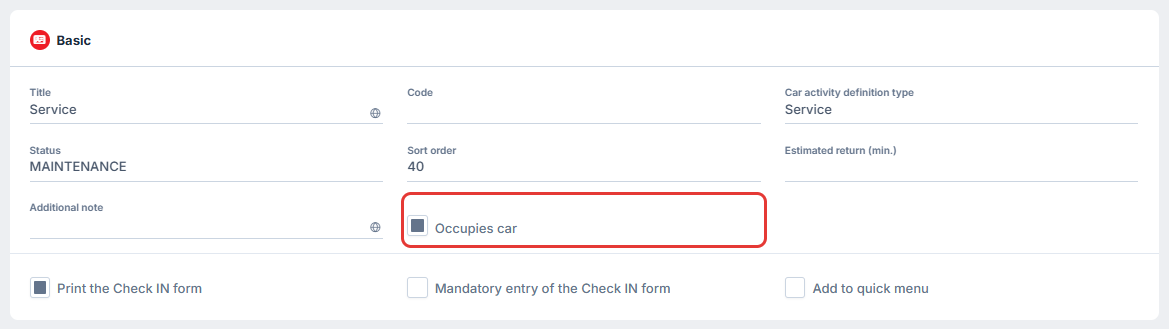
Whether an activity takes the car out of availability is set on the activity type, in Fleet → Fleet → Car activity types, option Occupies car:
- An activity type with Occupies car ticked (a rental, a service, a transfer and so on) makes the car unavailable for as long as the activity lasts.
- An activity type without it can only be opened inside another activity, and it does not change availability. The standard type Service during rent works like this: the rental it is opened in already keeps the car busy.
How long an activity keeps the car busy:
- While the activity is open, the car is busy until the activity's estimated end. From that moment it counts as available again, at the office where it is expected to be returned.
- Once the activity is closed, the car is available from the actual end, at the actual return office.
A contract occupies its car through the rental activity. That is why a contract is not counted a second time at category level: the car itself is busy. If you give a customer a car from a higher category, the car of the higher category is the one taken out of availability.
Only activities change a car's availability. Recording a damage on its own does not take the car out of sale. If a damaged car must not be rented, open an activity that occupies it, such as a service, or deactivate the car.
Warning: An overdue rental makes its car look available. If the estimated return of an open contract has passed and the car is not back, Renteon counts the car as available from that estimated return onwards. Keep the estimated return date of open contracts up to date when a customer extends or is late, otherwise the car can be sold twice.
Reservations, offers and on-request bookings
Reservations are counted per category, not per car. Each active reservation takes one car of its category away for its whole period, whether or not a car has already been assigned to it on the fleet chart.
Which bookings reduce availability:
- Reservations that are active and not cancelled. A reservation counts in its Issued car category, which is the category the customer will actually get. If the issued car category is empty, Renteon fills in the Car category for payment when the booking is saved.
- Contracts, through the car they occupy (see the previous section).
Which bookings do not reduce availability:
- Offers. An offer reserves nothing until it becomes a reservation.
- On-request reservations, until you confirm them. See On request bookings.
- Cancelled reservations, including reservations that Renteon cancelled automatically with the status Document expired.
A reservation whose customer never shows up keeps its car until Renteon cancels it as expired. A background job runs every 30 minutes. It cancels reservations whose pickup time passed more than the number of hours set in Administration → Code book → Settings, tab Bookings, option Bookings (reservations) expiration in hours. The default is 24 hours, and a franchise can have its own value. Reservations created or changed within the last two hours are left alone.
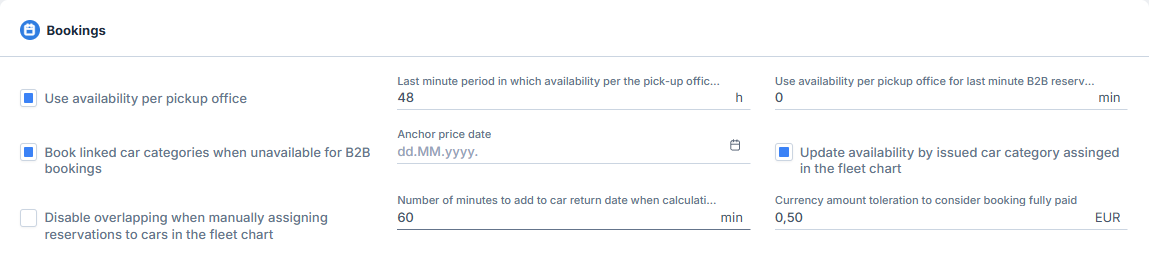
Assigning a car on the fleet chart does not change availability, because the reservation still counts in its issued car category. The exception is the option Update availability by issued car category assinged in the fleet chart (same settings tab). When it is ticked and a reservation is assigned to a car of another category, by hand or by automatic assignment, the reservation's issued car category changes to the car's category. From then on it counts against that category. See Fleet chart.
Planned fleet
Planned fleet lets you add cars you expect to have, or hold back cars you do not want to sell, per category and period, without entering real cars. A positive quantity raises the available count for that period and a negative quantity lowers it. An entry with an office counts only when that office is among the offices counted for the search (see "Which offices are counted"). An entry without an office always counts.
Planned fleet is ignored in two cases where a real car must be on site: when you start a contract, and when a partner books at the last minute (see "Which offices are counted").
Because availability is the lowest value over the period, a planned fleet entry helps only if it covers the whole rental. If you add +3 CDMR for June and a customer asks for 28 June to 3 July, the three cars do not count from 1 July, so the period gets the lower number.
Setting it up is described in Planned fleet.
The buffer between rentals
A car that comes back at 10:00 is rarely ready for the next customer at 10:00. Administration → Code book → Settings, tab Bookings, option Number of minutes to add to car return date when calculating car availability sets that preparation time. The default is 60 minutes.
The buffer is applied on both sides of every rental:
- A car becomes available only this many minutes after it is expected back (or actually came back) from its previous activity.
- Every reservation keeps its category busy until this many minutes after its estimated return.
- Your own search must also leave this many minutes free after your return time, before the next rental of the same car or category starts.
For example, with the default 60 minutes and a single CDMR car that is reserved until 12:00, a new rental from 12:30 finds 0 cars, while a rental from 13:00 finds the car free. In the same way, with that single car, a rental until 18:00 conflicts with another CDMR reservation that starts at 18:30.
Set it to 0 if you want back-to-back rentals with no gap.
Which offices are counted
By default Renteon treats your whole fleet as one pool. Every car, every reservation and every planned fleet entry of all your offices counts, wherever the car currently is. If you have 3 free cars in Split and none in Zagreb, a search in Zagreb still finds 3. Renteon assumes you can move cars between offices in time.
If your offices are far apart, you can count availability per office for bookings made at short notice. In Administration → Code book → Settings, tab Bookings:
- Use availability per pickup office turns it on.
- Last minute period in which availability per the pick-up office is used (hours) sets how close to pickup the per-office count applies. It appears, and must be filled in, once the first option is ticked.
When the pickup is within that many hours from now, the search counts only:
- cars idle at the pickup office or at one of its connected offices,
- reservations picked up at those offices,
- planned fleet entered for those offices, plus planned fleet without an office.
When the pickup is further away, the whole fleet counts again. For example, with 48 hours, a search for tomorrow morning in Zagreb sees only the cars in Zagreb and its connected offices, while a search for next month sees the whole fleet.
Connected offices are set on each office in Administration → Locations → Offices, tab Connected offices (the tab appears once the office has been saved). They work in one direction only: the offices ticked on the pickup office are the ones added to its count. The Minimum reservation duration in hours and Estimated trip duration in hours fields on that tab belong to the fleet chart and do not change availability.
Two situations always count only the pickup office, with no connected offices and no planned fleet:
- Contracts. When you search with the booking type Contract, only cars standing at the pickup office, or expected back there before the pickup, count, and only reservations picked up at that office are subtracted. The car has to be handed over there and then.
- Last-minute partner bookings. If Use availability per pickup office for last minute B2B reservation (minutes) is set, a partner or website search whose pickup is within that many minutes from now is counted the same way as a contract. The same field on an office (Administration → Locations → Offices, tab Basic) overrides the general value for that office. The office field is shown only when the general value is filled in.
Office groups and zones do not change availability. Zones are used, for example, to price one-way fees.
One-way rentals and return offices
Any office can be a return office unless the pickup office restricts it. In Administration → Locations → Offices, tab Basic, Restrict return locations limits the returns. When it is ticked, a tab Allowed destination locations appears, where you tick the offices customers may return to. Returning to the pickup office itself is always allowed. A search with any other return office finds no categories at all, in every channel.
A few more office settings affect which offices can be searched:
- On the office Availability screen, only active offices with Pickup location ticked can be chosen, both as Office OUT and as Office est. IN.
- Pickup location - Web decides which offices partners and your website receive in their list of locations. The availability calculation itself does not check it.
With per-office availability, keep in mind what a one-way rental does to each office. A reservation from A to B counts against office A for its whole period, and its return office does not count. A one-way contract, on the other hand, makes its car available at office B from the estimated return.
The price of a one-way rental (the one-way fee) comes from your zones and fee pricelists. It does not decide whether a category is available.
Stop booking
A stop booking closes sales for chosen categories, periods, offices, channels and partners, regardless of how many cars are free. Its effect on availability:
- A stop booking that covers all car categories returns no categories at all for a matching search.
- A stop booking for selected categories removes only those categories.
- A stop booking with Allow reservations on request ticked is meant for partners and the website. Renteon does not let you link it to the office booking channel or to all channels (saving fails with "OnRequest booking cannot be connected to office booking channel"), so it never affects the office Availability screen. For partners who may book on request, it turns the categories into on-request offers instead of hiding them (see "On request and alternative categories for partners"). For all other channels and partners it blocks like any other stop booking.
Which searches a stop booking applies to (pickup, drop-off or any overlap, offices, channels, partners, rental lengths) is explained in Stop booking.
Rental duration and booking lead time
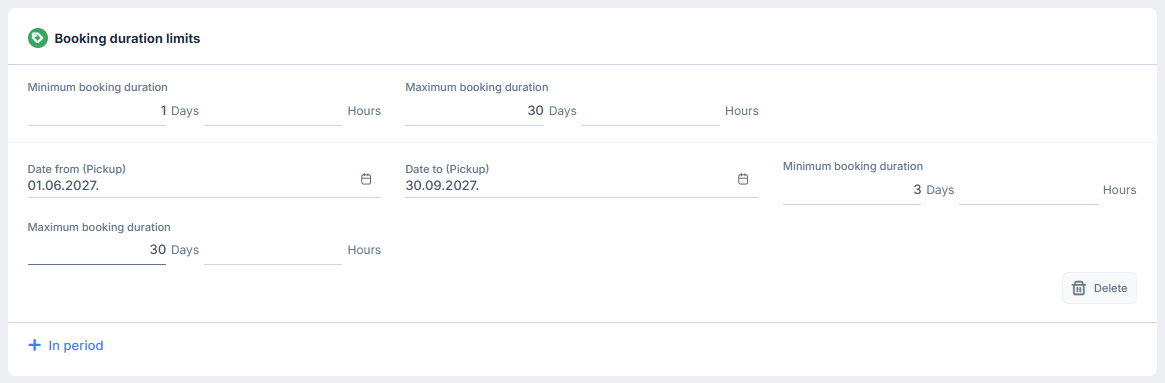
Office rental duration limits. On an office, section Booking duration limits, you can set Minimum booking duration and Maximum booking duration in days and hours. When the requested rental is shorter or longer, the pickup office returns no categories at all. This applies to every channel: the office screen, the External API, partners and the website. With In period you add rows with Date from (Pickup) and Date to (Pickup) and their own limits. When the pickup date falls inside such a row, the row's limits are used instead of the general ones.
Renteon measures a rental in whole hours from pickup to return, rounded down. A rental from Monday 10:00 to Thursday 09:50 is 71 hours, not 3 days.
Pricelist duration limits. A car rental pricelist can have its own Pricelist booking duration limits. They remove only that pricelist from the search, not the whole office. If no other pricelist has a price, the category disappears too (see "Prices: no price, no offer").
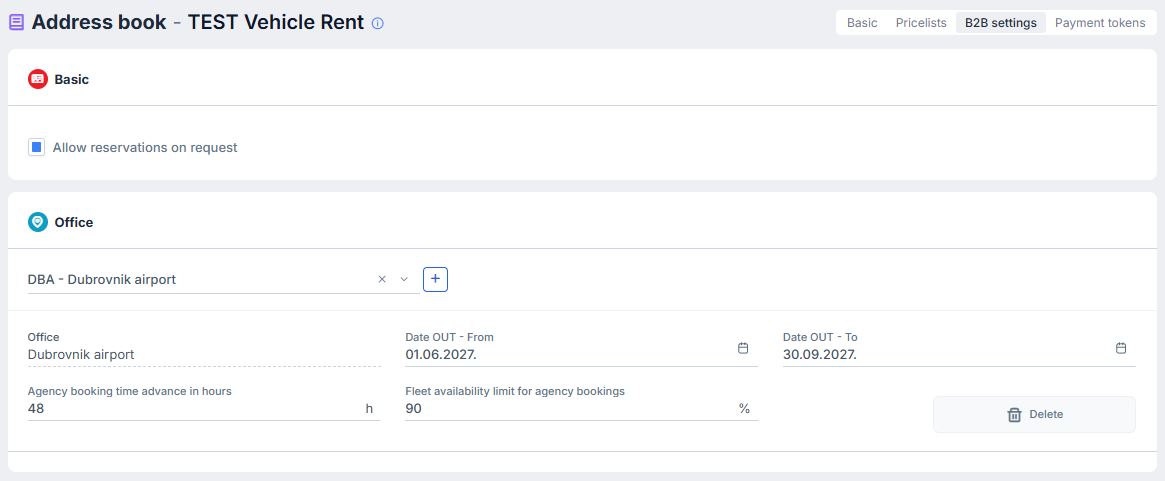
Booking lead time for partners. Agency booking time advance in hours sets how many hours before pickup a partner must book. It applies only to partner, broker and website logins, never to your staff. Renteon takes it from these places:
- If the partner has a row in tab B2B settings, section Office, for the pickup office and a pickup date between Date OUT - From and Date OUT - To, that row's value is used.
- Otherwise Renteon takes the larger of two values: the one on the partner (tab Basic, section Additional Partner Settings) and the one on the pickup office (tab Basic).
If the pickup is sooner than now plus the lead time, the partner gets no categories at all. For example, the partner has 24 hours and the office 48 hours. On Monday at 10:00 the partner can book pickups from Wednesday 10:00 onwards.
Working hours and holidays
On the office Availability screen and in the External API, working hours never hide a category. Staff may agree an out-of-hours handover with a customer. Working hours still matter for the price there, through the automatic out-of-hours fees and Pricing optimizations, but not for whether a category appears.
For partners, brokers and your website, three settings can refuse an out-of-hours pickup or return, or turn the offer into an on-request offer:
- Office Pickup/Dropoff time restriction (on the office, tab Basic): an out-of-hours pickup or return is accepted only inside the tolerance window the restriction allows. Otherwise the partner gets no categories at all. The pickup is judged by the pickup office's restriction and the return by the return office's.
- Period in which reservations are allowed only in working hours (Administration → Code book → Settings, tab Bookings, in hours): within this many hours before pickup, an out-of-hours pickup is offered only while the pickup office is open at the moment of the search, so someone can react to it. For example, with 12 hours and an office open 08:00 to 20:00, a broker searching at 21:00 for a 07:00 pickup the next morning gets nothing. It looks at the pickup only.
- Enable on request for out of hours reservations (same tab): an out-of-hours pickup, or an out-of-hours return to an office without a key box, is offered on request instead of confirmed. It never refuses anything on its own. If one of the two settings above refuses the time, the refusal wins.
A return is never refused, and never made on request, because of working hours when the return office has Has key box ticked. When the partner chooses a meet and greet location IN, the Has key box option of that location decides instead of the office's.
Whether a moment is outside working hours depends on the office's hours for that date: a holiday rule first, then a working time In period, then the Regular working time. An office, or a day, with no working time entered counts as closed, so with any of the three settings above every time there is outside working hours. Working hours that run past midnight make the office count as closed for the whole day. How to enter the hours, the restriction types (Exact time, Relative to working time, In period) with examples, and the out-of-hours fees are described in Holidays and working hours.
Prices: no price, no offer
The search returns a category only together with a price. A category with free cars but no valid price is not shown, on the office screen as well as for partners and the website. A pricelist (Car control → Pricelists → Car rental) can price a search only if all of these are true:
- It is active, today falls between Active from and Active to, and the pickup date falls between Pickup from and Pickup to.
- The rental length fits its Pricelist booking duration limits, including any In period row that covers the pickup date.
- The category's car rental service is ticked in its Services section.
- It has a price for the category that is valid on the pickup date, for the pickup office or for all offices, and for a duration range that covers the rental length. A price entered for the pickup office overrides the general price.
- For a linked pricelist, the prices of its Base pricelist are used. See Linked pricelist.
Which pricelists may be used depends on who you are booking for:
- No client, agency or commissioner: all pricelists that are not Agency pricelist and do not have Use only for clients linked in the address book ticked.
- A client: if the client has pricelists linked in the address book (tab Pricelists), only those are used, except agency pricelists. Otherwise the same pricelists as above are used.
- An agency: only the agency pricelists linked to that agency.
- A commissioner: only the pricelists linked to that commissioner that are not agency pricelists.
- A partner, broker or website login: only the pricelists linked to that partner. Prepaid searches use agency pricelists, and pay-on-arrival searches use the others.
On the office screen the Pricelist field narrows this further (see the next section). A category can appear more than once, once for each pricelist that prices it.
Setting up prices is described in Pricelists.
The Availability screen in the office
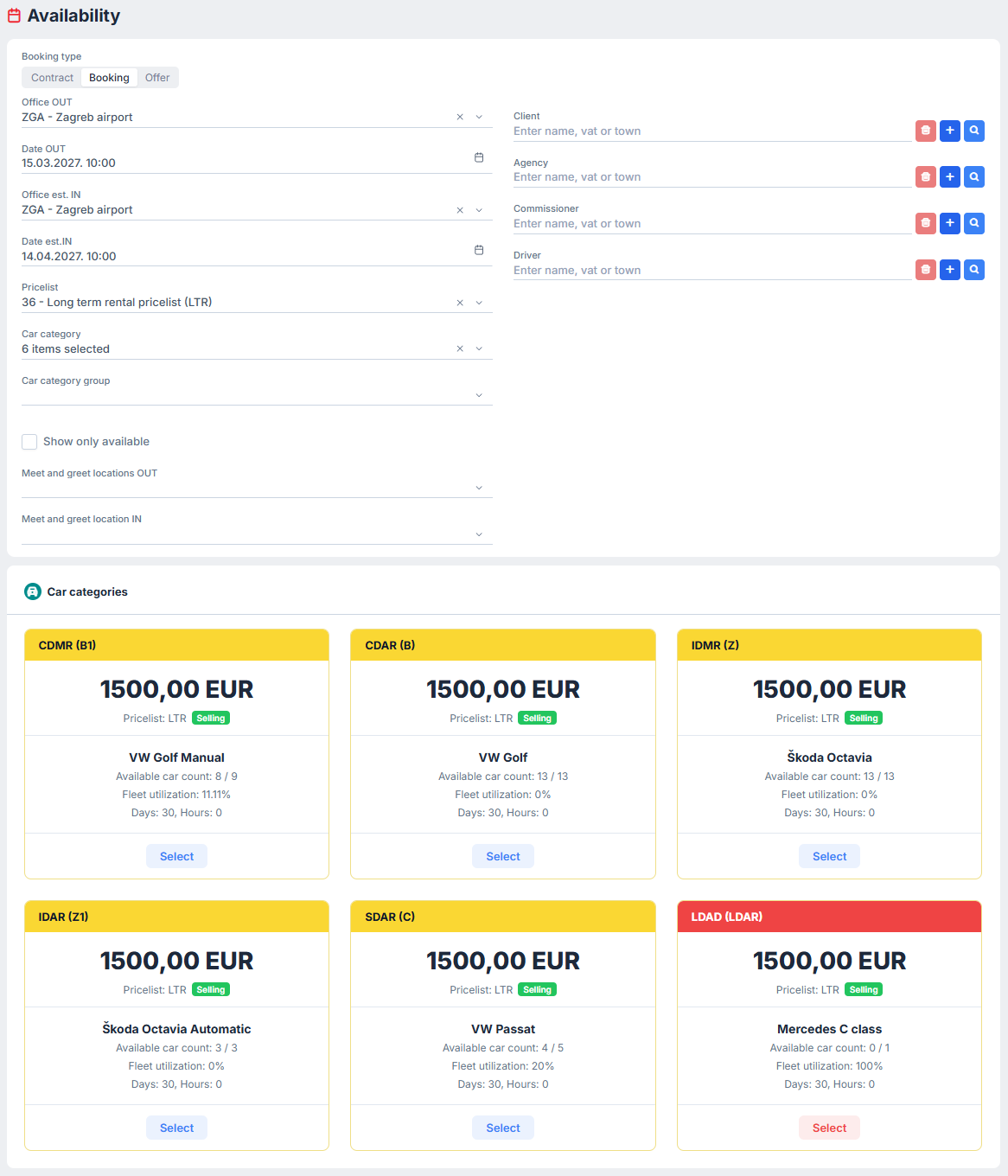
Sales → Bookings → New offer, New reservation and New contract all open the Availability screen. It needs the role Create and modify bookings. The menu item you used preselects the Booking type: Contract, Booking (a reservation) or Offer.
The search fields:
- Office OUT, Date OUT, Office est. IN and Date est.IN are required. When you open the screen they are filled with your own office, now, and the same time tomorrow. If you move Date OUT past Date est.IN, the return is moved to one day after the pickup.
- Pricelist starts with the default pricelists of your own office (office tab Pricelists - Default). They are not replaced when you change Office OUT, so check the field when you search for another office. When you choose an agency or a commissioner, the field is cleared, so all of that partner's linked pricelists are searched. Leave it empty to search all pricelists you may use.
- Car category and Car category group narrow the result. If you fill in both, only Car category is used and the group is ignored.
- Show only available is ticked and can be unticked only by users with the role Overbooking.
- Meet and greet locations OUT and Meet and greet location IN offer only the locations of the chosen offices. A location that does not belong to the new office is cleared when you change the office.
- Client, Agency and Commissioner change which pricelists apply (see "Prices: no price, no offer"). Agency and commissioner exclude each other. Driver does not change the search; it is carried over into the booking. When you choose a private person as client and no driver is set, the client is filled in as driver.
Press Search. Each result card shows a category with its price (cheapest first) and its pricelist, marked Nett or Selling. Below that are Available car count as available / total cars, Fleet utilization, and the rental length. The card header turns red when no car is free. Clicking the price opens the new booking on the prices step, and Select opens it on the first step. For an offer you can tick several cards and use Create and e-mail offers. Any change to the search fields clears the results, so prices are never shown next to dates that have changed.
On the office screen, on-request offers do not exist, and stop bookings with Allow reservations on request never apply here, because they cannot be linked to the office booking channel.
Overbooking
Users without the role Overbooking always search with Show only available. They cannot save a reservation or an offer for a category that has no free car. Users with the role can untick it. They then also see categories with 0 or fewer free cars (red header and red Select button) and can book them anyway. The available count then goes below zero, which the fleet availability report marks as overbooking.
Some bookings are never stopped by availability, so they can also push a category below zero:
- Contracts. When you start a contract from the Availability screen, Renteon checks whether a car is free at the pickup office. After that, saving or recalculating the contract does not check availability again.
- Bookings imported automatically from booking imports (e-mail, FTP and broker integrations) are saved without an availability check. See Other booking imports (e-mail, FTP, OK Mobility, Ison Care).
- Offers converted with Convert offer to reservations. This action, on an offer in the booking list or form and on each line of a Group offer, creates the reservations without an availability check.
Partners, brokers and the website can never overbook.
Partners, brokers and the website
Partners in the B2B portal, brokers connected through the B2B API (directly or through the Renteon aggregator) and your website all use the same calculation as the office screen. On top of it, the following rules apply:
- Only linked pricelists. The partner sees only the pricelists linked to it in the address book, tab Pricelists (role Client and pricelist linking). A partner with no linked pricelists gets nothing. Prepaid searches use only pricelists with Agency pricelist ticked, and pay-on-arrival searches use only the others.
- Prepaid and pay on arrival must be allowed. A prepaid search is refused unless the partner is marked as Agency in the address book; the partner gets "You are not allowed to create prepaid bookings. Please contact the provider to enable prepaid bookings for your account." A pay-on-arrival search is refused unless the partner is marked as Agent or has Allow B2C Access ticked; the message then reads "You are not allowed to create pay on arrival bookings. Please contact the provider to enable pay on arrival bookings for your account."
- Available only. Categories without a free car are not returned, unless they are offered on request or through an alternative category (next section).
- Booking lead time. Agency booking time advance in hours applies (see "Rental duration and booking lead time").
- Fleet availability limit. With Fleet availability limit for agency bookings (in %) you stop selling to a partner once a category is filled to that level. The utilization is 100 % minus available cars as a share of all cars over the period. When it reaches the limit, the category is no longer offered to that partner. For example, with 90 %, a category of 20 cars is no longer offered once only 2 cars are free. The value is set on the partner (tab Basic, section Additional Partner Settings, shown for partners marked as Agency or Agent), or per pickup office and pickup period in tab B2B settings, section Office, which takes priority. Leave it empty, or enter 100, for no limit. Do not enter 0: a limit of 0 % removes every category for that partner, except on-request ones.
- Working hours. The working-hours rules in "Working hours and holidays" apply.
- Last-minute bookings can be counted at the pickup office only (see "Which offices are counted").
- No fleet utilization. The fleet utilization is not sent to partners.
- High server load. When Renteon's servers are under very high load, partner and website searches can be refused for a short time with "Service is temporarily unavailable due to high server load. Please try again in a minute." This is handled by Renteon. You do not need to change anything.
The External API that your own systems use behaves like the office screen, not like the partner channel. Working hours do not hide categories, and on-request offers are not returned.
Partner setup is covered in B2B portal, Agency bookings and API connection setup.
On request and alternative categories for partners
On request. Partners and the website can receive categories as on request instead of not at all, in two ways:
- On-request stop bookings. A stop booking with Allow reservations on request turns its categories into on-request offers, but only for partners whose address book record has Allow reservations on request ticked (tab B2B settings). They are returned even without a free car and are not removed by the fleet availability limit. For all other partners the stop booking blocks as usual.
- Out-of-hours times, deliveries and collections. Enable on request for out of hours reservations and Enable on request for deliveries and collections (Administration → Code book → Settings, tab Bookings) return every category that has a price and is not stop-booked as on request, even without a free car: the first for out-of-hours times, the second when the search includes a delivery or a collection. These two settings apply to every partner, whatever its own Allow reservations on request option says.
An on-request booking does not take a car until you confirm it. How to handle these bookings is described in On request bookings.
Alternative categories. With Book linked car categories when unavailable for B2B bookings (same settings tab), a partner can still book a category that has no free car, if you have a similar category to give instead. On each category (Fleet → Fleet → Car categories), tick the categories you are willing to hand over in its place under Alternative car categories for fleet chart & B2B bookings. Then:
- The partner sees the requested category at its own price as long as one of its alternatives has a free car and a price on the partner's pricelists.
- When the partner books it, the booking keeps the requested category as Car category for payment. The first free alternative, by the categories' sort order, becomes the Issued car category, so the reservation takes a car of that category. No upgrade fee is charged for it.
- A stop-booked category is neither offered nor used as an alternative.
- Bookings you enter yourself in Renteon are not affected.
- On a single office you can switch this off with Book linked car categories when unavailable for B2B bookings - disable for this office (office tab Basic).
See Automatic upgrade option and Car categories and category groups.
Externally maintained availability
Some companies keep their sellable car count in another system. Renteon support can switch the partner and website channel to that count with the system option Use external availability tracking for B2B availability (Administration → Code book → Settings, tab Modules, visible to Renteon system users only).
When it is on, partners and the website no longer get the free-car count from your fleet:
- The count comes from values per office, category and day that the other system sends to Renteon. The user that system signs in with needs the role Car availability editing.
- Only the pickup office counts, with no pooling and no connected offices.
- There must be a value for every day from the pickup day to the return day, and the lowest one is used. A category with a missing day is not available.
- Stop bookings, rental duration limits, the lead time, the working-hours rules, the fleet availability limit and prices still apply as described above.
- The office Availability screen keeps using your own fleet.
You can view and correct these values in Car control → Reports → Car fleet → Fleet availability (externally maintained), with the role Fleet availability (external) overview.
A second system option, Use advanced stored procedure for B2B availability, is on by default. It computes the same rules faster for partner and website searches. Ask Renteon support if you think either option should be changed.
When availability is checked again
The result cards are a snapshot. Renteon checks availability again when the booking is created from a card, when it is recalculated and when it is saved, so another agent or a broker may have taken the last car in the meantime. When the check fails in the office, you see "There are no available cars for given criteria." while the booking is being opened from the card, and "There are no available cars for given criterion." on recalculation or saving.
What is checked depends on what you change:
- New reservations and offers: the full search is repeated for the chosen category, pricelist and offices.
- Changing a saved reservation or offer without changing its issued car category or (where it matters) its offices:
- Shortening it, or keeping it inside its original period, is not checked at all.
- Extending it, or moving it to other dates, checks only the time the original period did not cover, and only whether a car is free. Stop bookings, duration limits and prices are not checked again for that time.
- Changing the issued car category checks free cars in the new category for the whole period, again without stop bookings, duration limits or prices.
- Any other change, such as another category for payment or another pickup office with per-office availability, repeats the full search. If the booking has an agency or a commissioner, its pricelist must be linked to that partner, otherwise recalculating or saving fails with "Selected pricelist is not applicable for this partner."
- Contracts are not checked on saving (see "Overbooking").
- Partner and website bookings go through the same checks. When a partner moves an existing booking to a new pickup or return time, the working-hours rules are applied again, but only to the side that moved.
Why is a category not available?
Work through these questions in order. The first one that fails is usually the answer.
- Does the category show up at all on the office Availability screen for the same offices and dates, with Pricelist empty?
- To compare with a partner, choose the partner as Agency (prepaid) or Commissioner (pay on arrival), so the same pricelists are searched.
- If you have the role Overbooking, untick Show only available. A category that then appears with a red header has a price but no free car (questions 7 and 8). A category that still does not appear is blocked by a rule or has no valid price (questions 2 to 6).
- If the category appears, the problem is specific to the partner or website channel. Continue with question 9.
- If no categories at all appear, check questions 2 to 4 first. They affect every category at once.
- Does the pickup office restrict return offices (Restrict return locations), and is the return office missing from Allowed destination locations?
- Is the rental shorter or longer than the pickup office's Booking duration limits (including an In period row for this pickup date)?
- Is there a stop booking for all car categories that matches this search?
- Is the category itself blocked by a stop booking? Check Car control → Stop booking.
- Is there a valid price?
- Is the pricelist active, and do today and the pickup date fall inside Active from/to and Pickup from/to?
- Does the rental length fit the pricelist's duration limits and price durations?
- Is the category ticked in the pricelist's Services?
- For a client, agency or commissioner: is the pricelist linked to them? If a client has linked pricelists and Pricelist still holds your office's default pricelists, the two lists must overlap.
- Is a car really free for the whole period?
- Look at the category on the fleet chart and in the fleet availability report. One busy hour anywhere in the period is enough to make the whole period unavailable. The report has its own filters (offices, car fleets, planned fleet, buffer), so set them to match the search.
- Remember the buffer between rentals on both sides.
- Check that the cars are active, in a car fleet with Use for rent, and not past their Buy back date / In fleet to.
- Check for no-show reservations that have not expired yet, and for negative planned fleet.
- Check for overdue contracts with an old estimated return, which can make cars look free when they are not.
- Are the right offices counted?
- With Use availability per pickup office, only the pickup office and its Connected offices count for last-minute pickups.
- For a Contract, only cars at the pickup office, or expected back there before the pickup, count, and planned fleet is ignored.
- For partners, brokers and the website only:
- Is the pickup sooner than the Agency booking time advance in hours allows?
- Is the pickup or return outside working hours at an office with Office Pickup/Dropoff time restriction? Is the office closed right now with Period in which reservations are allowed only in working hours set? Does the office have working time entered for that day, and none that runs past midnight?
- Has the category reached the partner's Fleet availability limit for agency bookings? Is the limit set to 0 by mistake?
- Does the partner have a linked pricelist of the right kind (agency pricelist for prepaid, other pricelists for pay on arrival)?
- Is the partner allowed to book prepaid (Agency) or pay on arrival (Agent)?
- Is externally maintained availability switched on, and is a value missing for one of the days?
- Is the category offered only on request? Then the partner's booking for it must also be sent as an on-request booking, otherwise it is refused.
If you have worked through the list and still cannot explain the result, contact Renteon support. Send the offices, dates, category, channel and partner of the search.
Availability in Renteon is not a single number you maintain. It is calculated fresh for every search from your cars, their activities, your reservations and your rules. Keeping estimated return dates, planned fleet and office settings accurate is what keeps that number reliable.
Related guides: