Fiscalization
Slovenia: fiscalization
How Renteon reports Slovenian invoices to FURS: certificate, business premises, which documents are sent, EOR and ZOI on the printout, retries, and e-Slog ZZI e-invoices.
Last updated
For Slovenian companies, Renteon reports finance documents to the Financial Administration of the Republic of Slovenia (FURS) as they are issued. FURS answers with a unique invoice identifier (EOR). Renteon stores it on the finance document together with the protective mark of the issuer (ZOI) and the FURS QR code, and prints all three on the document.
This guide explains what you need to prepare, where each value is entered, which documents are reported, what you see on the screen and on the printout, and what happens when FURS cannot be reached. The last two sections cover e-invoices sent through e-Slog ZZI (BizBox), which is a separate service from FURS fiscalization.
For a comparison with the other countries, see Fiscalization and e-invoicing overview.
Before you start
Prepare the following before you switch fiscalization on:
- The FURS certificate for fiscal verification of invoices, as a file, and its password. Renteon accepts the certificate in PKCS#12 format with the .pfx extension.
- The company's Slovenian tax number in Administration → Code book → Settings, tab Basic, panel Company, field VAT ID. For an additional company, enter it in the VAT ID of that company in Administration → Code book → Companies. Renteon uses only the digits, so SI12345678 and 12345678 both work.
- The tax number of every user who issues invoices in Administration → Code book → Users, field VAT ID of each user. FURS receives it as the tax number of the person who issued the invoice (the operator).
- One office per business premise. Each office in Renteon is reported to FURS as a business premise, and its Code is the premise ID. You also need the land-register data of each premise (cadastral number, building number, building section number).
- The right roles. To change settings you need Application settings management, to edit and register offices Edit offices, and to configure additional companies Company editing. To issue and fiscalize documents you need Invoice management, and to cancel them also Invoice cancellation.
Warning: Use only letters and digits in the office Code (no hyphens, slashes or spaces), and do not change the code of an office that has already issued fiscalized documents. The code is part of every invoice number, Renteon reads the device mark from the invoice number by splitting it at slashes and hyphens, and when you cancel an older invoice it reports the original invoice with the office's current code.
Switching fiscalization on
- Open Administration → Code book → Settings and click Edit.
- Open the tab Fiscalization and find the panel Fiscal - SI.
- Tick the checkbox in the panel header. The fields appear and become mandatory.
- In Certificate, upload the FURS certificate file.
- In Password, enter the certificate password.
- Click Confirm.
If your Renteon account has more than one company, each company has its own Fiscal - SI panel in Administration → Code book → Companies (this menu item is shown only when the account has more than one company): open the company, click Edit, switch the panel on and upload that company's certificate. Each finance document is reported with the settings and the certificate of the company it is issued for. Documents of a company that does not have Fiscal - SI switched on are not reported.
You do not choose between the FURS test and production systems. Renteon's production servers always report to the FURS production system, and Renteon's test servers to the FURS test system.
Registering business premises
Every office that issues fiscalized documents must be registered with FURS as a business premise. Open Administration → Locations → Offices, open the office and check these fields on the tab Basic:
- Code is the business premise ID reported to FURS.
- Address, Street number, Postal code and Town are reported as the address of the premise. Renteon reports the town as both the town and the municipality.
- In the section Basic data, which only Slovenian accounts see, enter Cadastral number, Building number and Building section number. All three are mandatory and accept digits only.
- Office - Close marks the premise as closed. Renteon uses it only for the FURS registration.
To register the premise, save the office (click Confirm) and then click Fiscalize at the bottom of the office screen. The button appears when the office is not in edit mode and Slovenian fiscalization is switched on for at least one company. Renteon sends the premise data to FURS with today's date as the validity date.
- If the office belongs to a company, the premise is registered for that company.
- If the office has no company, it is registered for the main company and for every other company that has Fiscal - SI switched on.
You do not have to remember this step for every new office: if FURS rejects an invoice because its business premise is not registered, Renteon registers the office automatically and sends the invoice once more.
Click Fiscalize on the office again whenever the premise data changes, for example after a move to a new address. To report that a premise has closed, tick Office - Close, click Confirm, and then click Fiscalize.
Warning: The office screen saves a Slovenian office only when Cadastral number, Building number and Building section number contain digits only. If an older office still holds a value that is not a whole number, Fiscalize stops with a message that names the office and the field. A value that was never filled in is reported to FURS as 0, so check all three fields before you register an office.
How invoice numbers are reported
FURS expects each invoice number to be made of three parts: the business premise, the electronic device and the sequential number. Renteon's default number format for Slovenia builds exactly that, for example LJ1/1/125:
- LJ1 is the office code, reported as the business premise ID.
- 1 is reported as the electronic device mark.
- 125 is the sequential number.
Renteon reports the numbering as kept per business premise. The year is not part of the visible number.
If your number format has been changed, keep slashes between the parts and keep the device mark as the second part, between the first and the second slash. Renteon reads the device mark from that position, also when it refers back to an original invoice. A document that must be reported cannot be saved if its number has no slash or hyphen at all.
Which documents are reported
A finance document is reported to FURS when all of these are true:
- Fiscal - SI is switched on for the company the document is issued for.
- The document type is one of: Invoice, Bill, Bill - payout, Approval, Debit, Advance payment invoice or Offer.
- At least one payment on the document is one of: Cash, Checks, Voucher, Credit card, Stripe, Monri or Adyen.
You can add more payment types in the grid Fiscal - Payment types at the bottom of the Fiscal - SI panel on the main Settings screen. The grid offers Transactional account, Bank transfer and Advance payment. The grid applies to the whole Renteon account, not to one company.
Two examples:
- A bill paid half in cash and half by bank transfer is reported, because it contains a cash payment.
- An invoice paid only by bank transfer is not reported, unless you add Bank transfer to Fiscal - Payment types.
A Cashbook payout is never reported, and a document that already has an EOR is never sent again.
What Renteon sends to FURS
For each document Renteon sends:
- the company's tax number (the digits of VAT ID of the company the document belongs to);
- the business premise ID, the device mark and the sequential number, as described above;
- the document date and time in your local time;
- the total amount and the paid amount in euro. For a document in a foreign currency, Renteon sends the converted euro amounts;
- the VAT breakdown per rate (taxable base and VAT). Amounts at a 0% VAT rate are reported separately from the taxed amounts;
- the tax number of the operator, taken from the VAT ID of the user who created the document;
- for a cancellation document, and for a document created from another one (such as an Approval or a Debit), a reference to the original document: its business premise, device mark, sequential number and date.
If the user who created the document has no VAT ID, Renteon reports the company's tax number as the operator. On the production system it also sends an e-mail about the missing user tax number to the main e-mail address of your Renteon account, so that the user's record can be completed.
Warning: Enter Slovenian tax numbers (8 digits) in the VAT ID of the company and of the users. A much longer number, such as an 11-digit Croatian OIB in a user's record, cannot be processed: saving the document fails and nothing is saved until the number is corrected.
What you see on the document and the printout
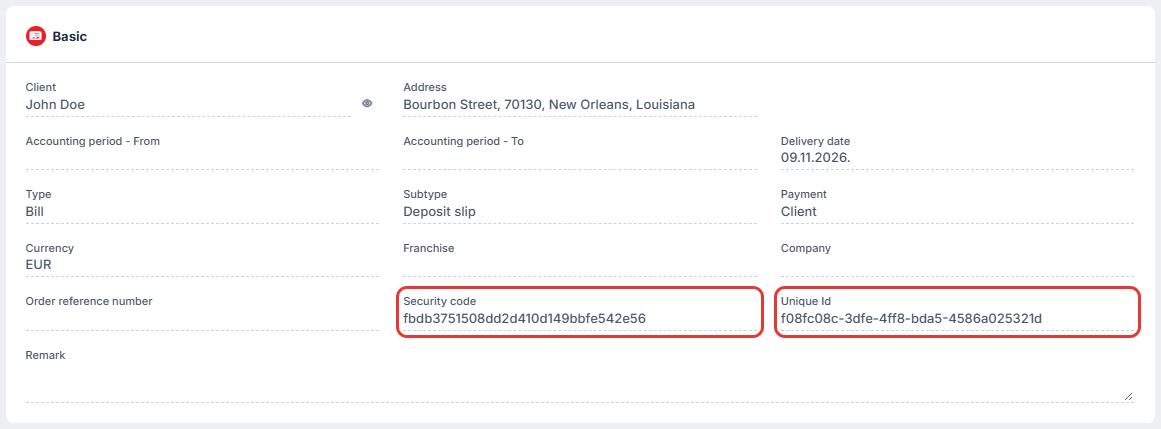
On the finance document screen, a document that is fiscalized or still waiting for it shows two read-only fields:
- Security code is the ZOI, the protective mark calculated with your certificate.
- Unique Id is the EOR returned by FURS. It stays empty until FURS has confirmed the document.
In Sales → Bills → Search, a document that still waits for fiscalization has a red flag next to its amount (tooltip Fiscalization required).
On the printout, Renteon prints the same two codes in the header (labelled Unique Id and Security code in English, EOR and ZOI in Slovenian) and the FURS QR code at the bottom. Two exceptions:
- When the document has a Bank transfer or Transactional account payment in euro, the printout shows UPN payment QR codes instead of the FURS QR code, one for each such payment. The payee IBAN comes from the payment's company account, the default company account, or the IBAN in Settings, in that order.
- An Advance payment invoice is printed without the due date, the reference number and the disclaimer text.
When FURS does not answer
A FURS problem never stops you from issuing a document. If FURS cannot be reached or rejects the document, Renteon saves the document without an EOR and shows no error at that moment. The document is flagged Fiscalization required in the list, and its Unique Id stays empty. To find all such documents, open Sales → Bills → Search, and in the section Fiscalization / e-Invoice set Fiscalization required to Yes.
Renteon then tries again in two ways:
- Automatically. Renteon's hourly fiscalization run sends the document again. Fiscalization and e-invoicing overview describes how this run works.
- By hand. Open the document and click Fiscalize at the bottom of the screen. The button is shown only while the document needs fiscalization and has no EOR. If FURS accepts the document, a message shows the new Unique Id and Security code. If not, the message shows the reason.
Warning: A missing or expired certificate, or a wrong certificate password, does not block saving either. Every document is saved without an EOR until the certificate is fixed, so check the list for red flags after you replace a certificate.
Cancellations, credit notes and debits
When you cancel a finance document (Actions → Cancel on the document, roles Invoice management and Invoice cancellation), Renteon creates a cancellation document of the same type, with the same payment types, the amounts reversed and a new number in your current office. So when the original was subject to fiscalization, the cancellation document is reported to FURS too, with a reference to the original invoice. It follows the same retry rules as any other document.
An Approval (credit note) or a Debit created from an invoice is reported like any other document, with a reference to the invoice it was created from, provided its payments match the rules in "Which documents are reported".
e-Invoices through e-Slog ZZI (BizBox)
Besides FURS fiscalization, Slovenian companies can send e-invoices to business clients through the e-Slog ZZI service (BizBox). This is independent of FURS: one document can be both fiscalized and sent as an e-invoice. Renteon sends the e-invoice in the standard UBL e-invoice format with the PDF of the document attached.
To set it up:
- Get a user name and password for the ZZI service from ZZI (BizBox).
- In Administration → Code book → Settings, click Edit, open the tab Fiscalization and switch on the panel e-Slog ZZI (BizBox).
- Enter Username, Password and Notifications E-mail. All three are mandatory while the panel is on.
- Click Confirm.
Renteon's production servers send to the ZZI production service, and its test servers to the ZZI demo service.
Then mark the clients who receive e-invoices: in Sales → Address book → Search, open the client, click Edit, and in the section Other set eInvoice Type to e-Slog ZZI. When you click Confirm, Renteon asks ZZI whether the client's VAT ID is registered to receive e-invoices. If it is not, the client is not saved and the message asks you to contact ZZI (BizBox) or remove the eInvoice Type. This check runs every time you save a client with this eInvoice Type, and it uses the ZZI login of the main Settings.
Switch the e-Slog ZZI (BizBox) panel on before you mark any client. While it is off, saving a client marked for e-Slog ZZI fails with the message "EInvoice (ZZI) is not enabled. Check your settings page to enable it."
Once a client is marked, every Invoice, Bill, Debit, Approval and Advance payment invoice you create for that client is marked for e-Slog ZZI. The client checkbox Disable automatic sending of e-invoice makes no difference here, because ZZI e-invoices are always sent by hand (see the next section).
Warning: The company's VAT ID is used as the sender address at ZZI, and the client's VAT ID as the recipient. Check both before the first sending.
Sending ZZI e-invoices and following their status
e-Invoices are not sent automatically. Open Sales → Bills → Search and use the row menu of the document:
- Send e-Invoice sends a document that is marked for e-Slog ZZI and has not been sent yet.
- Set - Send e-Invoice marks a document for e-Slog ZZI when the client has the e-invoice type but the document does not (for example, a document issued before you changed the client).
- Delete - Send e-Invoice removes the e-invoice mark from a document that has not been sent yet.
- Download e-Invoice XML downloads the e-invoice file without sending it.
- Download Status (ID: …) appears after sending and opens the row details, where the e-Invoice tab lists the statuses received from ZZI.
Once a day, early in the morning, Renteon collects the statuses of e-invoices sent in the last 50 days. A status is shown as its code and name, for example 29 - Accepted, 27 - Rejected, 12 - TechnicallyAccepted, 1 - Cancelled or -99 - TechnicallyRejected.
If ZZI refuses a document, the error is stored on the document, shown on the screen, and e-mailed to the Notifications E-mail address together with the data that was sent.