
Reports
Franchise reports in the Aggregator
How every Renteon instance's bookings reach the Aggregator's reports, how the import is switched on, and which reports give the franchisor network totals and per-franchisee figures.
Last updated
A franchise network on Renteon is several companies, each with its own Renteon instance: its own fleet, offices, prices and bookings. In the Aggregator the whole network is one brand (the menu and the API call it the Provider), and each instance is one connector. Brokers see one brand. The head office, the franchisor, needs to see the network as one as well: how many reservations the brand received this month, which franchisee picks up the most cars, how much one broker sells across all countries.
No single Renteon instance can answer these questions, because each one knows only its own bookings. The Aggregator can. It keeps a copy of the bookings of every instance in its own report database, and its reports read that copy. This gives you:
- Network totals: reservations, contracts, pick-ups, returns, prices, durations and cancellations for the whole brand.
- Figures per franchisee: every report can be filtered or split by connector, and the Connector overview on the reports dashboard has one row per franchisee.
- Figures per broker across the network: each instance links its agencies and agents to one shared list of brokers, so a broker is one line, whatever it is called in each instance's address book.
- Figures per country and per booking channel: the country of the franchisee's instance and the channel each booking came through.
For the Renteon franchises ticked on its connector, the copy holds the bookings of each instance from every channel (the office, the website and every partner), not only those made through the Aggregator. Because the reports read a copy, they are fast and put no load on the franchisees' Renteon, but they are normally up to half an hour behind.
Each franchisee can get its own Aggregator login that shows only its own connector. The franchisor and every franchisee then work with the same reports, each on their own figures.
You find the reports under Provider → Reports: the Reports dashboard on screen, and Sales with the list of reports. Both need the reports role (code ReportsSales), see Who sees what below.
This guide first explains how the bookings get into the Aggregator and how Renteon support switches the import on, once per instance. Then it goes through the screens. The examples use a brand with two franchisees, one in Croatia and one in Greece, each with its own Renteon instance and its own connector.
How bookings reach the Aggregator
Two background jobs move the bookings, one on each side:
- In each Renteon instance, every 18 minutes, Renteon exports up to 100 bookings that are new or changed since its last run.
- In the Aggregator, every 15 minutes, the Aggregator asks every connector for up to 100 bookings exported since its last run and stores them in its report database.
A new or changed booking normally shows up in the reports within half an hour.
What is copied, and how:
- Reservations and contracts. Offers are never copied, so the booking type filters of the reports offer only Contract and Reservation (only the Detailed booking overview still lists Offer, and finds none).
- Every change. When a booking changes in Renteon (new dates, another car category, a cancellation, a closed contract), it is exported again and replaces the earlier copy. The reports always show the latest version.
- Amounts in the instance's export currency. Renteon converts the amounts of each booking into the currency chosen for that instance's export, at the exchange rate of the day the booking was first made. The Aggregator never converts them again, see Currencies, dates and offices below.
- Dates in the instance's local time. A pick-up at 10:00 in Athens is 10:00 in the reports.
- The broker, the Renteon franchise, the offices, the client's country and the booking channel travel with each booking, so the reports can filter and group by them.
If an instance does not answer in time (the Aggregator waits 15 seconds for all instances together), the Aggregator skips it in that run and asks again in the next one. Nothing is lost; the bookings only arrive later.
When the export is switched on for an instance that already has bookings, its whole history goes through the same queue. At 100 bookings every 18 minutes that is about 8,000 bookings a day, so an instance with 40,000 bookings needs about five days. Until then the figures of that franchisee are incomplete, for past periods too. You can follow the progress in the Connector overview, described below.
Switching it on in each Renteon instance (franchisee and Renteon support)
The first half of the setup is done in each franchisee's Renteon, not in the Aggregator. It has two parts.
1. Link every agency and agent to a broker. Each instance has its own address book, so the same online travel agency is a different record in every instance, often under a different name. The Aggregator Partner field links the record to one entry of a broker list that Renteon and the Aggregator share. This link lets the Aggregator count one broker across the whole network, and the Brokers filter of every report relies on it.
In the franchisee's Renteon (franchisee staff or Renteon support):
- Go to Sales → Address book → Search and open the agency or agent.
- Click Edit. On tab Basic, in section Additional Partner Settings (it appears when Agency or Agent is ticked), choose the broker in Aggregator Partner.
- Click Confirm.
Do this for every partner with Agency or Agent ticked, local partners included. Bookings without an agency or agent, such as walk-in customers, need nothing. Renteon maintains the broker list. If the broker you need is missing, or you are not sure which entry fits a local partner, ask Renteon support.
2. Switch the export on. This is a system screen, so only Renteon support can do it:
- In the franchisee's Renteon, open Development → Tenants, open the instance's tenant and click Edit.
- In section Settings, tick Use Aggregator Report Export and choose the export Currency.
- Click Confirm.
Confirm stays greyed out until a Currency is chosen. When you confirm, Renteon also checks the partners: if an agency or agent that has bookings has no Aggregator Partner, it refuses with "AddressBook aggregator export records without assigned broker: [...]", listing the id and name of each such partner. Set the field on them (part 1) and confirm again.
From then on, Aggregator Partner is required on every agency and agent of that instance: in the address book, Confirm stays greyed out on such a partner until the field is filled in. Unticking Use Aggregator Report Export stops the export and clears the currency.
Choose the same export currency on every instance of the brand, for example EUR, even when a franchisee works in another currency. Renteon converts the amounts when it exports them, and the Aggregator only adds them up. With one currency, the network totals are real totals.
Warning: Bookings whose agency or agent has no Aggregator Partner are not exported. Renteon skips them at every run, so they are missing from all reports until the partner gets one. After that they follow in the next runs.
Switching it on in the Aggregator (Renteon support)
The second half is done on the brand's connectors in the Aggregator. Every connector has two panels that only Renteon support sees: External API and Franchises. Renteon support opens Provider → Code book → Connectors, the connector of the instance, and clicks Edit.
External API. Enter the Username and Password of a Renteon user of that instance. The Aggregator uses this login only to fetch the report data and to read the instance's franchises. It is not the connector's default login in the Connector panel, which serves the mapping screens and set-up data (see Connectors). Use a dedicated user with External ticked in Renteon (Administration → Code book → Users, tab Basic, section Other). Renteon lets the Aggregator sign in only with such a user: an ordinary user would have to choose an office, and the B2B user of a partner is refused here. An external user can do nothing in Renteon except use its external API.
Click Confirm, then Edit again: the franchise list is read through the saved login whenever the screen opens or you click Edit.
Franchises. Here you decide which of the instance's bookings are imported. The grid lists the franchises of that Renteon instance, read live from it (the screen waits up to 5 seconds for the answer), and in the first row Without franchise: the bookings that belong to no franchise, that is the instance's main business.
- Most instances have no franchises of their own: tick Without franchise.
- To import all bookings of an instance that has franchises, tick Without franchise and every franchise. SelectAll ticks them all.
- To import only some businesses of an instance, tick only those.
When the instance has inactive franchises, an Active / All switch appears above the grid; All shows them too. A ticked franchise that the instance no longer reports is shown by its number, so you can untick it.
A new connector shows only Without franchise until it has been saved once; after the first Confirm the screen reopens and lists the franchises. If the grid still shows only Without franchise for an instance that has franchises, the instance did not answer in time or the External API login is wrong.
Tick the rows and click Confirm. The connector is imported from the next run, within 15 minutes, provided that the instance already exports (previous section).
A connector is imported only when it is active, both External API fields are filled in and at least one row is ticked in Franchises. A connector without a ticked row is flagged on the reports dashboard (see Connector overview below). A connector without an External API login is simply not imported, and no screen warns about it, so check that its Last import fills in.
Renteon support does not have to wait for the next run: System → Development → Test, panel Import external bookings (Reports), button Import external starts one import run for all connectors.
Warning: A connector with nothing ticked in Franchises is not imported at all, even with the External API login filled in. Tick at least Without franchise.
Things to know about the import
The import remembers, for each connector, how far it has got. That has a few consequences:
- Tick the franchises before the first import. A franchise ticked later gets only the bookings exported after that moment: new bookings and bookings that change. Its older bookings stay out of the reports. Talk to Renteon support before you tick a franchise on a connector that already imports.
- Unticking a franchise keeps what was imported. Its bookings stay in the reports, but they are no longer updated: a later change or cancellation in Renteon does not reach the Aggregator.
- Never point a connector to another Renteon instance. If a franchisee moves to a new instance, or you want to reuse a connector for another franchisee, the import would continue from the position it had reached in the old instance and miss bookings of the new one. Add a new connector instead and deactivate the old one.
- A deactivated connector stops importing, but its history stays. Its bookings still count in the reports for the periods they belong to, and the Connector overview marks it Inactive while it has figures. The Connectors filter offers only active connectors, so leave it empty to include the history of a deactivated one.
- Booking numbers belong to one instance. Two franchisees can both have a booking with the same number. The reports keep them apart by connector, so when you look for one booking by its Number, also choose its connector.
Warning: Tick every franchise you will need in Franchises before the connector's first import. The older bookings of a franchise ticked later are not fetched, only those that change afterwards.
Reports dashboard
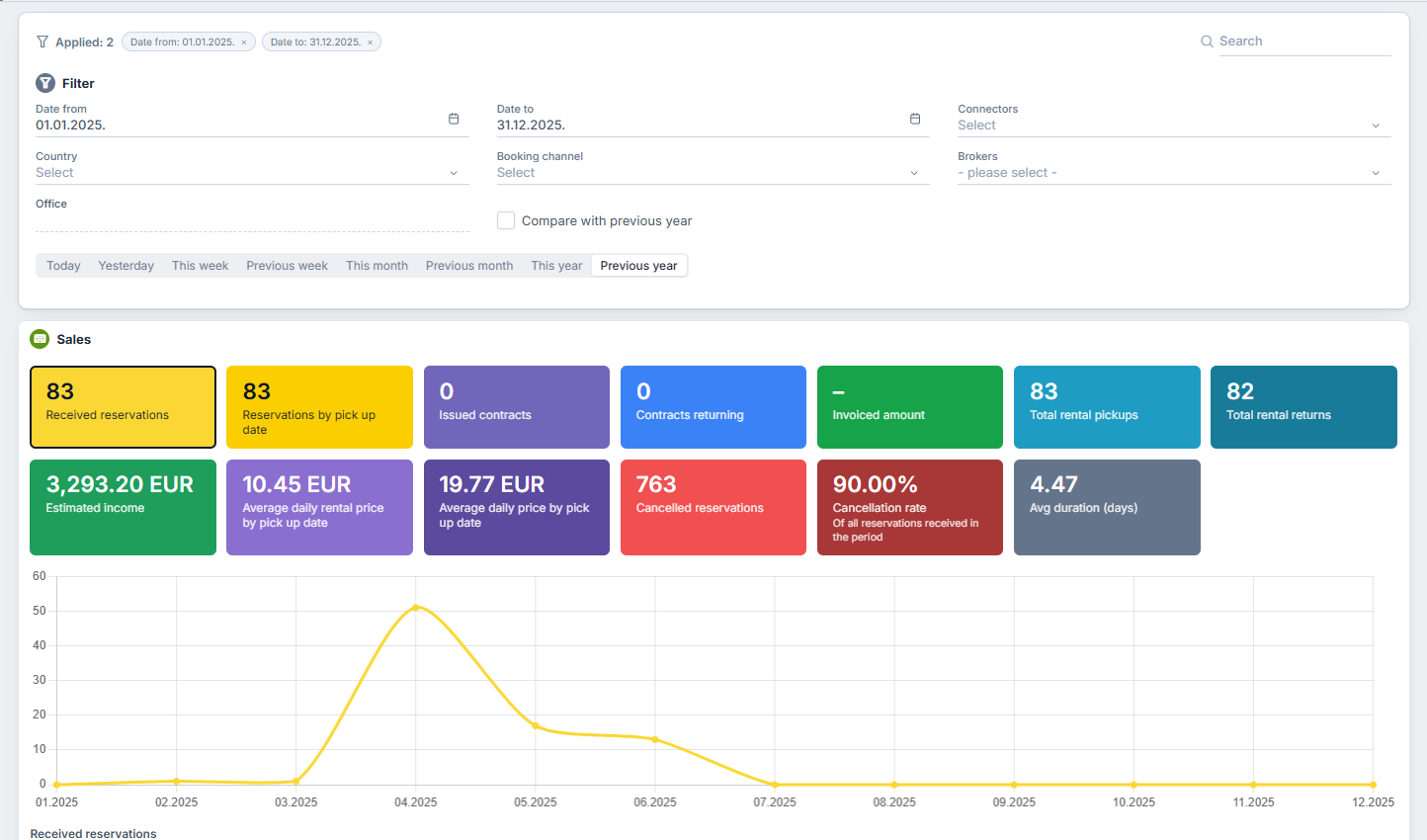
The Reports dashboard is the quickest view of the network: Provider → Reports → Reports dashboard. Do not confuse it with Dashboard, the Aggregator's start page, which shows the mapping status of each connector. In the classic interface the Reports group has only Sales, and the dashboard is the first link on that page, under Overview.
The Filter section, in screen order:
- Date from and Date to: the period. Both are required.
- Connectors: the franchisees to include. Empty means every connector you may see.
- Country: the country of the franchisee's Renteon instance, not the client's country. With one instance per country, this filters by franchisee.
- Booking channel: the channel the booking came through in Renteon, for example a web service, the website or an office.
- Brokers: one or more brokers from the shared list, across all instances.
- Office: available only when exactly one connector is in scope (the one you selected, or your only connector), because offices belong to one instance.
- Compare with previous year: most tiles also show the change against the same period one year earlier, in percentage points ("pp") for the cancellation rate.
Below the fields, the buttons Today, Yesterday, This week, Previous week, This month, Previous month, This year and Previous year fill in the dates. The first time, the screen opens on This week; after that it comes back with the filters you used last. Every change of a filter updates the figures at once.
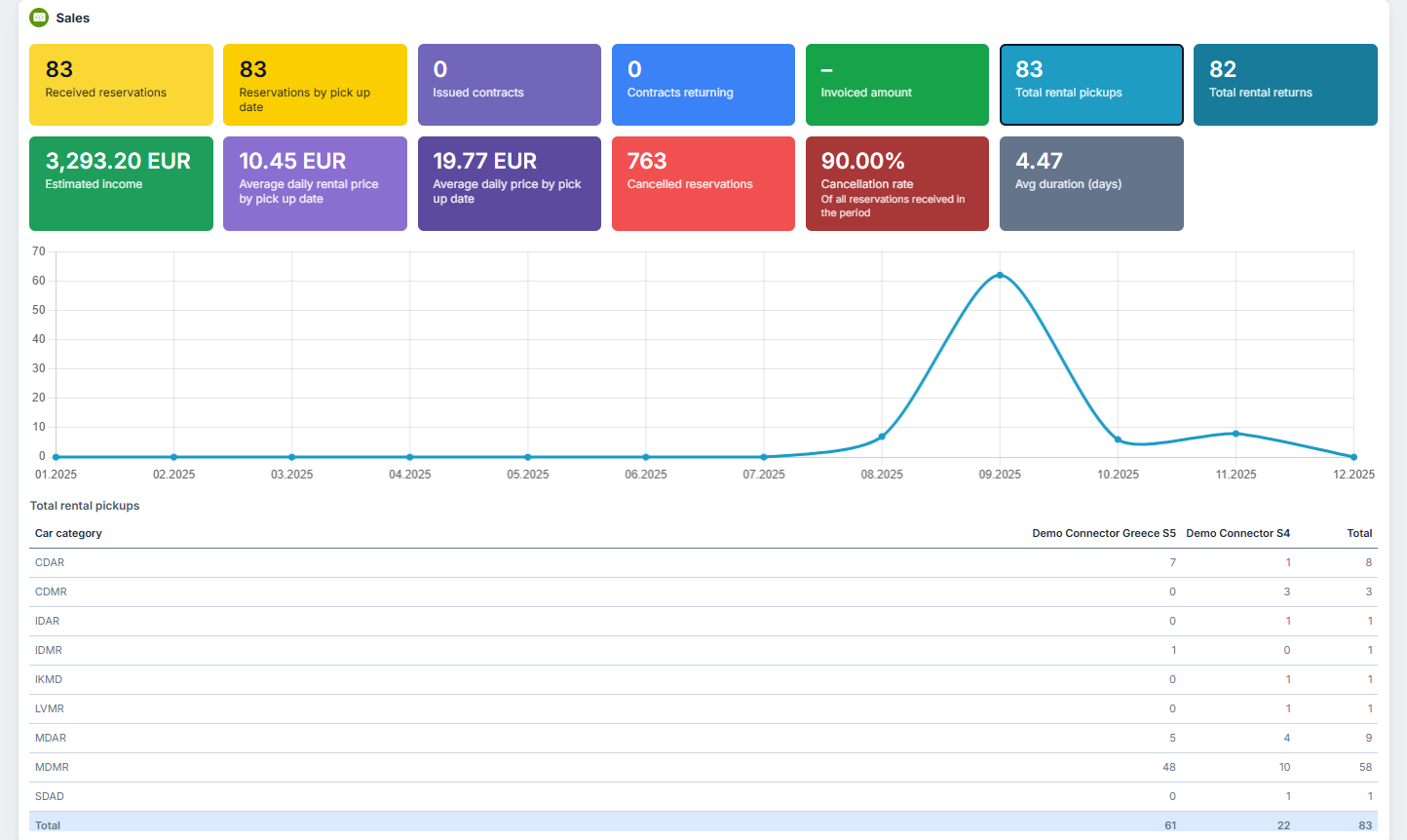
Section Sales has 13 tiles:
- Received reservations: reservations made in the period and not cancelled by its end. A reservation that has become a contract still counts.
- Reservations by pick up date: the same kind of reservations, counted by a pick-up date in the period.
- Issued contracts: contracts opened in the period.
- Contracts returning: contracts returned in the period, or expected back while still running.
- Invoiced amount: shows "-" in the Aggregator.
- Total rental pickups: reservations and contracts picking up in the period, each booking once.
- Total rental returns: reservations and contracts returning, or due back, in the period.
- Estimated income: the net value of the reservations and contracts that return in the period.
- Average daily rental price by pick up date: the net rental price per rental day of the bookings picking up in the period.
- Average daily price by pick up date: the same with all services of the booking, not only the rental.
- Cancelled reservations: reservations cancelled in the period, whenever they were made.
- Cancellation rate: the share of the period's received reservations that were cancelled by its end ("Of all reservations received in the period").
- Avg duration (days): the average number of rental days of the bookings picking up in the period.
Click a tile to see its figure as a chart: per day for periods of up to 62 days, per month for longer ones. Below the chart a table splits the figure by car category against the connectors, or against the offices when only one connector is in scope, with totals. For Estimated income the table lists the offices instead.
The footer has Reset, which returns to this week with empty filters, and Refresh.
Connector overview: one row per franchisee
Section Connector overview, below the tiles, is the franchisor's table. It has one row per connector in scope, for the dashboard's period and filters, with these columns:
- Connector: the franchisee.
- Currency: the currency of its amounts.
- Received reservations, Issued contracts, and Total rental pickups with the connector's share of all pick-ups next to it.
- Rental days, Average daily car rental price, Avg duration (days) and Cancellation rate.
- Last import: when the Aggregator last stored a booking of this connector.
- Last export: when the instance exported the most recent of the bookings stored.
- Imported in the last 24 h: how many bookings were stored in the last 24 hours.
Every active connector in scope is listed, also with zero figures (with a Country filter, only the connectors of that country). A deactivated one is listed only while it has figures, marked Inactive.
The last three columns tell you whether each franchisee's data is flowing. They do not depend on the period, and their times are in the brand's time zone (Provider → Code book → Settings). How to read them:
- Last export and Last import recent and a few minutes apart: the data flows. On a quiet day both can be older, because only new and changed bookings are exported.
- Imported in the last 24 h stays high for days after a switch-on: the history is still coming in.
- Last import empty: nothing has been imported yet. Ask Renteon support to check the connector's External API login and Franchises, and the export in the instance.
- Both days old while the franchisee works normally: its bookings are not reaching the Aggregator. Ask Renteon support to check the export in the instance and the connector.
Watch for two signs:
- A red triangle next to the connector's name, with the tooltip "No franchise is selected on the connector, so its bookings are not imported." Its earlier figures still count, but nothing new arrives until a row is ticked in Franchises.
- A triangle next to the currency, with "Amounts in different currencies are added together without conversion." and the currencies. The connector's bookings are in more than one currency, for example because its export currency was changed. The same sign appears on a tile, or above the tile's table, when the connectors in scope use different currencies.
Sales reports
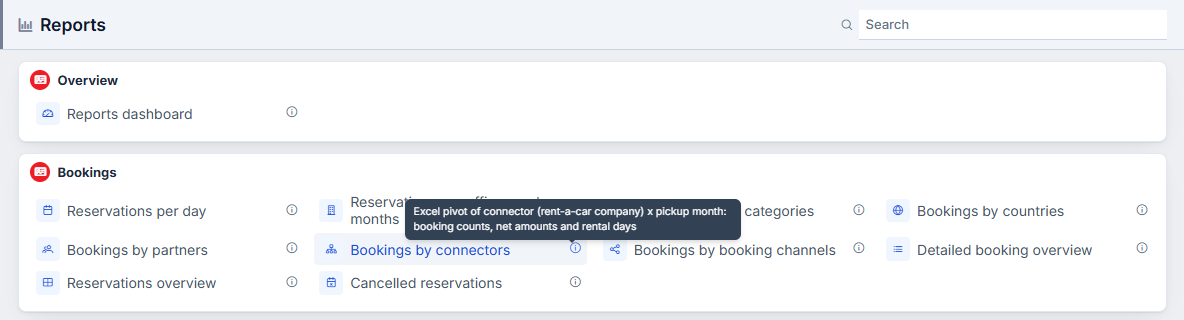
Provider → Reports → Sales lists every report. The search box at the top finds a report by its name or description, and the info icon next to each report tells you what you get.
Under Overview is the Reports dashboard. Under Bookings:
- Reservations per day: Excel, one row per day with the reservations made that day, split into walk-in, agency and commissioner, and the cancellations.
- Reservations per offices and months: Excel, the pick-up offices of each connector against the next 12 months, counting reservations by pick-up date. It always starts today: its Date cannot be changed.
- Bookings by car categories: Excel, car categories (SIPP) against pick-up months, either as counts or as the average net price per rental day (choose in Type).
- Bookings by countries: Excel, one row per client country with bookings, clients, days and net amounts, and a second sheet with the same rows per connector. Here the rows are the clients' countries, while the Country filter is the instance's country.
- Bookings by partners: Excel, agencies and commissioners against pick-up months, with counts and net amounts on two sheets. Partners appear under their name in each instance's address book; to follow one broker across the network, use the Brokers filter.
- Bookings by connectors: Excel, connectors against pick-up months, with counts, net amounts and rental days. This is the franchisor's main report: one row per franchisee and month.
- Bookings by booking channels: the same, per booking channel.
- Detailed booking overview: Excel, one row per booking with its Renteon franchise, broker, agency, commissioner, dates, prepaid and pay-on-arrival totals and currency. With Items ticked, a second sheet lists every line of every booking. The workbook has no connector column, so filter by one connector when you need one franchisee's bookings.
- Reservations overview: on screen, in seven tabs: reservations by car categories, offices, durations and partners, the net price and two average daily prices. The columns are 12 months by pick-up date, starting with the month of Date created - From. Partners here are the shared brokers, and offices with the same code in different instances share one row. You can also export it to Excel.
- Cancelled reservations: Excel, one row per cancelled reservation, starting with Connector and Partner. A few columns that Renteon fills, such as the pricelist and the users, stay empty, because the copy does not carry them.
Bookings by connectors and Bookings by booking channels exist only in the Aggregator.
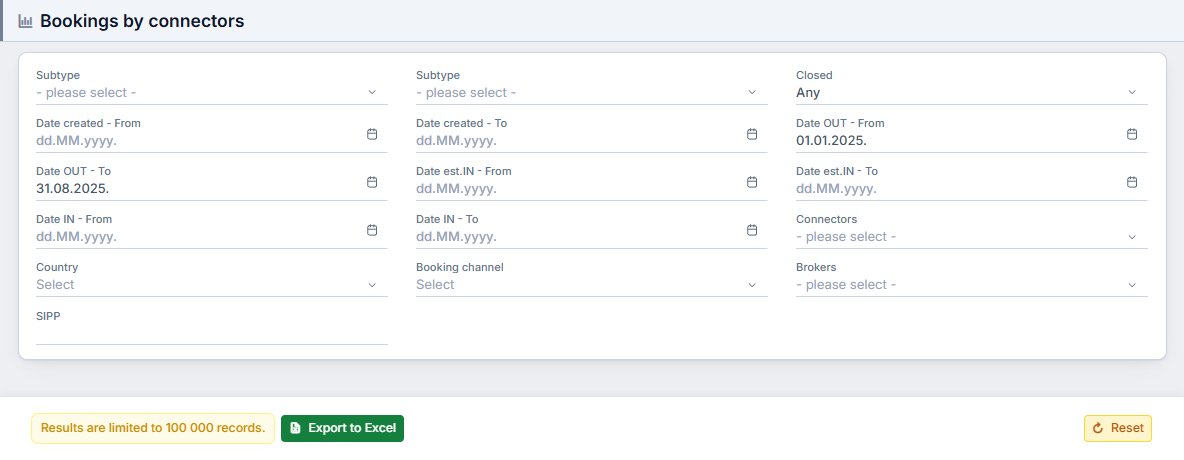
Most report screens end with Export to Excel and Reset, next to the note "Results are limited to 100 000 records.". In Bookings by partners, Bookings by connectors and Bookings by booking channels, the filters show Subtype twice: the first one is the booking type (contract or reservation), the second the booking subtype.
Filters the reports share
Most reports share the same filters, and they work the same way everywhere:
- Connectors: none picked means every connector you may see.
- Country: the country of the franchisee's Renteon instance.
- Booking channel (in some reports Booking channels): the channel the booking came through in Renteon.
- Brokers: the shared broker list. Because each instance links its agencies and agents to it through Aggregator Partner, one broker gives that broker's bookings in every instance. Bookings without an agency or agent, such as walk-ins, have no broker, so they drop out as soon as you pick one.
- Booking type (Type in the Detailed booking overview, the first Subtype in the three reports named above): only Contract and Reservation, because offers are never imported. The Detailed booking overview still lists Offer in Type, but finds none.
- SIPP, in several reports: one or more car category codes, separated by commas or semicolons.
Example: to see how one broker sold in Greece last summer, open Bookings by connectors, set Date OUT - From and Date OUT - To to 1 June and 31 August, Country to Greece and Brokers to that broker, and click Export to Excel. You get one row per Greek franchisee and month.
Each report remembers the filters you used last, so you come back to the same selection. Reset clears it.
Who sees what
The Reports menu, the dashboard and every report need the reports role, code ReportsSales. In the role list of a user or a role group, this role currently has the title "Application settings management", the same as the settings role SettingEdit. Tell them apart by the code in the User role column. The Administrators role group includes it. How to set up users and role groups is described in Users, roles and brand settings.
A user can also be limited to some connectors: Provider → Code book → Users, the user, tab Basic, panel Connectors. Such a user sees only those connectors in every report, in every Connectors filter and in the Connector overview, and the totals are the totals of those connectors only. The Aggregator refuses a report for any other connector. A change takes effect when the user signs in again.
A typical set-up:
- Franchisor staff: the reports role and no connector ticked, so they see the whole network.
- Each franchisee: the reports role and only its own connector ticked, so it sees its own figures in the same reports.
- A country or regional manager: the connectors of that region. Ticking a connector that has child connectors ticks its whole branch.
Warning: A user with no connector ticked sees all connectors. When you create a login for a franchisee, always tick its connector.
Currencies, dates and offices
The copy keeps each instance's own currency, time and offices. Three things follow from that:
- Amounts are in each instance's export currency and are never converted by the Aggregator. If all instances export in EUR, every total is in EUR. If one exports in another currency, the totals add both: 100 EUR from one instance and 100 HUF from another give 200. The dashboard warns with "Amounts in different currencies are added together without conversion." The Excel reports label the amounts with the bookings' currency when they all have the same one. When currencies are mixed, and always in Reservations overview, they print the Currency (Report) from Provider → Code book → Settings, although the amounts are a plain sum. The cure is one export currency on all instances.
- Dates are each instance's local time. A pick-up at 09:00 in Athens counts at 09:00, and so does one at 09:00 in Zagreb, although Athens is an hour ahead. This matters only around midnight, when a booking can fall on a different day than the head office would expect. Last import and Last export are the exception: they are shown in the brand's time zone.
- Offices belong to one instance. Two instances can both have an office with the code "ZAG". That is why the dashboard's Office filter works for one connector only, and why Reservations overview shows offices with the same code in one row.
Two kinds of franchise
"Franchise" means two different things in these reports:
- A franchisee of the brand is a company with its own Renteon instance, so in the Aggregator it is a connector. Connector filters and columns, the Connector overview and Bookings by connectors are about these.
- A Renteon franchise is a business inside one Renteon instance (in Renteon under Administration → Code book → Franchises), for example a second brand that an instance runs from the same offices. Each booking carries its franchise. On the connector, Franchises chooses which of these businesses are imported, and the Detailed booking overview shows the franchise of each booking.
So a brand with two franchisees, one of which also runs a separate business inside its instance, has two connectors. On the second connector it ticks two rows: Without franchise for the main business and the franchise for the other one. The Franchises selection affects only the reports, not what brokers can search and book.


Related guides:
- What the Aggregator is
- Setting up a brand in the Aggregator: checklist
- Connectors
- Users, roles and brand settings
- Reports: overview and dashboard, for the reports and the dashboard inside one Renteon instance