Administration
GDPR and personal data protection
Set retention periods, record customer consents, anonymize people whose data you no longer need and see who opened or exported personal data in Renteon.
Last updated
Renteon holds a lot of personal data about your customers and drivers: names, addresses, phone numbers, e-mail addresses, dates of birth, identity documents and their scans. Data protection rules such as the EU General Data Protection Regulation (GDPR) expect you to keep this data only as long as you need it, to know why you hold it, to respect what people agreed to, and to be able to show who accessed it.
This guide explains the tools Renteon gives you for that: retention periods for each purpose the data was collected for, consent records, anonymization of people whose retention periods are over, the logs of who opened or exported personal data, and the settings around them. It is written for the person who sets this up, usually the Renteon administrator together with the company's data protection officer (DPO).
Renteon gives you the tools, but it does not set your policy. How long you keep data, which consents you ask for and when you anonymize people are decisions your company makes with its DPO or legal advisor. The numbers in the examples below only show how the settings work. They are not recommendations.
How the pieces fit together
Before you configure anything, it helps to see how the parts work together:
- Renteon records the purposes automatically. For every private person in the address book, Renteon notes why it holds their data and from which date. For example: "invoice issued on 20 June 2022" or "rental contract that ended on 20 June 2022". You do not enter these purposes by hand.
- You set how long each purpose needs the data. In Data retention policy you enter a number of days for each data collection purpose.
- Renteon lists the people whose periods are all over. When every period that applies to a person has expired, the person appears on the Anonymization list.
- A person with the right role anonymizes them. Renteon never anonymizes anyone on its own. Someone has to review the list and click Anonymize.
- Consents are recorded separately. On each person's record you note what they agreed to (for example e-mail marketing), how they agreed and for how long.
- Access is logged. The Personal data access log shows who opened, created, changed, downloaded or exported personal data. The Access log shows staff sign-ins and failed sign-in attempts.
All of this applies to private persons only. Companies in the address book have no data collection purposes, no Consents tab and cannot be anonymized. Opening or changing a company record is not recorded in the personal data access log.
Roles: who can do what
Each GDPR task has its own role, so you can give it to a few trusted people only. You add roles to a role group in Administration → Code book → Role groups and assign the group to users. These are the roles involved, by the names you see when you assign them:
- Personal data retention settings: opens Sales → Address book → Data retention policy and lets the user change the retention periods.
- Consent edit: opens Sales → Address book → Consents, the list of consent types.
- Personal data anonymization: opens Sales → Address book → Anonymization and shows the Anonymize button on a person's record.
- Reports - personal data: opens the Access log and the Personal data access log under Car control → Reports → Audit.
- Reports - audit: opens the same two logs, plus the E-mail log and the Integration bookings log. See Audit reports.
- Address book management: search, open, add and edit address book records. A user needs it to open a person's record in Sales → Address book → Search, and so to use the Anonymize button there and to record consents.
- Address book open: opens a client's detailed record, for example the client card opened from the booking list, without the right to add or edit records. It does not open Sales → Address book → Search.
- Addressbook export: shows the Export button on the address book list (export to Excel with a reason) and the Download button on a person's record.
New Renteon accounts usually come with a role group called Data protection officer. It contains Address book open, Address book management, Personal data anonymization, Consent edit, Reports - audit and Reports - personal data, and also roles for editing bookings and cancelling offers, reservations and contracts. It does not contain Personal data retention settings or Addressbook export. Add them if your DPO should also change retention periods or export data, and remove the booking roles if your DPO does not need them.
What Renteon records automatically: data collection purposes
Every time a private person appears on a booking, a finance document or a car activity, Renteon saves a data collection purpose for that person, with the record's number and a start date. The retention period you set for that purpose is counted from the start date. These are the purposes, as named in Data retention policy, and the date each one starts from:
- Offer inquiry: the person is the client or a driver on an offer. The period starts on the offer's expiry date.
- Intention of concluding the car rental contract: the person is the client or a driver on a reservation. The period starts on the pickup date.
- Conclusion of the car rental contract: the person is the client or a driver on a contract. The period starts on the return date, or on the expected return date while the contract is still open.
- Invoice: a finance document is issued to the person. The period starts on the date the document was created.
- Internal driver: the person (an employee) drives a car on a car activity, for example a transfer. The period starts on the activity's return date. In the English interface this purpose currently appears as Invoice issued.
- Other: the person was added to the address book but does not appear on any booking, finance document or car activity yet. The period starts on the day the person was added. As soon as one of the purposes above is recorded for the person, Other is removed.
A few details explain what you later see on the Anonymization list:
- Each booking has one entry per person, and it changes with the booking. When an offer becomes a reservation, the entry becomes Intention of concluding the car rental contract and starts from the pickup date. When the reservation becomes a contract, it becomes Conclusion of the car rental contract and starts from the return date.
- Cancelled bookings and car activities are not recorded. If a booking is cancelled later, its existing entry stays as it was.
- Drivers count as well as the client. If the client is a company, only the drivers get an entry.
- You cannot see or edit a person's purposes on their record. You see them only through the Anonymization list.
Data retention policy
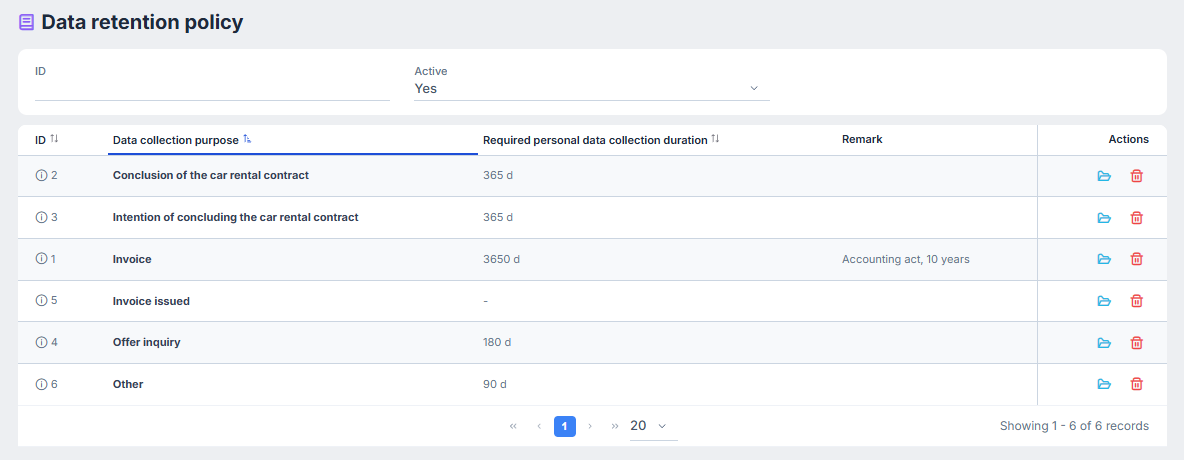
Here you decide how long each data collection purpose needs a person's data. Open Sales → Address book → Data retention policy. Renteon has already created one policy for every purpose, with an empty period. You normally just open each policy and fill it in.
The list shows the ID, the Data collection purpose, the period in the Required personal data collection duration column (for example "730 d", or "-" when it is empty) and the Remark. You can filter by ID and Active.
To set a period:
- Open the policy and click Edit.
- In Required personal data collection duration, enter the number of days the data has to be kept for this purpose. The smallest value is 1.
- Optionally, use Remark to note the reason, for example the regulation or the internal decision the period is based on. The remark is for you and your auditors only.
- Click Confirm.
Data collection purpose is required, and each purpose can have only one policy: Renteon refuses to save a second policy for a purpose that already has one. If you delete a policy, Renteon treats that purpose as if its period were empty. To bring it back, click Add and choose the purpose again.
A new or changed period applies at once to everyone, including data collected before the change. Renteon works out the end dates each time you open the Anonymization list, so shortening a period can put many people on the list straight away.
This is how the periods work together. A person becomes eligible for anonymization only when the periods of all their purposes have passed. For example, Ana rents a car, the contract ends on 20 June 2022 and the invoice is created the same day. Say your company sets Conclusion of the car rental contract to 1,095 days and Invoice to 3,650 days. The contract purpose expires in June 2025, but the invoice purpose keeps Ana off the Anonymization list until June 2032. If Ana rents again in 2024, the new contract and invoice start new periods, and the later dates count.
Warning: An empty period does not mean "keep forever". Renteon ignores a purpose with no period: it neither keeps the person off the Anonymization list nor stops anyone from anonymizing them. In the example above, if Invoice were left empty, Ana would appear on the list in June 2025. Fill in a period for every purpose your company needs to keep data for.
Consent types
Consents record what a person has agreed to, beyond what you need to run the rental itself. First you define the types of consent your company asks for. Open Sales → Address book → Consents. New accounts start with three types:
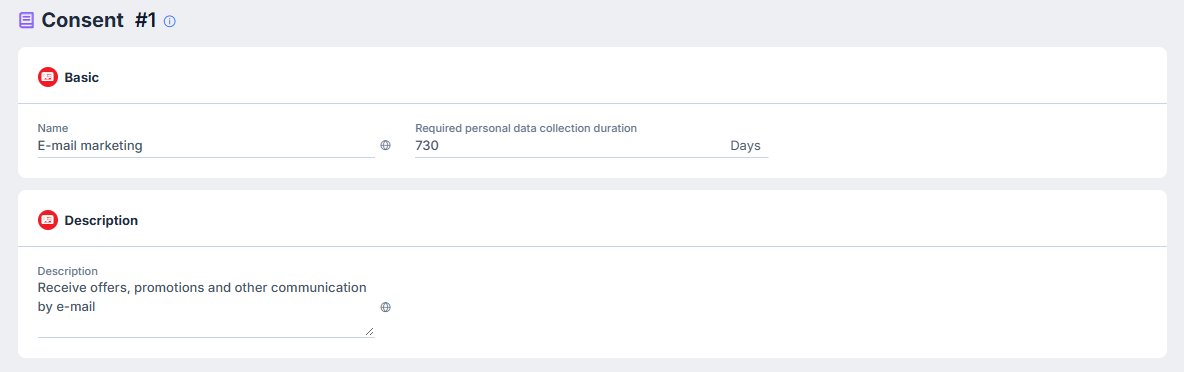
- E-mail marketing: "Receive offers, promotions and other communication by e-mail".
- Telephone marketing: "Receive offers, promotions and other communication by telephone".
- Contract survey: "Sending satisfaction survey on booking close".
To add a type, click Add. To change one, open it and click Edit. Each type has these fields:
- Name: the name staff choose from. You have to enter it in every language your Renteon account uses, so the name appears in each user's language. Confirm stays disabled until every language has a name.
- Required personal data collection duration: optional, in days, the smallest value is 1. For a consent, this is how long a consent recorded without an end date stays valid, counted from its Valid from date. If you leave it empty, the consent is valid until it is cancelled.
- Description: optional, per language. Use it to explain exactly what the person agrees to.
Renteon uses the duration of a consent only for the survey e-mail check described in "Consents and survey messages". It has no effect on anonymization, which depends only on the data retention policy, and the Consents tab keeps showing such a consent as Active after its duration has passed.
Contract survey is a special type. When survey e-mails require consent (see "Consents and survey messages" below), it is the type Renteon checks. You can rename it, but you cannot mark another type as the survey consent. Keep it if you use that option. Do not delete it either: if it has never been recorded on anyone, it is deleted for good, and then no client can have a valid survey consent, so no survey e-mails go out at all.
When you delete a type that is already recorded on people, Renteon deactivates it instead of deleting it. You can bring it back with Activate. A deactivated type still appears in the list staff choose from on a person's Consents tab, so give it a name that makes clear it is no longer used.
Recording a customer's consent
Renteon does not create consent records on its own. Office staff record them on the person's address book record:
- Open the person in Sales → Address book → Search and click Edit.
- Go to the Consents tab. It is shown for private persons only.
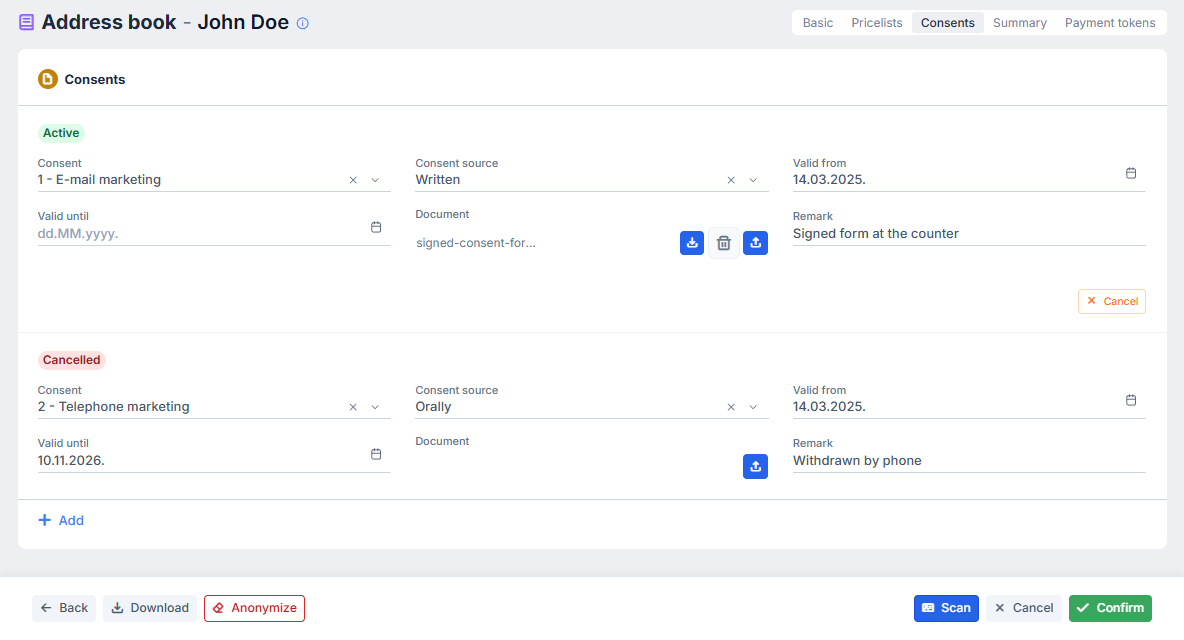
- Click Add and fill in the new row:
- Consent: the consent type the person agreed to.
- Consent source: how you received it: Online form, Written, E-mail, Orally or Other.
- Valid from: required. Today's date is filled in for you.
- Valid until: leave it empty for an open-ended consent. Fill it in only when the consent ends on a known date.
- Document: attach the proof, for example the scanned signed form or the customer's e-mail. Any file type is accepted.
- Remark: any note, for example who took an oral consent.
- Click Confirm to save the person.
Each consent row shows Active while Valid until is empty, and Cancelled as soon as Valid until is filled in, even when that date is still in the future. The Consents tab is shown for new persons too, so you can record consents while you create the record.
When a person withdraws a consent, open the record, click Edit, click Cancel on that consent row and then Confirm. Cancel sets Valid until to today. Saved consents cannot be deleted, so the history of what the person agreed to stays on the record. Only a row you have just added and not yet saved can be removed with Delete.
Consents given outside the office reach Renteon only in these ways:
- Online check-in: before submitting the form, the customer has to tick "I have read and agree to the" followed by your company's Privacy Policy link. Without the tick the form shows "Please confirm our Privacy Policy" and cannot be submitted. The tick is not recorded as a consent on the person's record.
- Your website or another connected system: a system connected through the External API can send consents with the person's address book record. Ask whoever built your integration whether it does.
- Paper forms: record the consent with source Written and attach the scan as Document.
Consents and survey messages
Renteon itself checks one consent type, Contract survey, and only for the survey e-mail sent after a contract is closed. The setting is in Administration → Code book → Settings, tab Notifications, panel Send e-mail with link to survey for closed contracts, option Requires consent. The panel's own switch turns survey e-mails on; Requires consent only matters while it is on.
When Requires consent is ticked, Renteon sends the survey e-mail only if the client has a valid Contract survey consent. If the client is a company, Renteon checks the first driver instead, and the e-mail goes to that driver. Renteon looks at the person's Contract survey consent with the latest end date. The consent is valid when:
- its Valid from is today or earlier, and
- its Valid until is in the future, or, when Valid until is empty, Valid from plus the consent type's Required personal data collection duration is still in the future. A type without a duration counts as valid until cancelled.
When the option is not ticked, the survey e-mail goes out without any consent check. Either way, a client whose record has Do not send survey e-mail ticked does not receive it.
Two things the option does not cover:
- The survey SMS (tab Notifications, panel SMS, option Send SMS about survey after closing the contract) does not check consents. Only Do not send survey e-mail on the client's record stops it, and that field is shown on the record only while survey e-mails are switched on.
- Renteon does not use E-mail marketing, Telephone marketing or any type you add to filter what it sends. These consents are your record, for your own marketing tools and for answering a customer's questions.
Privacy policy link
Customers should be able to find your privacy notice. Enter its web address in Administration → Code book → Settings, tab Basic, panel Company, field Privacy policy. Renteon uses it:
- as the Privacy Policy link next to the confirmation customers tick at online check-in,
- in document templates and e-mail templates that include the privacy policy link. See Automatic e-mail sending.
If your account has several companies, each company in Administration → Code book → Companies has its own Privacy policy field, and that company's documents and e-mails use it.
If you work with franchises, each franchise can have its own Privacy policy address in Administration → Code book → Franchises. When it is filled in, that franchise's documents and e-mails use it instead of the company one. Online check-in opened through a franchise's link always shows the franchise's address, so fill it in on every franchise.
Anonymization list
Sales → Address book → Anonymization lists the people whose data Renteon no longer has a reason to keep, according to your data retention policy. A person appears on it when all of the following are true:
- the record is a private person, not a company,
- the person has not been anonymized yet,
- at least one of the person's purposes has a retention period, and
- every purpose with a retention period has expired.
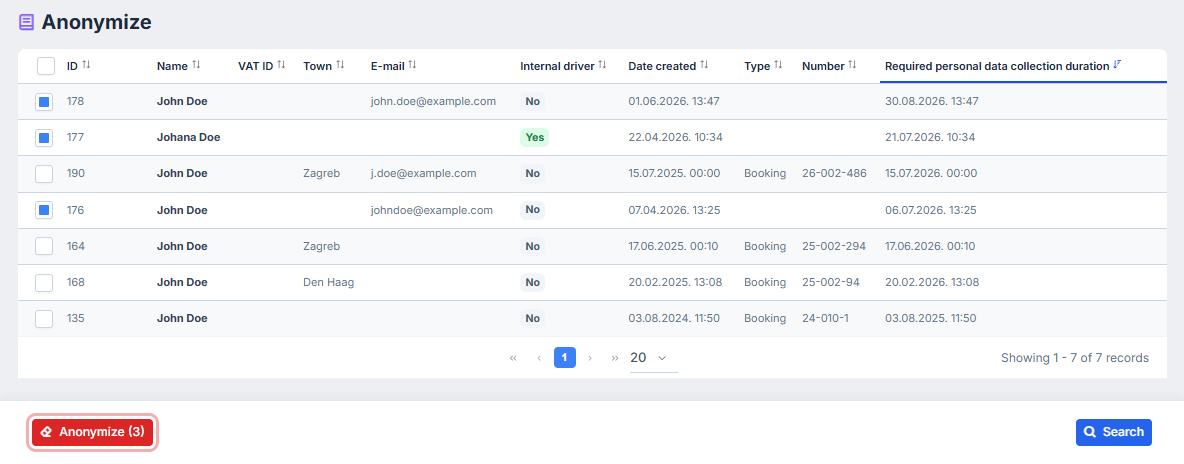
For each person, the list shows ID, Name, VAT ID, Town, E-mail, Internal driver (Yes for employees) and three columns about the purpose that expired last:
- Date created: the date that purpose's period started from, for example the return date of the last contract.
- Type and Number: the kind of record and its number. Type shows "Booking", "FinanceDocument" or "CarActivity", in every interface language. Both are empty for the purpose Other.
- Required personal data collection duration: the date on which the last retention period ended.
The list is sorted with the most recent end date first. You can sort by any column and show up to 1,000 rows per page.
To anonymize people from the list:
- Tick the people you want to anonymize. The checkbox in the header ticks every person on the current page. Ticks are kept when you move between pages.
- Click Anonymize. The number in brackets shows how many people are ticked.
- Confirm the question Are you sure?.
Renteon anonymizes the people one by one, checking each person's retention periods again first, and then refreshes the list on its own. If a message appears, for example "Active data retention policy prevents anonymization until" with a date, Renteon stopped at one person: everyone it processed before that person is anonymized and disappears from the list, and the others stay on the list, still ticked. The message does not say which person stopped the run, so anonymize the rest in smaller groups to find out who it is.
Nothing on this list happens automatically. Renteon has no background job that anonymizes people, so plan a regular check, for example once a month, by a person with the role Personal data anonymization.
Warning: Anonymization cannot be undone. Before you anonymize many people at once, make sure the retention periods are the ones your company agreed on. A period that is too short, or left empty, puts people on this list too early.
Anonymizing a single person
You can also anonymize one person directly, for example when they ask you to erase their data and your DPO has confirmed that you may. Open the person in Sales → Address book → Search and click Anonymize at the bottom of the record. The button appears only for saved private persons, and only for users with both Address book management and Personal data anonymization. Renteon anonymizes the record as it is saved: if you are editing it, click Confirm first, because unsaved changes are discarded.
Renteon asks: "All personal data of this person will be anonymized (irretrievably deleted). Are you sure you wish to continue?". After you confirm, it checks the person's retention periods:
- If any period is still running, it stops with the message "Active data retention policy prevents anonymization until", followed by the date the last period ends.
- If no period is running, it anonymizes the person straight away. This includes a person who has no purpose with a period at all, and who therefore never appears on the Anonymization list.
After anonymization, the record shows the masked values and is set to inactive. It no longer appears when you search the address book, and it can no longer be picked as a client or driver. When an anonymized person is shown on a booking or finance document, for example in the client card opened from the booking list, the card shows the notice Anonymization.
Warning: Deleting a person is not the same as anonymizing them. When you click Delete on a private person in the address book list, Renteon only deactivates the record, because every saved person has at least one data collection purpose linked to it. All personal data stays and Activate brings the record back. Use Anonymize when the data has to be erased.
What anonymization changes and what it keeps
Anonymization overwrites the identifying data on the person's address book record. It does not delete the record, and it does not change the person's bookings or finance documents. The record stays because invoices, contracts and fiscal records have to be kept for as long as the law requires, and they are linked to it.
On the person's record, Renteon changes the following:
- Name, Surname, Father's name and Town of birth: every character is replaced with an asterisk, so "Ana" becomes "*". In Italian accounts, where the town of birth and the town that issued a document are picked from a list, the picked towns stay.
- VAT ID, E-mail and E-mail 2: emptied.
- Date of birth: replaced with 1 January of the same year.
- Addresses: Street, Town and Postal code are replaced with asterisks. The country and the province stay.
- Phones: every number is replaced with asterisks.
- Documents (the person's identification documents): the number and Issued in are replaced with asterisks. Issue date and Valid until are replaced with 1 January of the same year. The Document front image, the Document back image and the signature image are deleted.
- The record is marked as anonymized and set to inactive.
The following stays as it is:
- Offers, reservations, contracts and finance documents, with their numbers, dates, items, amounts, payments and fiscal data. They still point to the anonymized person, so a document that takes the client's details from the address book shows the masked name and address when you open or print it later.
- PDF copies of contracts and finance documents that Renteon has already archived for your account, if it archives them. Those copies keep the original details.
- The client name, e-mail and phone saved on the bookings themselves, the client data a booking keeps on its own (for example from online check-in) and the personal details stored on the booking's drivers. These are handled by a separate automatic clean-up, described in the next section.
- The other fields of the person's record, for example Identification number, Identification version number, IRS code, Code, External reference, Gender, Nationality, Job title, Company and Internal remark, as well as the person's consents with their attached documents and any saved payment tokens.
- Entries in the logs. They refer to the person by record number.
Warning: Check the fields that anonymization does not change before you anonymize someone, and clear them first if they hold personal data, for example a personal ID in Identification number or a note in Internal remark. Click Confirm to save the cleared fields before you click Anonymize. Once the person is anonymized, the record no longer appears in the address book search.
Automatic clean-up of booking client data
Besides the address book record, a booking can hold its own copy of client data. This is what the customer or a connected system entered for the reservation, such as the details and document scans from online check-in. Each driver on a booking also carries a copy of their personal details. Anonymizing a person does not touch these copies, but an automatic clean-up can.
The setting is Keep booking client data, in Administration → Code book → Settings, tab Bookings. It is a number of months, from 0 to 120. Only Renteon system users can change it, so other users see the value but cannot edit it. Agree the period with your DPO and ask Renteon support to set it.
When a value is set, for example 6, Renteon runs the clean-up once every night. It takes bookings that have been closed or cancelled more than 6 months ago and whose rental period also ended more than 6 months ago. A booking that was never closed or cancelled keeps its data, however old it is. For the bookings it takes, it:
- deletes the client data stored on the booking, including the online check-in details and document scans,
- clears the personal details of the booking's drivers who are linked to an address book record.
The following is kept:
- the client's name, e-mail and phone on the booking. If the booking has no e-mail or phone of its own, Renteon first copies them over from the client data it is about to delete,
- the address book records, including their document scans,
- drivers on the booking that are not linked to an address book record, because their details are stored nowhere else,
- the number of drivers on the booking.
Things to know before you switch it on:
- A cancelled reservation that is reactivated after the period comes back without its online check-in details.
- Document scans that were never copied into the address book are gone for good.
- Each night handles a limited number of bookings. If you switch this on for an account with years of old bookings, it can take several nights to catch up.
- An empty value or 0 switches the clean-up off.
Two other clean-ups run for every account without any setting:
- Check-in and check-out photos are deleted 32 days after the contract is closed or cancelled. See Vehicle check-in and check-out.
- Documents read by a 365id scanner are deleted from the scanner's list of scanned documents 10 days after they were scanned. Data you have already taken into the address book stays. See ID and document scanning.
Warning: The clean-up deletes data permanently. Neither you nor Renteon support can restore it.
Exporting and downloading personal data
Two buttons let a user take personal data out of Renteon, and both require the role Addressbook export:
- Export on the address book list (Sales → Address book → Search) exports to Excel every record that matches your current search, not only the page you see. Before the export starts, Renteon asks for a reason in Export to Excel - reason, and Confirm stays disabled until you enter one. The reason, the number of exported rows and your search criteria are saved in the personal data access log. Only the first 50 characters of the reason are kept, so keep it short and specific, for example "Request of customer, ticket 4711".
- Download on a person's record saves a text file with the person's basic data, addresses, phones, identification documents and consents. Use it when someone asks for a copy of the data you hold about them. Bookings and finance documents are not included. The download is recorded in the personal data access log.
The address book list also has a separate Import / Export (Excel) button. It produces a workbook for editing contacts and importing them back. It needs only Address book management, and it is not recorded in the personal data access log.
Warning: The Import / Export (Excel) workbook also contains personal data, including identification document numbers, and it asks for no reason. Keep this in mind when you decide who gets Address book management.
Personal data access log
The personal data access log shows who did what with personal data, and when. Open Car control → Reports → Audit and choose Personal data access log in the Security group. Renteon adds an entry every time someone:
- Open: opens a private person's record, or opens a screen that loads it in full, for example the client card opened from a booking or finance document list, or a finance document issued to the person,
- Create: saves a new private person,
- Update: saves changes to a private person, including when duplicates are merged into them (see Address book duplicates and merge),
- Download: downloads a person's record,
- Export: exports the address book list to Excel. An export of the office list is also recorded as Export, without a reason.
Each entry shows ID, Date, Action, IP address, Export to Excel - reason, Count (the number of exported rows), Address book (the person's record number), User and Office. User and Office show record numbers, not names. For an export, the information button at the end of the row shows the search criteria that were used.
You can filter by ID, Type (the action), User, Office, Address book (pick a person), Date from and Date to. When you enter an ID, the other filters are ignored. To answer "who has looked at this customer's data?", pick the person in Address book and click Search. An anonymized person can no longer be picked there; sort by the Address book column and look for their record number instead.
Renteon does not delete entries from this log automatically.
Warning: The log covers actions in Renteon's own screens on private persons. It does not record what users see in search results and lists, the Import / Export (Excel) workbook, access by connected systems through the External API, or the anonymization itself.
Access log
The access log shows sign-ins to Renteon. Open Car control → Reports → Audit and choose Access log in the Security group. Renteon adds an entry:
- for every successful sign-in of a staff user, with the office they signed in to,
- for every failed sign-in attempt, for example a wrong password or an inactive user. This includes failed attempts of partner portal users and of connected systems.
Successful sign-ins of partner portal users and of connected systems are not recorded.
Each entry shows ID, Date, Success (a tick or a cross), IP address, User and Office. User and Office show record numbers, and both show "-" for a failed attempt. The information button shows the details of the attempt, including the username that was entered.
You can filter by ID, Success, Date from, Date to and Username (part of the username is enough). Typical uses are checking when a user signed in and from where, and spotting repeated failed attempts on one username, which can mean someone is trying to guess a password. For a user who has left the company, a sign-in after their leaving date is a reason to act.
Renteon does not delete entries from this log automatically.
Recommended setup checklist
Use this order when you set up personal data protection for the first time:
- Agree on the policy with your DPO or legal advisor: a retention period for each data collection purpose, the consent types you ask for and how long they are valid, who does what, and how often you anonymize.
- Create a role group for the people who handle personal data, or adjust Data protection officer. Add only the roles each person needs from "Roles: who can do what", and keep Addressbook export to as few users as possible.
- In Sales → Address book → Data retention policy, enter a period for every purpose your company keeps data for, and note the reason in Remark.
- In Sales → Address book → Consents, review the consent types: names in every language, descriptions and durations. Keep Contract survey if you want survey e-mails to require consent.
- Enter your privacy notice address in Settings, tab Basic, Privacy policy, and on each company and each franchise if you have several.
- Decide whether survey e-mails need consent, and set Requires consent in Settings, tab Notifications.
- Agree on a period for Keep booking client data and ask Renteon support to set it.
- Show office staff how to record consents on the Consents tab, with the source and the proof attached, and how to cancel a withdrawn consent. Tell them that deleting a person does not erase their data.
- Plan a regular check of Sales → Address book → Anonymization, for example monthly, and anonymize the people your DPO approves.
- Review the Personal data access log regularly, especially Export entries and their reasons, and the Access log for failed sign-ins.