Sales
B2B Portal
How to give partners access to the Renteon B2B portal, where they create, change, cancel and search bookings and download their finance documents.
Last updated
Introduction
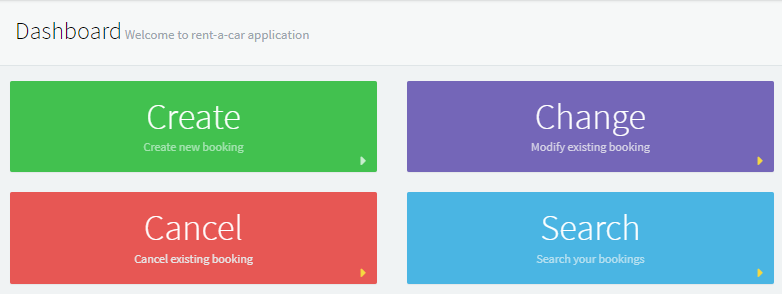
B2B Portal The B2B portal is a webpage where companies can create/modify and cancel bookings, all will be immediately stored in Renteon. There they will be also able to see and download all their bookings together with finance documents.
It is available with Renteon's URL and extension /B2B. Example: https://demo.s2.renteon.com/en/B2B
Creating an access:
- In Renteon's address book define if agency (prepaid), agent (pay on arrival), or both
- Open the tab „B2B settings“ and under „Users“ add e-mail, and create the username and password
- Assign the pricelists they will use Once logged in, the screen will allow the following options:
Create
Define the following:
- Date OUT and Date IN
- Office OUT and Office est. IN
- Book as, where agency (prepaid), commissioner (pay on arrival)
- Car categories and M&G locations are optional Based on the defined parameters, the system will return the availability of car categories together with the rates. Once one is selected from the list, the user will be able to add the voucher number, client's name and contact details, flight number, remark, additional drivers, and select if delivery/collection is needed.
Once all is defined, choose „Next“ where there will be a list of all additions (equipment, insurance, fees, etc.). select if any is needed and proceed to the final step – overview and save.
Once saved, the booking will be created with a unique booking number and saved with the same number in Renteon.
Change
Once „Change“ is selected from the Dashboard, the system will open a popup message where the booking's vouched number should be added. Once added, the system will open a booking where all details can be modified, once all is done, the booking should be again saved to confirm the change.
*If booking duration, pickup period, or car category is changed, there might be a change in the booking's price, depending on the pricelist
Cancel
Once „Cancel“ is selected from the Dashboard, the system will open a popup message where the booking's vouched number should be added. When it is confirmed, the booking will be immediately canceled.
Search
On the „Search“ option, the system will open all bookings of the Partner.
On the upper part of the screen, different filters are available based on which the search criteria can be set:
- Booking and voucher number
- Canceled – No, Yes, Any
- Pricelist
- On request - No, Yes, Any
- Date OUT and In
- Date created Bookings marked with the yellow message „Processed booking“show that the reservation was issued/converted to a rental contract.
By choosing actions, the system will show options to preview, and print bookings, contracts, and related invoices (if any are created).