Sales
Paperless rental procedure
How to run a paperless rental in Renteon on a tablet or the mobile app: check-out photos, damages, check-out list, digital signature, email and check-in.
Last updated
Renteon supports a fully paperless rental process through our mobile/web application, digital signature by both, or by additional touchscreen devices at the counters.
Opening a contract
When the contract is open at the counter, you can continue with vehicle check-out in the parking lot with the client by using Renteon on the tablet or by Renteon's mobile application.
The client can sign the contract, check out and review the Terms & Conditions directly from the tablet or mobile app, and receive all documentation via e-mail.
The Dashboard tab "Check-out list" will show all the opened contracts on the login office for today and tomorrow by default,
with an option to manually change the pick-up period for the overview:
By using the right-side Actions, you can continue with the following check-out options:
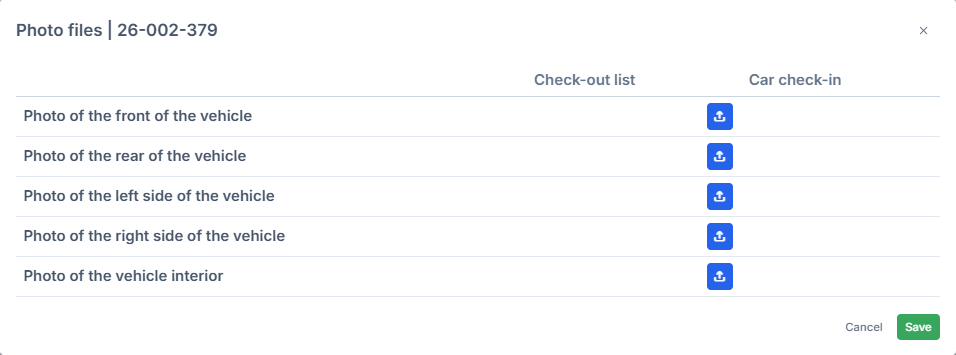
- Check out list photo files; upload pictures of the car condition
- Check, show and/or add new damages
- Check the checklist of additional car items
- Open, download or preview the booking
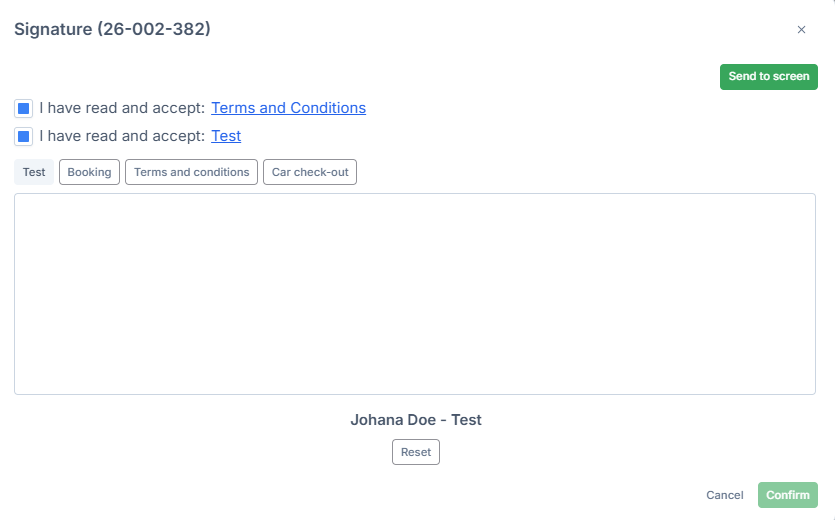
- Take a digital signature
- Send all the documentation via e-mail
- Edit contract
Check-out steps procedure
CHECK OUT LIST PHOTO FILES
-> Easily upload vehicle condition photos directly from the mobile application or by using web application and selecting from the device
DAMAGES
-> By selecting this action, Renteon will open a check list for the issued vehicle with marked existing damages, if any. You can add a new damage if needed by selecting + Damage in the lower right corner.
-> For the existing damages, Renteon will show uploaded pictures and info when the damage was added, and an option to open the existing damage in a new tab.
For the new damages, you can upload a photo of the damage immediately by selecting it from the gallery or taking a picture.
CHECK OUT LIST - OUT
-> Here will be listed all the additional things that should be checked in the vehicle, besides external and internal damages. This list is completely customised by the car rental company (menu Code book – Check-out list).
By default, you should select one item at a time, or an additional setting can be defined in the menu Code book - Settings: „Allow select all on the booking checkout“.
-> Some items may require entry of an inventory code or remark, depending on the customised setup (menu Code book – Check-out list)
SIGNATURE
-> Before signing rental documentation, the client should read and accept Terms and Conditions. After selecting it, Renteon will enable signature for the contract and check-out list + all the finance documents if created (deposit, invoice):
E-MAIL
-> After documentation is signed, it can be sent to the client email address. The e-mail subject is created under the menu Code book – E-mail templates; template type „Contract“, and it can be defined in any language supported by Renteon. In the e-mail attachment, the client will receive all documentation in PDF format.
Closing a contract
On vehicle return, you can meet the client at the parking and perform the check-in directly by using the Renteon web application on smarthopnes/tablets or by the Renteon mobile application.
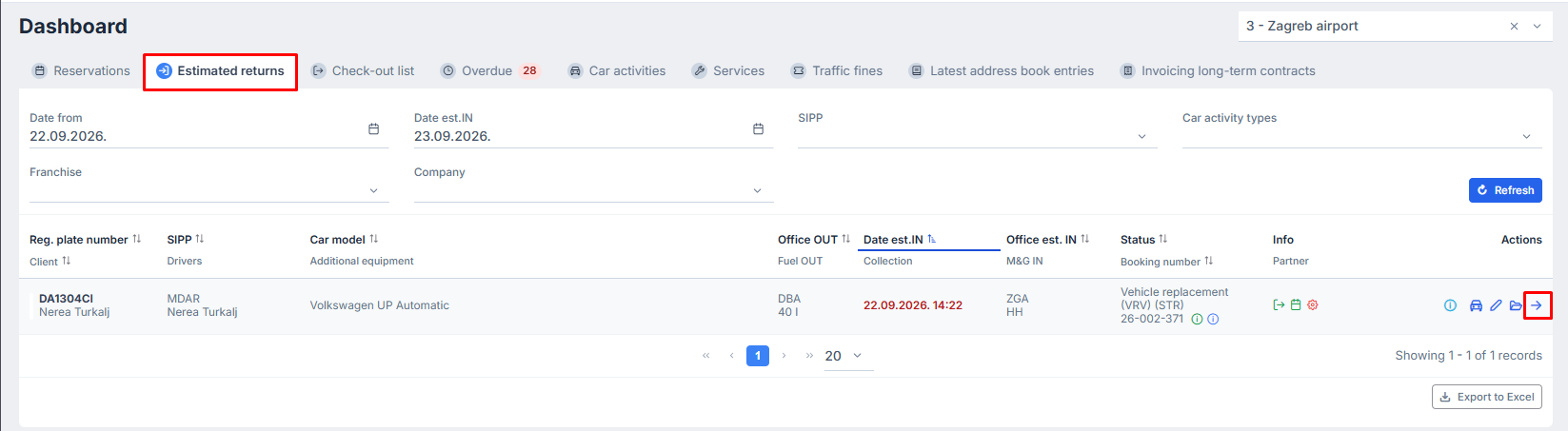
Dashboard tab "Estimated returns" will list all the returns for today and tomorrow for the login office by default, where the right-side action "Car check-in" will start the process.
By choosing this action, Renteon will take you to the new page where return data should be entered:
- Date IN - will automatically be set to the current date and time, but can be manually changed
- KM IN - returning/closing kilometres
- Fuel IN - returning/closing fuel level
- Parking IN - if used
Now, you can SAVE the data.
Below the IN data, you can check the damage checklist upon arrival and add a new damage if needed (+ Damage).
For the new damage, you can upload up to three photos of each damage by selecting it from the gallery/device, or immediately take a photo on the mobile application.
To complete the check-in process, you should fulfil the "Check-out list - In".
Once the check-in at the parking is performed, if there are no pending charges, you can simply use the action "Fast contract close" + "Signature" that will automatically close the contract with the IN data.
If there is a remaining balance to be paid, the client should visit your office desk to finalise the contract, and the "Fast contract close" action can not be used.