
Sales
Address book duplicates and merge
Find companies and people entered more than once in the address book, compare them and merge each group into one main record without moving bookings or invoices.
Last updated
Over time the same client often ends up in the address book more than once. A company is typed once with its VAT ID and once without it, or a returning customer is entered again at the counter instead of being picked from the address book. The Duplicates screen finds such records, shows them in groups and lets you merge each group into one main record.
A merge does not change history. Bookings, contracts, finance documents and payments stay linked to the record they were made for. The main record only gets the data it is missing (an e-mail address, a phone number, an address, an identification document, a consent and so on). The other records are deactivated and marked as merged into it. There is no undo button, so read the steps below before your first merge, especially the parts on choosing the main record and on the merge preview.
Comparing and merging are only in the new interface. In the classic interface, the address book list has a Find duplicates button that shows the same groups, but you cannot compare or merge records there.
Open the Duplicates screen
Go to Sales → Address book → Duplicates. You can also open it from the address book list (Sales → Address book → Search) with the Find duplicates button at the bottom of the screen.
What you can do on the screen depends on your roles. Users in the Administrators role group get every role automatically. For anyone else, your Renteon administrator adds the roles to the user's role group in Administration → Code book → Role groups:
- Address book – find duplicates lets you open the screen and see the groups.
- Address book – merge duplicates gives you the Merge button.
- Address book management gives you the Compare button, and lets you edit a record you open from this screen and delete records.
- To merge or delete companies, you also need Addressbook for companies. Without it, Renteon stops with the message "You do not have required user permissions. Please contact your system administrator."
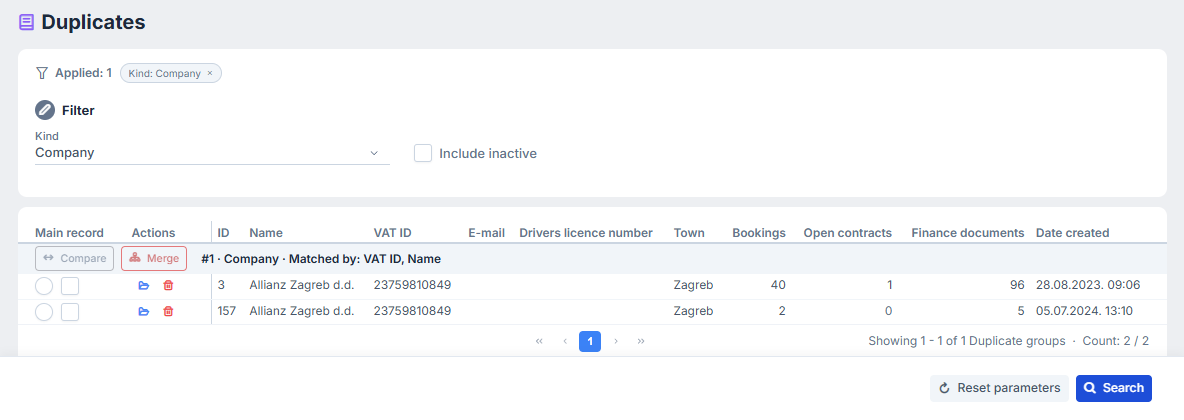
The screen is empty when it opens. Renteon only searches when you click Search (or press Enter in the filter). Two filters are available:
- Kind: All, Company or Individual. A group never mixes companies and individuals, so this filter only makes the list shorter.
- Include inactive: when ticked, inactive records are checked too and can appear in groups. Anonymized records and records that were already merged are never included, even with this box ticked.
Reset parameters sets the filters back to their defaults and searches again. Renteon remembers your filters for the next time you open the screen.
The search goes through the whole address book, so on a large one it can take a while. The Search button stays disabled until the result is shown.
Tip: On a large address book, work through one Kind at a time. The list is shorter and every group on the page has the same kind of data.
Understand why records were grouped
Renteon uses different rules for companies and for individuals.
Two companies are grouped when they have:
- the same VAT ID, or
- the same name, unless both have a VAT ID and the two VAT IDs differ. Two different companies called "Metro" with two different VAT IDs are not shown as duplicates.
Two individuals are grouped only when the name and the surname are the same, and they also share at least one of these:
- an e-mail address (either e-mail field of one record matches either e-mail field of the other)
- a VAT ID
- a driver's licence number from the record's identification documents
A matching name alone is never enough for individuals. Two customers called Ana Kovač with nothing else in common are not shown.
Addresses, phone numbers and dates of birth are not compared, neither for companies nor for individuals.
Before comparing, Renteon cleans up the values, so small typing differences do not hide a duplicate:
- Names: extra spaces, upper and lower case, and accents are ignored, so "Autoservis Šimić" and "AUTOSERVIS SIMIC" count as the same name. Punctuation is not ignored: "Ultra Auto d.o.o." and "Ultra Auto d.o.o" are different names, and such records are only found if they also share a VAT ID.
- VAT IDs: spaces, hyphens, dots and slashes are ignored, and so are the letters at the start (the country prefix). "HR 12345678901", "HR-12345678901" and "12345678901" are the same VAT ID, and so are "IT01333550323" and "01333550323". After this clean-up, a VAT ID is only used if at least 4 characters are left, at least one of them is a digit, and it is not one character repeated. Placeholders such as "-", "0", "N/A" or "00000000000" never group records.
- E-mail addresses: upper and lower case and surrounding spaces are ignored. A value only counts as an e-mail address if it contains "@" and has at least 5 characters.
- Driver's licence numbers: spaces, hyphens, dots, slashes and upper and lower case are ignored. The number must have at least 3 characters.
Groups are built as chains. Say record A shares an e-mail address with record B, and B shares a driver's licence number with C. All three end up in one group, even though A and C have nothing in common directly. Companies can chain the same way: a company without a VAT ID can link two companies with the same name but different VAT IDs. So a group tells you which records might be duplicates, not that every record in it is the same client. You decide which records really belong together.
Read a duplicate group
Each group starts with a header line such as "#12 · Company · Matched by: VAT ID, Name". It shows the group number, the kind (Company or Individual) and every reason that linked records in this group: VAT ID, Name, E-mail or Drivers licence number. The VAT ID reason and the VAT ID column use the name your Renteon uses for the tax number on other screens. The group's Compare and Merge buttons are on the same line.
Under the header, the records are listed oldest first (lowest ID first). The columns are:
- Main record: a round button to choose the record that stays, and a tick box to select records for Compare or Merge.
- Actions: Open (folder icon) opens the full record in a window, ready for editing. If you save there, the list is searched again. Delete (bin icon) is explained in the step on deleting.
- ID, Name, the VAT ID, E-mail (both e-mail addresses), Drivers licence number, Town and Date created.
- Bookings: the number of bookings in which the record appears as client, agency, invoice holder, agency invoice holder, commissioner or driver. Each booking counts once, however many times it was modified, and cancelled bookings count too.
- Open contracts: how many of those bookings are contracts that are neither closed nor cancelled.
- Finance documents: the number of finance documents issued to the record as the client.
Zeros are shown in a lighter colour, so the records that are actually in use stand out. If you searched with Include inactive, inactive records are shown in red and struck through.
Company groups come first, then individuals, each sorted by name. A page shows 100 groups, and the group numbers continue from page to page. The line under the table reads, for example, "Showing 1 - 100 of 240 Duplicate groups · Count: 210 / 515". That means groups 1 to 100 of 240 groups found, with 210 records on this page out of 515 records in all groups.
Whenever the list is loaded again (after a merge, a delete or a save, or when you change the page), the main records you chose and the boxes you ticked are cleared.
Compare two records side by side
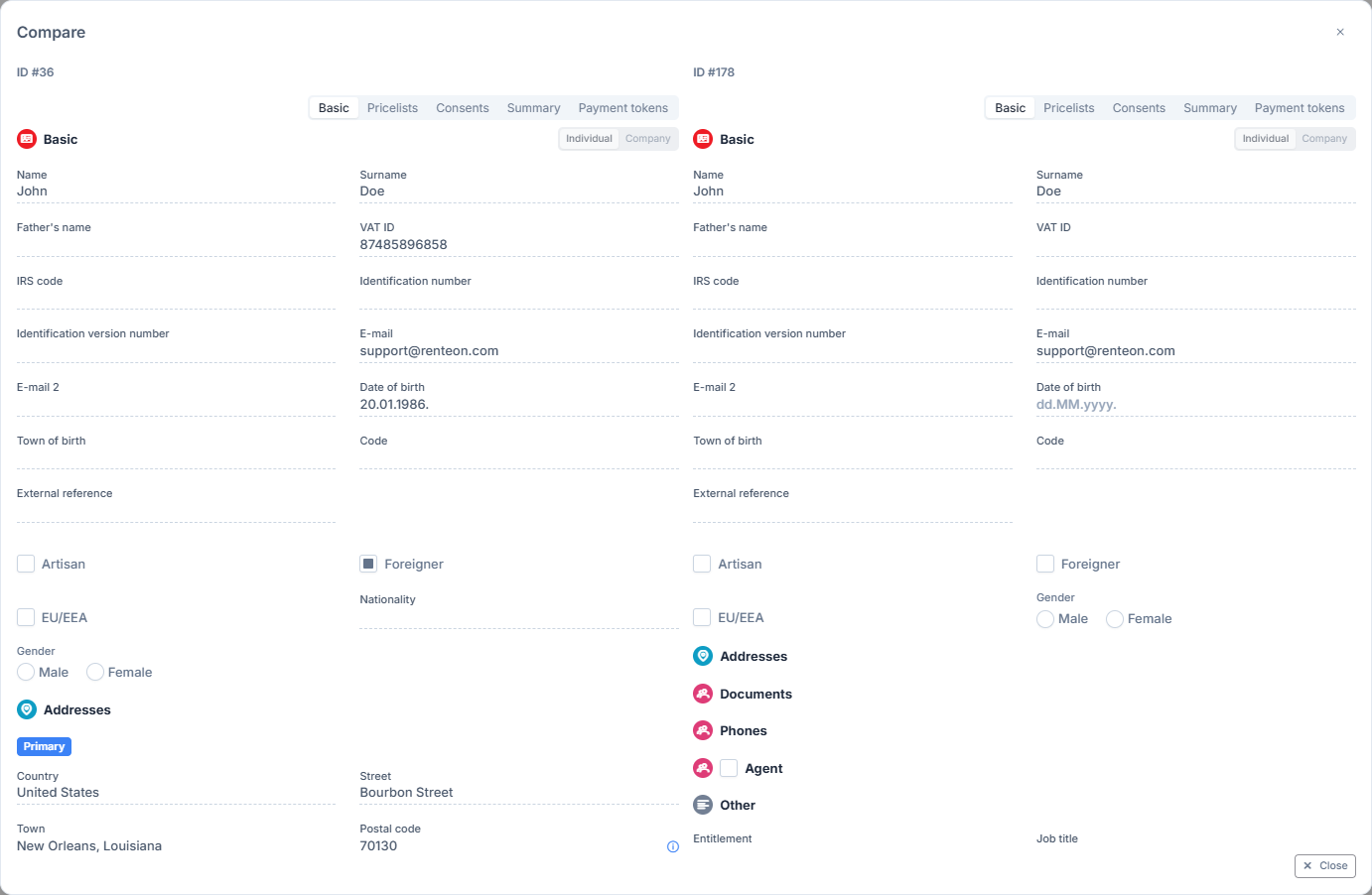
This step is optional, but it is the easiest way to see how two records differ. Tick exactly two records in a group and click Compare. You need the Address book management role for this button.
The two records open next to each other, both read-only, so you can check addresses, documents, consents and every other section at a glance. To correct one of them, click Edit on that side, change the data and click Confirm. Keyboard shortcuts are switched off in this window, so a key press never affects both records at once.
Close the window with Close (or Back on either side). If you have unsaved changes, Renteon asks "There are unsaved changes on current page. Do you wish to continue to next page?". Click No to stay and save first. If you saved anything, the duplicate list is searched again after the window closes.
Tip: A merge never changes the main record's name, surname or code. If the record you want to keep has a misspelt name, correct it here before you merge.
Check the important data before you merge
A merge is quick, but its result stays. Before you open the merge preview, check these points:
- Which record should stay. Usually that is the record your business uses most: the one with the most Bookings, Finance documents and Open contracts, and with the name written correctly. Those bookings and documents stay with their own record whatever you choose. The choice decides which record stays active and collects the missing data.
- Tax and legal data. Look at the VAT ID, Identification number, IBAN, Recipient code and eInvoice Type. The main record keeps its own values. A different value on another record is not copied, it only appears as a warning. If the main record has the wrong VAT ID or identification number, correct it first (with Open or Compare), then merge.
- Options that pass to the main record. If any record you merge has On black list, Do not fiscalize finance documents, Do not send e-invoice for this client or Disable automatic sending of e-invoice ticked, the main record gets it too. Invoices for the main record would then, for example, no longer be fiscalized. If that is not right, untick the row in the merge preview.
- Logins and partners. A record that is linked to a user login, or that is an agency or a partner, can only be the main record. See the step on blocked merges.
- Records that only look alike. A chain can put two different clients into one group. Tick only the records that really are the same client.
Choose the main record and the records to merge
In the group you want to clean up:
- Click the round button in the Main record column of the record that should stay. Only active records can be chosen as the main record.
- Tick the box of every record that should be merged into it. You do not need to tick the main record itself.
- Click Merge in the group's header line. The button is available once a main record is chosen and at least one other record in the same group is ticked.
Records of the group that you leave unticked are not changed. If you searched with Include inactive, you can also tick inactive records. They are merged like the others and their data is offered to the main record too.
Tip: If a group mixes two different clients, merge only the records that belong together. The others stay as they are and appear again on the next search if they still match each other.
Review the merge preview
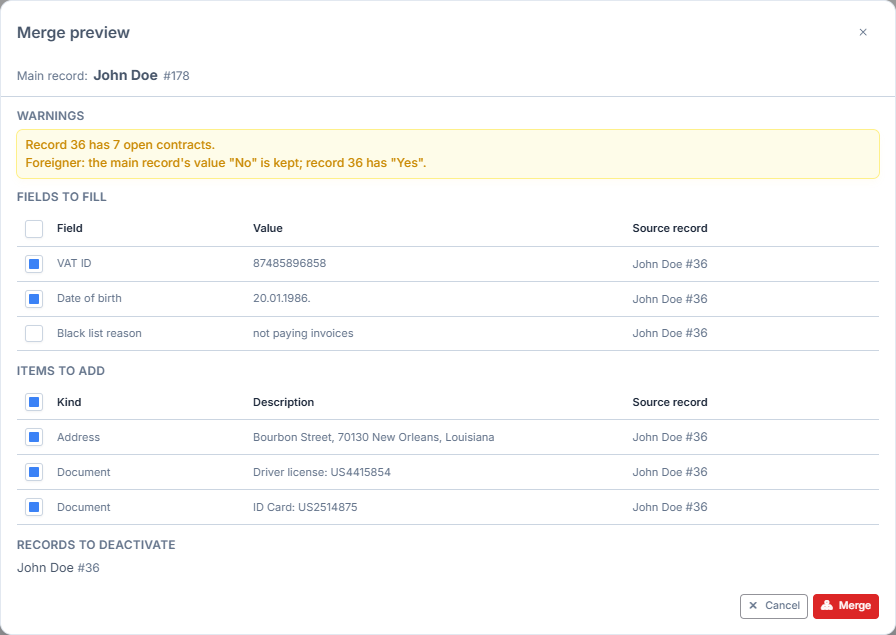
Clicking Merge opens the Merge preview window. Nothing is saved yet. The top of the window shows the Main record with its name and ID.
A red box means the merge is blocked, and the Merge button stays disabled. The step on blocked merges lists these messages and what to do about each one.
Warnings do not stop the merge, but read them:
- "Record 1234 has 2 open contracts." The record you are about to deactivate is on contracts that are still open. These contracts stay linked to it after the merge.
- "Date of birth: the main record's value "12.03.1985" is kept; record 1234 has "21.03.1985"." The main record already has a different value, so the other value is not copied. You also get this warning when two merged records have different values for a field that is empty on the main record: the value of the record that wins (see the rules below) is used, and the other one is shown in the warning. If the value that is not copied is the correct one, click Cancel, correct the main record, and merge again.
Fields to fill lists the fields that are empty on the main record and will be filled from another record. The Value column shows the new value and Source record shows where it comes from. The rules are:
- These fields can be filled: VAT ID, Identification number, IRS code, External reference, E-mail, E-mail 2, IBAN, Title short, Father's name, Entitlement, Job title, Company (the employer), Date of birth, Town of birth, Gender, Nationality, Foreigner, EU/EEA, Identification version number, Recipient code, eInvoice Type and Default booking remark. Company and Town of birth can each appear twice, once for the typed text and once for the entry chosen from a list.
- A field is only filled when it is empty on the main record. A value on the main record is never overwritten.
- An unticked Foreigner or EU/EEA box counts as a value ("No") on every record that was saved in the address book. So these two are rarely filled: the main record keeps its own choice, and a different choice on another record only appears as a warning.
- When several records have a value for the same field, the record with the most open contracts wins. If they have the same number of open contracts, the oldest record (lowest ID) wins.
- E-mail addresses get special handling. If the main record has an E-mail and its E-mail 2 is still empty after the other fields are filled, the first e-mail address on the merged records that differs from it goes into E-mail 2, so it is not lost. If both e-mail fields of the main record are already filled, other e-mail addresses are not copied and only appear as a warning.
- Internal remark and Black list reason are added to, not replaced. The other record's text is appended to the main record's text after " | ", unless the main record's text already contains it.
- These options are switched on when any merged record has them on, and are never switched off: On black list, Do not send survey e-mail, Do not send reminder e-mail, Return reminder (stops the e-mail that reminds the client about the return; this option is not shown on the address book screen), Do not fiscalize finance documents, Disable automatic sending of e-invoice and Do not send e-invoice for this client.
Items to add lists entries from the other records that the main record does not have yet. Kind says what the entry is, Description shows it (an address, a number, a name) and Source record shows where it comes from. Entries are copied, so the other record keeps its own:
- Address: not added if the main record already has an address with the same street, postal code, town and country. In the street and town, extra spaces, upper and lower case, and accents are ignored. If the main record had no address at all, the first address added becomes its default address.
- Phone: not added if the main record already has the same number. Spaces, "+", brackets and hyphens are ignored, so "+385 91 123-4567" and "385911234567" count as the same number.
- Document (individuals only): identification documents such as an ID card, passport or driver's licence, copied with their dates, issuing place and images. A document is not added if the main record already has one of the same type with the same number. A document without a number is never copied.
- Consent: copied with its Consent source, Valid from, Valid until, Remark and Document. It is not added if the main record already has the same consent with the same Consent source and the same Valid from.
- Public invoice identifier: not added if the main record already has one with the same Contracting Authority Id and Contracting Identifier (or the same name, when those two are empty).
- Department (companies only): copied together with its addresses and phones. It is not added if the main record already has a department with the same name.
- Pricelist, Payment type (from Limit payment types), Service type (from Services to be returned in B2B availability response (automated services will be added to rental price)) and Type (company type): added if the main record does not have them yet. If the main record already has a service type that another record marks as Paid by agency, a row ending in ": Paid by agency" turns that mark on for the main record too. The Limit payment types switch itself is not copied. If it is on for the main record, the copied payment types are added to the ones it allows. If it is off, the copied payment types have no effect until someone switches it on.
Every row in Fields to fill and Items to add has a tick box, and all rows start ticked. The box in a table's header ticks or unticks the whole table. An unticked row is skipped. Renteon does not pick another value in its place: if you untick the e-mail address offered by one record, the field stays empty, even if another record also has an e-mail address. The rows that add text to Internal remark or Black list reason from several records are ticked and unticked together.
When there is nothing to copy, or you untick every row, the window shows "The main record is not missing any data – the other records will only be deactivated."
Records to deactivate lists every record that will be merged into the main record. You cannot untick them here. To leave a record out, click Cancel and untick it in the group.
Tip: Pressing Enter in this window does the same as clicking Merge. Only press it when you are ready to merge.
Merge and check the result
Click Merge in the preview window. Renteon does not ask again. It then:
- deactivates every record listed under Records to deactivate, marks it as merged into the main record and adds "Merged into #ID" (the main record's ID) to its Internal remark
- applies the ticked rows to the main record and saves it
These two steps succeed or fail together. If something goes wrong, nothing is saved, you see a message and the preview stays open. When the merge succeeds, you see "Data saved" and the list is searched again. The merged records no longer appear in the duplicate search, not even with Include inactive. Because they are inactive, they can also no longer be selected when you pick a client from the address book.
The main record goes through the address book's own checks, the same ones that run when a record is saved. A merge can therefore be refused with the same messages you would see there, for example:
- "A record with entered VAT ID already exists." The setting Disallow duplicate VAT ID for companies in the address book is on (Administration → Code book → Settings, tab Bookings), and another active company that is not part of this merge already has the VAT ID the main record would get.
- "Entry with same identification number already exists". The same check for the identification number, when the setting Is identification number unique on the same tab is on. It applies to companies and individuals.
- A message that starts with "Invalid VAT ID." Your Renteon is set up for Croatia, the main record is not marked as Foreigner, and its VAT ID (its own or the copied one) is not a valid OIB.
Correct the data, or untick the row in the preview, and merge again.
What the merge leaves where it is:
- Bookings, contracts, finance documents and payments of the merged records stay linked to those records. Nothing is moved to the main record, and documents already issued (including fiscalized or sent invoices) are not changed. When you look up a client's history, for example by searching bookings or finance documents by client, also check the old record. Its Internal remark says which record it was merged into.
- Never copied: anything that is not in the lists above. That includes the main record's name, surname and Code; Agency, Agent and other partner and billing settings; Internal driver; VAT payer; Artisan; Allow B2C Access; the Limit payment types switch; the Photo and Documents files; saved cards (Payment tokens) and the customer link at the payment provider, which each record keeps for itself; user logins; and the record's Data collection purpose entries that the data retention policy uses (each record keeps its own).
When you merge individuals, the change to the main record is written to the Personal data access log as an update. See GDPR and personal data protection.
Fix a merge that is blocked
If the preview shows a red box, the Merge button stays disabled until you change your selection. In these messages, the number is the record's ID:
- "The main record must be active and must not be anonymized." Someone deactivated or anonymized the main record after you searched. Click Search and choose another record as the main record.
- "Select at least one record to merge." The records you ticked no longer exist, for example because someone deleted them after you searched. Click Search to load the list again.
- "All records must be of the same type (company / individual)." A company and an individual cannot be merged into each other. Groups never mix them, so this only happens when someone switched a record between company and individual after you searched. Click Search to load the list again.
- "Record 1234 is linked to a user account – select it as the main record or unlink the user first." The record has a user login, for example for the B2B or B2C portal. Merging it as a duplicate would lock that user out, so make it the main record instead. If two records in the group both have logins, you can only merge them after one of the logins is unlinked from its record.
- "Record 1234 is an agency/partner and cannot be merged as a duplicate." The record is marked as Agency or Agent, or has a Partner WEB code. Make it the main record. Two partner records cannot be merged into each other.
- "Record 1234 has already been merged into another record." Someone merged this record in the meantime. Click Search to load the list again.
- "Record 1234 is anonymized and cannot be merged." The record was anonymized after you searched. Leave it out.
Two messages appear as an error message instead of in the preview, and the preview stays empty:
- "The main record was not found." The main record was deleted in the meantime. Click Search to load the list again.
- "You do not have required user permissions. Please contact your system administrator." You are merging companies without the Addressbook for companies role.
Delete a record instead of merging
The Delete button (bin icon) on a row works exactly like deleting in the address book list. After you confirm "Are you sure?", the list is searched again and "Data deleted" is shown. What actually happens depends on the record:
- A company is deleted for good if nothing in Renteon uses it. If it is used anywhere (on a booking or a finance document, for example), Renteon deactivates it instead.
- An individual is in practice never deleted for good. Renteon links a data collection purpose to every individual when the record is saved, so it deactivates the record instead, with all its personal data. To erase a person's data, use anonymization. See GDPR and personal data protection.
Inactive records have no Delete button. A record deactivated this way is not marked as merged, so it can appear in a group again when you search with Include inactive.
You need the Address book management role to delete, and Addressbook for companies to delete a company. Deleting suits a record with zero Bookings and zero Finance documents that holds nothing the main record needs. A delete does not copy anything, so if the record has an e-mail address, a document or a consent you want to keep, merge it instead.
Undo a merge if you need to
There is no undo button. A merge does not delete anything, though, so you can repair it by hand:
- The merged records still exist as inactive records with their own data. Apart from being inactive and marked as merged, only their Internal remark has changed. Find them in the address book list (Sales → Address book → Search, with Active set to No) and use Activate.
- Reactivating a record does not remove what was copied to the main record. Remove those values or entries from the main record yourself. The preview showed which ones came from which record.
- A reactivated record stays marked as merged. It does not appear in the duplicate search again and cannot be merged again.
- If Disallow duplicate VAT ID for companies in the address book or Is identification number unique is on, Renteon refuses to reactivate a record whose VAT ID or identification number is now also on the main record. Remove the value from one of the two records first.
Tip: Before a large clean-up, write down the IDs of the records you merge, or take a screenshot of each preview. The IDs make it much easier to undo a merge by hand later.

Related guides: