
Fleet
Fleet reports: activities and equipment
Fleet maintenance deadlines, car activity and fueling exports, estimated-return corrections, and the movement and availability of additional equipment.
Last updated
This guide explains the six reports in the Activities group of the car fleet reports: Fleet maintenance, Car activities, Fueling, Car activity estimated in data correction, Additional equipment item activity and Additional equipment tracking.
They answer everyday fleet questions. Which cars are due for a service or have papers about to expire? What did the cars do last month, and what did it cost? Does the fuel you paid for match the fuel the cars actually used? Who moved the expected return of a car in the workshop, and why? Where is the GPS unit with a given serial number, and will the airport office have enough child seats on Saturday?
Each section below explains what a report shows, how Renteon builds its rows, what every filter does, what you get in the export, and what to watch out for.
Where to find these reports and who can open them
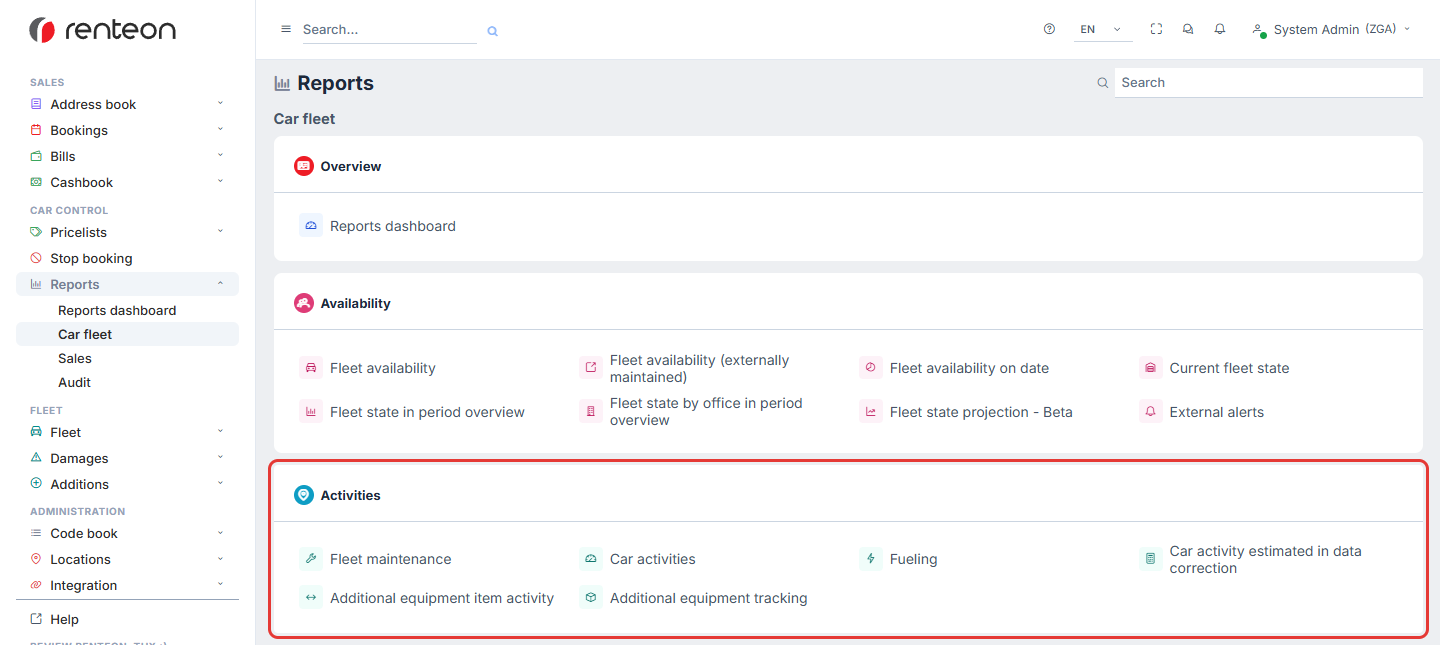
In the left menu, open Car control → Reports → Car fleet. This page lists all car fleet reports in groups. The six reports in this guide are in the Activities group.
You need these roles:
- Reports - fleet opens Fleet maintenance, Car activities, Fueling, Car activity estimated in data correction and Additional equipment item activity.
- Additional equipment availability overview loads the data in Additional equipment tracking. The Car fleet reports page itself only appears for users who also have Reports - fleet or Fleet availability overview, so give the user one of those as well.
How the Reports page and every report screen work in general (search, the info icon, filters, Reset, Export to Excel, date filters, assigning roles) is explained in Reports: overview and dashboard.
Fleet maintenance: tabs and thresholds
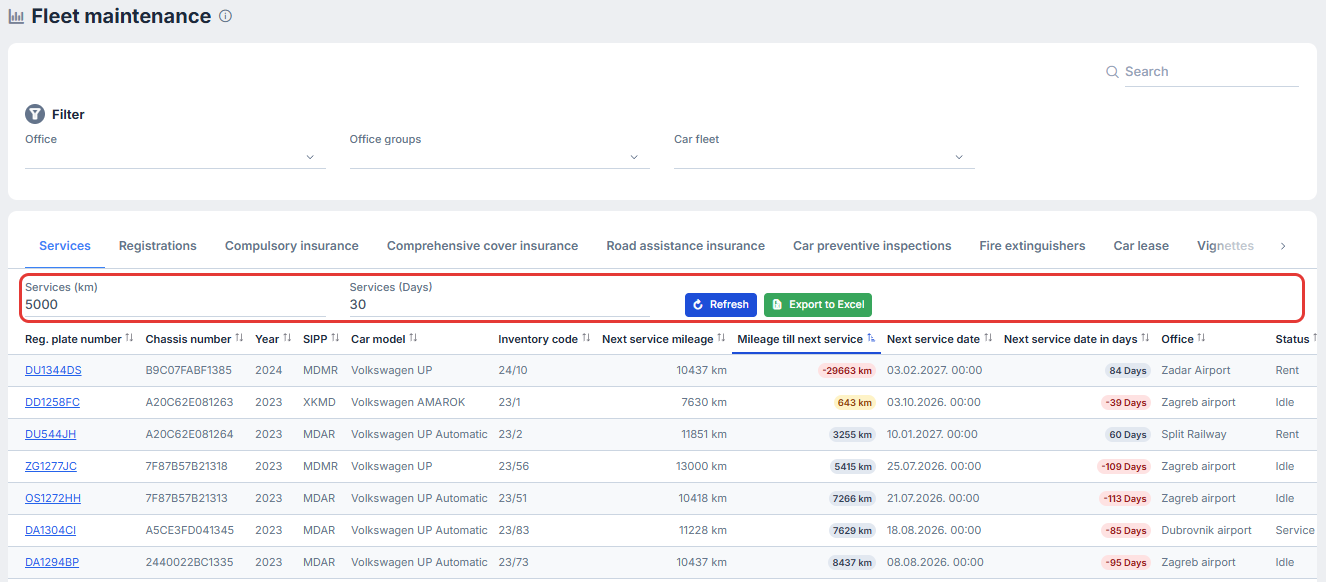
Fleet maintenance lists cars that are close to (or past) a maintenance deadline. Open it every Monday morning when you plan workshop visits and paperwork. It has ten tabs, one for each kind of deadline:
- Services: cars whose next regular service is near, by mileage or by date.
- Registrations: cars whose registration ends soon.
- Compulsory insurance, Comprehensive cover insurance and Road assistance insurance: cars whose policy of that type expires soon.
- Car preventive inspections and Fire extinguishers: cars whose next inspection date is near.
- Car lease: cars whose buy-back date is near.
- Vignettes: cars whose vignette expires soon.
- Tire changes: cars whose next tire change is near, by mileage.
Only active cars are listed. The filter at the top applies to all tabs:
- Office is the car's current office. Renteon takes it from what the car is doing now: it is the expected return office of the car's current activity. A car that is out on a one-way rental therefore already counts under the office it will be returned to. When you open the report, this filter is preset to the office you are signed in to. Clear it to see the whole fleet.
- Office groups keeps cars whose office belongs to at least one of the selected groups.
- Car fleet keeps cars in the selected car fleets.
Each tab has its own threshold fields. Each field is labelled with the tab name and a unit, for example Services (km) or Registrations (Days):
- Services has a mileage threshold (default 5000) and a days threshold (default 30). A car is listed if its next service mileage is no more than its current mileage plus the mileage threshold, or if its next service date is at most that many days away or already passed. Example: a car at 41,200 km whose next service is due at 45,000 km is listed with the default 5000, because the service is only 3,800 km away. To switch the date rule off, leave the days field empty. The mileage rule cannot be switched off: always keep a number in the mileage field.
- Tire changes has only a mileage threshold (default 5000), and the same rule applies to the next tire change mileage.
- All other tabs have a days threshold (default 30). A car is listed if its expiry date is fewer days away than the threshold, if the date has already passed, or if the car has no record of that kind at all. Car lease is the exception: it only lists cars that have a buy-back date.
Keep a number in every threshold field except the days field on Services. If you empty any other threshold field, the tab does not load.
The tabs load one at a time: the first tab loads when you open the report, and every other tab loads the first time you click it. After you change the filter or a threshold, click Refresh in the tab you are looking at (or press Enter in a threshold field). A tab you opened earlier keeps its old rows until you refresh it.
Fleet maintenance: what the columns show
Each row is one car. The Reg. plate number is a link that opens the car card in a new browser tab, directly on the tab where those records live (for example the car's services, registrations or insurances). That way you can enter the new record straight away. To learn your way around the car card, see Opening a car card.
Every tab shows the car's Reg. plate number, Chassis number, Year, SIPP, Car model, Inventory code, Office, current Mileage, Car owner and Car supplier. Three columns describe what the car is doing right now:
- Status is the car activity type of what the car is doing now (its current open activity), for example a rental or idle.
- Date est.IN is when that activity is expected to end. It stays empty while the car is idle.
- Client is the client of the booking behind that activity, if there is one.
The deadline columns depend on the tab:
- Services shows Next service mileage and Mileage till next service, plus Next service date and Next service date in days. They come from the car's service records of the type Regular service: Renteon takes the highest next service mileage and the latest next service date entered on them.
- Tire changes shows Next service mileage and Mileage till next service. On this tab they mean the next tire change mileage and the distance left to it.
- All other tabs show Expiry date and Days until it. A dash means the car has no record of that kind.
Company shows the company on the car's latest record of that kind: the service firm, registration company, insurer, inspection firm, buy-back company or vignette provider. On Services and Tire changes it shows the company of the car's most recent service.
The numbers in the deadline columns are coloured so you can scan the list quickly:
- Mileage till next service turns red when the service mileage has already been passed. It turns yellow when fewer than 1,000 km (or miles, depending on your company's mileage unit) are left.
- Next service date in days turns red at 10 days or fewer (or when there is no date) and yellow at 30 days or fewer.
- Days on the expiry tabs turns red when the date has passed, is today, or there is no record. It turns yellow when fewer than 10 days are left.
To sort, click a column heading. Every column can be sorted except Date est.IN, Company, Car owner and Car supplier. Export to Excel downloads every row of the current tab with the current filter and threshold, not just the page you see. The file also has columns the screen does not show: the office and date where the car's current activity started, the car's remark and internal remark, and the engine number. The header block of the file names the filter you used. If you selected several offices, office groups or car fleets, it names only the first one of each, but the rows still cover all of them.
To see everything about one car in one place (activities, papers, open damages), use Car overview.
Warning: Services and Tire changes only list cars that already have at least one regular service or tire change record. A car with no such record never appears there. Most expiry tabs work the other way round: they list every active car that has no record of that kind, with a dash. If your company does not use vignettes, for example, every car shows up on Vignettes.
Car activities
Car activities is an export with no list on screen. You set the filter and click Export to Excel, and Renteon downloads a workbook with every car activity that matches. Use it for monthly activity reviews, to check what a driver did, to find all open workshop visits, or to pass activity costs to accounting. Reset returns all filters to their defaults.
The filters work like this:
- Date OUT - From / To: the activity started in this range. To includes the whole day you pick.
- Date est.IN - From / To: the expected return falls in this range.
- Date IN - From / To: the actual return falls in this range. Activities that are still open never match this filter.
- Period - From / To (with time): the activity overlaps the period at all. It started before the period ends and ended (or, if still open, is expected to end) after the period starts. Example: a service from 28 May to 3 June matches the period 1–30 June.
- Estimate on date and time: the activity was running at that exact moment. Use it to answer "what were the cars doing on 15 June at 10:00?".
- Cancelled defaults to No, which leaves cancelled activities out. Choose Any to include them, or Yes to export only cancelled ones.
- Open: Yes gives activities that have no return yet, No gives returned ones.
- Active cars limits the export to active or to inactive cars.
- Car activity type, Booking subtype, Car model and Car limit the export to the selected activity types, booking subtypes, car models or one car. Booking subtype only matches activities that belong to a booking.
- Car category and Car fleet use the car's category and fleet as they are today, not as they were when the activity took place.
- Office OUT, Office est. IN and Office IN, and the three matching Group fields, use the activity's start office, expected return office or actual return office (or an office in the selected group). The three office lists only offer offices that are marked as pickup locations.
- Driver is the person entered as first or second driver on the activity itself, for example the employee who drove the car to the workshop. It does not search the customer's drivers on a booking.
For Greek companies, four more filters appear: Dcl correlated, InterCompany Dcl correlated, Sent to Dcl and InterCompany sent to Dcl. As soon as you use any of them, the export only contains activities whose activity type has Is Dcl ticked. See Greece: myDATA and DCL.
The workbook has three sheets:
- Car activities has one row per activity:
- the car: inventory code, registration, model and category;
- the activity: type (with the booking subtype code in brackets), subtype, status and drivers (the booking's drivers when the activity belongs to a booking, otherwise the first driver entered on the activity);
- offices and parking places for OUT, est. IN and IN, and all dates (Date OUT, Date est.IN, Date IN, opened, closed, cancelled);
- KM OUT and KM IN, and the fuel, gas and battery levels with the consumption between them;
- the booking number, subtype, client and currency;
- who opened, closed, cancelled, checked out and checked in the activity, and whether it was signed;
- the remarks, the additional equipment items the activity carried, and the service company;
- every reason entered when the expected return was corrected (column Correction Comment);
- the car's maintenance status as of today: days to buy-back and to registration end, distance and days to the next service, distance to the next tire change, the tire season, and the mileage left on a lease.
- Expenses has one row per expense entered on those activities. It shows the amount and currency, the amount converted to your domestic currency at the exchange rate of the activity's start date, and the company credit card used.
- Selected report filters lists the filter values you exported with, so the file explains itself when you forward it.
An activity with no planned end, such as an idle period, shows 31.12.9999 as its expected return.
Warning: For a user with Restriction of access to data by connected branches ticked on their user screen (Administration → Code book → Users), the export only contains activities that start, are expected back, or were returned at one of that user's offices. Two colleagues who run the same filter can therefore get different files.
Fueling: which fuelings are included
Fueling is also an export. It checks fuel purchases against fuel use: for every fueling, it works out how much fuel the car used since the last moment its tank level was known, and compares that with the amount tanked. Use it to spot fuel cards used for the wrong car, receipts that do not match, or customers who returned cars with less fuel than they were charged for.
The export has one row for every fueling that meets all of these conditions:
- its car activity type has Fueling as its Car activity definition type (you set this under Fleet → Fleet → Car activity types),
- it is closed (it has a return) and not cancelled,
- the car's fuel type uses fuel. Cars with the fuel type Electro or Gas, and cars with no fuel type entered, are left out.
Rows are sorted by registration plate and then by date, so the fuelings of each car follow one another.
The filters:
- Date OUT - From / To: when the fueling started. To includes the whole day.
- Office OUT and Office OUT Group: where the fueling started.
- Car fleet and Car category: the car's current fleet and category.
- Driver: the first or second driver entered on the fueling.
- Company credit card: fuelings where at least one expense was paid with one of the selected cards.
- Car and Active cars: one car, or only active or only inactive cars.
Click Export to Excel to download the file. It has one sheet: a header block listing the filters you used, followed by the rows. Reset returns the filters to their defaults.
Fueling: how the litres are reconciled
For each fueling, Renteon first looks back for a starting point where the car's tank level was known. The starting point is the car's most recent activity that started before this fueling and is one of these kinds (its activity type must have Occupies car ticked):
- a fueling,
- the car's first activity when it joined the fleet,
- a rental or vehicle replacement (VRV) that started with a full tank (fuel OUT 8/8).
From that starting point up to the fueling, Renteon takes every closed, non-cancelled activity of the car whose activity type has Occupies car ticked. Idle periods and deactivations are left out.
Renteon then works out these amounts, in litres (or gallons, depending on your company's volume unit):
- What was missing at the starting point: the car's Fuel tank size minus the fuel level at the end of the starting activity.
- What rentals used: for each rental, the fuel level at pickup minus the fuel level at return.
- What other activities used: for transfers, services and similar activities, the kilometres driven times the car's Average fuel consumption (l/100km). If the car has no average consumption entered, Renteon uses the fuel levels at the start and end of the activity instead.
- What was tanked: the Fuel tanked entered on the fueling. If that field is empty, Renteon uses the fuel level at the end of the fueling minus the level at its start.
The difference is the tanked fuel minus everything that was used or missing. Here is an example with a 48 l tank, where each eighth is 6 l:
- 1 May: a fueling fills the car up (fuel IN 48 l).
- 1–2 May: a transfer of 100 km. The car's average consumption is 6 l/100km, so it used 6 l.
- 3–6 May: a rental leaves with 7/8 (42 l) and comes back with 4/8 (24 l), so it used 18 l.
- 7 May: the fueling tanks 24 l and the car is full again.
The difference is 24 − 6 − 18 = 0, so the fuel bought is fully explained. If the receipt had said 30 l, the difference would be +6: 6 litres were paid for that no recorded use accounts for.
The column headings in this file are fixed English names that are not translated. The main ones are:
- Date, CarRegistrationPlateNumber, Driver, OfficeOutCode, CompanyName (the company entered on the fueling, usually the fuel station) and Remark.
- Price and Currency: the fueling's expenses of the type Fueling, converted to your domestic currency at the exchange rate of the fueling date.
- CompanyCreditCardOwnerName: the company credit cards used to pay those expenses.
- FuelTanked: litres tanked.
- FuelStateToFullTank: litres still missing to a full tank after this fueling.
- FuelStateByPreviousFuelingOrFullBookingOrNewCarActivity, FuelStateByBookings and FuelStateByCarActivitiesExceptRent: what was missing at the starting point, what rentals used, and what other activities used. These are shown as negative numbers.
- Difference: the result explained above. Zero is a match. A positive number means more fuel was bought than the records explain. A negative number usually means the car was not filled up completely.
- DifferenceWithAdditionToFullTank: the same calculation, as if this fueling had filled the tank completely. Watch this column if your drivers sometimes put in only part of a tank and you accept that.
- PreviousFuelingOrAcivityWithFullFuelTankDateOut: the start date of the starting point, so you can see which period the row covers.
- BookingNumbersBetweenFuelings: the bookings in that period. BookingNumbersWithChargedFuelBetweenFuelings: those of them that carry the Fuel service, with "(FFT)" added when the booking also has Full fuel tank.
- FuelChargedByBookings, FuelChargedByBookingsAmountNet and FuelChargedByBookingsAmount: the litres charged to customers on those rentals (the car's tank size for Full fuel tank, otherwise the quantity of the Fuel service), and the net and gross amounts of the Fuel service in your domestic currency.
- MilesOut, MilesIn, MileageDoneByFueling, FuelTankSectionOut, FuelTankSectionIn, MileageDoneByCarActivitiesExceptRent, CarAverageConsumption, SIPP and CarModelName: the readings and car data behind the calculation.
Warning: The result is only as good as the data behind it. Every car needs a Fuel tank size on its car card, every activity needs fuel levels at OUT and IN, and fuelings need Fuel tanked. If a car has no Fuel tank size, or the activity used as its starting point has no fuel level at IN, the export can stop with an error instead of downloading. When Renteon finds no starting point, the whole tanked amount appears as Difference. To make the fuel quantity and the credit card compulsory on fuelings, tick Mandatory entry of bought fuel on fueling car activities and Mandatory entry of company credit card on fueling car activity under Administration → Code book → Settings, tab Finances.
Car activity estimated in data correction
This report is the history of changes to the expected return of open car activities: who moved the expected return date or office, from what to what, when, and why. A typical use: the workshop promised the car for Tuesday, it is now Friday, and the station manager wants to see how many times the date was pushed and by whom.
Corrections are made on the car card. Open the car, go to its Car activities tab, click Actions on an open activity and choose Car activity estimated in data correction. The dialog shows the Old office and date (locked) and asks for the New Office est. IN and Date, plus a Comment. The comment is compulsory: Confirm stays disabled until all three are filled in. When you click Confirm, Renteon saves one row in this report. If the activity type has Occupies car ticked, Renteon also moves the start of the car's following idle period to the new date and office, so availability follows the change. A few rules apply:
- Only open, non-cancelled activities can be corrected, and only if their car activity definition type is one of: car wash, fueling, internal, maintenance, other, preventive inspection, registration, service, transfer, transition, on hold or vehicle collection. Rentals follow their contract and are not corrected here.
- To save a correction, the user needs the role Car activity estimated in data correction. For on hold activities, they also need On hold car activity management. The menu item is not hidden from users without the role: they can open the dialog, but saving is refused.
- If the activity type does not have Occupies car ticked, the new expected return office must be the same as the office OUT. Otherwise Renteon shows "On activity that doesn't affect avilability offices OUT, Estimated IN and IN must be the same."
- If the activity type has Occupies car ticked and the new date makes the activity overlap another activity of the same car, Renteon shows "In selected termin the car is already occupied. Please select another termin."
- The new date must be at least one minute after the activity's Date OUT ("Minimum car activity duration is one minute").
The report also lists corrections sent by external systems connected to Renteon. These have no comment, their user is the user the integration signs in with, and their office is the activity's office OUT.
The report loads as soon as you open it, newest corrections first. Each row shows:
- ID: the number of the correction.
- Date: when the correction was made.
- User: who made it.
- Office: the office that user was signed in to.
- Car: the registration plate.
- Date est.IN and Office est. IN: the previous value in red, then a slash and the new value set by this correction.
- Correction Comment: the reason entered.
The filters are:
- Registration plate number: any part of the plate.
- User: who made the correction.
- Office: the office the correction was made from. The list only offers offices that are marked as pickup locations.
- Office Group: the group of the car's current office. Note that this is not the group of the office the correction was made from.
- Car category.
- Date from and Date to: the day of the correction. Both days are included.
To apply the filter, click Search. To clear it, click Reset parameters. Renteon remembers your last filter on this screen. You can sort by ID, date, user, office and car. This report has no Excel export, but the same comments also appear in the Correction Comment column of the Car activities export.
Additional equipment item activity
This report is the movement log of individual equipment units: the pieces you register one by one under Fleet → Additions → Additional equipment items, such as child seats, GPS units and Wi-Fi routers. Each unit has its serial number, and Renteon gives it an inventory code when you save it for the first time. Use the report to find where a unit has been, which contract it went out on, and whether it came back.
Renteon writes the rows automatically, so you never enter them by hand. The Type column says where a row came from:
- Booking: the unit was put on a contract. The row opens when the contract is saved, with the contract's pickup office and date and its expected return, and it follows changes to the contract while the contract is open. When the contract is closed, the row closes with the contract's return date and office, and Renteon moves the unit to that return office. If the unit is taken off the contract, the row closes at that moment, at the contract's pickup office. If the contract is cancelled, the row is cancelled too. Reservations do not create rows.
- Car activity: the unit travelled with a car activity, for example a transfer. The row opens and closes with the activity, and when the activity closes Renteon moves the unit to the activity's office IN. The row is cancelled when the activity is cancelled or when the unit is removed from the activity.
- User: a user registered the unit, or changed the unit's office on its own screen. These rows are closed straight away, with the old office as OUT and the new office as IN.
The report loads as soon as you open it, newest Date OUT first. Each row shows:
- ID: the number of the movement record.
- Serial number, Inventory code and Additional equipment type.
- Type, Booking number and Car activity number.
- Date open: when the record was created.
- the Date OUT, Date est.IN and Date IN bands, each with a date and an office.
- Date close.
Cancelled rows are shown in red. To see who opened, closed and cancelled a row, hover over it.
The filters:
- Type and Additional equipment type.
- ID: the ID of the equipment unit, as shown in the additional equipment items list. This is not the ID column of the report, which numbers the movement records.
- Serial number, Inventory code, Booking number and Car activity number: these need the exact, complete value. Part of a number finds nothing.
- Office OUT, Office est. IN, Office IN and their Group fields. The office lists only offer offices that are marked as pickup locations.
- The Date OUT, Date est.IN and Date IN ranges (the To day is included), Period - From / To and Estimate on date and time. These work as described for Car activities above. Use Estimate on date and time to find every unit that was out at a given moment.
- Cancelled (defaults to No) and Open (Yes gives units that have not come back yet).
Click Confirm to search, Reset to clear the filter, and Export to Excel to download all matching rows. The file also contains the users and the cancellation date, plus a sheet with the filters you used.
The quickest way in is from the unit itself. In Fleet → Additions → Additional equipment items, use the Activities icon on a row, or the Activities button on the unit's screen. The report then opens filtered to that unit, and a Back button takes you back to where you came from. Reset also clears that unit filter, and the Back button then disappears. You still need the role Reports - fleet to open the report this way.
Additional equipment tracking
Additional equipment tracking looks ahead. For one office, it shows how many units of each equipment type will still be free in each time slot once the bookings are taken into account. Check it before you confirm a group booking that needs ten child seats, or to decide whether to move units between offices before a busy weekend.
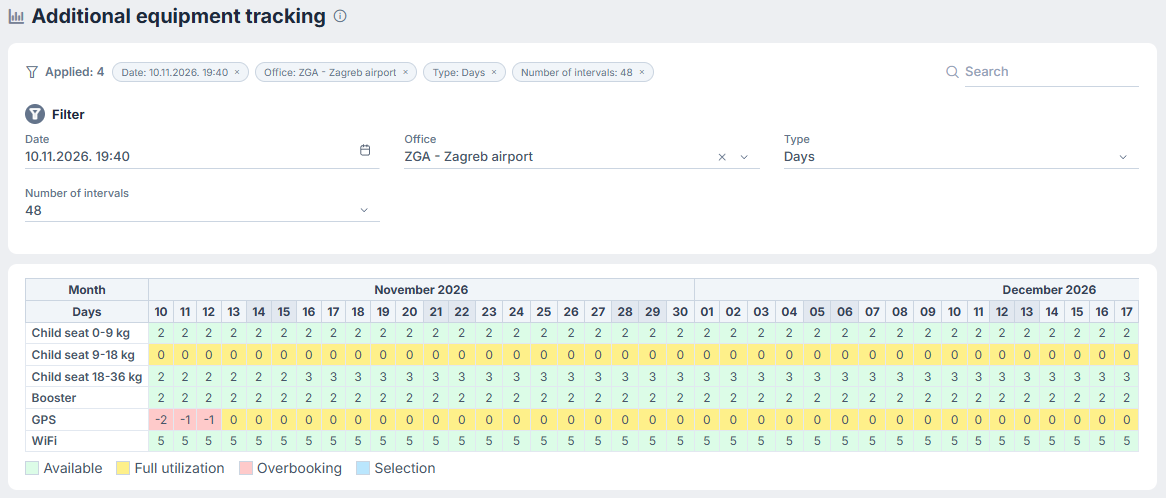
Set the filter and click Refresh:
- Date is where the overview starts. It cannot be in the past (Renteon allows about ten minutes of leeway): an earlier start shows the message "Please insert a date or time equal to or greater than the current date or time". The overview reaches at most one year ahead. A start more than a year away shows "The date you've selected is over a year into the future. Please choose a more recent date.", and columns beyond one year from now are left out.
- Office is required, and you can choose only one office at a time. Without it, Renteon shows "Please select an office". The list only offers offices that are marked as pickup locations.
- Type sets the size of one column: 15 min, Hours or Days (the default).
- Number of intervals sets how many columns there are. You pick one of 12, 24, 36, 48 (the default), 72, 96, 180 or 365.
Previous and Next appear after the first Refresh and move the overview back or forward by one whole window. Previous is refused with the same message when it would move the start into the past. The Date field then already shows the earlier time, so click Next or set the date again. Reset restores the defaults. Renteon remembers your office, type and number of intervals, but the start always resets to the current time.
The grid has one row for every active additional equipment type and one column per time slot. Each cell shows the number of units still available, worked out like this:
- Renteon counts the active units of that type registered to the selected office in Fleet → Additions → Additional equipment items. Units that are out on a contract from this office still count here.
- It subtracts the booked quantity of that equipment on every booking that is not cancelled, picks up and returns at this office, and overlaps the slot. Offers, reservations and contracts are all counted the same way.
- A booking that takes equipment from this office to another one lowers the office's stock from its pickup time. A booking that brings equipment here from another office raises the stock from its return time.
- When a column covers a whole day, the cell shows the lowest hourly value of that day. Hours before the current time (or before the start you chose) are ignored.
The legend under the grid explains the colours. Available (green) means units are free. Full utilization (yellow) means every unit is booked (0). Overbooking (red) means more units are booked than the office has (a negative number). The legend also lists Selection, which this report does not use. To see the total and available counts, hover over a cell. Weekend days are shaded in the column headings. This report has no Excel export.
Warning: The stock comes only from the units registered in Additional equipment items. If you sell child seats but have never registered the individual seats for this office, the office's stock is 0 and every booking with a child seat turns the cell red. Before you rely on this report, register your units and keep each unit's office up to date. Renteon moves a unit to the return office when a contract or car activity that carries it is closed, but only if the unit was actually put on that contract or activity.


These six reports cover the operational side of the fleet: what is due, what happened, what it cost, and where the equipment is. For the state of the fleet itself (free, rented and in service, per category and office), use the availability reports described in Fleet reports: availability and fleet state.
Related guides: