Finance
Group Invoice
How to create a group invoice in Bills → New group invoice, combining the billing specifications of several rentals for one client into a single invoice.
Last updated
A group invoice is an option that allows the creation of one invoice for multiple rentals on the same company or individual.
Below are steps on how to create a group invoice:
Billing specification
To be able to create a group invoice, first in Renteon should be created finance documents named "Billing specifications". Those are documents that specify items/rentals that should be included in the group invoice.
Can be created automatically for agency entries in the address book, the "Payment type" should be set as "Billing specification". If set, Renteon will create such a document on rental closure, or opening - if the checkbox "Automatically create an invoice for agency on open contracts" in the address book is selected.
Also, can be created manually with the finance document type "Billing specification".
Creation of the group invoice
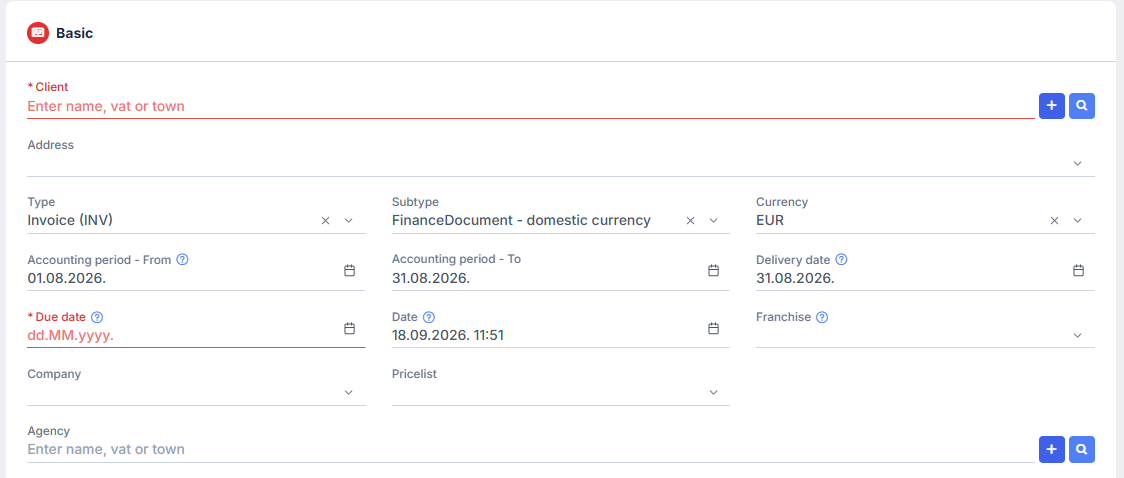
A group invoice can be created in the menu Bills -> New group invoice.
The defined fields should be:
- Client
- Accounting period
Optionally:
- Subtype: domestic or foreign currency
- Date
- Franchise / Company
- Agency
- Order reference number
- Remark
Select of the items/bookings
Once the main fields are defined, you should choose "Search" and Renteon will list all billing specifications created within the accounting period on the name of the client (optionally by agency if selected).
Add payment
The final step of the Group invoice creation is to select the payment type the client will use to settle the invoice. Can be cash, credit card, or bank transfer.
Once saved, Renteon will generate the group invoice, and all billing specifications will be marked as "used" and won't be listed on the search again.
Print and export
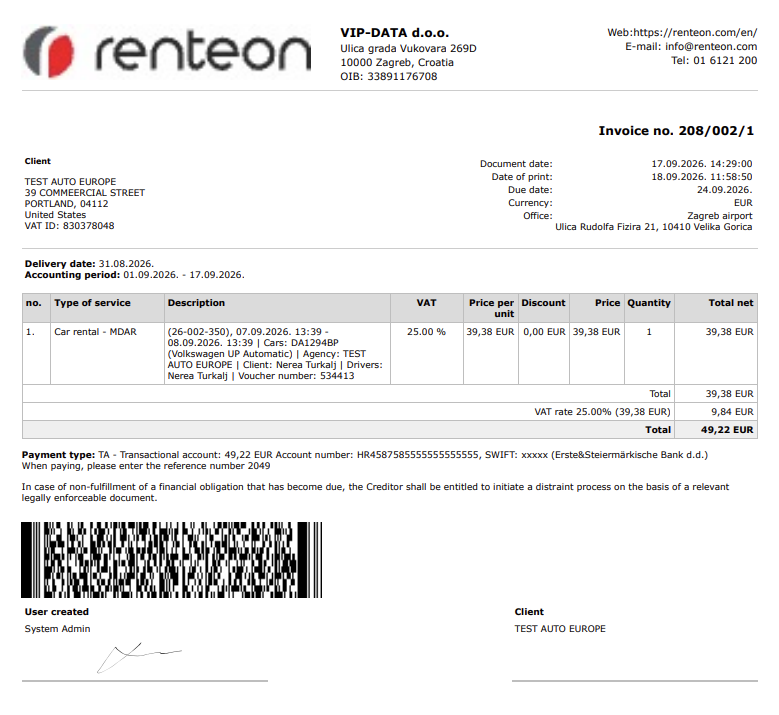
The group invoice can be printed, downloaded, and exported to Excel.
Excel export is available on the bills overview by choosing Actions -> Export (menu Bills -> Search).