Sales
Sales reports: bookings
What the booking reports under Reports → Sales count, which bookings and dates each one uses, every filter, and how to read the Excel file or the on-screen tables.
Last updated
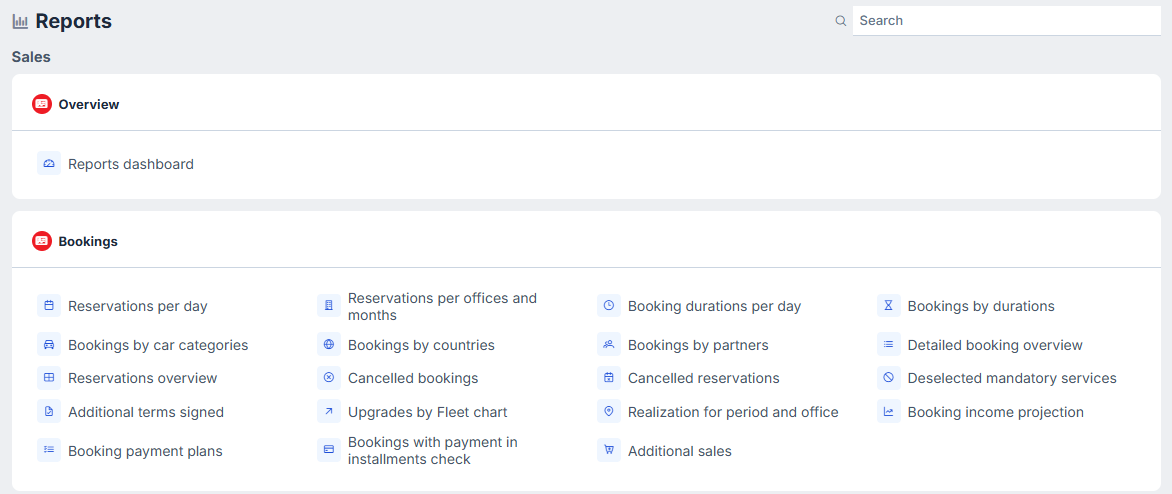
The Bookings group of the sales reports holds the reports that start from your bookings: how many reservations you take each day, how many pickups are waiting at each office, how long rentals last, which car categories, countries and partners bring the business, and a full Excel extract of the bookings you filter.
This guide covers nine of them: Reservations per day, Reservations per offices and months, Booking durations per day, Bookings by durations, Bookings by car categories, Bookings by countries, Bookings by partners, Detailed booking overview and Reservations overview. For each one you find what question it answers, exactly which bookings it counts, which date decides the day or the month, what the amounts mean, every filter, what the Excel file contains, and the cases where the result can surprise you.
Read the section on how these reports count bookings before you compare two reports with each other. Two reports that both say "bookings" can count different things, and almost every difference you will find comes from the rules described there.
Where to find the reports and who can open them
Open Car control → Reports → Sales. The page lists the sales reports in groups; the reports in this guide are in the Bookings group. The same group also holds other booking reports, for example on cancellations, removed mandatory services, upgrades, realization and payment plans; they are described in Sales reports: cancellations, services and payment plans. The reports in the other groups of the page (finance documents, fleet and planning) are described in Sales reports: finance documents, fleet and planning.
Access is controlled by roles:
- Reports - sales opens every report in this guide.
- Reservations overview opens the Reservations overview report without the other sales reports, so you can give it to someone who should see only that one.
The Reports page with its search box and info icons, and the way filters, Reset, Export to Excel, remembered filters and date filters work on every report screen, are explained in Reports: overview and dashboard. For the reports in this guide, also note:
- Only Reservations per day, Reservations per offices and months, Booking durations per day, Detailed booking overview and Reservations overview list the filters you have set under Applied.
- The labels at the top of the Reservations per day and Reservations per offices and months sheets, and the sheet names and labels of the Booking durations per day file, are in your company's main language (the Language setting on the Basic tab of Administration → Code book → Settings), not in the language you work in.
- The Reservations overview is the only one that also shows its result on screen.
Which report answers which question
- "How many reservations did we take each day, and through whom?" → Reservations per day
- "How many pickups are booked at each office for the coming months?" → Reservations per offices and months
- "How many rental days did our contracts use per calendar day?" → Booking durations per day
- "How long are our rentals?" → Bookings by durations, or the durations tab of Reservations overview for reservations taken in a given period
- "Which car categories sell, and at what average daily price?" → Bookings by car categories
- "Which countries do our drivers come from, and what do they spend?" → Bookings by countries
- "How much does each agency or commissioner bring us per month?" → Bookings by partners
- "I need the raw booking data to build my own analysis." → Detailed booking overview
- "What did we sell last week, for which months, categories, offices and partners?" → Reservations overview
- "What do this week's main figures look like at a glance?" → the Reports dashboard, see Reports: overview and dashboard
How these reports count bookings
Renteon keeps the history of every booking. Each time a booking is changed and saved, Renteon stores a new version under the same booking number; only the newest version is the active one. The older versions stay in the database as history and are marked as cancelled with the cancellation status Modification, although nobody cancelled the booking. When an offer is turned into a reservation or a reservation into a contract, the earlier stage also stays behind as an inactive version of the same booking number, but that one is not marked as cancelled.
The reports handle this history differently, and that explains most differences between them:
- None of the reports counts a booking twice in the same cell just because it has several versions.
- Reservations per day, Reservations per offices and months and Reservations overview look at the reservation stage. A reservation that has meanwhile become a contract is therefore still counted as a reservation, which is what you want when you measure how much you sold. A contract opened directly at the counter, without a reservation, never appears in them.
- Bookings by durations, Bookings by car categories and Bookings by partners take the newest version of each booking number that is not cancelled. A reservation that became a contract is counted once, with the contract's data.
- Bookings by countries and, with its default filters, Detailed booking overview look only at the current version of each booking.
- Booking durations per day looks at current contracts and, if you ask for it, current reservations.
A few more rules apply across the group:
- Booking types. In the type filters the three booking types are called Contract, Booking (this is the reservation type) and Offer. When you leave a type filter empty, all three are included.
- On-request reservations are left out of the three reservation reports, Bookings by countries and Booking durations per day until they are confirmed. Bookings by durations, Bookings by car categories, Bookings by partners and Detailed booking overview include them.
- Amounts are net amounts (without VAT), after discounts, converted into your domestic currency. Bookings that were recorded in an earlier domestic currency of your company are converted into the current one. All amounts are the prices on the booking, not what was invoiced or paid.
- Your access. If your user is limited to one franchise or one company, Reservations per day, Reservations per offices and months, Booking durations per day, Bookings by durations, Bookings by car categories, Bookings by countries, Bookings by partners and Reservations overview show only that franchise's or company's bookings. Bookings by durations, Bookings by car categories and Bookings by partners also respect a limit to certain offices: a booking is shown if its pickup, expected return or actual return office is one of yours.
- Office and date names. Office OUT, Office est. IN, Office IN, Date created, Date OUT, Date est.IN and Date IN mean the same in every report; they are explained in Reports: overview and dashboard.
Warning: Do not expect two reports to give the same total for "the same" period. Reservations per day counts reservations by the day they were created, Bookings by partners counts all booking types by pickup month, and Booking durations per day counts rental days of contracts. Each figure is correct for its own question.
Reservations per day
This report answers the question "how many reservations did we take on each day, through which channel, and how many of them are cancelled now?". It is useful for following the daily intake, for example during and after a marketing campaign, and for comparing direct business with agency and commissioner business.
Filters:
- Date from and Date to are both required; Export to Excel stays disabled until both are filled in. Date to must not be earlier than Date from. The period is about the day the reservation was created, not the pickup day.
What is counted:
- Every reservation created in the period, once per booking number, on the day it was created (in your company's time zone). Reservations that have meanwhile become contracts are included.
- On-request reservations are not counted while they wait for confirmation; once confirmed, they are counted on their original creation day.
- Offers and contracts opened without a reservation are not counted.
- The cancelled columns show reservations that are cancelled at the moment you run the report, no matter when they were cancelled. If you export the same period again a month later, the cancelled figures may be higher. A reservation that was turned into a contract and then cancelled as a contract is not counted as cancelled here, because its reservation stage was never cancelled.
- "WalkIN" means a reservation with neither an agency nor a commissioner. A reservation with both an agency and a commissioner is counted in both of those columns, so the three channel columns can add up to more than the total.
The Excel file has one sheet. At the top you find the period, Total number of reservations for defined period, Average number of bookings per day - for defined period (the total divided by the number of days in the period) and Report date / time. Below is a table with one row for every day of the period, including days without reservations, and these columns: Date, Total reservations, Total canceled reservations, WalkIN reservations, WalkIN canceled reservations, Agency reservations, Agency cancelled reservations, Commisionner reservations and Commisioner canceled reservations. The last row adds up every column.
For example, for 1 to 31 March you get 31 rows. If 40 reservations were created on 5 March and 6 of them have been cancelled since, the 5 March row shows 40 under Total reservations and 6 under Total canceled reservations.
Keep in mind that a reservation made by converting an offer counts on the day the offer was first created, because the booking keeps its original creation date.
Reservations per offices and months
This report answers the question "how many reservations are waiting to be picked up at each office, month by month, for the next year?". Station managers use it to plan staff and fleet per office.
Filters:
- Date always shows today's date and cannot be changed: the report always looks forward from today.
- Include cancelled reservations is ticked by default. Untick it to count only reservations that are not cancelled.
What is counted:
- Reservations with a pickup from today onwards, per pickup office and pickup month, once per booking number in each cell. On-request reservations are left out.
- The first column, Current Month, covers the rest of the current month from today. Period 2 to Period 12 are the following eleven calendar months. The row above the table shows the year and month each column stands for, for example "2026 / 11".
- There is one row for every active office that is a pickup location, shown by its office code, even if it has no reservations. Reservations picked up at an inactive office, or at an office that is not marked as a pickup location, are not shown anywhere.
- The office rows are not narrowed to the offices your user is limited to.
At the top of the sheet, Total reservations shows the sum of all cells, and the table ends with a row that adds up every month.
With Include cancelled reservations ticked, the report counts the cancelled reservations and also the replaced older versions of every reservation (the ones marked with the status Modification). If a reservation was changed from one office or month to another, it can therefore appear both in its old and in its new cell. When you need each reservation exactly once, in the office and month where it stands today, untick the box.
Booking durations per day
This report answers the question "how many rental hours and days did our contracts use on each calendar day?". It also shows a Payment sheet: if your Renteon subscription is charged per rental day, this report reproduces the basis of that charge, so you can check it.
Filters:
- Date from and Date to are required; Export to Excel stays disabled until both are filled in. Date to must not be earlier than Date from, otherwise the export stops with the message "DateTo should be after DateFrom".
- Reservations: tick it to add current, confirmed reservations that are not cancelled, counted from their pickup to their expected return.
- Reservations (Document expired): tick it to add reservations that were cancelled because they expired.
- Exclude franchises from invoicing (comma separated Ids): type the IDs of franchises whose bookings should be left out, separated by commas, for example "3,7". You find a franchise's ID in the ID column of Administration → Code book → Franchises. Leave the field empty to include all franchises. Bookings without a franchise are always included.
- Company appears only if your Renteon account has more than one company. Choose a company, Without company for bookings that have no company, or leave Any.
What is counted:
- The current version of every contract that is not cancelled and whose rental overlaps the period: the pickup is on or before the end of the period, and the return is on or after its start. For a contract that has not been returned yet, the expected return is used.
- For each day of the period, Renteon adds up the hours each booking spent on rent within that day. Days are the hours divided by 24.
For example, a contract from 10 March 14:00 to 12 March 10:00 adds 10 hours to 10 March, 24 hours to 11 March and 10 hours to 12 March: 44 hours, or 1.83 days, in total.
The Excel file has two sheets:
- Payment: your company details, the name of your Renteon account, the validity of your Renteon contract, the period, the total days, the price per day, the minimum price, For payment, VAT rate, VAT price, Total, Payment delay in days and Date of print. These values are calculated from the usage terms Renteon has recorded for your account; where a term is not recorded, the sheet shows "-". Depending on your terms, the sheet can also show days and prices per tier, a separate long-term price, or additional charges. With a single price per day, For payment is the total days multiplied by the price per day (plus the long-term days multiplied by the long-term price, where your terms have one), but not less than the minimum price; additional charges are added on top.
- Booking durations per day: one row per day with Date, Duration|Hours and Duration|Days, and a total row. If your terms charge long-term rentals separately, the sheet has two tables, Short term rent and Long term rent; long-term rentals are contracts calculated with monthly prices.
Two effects to be aware of:
- A contract that is still open counts up to its expected return. If you run the report on the 15th for the whole month, days up to the expected return later in the month are already included. A contract that is overdue counts only up to its expected return, not up to today.
- The Payment sheet is a calculation, not an invoice.
Warning: To compare the figures with what Renteon charges you, use a full calendar month and the same options Renteon uses for your account: whether reservations and expired reservations are included and which franchises are excluded. Ask Renteon support which options apply to you. If your subscription is charged by number of cars instead of rental days, this report is not the basis of your charge.
Bookings by durations
This report answers the question "how long are our rentals, and how does that change from month to month?". Use it, for example, to decide where your price breaks by rental length should be.
Filters (all optional):
- Subtype appears twice. The first field lists the booking types (Contract, Booking, Offer), the second one the subtypes, such as Short term rent, Long term rent, Replacement rent, Subrent or Lease.
- Closed: Yes keeps only closed contracts (the car is back and the contract is closed), No keeps everything that is not closed, including reservations and offers, and Any keeps both.
- Date created, Date OUT, Date est.IN and Date IN, each with a From and a To field.
- Company appears only if your Renteon account has more than one company.
If you set no filter at all, the report covers every booking you have ever entered. Set at least a date range, and choose the booking types you mean: with the type field empty, contracts, reservations and offers are counted together.
What is counted:
- Bookings that are not cancelled, once per booking number, using the newest version that is not cancelled.
- The duration is the number of days the booking is charged for. Where that is not set, Renteon takes the time between pickup and return (or expected return) and rounds it up to whole days.
- The month is the pickup month of the booking.
The Excel file has the sheets Bookings by durations and Selected report filters. The first sheet is a grid: one row per duration in days, from the shortest up, and one column per pickup month in the format "2026/07". Only months that have at least one booking get a column. A Total column adds up each duration, and a Total row adds up each month.
A rental from 28 June to 5 July is counted once, under June, the pickup month; it is not split across the two months.
If you choose only Booking as the type, reservations that have since become contracts are still counted, through their reservation stage. The same applies the other way round: when a reservation became a contract and the contract was later cancelled, the earlier reservation stage was never cancelled and is still counted. Choose the types deliberately and you will avoid both effects.
Bookings by car categories
This report answers the questions "how many bookings does each car category get per month?" and "what is the average daily price per category?".
Filters (all optional):
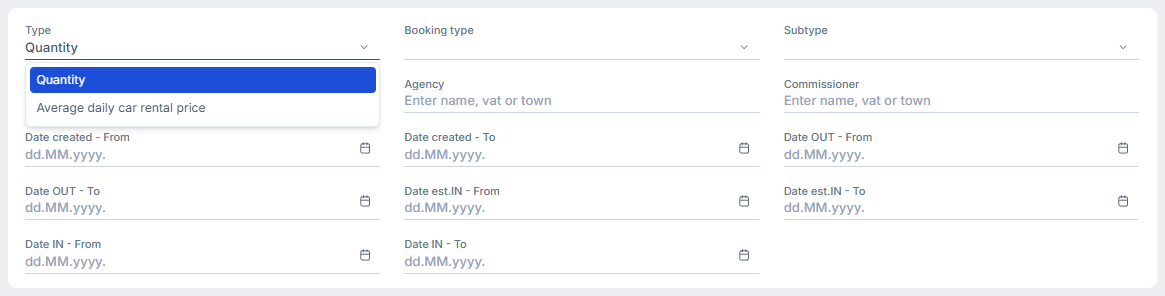
- Type chooses what the report calculates: Quantity (number of bookings) or Average daily car rental price.
- Booking type (Contract, Booking, Offer) and Subtype.
- Closed (Any, Yes, No), with the same meaning as in Bookings by durations.
- Agency and Commissioner: pick one partner from the address book to see only its bookings.
- Date created, Date OUT, Date est.IN and Date IN, each with a From and a To field.
What is counted: the same bookings as in Bookings by durations (not cancelled, once per booking number, newest version that is not cancelled, by pickup month). The category is the car category the booking is charged for (Car category for payment), shown by its SIPP code; rows are sorted alphabetically by that code. When you give a customer an upgrade, the booking stays in the category it is charged for.
With Quantity, the file has a sheet Bookings by car categories with the number of bookings per category and pickup month, a Total column and a Total row, followed by Selected report filters.
With Average daily car rental price, the file has three sheets:
- Average daily car rental price: per category and pickup month, the net car rental amount (only the rental of the car itself, without insurance, equipment or fees) divided by the total number of rental days of those bookings.
- Average net/day: the same, but with the net prices of all services on the bookings. Each service is counted once at its price for one unit, whatever its quantity and even when it is included free of charge, so this figure can differ from the amounts in Bookings by countries and Reservations overview.
- Selected report filters.
The two amount sheets have a Currency column with your domestic currency, and neither a Total column nor a Total row. Rental days are the days charged, or, where those are not set, the days between pickup and return rounded up.
The average is weighted by days, not by bookings. For example, if a category has three bookings in July of 7, 3 and 4 days with a net rental of 350, 180 and 220, the July value is (350 + 180 + 220) / 14 = 53.57, not the average of the three daily prices.
Bookings by countries
This report answers the question "which countries do our customers come from, and how much do they spend?". Use it to see your source markets and to compare rental length and spending by market.
Filters (all optional):
- Booking type and Subtype.
- Agency and Commissioner each appear twice. The first field has Any, Yes and No; the second lets you pick one partner. In the current version, Yes and No both keep only bookings that have an agency (or a commissioner); No does not show the bookings without one. Leave the first field at Any unless you want partner bookings only.
- Closed (Any, Yes, No).
- Office OUT, Office IN and Office est. IN, and the same three as office groups (Office OUT - Group and so on). You can choose several offices or groups in each field, but the Selected report filters sheet then names only the first one of each.
- Date created, Date OUT, Date est.IN and Date IN, each with a From and a To field.
What is counted:
- The current version of each booking, if it is not cancelled and not an on-request reservation waiting for confirmation. Each booking is counted once. With the type field empty, contracts, reservations and offers are counted together.
- The country is the country in the address of the first driver on the booking. When there is no country, the row is called "N/A". If the first driver has more than one address, the country is not necessarily taken from the default one, so keep driver addresses tidy.
The first sheet, Bookings by countries, has one row per country, sorted by name. The column headings are in English in every language:
- CountryName, BookingsCount, DaysCount (the sum of the days the bookings are charged for) and DaysAverage (days per booking).
- TotalRent, TotalInsurance, TotalFee, TotalEquipment, TotalDamages and Total: net amounts in your domestic currency. Rent is the rental of the car itself. Damages are damage and damage processing charges. Equipment is additional equipment. Fees are all other services, such as additional drivers, one-way and out-of-hours fees, delivery, fuel, mileage and traffic fines. For insurance, equipment and fees only the quantity actually charged is counted, so items included free of charge are left out.
- AverageRent, AverageInsurance, AverageFees, AverageEquipment, AverageDamages and AverageTotal: the totals divided by the number of bookings.
- EquipmentPercentageInTotal: the share of insurance, fees and equipment together in the total without damages, in percent. Despite its name, it covers all extras, not only equipment.
- AverageRentPerDay and AverageNetAmountPerDay: rent, and the total, divided by DaysCount.
- Currency.
The second sheet, Selected report filters, records the filters. The table has no total row.
Bookings by partners
This report answers the question "how many bookings, and how much money, does each agency or commissioner bring us per month?". Use it to compare partners and to prepare partner meetings. For working with partner bookings, see Agency bookings.
Filters (all optional): the same as in Bookings by durations, without the Company field: the two Subtype fields (booking type first, then subtype), Closed, and Date created, Date OUT, Date est.IN and Date IN, each with From and To. With no filter set, the report covers all your bookings, so set at least a date range.
What is counted: the same bookings as in Bookings by durations (not cancelled, once per booking number, newest version that is not cancelled, by pickup month).
- The partner is the booking's agency. If the booking has no agency, its commissioner is used. A booking with both is counted under the agency only.
- Bookings with neither an agency nor a commissioner are grouped on a row with an empty partner name, at the top of the list.
- The amount is the booking total without VAT, converted into your domestic currency. It contains every service on the booking, not only the car rental.
The Excel file has three sheets:
- Bookings by partners: the number of bookings per partner and pickup month, with a Total column and a Total row.
- Selected report filters.
- Bookings - Amount: the same grid with net amounts, again with a Total column and a Total row.
For example, if you export contracts with Date OUT from 1 January to 30 June, you get up to six month columns (a month without bookings gets no column). A partner row showing 12 under "2026/03" on the first sheet and 4,850.00 under "2026/03" on the last sheet means twelve contracts picked up in March, worth 4,850.00 net in total.
Detailed booking overview
This report is a full Excel extract of the bookings you filter, spread over several sheets: basic data, client, drivers, cars, price lines, amounts, car activities and other details. Use it when no ready-made report answers your question and you want to build your own pivot tables, or when you need to check many bookings at once.
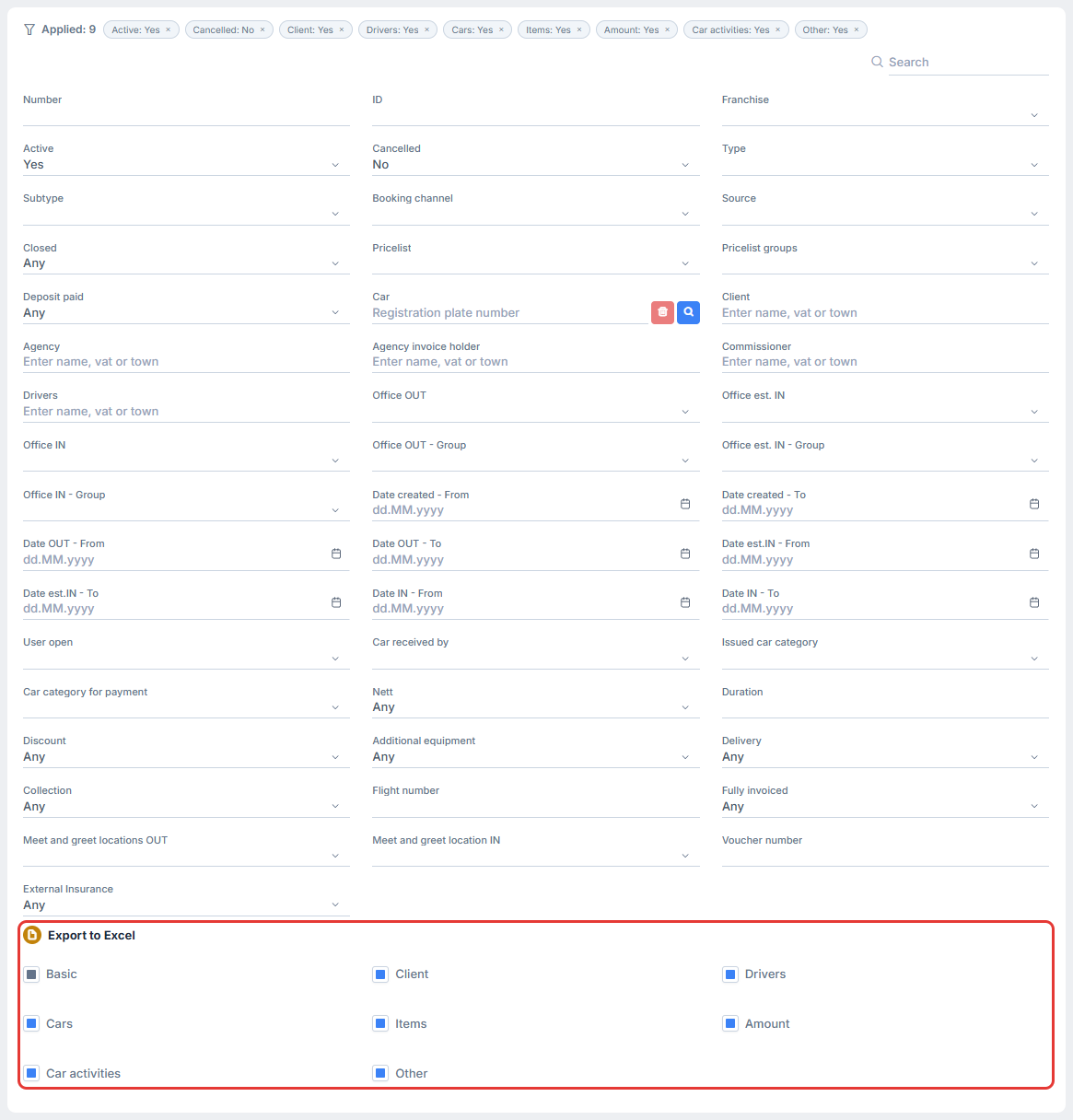
The first time you open the screen, and after Reset, Active is set to Yes and Cancelled to No, so you get the current version of every booking that is not cancelled: one row per booking on the basic sheet. Change these two only when you want the history:
- Active set to Any with Cancelled at No adds the earlier stages of converted bookings, for example the reservation stage of a booking that is now a contract.
- Active and Cancelled both set to Any give you every version, including the replaced versions marked with the status Modification.
- Each version is then a row of its own, and the Version column tells the versions apart.
Filters (all optional; with so many of them, the Search box at the top of the filter card helps you find one by its name):
- Number (the exact booking number) and ID (the internal number of one version of a booking).
- Franchise (a franchise, or 1. Without franchise) and Company (shown only if your Renteon account has more than one company).
- Active, Cancelled, Type, Subtype, Booking channel, Source and Closed.
- Pricelist and Pricelist groups: the main pricelist of the booking.
- Deposit paid and Fully invoiced.
- Car: bookings on which this car was used. Client, Agency, Agency invoice holder, Commissioner and Drivers (a person who is one of the drivers).
- Office OUT, Office est. IN and Office IN, and the same three as office groups.
- Date created, Date OUT, Date est.IN and Date IN, each with From and To.
- User open (the user who created the booking) and Car received by (the user who closed the contract when the car came back).
- Issued car category (the category of the car handed over) and Car category for payment (the category charged).
- Nett: whether the booking's main pricelist is a net pricelist.
- Duration: in the current version this filter does not work as its name suggests. With 1 it finds only returned rentals that started and ended on the same day, and with any higher number it finds nothing. Leave it empty and filter on the duration columns in Excel instead.
- Discount: Yes for bookings with any discount, No for bookings without.
- Additional equipment, Delivery and Collection: whether the booking has them.
- Flight number and Voucher number: bookings whose number contains the text you type.
- Meet and greet locations OUT and Meet and greet location IN.
- External Insurance.
In the Export to Excel section you choose which sheets the file contains. Basic is always included, and the other boxes are ticked when you first open the screen; untick Client, Drivers, Cars, Items, Amount, Car activities or Other to leave that sheet out. The sheets are:
- Basic data: one row per booking (version) with its numbers, type, subtype, channel and source, offices and dates, the users who created, reserved, issued, closed and cancelled it, partner, franchise, company, charged days and hours, cancellation details, car categories, plate number, pricelist, pickup, return and creation month and year, meet and greet locations, remarks, promo code and fleet.
- Client: the client's name, code, address, country and whether the client is VAT free.
- Drivers: one row per driver with name, address, date of birth and age, driving licence and passport details, e-mail and phone.
- Fleet (from the Cars box): one row per car used on the booking, with codes, plate, model, category and category group, the charged category, upgrade, tank sizes, registration expiry and fleet.
- Items: one row per price line, with the service, its period, pricelist, currency, flags such as mandatory, manual price or free of charge, amounts with and without discount in the booking currency and in your domestic currency, amounts paid and left to pay, quantity and the equipment item codes.
- Amount: one row per booking with its currency, rent, discount, additions, insurance, VAT, total, amount invoiced and deposit figures.
- Car activity: the car movements on the booking, with dates, offices, mileage and fuel, electric and gas levels at pickup and return.
- Other: flight number, the reason for a booking without deposit, delivery and collection details, and the expiry, creation, price and modification dates.
- Selected report filters.
Many column headings are shown in English in every language. All dates are in your company's time zone.
This export can be large. Renteon always reads all the data blocks, so unticking sheets makes the file smaller but does not make the export much faster; narrow the filters instead, for example to one month of Date OUT. Renteon reads the blocks at the same time, so if a booking in your selection is saved while the file is being built, the export can stop with an error about a mismatched bookings count; export again.
Warning: The Drivers and Client sheets contain personal data such as dates of birth, document numbers, addresses, e-mail addresses and phone numbers. Untick them when you do not need them, and store and share the file according to your company's data protection rules. See GDPR and personal data protection.
Reservations overview
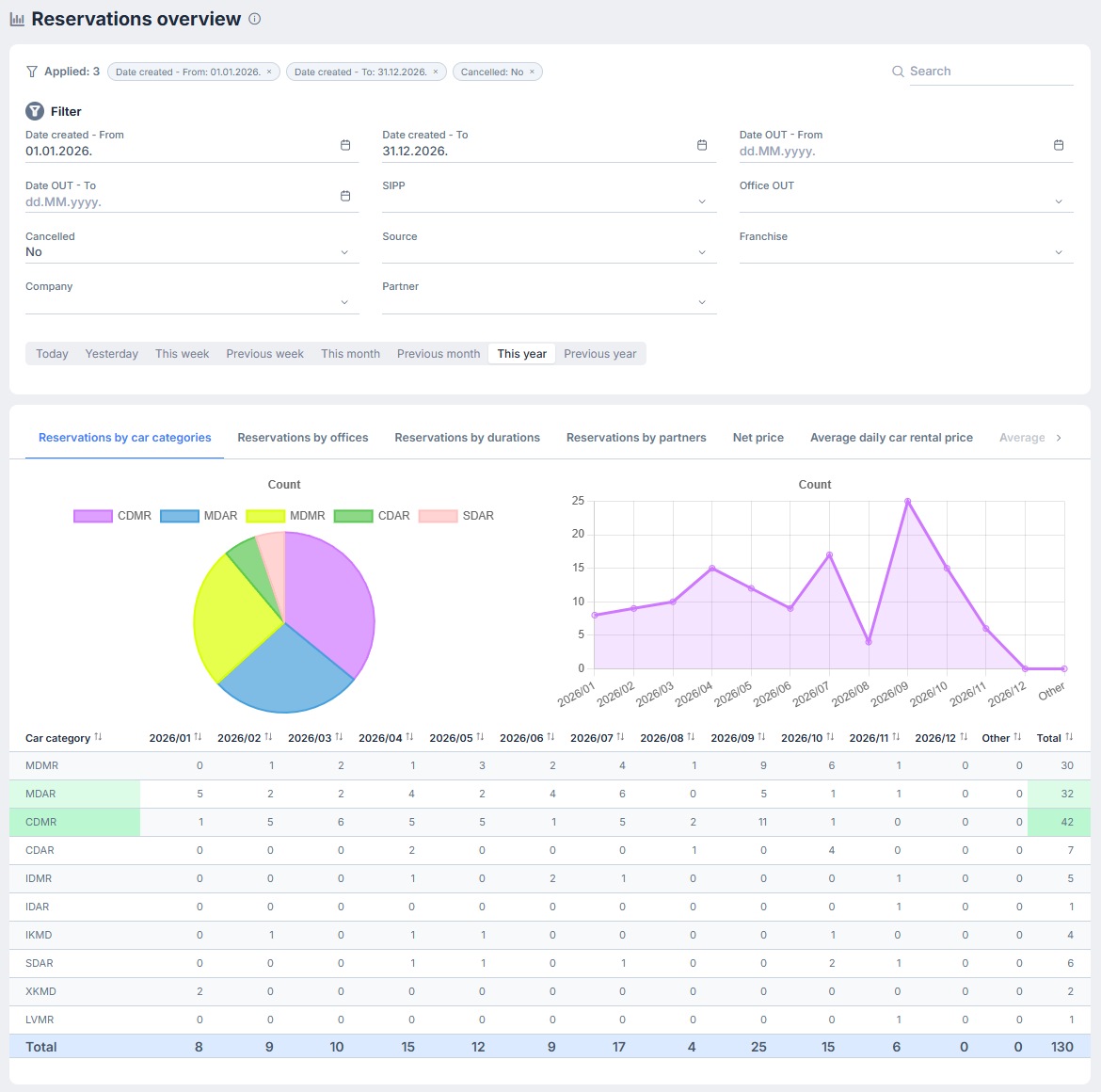
This report answers the question "what did we sell in a given period?": the reservations taken in that period, spread over their pickup months and broken down by car category, pickup office, rental length and partner, with their net value and average daily prices. It is the only report in this group that shows its result on the screen, with charts, and it suits a weekly sales review.
Filters:
- Date created - From and Date created - To are required; while one of them is empty, nothing is shown and nothing is exported. The first time you open the screen, and after Reset, they run from the same day last week up to today.
- The buttons Today, Yesterday, This week, Previous week, This month, Previous month, This year and Previous year fill in both Date created fields in one click.
- Date OUT - From and Date OUT - To narrow the reservations to a pickup period.
- SIPP: one or more car categories (the category charged).
- Office OUT: one or more pickup offices.
- Cancelled: No (the default) shows reservations that are not cancelled, both those still waiting for pickup and those already turned into contracts. Yes shows only cancelled reservations, and Any shows both. A reservation that was turned into a contract and then cancelled as a contract still counts as not cancelled, because its reservation stage was never cancelled.
- Source, Franchise (including 1. Without franchise), Company (only if your account has more than one company) and Partner (a company in your address book marked as an agency or a commissioner).
The report refreshes as soon as you change a filter; there is no search button.
What is counted:
- Reservations created in the Date created period whose pickup is on or after the Date created - From day, once per booking number. A reservation entered today for a pickup before that day is not counted.
- Only bookings of the subtype Reservation are counted, so lease reservations are left out. On-request reservations waiting for confirmation and long-term reservations (calculated with monthly prices) are left out too. For long-term business, see Long-term rentals.
Every table has twelve month columns, an Other column and a Total column. The first month column is the month of Date created - From, followed by the next eleven months, for example "2026/11" to "2027/10". Other collects pickups after those twelve months. The table ends with a Total row.
The seven tabs are:
- Reservations by car categories: number of reservations per charged car category (SIPP code).
- Reservations by offices: number of reservations per pickup office (office code).
- Reservations by durations: number of reservations per rental length in days, shown as "01", "02" and so on, up to "30+" for 30 days or more. The length is the number of days charged, or, where that is not set, the days between pickup and expected return.
- Reservations by partners: number of reservations per partner. The partner is the agency, or the commissioner if there is no agency; reservations with neither are on the row Without partner.
- Net price: the net value of the reservations per partner and month, with all services, counting only the quantity actually charged.
- Average daily car rental price: per partner and month, the net car rental amount (the car itself only) divided by the total rental days.
- Average daily price: the same with the net value of all services.
Each tab shows a pie chart of the five rows with the highest total and a line chart of the Total row across the months. In the table, the names and totals of the two strongest rows are highlighted in green (darker for the first). Click a column heading to sort by it.
Export to Excel produces the same seven tables, each on its own sheet, including the Total row; the amount sheets have an extra Currency column. The charts are not exported.
For example, in the middle of November 2026 you click Previous week. If 25 reservations were created that week, 18 of them for pickup in November and 7 in December, the Total row of Reservations by car categories shows 18 under "2026/11" and 7 under "2026/12", and Net price shows what those reservations are worth at the prices they were booked with. Keep in mind that the first month column is always the month in which the Date created period starts, so a week that starts at the end of October begins the table with "2026/10".