Administration
Holidays and working hours
Set office opening hours, special hours for a period and holiday hours, and see how they affect out-of-hours fees, online bookings, prices and printed documents.
Last updated
Every office in Renteon has working hours. For any pickup or return, Renteon uses them to decide one thing: is the office open at that moment? That answer drives several features: whether an out-of-hours fee is added to the booking, whether an online booking is offered normally, offered on request or not offered at all, which pricing optimizations apply, and which working time is printed on the reservation or contract.
You define working hours in three layers:
- Regular hours: the normal weekly schedule of the office, day by day.
- Hours In period: a different weekly schedule for a date range, for example a summer season.
- Holiday hours: for one specific date, an office can be Closed, open at different hours, or keep its normal hours.
This guide explains how to set up each layer and then goes through every place where working hours have an effect. A worked example for Christmas Day is at the end.
How Renteon decides whether an office is open
For a pickup or return at a given office and moment, Renteon looks for that office's working hours on that date in this order, and uses the first one it finds:
- A holiday on that date with its own rule for this office: Closed, a working time, or 0-24 hours. A holiday whose rule for this office is Regular, or that has no rule for it, is skipped.
- A period (In period) of this office that covers the date. Renteon uses that period's hours for the day of the week.
- The office's Regular hours for the day of the week.
Then it compares the time with the hours it found:
- The office is open if the time is between From and To of the first working time, or of the second working time if the day has two. Both ends count as open. If the office works until 20:00, a return at exactly 20:00 is within working hours. A return at 20:01 is not.
- A day set to 0-24 hours is open around the clock.
- The office is closed for the whole day if the day is not ticked as a working day, if the holiday rule is Closed, or if no working hours are entered for the office at all.
A holiday always covers exactly one calendar day, from 00:00 to 24:00. Its rule does not reach into the evening before or the morning after.
Regular working hours of an office
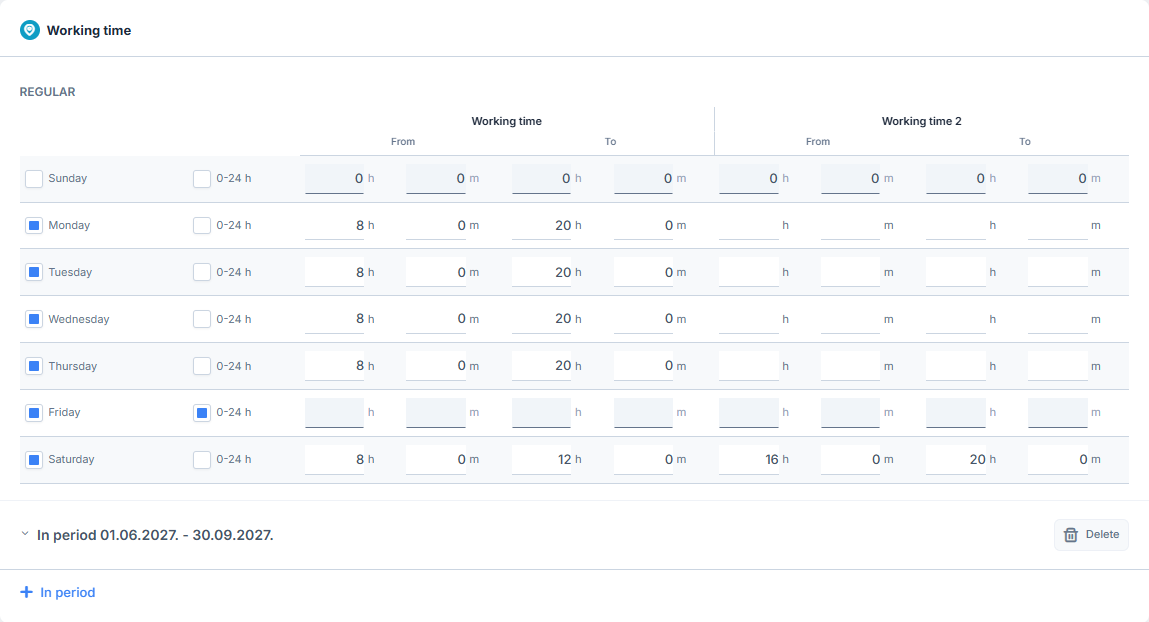
Go to Administration → Locations → Offices, open the office and click Edit. You need the role Edit offices. On the Basic tab, the Working time section starts with the Regular grid, with one row per day of the week. The grid starts with Sunday.
For each day:
- Tick the day name if the office works that day. If you untick it, the day is closed and all its times, including Working time 2, are set to 0. If you tick it again later, enter the times again and delete the zeros from the four Working time 2 fields if the day has only one window. Otherwise Renteon treats them as a second window starting at 00:00 and refuses to save with the overlap message below.
- Tick 0-24 h if the office is open all day. The time fields are then cleared and locked.
- Under Working time, enter From and To as hours (h) and minutes (m). They are required for every working day that is not 0-24 h.
- Under Working time 2, enter a second time window if the office closes in the middle of the day. For example, enter 08:00–12:00 as the first window and 16:00–20:00 as the second. Fill in all four fields of the second window, or leave all four empty.
Click Confirm to save. A new office starts with every day open 08:00–20:00, so check the grid when you create an office.
Renteon will not save the hours in these cases:
- The second window starts before the first one ends. Renteon compares whole hours here: a second window starting at 12:00 after a first one ending at 12:00 is accepted. The message is "Entered working times overlap. Please enter valid working times."
- The second window is only partly filled in. The message is "Please fill all data for second working time."
Warning: A working time cannot run past midnight. An office set to 22:00–06:00 is treated as closed all day, so out-of-hours fees and the online booking rules treat every pickup and return there as out of hours. If an office works through the night, tick 0-24 h. If it closes at midnight, enter To as 23:59.
Special working hours for a period
Use a period when an office has different hours for a while, for example longer hours in the summer season. In the same Working time section, below the Regular grid, click In period. Each period has:
- Date from and Date to: the first and the last day of the period. Both days are included in full.
- Its own weekly grid, filled in exactly like the Regular grid. A new period starts with every day open 08:00–20:00.
Saved periods are listed as "In period", followed by their dates. Click a period to open or close it. Click Delete to remove it. For every date inside a period, the period's grid replaces the Regular grid. Outside the period, the Regular grid applies again.
A holiday rule still wins over a period. If Christmas Day falls inside a winter period and the office is Closed on Christmas Day, it is closed that day.
Warning: Two periods of the same office must not overlap, not even by a single day. If they do, Renteon does not save the office and shows a message that the working time periods intersect. To change the hours for part of an existing period, first shorten that period, then add the new one.
Holidays
Go to Administration → Locations → Holidays. You need the role Holidays edit. The screen has two tabs:
- Holidays: the list of holiday dates.
- Working time: what each office does on each holiday.
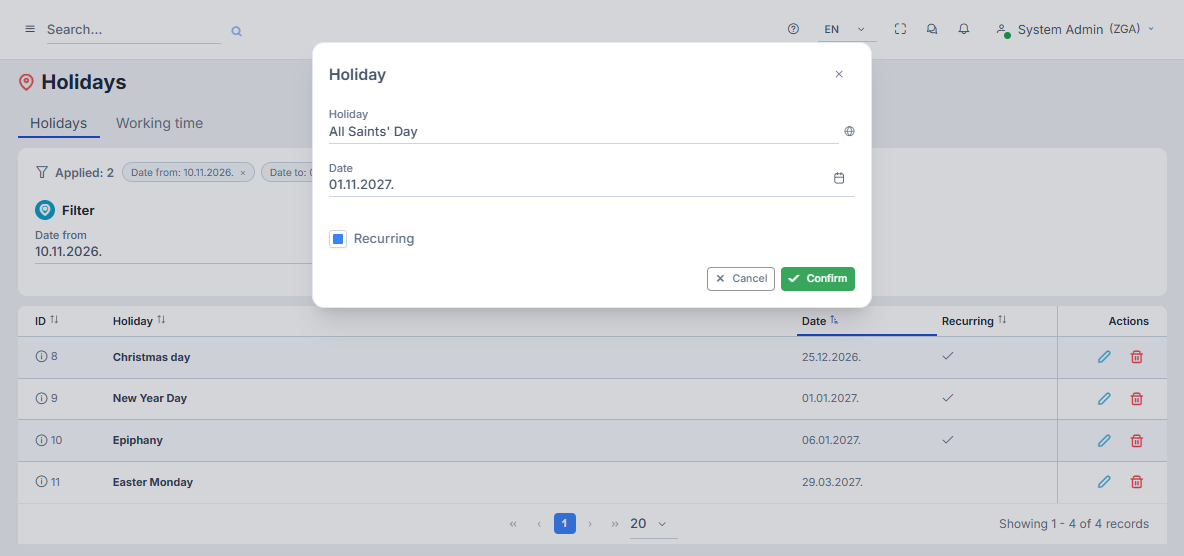
The list shows the holidays between Date from and Date to. By default, that is from today to two years ahead. To see other holidays, for example last year's, change the dates and click Search. Reset parameters goes back to the default range. The columns are ID, Holiday (the name), Date and Recurring.
To add a holiday, click Add and fill in:
- Holiday: the name, for example "Christmas Day". When you click into the field, a panel opens with one field for each language your company uses. The name is required in every language. Until all of them are filled in, the globe icon next to the field is red and Confirm stays disabled.
- Date: the day of the holiday. A holiday is always exactly one day. For a closure of several days, add one holiday per day. If the office simply has different hours for a while, use a period on the office instead.
- Recurring: tick it for holidays that fall on the same date every year. See "Recurring holidays" below.
Click Confirm to save. To change a holiday, click the pencil icon or double-click the row. Its office rules stay attached, even if you move the holiday to another date. To remove a holiday, click the trash icon and confirm. Its office rules are deleted with it.
The holiday itself has no country or office field. A holiday applies to an office only through the rule you set for that office on the Working time tab. One list therefore serves all your offices, in every country you work in.
Renteon keeps holiday rules in memory so it can answer quickly. Changes you make on the Working time tab take effect straight away. If you change the date of a holiday or delete it, allow up to an hour before fees, online offers and printouts reflect the change.
Warning: Adding a holiday on its own changes nothing. Until you set a rule for an office on the Working time tab, every office shows Regular for that holiday and keeps its normal hours.
Recurring holidays
Once a week, in the early hours of Tuesday, Renteon goes through the recurring holidays dated from twelve months ago up to one month ahead. It creates each of them again exactly one year later, unless some holiday already exists on that date. The copy gets:
- the same name in all languages
- the Recurring tick
- the same rule for every office
In practice, next year's copy appears in the list about a month before this year's holiday. For example, Christmas Day on 25 December 2026 is copied to 25 December 2027 at the beginning of December 2026.
Good to know:
- The copy takes the office rules as they are on the day the copy is made. If you change this year's rules after that, change next year's holiday as well.
- Unticking Recurring or deleting this year's holiday does not remove a copy that already exists. Delete the copy from the list if you do not want it.
- If you have already entered next year's holiday on the same date yourself, no duplicate is created.
Warning: Tick Recurring only for holidays with a fixed date, such as 1 January or 25 December. Holidays whose date changes every year, such as Easter Monday, Whit Monday or Corpus Christi, would be copied to the wrong date. Leave them unticked and add them for each year yourself.
Holiday working hours for each office
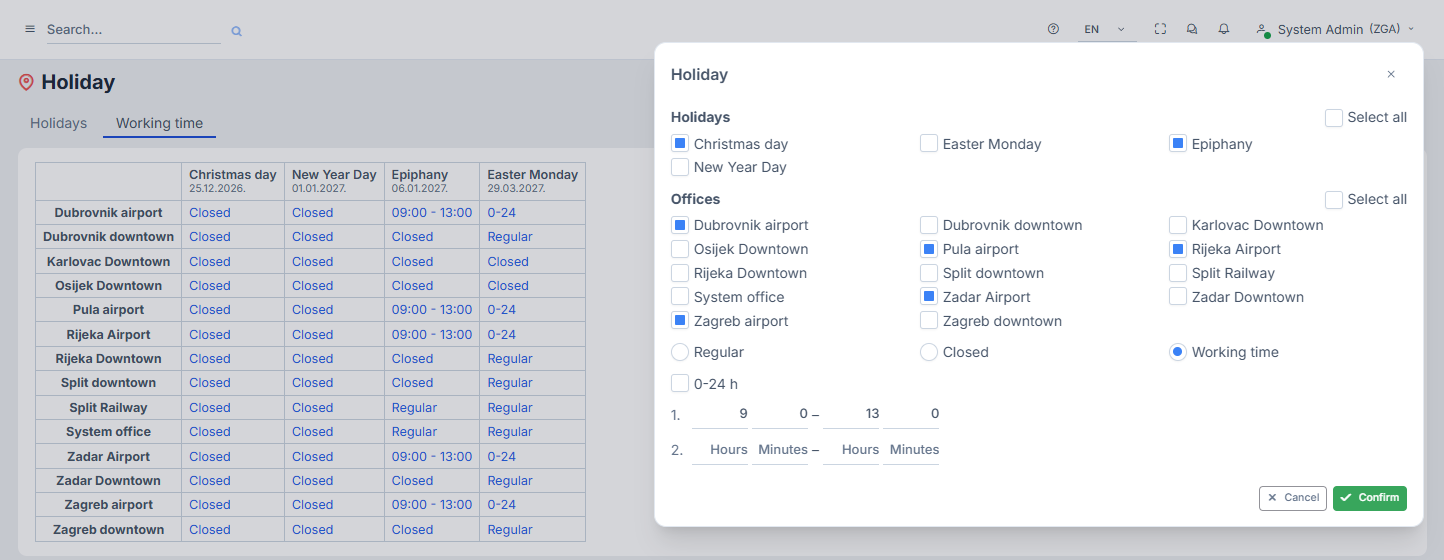
The Working time tab shows a table with one row for each active office and one column for each holiday from today onwards (up to 200), in date order. Past holidays are not shown, so their rules can no longer be changed here. Each cell shows what that office does on that holiday:
- Regular: the office keeps its normal hours for that date. These are its Regular hours, or the hours of a period that covers the date. Every cell shows this until you change it.
- Closed: the office is closed for the whole day.
- A time, for example "09:00 - 13:00": the office is open only at these hours that day.
- 0-24: the office is open all day.
To set a rule:
- Click a cell. A dialog opens with that holiday and that office already ticked.
- Under Holidays, tick every holiday the rule should apply to, or click Select all. The holidays in the dialog are sorted by name.
- Under Offices, tick every office the rule should apply to, or click Select all.
- Choose the rule:
- Regular: the office goes back to its normal hours.
- Closed: the office is closed all day.
- Working time: tick 0-24 h, or enter the first time window in row 1 (Hours and Minutes, from and to; all four are required). If the office closes in the middle of the day, enter the second window in row 2.
- Click Confirm.
The rule is written to every ticked combination of holiday and office at once, and replaces whatever rule was there. Combinations you did not tick stay as they were. To close all offices on 1 January and 25 December in one go, tick both holidays, click Select all under Offices, choose Closed and click Confirm.
The same checks apply as for office hours. Row 2 must be filled in completely or not at all, and it must not start before row 1 ends. A time window cannot run past midnight. If you switch the rule to Regular or Closed and then back to Working time in the same dialog, both rows are filled with 0. Enter row 1 and delete the zeros from row 2 if you need only one window, otherwise Renteon reports that the working times overlap.
Warning: The dialog always opens with only the clicked holiday and office ticked. If you widen the selection, check it before you click Confirm. Renteon does not ask before it overwrites the existing holiday rules of every ticked office.
Out-of-hours fees
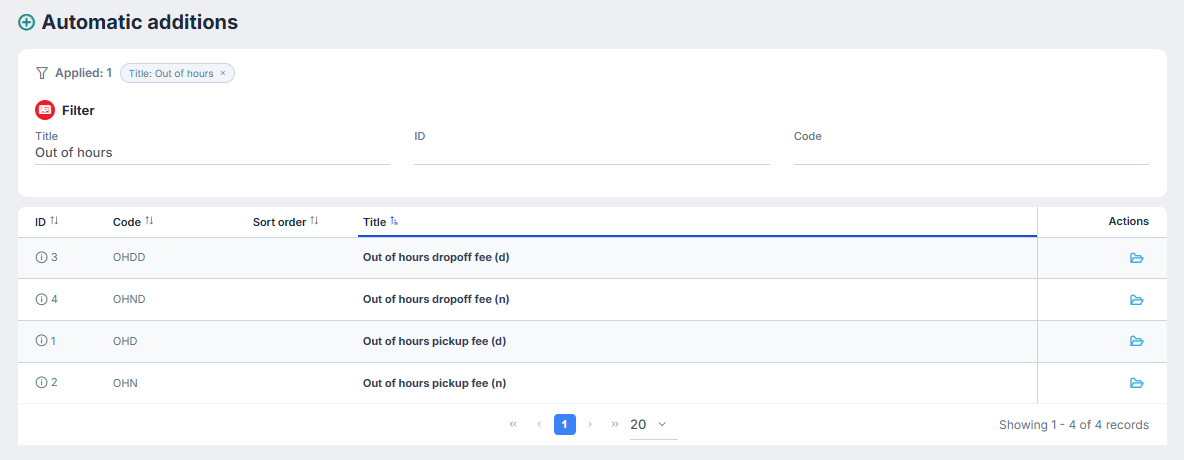
Renteon has four automatic out-of-hours fees. By default they are named Out of hours pickup fee (d), Out of hours pickup fee (n), Out of hours dropoff fee (d) and Out of hours dropoff fee (n). The day versions (d) cover pickups and returns between 07:00 and 23:00, and the night versions (n) cover those between 23:00 and 07:00. You find the fees under Fleet → Additions → Automatic additions (role Additions list edit). Only Renteon support can change their time windows.
Each time a booking is calculated, Renteon checks the pickup and the return separately:
- Pickup: if the pickup time falls in a pickup fee's time window and the pickup office is not open at that moment, that fee is added to the booking as a mandatory extra.
- Return: the same check is made for the return time and the return office. There is one exception. No return fee is added if the return office has Has key box ticked. If the customer returns at a meet and greet location, that location's Has key box decides instead.
- Holidays: holiday hours count. On a holiday when the office works 09:00–13:00, a return at 18:00 gets the fee, even though 18:00 is within the office's normal hours.
A fee is charged only if it has a price in the fees pricelist used by the booking's car rental pricelist. You link the fees pricelist in the settings of the car rental pricelist (Car control → Pricelists → Car rental, open the pricelist, tab Settings, section Pricelists, field Fees pricelist). You enter the prices under Car control → Pricelists → Fees. If a fee has no price, nothing is added. See Pricelists.
The fees work the same way on every channel: bookings made by your staff, by partners and on your website. They are checked again whenever the booking is recalculated, so changing a time or an office adds or removes the fee. Once the actual return is entered, Renteon checks the actual return time and office. Users with the role Deselecting mandatory services on booking can untick the fee on a booking.
Warning: Has key box on an office or a meet and greet location has two effects. Returns there never get the out-of-hours return fee. In online bookings, returns there are also not limited by working hours. When the customer returns at a meet and greet location, only that location's tick counts, not the office's. Tick it only where customers can really leave the keys outside working hours.
Online bookings: B2B and B2C
Online bookings come from partners, through the B2B partner portal or a B2B connection, and from customers booking on your website (B2C). For these bookings, Renteon can refuse out-of-hours pickups and returns, or offer them only on request. Three things control this. If none of them is set up, out-of-hours times are offered normally, with any out-of-hours fee included in the price.
Enable on request for out of hours reservations (Administration → Code book → Settings, tab Bookings; you need the role Application settings management): when this is ticked, an offer is still made if the pickup is outside the pickup office's working hours or the return is outside the return office's working hours, but only on request. A return to an office or meet and greet location with Has key box does not make the offer on request. See On request bookings.
Period in which reservations are allowed only in working hours (same tab, in hours): this is for last-minute bookings when nobody is at the office to react. Suppose you enter 6. For a pickup less than 6 hours away, Renteon makes no offer if the pickup time is outside working hours and the pickup office is closed at the moment of the request. If the office is open when the request comes in, the booking is offered. The setting looks at the pickup only; returns are not affected. Leave the field empty or enter 0 to switch this off.
Office Pickup/Dropoff time restriction on the office: when this is active, a pickup or return outside working hours is offered only if it falls within the time range the restriction allows. Otherwise there is no offer. See the next section.
If a refusal and on request both apply, the refusal wins and no offer is made.
When a partner or a web customer changes an existing booking, the restriction and the last-minute period are checked again, but only for the side that changed. Moving the return time re-checks the return, not the pickup. If the change also switches to another car category, or to another office in a way that the availability check must look at again (another pickup office with per-office availability, or another return office when the pickup office restricts return locations), the whole booking is checked again, as for a new booking. See "When availability is checked again" in How availability is calculated. A change is never turned into an on-request booking.
Your staff can book any time in Renteon. Bookings they enter, and bookings that connected systems create through the External API, are never refused or made on request because of working hours. Staff can agree an out-of-hours handover with the customer; the out-of-hours fee still applies.
Office pickup and return time restriction
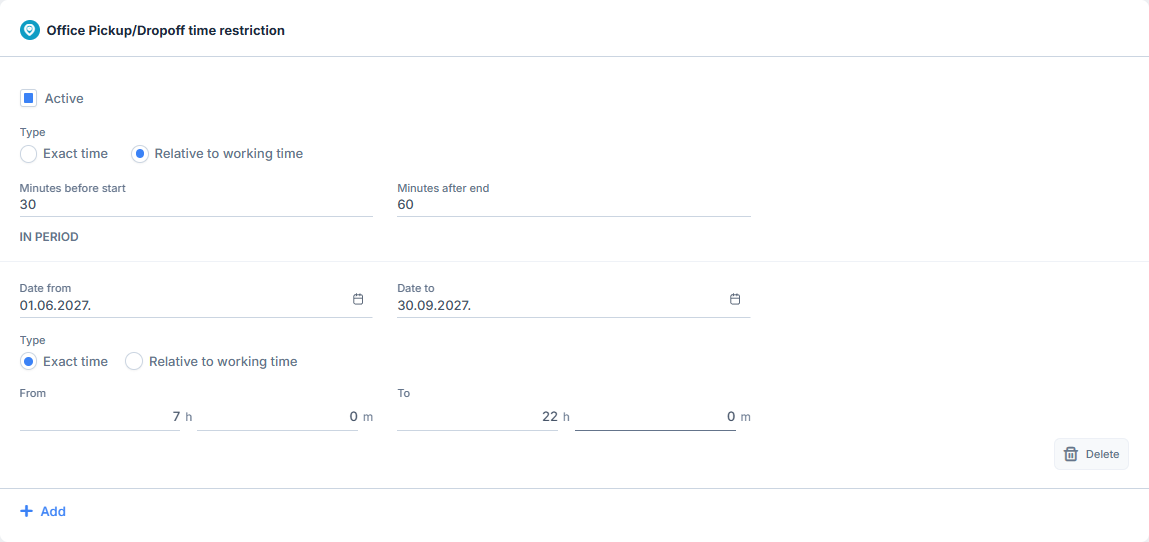
On the office (Administration → Locations → Offices, tab Basic), the section Office Pickup/Dropoff time restriction sets how far outside working hours online customers and partners can still pick up or return a car at this office. These are its options:
- Active: switches the restriction on, with Exact time preselected. All fields of the restriction then become required, and Confirm stays disabled until they are filled in. If you untick Active and save, the restriction and all its periods are deleted.
- Type:
- Exact time: out-of-hours pickups and returns are accepted only between From and To. Example: working hours are 08:00–20:00 and the exact time is 07:00–22:00. A pickup at 21:30 is accepted, a pickup at 22:30 is not. The range is the same every day, holidays included. From cannot be later than To, so a range across midnight is not possible. If you try, Renteon does not save the office and says that 'Time from' has to be less than or equal to 'Time to'.
- Relative to working time: out-of-hours pickups and returns are accepted from Minutes before start before the office opens until Minutes after end after it closes. Each value can be at most 720 minutes (12 hours). The range follows each day's working hours, holiday hours included. Example: with 30 and 60 minutes and hours of 08:00–20:00, times from 07:30 to 21:00 are accepted. On a holiday with hours of 09:00–13:00, times from 08:30 to 14:00 are accepted. On a day with two working times, each window gets its own range, so a time in the middle of a long midday break can still be refused. On a closed day (a day that is not ticked as a working day, or a holiday set to Closed), no out-of-hours pickup or return is accepted at all.
- In period: click Add to set a different restriction for a date range, with Date from, Date to, the type and its times. On dates inside a period, the period's restriction replaces the general one. Date from must not be after Date to, and two periods must not overlap. Otherwise Renteon does not save the office.
Pickups and returns within working hours are always accepted. The restriction decides only about times outside them. A pickup is judged by the restriction of the pickup office and a return by the restriction of the return office. For returns, the restriction is ignored when the return office has Has key box ticked. If the customer returns at a meet and greet location, that location's Has key box decides instead.
Warning: The restriction applies only to B2B and B2C bookings. It does not stop your staff from booking an out-of-hours pickup or return in Renteon, and it does not add or remove out-of-hours fees.
Pricing optimizations
In a pricing optimization (Car control → Pricelists → Pricing optimizations, role Price adjustment rules), the fields Pickup - Out of hours and Drop off - Out of hours make the price change depend on working hours:
- Yes: the optimization applies only when the pickup (or the return) is outside the office's working hours.
- No: it applies only when the pickup (or the return) is within working hours.
- Any: working hours do not matter.
Holiday hours count here too. Renteon decides which optimizations apply when the booking is created. Later changes to the booking keep the optimizations chosen then. See Pricing optimizations.
Printed documents
Printed reservations, offers, contracts and damage reports show working times for the pickup office on the pickup date and for the return office on the return date, for example "Working time: 09:00 - 13:00". Once the car has been returned, the actual return date and office are used. Holiday hours are included. A day with two working times is printed as "08:00 - 12:00, 16:00 - 20:00", and a 0-24 day as "00:00 - 24:00". A closed day is printed as "Closed". If the document is printed in a language other than your domestic language, "Closed" appears in both languages. If the office has no working hours at all, the line stays empty after "Working time:".
To leave the working time off the documents of an office, tick Hide working hours on document print on that office. The return office's working time is also left off when the car is returned to a drop-off location.
Finance documents outside working hours
In some countries, Renteon warns you when you issue a finance document while the office is closed. This applies when your company's domestic country is Austria, Bosnia and Herzegovina, Croatia, Greece, Hungary, Italy, Panama, Serbia, Slovenia or Spain.
The warning appears when two things are true at the moment you save a finance document or a group invoice:
- The document has a payment with a payment method that is fiscalised in that country. In Croatia and Slovenia, these are cash, cheque, voucher and card payments, including Stripe, Monri and Adyen. In Greece, Hungary, Italy, Panama, Serbia and Spain, every payment method counts.
- The office is not open at that moment.
Renteon then asks "Finance document you are trying to save will be saved outside of office working time. Proceed anyway?". You can confirm and continue. Renteon checks the office of the document. If the document has no office, it checks the billing office of the office you are working in. Holiday hours count.
What holidays and working hours do not affect
- Available cars. Holidays and working hours do not change how many cars are free, and they do not stop sales on their own. For partners and your website they can only refuse an out-of-hours time or make it on request, as described above. To stop sales for a period, use Stop booking. How free cars are counted is described in How availability is calculated.
- Staff bookings and the External API. Bookings by your staff and by connected systems through the External API are not refused. The out-of-hours fee still applies.
- Users' own working hours. These are set on the user and do not take holidays into account. The setting Alert for creating an invoice outside of user's working hours (Administration → Code book → Settings, tab Finances) uses the user's hours, not the office's.
Partners and connected systems
Partners and brokers connected to you through B2B receive the details of every active office that has Pickup location - Web ticked. These details include the regular working hours, upcoming holidays on which the office is Closed or has its own hours (name, date and hours), and periods with special hours that have not ended yet. Holidays with the Regular rule are not sent, because nothing changes for them.
Systems connected through the External API can also ask whether an office is open at a given time. The answer follows the same rules as everywhere else in this guide.
Worked example: Christmas Day
Your Airport office normally works 08:00–20:00 every day. On Christmas Day it works only 09:00–13:00, and your City office is closed.
Set it up:
- Go to Administration → Locations → Holidays and click Add. Enter Holiday "Christmas Day" in every language, set Date to 25.12.2026, tick Recurring and click Confirm.
- Open the Working time tab and click the cell for Airport under Christmas Day. Choose Working time, enter 9 and 0 to 13 and 0 in row 1, and click Confirm.
- Click the cell for City under Christmas Day, choose Closed and click Confirm. All other offices stay Regular.
A customer wants to return the car at the Airport office at 18:00 on Christmas Day:
- Is the office open? No. The holiday rule (09:00–13:00) wins over the regular hours, so 18:00 is outside working hours. A return at exactly 13:00 would still count as within working hours.
- At the counter: your staff can make or change the booking. Renteon adds Out of hours dropoff fee (d) automatically, because 18:00 is in the day window (07:00–23:00) and the office is closed. This happens if the fee has a price in the fees pricelist and the Airport office has no key box.
- On the contract printout: the return section shows "Working time: 09:00 - 13:00".
- Online (B2B or B2C): it depends on your setup.
- With none of the online options set up, the offer is made, with the fee included in the price.
- With Enable on request for out of hours reservations ticked, the offer is made on request.
- With a Relative to working time restriction on the Airport office and Minutes after end set to 60, returns are accepted until 14:00. A return at 18:00 gets no offer.
- With an Exact time restriction from 07:00 to 22:00, the 18:00 return is accepted, with the fee.
- Prices: a pricing optimization with Drop off - Out of hours set to Yes would apply to a booking created for this return.
On 26 December, which is not set up as a holiday, the Airport office is back on its regular 08:00–20:00. At the beginning of December 2026, Renteon creates Christmas Day 2027 with the same rules for Airport and City.