
Integrations
Reporting to authorities (police and transport)
How Renteon reports rental contracts and drivers to the Italian police (CaRGOS), the Spanish SES Hospedajes, the Canary Islands and Turkish police, and how it requests Saudi TAMM driving authorizations.
Last updated
In several countries a rental company must tell the police or another authority who rents which car, and when. Renteon can do this for you in two ways: it sends the data directly to the authority's system (Italy: CaRGOS, Spain: SES Hospedajes, Saudi Arabia: TAMM), or it prepares a list in Excel that you hand over yourself (Canary Islands police, Turkish police).
This guide explains, country by country, what Renteon reports, when it does it, what your company has to obtain from the authority, how to set it up in Renteon and which client and driver data must be filled in so that a report goes through. The Greek DCL (myDATA clientele) report is part of the Greek fiscal setup and is described in Greece: myDATA and DCL.
Most of these reports appear in Renteon only when your company's country matches them, and some can only be switched on by Renteon support. Changing the settings described here needs the role Application settings management; editing offices needs Edit offices, franchises Franchise management and companies Company editing.
Which reports Renteon supports
Here is a quick overview before the details:
- Italy – CaRGOS (State police): every contract is sent automatically shortly after it is saved. You can resend a contract from the booking list. Switched on by you in Settings (Italian companies only).
- Spain – SES Hospedajes (Ministry of the Interior): Renteon tries to send new contracts automatically once a day; you can also send, export or cancel contracts one by one or as a list. Switched on by you in Settings (Spanish companies only).
- Spain – Canary Islands police: an Excel list of contracts that you export from the booking list. Switched on by Renteon support.
- Turkey – police: an Excel list of contracts that you export from the booking list. Available to every company whose country is Turkey.
- Saudi Arabia – TAMM: driving authorizations for the drivers of a contract, requested with a one-time code sent to the driver's phone. Configured by Renteon support.
- Greece – DCL: see Greece: myDATA and DCL.
Italy: CaRGOS – what is reported and when
CaRGOS is the system of the Italian State police (Polizia di Stato) that collects rental contracts. For every contract Renteon sends one record with:
- the contract number and contract date;
- pick-up date and time, pick-up town and pick-up office address;
- return date and time (the actual return if the contract is closed, otherwise the expected return), return town and return office address;
- the payment method, taken from the payments on the contract's finance documents: a card or an online payment gateway is reported as credit card, cash or voucher as cash, bank transfer or transaction account as wire transfer. If the contract has several of these, credit card wins over cash and cash over wire transfer. If there is no payment yet, or only payments of another type, Renteon reports credit card;
- the name of the employee who issued the contract;
- your company's name, town, address and phone;
- the car: type (a car category whose SIPP code has V or P as the second letter is reported as a van, everything else as a car), make, model, registration plate and colour;
- the first and the second driver of the contract: first name, surname, date and place of birth, nationality, identity document (type, number, place of issue) and driving licence (number, place of issue). For a driver marked as Foreigner, the country of nationality is reported as the place of birth; for any other driver the nationality is reported as Italian. Further drivers are not reported.
If the pick-up time is earlier than the moment the contract was created (for example when you register a pick-up that already happened), Renteon reports the contract date as five minutes before the pick-up, so that the record stays consistent.
Renteon sends the contract in the background about 15 seconds after the contract is saved. Only active contracts that have not been reported yet are sent. A contract with a delivery is sent only after the delivery has been completed. Once CaRGOS accepts a contract, Renteon marks it as reported and never sends it again, even if you change the contract later. If a send fails, Renteon tries again the next time the contract is saved, and you can also resend it by hand (see below).
On a Renteon test environment (anything other than the production system), contracts are only checked against CaRGOS and are not really reported.
Italy: CaRGOS – setting it up
Your company needs its own access to the CaRGOS web service: a username, a password and an API key issued by the State police for your company. Then:
- Go to Administration → Code book → Settings, click Edit and open the tab Modules.
- Tick the panel CaRGOS - State police and fill in Username, Password and API key. In Notifications E-mail enter the address that should receive an e-mail whenever CaRGOS refuses a contract or cannot be reached. This address is optional, but without it nobody is told about a failed report.
- On the tab Basic, in the panel Company, fill in Name (or Brand), Address and Phone, and choose the Town from the list of Italian municipalities. An Italian company sees two Town fields in this panel: a plain text field and, below the other fields, the one with the list. CaRGOS uses the one with the list; with CaRGOS switched on it is mandatory and Confirm stays unavailable until it is filled in.
- Click Confirm.
- Open every office you rent from or return to under Administration → Locations → Offices, and on the tab Basic choose its Town from the list of Italian municipalities and fill in the Address. For Italian companies with CaRGOS switched on, the office town is picked from that list instead of being typed.
If you work with franchises, each franchise reports with its own credentials. Open the franchise under Administration → Code book → Franchises, tick CaRGOS - State police and enter that franchise's Username, Password and API key. A contract of a franchise is reported only when CaRGOS is switched on for that franchise; if it is not, the franchise's contracts are not reported at all, even though CaRGOS is on in Settings.
Warning: Error e-mails are always sent to the Notifications E-mail in Settings, also for franchise contracts. Make sure someone reads that mailbox.
Italy: CaRGOS – data each contract needs
CaRGOS refuses records with missing data, so Renteon checks the data when you save a contract (a contract with a delivery is checked only once the delivery has been completed). If something is missing, the contract is not saved and you get a list of problems that starts with Modules: CARGOS - Italy, followed by lines such as "Office XYZ - Missing Town" or "Mario Rossi - Missing Town of birth". Fix what is listed and save again.
Renteon checks:
- The pick-up office and the return office: a Town from the Italian list and an Address.
- Your company: Town, Name (or brand), Address and Phone (see the previous section).
- Every driver on the contract:
- Name and Surname;
- Date of birth;
- Town of birth (chosen from the list of Italian municipalities) for a driver who is not marked as Foreigner, or Nationality for a driver marked as Foreigner;
- at least two documents, one of which is a driving licence. If not, you see the message "Client (Mario Rossi) must have at least one ID document.";
- for every document: the Number, and where it was issued. If the document is marked Domestic, choose the issuing Town from the Italian list; otherwise choose the issuing Country.
Renteon reports the identity document as an identity card when it is an ID card and as a passport for every other document type, so record a foreign identity document as an ID card or a passport, not as another type.
For example: a German customer picks up a car in Milan with a German ID card and a German driving licence. Mark the customer as Foreigner, choose Germany as Nationality, add both documents with their numbers, leave Domestic unticked and choose Germany as Country on both documents.
Italy: CaRGOS – checking, resending and errors
In Sales → Bookings → Search, a contract that should have been reported but has not been accepted yet shows a small car icon next to its car category, with the tooltip Cargos - Missing. Open the row menu of that contract and choose Send CARGOS to send it again. You need the role Create and modify bookings. Renteon shows a success message when CaRGOS accepts the contract, and an error message when it does not; the reason is in the error e-mail. On a test environment the success message only means that the data passed the check, so the icon stays.
When CaRGOS refuses a contract or cannot be reached, Renteon sends an e-mail with the subject "Cargos error" to the Notifications E-mail. It contains the booking number and the error code and description returned by CaRGOS.
Typical causes are wrong credentials or API key, a town or country that CaRGOS does not know, and documents entered with the wrong type.
Spain: SES Hospedajes – what is reported and when
SES Hospedajes is the system of the Spanish Ministry of the Interior to which rental companies report vehicle rental contracts. Renteon sends each contract as an XML file with:
- the contract: contract number, contract date, pick-up date and time, expected return date and time, and the SES codes of the pick-up and return offices;
- the payment: the type of the first payment on the contract's invoice or bill (cash, credit card or transaction account; any other type, for example a bank transfer or an online payment gateway, and a contract without a payment are reported as "other"), the payment date and the client's name as the payer;
- the car: the SIPP code of the issued car category, make, model, registration plate, chassis number (VIN), mileage at pick-up and colour. Renteon translates the make and the Spanish name of the colour into the codes SES expects; a make SES does not know is reported as "other";
- the people: the contract holder, the main driver and, if there is one, a second driver. The holder is the client when the client is a person; when the client is a company, the main driver is reported as the holder.
Only contracts are reported, never reservations or offers.
Once a day, early in the morning, Renteon tries to send the contracts that have not been sent yet. This daily run only looks at contracts opened in roughly the last two days, leaves out contracts with a delivery that is still open and leaves out offices excluded from the report (see below). A contract opened earlier that was never sent is not picked up by the daily run; send it by hand.
When a contract cannot be sent during the daily run, Renteon e-mails each address in Recipient e-mail (Error Report). The subject says that sending of the booking to SES Hospedajes failed, and the text names the contract number, but not the reason. To see the reason, open the contract and send it with Send (SES Hospedajes) (see below): the error returned by SES is shown on screen.
Spain: SES Hospedajes – setting it up
Your company receives a lessor code, a username and a password for the SES Hospedajes web service, and a 10-character establishment code for each office, when it registers as a rental company with SES Hospedajes. Then:
- Go to Administration → Code book → Settings, click Edit and open the tab Fiscalization.
- Tick the panel Spanish Ministry of Internal Affairs and fill in Username, Password, Code (CodigoArrendador) (the lessor code) and Recipient e-mail (Error Report). All four are mandatory. You can enter several e-mail addresses separated by a comma or a semicolon. Renteon also uses these addresses for some other error e-mails, for example when it repeatedly fails to tell a connected booking partner about booking changes and that partner has no error address of its own.
- Click Confirm.
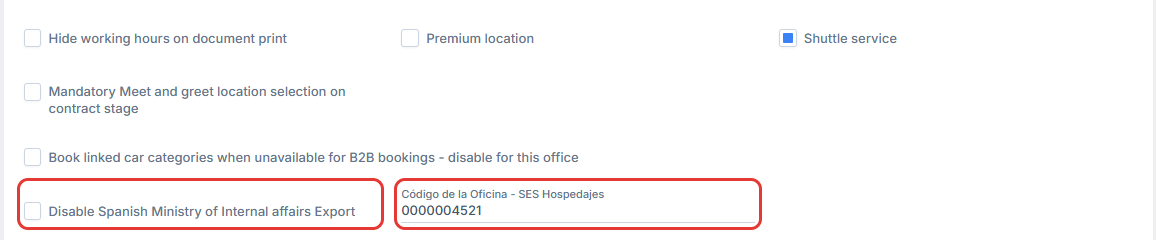
- Open each office under Administration → Locations → Offices. On the tab Basic enter the office's establishment code in Código de la Oficina - SES Hospedajes. The code must have exactly 10 characters. Renteon lets you save an office without a code, but SES needs it on every contract, and the validation report of the XML export lists offices that have none.
- If contracts picked up at an office must not be reported (for example an office outside Spain), tick Disable Spanish Ministry of Internal affairs Export on that office instead. Contracts are excluded by their pick-up office.
In a multi-company setup, SES is switched on per company: a company's contracts are reported only when the panel Spanish Ministry of Internal Affairs - SES Hospedajes is switched on and filled in for that company under Administration → Code book → Companies. The establishment code and the exclusion box per company are on the office's tab Companies.
Spain: SES Hospedajes – data each contract needs
Renteon does not stop you from saving a contract when SES data is missing. Missing data shows up either as an error from SES when you send the contract, or in the validation report of the XML export (see the next section). To avoid both, make sure that:
- both offices of the contract have their SES establishment code;
- the car has its chassis number (VIN) and a colour, and the pick-up mileage was recorded. A VIN that does not look valid and a pick-up mileage of 0 are reported as warnings;
- the contract has a main driver. Without one, the contract cannot be sent at all;
- every reported person (client and drivers) has:
- first name and surname. For a person who is not marked as Foreigner, enter both Spanish surnames in Surname, separated by a space (for example "García López"). Particles such as "de" and "del" are joined to the following word automatically;
- an ID card or a passport. For a Spanish person, Renteon recognises a NIF or NIE from the ID card number; for a foreigner, an ID card with a NIE number is reported as NIE. Any other ID card number is reported as document type "other". For a foreigner, document numbers longer than 15 characters are cut to 15;
- Date of birth, and Gender (a person without a gender is reported with gender "other");
- an address with street, postal code and country. A Spanish address also needs its province; a foreign address needs its town;
- a phone number or an e-mail. A driver without an e-mail is reported with the client's e-mail;
- a driving licence with its number and Valid until date (or unlimited validity).
Renteon removes the characters . ! , : " - _ / from names and document numbers before sending, because SES does not accept them.
If your company wants Renteon to enforce some of this when a contract is saved, you can switch on, on the Settings tab Bookings, options such as Mandatory entry of driver's date of birth, Mandatory entry of driver's address, Is contract gender addressbook mandatory and Mandatory entry of client's ID card. For a Spanish company, a client who is not marked as Foreigner must then also have a valid NIF/DNI number on the ID card; otherwise the contract is not saved and you see "Document number on ID card is not a valid NIF/DNI number, client is spanish native." Spanish companies also have Mandatory entry of spaniard client's second surname, which refuses a Spanish client whose Surname holds only one surname.
Spain: SES Hospedajes – sending, exporting and cancelling
Besides the daily run, you can work with single contracts and lists. All these actions need the role Booking export.
On a contract, open the Actions menu:
- Send (SES Hospedajes) sends the contract right away. It is offered when the module is on, the contract has not been sent yet and its pick-up office is not excluded. If SES refuses the contract, the error code and description from SES appear on screen.
- Cancel (SES Hospedajes) appears once a contract has been sent. It sends a cancellation to SES and marks the contract as not sent, so you can correct it and send it again.
- Attachment Export (SES Hospedajes) downloads a ZIP file with the contract's XML and its validation report, for upload in the SES Hospedajes portal. The same action is in the row menu of the contract in Sales → Bookings → Search.
- Update status to sent (SES Hospedajes - manual upload) marks the contract as sent without sending anything. Use it after you uploaded the XML yourself, so that Renteon does not send the contract again.
In Sales → Bookings → Search you can work with many contracts at once:
- The filter Sent to Ses Hospedajes shows contracts that were or were not sent.
- Actions → Export XML (SES Hospedajes) downloads one ZIP for all contracts that match the current search. It contains one XML file per contract, combined files of up to 100 contracts each for a bulk upload, and a text file "xml_validation_report.txt" listing everything that is missing or was corrected, contract by contract. Read this report before you upload.
- Actions → Sent to Ses Hospedajes marks the ticked contracts as sent (manual upload). Contracts whose pick-up office is excluded are skipped. If one of the ticked contracts is already marked as sent, Renteon refuses the whole action, so tick only contracts that were not sent yet.
For example: on Monday morning filter the contracts of the weekend with Sent to Ses Hospedajes set to "No". Send each remaining contract with Send (SES Hospedajes) or export them, upload the file in the SES portal and mark them as sent.
Warning: Do not rely on the daily run alone. Check the Sent to Ses Hospedajes filter every day: a contract that could not be sent, or that is older than the period of the daily run, stays unsent until someone sends it.
Spain: Canary Islands police export
Companies on the Canary Islands can export a list of contracts for the police in the format the police asked for. Renteon support switches this export on for your company.
To create the list:
- Go to Sales → Bookings → Search.
- In the filter Type choose only contracts, and set the period and offices you need. The export refuses any other selection with the message "Please, select contracts only".
- Click Actions → Export of contracts for the Canary Islands police. You need the role Booking export.
The Excel file has one row per contract with Spanish column headings: contract number, the main driver's document type and number (the driving licence), surname, name, date of birth, nationality (the driver's nationality, or the country of the driver's address), home address, local address (the booking's Location field), the agency or commissioner, phone, rental and return dates, car model, colour and registration plate. The column for the second surname is always empty; the whole surname is in the first surname column.
Turkey: police export
Companies in Turkey can export the list of rentals for the police. In Sales → Bookings → Search, set the filters (for example Type contracts only, picked up yesterday) and click Actions → Export of contracts for Turkish police. The export takes every booking that matches the search, so leave reservations and offers out with the Type filter.
The Excel file contains, for each booking that matches the search, the client's name, Identification number, passport number and date of birth, the pick-up date, the booking number and the registration plate of the car, with the date and time of the report at the top. Make sure the client's identification number and passport are recorded in the address book. Renteon only prepares the file; you deliver it to the police yourself.
Saudi Arabia: TAMM driving authorizations – setting it up
In Saudi Arabia, a person may drive a rented car only with a driving authorization registered in TAMM, the national vehicle and driving authorization service. Renteon can request these authorizations for the drivers of a contract and cancel them again when the rental ends.
Your company needs a TAMM service account. Renteon support enters the service addresses, the username and password and your national ID in the settings panel TAMM Service (Auth), which only Renteon support can see.
For every authorization TAMM needs the following data, so make sure it is in Renteon:
- Driver (address book): Identification number (the national ID or residence number, digits only) and Identification version number.
- Driver's phone: TAMM sends the one-time code to the driver's mobile phone. If the driver has several phones, tick For Authorization (TAMM) on the one to use; otherwise Renteon takes the first active phone.
- Car: Registration Type, and the Registration plate number written with its digits and its Arabic letters, each letter preceded by a space. Without a registration type, Renteon cannot request an authorization.
Saudi Arabia: TAMM – issuing and cancelling authorizations
Issuing an authorization is available in the classic interface only. Open the contract (or its close screen) there and choose TAMM - Issue Authorization in its actions menu (only for an active, not cancelled contract). You need the role Create and modify bookings. The authorization is requested for the car the contract currently has. In the dialog:
- Check Driver and Authorized Phone Number (the first driver of the contract and the phone described above).
- Choose the TAMM - Service Code: "17 - Internal Driving Authorization" is preselected; "20 - External Driving Authorization" and "10 - Add Actual Driver" are also offered.
- Click Request Authentication Code. TAMM sends a one-time code to the driver's phone, and the request appears in TAMM - Correlation Id together with the time the code expires.
- Enter the code the driver received in TAMM - Authentication Code.
- If the driver will drive the car abroad, tick External and choose the Country (or a group such as GCC countries). For a driver marked as Foreigner, External is ticked in advance, so check it before you continue.
- Click Request Authorization. The Authorization number returned by TAMM is shown and stored with the contract.
Renteon requests the authorization from today for 350 days; the contract dates are not used. The authorization is ended by cancelling it, and Renteon does this automatically:
- when the contract is closed or cancelled;
- when the car is replaced: all active authorizations of the contract are cancelled, because they were issued for the previous car;
- when a driver is removed from the contract, for that driver's authorizations.
If TAMM does not confirm a cancellation, Renteon still saves the contract and shows a warning titled TAMM with the reason. In the classic dialog, users with the role TAMM Authorization Cancellation can also cancel the most recent active authorization of the contract by hand with Cancellation.
In the new interface, the contract shows the panel TAMM - Active authorizations with the authorizations that are still active.
Warning: Ask the driver to keep the phone at hand before you click Request Authentication Code. The code is valid only until the expiry time shown next to the correlation id; after that, request a new one.

Authority reporting depends on clean master data: offices with their codes and towns, cars with plates, VIN and colours, and complete address book records for clients and drivers. Most problems you will meet come from a missing document or birth place, not from the connection itself.
Related guides: