Payments
Monri payments
Connect Monri card terminals, payment links and saved cards to Renteon: take payments, block deposits on the card, charge them at return and release them.
Last updated
Monri is a card payment provider with card terminals and online payments. Renteon connects to Monri's PayPer service, which lets you do from the payment form in Renteon what you would otherwise do on the terminal and in Monri's portal: send the amount to the card terminal on your desk, block a deposit on the customer's card, charge a card the customer used before, and capture or release a deposit when the car comes back. Customers can also pay online through a payment link, and Renteon creates the invoice by itself.
Renteon has no separate WSPay setting. If your contract or Monri's documents mention WSPay, use the Monri settings described here.
In Renteon, Monri is available to companies whose domestic country is Croatia: the Monri settings are only shown there.
What Monri does in Renteon
- POS terminal payments: Renteon sends the amount to a Monri terminal; the customer taps or inserts the card; the card data comes back into the payment form.
- Pre-authorization (deposit): the same on a deposit document, but the amount is only blocked on the card, not taken. This works on the terminal, with a saved card and through the deposit payment link.
- Capture: when you charge a deposit, Renteon asks Monri to take the amount of the bill from the blocked money.
- Release: when you return a deposit, or cancel the deposit document, Renteon asks Monri to release the block.
- Saved cards: every card used on a Monri terminal or through a payment link is saved at Monri for this client. Later you can charge it, or block a deposit on it, without the card being present, for example for a traffic fine or damage found after the rental.
- Payment links: the customer pays the booking, or the deposit, online; Renteon creates the invoice or the deposit document automatically.
- Transaction search: you can attach a Monri transaction that already happened to a payment in Renteon.
Not supported: refunds. Renteon never sends money back to the card; refunds are made in Monri's portal.
What you need from Monri
Ask Monri for:
- the Organization Code and Secret key of your PayPer account,
- the address of the PayPer service you should use,
- the currency your account processes,
- the terminal identifier of every Monri terminal you want to use from Renteon.
Monri also needs two addresses from you, which Renteon shows in the settings once Monri is switched on (see the next section). And for payment links you need the online check-in site, because the payment page the customer opens is part of it. If your links do not open, ask Renteon support to check the address of your online check-in site.
Switch Monri on
You need the role Application settings management to change the settings.
- Go to Administration → Code book → Settings and click Edit.
- Open the tab Payment module.
- Tick the box in the header of the panel MONRI PayPer - POS.
- Fill in the fields described below and click Confirm.
The fields:
- Organization Code and Secret key: the credentials from Monri. Renteon signs every request with the secret key and checks every answer from Monri with it.
- Currency: the one currency Monri processes for you. Terminal payments and charges to saved cards in any other currency are refused with the message that the currency is not supported. Payment links are always shown and charged in this currency.
- MONRI Url: the address of the PayPer service you got from Monri. There is no separate test switch: the address decides whether you work with Monri's test or live system.
- Finance document - User: documents that Renteon creates by itself after an online payment are issued in the name of this user and go into this user's cashbook. The user needs at least one active office with a cashbook that does not have Disable billing ticked (Administration → Code book → Users, panel Cashbook), otherwise the payment page cannot open.
- Use Booking Office OUT: when ticked, those documents are issued in the pick-up office of the booking.
- Finance document - Office: otherwise they are always issued in this office. Required when Use Booking Office OUT is not ticked; you can only choose an office where the selected user may keep a cashbook. If an office has an Invoicing office set (Administration → Locations → Offices), the document is issued in that invoicing office instead.
- Notifications - E-mail: the address that receives a message when something could not be completed, for example a release that Monri refused. Several addresses can be separated by a comma or a semicolon.
Under the fields the panel shows two read-only addresses, Transaction Result EndPoint and Order Updated Callback EndPoint. Copy both and give them to Monri. Through the first one Renteon learns the result of a terminal transaction: without it, the terminal dialog in Renteon never sees the approval. Through the second one Monri reports the result of an online payment; Renteon also sends this address with every payment link.
The user and office fields have no effect on payments that you take yourself on the terminal or with a saved card: those go on the document you are working on, in your name and your office.
Companies with their own Monri account
If your Renteon account has several companies, each can have its own Monri account. Open Administration → Code book → Companies (shown only in accounts with several companies, and only to users with the role Company editing), open the company and fill in its MONRI PayPer - POS panel with the same data. Some labels are shorter there (Organization code, URL, User, Office OUT, Office, Notifications). The two addresses for Monri are not repeated on the company screen; they are the same for every company, so copy them from the panel in Settings.
Renteon always uses the settings of the company of the document or booking: a terminal transaction uses the company of the finance document, a payment link the company of the booking. The panel in Settings is used only for documents and bookings that belong to no company, so in an account with several companies switch Monri on in every company that uses it.
Renteon uses only one gateway for payment links per company. If more than one is switched on for the same company, the payment page uses RedSys first, then Monri, Windcave, Adyen and Stripe.
Payment types and permissions
Check two things in Administration → Code book → Settings:
- Tab Code book, panel Payment type: tick Monri (charges to saved cards and captured deposits use it) and Credit card - preauthorisation (deposits taken on the terminal use it), besides Credit card.
- Tab Finances, panel Finances: if Credit card tokenization use restricted is ticked, only users with the role Finance document credit card tokenization use may use saved cards: choose the Monri payment type on a new document, charge a saved card, see a client's saved cards, and return or cancel deposits. While Monri is switched on this applies to every deposit of the company, also one paid in cash. Give that role to the people who settle rentals.
Taking payments and returning or charging deposits also needs the role Invoice management, as for any other document.
Add your Monri terminals to the POS list
Each physical Monri terminal is one entry in the POS list. You need the role POS for this screen.
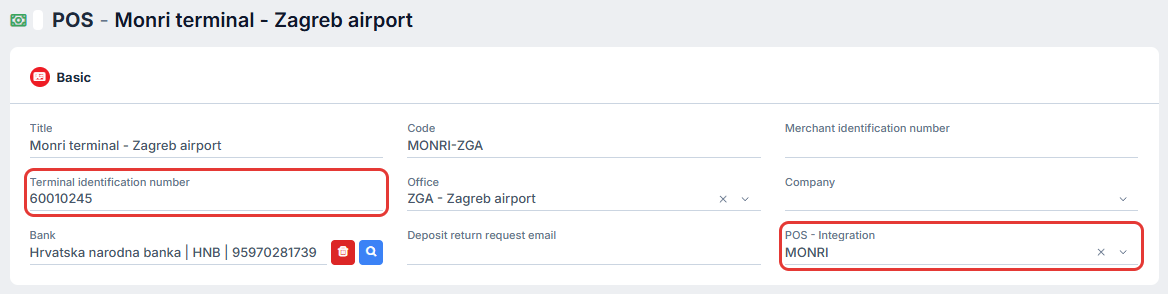
- Go to Sales → Cashbook → POS list and add a new POS, or open an existing one, and click Edit.
- Fill in Title, Code, Office and Bank as for any POS. Choose the office where the terminal really stands: a payment offers only the terminals of its document's office (and, in an account with several companies, of its company).
- In POS - Integration, choose MONRI. The field is only shown while a gateway with terminals is switched on for the POS's company.
- In Terminal identification number, enter the terminal identifier from Monri. It is required as soon as an integration is chosen.
- Click Confirm.
From now on, choosing this POS on a card payment offers the terminal buttons described below. A POS without an integration keeps working as before: you type in the card data from the slip.
Take a payment on the terminal
- Create the document as usual, for example from the booking's Actions menu with Create an invoice, or on the Close contract screen.
- In the Payments section, click Add payment.
- As Type, choose Credit card. In the Credit card section choose the Monri terminal in POS.
- Check Client - Card holder. Renteon fills in the client of the document; a terminal transaction cannot start without a client, because the card is saved for this client.
- Check the Amount and click Charge - POS.
- A dialog POS - Transactions (Monri) opens with the Transaction ID. First it says "Connecting to terminal, please wait ...", then "Complete transaction on POS terminal."
- Let the customer pay on the terminal. Then click Check - POS Result. If Monri has not reported the result yet, wait a moment and click again.
- When the payment is approved, the dialog closes and Renteon fills in the card number, authorization number, card type, validity, card holder (the client's name, because Monri does not send one) and Transaction ID.
- Click Confirm in the payment dialog and save the document.
The Charge - POS button is not available when the payment already has a Transaction ID (so the same payment cannot be charged twice), when the amount is higher than what is left to pay, or when the payment settles an advance invoice.
Warning: The money is taken the moment the customer pays on the terminal, before you save the document. If you close the document without saving it, the customer has paid and there is no invoice. Create the document again and attach the payment with the transaction search (see below), instead of charging the card a second time.
Block a deposit on the card
A deposit is a separate document. On the booking, open Actions and choose Credit card pre-authorization. The menu item is there until the deposit is paid, and not for bookings without a deposit.
In the first step of the new document, check the Currency. It must be the currency in the Monri settings. Renteon preselects your domestic currency; if Use deposit currency for credit card preauthorization is ticked (Settings, tab Finances, panel Finances), it preselects the booking's deposit currency instead. The deposit currency is your domestic currency, or the booking's currency when Use booking currency for deposit calculation is ticked. Example: your domestic currency and Monri currency are EUR, and both Use deposit currency for credit card preauthorization and Use booking currency for deposit calculation are ticked. For a booking in GBP, the deposit document would be preselected in GBP and Monri would refuse it, so change the currency to EUR before you continue.
Then block the amount, in one of two ways:
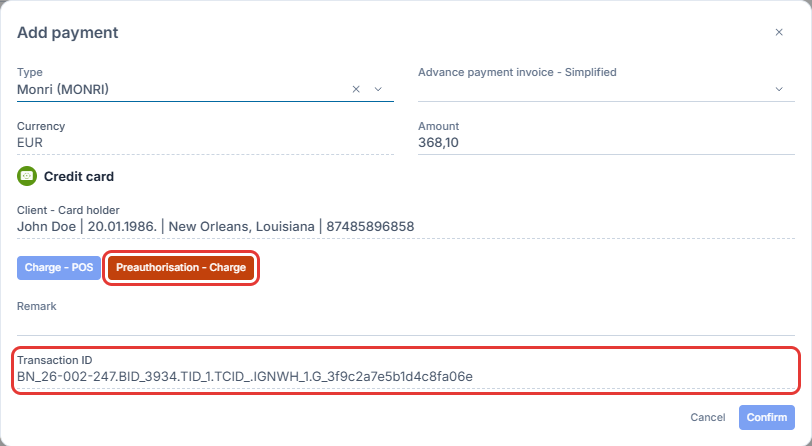
- On the terminal: add a payment with type Credit card - preauthorisation, choose the Monri terminal in POS and click Preauthorisation - POS. The terminal dialog works as described above.
- On a saved card: add a payment with type Monri, choose the card in Select Credit card and click Preauthorisation (see the next section).
Confirm the payment and save the deposit document. Use Credit card - preauthorisation for terminal deposits: Renteon turns exactly this type into a Monri payment when the deposit is charged later.
Charge a saved card
Use this when the card is not present, for example for a fuel difference or a traffic fine after the rental.
- In Add payment, choose Monri as Type.
- Check Client - Card holder. Select Credit card lists the client's active saved Monri cards with their number, expiry date and note. Pick one.
- Click Charge Credit card (on a deposit document the button is called Preauthorisation).
- A dialog shows the client, the amount, the card and the card's note. Click Charge (or Preauthorisation). Renteon shows a wait message while Monri processes the charge.
- When Monri accepts, the card data and Transaction ID are filled in. Confirm the payment and save the document.
Monri charges only cards saved for this client in this company. If Monri refuses, its reason stays in the dialog and nothing is filled in.
Charge the deposit when the car comes back
When there is something to pay at the end of the rental (damage, fuel, extra days), charge it from the blocked deposit:
- On the booking, open Actions and choose Charge under the deposit's heading. On the Close contract screen you find the same button next to the message "There are unprocessed deposits on this contract. Please select an action." Answer Are you sure? with yes.
- Renteon opens a new bill for the booking. Confirm its first dialog, then tick or add the items you charge and click Confirm. The bill's payment is taken from the deposit: a Monri payment with the deposit's Transaction ID.
- The payment dialog opens by itself. Check the Amount. Renteon proposes the smaller of the blocked amount and the amount of the bill.
- Click Preauthorisation - Charge. The dialog shows the Transaction ID and the amount; click Charge.
- When Monri confirms, you see "Transaction completed.". Only now can you confirm the payment. Save the bill.
Renteon sends Monri only the amount of the bill. It does not send a separate release for the rest of the blocked amount, and a charged deposit cannot be returned in Renteon afterwards ("This deposit is already withdrawn."). Ask Monri how the remaining part of a partly charged pre-authorization is released.
Charge works this way only for a deposit that was taken through Monri. For any other deposit, for example a card slip typed in by hand, or when Monri is switched off for the company, Charge first returns the deposit and then opens the new bill with the deposit's payment copied as an ordinary payment; nothing is sent to Monri.
Warning: The capture happens at Monri when you click Charge, before the bill is saved. Always confirm the payment and save the bill afterwards, otherwise the money is taken without a document.
Release the deposit
When nothing is to be charged, release the deposit: on the booking (Actions, under the deposit's heading) or on the Close contract screen, click Return. Renteon issues the deposit payout document and asks Monri to cancel the pre-authorization. Cancelling the deposit document has the same effect.
You do not need Request deposit return for a Monri deposit. That action only sends an e-mail to the Deposit return request email address of the POS; for a Monri deposit, Return already asks Monri to release the money.
If Monri answers that it refuses the release, the payout document is still saved and a message goes to Notifications - E-mail; release the amount in Monri's portal. If Monri cannot be reached at all, Renteon shows an error and the deposit is not returned; try Return again later. After any failed or doubtful release, check the transaction in Monri's portal.
Payment links
When Monri is switched on, every reservation and contract has payment links:
- On the booking, the Links menu (users with the role Create and modify bookings) has Online payment link (everything still to be paid) and Deposit Payment Link (the deposit, blocked on the card). The copy icon copies a link so you can paste it into an e-mail or a message.
- In e-mail templates you can use the keywords OnlinePaymentLink, OnlinePaymentLinkDeposit and OnlinePaymentLinkPercentage20 (20% of what is still to be paid). In the template editor they appear between underscores. See Automatic email sending.
- A website or another system connected through Renteon's External API receives the same three links with each reservation and contract.
The customer opens the link, enters the billing data (a company with its VAT ID, a person with their surname), clicks the pay button and pays on Monri's page. The amount is in the Monri currency. The Monri payment page is valid for one day; after that the customer simply opens your link again.
When Monri reports the result, Renteon creates the document by itself:
- for a payment: an invoice with a Monri payment and the remark "MONRI payment";
- for a deposit: a deposit document with the remark "MONRI preauthorization", which you later charge or return as described above.
The document is issued by the user and office from the settings, carries the card number, card type, authorization number and Monri's order number in Transaction ID, and the card is saved for later charges. A booking that is fully paid cannot be paid again, and a deposit that is already paid cannot be paid twice.
Saved cards in the address book
The cards Monri saved for a client are listed in the address book: Sales → Address book → Search, open the client, tab Payment tokens. You see the card number, card type, validity, the date it was saved and a note; in a multi-company account also the company.
In edit mode, users with the role Address book management can change the note (for example "company card, use only for fines"), delete a card so it is no longer offered, and activate a deleted card again. The tab is only shown to users who may use saved cards. Cards saved on the terminal come without an expiry date; Renteon fills it in the first time the card is charged.
Find an earlier transaction
If a payment happened at Monri but is missing in Renteon (the document was not saved, or the customer paid online and you are writing the document by hand), attach it instead of charging again:
- In Add payment, choose the type (Monri, or Credit card with the Monri terminal) and the client.
- Click the search icon next to Transaction ID (Search Transaction ID).
- The list Transactions - Monri shows the client's Monri transactions with date, status, amount, the document they are already on, whether it was a pre-authorization, and the card. Click Select on the right one.
The payment is filled in from the transaction. Check the document number column first: a transaction that already belongs to a valid document must not be attached a second time. If the client has no Monri transactions, Renteon only shows "No transactions found." and no list opens.
When something goes wrong
- "POS terminal transaction requires a client.": choose the client in Client - Card holder.
- "POS not valid!": the POS is inactive, is not a Monri POS, or has no Terminal identification number.
- The currency is "unsupported": the document is not in the currency of the Monri settings.
- The customer sees "Unfortunately your booking cannot be found" although the booking exists: check that the booking is not cancelled and that Finance document - User is set and may keep a cashbook in an active office.
- The terminal dialog never shows the approval: check that Monri has the Transaction Result EndPoint address.
- An online payment created no document: a message "Monri online payment - error" goes to Notifications - E-mail with the reason, for example an amount higher than what was left to pay. Create the document by hand and attach the payment with the transaction search.
- The customer's payment was declined: no document is created; the customer can try again with the link.
- "The usage of tokenized credit cards is restricted for this user": the user needs the role Finance document credit card tokenization use.