
Integrations
Integrations overview
Every integration Renteon offers, grouped by purpose: what each one does, which way the data flows and where it is switched on.
Last updated
Renteon works with many outside systems: brokers that send you bookings, payment gateways that charge cards, GPS trackers that report mileage, accounting programs, tax and police authorities, SMS providers and more. This guide is the map. For each integration it tells you in a sentence or two what it does, which way the data flows and where it is switched on, and it links to the detailed guide where there is one.
Use it when you plan a new connection, when you want to know whether Renteon already works with a provider, or when you need to find the setting behind something that "happens on its own".
Where integrations are switched on
Almost every integration is a setting in Administration → Code book → Settings. You need the role Application settings management to open this screen. Click Edit, make your changes and click Confirm. The Search box at the top filters the whole screen, so typing a provider's name is the quickest way to find its panel.
The integration settings are spread over these tabs:
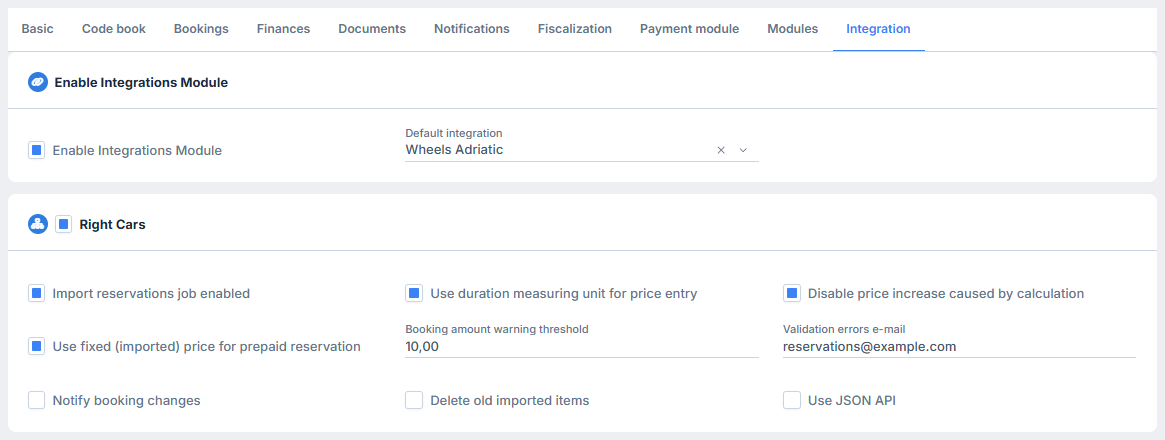
- Integration – booking channels and brokers: the Enable Integrations Module switch, the Default integration and one panel per partner.
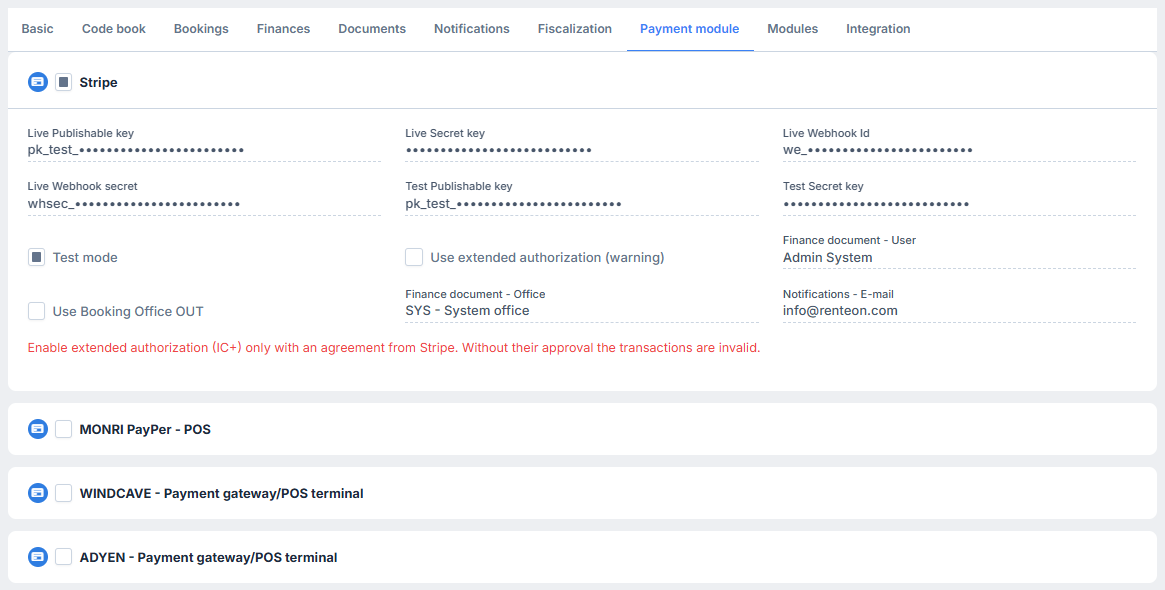
- Payment module – payment gateways. Do not confuse this tab with the panel of the same name on the Finances tab: its Enable Payments Module box only shows the Payments and New payment entries under Sales → Bills, and the gateways do not depend on it.
- Modules – GPS and telematics, ID scanning, marketing, tolls, police reporting, revenue tools, the Sunny Cars rate importer and accounting exports.
- Fiscalization – fiscal and e-invoicing services, and the Spanish SES Hospedajes report.
- Notifications – SMS providers.
- Basic – your own mail server (panel E-mail) and the Central bank used for exchange rates.
Most integrations have their own panel with a checkbox in the panel header; a few simpler ones are a single checkbox in a list. While the box is off, the panel stays collapsed and the integration does nothing. When you tick it, its fields appear, and Confirm stays greyed out until the mandatory ones are filled in.
Keep in mind:
- Some panels appear only for the country they serve: for example RedSys only for Spain, Monri only for Croatia, CaRGOS only for Italy and Via Verde only for Portugal.
- Some panels are visible only to Renteon support. This guide marks them with "Renteon support"; ask Renteon support to switch them on for you.
- If your Renteon has several companies, Administration → Code book → Companies holds the fiscal and payment gateway settings of each company (for Windcave only on the company screen of the classic interface). Bookings and documents of a company use that company's settings.
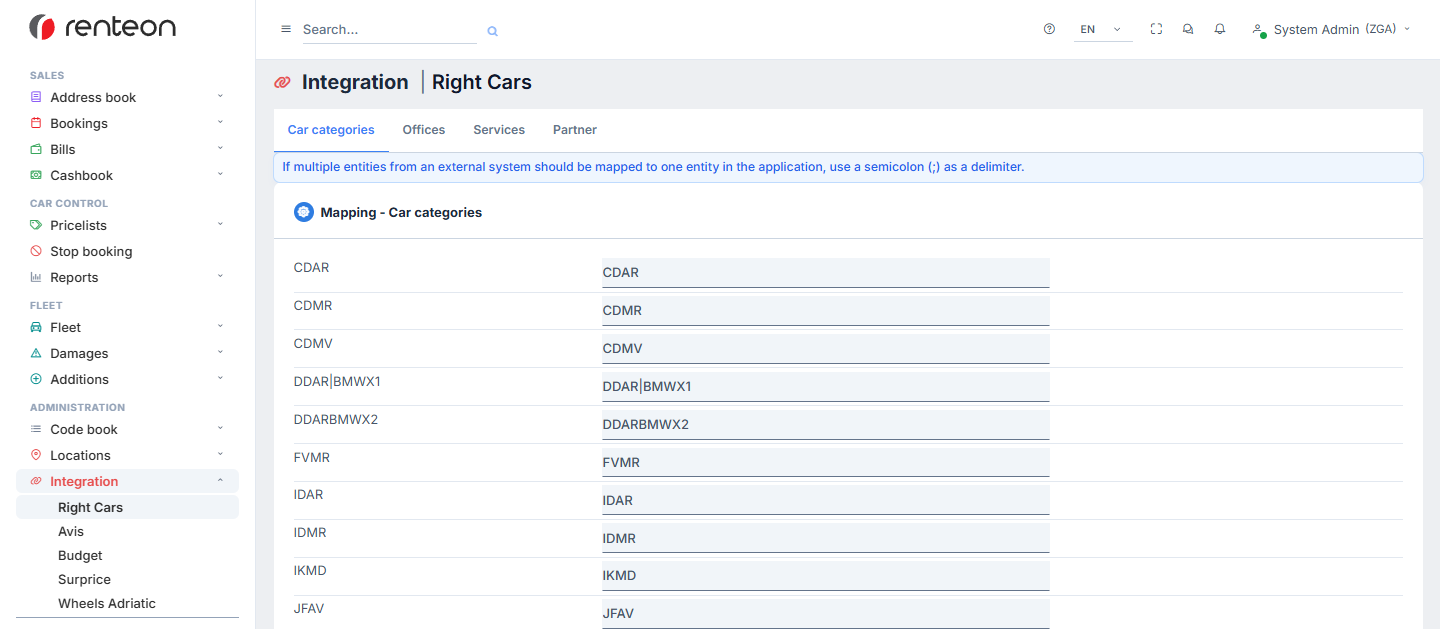
- Booking channels have a second screen for their mappings, Administration → Integration → (partner name). It appears in the menu once the partner is switched on. See Integration menu and mappings.
Booking channels and brokers
These integrations bring the bookings made with a partner into Renteon, so nobody has to retype them. The data flows into Renteon. The only answers that go back are confirmations: Right Cars (in its default mode) and the Wheels API are told that a booking was received, and PZU Masa orders are accepted at PZU. To use any of them, tick Enable Integrations Module on the Integration tab, and then tick the partner's own panel. For Right Cars, Avis, Budget and Rently, and for every Wheels, CRG or Softgate connector, also tick Import reservations job enabled: without it the partner stays switched on, but nothing is imported.
Every imported booking is created in Renteon for the partner, car category, offices and services you mapped. A booking that cannot be imported, for example because one of its codes is not mapped, is not created, and in most cases it is reported to the address in the panel's Validation errors e-mail field. Whether Renteon tries it again, and how often, depends on the integration; Integration menu and mappings lists the rules. A booking that does come in, but whose rental price differs from Renteon's own calculation by more than the panel's Booking amount warning threshold, is reported in the same e-mail as a warning. The imports run on their own, every 39 to 48 minutes depending on the partner (PZU Masa every 2 minutes).
- Right Cars – Renteon fetches the reservations of each mapped office from Right Cars and, in the default mode, confirms each one back. Panel Right Cars; the option Use JSON API switches to Right Cars' JSON interface, which also brings cancellations, and then needs Import - Date from. See RightCars integration.
- Avis and Budget – the partner leaves booking files on an SFTP server. Renteon picks them up from the FTP Folder and moves them to the FTP Folder processed. Panels Avis and Budget. See Avis integration and Budget integration.
- Surprice – Surprice tells Renteon about every new, changed or cancelled order, but only after you have clicked Enable Webhook; Renteon then fetches the order with the panel's Base API url and API Key and creates, changes or cancels the booking at its next run. Without the webhook no orders arrive at all. The button uses the saved values, so fill in the panel and click Confirm first, then click Edit again and Enable Webhook. See Surprice integration.
- PartnerPlace – the same pattern, with Base API url, Username, Password and its own Enable Webhook button. See PartnerPlace integration.
- PZU Masa – Renteon reads new orders through PZU's interface (Environment, Client Id, Client secret), accepts each one at PZU and creates the reservation. See PZU Masa integration.
- Rently – Renteon reads the bookings changed in Rently since its last run (Base API url, Username, Password); the very first run starts from Import - Date from. See Rently integration.
- Wheels – one or more connectors, each added with Add in the Wheels panel and given a Name and Code. A connector either reads booking e-mails with PDF attachments from a mailbox (Host, Port, Username, Password), or, with Wheels API (instead of e-mail), reads the bookings from the Wheels interface (Environment, Account number, Username, Password, Access token). In API mode Renteon can also report changes back to Wheels (see the next section). See Wheels integration.
- CRG – connectors that read booking e-mails from a mailbox; the booking is read from the text of the e-mail. See CRG integration.
- Softgate – connectors that read booking e-mails with PDF attachments from a mailbox. See Softgate integration.
- OK Mobility – a booking import that Renteon support runs; it has no settings panel. See Other booking imports (e-mail, FTP, OK Mobility, Ison Care).
Every partner panel and every Wheels, CRG or Softgate connector also has Delete old imported items and Keep imported items (months), which clean up the stored copies of what the partner sent, and the import log, once they are old enough and the bookings they belong to are closed or cancelled. The bookings themselves stay. The rules are in Integration menu and mappings. To switch off Surprice or PartnerPlace, click Disable Webhook first: while the webhook is still active, Confirm answers "Surprice webhook must be disabled before disabling the integration" (or the same for PartnerPlace) and nothing is saved.
Warning: Unticking Enable Integrations Module stops every booking import at once and removes the Integration entries from the menu. To stop one partner only, untick that partner's panel or connector.
Reporting booking changes back to partners
Some partners want to know when something happens to their booking in Renteon, for example when the contract is closed or the booking is cancelled. For that, each partner panel and each Wheels, CRG or Softgate connector has the option Notify booking changes. Which integration is told depends on the booking: a booking of a franchise goes to the Integration chosen on that franchise in Administration → Code book → Franchises, and a booking without a franchise to the Default integration chosen on the Integration tab of the settings.
At the moment Renteon delivers these notices only to Wheels connectors that use the Wheels API, and only for bookings that came from Wheels. For the other partners you can tick the option, but nothing is sent to them yet. What Wheels is told, how a refused notice is retried and which changes are left out is described in Wheels integration.
Warning: Renteon cannot take back a notice the partner has already received. If you later undo the change in Renteon, for example by restoring a cancelled booking, the partner is not told. Switch Notify booking changes on only after you have tested the connection with the partner.
Prices and availability sent to partners
Brokers that connect through Renteon's booking interface read your prices and availability live (see the next section). Two integrations push data out instead:
- Sunny Cars Rate Importer – panel Sunny Cars Rate Importer enabled on the Modules tab. In Car control → Pricelists → Car rental, section Sunny Cars Rate Importer of a pricelist, you tick Is Sunny Cars Rate Importer Pricelist and then Mark for import. Every evening at 22:55 (Central European time) Renteon submits that pricelist's prices, from the next day on, to Sunny Cars, and at 23:55 it copies the submitted prices into the pricelists that point to it through Import from Sunny Cars pricelist. A report goes to the panel's Email address. Only one active pricelist may be the Sunny Cars Rate Importer pricelist, and at least one other pricelist must point to it; otherwise the run fails and the report says why. See Other integrations: tolls, exchange rates, revenue tools.
- Ison Care – in the classic interface only, on the integration settings with Enable Integrations Module ticked. Every hour Renteon uploads the availability file (CSV) attached in the Ison Care settings (API Key, File to send (.csv)) to Ison Care. The file is the one you attach; Renteon does not build it or update it. See Other booking imports (e-mail, FTP, OK Mobility, Ison Care).
B2B portal, B2C portal and the booking interface
These let partners and other systems work with your Renteon directly, so bookings arrive without any import delay.
- B2B portal – a web page where agencies and agents from your address book check availability, create, change and cancel bookings, and print their bookings and invoices. You give access on the partner's B2B settings tab in the address book (Sales → Address book → Search). See B2B portal.
- B2C portal – a similar portal for address book records with Allow B2C Access ticked. Their users are created on the record's B2C Settings tab, which appears once the record is saved with that box ticked; they check availability, make bookings and see their bookings and bills.
- Booking interface for brokers and websites – a broker's system or a booking website asks Renteon for availability and prices in real time and sends the bookings straight in. Each connection is registered by Renteon support; on your side you create the broker in the address book and give it pricelists. See API connection setup.
- External API – your own systems, for example an ERP or a reporting tool, can read and write Renteon data with a user that has External ticked (Administration → Code book → Users, tab Basic, section Other) and the external roles on its User roles tab. Ask Renteon support to register the connection and for the description of the interface.
Payment gateways
A payment gateway lets you take card payments without leaving Renteon: online through payment links and on card terminals at the counter, and, depending on the gateway, pre-authorizations, their capture and charges to saved cards. The money flows through the gateway, and Renteon records each payment as a finance document. The panels are on the Payment module tab.
The gateway panels share these fields: Finance document - User and Finance document - Office (the user and office under which Renteon records the documents it creates by itself after an online payment), Use Booking Office OUT (use the booking's pick-up office instead) and Notifications - E-mail. The Stripe, RedSys and Adyen panels also have Test mode. A card terminal is linked to its gateway in Sales → Cashbook → POS list, field POS - Integration. Renteon uses only one gateway for payment links per company: if several are switched on, the payment page uses RedSys first, then Monri, Windcave, Adyen and Stripe.
- Stripe – any country. Stripe card readers, payment links, pre-authorizations and their capture, and charges to saved cards. Panel Stripe. See Stripe payments.
- RedSys – Spain only. Online card payments through the booking's payment link, on the RedSys payment page; no terminals, pre-authorizations or charges to saved cards. Panel REDSYS - Payment gateway. See RedSys payments.
- Monri – Croatia only. Card terminals, payment links, charges to saved cards and capture of pre-authorizations, all in the one currency chosen in the panel's Currency field. Panel MONRI PayPer - POS; it shows two callback addresses, Transaction Result EndPoint and Order Updated Callback EndPoint, that you enter at Monri. See Monri payments.
- Windcave – any country. Card terminals, payment links, charges to saved cards and capture of pre-authorizations. Panel WINDCAVE - Payment gateway/POS terminal. See Windcave payments.
- Adyen – any country. Card terminals, payment links, charges to saved cards and capture of pre-authorizations. Panel ADYEN - Payment gateway/POS terminal. Adyen does not work until its webhook is set up: fill in API Key, Merchant Account and, with Test mode off, the Live URL prefix, click Enable Webhook while you are editing and then Confirm. Confirm stays greyed out until the webhook is enabled. Once the settings are saved, Test Webhook checks the connection. See Adyen payments.
Warning: While Test mode is ticked, payments go to the gateway's test environment and no real money moves. Untick it only after a test payment has gone through from start to finish.
GPS, telematics and mileage
Trackers in your cars report mileage and fuel level, so staff do not have to read them off the dashboard. Renteon can read them from the tracker when a car comes back or is replaced, on car activities and on car services. The data flows into Renteon. The panels are on the Modules tab, each with the login the provider gives you: GPS - GeoNavi, GPS - MyTracko, GPS - Movolytics, GPS - Smartivo, GPS - NetFrota, GPS - Geotab, GPS - GPSWox and GPS - Navixy. Depending on the provider, Renteon finds the car at the provider by its registration plate, its chassis number or the tracker's device number (the IMEI on the car's GPS tab), so that data must be filled in on the car card.
Three telematics services do more:
- Echoes (panel Echoes, API key) and Zubie (panel Zubie "Zinc", credentials entered and connected by Renteon support) – mileage, plus alerts such as border crossing, smoke detection, collision and maintenance, which Renteon fetches every 14 minutes and links to the car activity that was running at that moment.
- Rentalmatics (panel RENTALMATICS, Renteon support) – works both ways: Renteon sends its cars, its contracts with their first driver, which car is on which contract and other car movements to Rentalmatics, and reads mileage and fuel back. When support ticks Alerts (border crossings, impacts, maintenance) in the same panel, Renteon also collects Rentalmatics impacts, border crossings and vehicle alarms every 14 minutes as alerts.
Warning: Switch on only one GPS provider. If several are on, Renteon reads mileage and fuel from one of them only.
Licence plate recognition
On a phone or tablet, the camera button next to the search box at the top of the screen, and the same button in the car field of a few forms (car check-in, the booking's car, vehicle replacement, damages and traffic fines), reads a car's plate with the device camera and finds the matching car in your fleet. A scan from the search box opens the Car overview of that car, or a list to choose from when several cars match; a scan in a car field fills in that field. The image goes to Renteon's own recognition service, so there is nothing to switch on and no contract with a third party. The button is there for users who can see cars or check cars in, and it does not appear on a computer. If plates of your company's country cannot be read, the scanner says "License plate recognition is not available for your company's country". See Licence plate recognition.
Accounting and ERP exports
These send your finance documents out of Renteon to an accounting program. They are switched on by Renteon support (their panels on the Modules tab are visible only to support).
- Contanet, Sage, Odoo, A3, 4D Wand, Synesis and SWING – an export button at the bottom of Sales → Bills → Search (for example Export - Sage, Synesis export or SWING export) produces a file of the finance documents that match your current search, in the format of that program. You need the role Report - financial documents to see the buttons. Contanet and Sage also need account settings such as the Common client account number.
- Automatic database exports – on request, Renteon support can export finance documents and payments, and data for business-intelligence (BI) tools, automatically to a separate database that your accounting or BI system reads.
Fiscalization and e-invoicing
Fiscal registration of invoices, e-invoices and tax reporting depend on the country of your company. The panels are on the Fiscalization tab (and, with several companies, in Administration → Code book → Companies), and Renteon shows the panels that apply to your country. See Fiscalization and e-invoicing overview for the list per country.
SMS, e-mail and marketing
- Your own mail server – tab Basic, panel E-mail: the SMTP server Renteon sends your e-mails through, with SMTP authentication set to Basic, OAuth 2.0 (client credentials) or OAuth 2.0 (authorization code). Without it, Renteon's own mail server sends your e-mails. A franchise can have its own mail server on its record in Administration → Code book → Franchises.
- Cequens (SMS) and SerwerSMS – tab Notifications: the SMS provider Renteon sends text messages through. The panel SMS on the same tab chooses which automatic messages go out (for example when a booking is confirmed, a car is issued or a contract is overdue), and the texts are kept in Administration → Code book → SMS templates, which appears once a provider is on.
- Webpower - adria – tab Modules: when a contract is closed, Renteon sends the customer's e-mail address, language and rental details to your Webpower campaign for the customer survey, once per contract. Customers who refuse survey e-mails are skipped, and so are customers without a valid survey consent when Requires consent is ticked in the panel Send e-mail with link to survey for closed contracts on the Notifications tab.
- Medallia (Renteon support) – every 12 hours Renteon uploads closed contracts to Medallia's FTP server for customer feedback; the booking list (Sales → Bookings → Search) also has the action Medallia - Export.
ID and document scanning
Scanning a passport, ID card or driving licence fills in the client's data in the address book instead of typing it.
- 365id – tab Modules, panel 365id - Settings (Username, Password, Secret key; the panel also shows the Endpoint URL to give to 365id). The scanners are registered in Administration → Code book → 365id Scanner. While you edit a client (Sales → Address book → Search), 365id Scan picks the scanned document and fills in the data.
- Adria Scan – tab Modules, option Use 'Adria Scan' identification documents scanner module. While you edit a client, Scan opens the Adria Scan reader and fills in the data it returns.
Reporting to authorities
Some countries require rental data to be reported to the police or other authorities. The data flows out of Renteon.
- CaRGOS - State police (Italy) – tab Modules (Username, Password, API key). Renteon sends contracts to the Italian police system CaRGOS automatically. With CaRGOS on, the company's Town on the Basic tab is mandatory, and Confirm stays greyed out until it is filled in. A franchise can have its own CaRGOS account on its record in Administration → Code book → Franchises. In the booking list (Sales → Bookings → Search) a contract still missing in CaRGOS carries a "Cargos - Missing" mark, and its row action Send CARGOS sends it.
- SES Hospedajes (Spain) – tab Fiscalization, panel Spanish Ministry of Internal Affairs. Once a day Renteon tries to send the new contracts to SES Hospedajes, and you can send, export or cancel contracts yourself. Each office needs its 10-character Código de la Oficina - SES Hospedajes (Administration → Locations → Offices), unless you tick Disable Spanish Ministry of Internal affairs Export on that office to leave it out. The booking list also has Export XML (SES Hospedajes) and Sent to Ses Hospedajes for files you submit yourself.
- Canary Islands police (Renteon support) – the booking list action Export of contracts for the Canary Islands police produces a file of the contracts for the police.
- Turkish police – for companies in Turkey, the booking list action Export of contracts for Turkish police produces the file; there is nothing to switch on.
- TAMM (Renteon support, panel TAMM Service (Auth)) – requests driving authorizations for the drivers of a contract through the TAMM service and cancels them again when the contract is closed or cancelled, the car is replaced or a driver is removed. Requesting them is available only in the classic interface. With TAMM on, each phone number of a person in the address book has the option For Authorization (TAMM).
- Greece – the AADE DCL report of rental contracts is described in Greece: myDATA and DCL.
Tolls, exchange rates and other services
- Via Verde (Portugal) – tab Modules, panel Via Verde (FTP Username, FTP Password, Identifier code). Three times a day Renteon downloads Via Verde's toll transaction files and turns each transaction into a traffic fine on the rental or other activity of that car at that moment. In Fleet → Fleet → Via Verde you choose the answer for each transaction (with the payer's data where the answer needs it), and Renteon sends the answers back to Via Verde.
- WeYield (Renteon support, panel WeYield - Dashboard) – shows the WeYield revenue-management dashboard for your team inside Renteon, under Administration → Code book → WeYield Dashboard.
- Exchange rates – Renteon downloads the rates of the Central bank chosen on the Basic tab, checking every hour, for the central banks it supports. Central bank is mandatory: Confirm stays greyed out until it is chosen. You find the rates in Administration → Code book → Exchange rate. To enter rates yourself instead, tick Disable automatic exchange rate download on the Bookings tab.
- Card information – the button next to the card number on the payment forms shows the card's scheme, type, whether it is prepaid, its category, issuing bank and country, taken from a public table of card number prefixes that Renteon refreshes every month. It is information only: Renteon never blocks a card because of it. At most the first 8 digits of the card number are used for the lookup, never the full number, and the button stays greyed out until at least the first 6 digits are entered.
- EU VAT number check – for companies in the EU or EEA, the button Check (EU) next to the VAT number in the address book checks the number in the EU VIES service and fills in the name and address when they are still empty.
- Key cabinets – key cabinets are defined on the office (Administration → Locations → Offices, tab Key cabinet). Through the External API, a key-cabinet system can find the bookings to hand out or take back at its cabinet, check cars out and in, collect the customer's signature and create the invoice. Renteon support sets up the connection.
- External alerts from other systems – besides Zubie, Echoes and Rentalmatics, any telematics system can send vehicle alerts (border crossing, collision and so on) through the External API, with a user that has the role External alerts management.
- Document archive – tab Modules, option Use module for contracts and invoices archive: Renteon keeps a PDF copy of every contract and finance document as it was issued, separately from the live data.
- Externally maintained availability (Renteon support) – an external system sends, through the External API, the number of cars per car category, pick-up office and day, and Renteon offers that availability to B2B partners and your web booking instead of its own calculation.
See Other integrations: tolls, exchange rates, revenue tools for Via Verde, exchange rates, card information, external alerts, WeYield, the Sunny Cars Rate Importer, the document archive and externally maintained availability.
What you need before an integration can start
Whatever the integration, the same groundwork comes first. Going through it before you tick the first box saves you a stream of error e-mails.
- An agreement with the provider. The provider must accept Renteon as your rental system and give you access. Renteon cannot open an account at the provider for you.
- Credentials for test and production. API keys, usernames and passwords, SFTP or mailbox access, terminal or reader ids: each panel lists what it needs, and only the provider can give it to you. Where the panel has Test mode or Environment, ask the provider for test access too.
- The partner in your address book. For a booking channel or broker, create the partner as an agency or agent with its pricelists. See API connection setup and Agency bookings.
- Mappings. Tell Renteon which of the partner's codes means which of your car categories, offices, services, pricelists and partners, in Administration → Integration → (partner name). See Integration menu and mappings. Some integrations read the codes from your own records instead: the GPS providers from the car card (plate, chassis number or the IMEI on the GPS tab), SES Hospedajes from the office.
- Somebody who reads the error e-mails. Fill in Validation errors e-mail or Notifications - E-mail with an address that is read every day.
- Payment details. For a gateway: the user and office the payments are recorded under, the card terminals in Sales → Cashbook → POS list, and the webhook or callback addresses the panel shows.
- Renteon support for the panels only support can see and for registering broker and external connections.
- A test run. Make one test booking or payment and check it in Renteon: car category, offices, dates, price, partner and extras. Switch on the regular import only when the test booking is right.
Warning: Switch on a booking import only after its mappings are complete. A booking with a code that is not mapped is not created. Depending on the integration, it comes back in the validation errors e-mail at every run until you fix the mapping, it is given up after a set number of attempts, or it is not tried again at all (Surprice, PartnerPlace, Rently) and has to be entered by hand.
Related guides:
- Integration menu and mappings
- Other booking imports (e-mail, FTP, OK Mobility, Ison Care)
- API connection setup
- B2B portal
- Stripe payments
- GPS and telematics integrations
- Accounting and ERP integrations
- Fiscalization and e-invoicing overview
- SMS and communication integrations
- ID and document scanning
- Reporting to authorities (police and transport)
- Other integrations: tolls, exchange rates, revenue tools