Audit
Audit reports
See who signed in, who opened or exported personal data, which template e-mails were sent and what happened to each partner reservation, with the four audit reports.
Last updated
The audit reports answer questions about things that have already happened in Renteon. Who signed in, and from where? Who opened, changed or exported a customer's personal data? Which e-mails did Renteon send from your templates? What happened to a reservation that a partner system sent you? Renteon records all of this automatically in the background. You do not have to switch anything on.
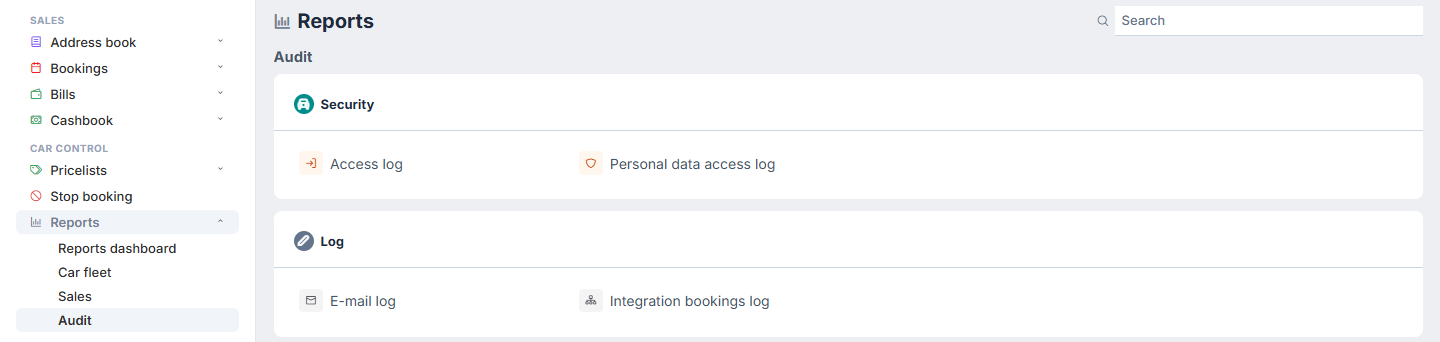
There are four reports in two groups. Access log and Personal data access log are in the Security group and show their results on screen. E-mail log and Integration bookings log are in the Log group and export to Excel, because each row holds a lot of text: the whole e-mail, or the whole reservation as the partner sent it.
All four reports are read-only. Nothing you do in them changes any data, and no one can edit or delete an entry from these screens.
Where to find the reports and who can open them
Open Car control → Reports → Audit. The page shows the audit reports in two groups, Security and Log. Click a report to open it. How the Reports page, its search box and every report screen work in general is explained in Reports: overview and dashboard.
Two roles give access. You add them to a role group in Administration → Code book → Role groups and assign the role group to users, or you give them to one user directly on the User roles tab of the user in Administration → Code book → Users:
- Reports - personal data opens the Access log and the Personal data access log. It is meant for your data protection officer, or whoever checks access to personal data.
- Reports - audit opens all four reports: the two above plus the E-mail log and the Integration bookings log.
A user with neither role does not see Audit in the menu. A user with only Reports - personal data sees only the Security group.
These logs contain your staff's sign-ins and IP addresses, and the full text of e-mails sent to customers. Give the roles only to people who need them. For the other roles around personal data, see GDPR and personal data protection.
Access log: what is recorded
The access log has one entry for every attempt to sign in to Renteon with a username and password, whether it worked or not.
A successful sign-in is recorded for your Renteon users, who always sign in to an office. The entry shows when the user signed in, to which office and from which IP address. Its details read like this: "User: mark.smith, Mark Smith | Office: Airport".
A failed attempt is recorded for anyone, including usernames that do not exist. The most common reasons are:
- the username or password is wrong,
- the user is deactivated,
- no office was chosen, or the user is not assigned to the chosen office,
- the user's franchise, company or partner is deactivated, or access to your Renteon account is disabled,
- the user is signing in from a browser that Renteon does not know yet (this does not apply to a user's very first sign-in). Renteon e-mails the user a confirmation code, and the attempt counts as failed until the code is entered. Entering a wrong code is also recorded as a failed attempt.
For a failed attempt, User and Office stay empty, even when the username belongs to a real user. Instead, you see the username that was typed and the details of the request, including an error code. The password is never stored. It is replaced with asterisks.
Some things are not recorded:
- Successful sign-ins of B2B and B2C portal users, and of the special users that other systems use to connect to Renteon. Only their failed attempts are recorded.
- Session renewals. After a user signs in, Renteon keeps the session alive in the background without adding entries. So the log tells you when someone signed in, but not how long they worked.
- Signing out.
Access log: searching and reading the entries
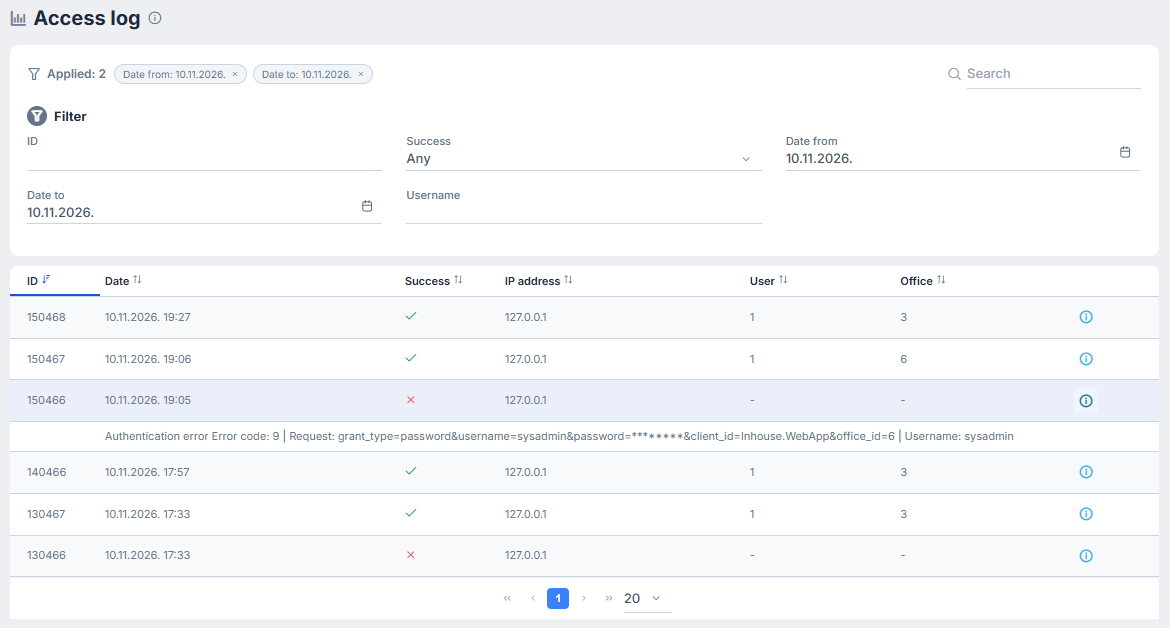
You can filter the access log by:
- ID: the number of a single entry. When you fill it in, all other filters are ignored.
- Success: Yes shows successful sign-ins, No shows failed attempts, and Any shows both.
- Date from and Date to: the range of days to show. Both days are included.
- Username: shows entries where the typed username contains your text. For example, ana also finds ivana.horvat.
Click Search, or press Enter, to show the results. Reset parameters clears the filters. Your browser remembers your last filters for the next time you open the report.
Each entry has these columns:
- ID: the number of the entry.
- Date: the date and time of the attempt, in your company's time zone.
- Success: a green tick for a successful sign-in, a red cross for a failed attempt.
- IP address: the address the attempt came from.
- User and Office: the record numbers of the user and the office. They show "-" for failed attempts.
- The information button at the end of the row opens a line underneath with the details and the typed username. You can open several rows at once.
The newest entries are at the top, 20 to a page. Click a column heading to sort by that column. You can show up to 1,000 rows per page.
User and Office are numbers, not names. For a successful sign-in, the details already contain the user's full name and the office name. You can also look a number up with the ID filter in Administration → Code book → Users or Administration → Locations → Offices.
For a failed attempt, the details start with "Authentication error Error code:" and a number, followed by the request as it was sent. The error code is the only place that says why the attempt failed. If you cannot tell the reason from the situation, send the entry's ID to Renteon support.
Warning: The details of an entry are cut off after 255 characters. That leaves room for the error code and the username, but not always for the whole request.
Personal data access log: what is recorded
Renteon adds an entry to this log every time someone does one of the following with personal data. The action names appear in the log exactly as shown here:
- Open: opens a private person's record in the address book, or opens their client card, for example from the booking list or the finance document list. Opening a finance document whose client or payer is a private person also counts, because the screen reads that person's record. So does choosing a private person as the client of a new finance document or group invoice. One visit can leave several Open entries, because switching a record to editing reads it again.
- Create: saves a new private person in the address book.
- Update: saves changes to a private person. This includes merging duplicate records into that person (see Address book duplicates and merge).
- Download: downloads a person's record with the Download button on the record. The button needs the Addressbook export role.
- Export: exports the address book list to Excel with Export in Sales → Address book → Search, which also needs the Addressbook export role. The export takes the rows of your current search. Before it starts, a dialog asks for the reason in Export to Excel - reason, and Confirm stays disabled until you type one. The log saves the reason, the number of exported rows and your search criteria. Exporting the office list in Administration → Locations → Offices is also recorded as Export, but without a reason.
Each entry also records the user, the office that user was signed in to, and the IP address.
Only private persons are covered. Opening or changing a company in the address book is not recorded. An address book export is recorded no matter what it contains.
Some things are not recorded at all: what users see in lists and search results, a person's details shown inside a booking, the Import / Export (Excel) workbook of the address book list and the import of persons from it, deleting a person's record, data that connected systems read or write, and the anonymization of a person.
The Update entry is written just before the changes are saved. In the rare case that the save then fails, the entry exists even though nothing changed.
Warning: Only the first 50 characters of an export reason are kept. Ask users to write short, specific reasons, for example "Customer request, ticket 4711".
Personal data access log: searching and reading the entries
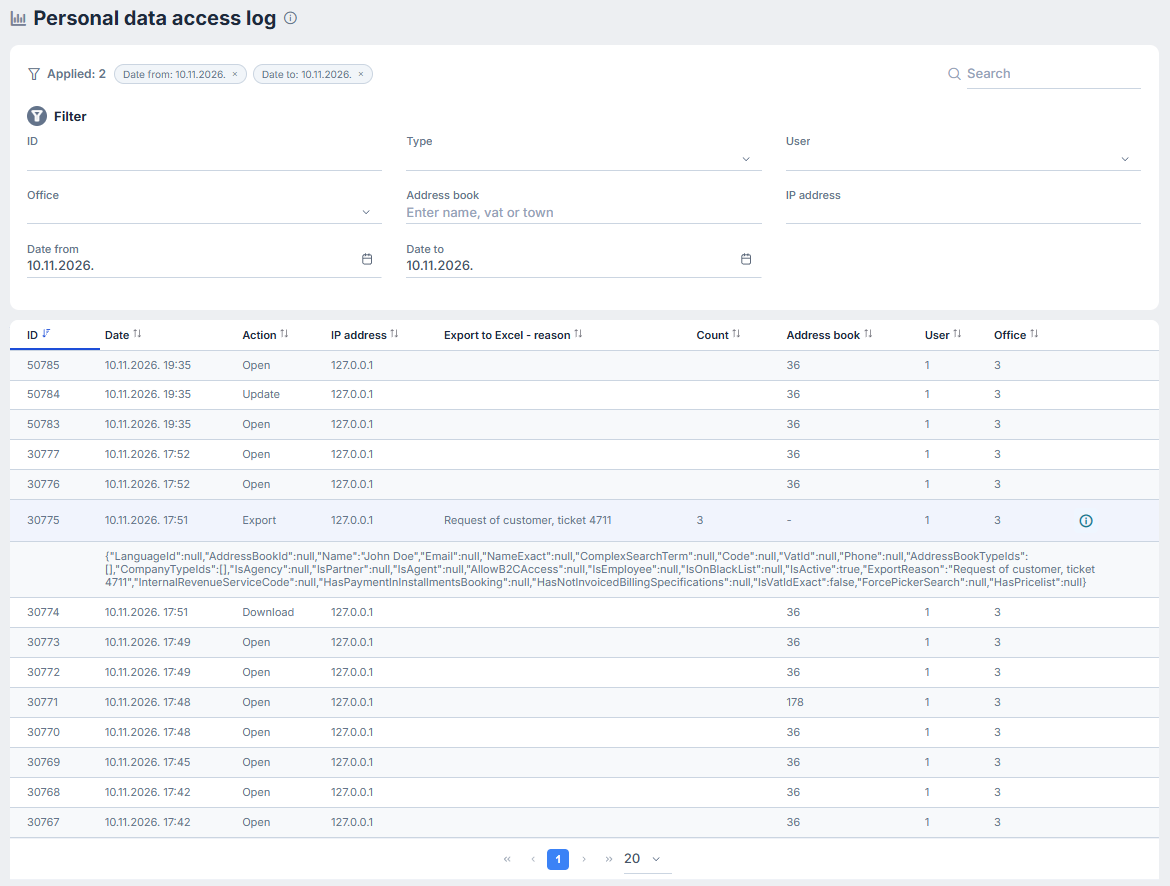
You can filter the personal data access log by:
- ID: a single entry. When you fill it in, all other filters are ignored.
- Type: the action, one of Create, Open, Export, Update or Download. Leave it empty to show all actions.
- User: the user who performed the action. The list shows each user's number in front of the name, which also helps you match the numbers in the User column.
- Office: the office the user was signed in to.
- Address book: pick a private person to see every entry about them.
- IP address: this field is on the screen, but it does not filter the results at the moment. To find the entries from one address, sort by the IP address column instead.
- Date from and Date to: the range of days. Both days are included.
Searching, resetting and paging work the same way as in the access log.
Each entry has these columns:
- ID and Date: the date and time are shown in your company's time zone.
- Action: what was done.
- IP address
- Export to Excel - reason: the reason the user gave for an export.
- Count: the number of exported rows. Filled in for exports only.
- Address book: the person's record number. It shows "-" for exports, because an export is not about one person.
- User and Office: record numbers, as in the access log.
- For an export, the information button at the end of the row shows the search criteria that were used, in the technical form Renteon stored them.
To see whose record a number belongs to, open Sales → Address book → Search and enter the number in the ID filter. Searching the list adds no entry, but opening the record does, under your name.
The entries stay in the log after a person is anonymized, and still show the record number.
E-mail log: what is recorded
The e-mail log keeps a copy of every e-mail Renteon sends from one of your e-mail templates for a booking, a finance document, a traffic fine or a damage. It covers both e-mails that users send from the e-mail dialog and e-mails Renteon sends automatically. Automatic e-mails include booking reminders, return reminders, mileage update requests and survey e-mails. E-mails that a connected system asks Renteon to send are logged as well, for example the reservation confirmation your website requests after an online booking. See Automatic e-mail sending.
An entry is written only when your mail server accepted the e-mail. This has two consequences:
- A failed e-mail leaves no entry. If you send an e-mail yourself and it fails, Renteon shows the error message straight away in the dialog. If an automatic e-mail fails, the reason goes into Renteon's technical log, which Renteon support can check. Ask soon, because those technical entries are deleted after about six months. An automatic e-mail is not sent at all when the recipient has no e-mail address, or when the template has no subject or text. Booking and return reminders are also skipped for addresses listed in Exclude emails for booking reminder (comma separated) or Exclude emails for car return reminder (comma separated) in Administration → Code book → Settings, tab Notifications.
- An entry does not prove that the e-mail reached the customer. It can still bounce, or land in a spam folder.
Other e-mails Renteon sends are not in this log. For example: notifications to your own users, sign-in confirmation codes, error reports from integrations and payment modules, and offers created and sent in one go with Create and e-mail offers when you make a new offer.
If you only need to check one record, you do not need this report. In the booking list, the E-mail log tab of a booking's row shows the e-mails sent for that booking. The same e-mails appear in the E-mail Log panel at the bottom of the booking's Overview step. Finance documents, damages and traffic fines have their own E-mail Log section. These views do not need the Reports - audit role.
E-mail log: exporting and reading the file
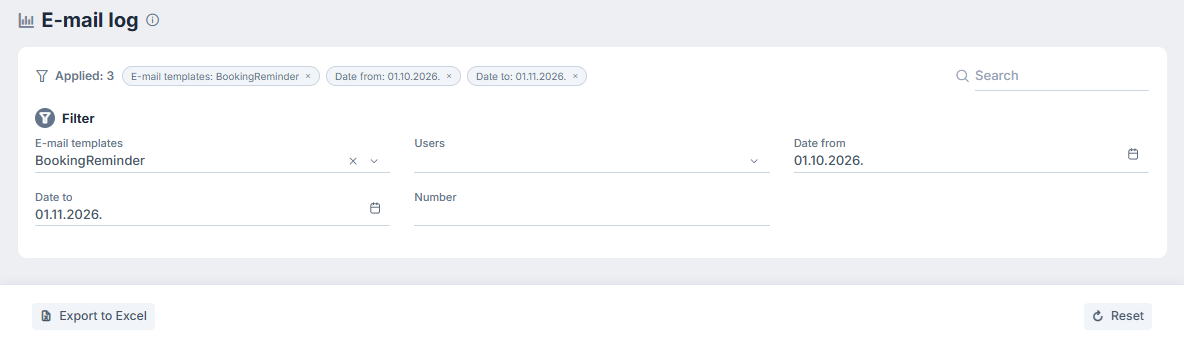
You can filter the e-mail log by:
- E-mail templates: one or more template types. The list shows the types by their internal English names, for example Reservation, Contract, FinanceDocument, BookingReminder, ReturnReminder or ContractSurvey. The mileage update request is spelled MilageUpdate. Leave it empty to include all types.
- Users: the users who sent the e-mails. E-mails that Renteon sends automatically in the background have no user, so this filter never finds them.
- Date from and Date to: the date the e-mail was sent.
- Number: the number of the booking, finance document or traffic fine. For a damage, enter the car's registration plate. It must match exactly, so a partial number finds nothing.
Click Export to Excel. Reset clears the filters. Your browser remembers the filters of your last export. The file starts with the template, user and date filters you used (the Number filter is not listed), followed by one row per e-mail. If nothing matches, the file contains only the list of filters.
The columns of the file are:
- E-mail: the template type, with the same internal names as in the filter.
- Booking_ID, Damage_ID, Traffic fine_ID and Finance document_ID: the internal record number of the booking, damage, traffic fine or finance document the e-mail belongs to. Only one of them is filled in, and some template types leave all four empty.
- Number: the booking, finance document or traffic fine number, or the registration plate for a damage.
- User: the user who sent the e-mail. Empty for automatic e-mails. For an e-mail that your website or another connected system asked for, it shows the user that system signs in with.
- Date: when the e-mail was sent.
- Sender e-mail, Recipient e-mail, CC and BCC: the addresses. Multiple addresses are separated by semicolons.
- E-mail subject
- Attachments: the file names of the attachments.
- E-mail body: the full text exactly as sent. This is usually HTML, so you see the formatting tags as well as the text.
The export has no row limit. If you leave all filters empty, you get every e-mail ever logged, each with its full text. Narrow the export down with dates or a template type.
Warning: Date to includes e-mails only up to the start of that day, so the day itself is left out. To include 10 November, set Date to to 11 November. Also note that the Date column shows the time in UTC, not in your company's time zone: in Central Europe in winter, an e-mail sent at 10:15 shows as 09:15.
Integration bookings log: what is recorded
When an integration imports reservations from a partner, such as a broker or another booking system, every import attempt becomes one entry. An attempt can be a new reservation, a change or a cancellation, and it can succeed or fail. If a reservation fails and is tried again at the next run, each try gets its own entry. You can see the integrations your company uses in the Integration list of the filter. If your company has none, the list is empty.
Each entry holds:
- the data exactly as the partner sent it, in the partner's own technical format,
- the Renteon booking number, once a booking was created or found,
- the partner's own number for the reservation,
- whether the attempt succeeded, and the messages of that attempt.
The messages come in three kinds:
- Fatal errors: the reservation can never be imported as sent. For example, it was already imported, or it changes or cancels a booking that does not exist, is already cancelled or has already become a contract. These attempts are not repeated. Some integrations turn a change for a booking that does not exist into a new booking instead, and then show a warning.
- Errors: something is missing, most often a mapping, or something went wrong while the booking was being saved. A change or cancellation that arrives before its original reservation was imported is also an error. Depending on the integration, Renteon tries again at the next run.
- Warnings: the booking was imported, but something did not match, for example the price or an extra.
Is successful fetch is Yes when the reservation was imported, which means it was created, changed or cancelled as the partner asked. No means it was not, and the messages tell you why. For what each integration does after a failed attempt, and how to fix mappings, see Integration menu and mappings.
Integration bookings log: exporting and reading the file
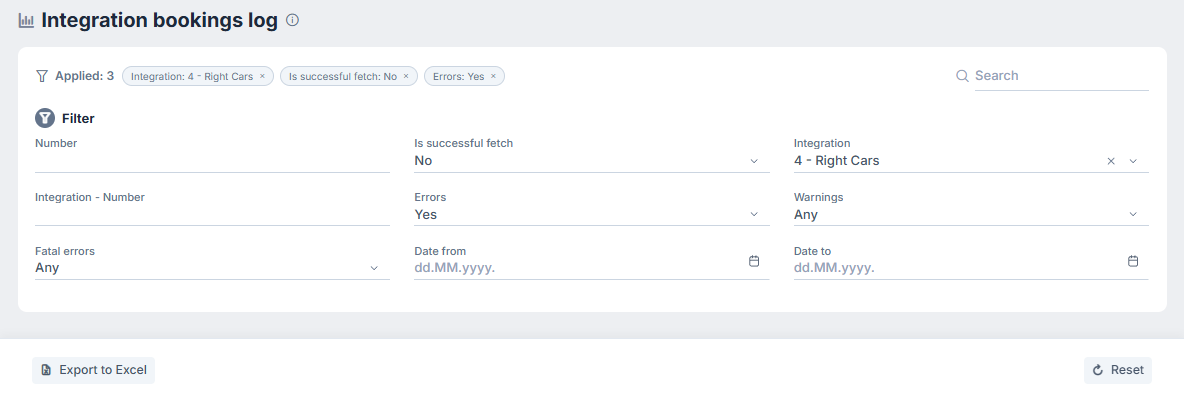
You can filter the integration bookings log by:
- Number: the Renteon booking number, exactly as it appears in Renteon.
- Is successful fetch: Yes, No or Any.
- Integration: the integration. Each integration is shown with its number in front of the name. The list also includes integrations that are no longer active, marked "(Inactive)".
- Integration - Number: the partner's number for the reservation, matched exactly. Not every integration stores the partner's number here. Reservations that arrive by e-mail store Renteon's own number for the received e-mail, and imports from files store the file name. The integration's guide tells you which.
- Errors, Warnings and Fatal errors: Yes shows only entries that have messages of that kind, No shows only entries without them, and Any ignores the filter.
- Date from and Date to: when the attempt was made.
Click Export to Excel. Reset clears the filters. Your browser remembers the filters of your last export. The file lists some of your filters at the top (not Warnings, Fatal errors or the dates), followed by one row per attempt with these columns:
- Integration_ID: the integration's number, the same number the Integration filter shows in front of the name.
- Number: the Renteon booking number, if there is one.
- Integration_Number: the partner's number.
- Is successful fetch: TRUE or FALSE.
- Errors, Warnings and Fatal errors: the messages of the attempt.
- Content: the data as the partner sent it.
- Date created: the date and time of the attempt, in your company's time zone.
The rows are not in any particular order. Sort the sheet by Date created to see the attempts in the order they happened.
On an imported booking, Actions → Open booking source data shows the data and messages of the last import of that booking, without the report. The action appears only while such an entry exists.
Warning: Date to includes attempts only up to the start of that day, so the day itself is left out. To include a whole day, set Date to to the following day.
How long the entries are kept
- Access log, Personal data access log and E-mail log: Renteon does not delete these entries automatically, and you cannot delete them from the screen. The e-mail log keeps the full text of each e-mail, including the customer's name and booking details, even after the person is anonymized.
- Integration bookings log: the entries are kept until the clean-up of old imported items deletes them. They contain the customer's data as the partner sent it, and anonymizing the person does not change them. The clean-up only runs for an active integration that has Delete old imported items switched on, in the integration's settings in Administration → Code book → Settings, tab Integration. Entries of an integration that is no longer active stay. Keep imported items (months) sets how old an entry must be before it is deleted; if you choose nothing, 3 months apply. Even then, an entry is deleted only if the attempt produced no booking, or if its booking is closed or cancelled. Entries of open bookings stay. The clean-up runs every hour and removes a limited number of entries each time. For details, see Integration menu and mappings.
If your company's data protection policy sets how long these logs may be kept, discuss it with Renteon support and your data protection officer.
Warning: Entries deleted by the clean-up cannot be restored. Once an import entry is gone, neither the report nor Open booking source data can show it.
Common checks, step by step
Was the confirmation or reminder e-mail sent to the customer?
- Open the booking in the booking list and look at the E-mail log tab of its row. If the e-mail is there, your mail server accepted it at the time shown.
- To check many bookings at once, open E-mail log, choose the template type in E-mail templates (for example BookingReminder), set Date from and Date to (remember that Date to must be the day after the last day you want), and click Export to Excel.
- If the e-mail is not in the log, it was not sent successfully. Check that the customer has an e-mail address on the booking, that the template has a subject and text, and, for a reminder, that the address is not on the reminder exclusion list. If all of this is in order, ask Renteon support to check why sending failed. If the e-mail is in the log but the customer did not get it, check the Recipient e-mail column for typos, and ask the customer to check their spam folder.
Who has looked at or changed this customer's data?
- Open Personal data access log and pick the customer in Address book. Leave the other filters empty and click Search.
- You now see every creation, opening, change and download of that record, with the date, user and office. To find out who a user number is, open the User filter list, which shows each user's number in front of the name, or enter the number in the ID filter in Administration → Code book → Users.
- Exports are not tied to one person. Set Type to Export, clear Address book, and check the reasons and search criteria of the exports in that period.
Why was a broker's reservation not imported?
- Open Integration bookings log, choose the broker's integration in Integration, and enter the broker's reservation number in Integration - Number. Leave the dates empty, or set Date to to tomorrow. If the integration receives reservations by e-mail or as files, the partner's number is not in that field: leave it empty, set the dates around the day the reservation arrived, and search the Content column of the sheet for the partner's number.
- Click Export to Excel and sort the sheet by Date created.
- If there are no rows, the reservation never reached Renteon, or its entries have already been deleted by the clean-up. Check with the partner and in the integration's settings.
- If the last row shows FALSE under Is successful fetch, read Errors and Fatal errors. A missing mapping is fixed in the integration's mappings (see Integration menu and mappings). Depending on the integration, the next run then imports the reservation, or you enter it by hand.
- If the last row shows TRUE, the reservation was imported. Search for the booking number from the Number column. Warnings explain any differences, for example in the price.
Is someone trying to guess a password?
- Open Access log, set Success to No, and set a date range.
- Sort by IP address or look through the usernames in the details. Many failed attempts on one username from an unknown address, especially outside working hours, are a warning sign. Ask the user to change their password, and make sure users who have left the company are deactivated.
- A single failed attempt followed shortly afterwards by a successful one from the same address is usually harmless. Most often it is a sign-in from a new browser that needed the e-mailed confirmation code. If the reason for an attempt is unclear, send its ID and details to Renteon support.