Sales
Agency (Prepaid) Bookings
How to set up agency (prepaid) bookings in Renteon: agency pricelists, broker rules in the address book, vouchers, and group or collective invoicing.
Last updated
Agency pricelist
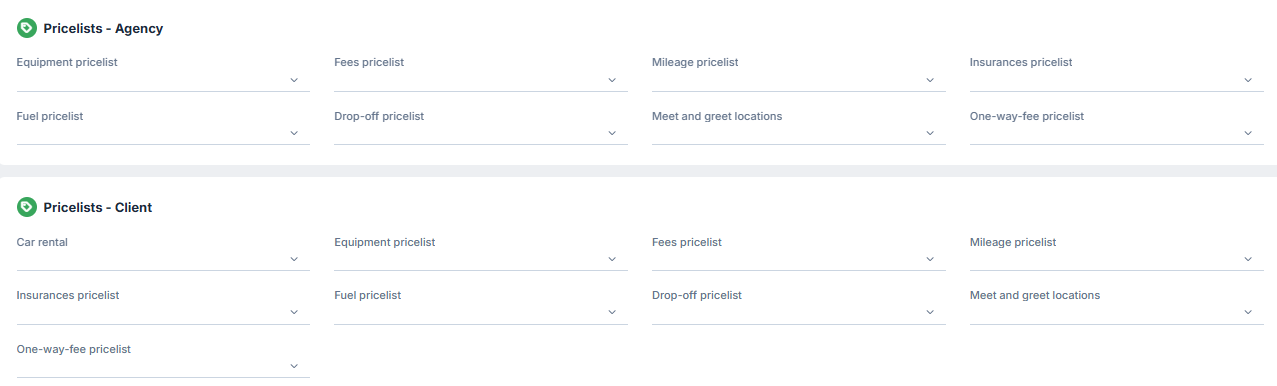
When creating a pricelist it should be marked with the „Agency Pricelist“ mark.
It allows adding two sets of pricelists, one that will apply to the agency part and the other to the client's part of rental charges
In part „Pricelists – Agency“, pricelists with the prices communicated to the agency and the ones the agency will be charged should be connected.
In part „Pricelists – Client“, pricelists with the prices a client will be charged should be connected.
! In part „Pricelists – Client“, the pricelist „Car rental“ should be connected to the pricelist with the rates that a client will be charged for an extension of the rental
Example: A client rents MCMR through Auto Europe for five days in August. At the pickup, he asks to extend his rental for 2 additional days and to return the vehicle to another location, he also needs a WiFi device.
In this case, the first 5-day rental will be charged to Auto Europe per price in the voucher and initial pricelist, and all other costs (additional days, one-way fee, WiFi) will be charged to the client per pricelists connected in the „Pricelists-Client“ part.
Adding broker to Address book
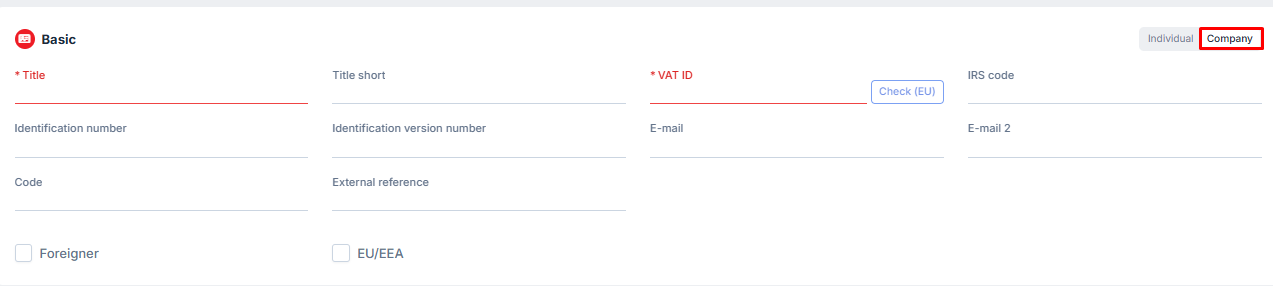
Brokers that work with prepaid bookings should be added to the address book (menu Address book -> New) as a company.
When adding a record to the Address book, the setting "Agency" should be enabled. It will allow adding a set of rules:
- "Agency pays true period of booking“:
If this option is marked, it means that the agency will be charged for the actual number of days the client used the rental in case of an early return.
For example, the client has a voucher for a 6-day rental but decides to return the vehicle 3 days earlier, so the rental period is 3 days. If this field is marked, an invoice will be made for a 3-day rental. If there is no mark on this field, regardless of the actual rental period, the invoice will be made for 6 days.
- „Default agency invoice holder“
It allows adding a different invoice holder for all the rentals named on a particular agency.
- „Agency booking time advance in hours“
The minimum number of hours to be booked from the time of booking to the pick-up time (for example, if it is 12 hours, the agency will not be able to make a last-minute reservation, but only one who has a pick-up for 12 hours). This limit applies to B2B web, B2C web, and web service channels.
- „Fleet availability limit for agency bookings“
Enter the maximum fleet utilization the agency can book, and it applies to each vehicle category individually.
Mandatory fields are also:
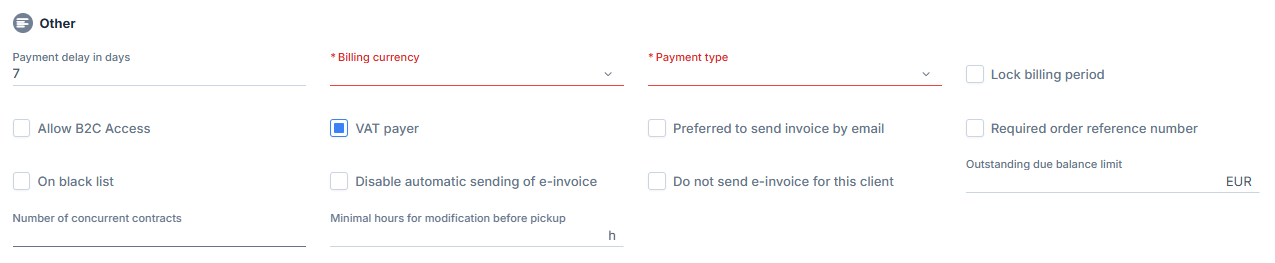
- Billing currency - the set currency is used as the billing currency when invoicing the broker
- Payment type - the set payment type is used as the payment type when invoicing the broker
The next step is to connect the preferred agency pricelist to the broker in the tab„Pricelists“
Selected pricelists should be agency pricelists.
Creating reservation/booking
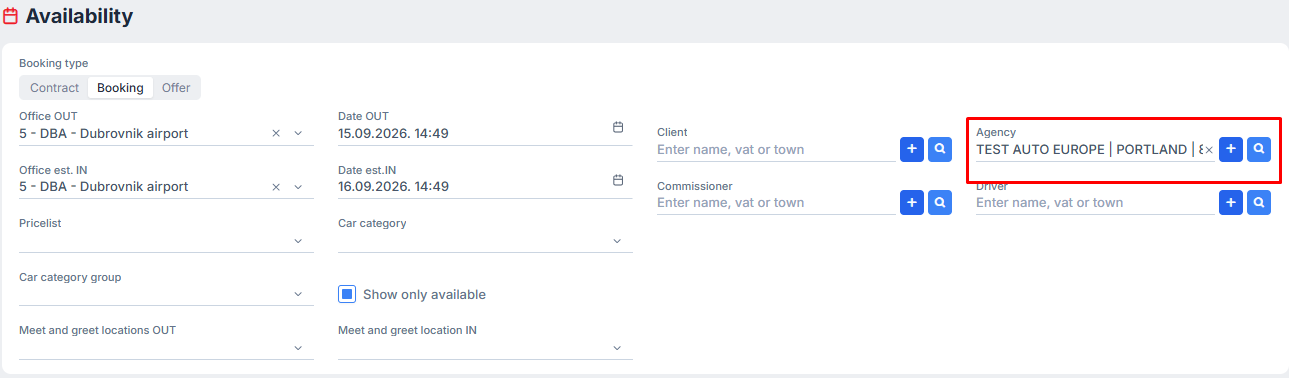
When creating a booking, the following info should be entered in the "Availability“ step of the booking creation:
- Office out/in
- Date out/est.in
- Agency
Pricelist can also be specified, but if not selected, Renteon uses the one assigned in the address book entry of the broker.
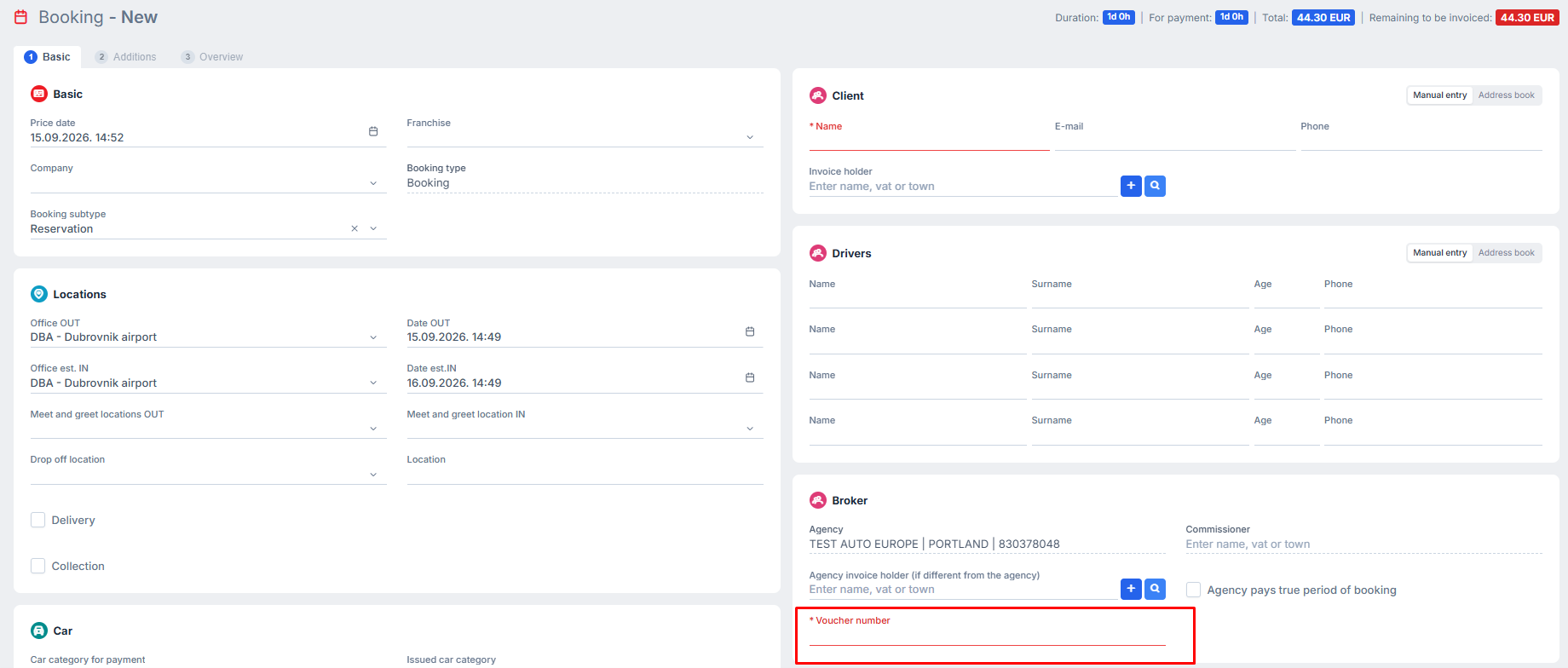
When creating an agency booking manually in Renteon, the booking will have a mandatory field "Voucher". It is used to add the agency's booking confirmation number:
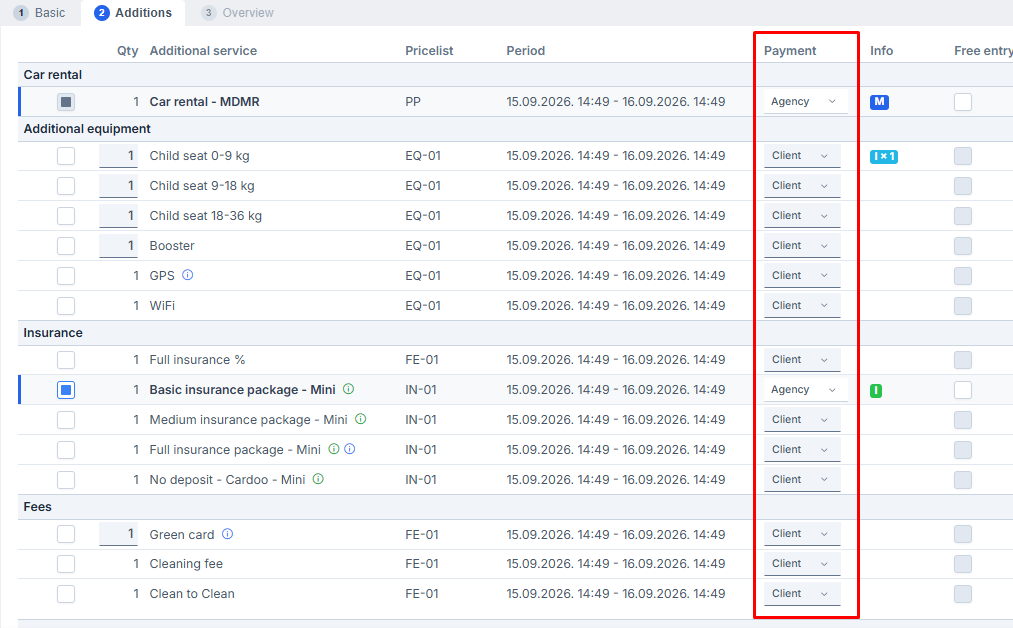
In the „Additions“ tab, Renteon will, by defined rules, set „Payment type“ as Agency for the items the Agency will be charged for.
All other items will have „Payment“ set to client, meaning they will be invoiced to the client directly.
!! For all Agency contracts, it is mandatory to add the reservation first and then convert it to the contract
Invoicing
When closing the contract, Renteon will automatically create an invoice or billing specification for the agency.
Prepaid brokers can be invoiced in two ways: with a group invoice or a collective invoice.
Group Invoice
Details can be found in the Group invoice process.
Collective invoice
A collective invoice is a document (Excel file or PDF file) that collects all the invoices created in a selected period in one place. For example, if there were 10 rentals from one broker in one month, the collective invoice document will contain 10 separate invoices and their details. Collective invoices can be created only if the broker's payment type is selected as bank transfer/transactional account.
Collective invoices are created in the menu Bills -> Collective invoices:
- Add new
- Enter the name of the Agency, choose the currency, issue date, and from/to dates of rentals
- Search
- Choose all/the ones to be sent
- Confirm and export to Excel or download as a PDF
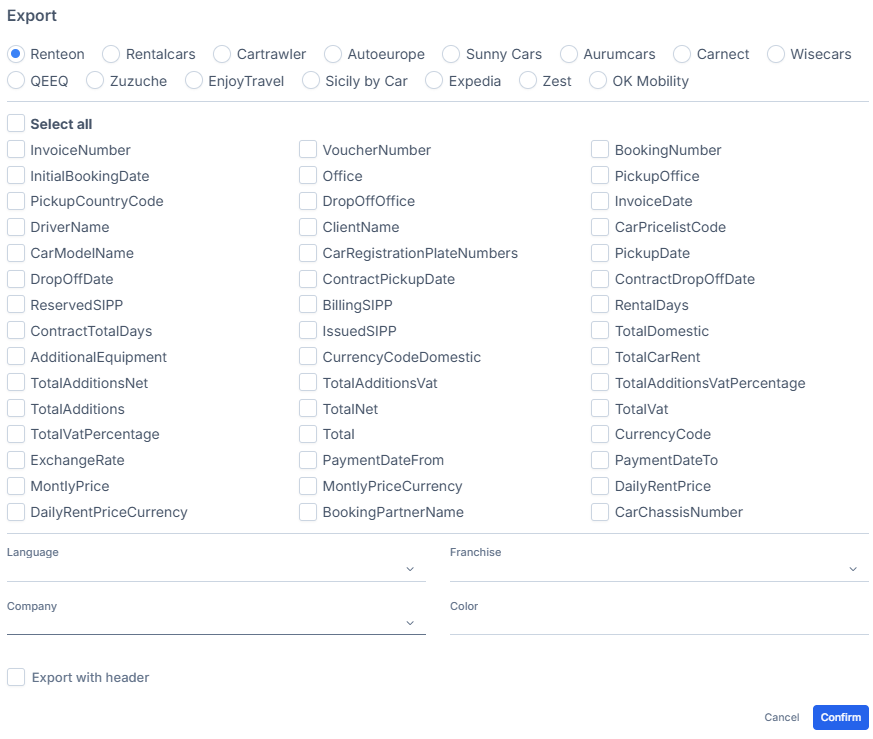
When exporting to Excel, Renteon will offer a few templates based on some agency preferences (Rentalcars, Cartrawler, Autoeurope, Sunny Cars). It is possible to choose any of them or simply define the ones needed for Excel:
In the Code book -> Settings - Finances menu, the option for automatic collective invoice creation can be enabled with the setting Enable automatic collective invoice creation.