Integrations
RightCars integration
Import Right Cars reservations into Renteon automatically: what you need from Right Cars, how to set up and map the integration, and what to check when a reservation does not arrive.
Last updated
The Right Cars integration brings reservations made through Right Cars (TL International Group) into Renteon as bookings, without anyone retyping them. Renteon asks Right Cars for new reservations of your branches about every 48 minutes and creates a reservation for each one.
The integration works in one direction: from Right Cars into Renteon. Renteon does not send prices, availability or booking changes to Right Cars; in the default mode it only confirms each reservation it has taken over. In the newer JSON mode, cancellations made at Right Cars are imported as well.
There are two ways Renteon can talk to Right Cars, and you choose one in the settings:
- The default mode reads a list of reservations waiting for each branch, imports each one and confirms it to Right Cars, which then removes it from the list.
- JSON mode (option Use JSON API) reads all new reservations and cancellations of each branch for the period since the last read. Renteon keeps its own queue, so it also imports cancellations.
What you need from Right Cars
- Your branch codes. Right Cars identifies each of your stations by a branch code. You need the codes of all stations where Right Cars customers pick up or return cars.
- Their car group and extra codes: the car group code Right Cars sends (usually the ACRISS/SIPP code, for example CDMR), and the code of each extra (child seat, additional driver, and so on).
- Access for Renteon's server. Renteon does not use a username or password with Right Cars in either mode. In JSON mode Right Cars allows a specific server to read specific branch codes and refuses everything else. Ask Renteon support for the details Right Cars needs, and ask Right Cars to allow Renteon to read your branches. Without this, Right Cars refuses the requests and nothing is imported.
Prepare the partner and its pricelists
Every Right Cars reservation is booked for one partner from your address book, usually a partner called Right Cars. On that partner's address book card, tab Pricelists, the partner needs two active car pricelists:
- one with Agency pricelist ticked: used for prepaid reservations, with the partner as Agency on the booking;
- one without Agency pricelist: used for pay-on-arrival reservations, with the partner as Commissioner.
Right Cars marks each reservation as "Prepaid" or "POA" (pay on arrival), and Renteon chooses the pricelist and the partner role from that. If the partner has more than one pricelist of a kind, Renteon takes the first one it finds, so link only one of each.
See Pricelists for setting up the two pricelists.
Warning: Without the partner mapping, or without both pricelists, the Right Cars import does not run at all, and no reservation is imported until this is fixed.
Switch the integration on
- Go to Administration → Code book → Settings, tab Integration, and click Edit.
- Tick Enable Integrations Module if it is not on yet. The panels of the integrations appear.
- Tick the checkbox in the header of the Right Cars panel. The panel opens.
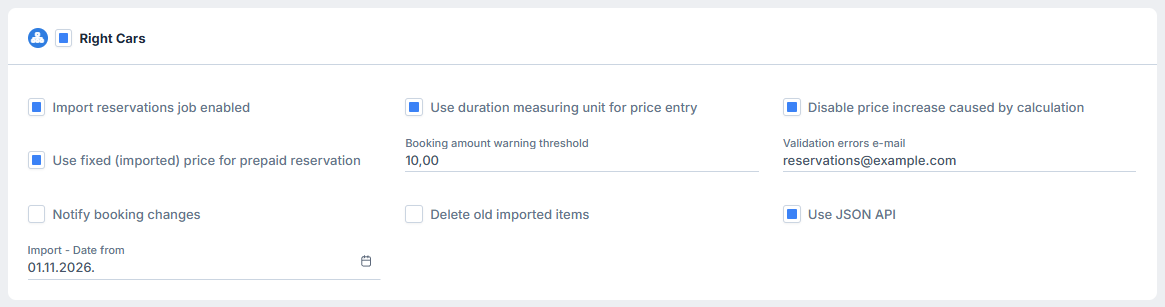
- Fill in the options (each is explained below). Tick Import reservations job enabled, otherwise nothing is imported.
- Click Confirm.
The options in the Right Cars panel:
- Import reservations job enabled: the import runs only while this is ticked.
- Use duration measuring unit for price entry, Disable price increase caused by calculation, Use fixed (imported) price for prepaid reservation and Booking amount warning threshold: how the Right Cars price is entered on the booking. See the section on prices below.
- Validation errors e-mail: the address that receives the import report and, in JSON mode, the reservations Renteon gives up on.
- Notify booking changes: has no effect for Right Cars. Renteon does not send booking changes to Right Cars.
- Delete old imported items and Keep imported items (months): remove old entries of the import log. See Integration menu and mappings.
- Use JSON API: switches to JSON mode.
- Import - Date from: shown and required only with Use JSON API. The first time Renteon reads a branch in JSON mode, it starts from the beginning of this day. After that it always continues from where the previous read ended, so changing the date later has no effect on branches already read. If the date is in the future, Renteon waits until that day.
When you confirm with the integration switched on, Renteon creates the Right Cars integration, and Administration → Integration → Right Cars appears in the menu.
Map partner, car categories, offices and services
Open Administration → Integration → Right Cars and click Edit. Right Cars has four tabs, and on all of them you type the codes yourself. Save each tab with its own Save button.
- Partner: pick the Right Cars partner from the address book and click Save.
- Car categories: enter the Right Cars car group code next to each of your car categories. The double-arrow button copies your SIPP code into the field, which is all you need when Right Cars uses the same codes.
- Offices: enter the Right Cars branch code next to each office (or meet-and-greet location) where Right Cars customers pick up or return. These codes are used twice: to find the pick-up and return office of each reservation, and as the list of branches Renteon asks Right Cars about. A branch without a code here is never read. Codes you enter for drop-off locations are read as branches too.
- Services: enter the Right Cars code of each extra next to your matching service. Map the additional driver extra to your additional driver service, and Renteon adds the additional drivers to the booking.
There is no Pricelists tab: the pricelist always comes from the partner, as described above.
In the default mode, Renteon uses each office's code exactly as you typed it as the branch to read. If you type two codes separated by a semicolon on one office, the branch request for that office does not work; use one code per office in the default mode. In JSON mode, codes separated by a semicolon are read as separate branches.
For more on the mapping tabs, see Integration menu and mappings.
How reservations arrive in the default mode
At every run (about every 48 minutes), Renteon asks Right Cars, branch by branch, for the reservations waiting to be processed. For each reservation:
- Renteon reads the reservation from Right Cars.
- It maps the pick-up and return branch, car group, extras and rate type, and creates the booking.
- If the booking was created, or if the reservation can never be imported (for example, it already exists), Renteon confirms it to Right Cars, and Right Cars removes it from the waiting list.
- If something went wrong that can be fixed (for example, a missing mapping), Renteon does not confirm it. Right Cars keeps it on the list and Renteon tries again at the next run.
Only new reservations are imported in this mode. A change or a cancellation made at Right Cars after the booking was created does not reach Renteon. If Right Cars lists a reservation that is already imported, Renteon reports it as already imported and confirms it.
Warning: A reservation Renteon confirms because it can never be imported disappears from the Right Cars list. Check the fatal errors in the validation errors e-mail and enter such reservations by hand if you still want them.
How reservations arrive in JSON mode
At every run, Renteon reads, branch by branch, the reservations and cancellations Right Cars reports for the period since the previous read of that branch (in steps of at most 24 hours, starting five minutes before the previous read ended so that nothing at the boundary is missed). It puts what is new into its own queue and then imports the queue:
- A new reservation is created as a booking. A reservation that is already a booking, or already waiting in the queue, is not added again. A reservation that is reported and cancelled within the same read is not added at all.
- A cancellation of a booking that is still a reservation cancels it in Renteon.
- A cancellation of a reservation that is still waiting in the queue removes it from the queue, so it is never imported.
- A cancellation of a booking that is already a contract (or an offer) is ignored, and the booking stays as it is.
- A change to a reservation at Right Cars is not imported. Update the booking by hand.
If a branch cannot be read (for example, because Right Cars refuses it), Renteon tries the same period again at the next run, so nothing is lost.
Renteon tries each queued reservation or cancellation up to three times. After the third failed attempt it stops and sends an e-mail to the Validation errors e-mail address, saying that the reservation (or cancellation) must be handled manually, with the reservation as received from Right Cars attached. For a reservation, the e-mail asks you to enter it with the Right Cars reservation number as the voucher number. Attempts that failed because of a temporary database problem do not count. A reservation with a fatal error (for example "already imported") is given up on at once, without this e-mail; it is listed under the fatal errors of the import report.
How the imported booking looks
- A reservation, created in the background by the system.
- Voucher number: the Right Cars reservation number. Renteon uses it, together with the partner, to recognise the booking again.
- Agency (prepaid) or Commissioner (pay on arrival): the Right Cars partner, with the matching pricelist.
- Pick-up and return office and dates, car category (billing and issued), client name, phone and flight number. In the default mode also the client's e-mail and address. In JSON mode Right Cars sends the dates in UTC; in the default mode a date without a time zone is read as your local time.
- When the additional driver extra is mapped, the additional drivers are added with placeholder names, to be completed at the counter. In JSON mode the client is also added as the main driver.
- The extras that are mapped and available on the booking, with the quantity Right Cars sent. An extra that is mapped but not available on the booking is listed in Integration remark as "Booking missing service …" and reported as a warning.
- The rental price from Right Cars, see the next section.
In JSON mode, Right Cars sends the amount with a currency. If the currency is not your domestic currency, the reservation is not imported and the error "Amount … is in …, which is not the domestic currency" is reported.
Prices
Renteon treats the price Right Cars sends as the price of the rental including VAT. It converts it to a net amount with the VAT rate of the rental service valid on the day of the import and enters it as a manual price of the rental service. Mapped extras get the prices of your pricelist and are added on top.
By default, the price is entered as one fixed amount for the whole rental. Use duration measuring unit for price entry, Disable price increase caused by calculation and Use fixed (imported) price for prepaid reservation change this, as described in Integration menu and mappings.
After the calculation, Renteon compares the calculated rental price with the Right Cars price. If they differ, a note such as "Calculated price is lower than the price from imported booking (180.00 EUR)" is added to Integration remark. If the difference is larger than Booking amount warning threshold, it is also reported as a warning in the e-mail.
Errors and common problems
Every run that had something to report sends an e-mail with the subject "RIGHTCARS reservations import log" to the Validation errors e-mail address. You can also look at the import log in Car control → Reports → Audit, report Integration bookings log (filter Integration = Right Cars; Integration - Number is the Right Cars reservation number), and at Actions → Open booking source data on an imported booking.
The most frequent problems:
- Nothing is imported at all. Check that Enable Integrations Module, the Right Cars panel and Import reservations job enabled are ticked, that a partner is mapped and has both pricelists, that your offices have branch codes, and that Right Cars has allowed Renteon to read those branches. In JSON mode, also check Import - Date from: a branch that was never read and has no date is skipped.
- "Missing mapping for office code …" or "Missing mapping for car category code …": map the code on the Right Cars page. In the default mode the reservation comes back at the next run; in JSON mode it is retried until it has used up its three attempts.
- "Missing mapping for service code …": in JSON mode an unmapped extra stops the reservation. In the default mode the reservation is imported without that extra, and the extra is not reported, so compare the booking with the reservation when an extra seems to be missing.
- "Missing car rent service Id for …": the mapped car category has no rental service. Check the car category's set-up.
- "Unknown rate type …" (JSON mode): Right Cars sent a rate type other than Prepaid or POA.
- "Booking with id = … is already imported.": Right Cars sent a reservation that already exists in Renteon. Nothing to do.
- "Could not resolve Client name.": the reservation has no client name. It is a fatal error: in the default mode the reservation is confirmed to Right Cars and disappears from its list, so enter it by hand.
- Reservations arrive late after a set-up problem: while the partner or one of its pricelists is missing, the whole Right Cars import stops, see the warning above. Once it is fixed, the next run catches up: in JSON mode Renteon reads each branch from where it stopped, and in the default mode the reservations Renteon has not confirmed are still on the Right Cars list.