Integrations
ID and document scanning
Fill a client's name, date of birth, address and documents from a scanned ID card, passport or driving licence, with a 365id scanner or Adria Scan.
Last updated
Typing a customer's details from an ID card or passport takes time and invites typos. With a document scanner connected to Renteon, you scan the document at the desk and Renteon fills the client form for you: name, surname, gender, date and town of birth, address, whether the client is a foreigner, and the document itself, with its number, dates and pictures.
Renteon works with two scanner solutions:
- 365id: document scanners from the company 365id. The scanner sends each scan to 365id, 365id checks the document, and Renteon receives the result. All scans of the last 10 days are available in Renteon to every user signed in to an office the scanner is linked to, on any computer.
- Adria Scan: a scanner connected to the computer you work on, with its own program installed on that computer. The scan goes straight from that program into the client form that is open on the same computer.
Both fill the same client form: Sales → Address book → Search (open a client) or Sales → Address book → New. The form is the same when you add or edit a client or driver from a booking, so the scan buttons are there as well.
Before you start
You need:
- a contract with 365id or with the supplier of Adria Scan, and the scanner devices;
- the role Application settings management to switch the module on in the settings;
- the role Address book management to register 365id scanners and to scan into the client form.
Scanning only fills the form. Nothing is saved until you check the data and click Confirm on the client form, as with any other change to a client.
Set up 365id
Open Administration → Code book → Settings, click Edit and go to the tab Modules. Tick the header of the panel 365id - Settings; the fields open below it. All three are required and come from your 365id account:
- Username and Password: the login Renteon uses to fetch the scan results from 365id.
- Secret key: the key 365id uses to sign the notification it sends when a scan is ready. Renteon checks the signature and ignores notifications whose signature does not match, so a wrong key means no scan ever arrives.
The read-only field Endpoint URL shows the address to which 365id must send its notifications for your company. Give it to whoever configures your 365id account. The address is built from the address of Renteon in your browser, so open the settings from the address your company normally uses.
Click Confirm to save. From now on the client form has a 365id Scan button while you edit it. Colleagues who already have Renteon open see the button after they reload the page.
Ask Renteon support to help you connect your 365id account to Renteon, because the scan results travel encrypted and both sides must be set up for that.
Warning: Change Username, Password or Secret key only together with the 365id account. If they no longer match, scans stop arriving in Renteon and nothing on the scanner tells you so.
Register your 365id scanners
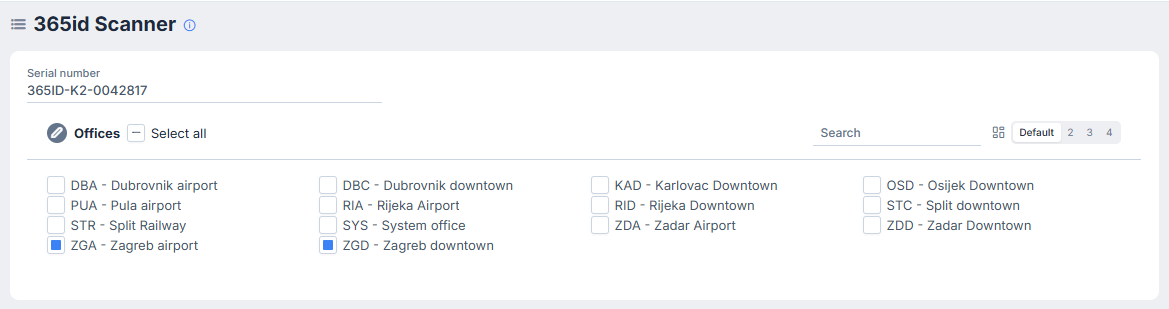
Renteon recognises a scanner by its serial number, and it shows each scan only in the offices you link the scanner to. Open Administration → Code book → 365id Scanner. The list shows ID, Serial number and Offices of every registered scanner, and you can filter it by ID, Serial number, Office and Active.
To register a scanner:
- Click Add.
- Enter the device's Serial number exactly as 365id knows it.
- Under Offices, tick every office where the scanner's scans should be visible. At least one office is required; Confirm stays disabled until you tick one.
- Click Confirm.
A scanner used at one desk usually belongs to one office. Link it to more offices when, for example, a scanner at an airport station is shared by two offices that work at the same counter.
To stop using a scanner, click Delete in the list. The scanner stays in the list as inactive and its scans no longer appear in the client form; Activate brings it back.
Warning: A scan from a serial number that is not registered is rejected and never appears in Renteon. Register a new or replacement scanner before you start using it.
Fill a client from a 365id scan
- Scan the document on the 365id scanner. Scan every side that carries data, for example the front and the back of an ID card.
- In Renteon, open the client and click Edit, or create a new client with Sales → Address book → New.
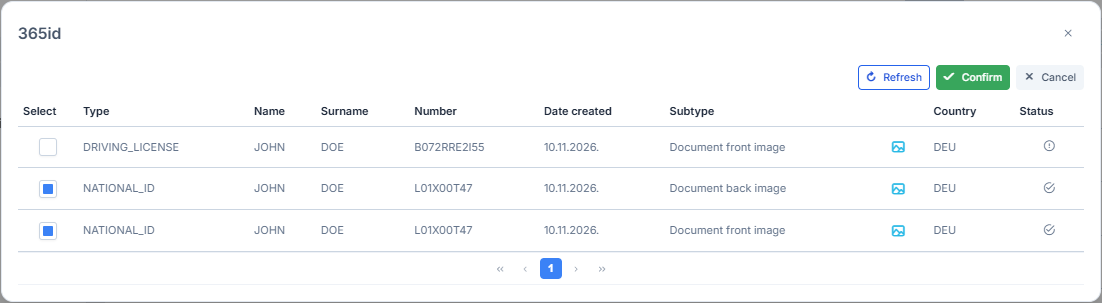
- Click 365id Scan. A window titled 365id lists the scans of the scanners linked to the office you are signed in to, newest first, 20 per page. For each scan it shows Type, Name, Surname, Number, Date created, Subtype (which side of the document), Country and Status. The picture button (Preview) shows the scanned image.
- If your scan is not there yet, wait a few seconds and click Refresh. Renteon fetches each scan from 365id shortly after it is made.
- In the Select column, tick the scans that belong to this customer. You can tick several, for example both sides of the ID card and the driving licence.
- If a scan's Type is UNKNOWN, 365id could not tell what the document is. Its row has two extra lists, which you can use once you have ticked the scan: choose the document type (for example NATIONAL_ID, PASSPORT or DRIVING_LICENSE) and the side (Document front image or Document back image). Renteon does not continue until every ticked scan has a type and a side; otherwise it shows "One or more documents do not have a selected document type or document side".
- Click Confirm. The window closes and the form is filled.
- Check the filled fields, correct anything that is wrong, and click Confirm on the client form to save.
The Status icon shows how 365id rated the document: a tick when its check passed, an exclamation mark when it passed with remarks, and a cross for every other result. Point at the icon to read 365id's explanation. Renteon fills the form whatever the status is, so look at it before you rely on the document.
When you scan into a new client, Renteon checks whether a client with the same name or VAT ID already exists. If it finds one, it shows "Possible duplicate entry"; open the existing client instead of creating a second one (see Address book duplicates and merge).
Warning: The 365id window lists every scan of the last 10 days from your office's scanners, also those of other customers. Tick only the scans of the customer in front of you, and compare the name and the picture before you click Confirm.
What a 365id scan fills in
Every value that the scan delivers replaces what the form had. Fields that the scan leaves empty keep their value.
On the client:
- The client type becomes Individual, even if the record was a company.
- Name and Surname.
- Gender, when the document states it.
- Date of birth and Town of birth.
- VAT ID (in some companies this field carries the national name of the tax number): the tax number from the document, or, if the document has none, its personal identification number.
- Identification number: the personal identification number from the document.
- Foreigner: ticked when the nationality on the document is not your own country, unticked when it is.
- An address, when the document carries one: Street, Town, Postal code and Country. Renteon puts it into the first empty address of the record. If the record already has the same address, nothing is added; if all addresses are filled and different, the scanned one is added as another address.
In Documents, one entry per document type: a national ID card becomes ID Card, an ordinary passport Passport, an ordinary driving licence Driver license, and every other type (residence permit, travel document, diplomatic or emergency passport, provisional driving licence and so on) Other. If the client already has a document of that type, Renteon updates that entry instead of adding a second one. That is how the front and the back of the same ID card end up in one entry. It also means that a new passport overwrites the number and dates of the old passport on the record; the old values are not kept. Renteon fills:
- Number: the document number. For a Spanish ID card it is the DNI number.
- Issued in: the issuing authority.
- Issue date and Valid until.
- Document front image or Document back image, from the scan's picture, depending on the side.
Set up Adria Scan
Adria Scan works through a program installed on each computer that has the scanner attached. Renteon's part is a single setting:
- Open Administration → Code book → Settings, click Edit and go to the tab Modules.
- In the panel Modules, tick Use 'Adria Scan' identification documents scanner module.
- Click Confirm.
From now on the client form has a Scan button while you edit it. Colleagues who already have Renteon open see the button after they reload the page.
On every computer that should scan, the scanner and its program must be installed and running; ask your scanner supplier for them. The browser must also allow Renteon to open pop-up windows, because the scan runs in a browser tab or window of its own.
Fill a client with Adria Scan
- Open the client and click Edit, or create a new client with Sales → Address book → New.
- Click Scan. A new browser tab or window titled "Scanning..." opens and shows "Started listening for scanner input."
- Put the document into the scanner. The window reports that the scanner data were acquired and sent to the application, then closes itself after two seconds.
- The client form shows "Scanner data are successfully imported." and the fields are filled.
- Check the data and click Confirm on the client form to save.
The window waits about one minute for the document. If nothing happens in that time, close it and click Scan again.
Adria Scan fills the client type (Individual), Name, Surname, Gender, Date of birth, Town of birth, the address (Street, Town, Postal code, Country, placed into the record's addresses in the same way as with 365id), VAT ID (the tax number the scanner reads) and Foreigner (from the nationality). Fields that the scanner leaves empty keep their value.
It also adds a new entry to Documents: ID Card, Passport or Driver license depending on the document, otherwise Other, with the Number, Issue date, Valid until and the front and back pictures. Issued in is taken from the field the scanner reports as restrictions, so check it and correct it if needed.
Unlike 365id, Renteon does not check after an Adria Scan whether the client is already in the address book. When a customer comes back, search for them first and scan into their existing record instead of a new one.
Warning: Unlike 365id, Adria Scan adds a new document entry with every scan, even when the client already has a document of that type. If you scan the same document twice, delete the extra entry before you save.
What Renteon keeps
With 365id, the scan result arrives encrypted from 365id. Renteon decrypts it and keeps the document details and the scanned picture for 10 days, so that you can pick the scan in the client form. Every night Renteon deletes the scans older than 10 days. During those 10 days, anyone who may edit clients and is signed in to an office linked to the scanner can see the scans in the 365id window.
With Adria Scan, the data go from the scanner program on your computer directly into the open client form. Renteon stores nothing until you save the client.
What you save on the client — the personal data, the documents and their pictures — stays in the client record and follows your company's data retention and consent rules. See GDPR and personal data protection.
Troubleshooting
The 365id Scan or Scan button is missing:
- The client form is not in edit mode. Click Edit first.
- The module is not switched on in Settings, tab Modules.
A 365id scan does not appear in the 365id window:
- Wait a few seconds and click Refresh.
- Check that you are signed in to an office that is ticked on the scanner in Administration → Code book → 365id Scanner.
- Check that the scanner's Serial number is registered exactly and the scanner is active.
- The scan is older than 10 days and has been deleted. Scan the document again.
- Renteon asks 365id for each scan only a few times, in the seconds right after the scan. If a scan has not appeared after a minute, it will not appear later. Scan the document again.
- If no scan arrives at all, check Username, Password and Secret key in the settings, and that 365id sends its notifications to the Endpoint URL. Contact Renteon support if everything looks right.
The Adria Scan window stays at "Started listening for scanner input.":
- The scanner program is not running on this computer, or the scanner is not connected. Start the program, check the cable, close the window and click Scan again.
The Adria Scan window shows "Scanner module is not installed or properly configured.":
- The scanner program on this computer is not installed or not set up correctly. Ask your IT department or the scanner supplier.
The Adria Scan window says the data were sent, but the client form stays empty:
- The client form was no longer in edit mode, for example because you clicked Cancel while the window was open. Click Edit and scan again.
The Adria Scan window does not open:
- The browser blocked the pop-up window. Allow pop-ups for Renteon and click Scan again.