Integrations
SMS and communication integrations
Send automatic text messages to your customers through Cequens or SerwerSMS, write the SMS templates, and pass closed contracts to a Webpower survey campaign.
Last updated
Renteon can send short text messages (SMS) to your customers at fixed moments of a rental: when a reservation is confirmed, when the car is handed over, before the car is due back, when a contract is overdue and after the rental, for example with a link to a survey. Renteon does not send the SMS itself. It passes each message to an SMS provider, and the provider delivers it to the customer's phone. Two providers are connected: Cequens and SerwerSMS. You need an account with one of them.
Setting up SMS takes three steps: connect the provider, write one SMS template for each message you want to send, and switch each message on. This guide explains every option, who gets the SMS and in which language, and why an SMS sometimes is not sent.
The same guide also covers Webpower, which passes customers of closed contracts to an e-mail survey campaign. E-mails that Renteon sends itself (booking confirmations, reminders, the survey e-mail) are explained in Automatic email sending.
Which messages Renteon can send
There are five SMS messages. Each one has its own switch in the settings and its own template type. Each one is sent at most once per booking, so changing a booking later does not send it again.
- Booking confirmed (template type BookingConfirmed, switch Send SMS after the booking has been confirmed). Sent shortly after a reservation is saved. Only reservations get it, not offers and not contracts. A reservation that is on request gets it once it is confirmed and saved as no longer on request. Cancelled reservations do not get it. This also applies to reservations that arrive online or from partners, because the check runs whenever a reservation is saved.
- Car issued (template type ContractIssuedCar, switch Send SMS After issuing the car). Renteon checks about every 7 minutes for contracts on which the car has been handed over and whose pick-up date is within the last two days. A contract that you enter later than two days after the pick-up does not get this SMS.
- Return reminder (template type ContractReturnReminder, switch Send SMS reminder for vehicle return). Renteon checks about every 50 minutes for open contracts whose planned return is within the next two days. Only rentals longer than two days get the reminder. For example, a customer with a 7-day rental due back on Friday at 10:00 gets the reminder from Wednesday 10:00 onwards, at the next check. A 2-day rental gets no reminder.
- Contract overdue (template type ContractOverdue, switch Send SMS that contract is overdue). Renteon checks about once an hour for open contracts whose planned return was more than two days ago and whose car has not come back.
- Survey (template type ContractSurvey, switch Send SMS about survey after closing the contract). Renteon checks about every 17 minutes for closed contracts whose car came back between one and two days ago. A client with Do not send survey e-mail ticked on the client record does not get it. The survey SMS does not check the client's Contract survey consent, even when the survey e-mail is set to require it. If you close a contract more than two days after the car came back, its survey SMS is never sent. There is no placeholder for the survey address: write the link to your survey into the template text yourself.
Warning: When you switch on Send SMS that contract is overdue, every open contract that is more than two days overdue gets the SMS at the next check, however old it is. Close or correct old contracts that are still open by mistake before you switch it on.
Connect an SMS provider
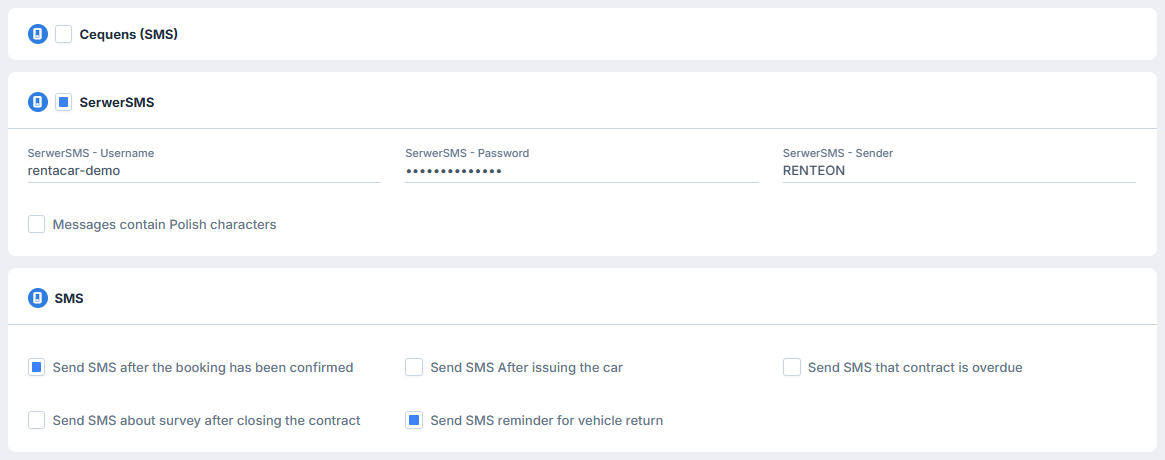
Open Administration → Code book → Settings, click Edit and go to the tab Notifications. You need the role Application settings management. You will find one panel per provider. Tick the checkbox in the panel header to switch the provider on; the fields open below it.
The Cequens (SMS) panel has three fields, all from your Cequens account:
- Cequens - Base Url: the address of the Cequens service your account uses.
- Cequens - API Key: the API key Cequens gave you.
- Cequens - Username: the user name of your Cequens account.
The SerwerSMS panel has four fields:
- SerwerSMS - Username and SerwerSMS - Password: the login of your SerwerSMS account. Without them no SMS is sent.
- SerwerSMS - Sender: the sender name shown on the customer's phone. With SerwerSMS this field always decides the sender; the Sender of the SMS templates is not used.
- Messages contain Polish characters: tick it if your SMS texts contain Polish letters such as ą, ł or ż. Renteon then asks SerwerSMS to send the messages as Unicode text.
Click Confirm to save the settings.
Switch on only one provider. If both are ticked, Renteon sends every SMS through Cequens and ignores SerwerSMS.
Warning: If your company also works in a Renteon test environment with a copy of your data, that copy sends SMS too as long as the provider is switched on there. Switch the provider off in the test environment, or your customers may get messages about test bookings.
Switch the messages on
In the same tab, Notifications, the panel SMS has one checkbox per message:
- Send SMS after the booking has been confirmed
- Send SMS After issuing the car
- Send SMS that contract is overdue
- Send SMS about survey after closing the contract
- Send SMS reminder for vehicle return
Tick the messages you want to send and click Confirm. A ticked message is sent only if an SMS provider is switched on and an active SMS template of that type exists (see the next section). The checkboxes do nothing on their own.
If you switch Send SMS after the booking has been confirmed on later, reservations made before that get their SMS the next time they are saved, for example when you change the return date. The other four messages are picked up at the next check, as long as the booking still fits the time window described above.
To stop a message you no longer want, untick it and also delete its template in SMS templates. Without an active template the message is never sent.
When your templates are ready, test the setup: with Send SMS after the booking has been confirmed ticked and a BookingConfirmed template in place, save a reservation for a client whose record has your own mobile number. The SMS should arrive within about a minute.
Create SMS templates
The text of every SMS comes from an SMS template. Open Administration → Code book → SMS templates. The menu entry appears only when an SMS provider is switched on, and you need the role SMS templates edit. Colleagues who already have Renteon open see the entry after they reload the page.
The list shows ID, Title and Type of every template. You can filter it by ID, Title and Active. To create a template, click Add. To change one, open it and click Edit.
The template has these fields:
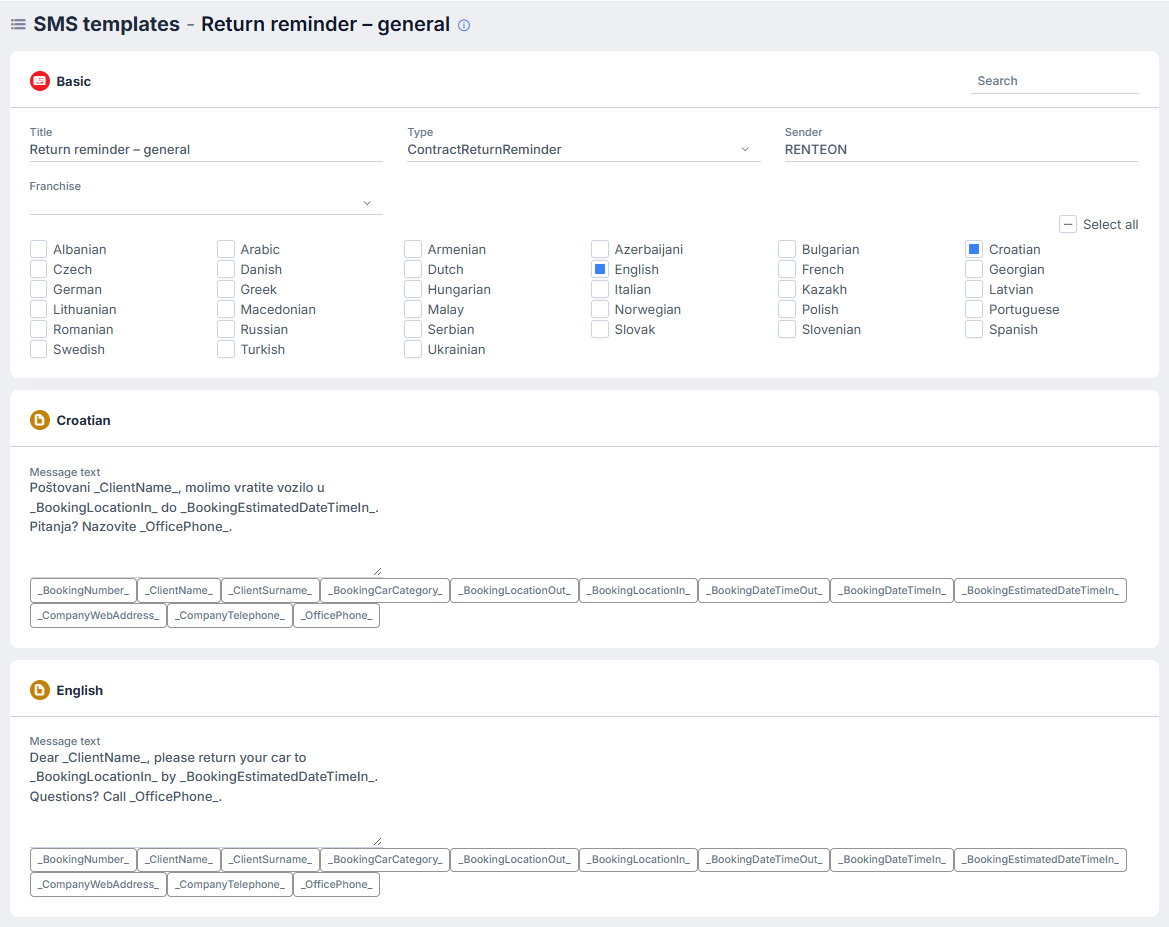
- Title (required): a name for your own use, for example "Return reminder – general". Customers do not see it.
- Type (required): which of the five messages this template is for: BookingConfirmed, ContractIssuedCar, ContractOverdue, ContractReturnReminder or ContractSurvey.
- Sender: the sender name shown on the customer's phone (Cequens only). If you leave it empty, Renteon uses the Brand from Settings, tab Basic, panel Company, and if that is empty too, your company name. Check with your SMS provider which sender names your account may use.
- Franchise: leave it empty for a template that applies to all bookings. Choose a franchise if bookings of that franchise should get a different text, for example with the franchise's own name.
- The language checkboxes below these fields: tick every language you want to write the message in. For each ticked language a box Message text appears under the language name. Every ticked language needs a text, otherwise Confirm stays disabled. Unticking a language deletes its text.
Write the message in each language and click Confirm to save.
For each message Renteon uses an active template of that type. For a booking of a franchise that has its own active template of that type, the franchise template is used. Keep only one active template per type without a franchise, and at most one per type and franchise. If there are more, Renteon uses one of them and ignores the others. If you use franchise templates, always also keep a template of the same type without a franchise.
In the list, Delete takes a template out of use: it stays in the list as inactive and is no longer sent. Activate brings it back.
Warning: Every language that a customer may need must have a text. Renteon does not translate the message and does not fall back to another language beyond English (see "Who gets the SMS, and in which language"). If the language Renteon picks has no text, the SMS is not sent.
Placeholders you can use
While you edit a template, a row of buttons below each Message text box shows the placeholders, as soon as you have chosen the Type. Clicking a button copies the placeholder; paste it into the text where you want the value. When the SMS is sent, Renteon replaces each placeholder with the booking's data. All placeholders work in all five template types:
- _BookingNumber_: the booking number.
- _ClientName_ and _ClientSurname_: the first name and surname of the person who gets the SMS (see the next section).
- _BookingCarCategory_: the SIPP code of the car category the booking is billed for, for example CDMR.
- _BookingLocationOut_: the pick-up office, or the meet-and-greet pick-up location if the booking has one, by its name in the message language (English or the office code if that name is missing).
- _BookingLocationIn_: the return office or the meet-and-greet return location, in the same way.
- _BookingDateTimeOut_: the pick-up date and time.
- _BookingDateTimeIn_: the return date and time: the actual return once the car is back, otherwise the planned return.
- _BookingEstimatedDateTimeIn_: the planned return date and time.
- _CompanyWebAddress_ and _CompanyTelephone_: the web address and phone number of the booking's franchise. When the booking has no franchise, or the franchise has no web address or phone, those of your company are used (Settings, tab Basic, panel Company, fields Web and Phone).
- _OfficePhone_: the phone number of the pick-up office.
Dates and times are written in your company's time zone and in the date and time format of your settings.
For example, the text "Dear _ClientName_, please return your car to _BookingLocationIn_ by _BookingEstimatedDateTimeIn_. Questions? Call _OfficePhone_." reaches the customer as "Dear Ana, please return your car to Split Airport by 14.06.2026 10:00. Questions? Call +385 21 000 000."
Keep messages short. Providers usually split long texts into several SMS, and each part may be charged.
Who gets the SMS, and in which language
The SMS goes to the booking's client. If the client is a company and the booking has drivers, it goes to the first driver instead.
The phone number is the most recently added phone of type Mobile in the Phones section of that person's record. If the person's Primary address has a country, Renteon turns the number into the international format of that country, for example 091 234 5678 for a Croatian address becomes +385912345678. If the record has no mobile number, Renteon uses the phone number stored on the booking itself, for example one entered with an online booking. Store mobile numbers with the country code (+44, +49, ...) whenever you can: a local number without a country code cannot be converted when the person has no Primary address, and the provider may not deliver it.
The language is chosen from the country of the person's Primary address (or of the first address, if none is marked Primary):
- Your own country (the domestic country of your settings): the Language from Settings, tab Basic. If the template has no text in that language but has an English text, the English text is used.
- Another country: Renteon knows the language of a fixed list of countries, for example German for Germany, Austria and Switzerland, Croatian for Croatia, Bosnia and Herzegovina and Montenegro, Spanish for Spain and some Latin American countries, Arabic for Saudi Arabia, the United Arab Emirates, Egypt and other Arab countries. If the country is on that list and the template has a text in its language, that text is used. In every other case the English text is used. Dutch, Swedish, Azerbaijani and Armenian texts are never used for foreign customers, and Danish only for customers from the Faroe Islands.
- No address: the person is treated as domestic, unless Foreigner is ticked on the record, in which case the SMS is in English.
For example, a company in Croatia has a template with an English and a Croatian text. A client from Zagreb gets the Croatian text. A client from Germany gets the English text, because the template has no German text. If you add a German text, clients from Germany, Austria and Switzerland get it from then on.
Warning: Always write an English text. It is the fallback for every customer whose language has no text, and without it these customers get no SMS at all.
When an SMS is not sent
Renteon does not show on the booking whether an SMS was sent. If a customer says they did not get one, check these points:
- No SMS provider is switched on, or the message's checkbox in the SMS panel is not ticked.
- There is no active template of that type.
- The template has no text in the language Renteon picked for that customer.
- Neither the person's record nor the booking has a phone number. Only phones of type Mobile on the record are used.
- The booking does not fit the message's time window, for example the contract was closed more than two days after the return, or the rental is not longer than two days for the return reminder.
- For the survey SMS, the client has Do not send survey e-mail ticked.
When a template, a text or a phone number is missing, Renteon treats the SMS for that booking as done and does not try again, even after you add what was missing. Set up the templates and texts before you switch a message on.
When the provider cannot be reached or refuses the message, Renteon tries again: car issued, return reminder, overdue and survey messages at the next check, as long as the booking still fits the time window; the booking confirmation the next time the reservation is saved. If messages keep failing, check the provider fields in the settings, then contact Renteon support.
Webpower survey contacts
Webpower is a separate integration for a satisfaction survey that is sent by e-mail from your own Webpower account, not by Renteon. When a contract is saved as closed, Renteon adds its customer as a contact to a campaign in Webpower. Webpower then sends whatever that campaign is set up to send.
To set it up, open Administration → Code book → Settings, click Edit, go to the tab Modules and tick the header of the panel Webpower - adria. All four fields are required and come from your Webpower account:
- URL: the address of your Webpower account's interface for other systems.
- ClientId and ClientSecret: the login Webpower gave you for that interface.
- CampaignId: the number of the campaign the contacts go to.
Click Confirm to save.
For each closed contract Renteon sends Webpower the e-mail address, a language code, the contract number, the date of birth, the country (nationality, or the country of the primary address), the pick-up and return office codes, the first name and surname, and the pick-up and return date and time. The language code is "en" for a person marked Foreigner and the two-letter code of your own country for everyone else, for example "hr".
The contact is sent once per contract, and only when:
- the person (the client, or the first driver if the client is a company) has an e-mail address;
- Do not send survey e-mail is not ticked on that person's record;
- if Requires consent is ticked in the tab Notifications, panel Send e-mail with link to survey for closed contracts, the person has a valid Contract survey consent (see GDPR and personal data protection).
If Webpower cannot be reached, the contract is sent again the next time it is saved.
Warning: The Webpower survey and Renteon's own survey e-mail (Send e-mail with link to survey for closed contracts) are independent. If both are on, the customer gets two surveys.
Messages between colleagues
The speech-bubble button Message(s) in the header opens a chat with the other Renteon users of your company. It shows who is online and how many messages you have not read. These messages stay inside Renteon; they are never sent to customers by SMS or e-mail.