
Mappings
Mapping locations and car categories
How each connector's offices, meet and greet points, drop-off locations and car categories are linked to the shared location and SIPP codes, so brokers search the whole brand with one set of codes.
Last updated
Every Renteon instance numbers its offices and car categories in its own way. Take a brand with one Renteon instance in Croatia and one in Greece. The Zagreb downtown office is office number 3 in the Croatian instance, and the Athens airport office is office number 43 in the Greek one. Those numbers mean nothing outside their own instance, and a broker could never keep track of them for every franchisee.
The Aggregator therefore has one shared list of codes that every brand and every broker uses: location codes such as HR-ZAG-DT (Zagreb downtown) or GR-ATH-ATH (Athens airport), and SIPP codes such as CDMR for car categories. A mapping links one office or car category of a Renteon instance to one of these codes. You map each connector (one Renteon instance of your brand) separately. Once every instance is mapped, a broker searches with the same codes everywhere and gets one answer under one brand name, whichever franchisee owns the car. This is what makes several Renteon instances look like one brand. The Aggregator calls your brand a provider, which is why its screens are in the Provider section of the menu.
What is not mapped does not exist for brokers. An office without a location mapping is never searched, and a car category without a SIPP mapping is left out of every answer. Neither the broker nor you gets an error, so the cars are simply missing.
You map under Provider → Mappings → Locations and Provider → Mappings → Car categories. This guide explains both screens, what brokers see, and what keeps the mappings correct over time. Services, partners and rate codes have their own guides, linked at the end. For what a connector is, see Connectors.
The shared codes
The codes you map to are the same for every brand in the Aggregator. That is why a broker that already works with one brand understands the codes of the next one.
Locations have two levels:
- At the top are cities and islands, for example Zagreb (HR-ZAG), Athens (GR-ATH) or the island of Fuerteventura (ES-FUE). They group the places below them.
- Under each city or island are the places where cars are picked up and returned. Each place has a type: Airport, Downtown, Port, Train station, Bus station or Other. You always map to one of these places, never to a city or an island.
The codes follow one pattern. A city is the two-letter country code and three letters for the city: HR-ZAG. A place adds a suffix to its city code:
- Airport: the airport's IATA code, for example HR-ZAG-ZAG (Zagreb airport) or HR-SPL-SPU (Split airport).
- Downtown: -DT, for example HR-ZAG-DT.
- Train station: -RS, for example HR-ZAG-RS.
- Bus station: -BS, for example HR-SPL-BS.
- Port: -PT, for example GR-RHO-PT (Rhodes port).
Every location has a name in every language, so a broker can show "Zagreb airport" to its customers in German or Polish.
Car categories are the standard SIPP codes of the car rental industry (also called ACRISS codes), about 900 of them. Each code has four letters, for example CDMR: a compact car with 4 to 5 doors, manual transmission and air conditioning.
Both lists are kept by Renteon support. A brand cannot add a code itself. If a place your franchisee serves is missing, for example a new airport or a small town, ask Renteon support to add it. Give them the country, the city, the type of place and, for an airport, its IATA code. Renteon support adds the code with names in every language.
How the mapping screens work
Both mapping screens have three columns, from left to right:
- Connectors: your active connectors, sorted by name, with a filter box at the top. Which connectors you see depends on your user, see Users, roles and brand settings. Click a connector to load its list. Click the selected connector once more to load the list again, for example after a change in Renteon.
- Car categories or Locations: the connector's own list. The Aggregator reads it live from the connector's Renteon instance with the connector's username and password, so it can take a moment. If the instance cannot be reached or refuses the login, the column shows "Unable to load data" and an error message appears. In that case check the connector with Test connection, as described in Connectors.
- The form for the row you click in the middle column.
Above the middle column is a switch with three positions, Not mapped, All and Mapped, and a Filter box that searches the text shown on the rows. A green dot on the right of a row means that the row is mapped.
The page address keeps the connector and the position of the switch. You can bookmark it or send it to a colleague, and the badges on the Dashboard use it to open a screen on one connector with Not mapped selected.
The buttons are at the bottom of the page:
- Delete, only for a row that is already mapped. It asks "Are you sure?" and then switches the mapping off. Brokers stop seeing that office or category at once. If you map the row again later, the Aggregator creates a new mapping.
- Synchronize, only on the locations screen and only for a mapped row, see the section on the stored copy below.
- Save.
A mapping you save or delete reaches brokers with their next search. You do not have to refresh or publish anything. Only the brand description that brokers download (offices, categories, contact data) can take up to five minutes to show a change.
On a phone the three columns are shown one under the other.
Warning: The mapping screens have no role of their own. Every user who can sign in to the Aggregator can open them and change or delete the mappings of every connector that user sees. Restrict franchisee users to their own connectors.
Car categories: what Renteon sends
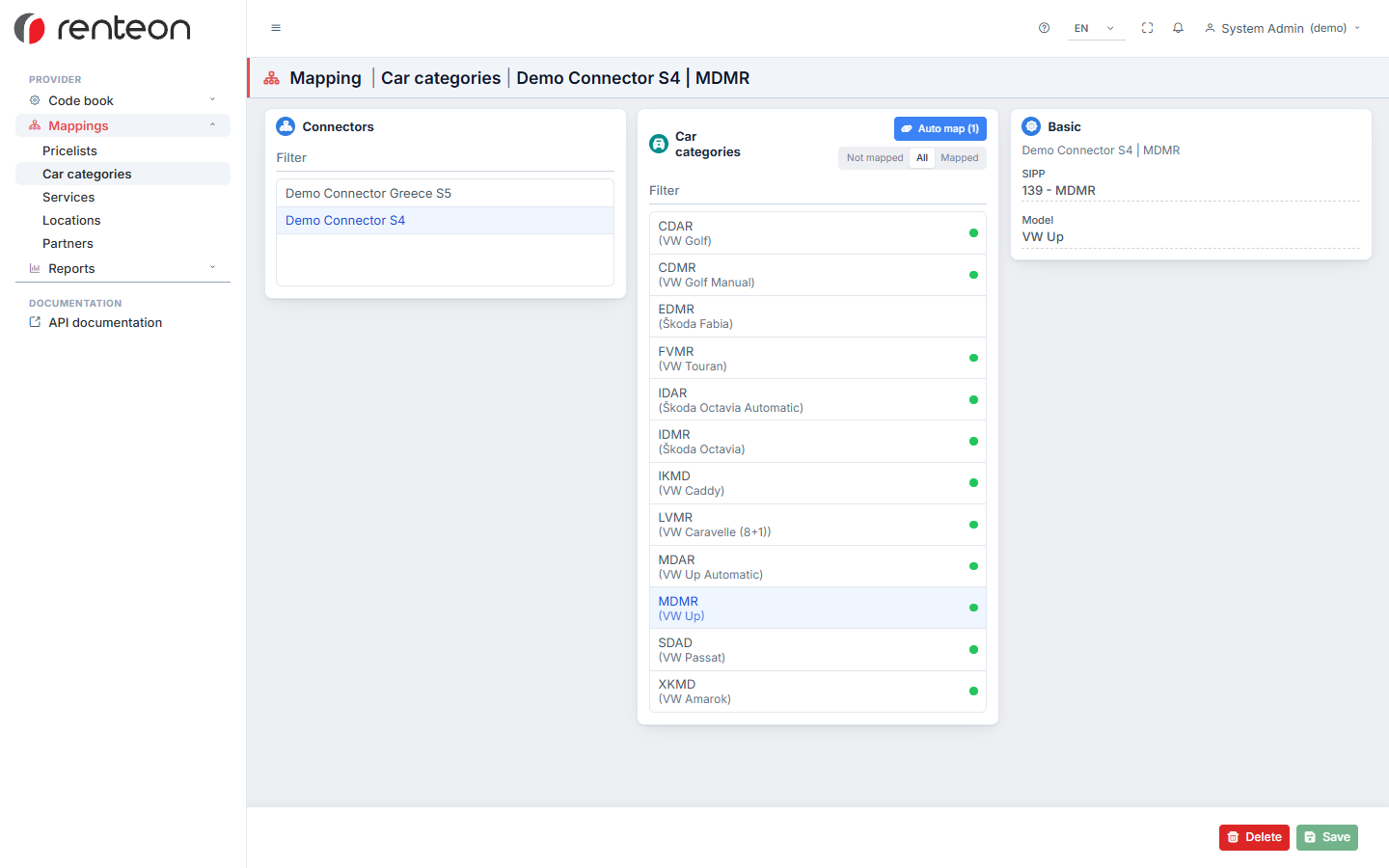
Open Provider → Mappings → Car categories and click a connector. The middle column lists the car categories of that Renteon instance:
- Only active categories are sent. A category that is deactivated in Renteon is not on the list.
- Each row shows the category's SIPP code, with the representative model in brackets under it, for example "MDMR" over "(VW Up)".
- The rows are sorted by SIPP code.
The SIPP code shown is the one set on the category in Renteon, under Fleet → Fleet → Car categories (see Car categories and category groups). If the code there is wrong, correct it in Renteon first, because the Aggregator suggests the code with the same letters (see the next two sections).
Renteon keeps this list for up to 10 minutes. A category that a franchisee has just added in Renteon can therefore take up to 10 minutes to appear. After that, click the connector once more.
Mapping a car category
Click a car category in the middle column. The form Basic opens on the right with two fields:
- SIPP: the Aggregator code you map the category to. You can type into the list to search it. If the Aggregator has exactly the same code as the Renteon category, it is already selected, so in most cases you only check it. The field is required.
- Model: filled in with the model name from Renteon. It is for your own reference only. Brokers always get the model name that Renteon sends with each offer, not this text.
Click Save. The green dot appears on the row.
Two rules apply within one connector:
- A Renteon category can have only one mapping. If you try to map it a second time, the Aggregator refuses with "An active mapping for this car category already exists".
- An Aggregator SIPP code can be used only once. Suppose the Croatian instance has two categories with the code CDMR, one for the VW Golf and one for the Opel Astra. Only one of them can be mapped to CDMR. The other needs a different code, or stays unmapped. The Aggregator refuses a second CDMR with a message that starts with "CarCategory: CDMR is already mapped to ConnectorCarCategory:".
Across connectors the same code is not only allowed, it is the point. CDMR in the Croatian instance and CDMR in the Greek instance both reach brokers as CDMR of your brand.
Once a mapping is saved, SIPP and Model are locked. To change a mapping, click Delete, confirm, then choose the new code on the same row and click Save.
Auto map
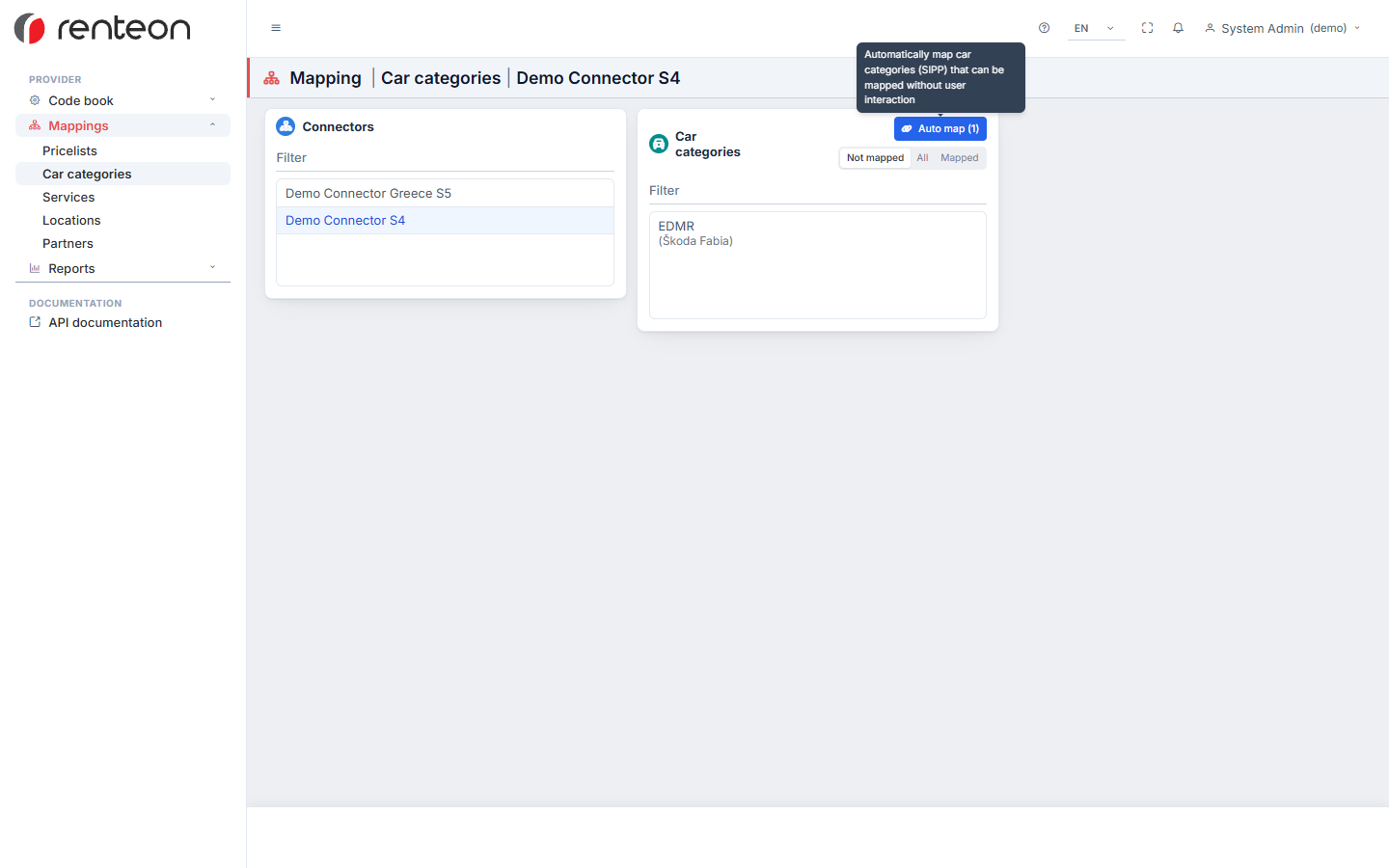
When many Renteon categories already carry the right SIPP codes, you do not have to map them one by one. Above the list of car categories, next to the Not mapped / All / Mapped switch, the button Auto map (N) appears. N is the number of unmapped Renteon categories whose SIPP code is exactly the same as an Aggregator code. The button is shown only while N is more than 0. Its tooltip says "Automatically map car categories (SIPP) that can be mapped without user interaction".
- Click Auto map (N). The Aggregator maps all N categories in one step, each to the code with the same letters, and loads the list again.
- Switch to Not mapped to see what is left. These are categories whose code does not exist in the Aggregator as it is, for example a code with an extra suffix letter such as CDMRP. Map them by hand to the closest standard code, or leave them unmapped if they must not be sold to brokers.
Warning: Auto map does not check that each Aggregator code is used only once per connector. If the Renteon instance has two unmapped categories with the same SIPP code, both are mapped to that code. After Auto map, switch to Mapped and look for codes that appear twice; delete one of the two mappings.
What brokers see for car categories
For car categories, brokers see only what you have mapped:
- A broker's search returns only categories that are mapped on the connector that answers. If a Renteon category has no mapping, its offers are left out of the answer. There is no error message, the cars are simply missing. "The broker cannot see our vans" usually means that the vans' category is not mapped on that connector.
- Each offer carries the Aggregator SIPP code you mapped, with the model name Renteon sends.
- When a broker asks for particular SIPP codes, for example only CDMR and CDAR, the Aggregator does not ask connectors that have none of these codes mapped.
- The brand description that a broker downloads lists the SIPP codes that your brand has mapped on its active connectors. Brokers can also download the full list of codes, the same for every brand.
Locations: what Renteon sends
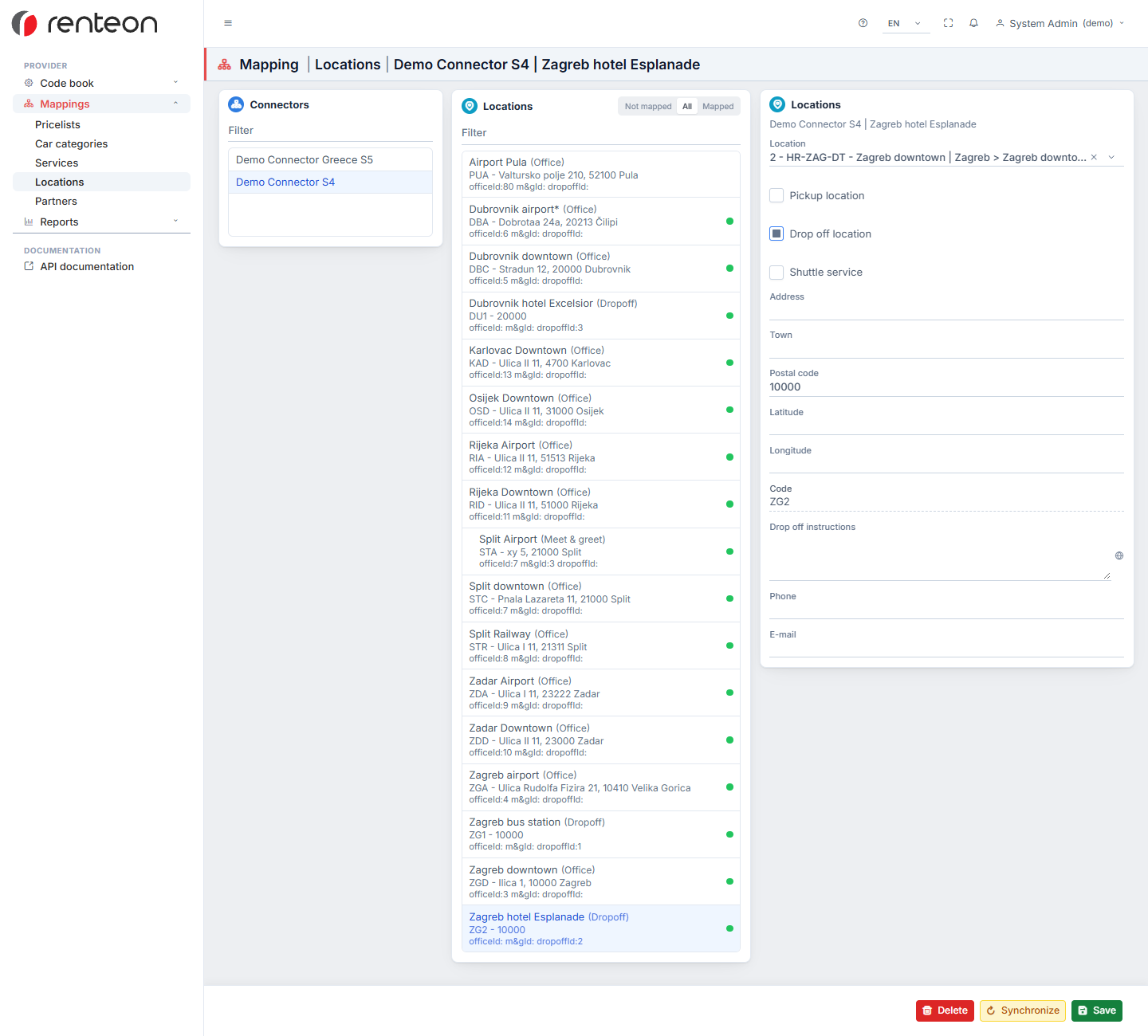
Open Provider → Mappings → Locations and click a connector. The middle column lists the places of that Renteon instance:
- Offices that are active and have Pickup location - Web ticked. In Renteon this box is on the office form under Administration → Locations → Offices. An office without it is not sent at all: it is invisible to the Aggregator and cannot be mapped.
- The meet and greet locations of those offices, under the same two conditions (active, Pickup location - Web ticked). In Renteon they are on the office's Meet and greet locations tab. In the list they are indented. Like every row they are sorted by their own name, so they are not always next to their office.
- All active drop-off locations, from Administration → Locations → Drop off locations in Renteon.
Each row shows the name followed by its kind, (Office), (Meet & greet) or (Dropoff), and under it the Renteon code and the address, as "Code - Address, Postal code Town", and a third small line with the Renteon ids (officeId, m&gId, dropoffId). The rows are sorted by name.
There is no Auto map on this screen. Renteon office names and codes do not match the Aggregator's location codes, so you map every place yourself.
Mapping a location
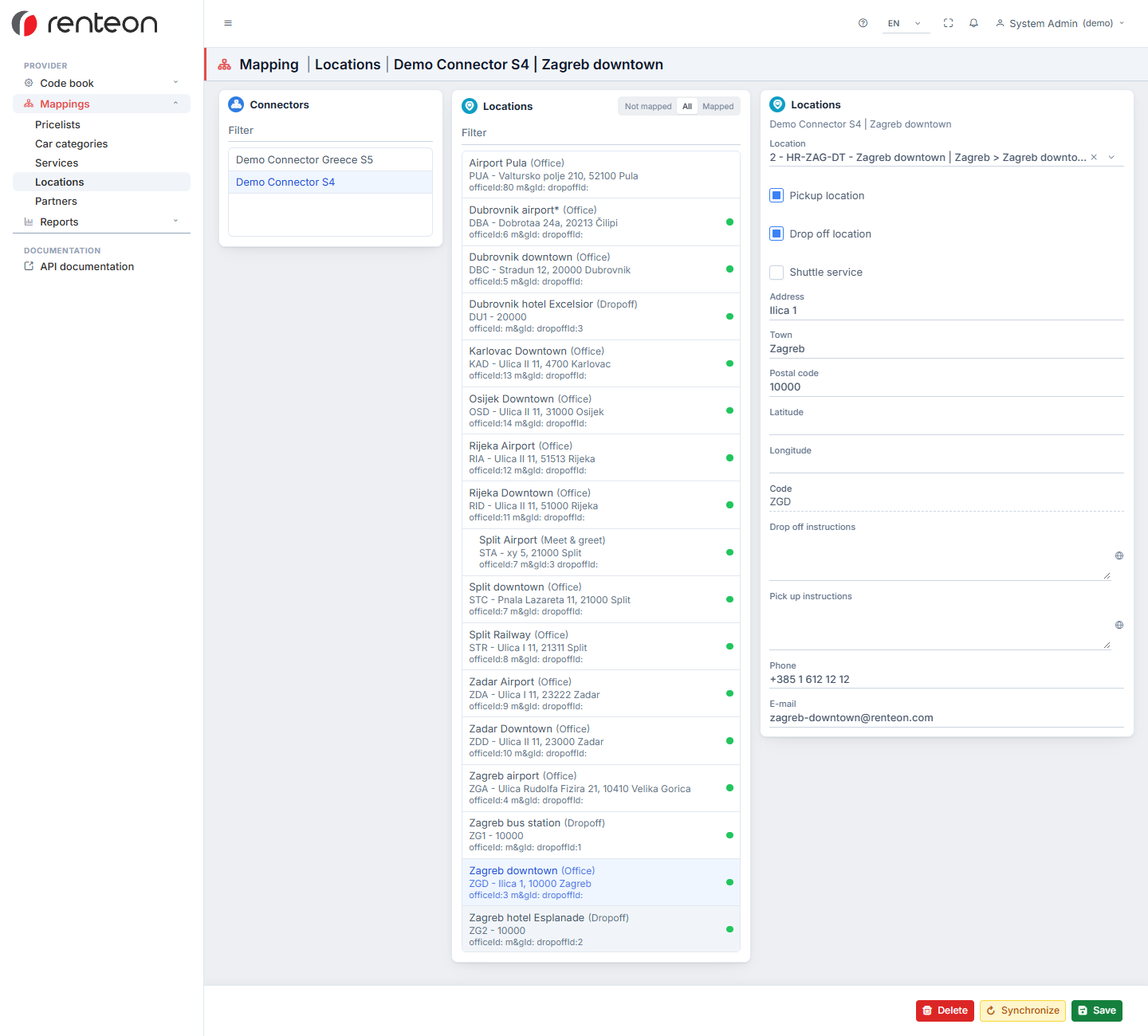
Click a row in the middle column. The form on the right is filled in from Renteon as far as possible. The fields, in order:
- Location: the Aggregator place you map the row to, shown as "Code - Name | Path", for example "HR-ZAG-DT - Zagreb downtown | Zagreb > Zagreb downtown". Type into the list to search it. Only places are offered, never a city or an island. The field is required, and Save stays unavailable until you choose one.
- Pickup location: brokers can offer pick-up here.
- Drop off location: brokers can offer return here.
- Shuttle service: tick it when customers reach the office by shuttle, for example an office outside the airport. It is filled in from Renteon.
- Address, Town, Postal code, Latitude and Longitude: filled in from Renteon, and you can correct them. Brokers show them to their customers.
- Code: the place's code in Renteon (of the office, meet and greet location or drop-off location). It is always read-only.
- Drop off instructions and Pick up instructions: texts for the customer, for example where the shuttle stops. Each field is shown only while its box above is ticked. The field shows the language you work in; click into it to open one box per language. With offers and bookings, brokers get the text in their language, or in English when the mapping has none in that language, so fill in at least English. The brand description that brokers download gives only their own language.
- Phone and E-mail of the place, filled in from Renteon.
For an office or a meet and greet location, Pickup location and Drop off location are both ticked at first. Untick Drop off location when cars must not be returned there, or Pickup location for a place where cars can only be returned. For a drop-off location only Drop off location is ticked, and both boxes are locked, because a drop-off location is a return place only.
Click Save. The green dot appears on the row.
Several Renteon places of one connector may share one Aggregator location. Two downtown offices in Zagreb can both be HR-ZAG-DT, and an airport office and its meet and greet point can both be HR-ZAG-ZAG. Each Renteon place, however, can have only one mapping. A second one is refused with "An active mapping for this location already exists".
Unlike a car category mapping, a saved location mapping stays editable. You can choose another Location, change the boxes or correct the address and click Save again. Prefer this to deleting and mapping again, because it keeps the number by which brokers know the office (see the section on broker searches).
The stored copy and Synchronize
When you save a location mapping, the Aggregator keeps its own copy of the address, town, postal code, coordinates, office code, shuttle flag, phone, e-mail and both instructions. Brokers get this stored copy, not what is in Renteon right now. The only exception is the office's working times, which the Aggregator always reads live from Renteon.
So if a franchisee moves an office or changes its phone number in Renteon, brokers keep showing the old data until the mapping is updated:
- Open Provider → Mappings → Locations, click the connector, then click the row.
- Click Synchronize. The Aggregator copies the current Renteon values over the stored ones and saves at once.
Synchronize overwrites everything you corrected by hand in these fields. If you had improved an address for brokers, check it again afterwards.
Warning: Synchronize reads the instructions from Renteon in the language you are working in and copies them into every language of the mapping. A Greek or German text is replaced by the text in your language. After Synchronize, click into the instruction fields and check the other languages.
How brokers search by location
A broker sends a pick-up location code and a return location code. The Aggregator then decides which connectors to ask:
- A city code finds every mapped place in that city, on all of your brand's connectors: the airport, the downtown offices, the stations. An airport code finds only the airport.
- For pick-up, a place counts only if Pickup location is ticked. For return, only if Drop off location is ticked.
- Pick-up and return must both be mapped on the same connector, because each offer comes from one Renteon instance. A one-way rental from one franchisee's office to another franchisee's office is never offered. A search from Zagreb (the Croatian instance) to Athens (the Greek instance) returns nothing.
- The broker must also be enabled on the connector and have a rate code mapped there, otherwise the connector is skipped. See Partners: enabling brokers and websites on a connector and Rate codes and pricelist mapping.
The Aggregator does not ask Renteon about every office in a city. Per connector it asks about at most three offices when pick-up and return are the same places, or at most two pick-up offices combined with two return offices when they differ. Airports come first, then ordinary offices, then meet and greet points and drop-off locations. A broker that needs one particular office can ask for it by its office number.
That office number, which brokers call OfficeId, is the Aggregator's number of the mapping, not the office's number in Renteon. Brokers get it in the answers to their searches and in the Export codes workbook (see below), and many store it.
Warning: If you delete a location mapping and map the place again, or the automatic clean-up switches the mapping off and you map it again, the place gets a new OfficeId. A broker that still uses the old number can no longer book that office: its requests fail. After every such change, send your brokers a new Export codes workbook.
Dashboard counts and automatic clean-up
The Dashboard, the Aggregator's start page, shows for every active connector how much is mapped. Locations shows mapped places out of all offices, meet and greet locations and drop-off locations that Renteon sends. Car categories shows mapped categories out of the active categories in Renteon. A badge is red when nothing is mapped, amber when part is mapped and green when everything is. Amber is normal: not every office or category of a franchisee has to be sold through brokers. A click on a badge opens the mapping screen for that connector with Not mapped selected. The counts are not updated when you map something. They change when you click the Refresh icon in the connector's row, and every day at 06:10 server time. How to use the Dashboard during setup is described in Setting up a brand in the Aggregator: checklist.
The same recount also cleans up. It switches off every mapping whose Renteon item no longer comes from Renteon:
- an office or meet and greet location that was deactivated, deleted, or had Pickup location - Web unticked;
- a drop-off location that was deactivated or deleted;
- a car category that was deactivated or deleted.
The mapping does not come back when the item returns. If the franchisee ticks Pickup location - Web again or reactivates the category, the row appears unmapped and you have to map it again, and a location then gets a new OfficeId.
If a Renteon instance cannot be reached during the recount, nothing is removed. An outage of an instance does not cost you any mappings.
Warning: Ask franchisees not to untick Pickup location - Web or deactivate a category in Renteon "for a day". The next recount, at the latest the next morning, switches the mapping off for good, and the place disappears for brokers until it is mapped again.
Export codes for brokers
A broker that connects to your brand needs your codes. Provider → Code book → Export codes downloads them as an Excel workbook named after your brand and the date, for example DemoAggregatorCodes_2026_11_11.xlsx. It has three sheets:
- Locations: one row for every active location mapping of your active connectors. Each row has the columns Country, LocationCode (the Aggregator location code), OfficeId, OfficeCode (the office code in Renteon), Address and Path (the location path, for example "Zagreb > Zagreb airport"), then whether pick-up and return are allowed there, the ConnectorId and the place's own numbers in Renteon.
- Car categories: the SIPP codes your brand has mapped.
- Services: the service codes your brand has mapped, with their English names. See Mapping services and extras.
The workbook holds everything a broker needs to search and book the whole brand, except the rate codes. Those depend on the broker and are agreed separately, see Rate codes and pricelist mapping.
Send the workbook when a broker starts, and again after every change that brokers depend on, such as a new office or an office that was mapped again.
Code books kept by Renteon support
The shared codes themselves are maintained by Renteon support in two screens that only they can open:
- System → Code book → Locations: every city, island and place, with Parent, Category, Type, Country, Code and Title in every language.
- System → Code book → Car categories: every SIPP code, with Car category (the SIPP code itself), Model (a representative model) and Sort order. Brokers get only the code and its sort order; Model and the other boxes on this form are not sent to them.
Renteon maintains the locations as one central list for all Aggregator brands, and each update of that list can overwrite changes made directly on the screen. Brands therefore never change codes themselves; they send their requests to Renteon support, which adds or corrects the code in the central list.
Next step: Mapping services and extras, where you link each connector's extras, fees and insurances to the shared service codes.
Related guides: